

Creating a service account key
Work in the Google Cloud project you are connecting. The roles you grant the service account decide which actions work.
1
Enable the required APIs
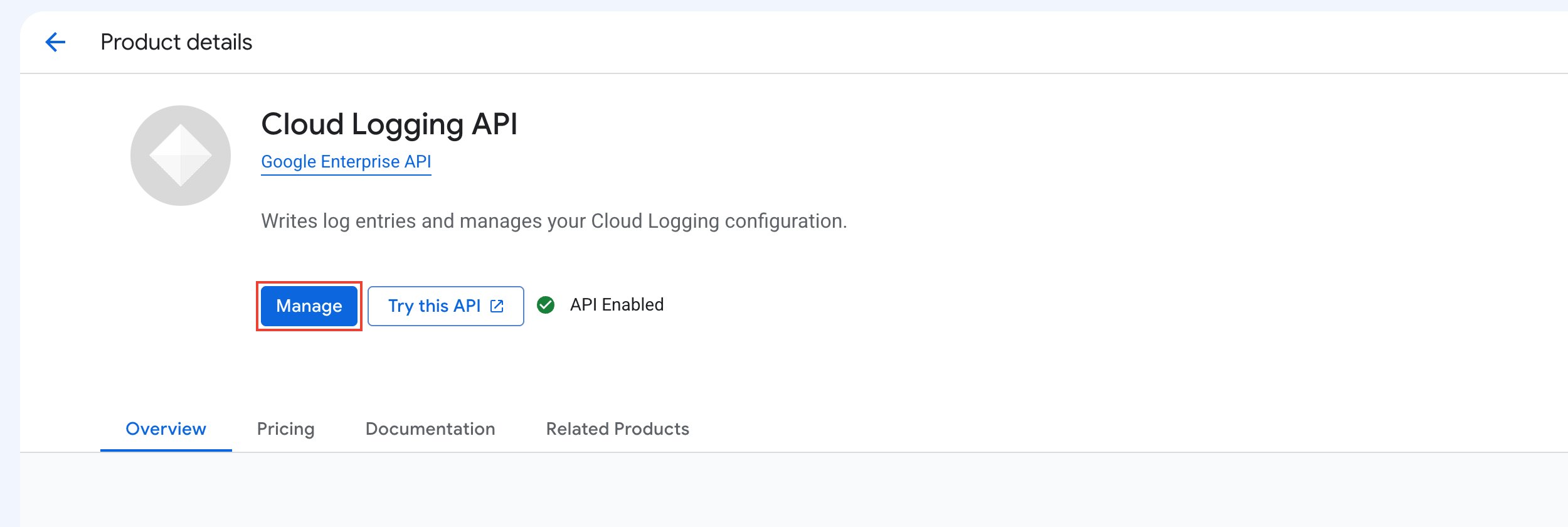
Sign in to the Google Cloud Console and select the project. Turn on the Cloud Storage API.
- Search for it in Search (/) for resources, docs, products, and more and open it.
- Click Enable.
- If the page shows Manage and API Enabled, the API is already on.
2
Create the service account
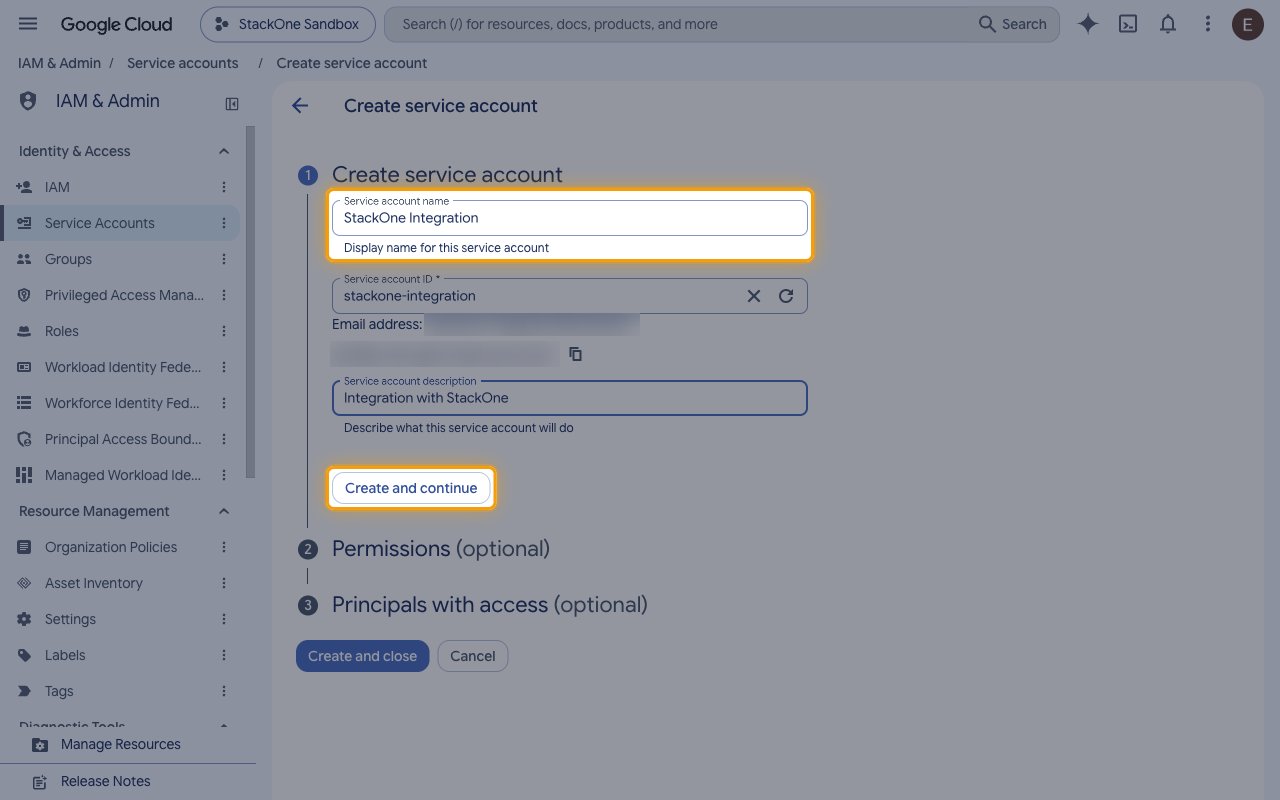
Open IAM & Admin > Service Accounts.
- Click Create service account.
- Service account name:
StackOne Integration - Click Create and continue.
3
Grant the roles
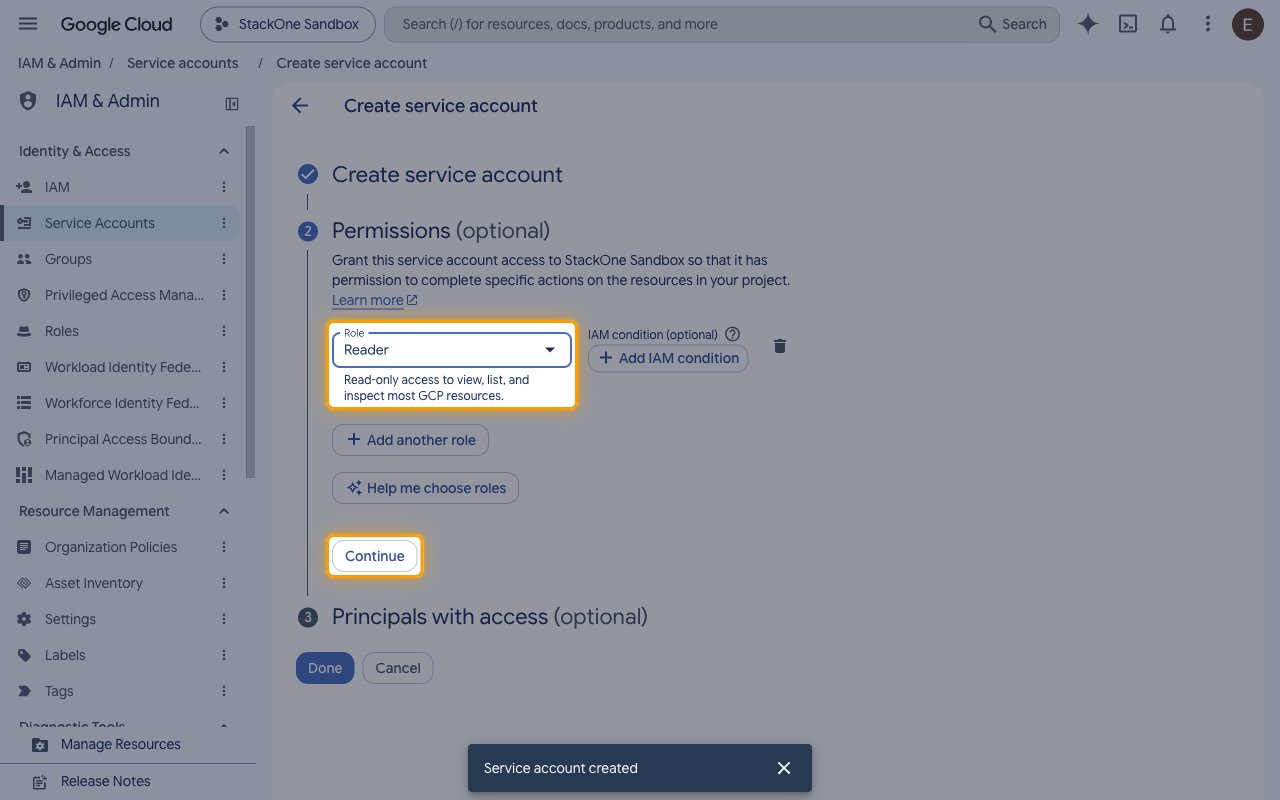
Under Permissions (optional), add a role for each kind of action you plan to use.
- Click Select a role.
- Search for
Storage Bucket Viewer. - Select Storage Bucket Viewer for the bucket listing and bucket metadata every connection needs, because the connection test lists the buckets in the project and then reads the bucket you configured.
- For each kind of resource you read, create, change or delete, click Add another role and add its role.
- Storage Object Viewer: read objects and their metadata
- Storage Object Admin: create, update and delete objects
- Storage Admin: buckets, bucket ACLs, IAM policies and Pub/Sub notifications as well
- Storage Editor: HMAC keys, which Storage Admin does not cover
- Click Continue.
- Click Done.
- New roles can take a few minutes to become active.
4
Create the JSON key
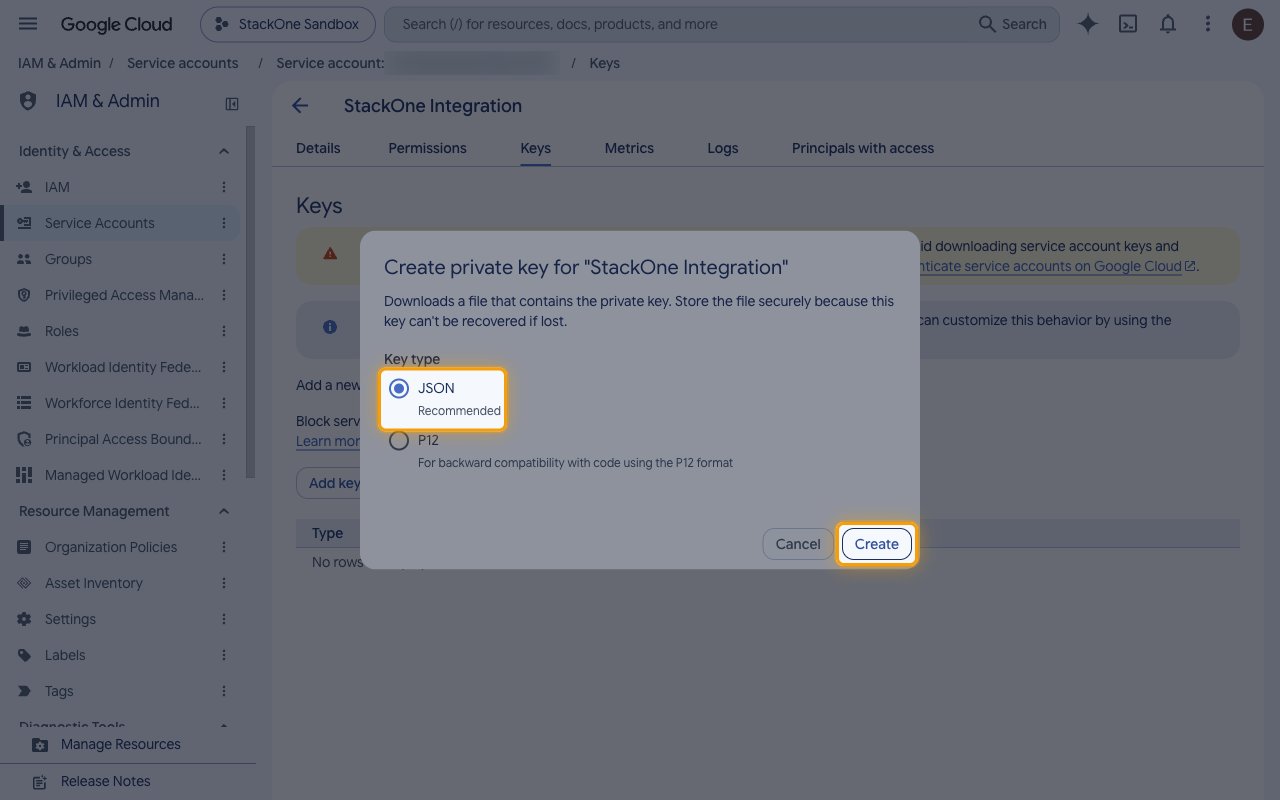
In Service Accounts, click the email of the new service account and open the Keys tab.
- Click Add key.
- Select Create new key.
- Key type: JSON
- Click Create. The key file downloads once, and Google can’t recover it if it is lost.
- If your organization blocks key creation with an organization policy, ask an organization policy administrator to allow it for this project.
Entering the key
Open the downloaded .json key file in a text editor. The whole file, including the outer braces, is the key.
- Copy the Service Account Key (JSON) across.
- Copy the
project_idvalue across to GCP Project ID, or use the ID of another project the service account has roles on. - Copy the Bucket ID across, without a
gs://prefix.
Link the Account
1
Connect
- Click Connect.
- If applicable, the provider will redirect you to a sign-in or authorization page. Complete the provider’s authorization flow.
- Once authorization is successful, you will see a confirmation popup.
2
Use Actions
Connect an AI platform to the linked account’s actions. See AI Platforms.Other ways to call actions are listed in Protocols & SDKs.