

Find your GCP Project ID
Actions run against this Google Cloud project unless a call passes a different project. Enter its Project ID, not the project name or number.
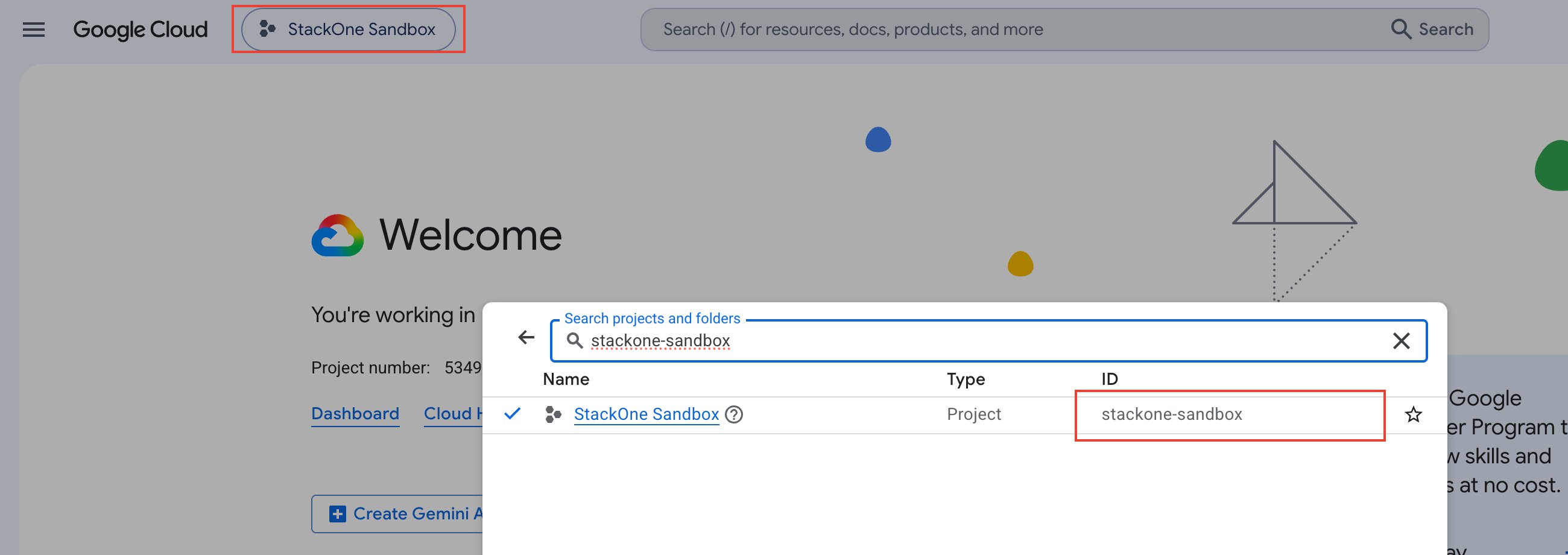
Open the project picker
Sign in to the Google Cloud Console and click the project picker in the top navigation bar.
Copy the Project ID
In the project list, copy the value in the ID column for your project (e.g., my-gcp-project-123).
- Alternative — on the Console Dashboard, the Project info card also shows the Project ID.
Find your Bucket ID
Bucket actions use this bucket unless a call passes a different bucket. For buckets, the ID and the name are the same.
Open the Buckets page
In the Google Cloud Console, with the same project selected, go to Cloud Storage > Buckets.
Copy the bucket name
Copy the value in the Name column for the bucket you want to connect (e.g., my-gcs-bucket). Enter the name only, without a gs:// prefix.
Link the Account
Connect
- Click Connect.
- If applicable, the provider will redirect you to a sign-in or authorization page. Complete the provider’s authorization flow.
- Once authorization is successful, you will see a confirmation popup.
Use Actions