

Prerequisites
The connector should already be set up, with a Connector Profile and a Linked Account. See Getting Started on the Google Cloud Observability connector page.How Google Cloud Observability webhooks work
StackOne creates and manages the webhook automatically when the account is connected — it creates a webhook notification channel named StackOne in the connected Google Cloud project, and deletes it when events are disabled or the account is disconnected. Cloud Monitoring sends an incident to the channel only for alerting policies that list it, so you choose which policies StackOne receives.
Grant the channel permissions
Creating and deleting the channel uses the connected account’s OAuth token, so the account needs the Cloud Monitoring write scope and permission to manage notification channels in the project.
- Scope —
https://www.googleapis.com/auth/monitoring(included in the default scopes) orhttps://www.googleapis.com/auth/cloud-platform. - IAM role — Monitoring Editor (
roles/monitoring.editor) or Monitoring NotificationChannel Editor (roles/monitoring.notificationChannelEditor) on the project.
Open the notification channels
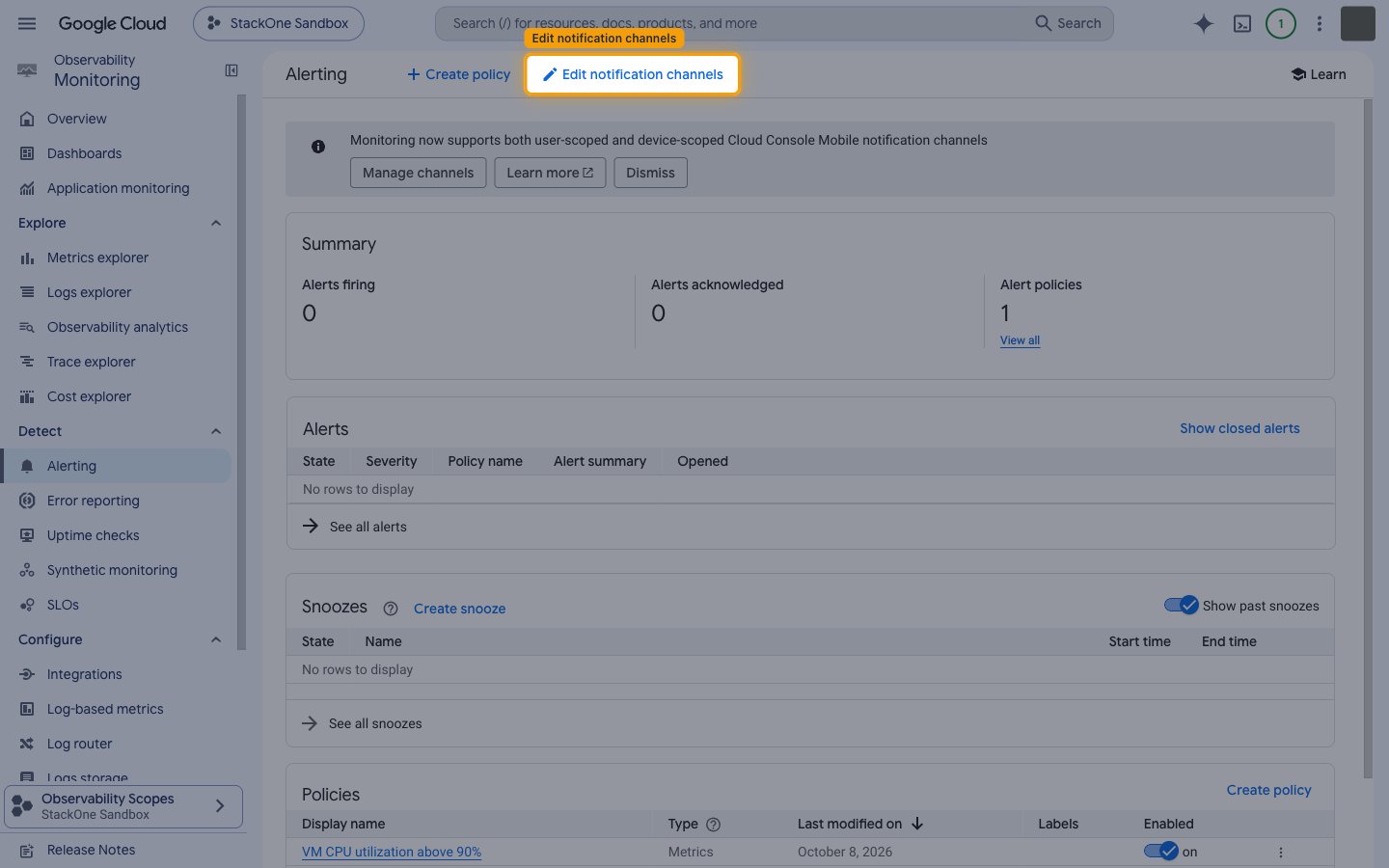
In the Google Cloud console, select the connected project, open the Alerting page, and click Edit notification channels.
Check the StackOne channel
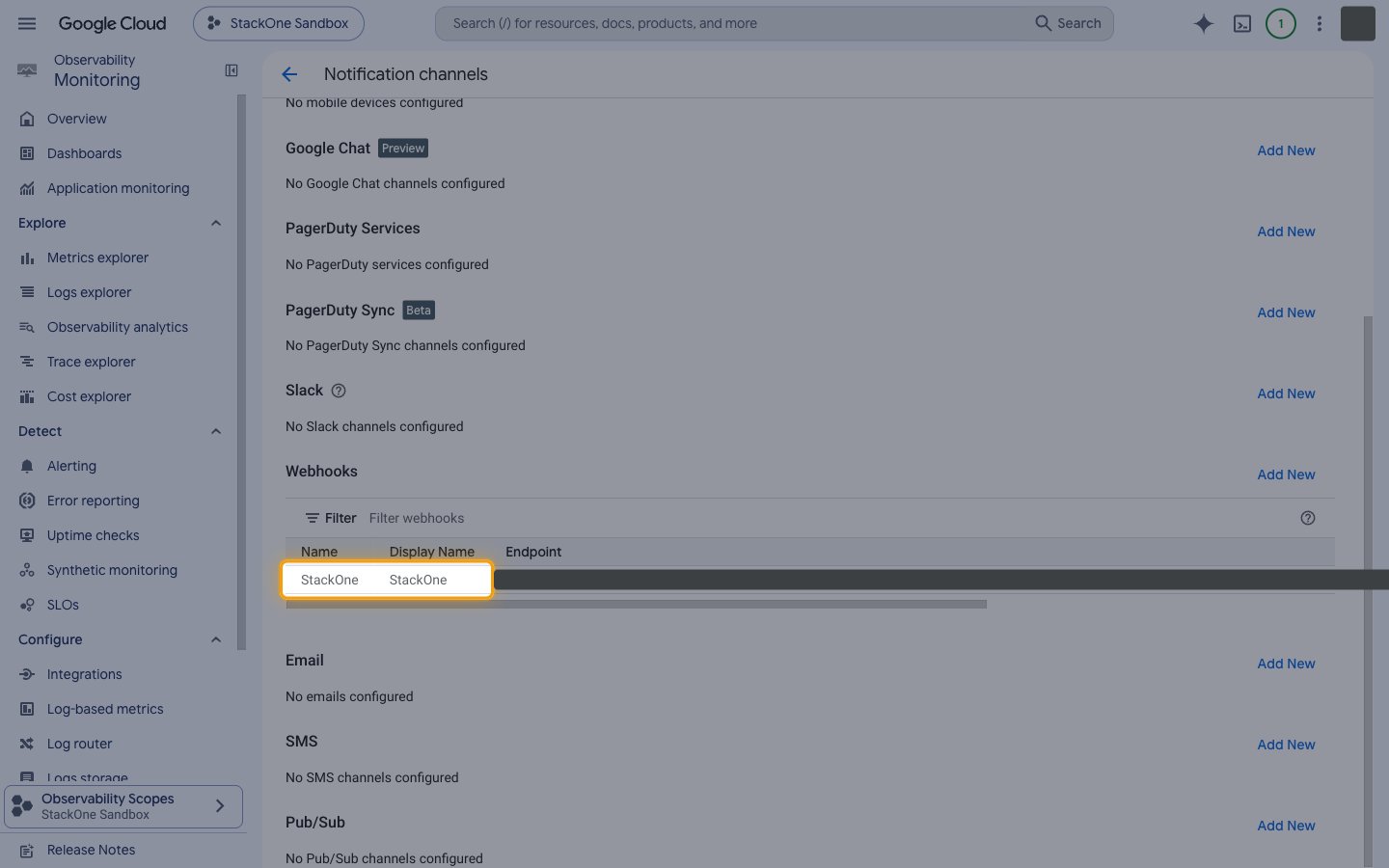
After you enable events, the StackOne channel appears in the Webhooks section. Leave it unchanged — StackOne manages it, and deleting it stops all deliveries.
Add the StackOne channel to your alerting policies
Repeat these steps for each alerting policy whose incidents StackOne should receive. A new policy created with create_alert_policy can instead list the channel’s resource name (shown by list_notification_channels) in notificationChannels.
Open the policy list
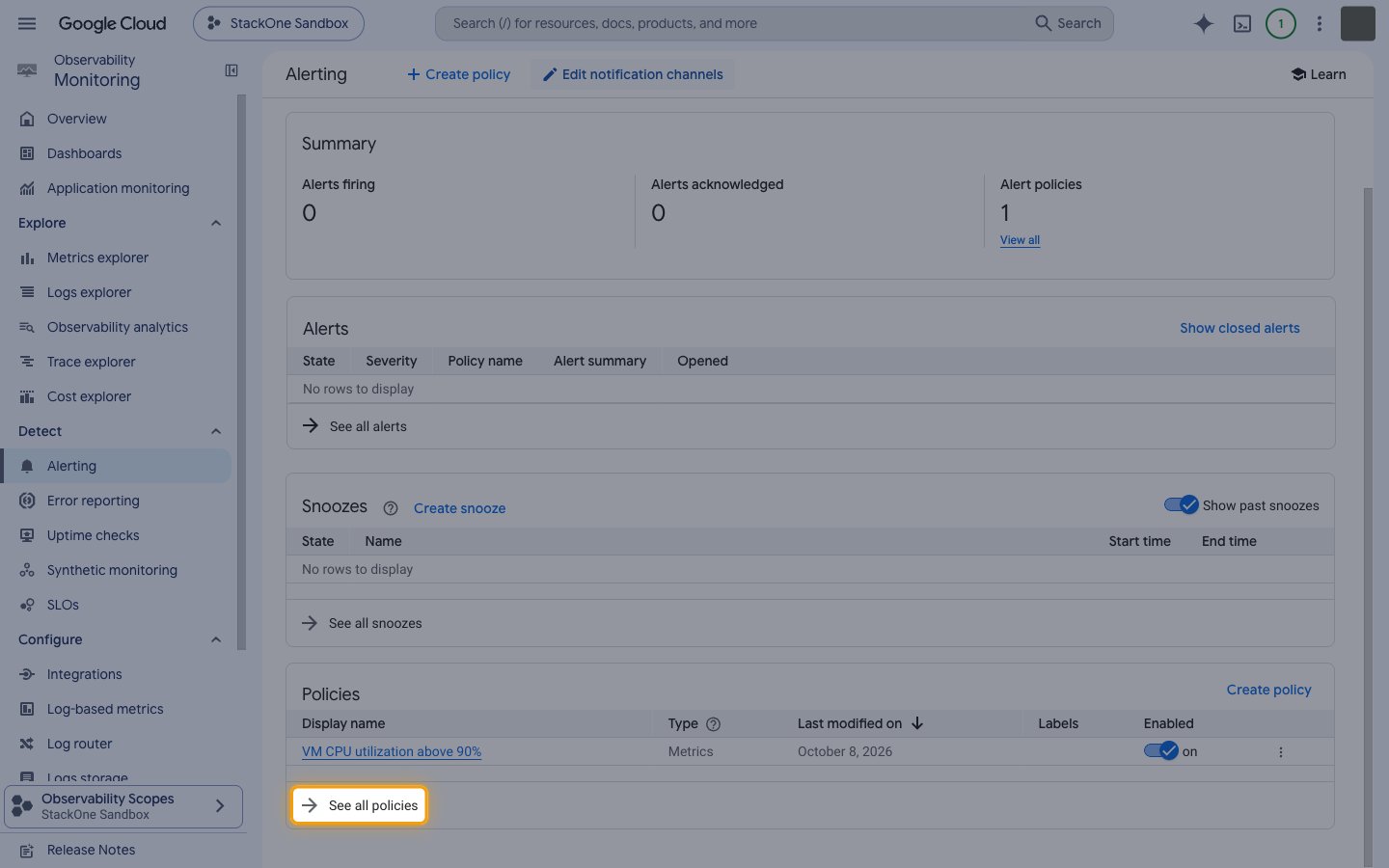
On the Alerting page, click See all policies in the Policies pane.
Open the policy actions
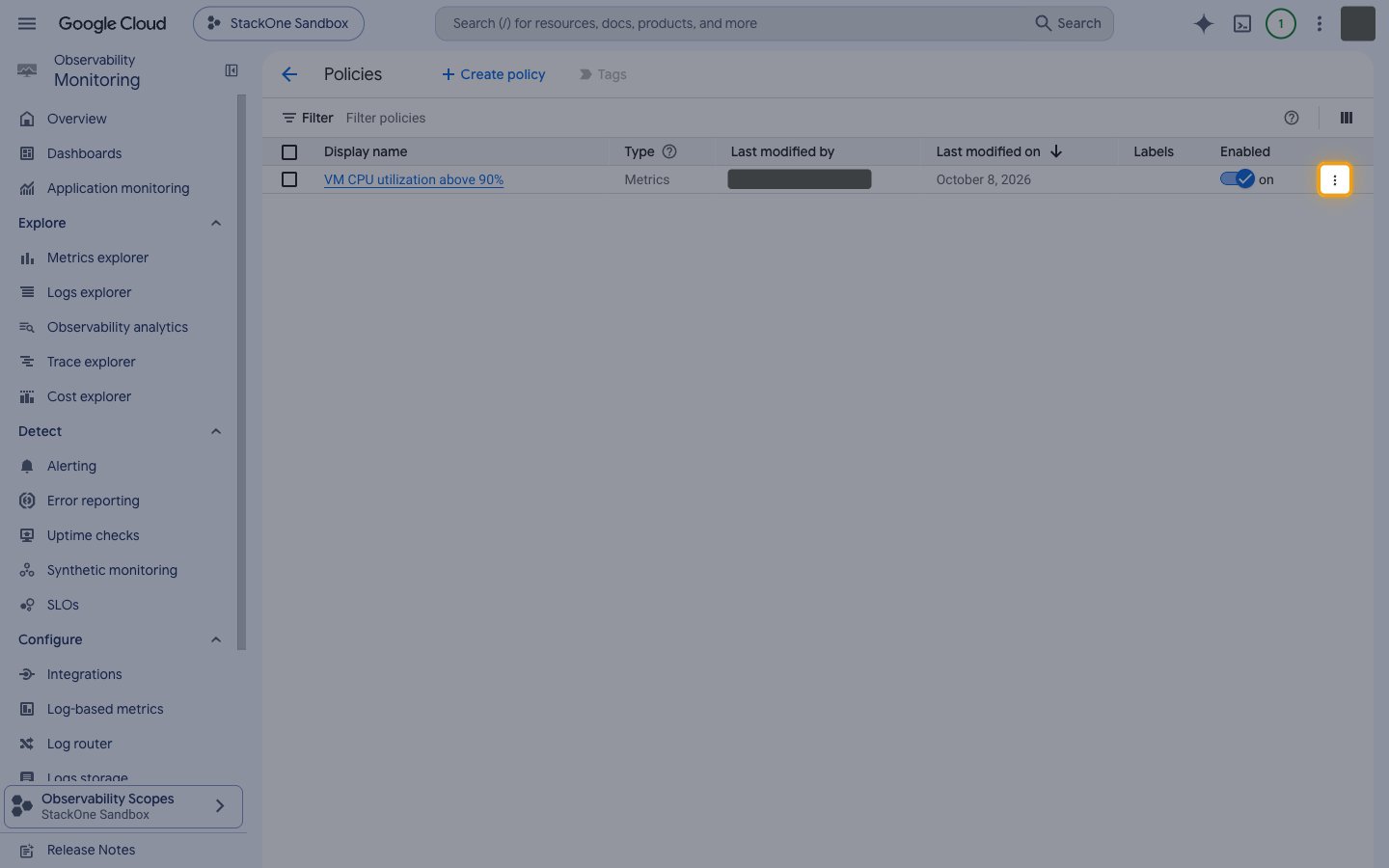
On the Policies page, click View actions (the three-dot menu) at the end of the policy’s row.
Edit the policy
Select Edit from the menu.
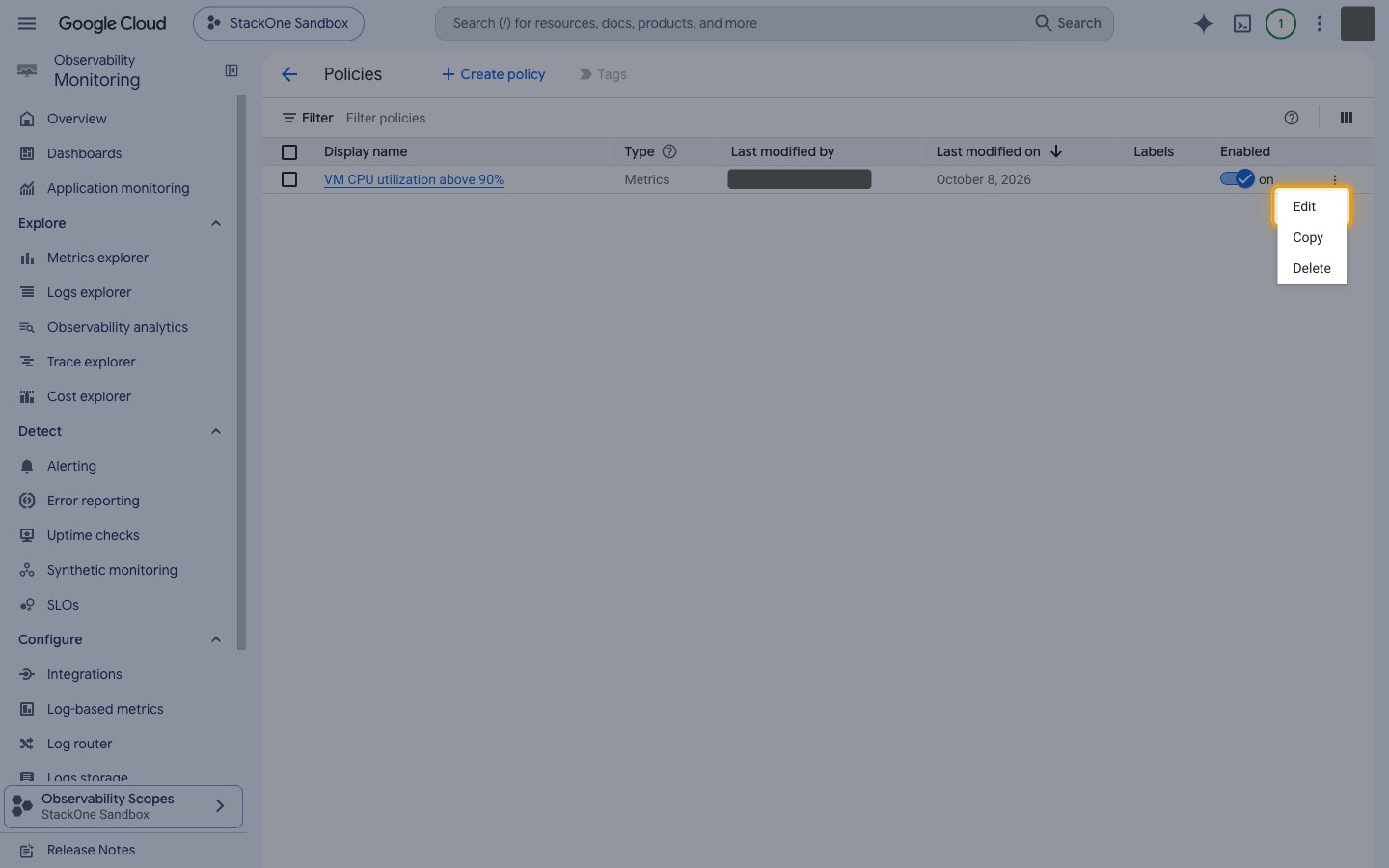
Open Notifications and name
In the Edit alerting policy page, click Notifications and name under ALERT DETAILS.
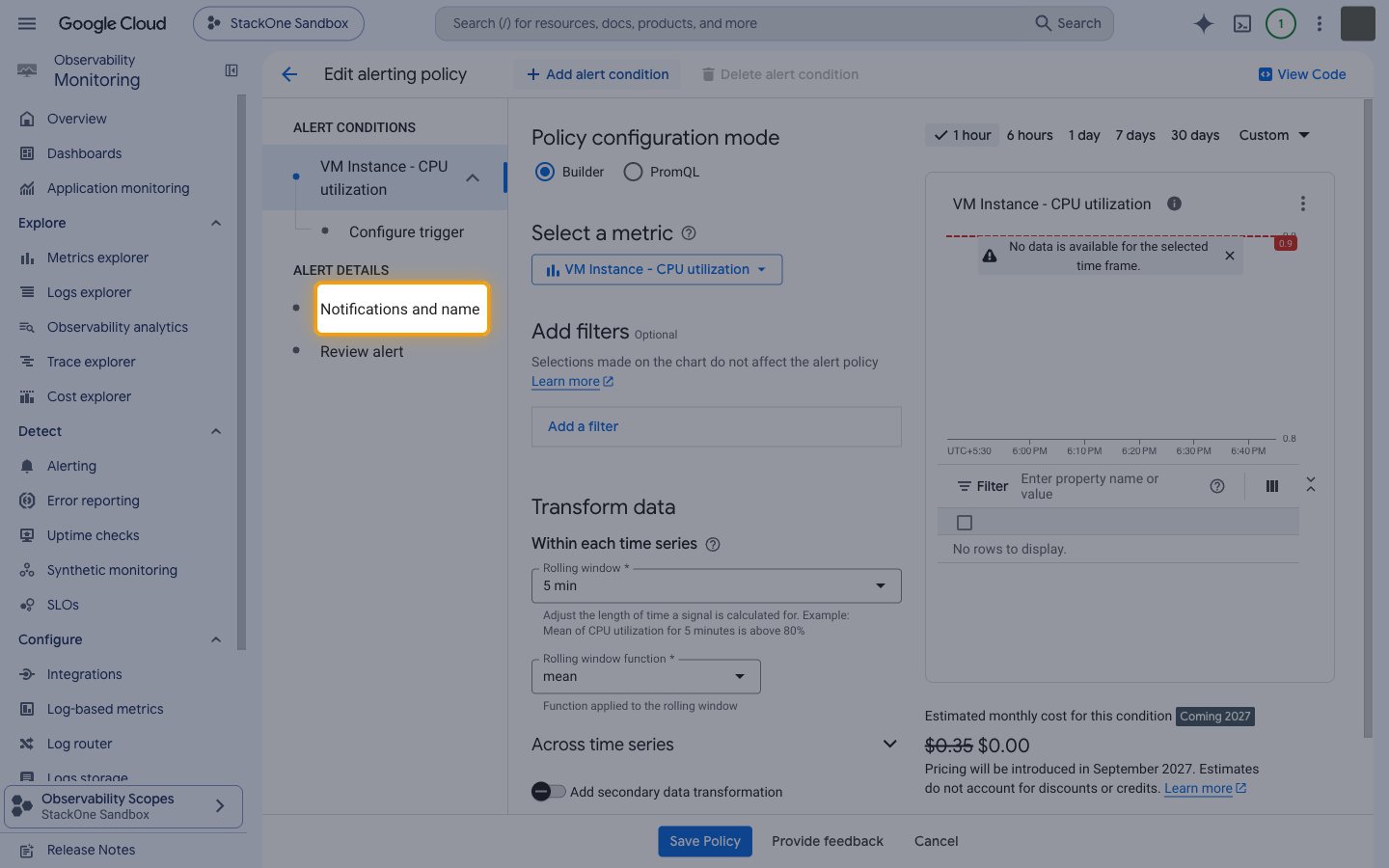
Turn on notification channels
Under Configure notifications and finalize alert, turn on Use notification channel.
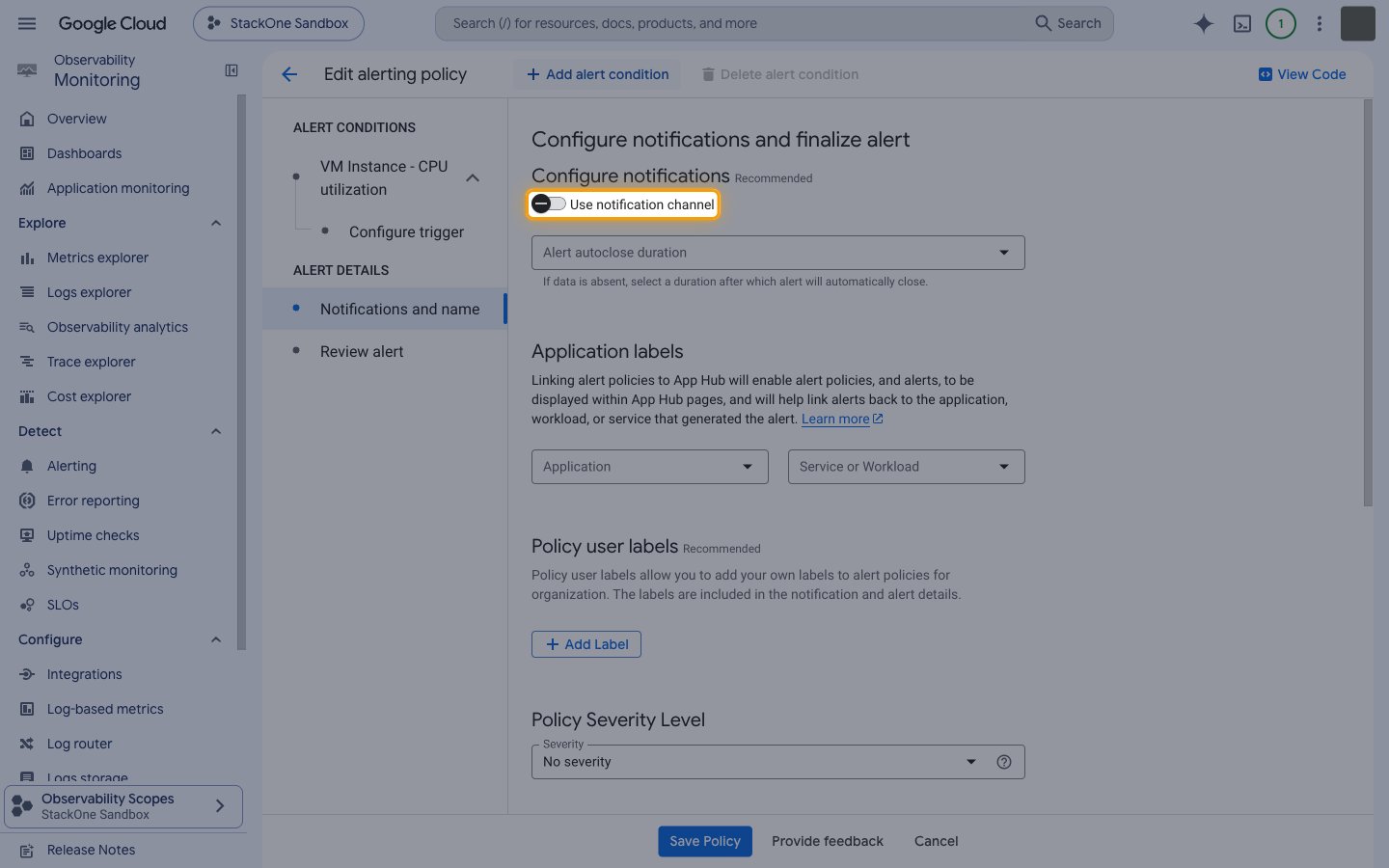
Select the StackOne channel
Open Notification Channels, select StackOne under Webhook with Token Authentication, and click OK.
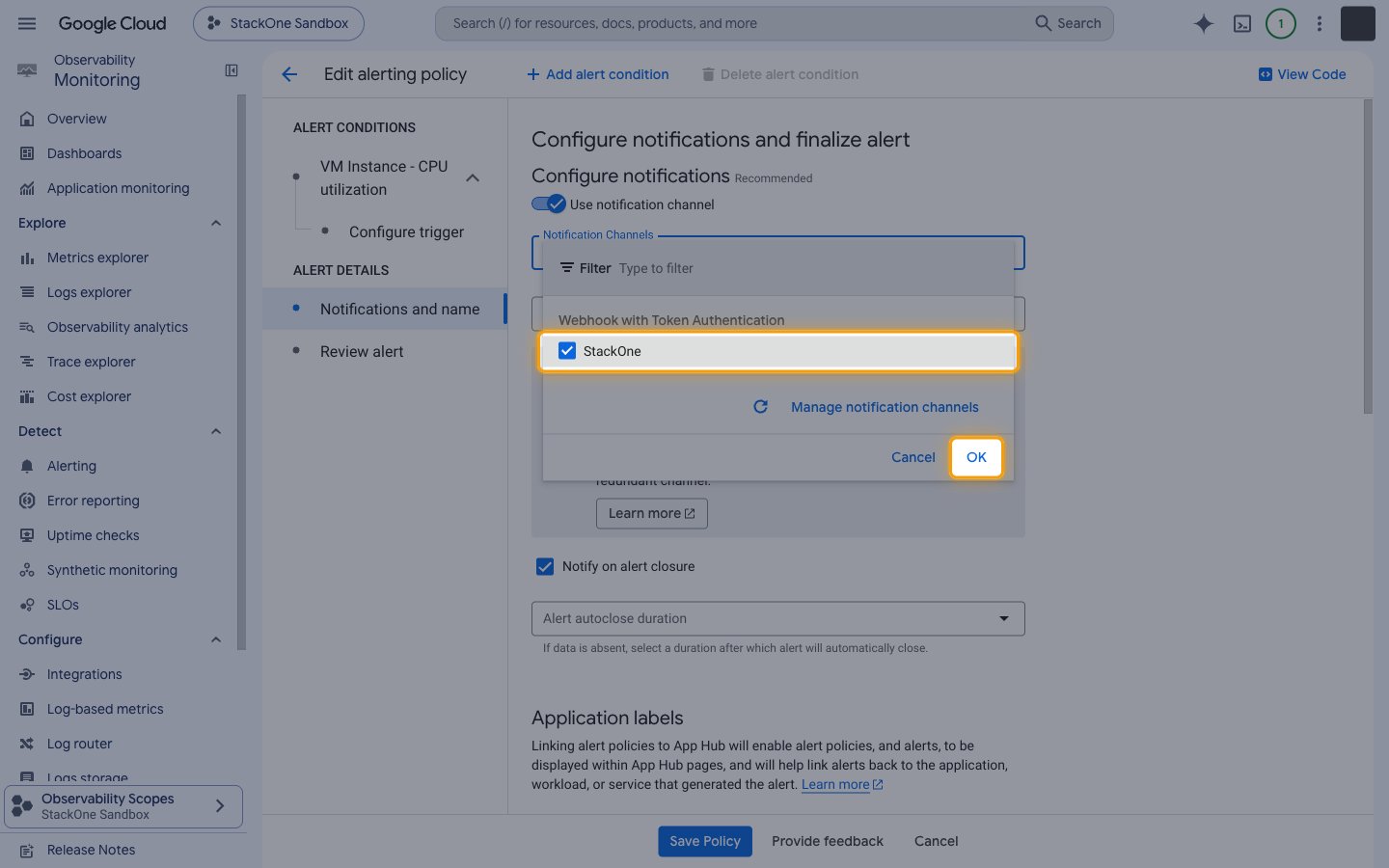
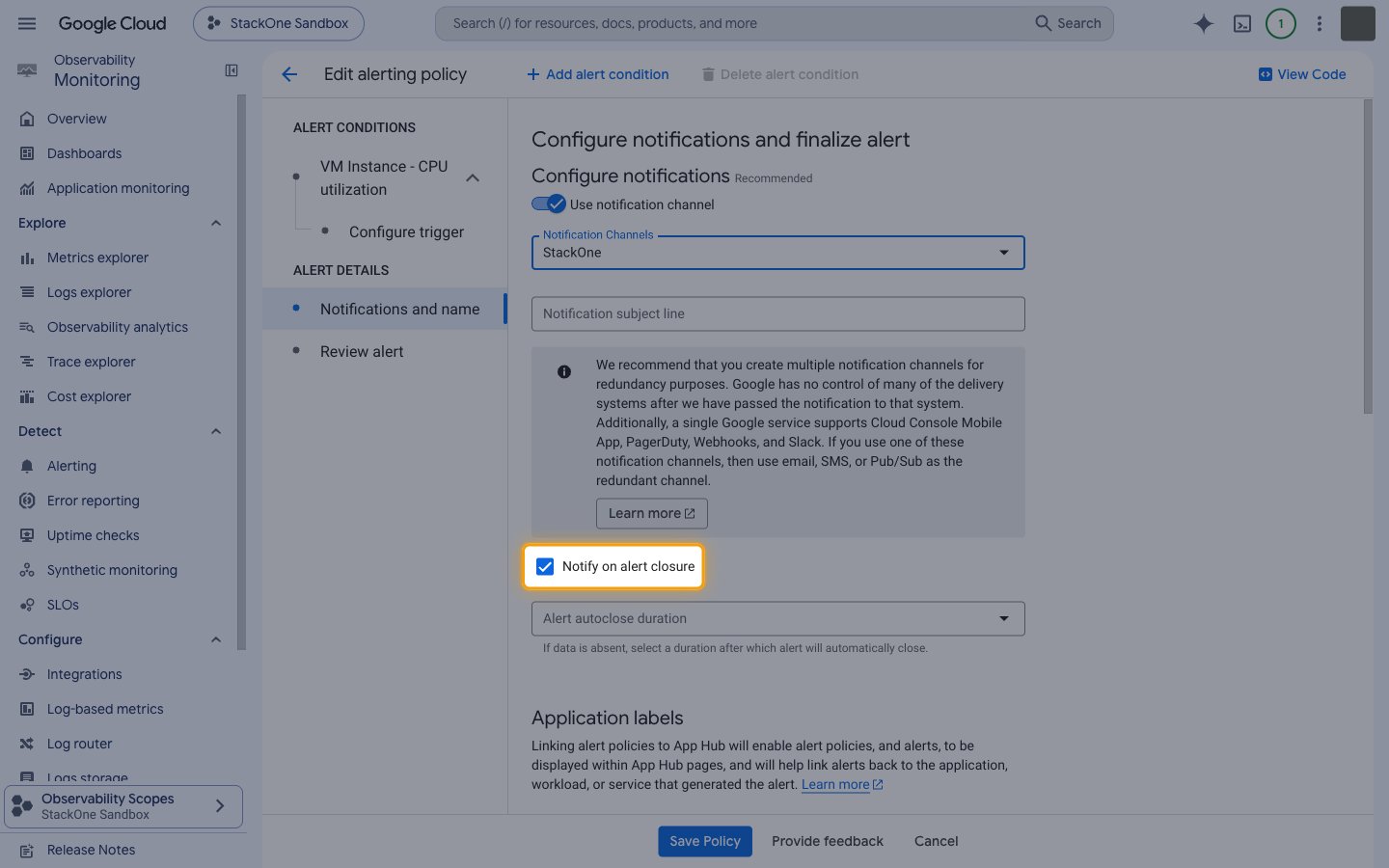
Notify on alert closure
Keep Notify on alert closure selected so StackOne also receives Incident Closed events.
Save the policy
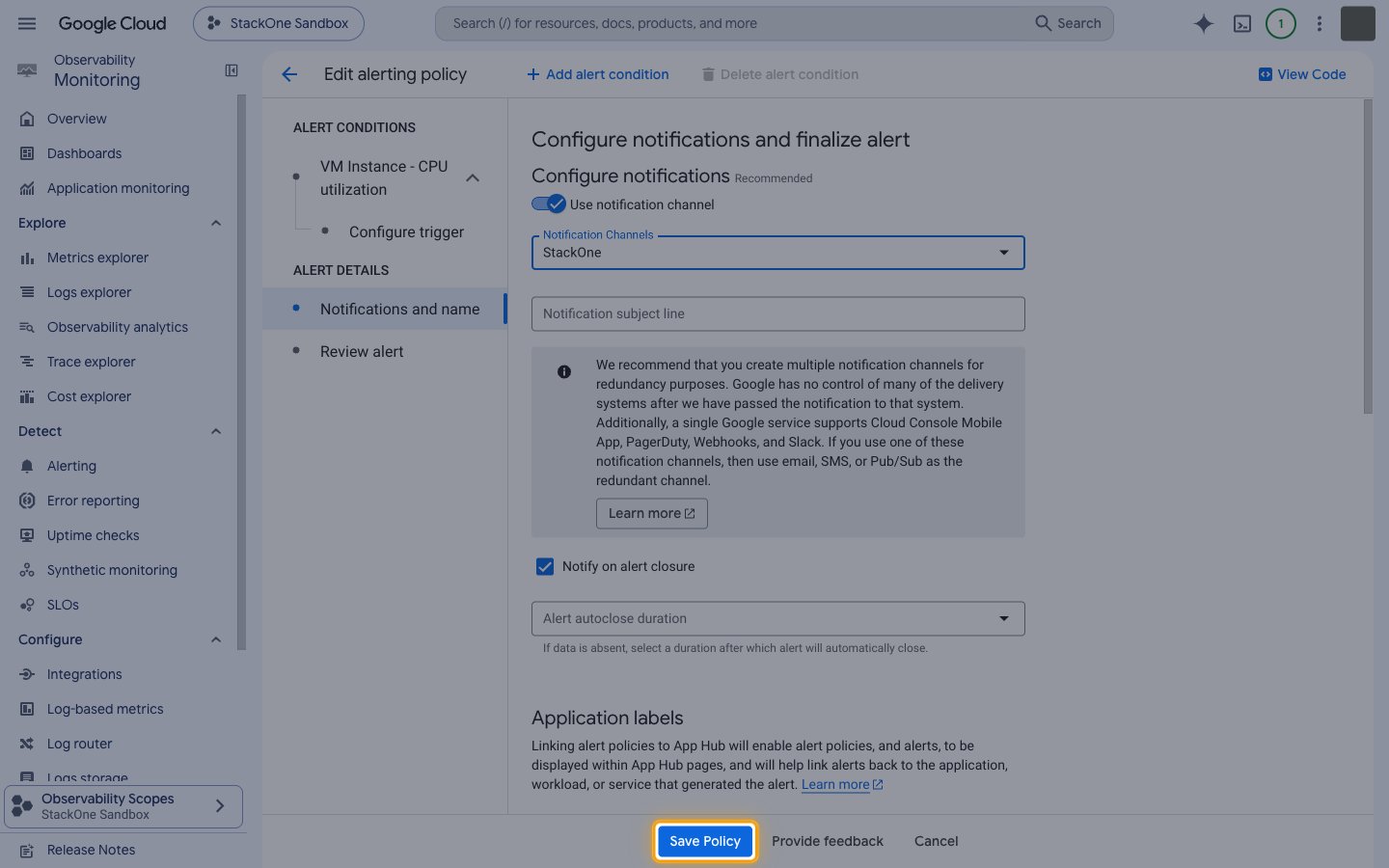
Click Save Policy.
Turn on reminders (optional)
Incident Renotify events are sent only when a policy sets a renotify interval for the StackOne channel — alertStrategy.notificationChannelStrategy with the channel’s resource name and a renotifyInterval between 30 minutes and 24 hours. Set it on the policy with the Cloud Monitoring API, the gcloud CLI, or Terraform.
Available webhook events
The following Google Cloud Observability events can be enabled. Only events selected in StackOne are delivered, and only for alerting policies that list the StackOne notification channel.
Incident events
Events fired when an alerting policy opens or closes an incident, plus the reminders Cloud Monitoring re-sends while an incident stays open. The incident id is the event ID for all of them.
- Incident Opened (
incident.opened) — Fired when an alerting policy’s condition is met and an incident opens (stateisopen). Log-based policies send only this event. - Incident Closed (
incident.closed) — Fired when the incident closes because the condition is no longer met, the autoclose duration elapsed, or a user closed it (stateisclosed). Requires Notify on alert closure on the policy. - Incident Renotify (
incident.renotify) — Fired when Cloud Monitoring re-sends a reminder for an incident that is still open (renotifyistrue). Requires a renotify interval on the policy.
Other notifications
A catch-all so no delivery is lost.
- Other Notification (
notification.other) — Fired for an incident notification whose state is neither open nor closed.
Delivery format
Details of how Cloud Monitoring delivers events to StackOne.
JSON payloads
Each delivery is an HTTP POST with one incident in Cloud Monitoring’s webhook schema version 1.2 ({"version": "1.2", "incident": {...}}). incident.incident_id is the event ID and is shared by the opened, renotify and closed notifications of one incident; started_at and ended_at are epoch seconds. Generated text such as summary and documentation.content can change format without notice, so don’t parse it.
No signature
Cloud Monitoring does not sign webhook deliveries. The account-specific callback URL StackOne registers on the channel identifies the connected account.