

Creating a service account key
Work in the Google Cloud project you are connecting. The roles you grant the service account decide which actions work.
1
Enable the required APIs
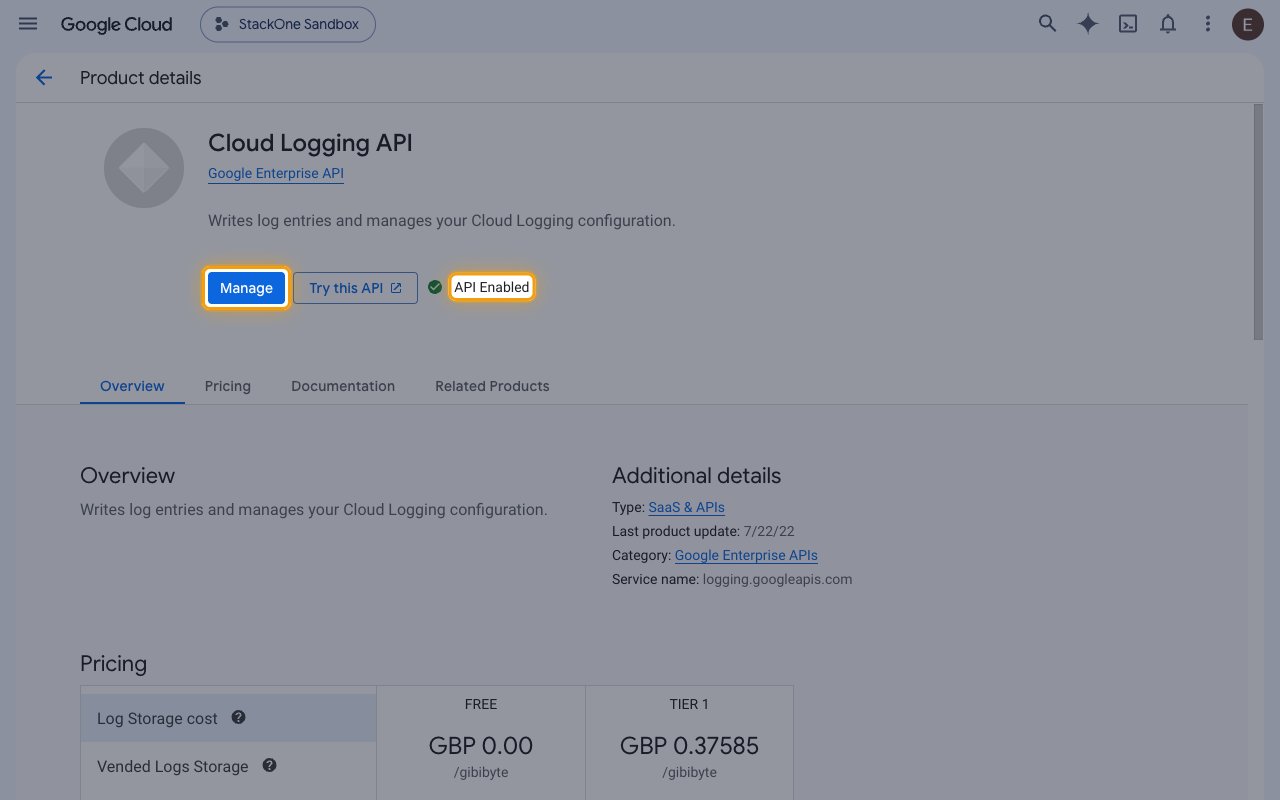
Sign in to the Google Cloud Console and select the project. Turn on the Cloud Logging API and the Cloud Monitoring API.
- For each API, search for it in Search (/) for resources, docs, products, and more and open it.
- Click Enable.
- If the page shows Manage and API Enabled, the API is already on.
2
Create the service account
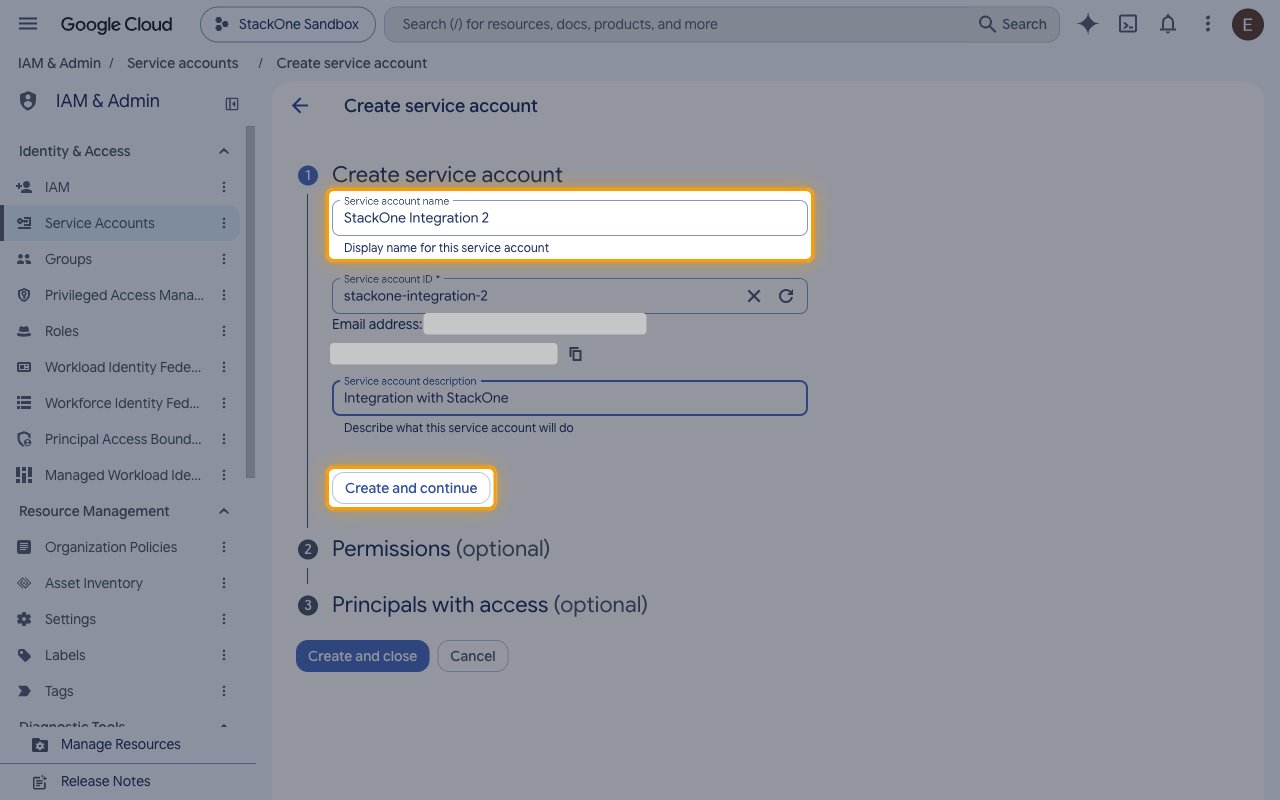
Open IAM & Admin > Service Accounts.
- Click Create service account.
- Service account name:
StackOne Integration - Click Create and continue.
3
Grant the roles
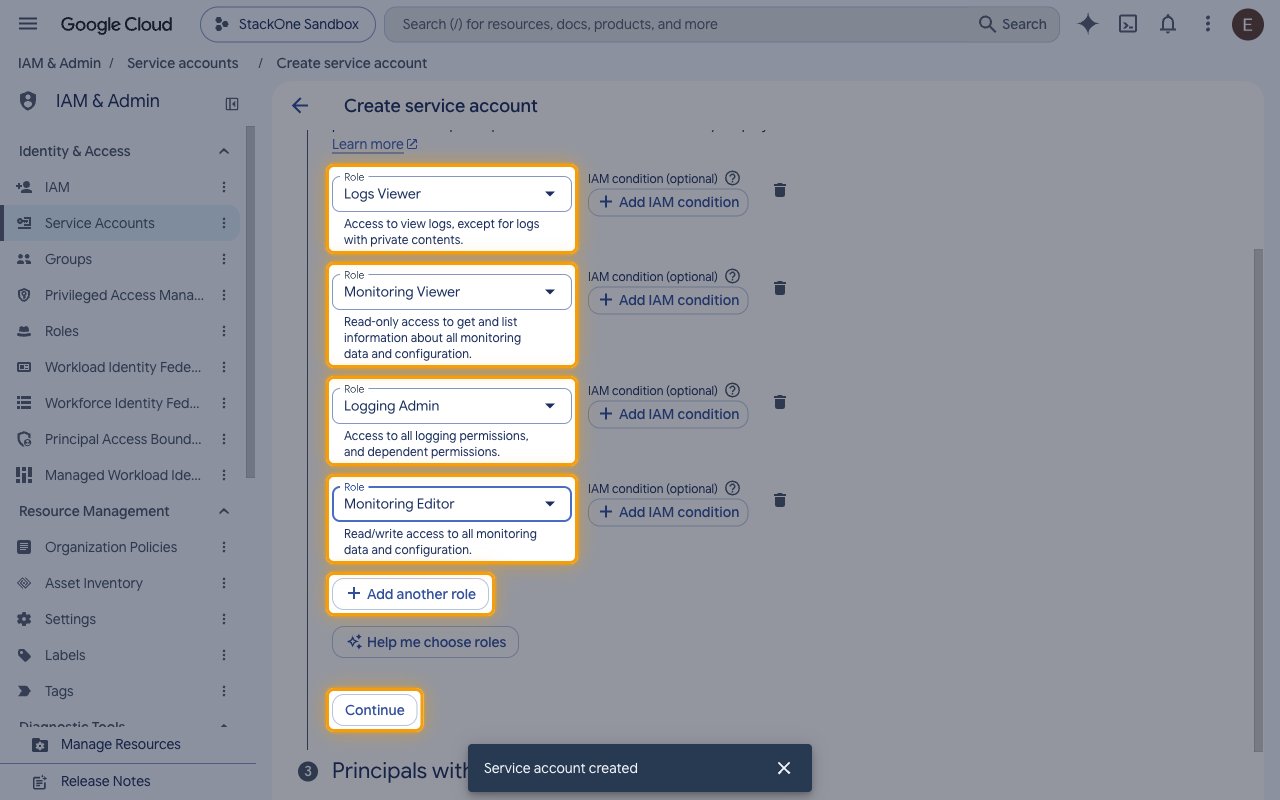
Under Permissions (optional), add a role for each kind of action you plan to use.
- Click Select a role.
- Search for
Logs Viewer. - Select Logs Viewer.
- Click Add another role.
- Select Monitoring Viewer. With Logs Viewer, it gives read-only access.
- To create, change or delete Cloud Logging resources (sinks, exclusions, logs-based metrics and logs) or to write log entries, add Logging Admin.
- To create, change or delete Cloud Monitoring resources (alert policies, notification channels, uptime checks, groups, dashboards, services and SLOs), add Monitoring Editor.
- To read logs with private contents, such as Data Access audit logs, add Private Logs Viewer.
- Click Continue.
- Click Done.
- New roles can take a few minutes to become active.
4
Create the JSON key
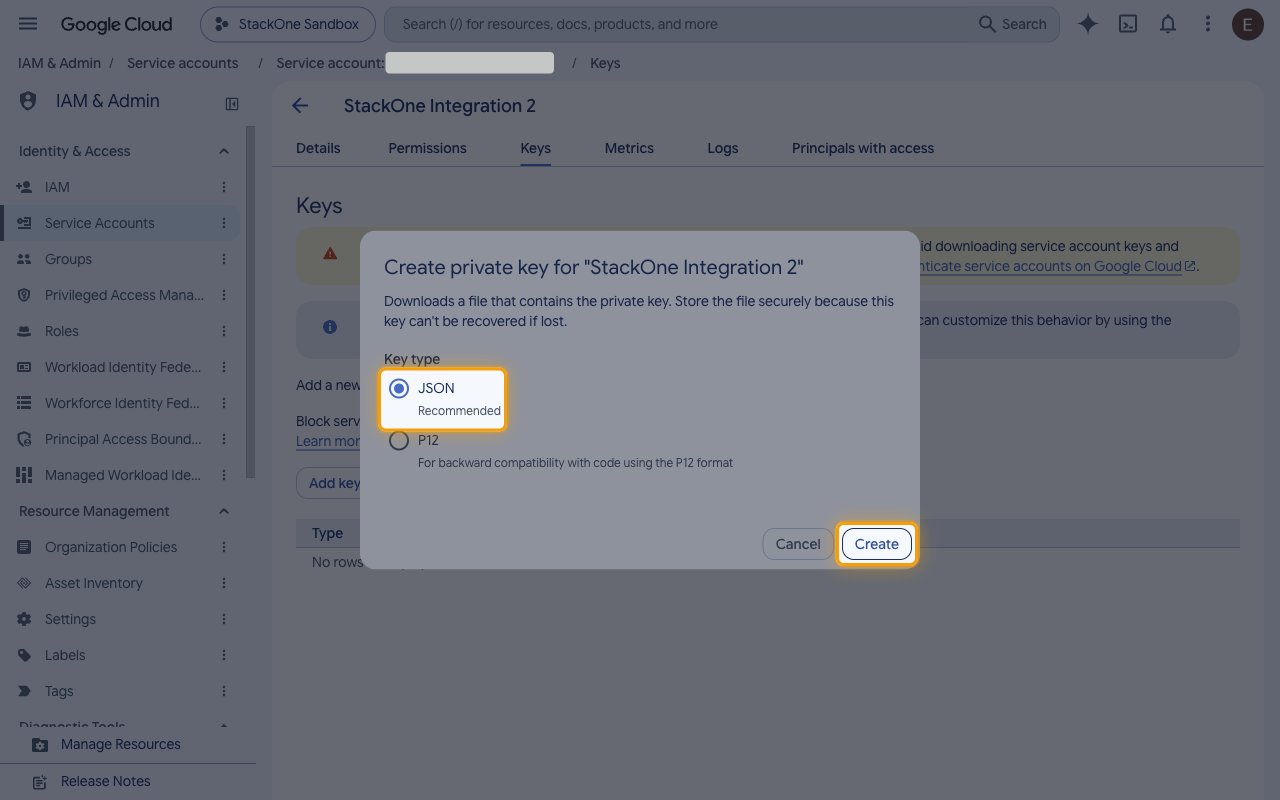
In Service Accounts, click the email of the new service account and open the Keys tab.
- Click Add key.
- Select Create new key.
- Key type: JSON
- Click Create. The key file downloads once, and Google can’t recover it if it is lost.
- If your organization blocks key creation with an organization policy, ask an organization policy administrator to allow it for this project.
Entering the key
Open the downloaded .json key file in a text editor.
- Copy the entire file across as the Service Account Key (JSON).
- Copy the
project_idvalue across as the GCP Project ID, or use the ID of another project the service account has roles on.
Link the Account
1
Connect
- Click Connect.
- If applicable, the provider will redirect you to a sign-in or authorization page. Complete the provider’s authorization flow.
- Once authorization is successful, you will see a confirmation popup.
2
Use Actions
Connect an AI platform to the linked account’s actions. See AI Platforms.Other ways to call actions are listed in Protocols & SDKs.
Next Steps
Webhooks setup
Configure receiving Events for Google Cloud Observability into StackOne.