

Creating a service account key
Work in the Google Cloud project you are connecting. The roles you grant the service account decide which actions work.
1
Enable the required APIs
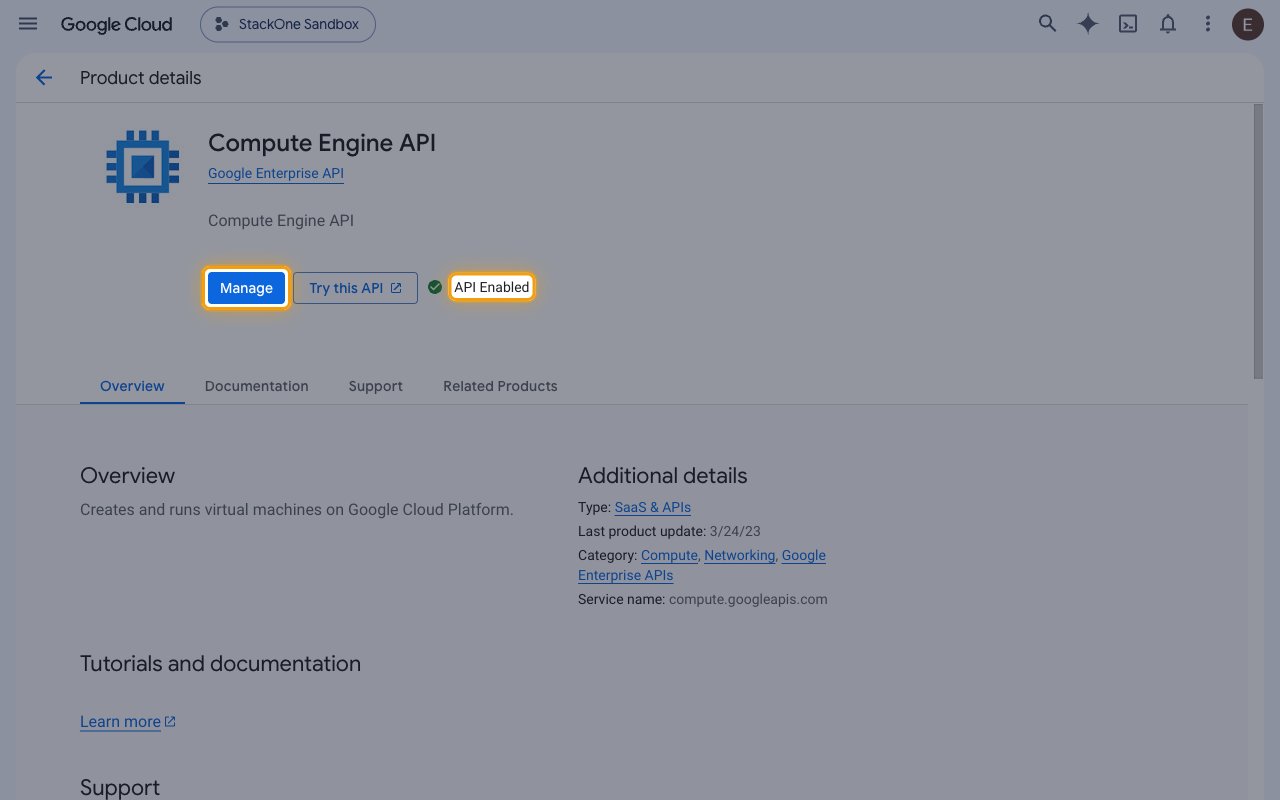
Sign in to the Google Cloud Console and select the project. Turn on the Compute Engine API, Cloud Run Admin API, Cloud Functions API and Artifact Registry API.
- For each API, search for it in Search (/) for resources, docs, products, and more and open it.
- Click Enable.
- If the page shows Manage and API Enabled, the API is already on.
2
Create the service account
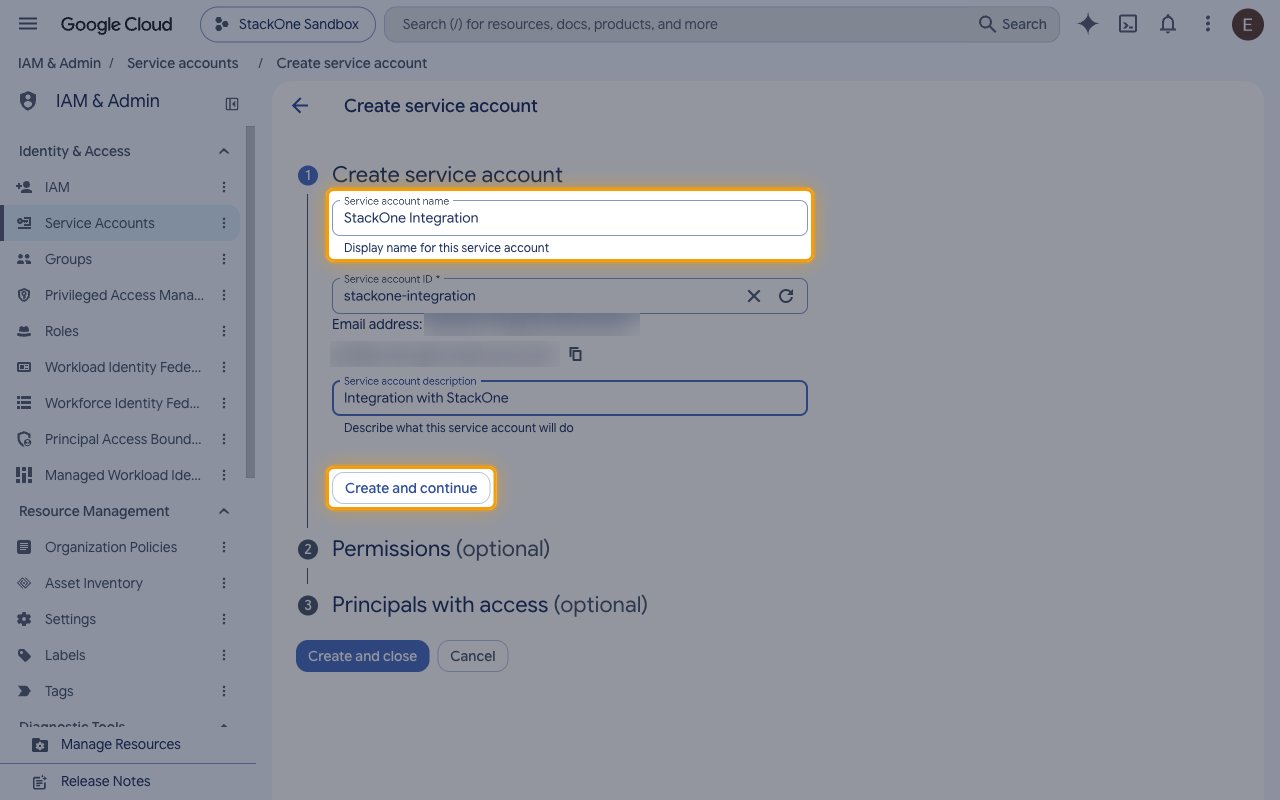
Open IAM & Admin > Service Accounts.
- Click Create service account.
- Service account name:
StackOne Integration - Click Create and continue.
3
Grant the roles
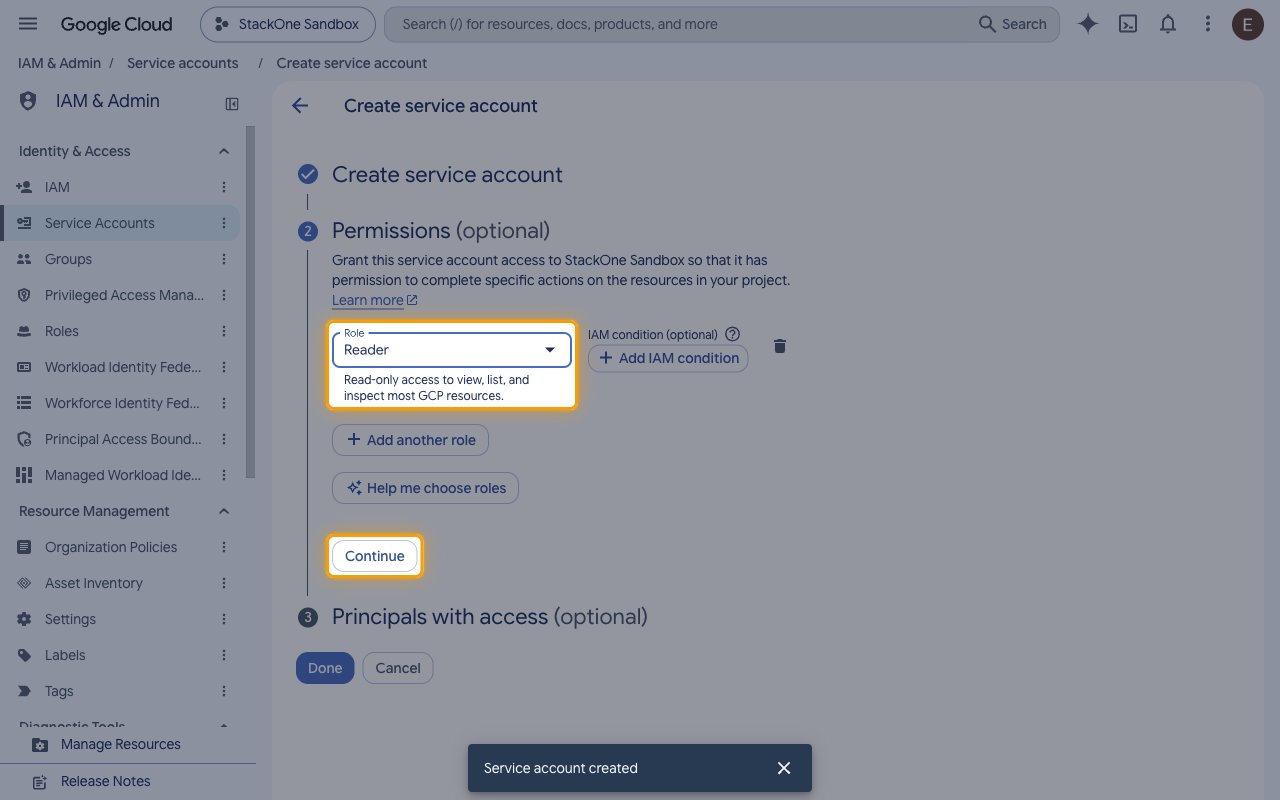
Under Permissions (optional), add a role for each kind of action you plan to use.
- Click Select a role.
- Search for
Reader. - Select Reader for read-only access.
- To create, change or delete resources, click Add another role and add Compute Admin, Cloud Run Admin, Cloud Functions Admin or Artifact Registry Administrator for each service you manage.
- Add Service Account User as well to create or update Cloud Run services, Cloud Run jobs or functions, which always run as a service account, or VMs that have one attached.
- Click Continue.
- Click Done.
- New roles can take a few minutes to become active.
4
Create the JSON key
In Service Accounts, click the email of the new service account and open the Keys tab.
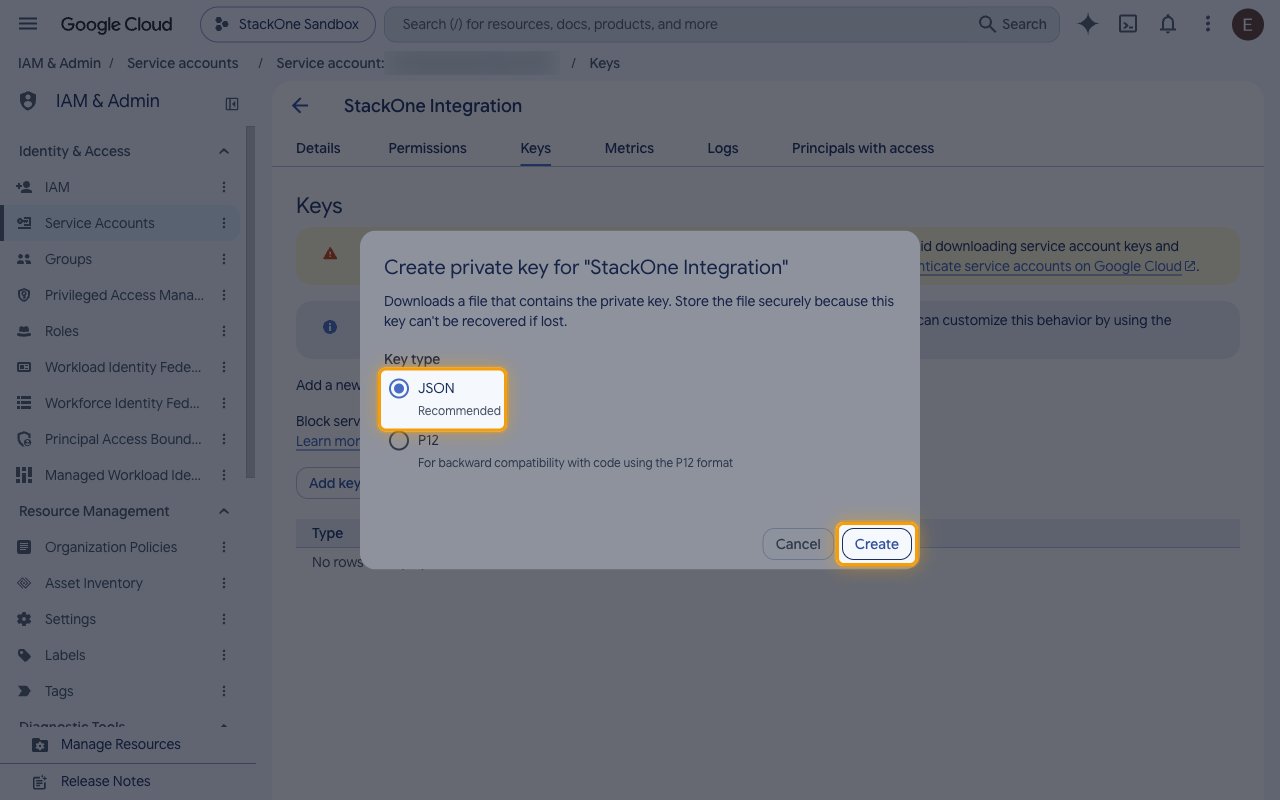
- Click Add key.
- Select Create new key.
- Key type: JSON
- Click Create. The key file downloads once, and Google can’t recover it if it is lost.
- If your organization blocks key creation with an organization policy, ask an organization policy administrator to allow it for this project.
Entering the key
Open the downloaded .json key file in a text editor.
- Copy the entire file across as the Service Account Key (JSON).
- Copy the
project_idvalue across as the GCP Project ID, or use the ID of another project the service account has roles on.
Link the Account
1
Connect
- Click Connect.
- If applicable, the provider will redirect you to a sign-in or authorization page. Complete the provider’s authorization flow.
- Once authorization is successful, you will see a confirmation popup.
2
Use Actions
Connect an AI platform to the linked account’s actions. See AI Platforms.Other ways to call actions are listed in Protocols & SDKs.