

Creating a service account key
The service account is created in a Google Cloud project, then added as a user in Google Analytics. Analytics access is granted in Google Analytics, not in Google Cloud IAM.
Enable the required APIs
Sign in to the Google Cloud Console and select the project. Turn on the Google Analytics Admin API and Google Analytics Data API.
- For each API, search for it in Search (/) for resources, docs, products, and more and open it.
- Click Enable.
- If the page shows Manage and API Enabled, the API is already on.
Create the service account
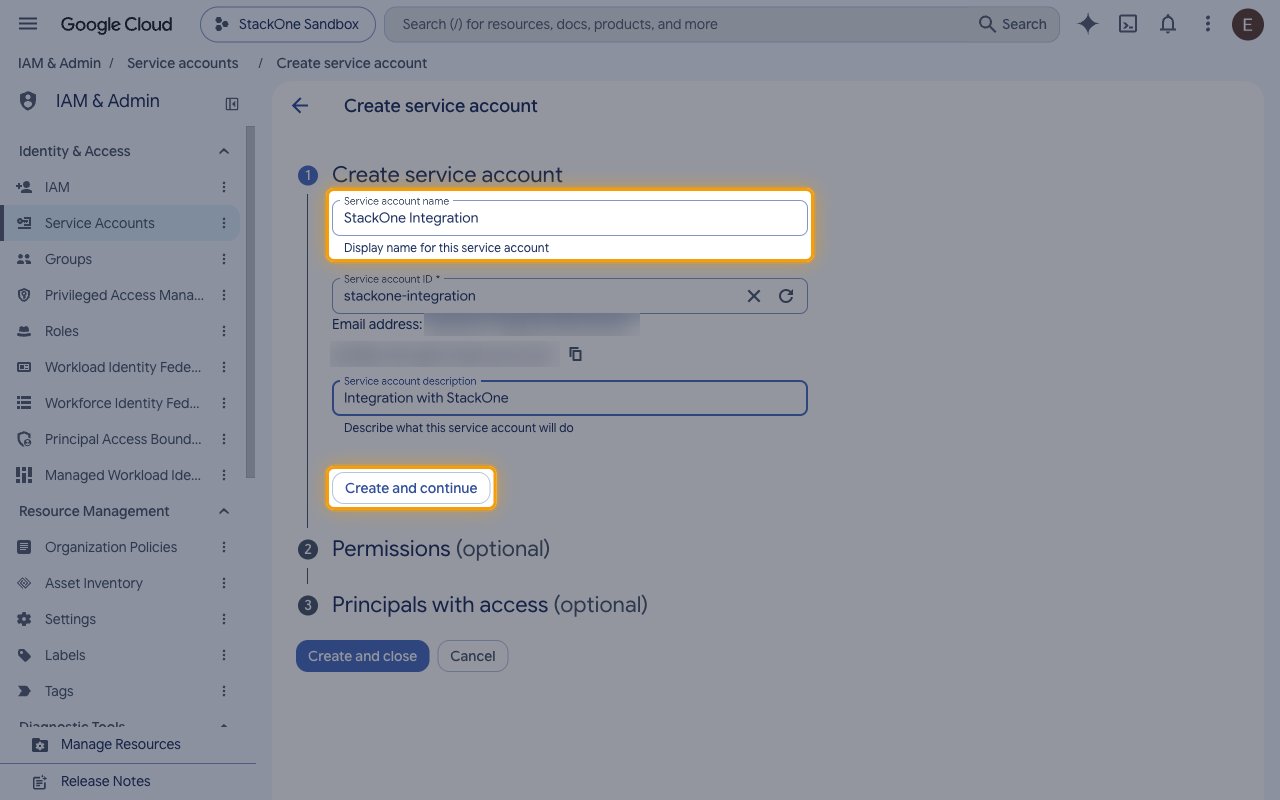
Open IAM & Admin > Service Accounts.
- Click Create service account.
- Service account name:
StackOne Integration - Click Create and continue.
Create the JSON key
In Service Accounts, click the email of the new service account and open the Keys tab.
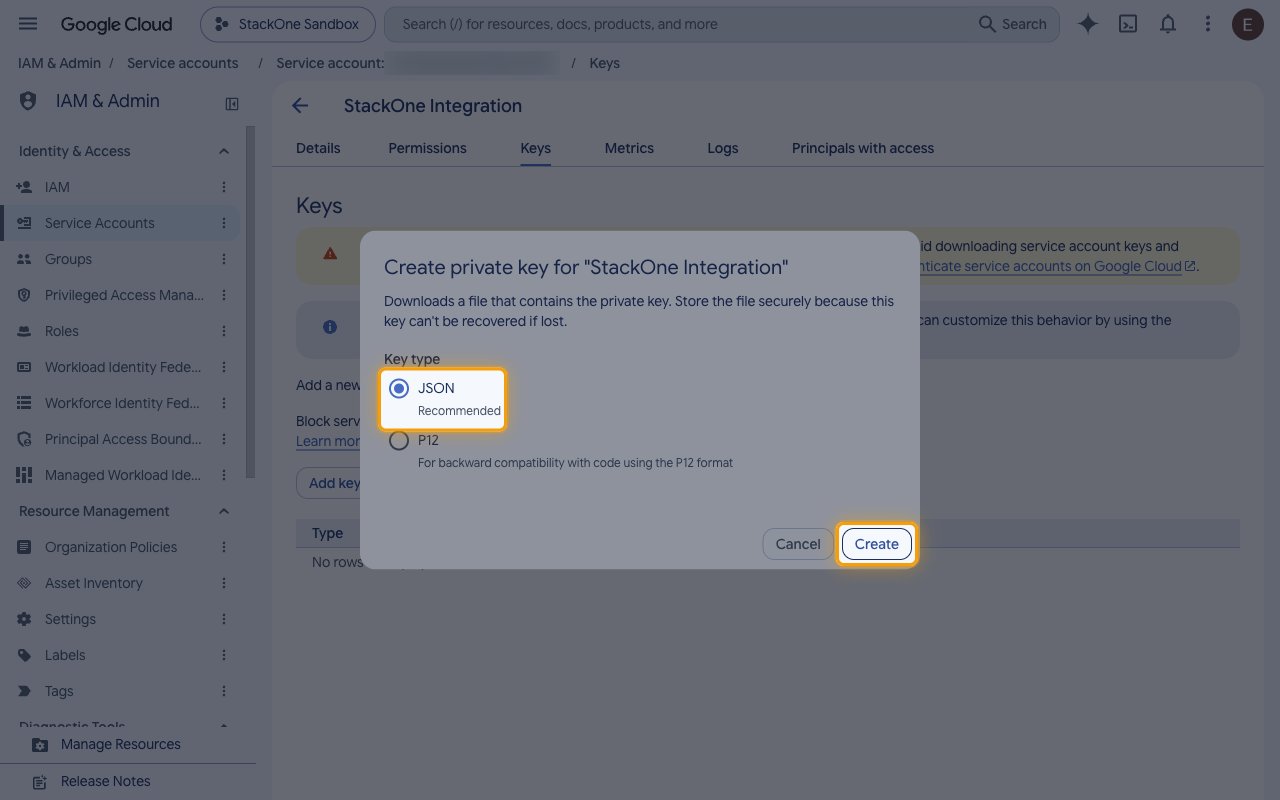
- Click Add key.
- Select Create new key.
- Key type: JSON
- Click Create. The key file downloads once, and Google can’t recover it if it is lost.
- If your organization blocks key creation with an organization policy, ask an organization policy administrator to allow it for this project.
Granting the service account access in Google Analytics
The service account reaches nothing until it is added as a user in Google Analytics. Grant it on each account or property this connection should reach.
- Open Google Analytics and click Admin.
- To grant a whole account, under Account click Account access management. To grant a single property, under Property click Property access management.
- Click + in the top right, then click Add users.
- Enter the service account’s email address, which ends in
iam.gserviceaccount.comand is theclient_emailvalue in the key file. - Clear Notify new users by email. A service account has no inbox.
- Direct roles and data restrictions: select Viewer for read-only access, Editor to let the connector change property configuration, or Administrator to also reach account-level settings such as data sharing.
- Leave the data restriction options unticked. Ticking No Cost Metrics or No Revenue Metrics removes those metrics from report responses.
- Click Add.
- The Google Analytics Demo Account cannot be used. Nobody holds the Administrator role on it, so the + Add users control is hidden and a service account cannot be added. Use an account your organization owns, or create one.
Entering the key
Open the downloaded .json key file in a text editor. The whole file, including the outer braces, is the key.
- Copy the Service Account Key (JSON) across.
- Actions take the Google Analytics account or property as an input rather than a connection setting, and only the ones the service account was added to are returned.
Link the Account
Connect
- Click Connect.
- If applicable, the provider will redirect you to a sign-in or authorization page. Complete the provider’s authorization flow.
- Once authorization is successful, you will see a confirmation popup.
Use Actions