

Prerequisites
The connector should already be set up, with a Connector Profile and a Linked Account. See Getting Started on the Gong connector page.Create a Gong Automation Rule webhook
Copy the Native Webhook URL from this StackOne connection and paste it into a Gong Automation Rule so Gong pushes call data to StackOne when a call finishes processing.
Copy the Native Webhook URL from StackOne
On this connection in StackOne, copy the read-only Native Webhook URL. It already contains a secure per-connection key, so treat it like a secret — you will paste it into Gong in a later step.
Open Automation rules in Gong
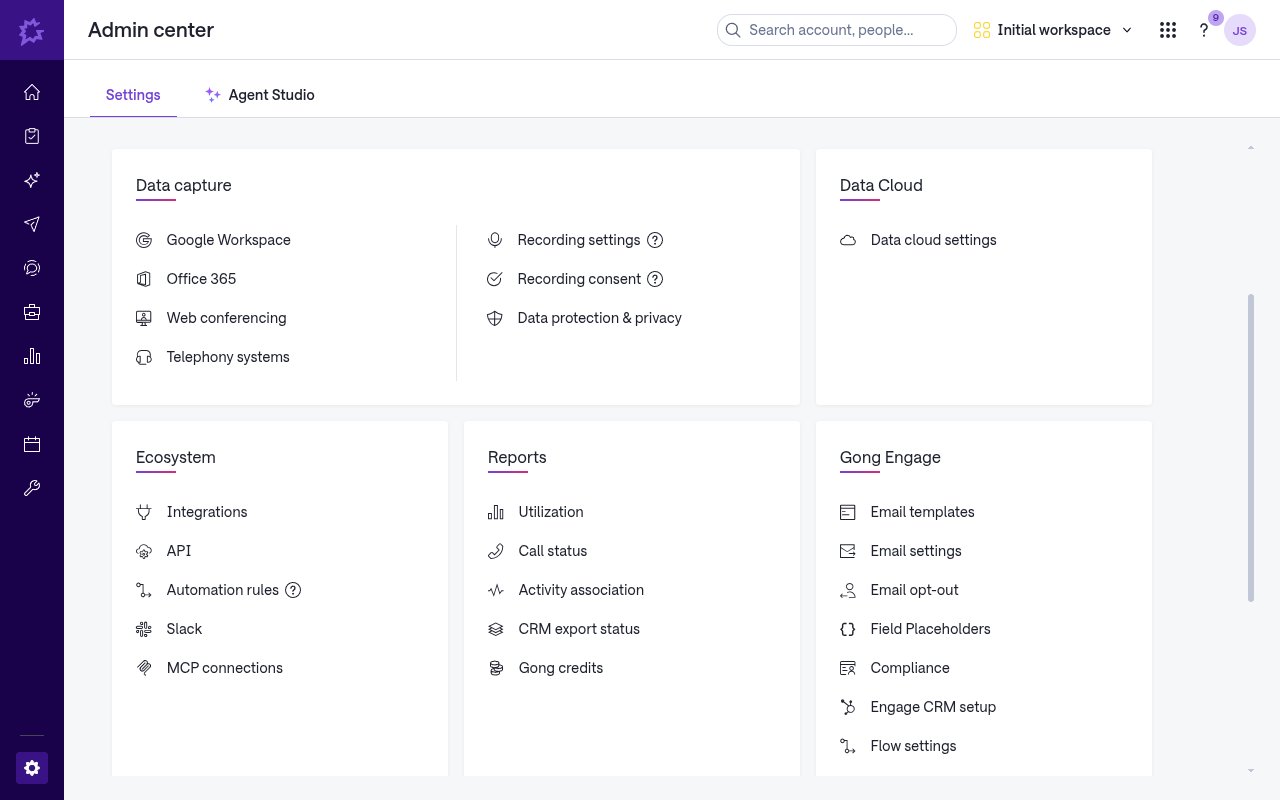
Sign in to Gong, open the Admin center, and on the Settings tab find the Ecosystem section. Click Automation rules.
Add a rule and choose which calls to send
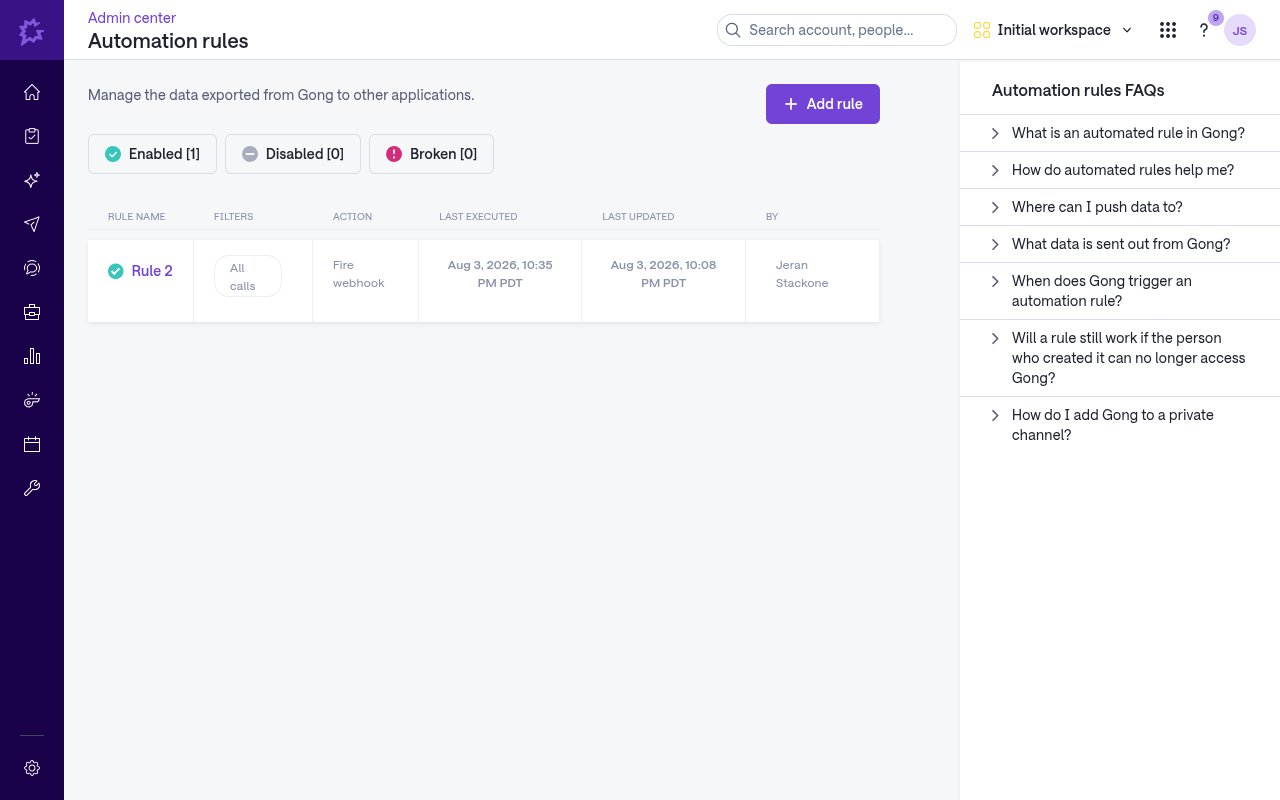
On the Automation rules page, click Add rule. Under If, the Trigger is a new call in the workspace; use If a call meets the following criteria to choose which calls the rule applies to (for example, All calls).
Configure the Fire webhook action
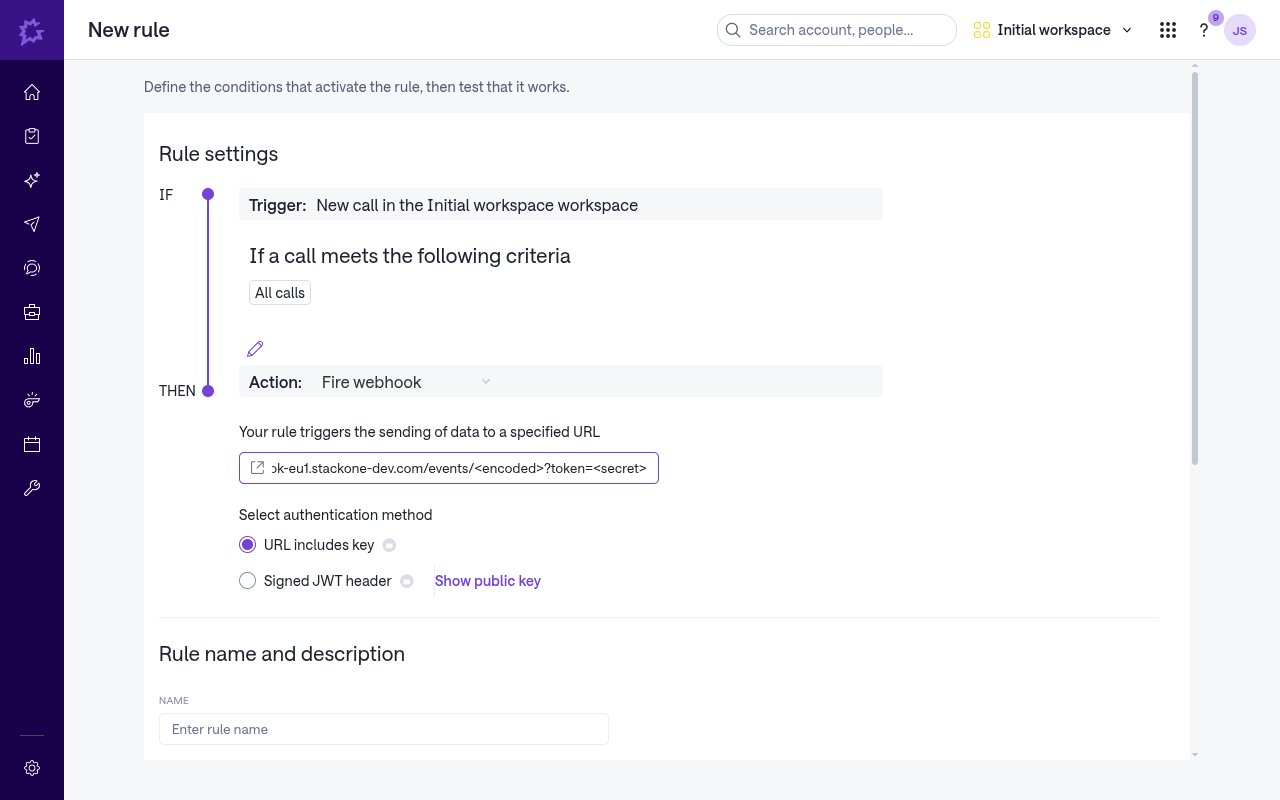
Under Then, set the Action to Fire webhook, then complete the destination fields.
- Enter URL — paste the Native Webhook URL you copied from this StackOne connection.
- Select authentication method — choose URL includes key. The URL already carries the per-connection key StackOne uses to identify the account. Do not choose Signed JWT header — StackOne does not verify that signature.
Enter a name, test the rule, and enable it
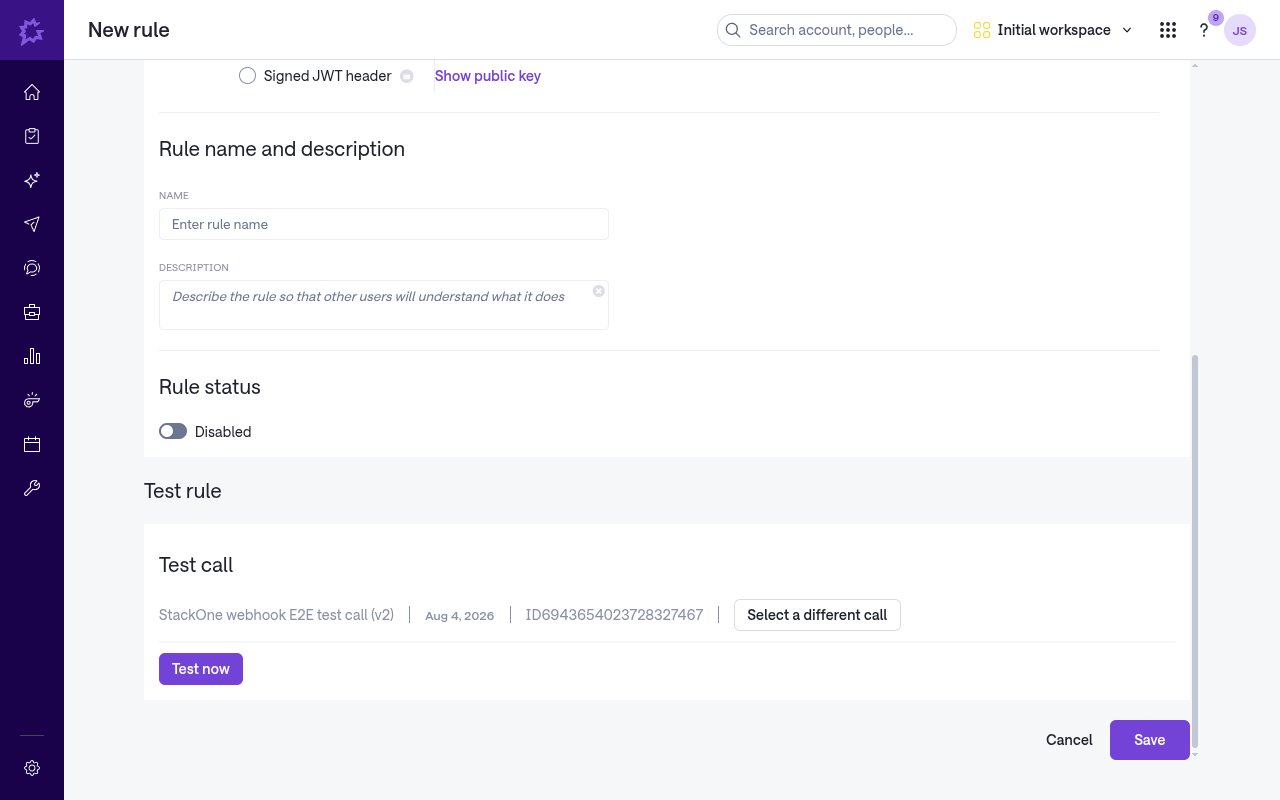
Under Rule name and description, enter a Name (and optional Description). In the Test rule section, keep or use Select a different call for the Test call, then click Test now to confirm Gong can reach the URL. Turn Rule status on and click Save to start delivering live events.
Available webhook events
Gong delivers a single event type through this connection. Only events StackOne recognizes are forwarded to your integration.
- Call Webhook (
call) — Fired when a recorded call matching the rule’s filters finishes processing in Gong.
Delivery format
When a matching call finishes processing, Gong sends a single HTTPS POST with a JSON body. The call is wrapped under a top-level callData object — callData.metaData carries the call’s id, url, title, scheduled, started, duration, primaryUserId, direction, system, scope, media and language; callData.context carries associated CRM objects, callData.parties carries participants, and callData.content and callData.interaction carry trackers, topics and interaction stats. Top-level isTest and isPrivate flags accompany the payload. StackOne maps callData.metaData.id to the record id and callData.metaData.started to the event timestamp, emits the event type call, and passes the full body through as the event data. Delivery happens after processing completes, not in real time.