

Prerequisites
The connector should already be set up, with a Connector Profile and a Linked Account. See Getting Started on the GoCardless connector page.Retrieve the StackOne Native Webhook URL
The Native Webhook URL is generated once a GoCardless account has been linked in StackOne. Each linked account has its own URL.
- Open the linked account in StackOne.
- Copy the value from Native Webhook URL.
Create a GoCardless webhook endpoint
Register the Native Webhook URL as a webhook endpoint in the GoCardless dashboard so GoCardless posts events to StackOne.
Open API settings
Sign in to your GoCardless dashboard (or the GoCardless sandbox dashboard for a sandbox account).
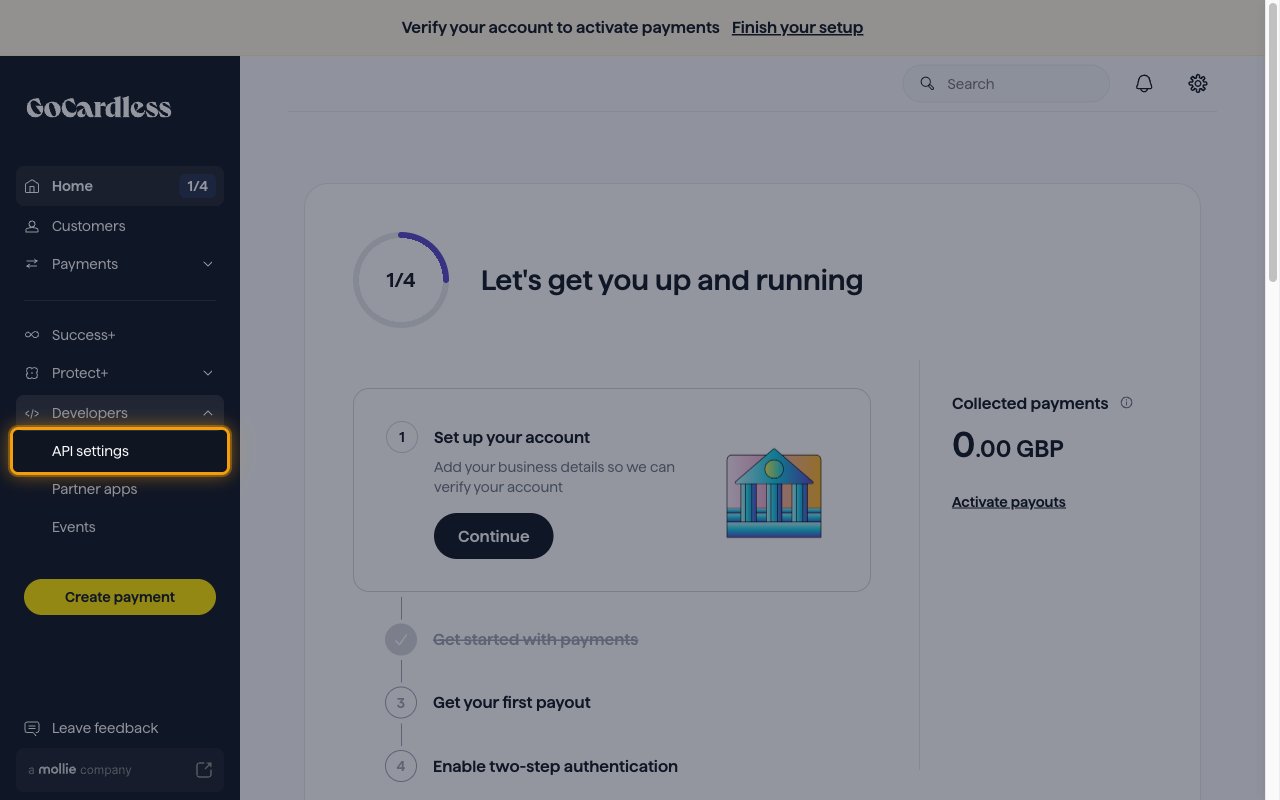
- In the left sidebar, click Developers, then select API settings.
Open the webhook endpoint form
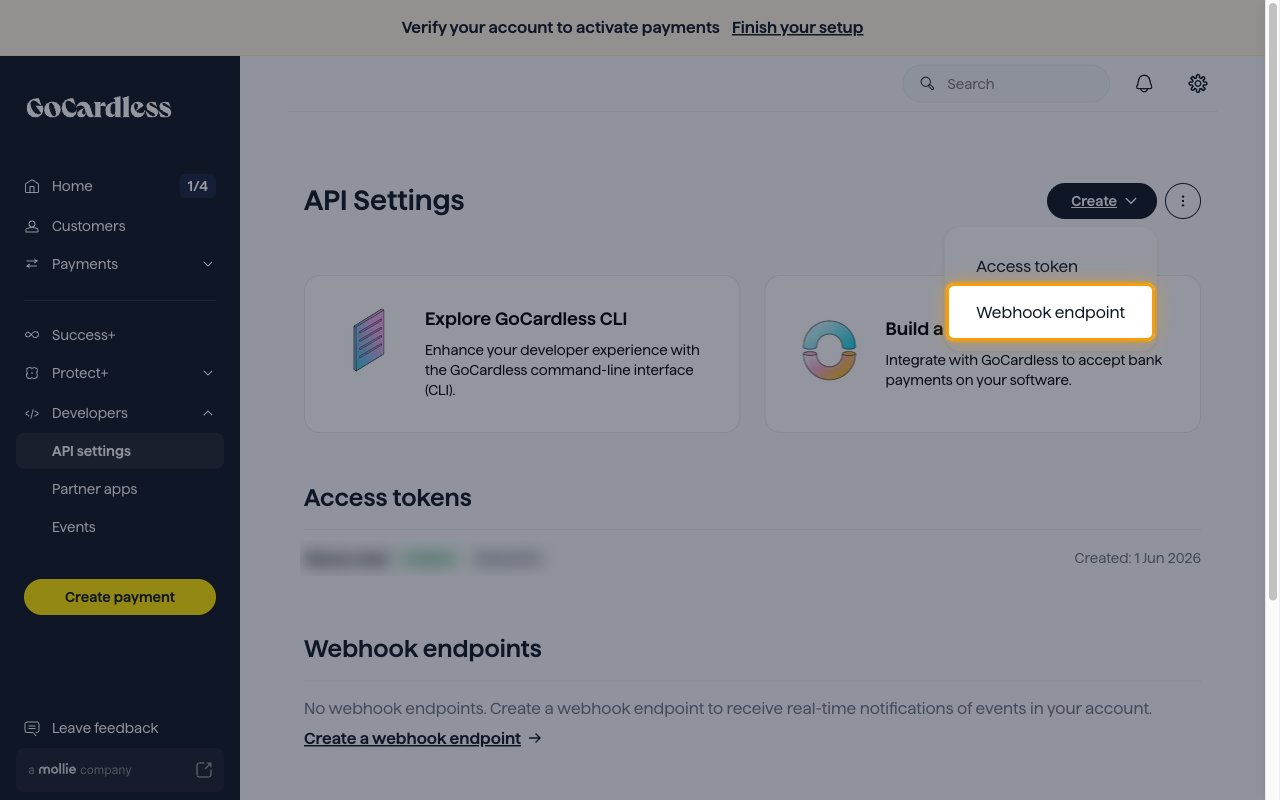
On the API Settings page, click Create in the top right corner, then select Webhook endpoint.
- The Webhook endpoints section on the same page lists any endpoints you have already created.
Fill in the webhook endpoint details
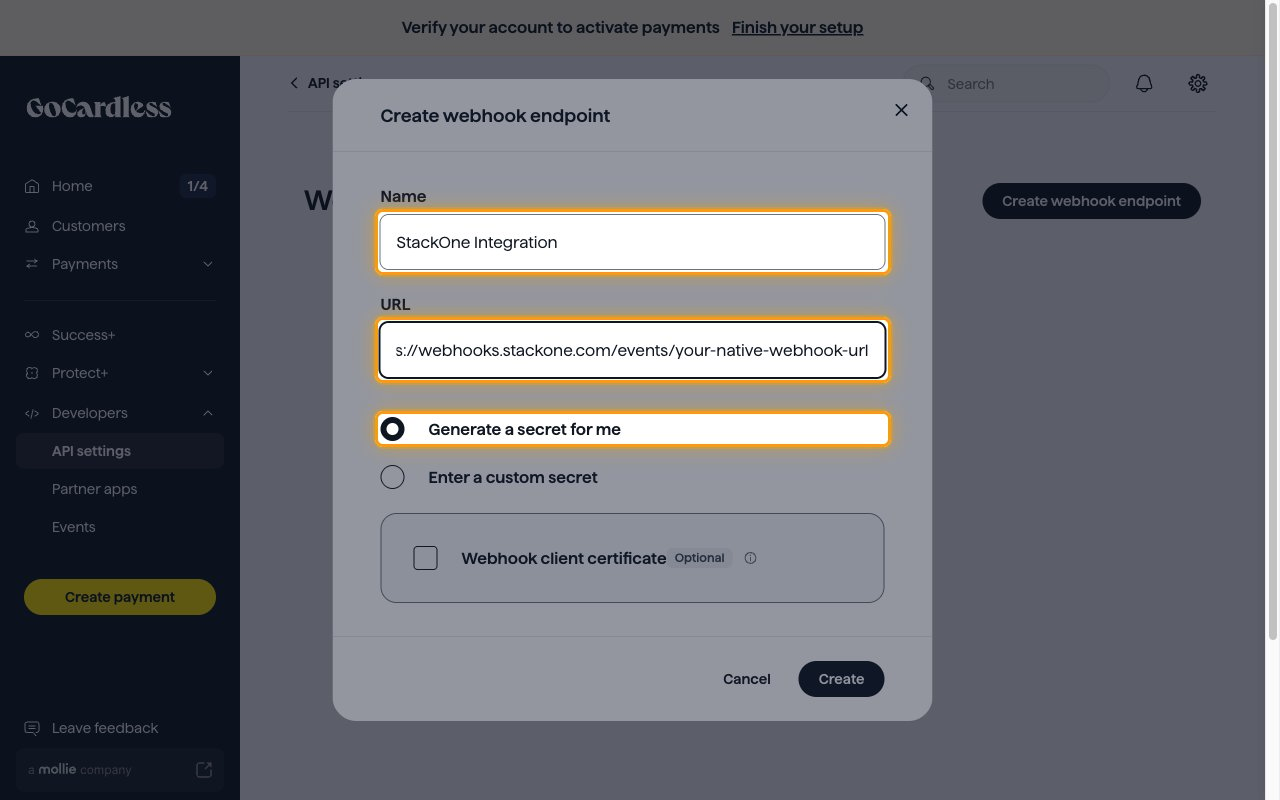
In the Create webhook endpoint dialog, complete the form:
- Name — enter a name for the endpoint (for example,
StackOne Integration). - URL — paste the Native Webhook URL you copied from StackOne.
- Leave Generate a secret for me selected. StackOne does not need the secret.
- Webhook client certificate is optional and can be left unchecked.
Create the endpoint
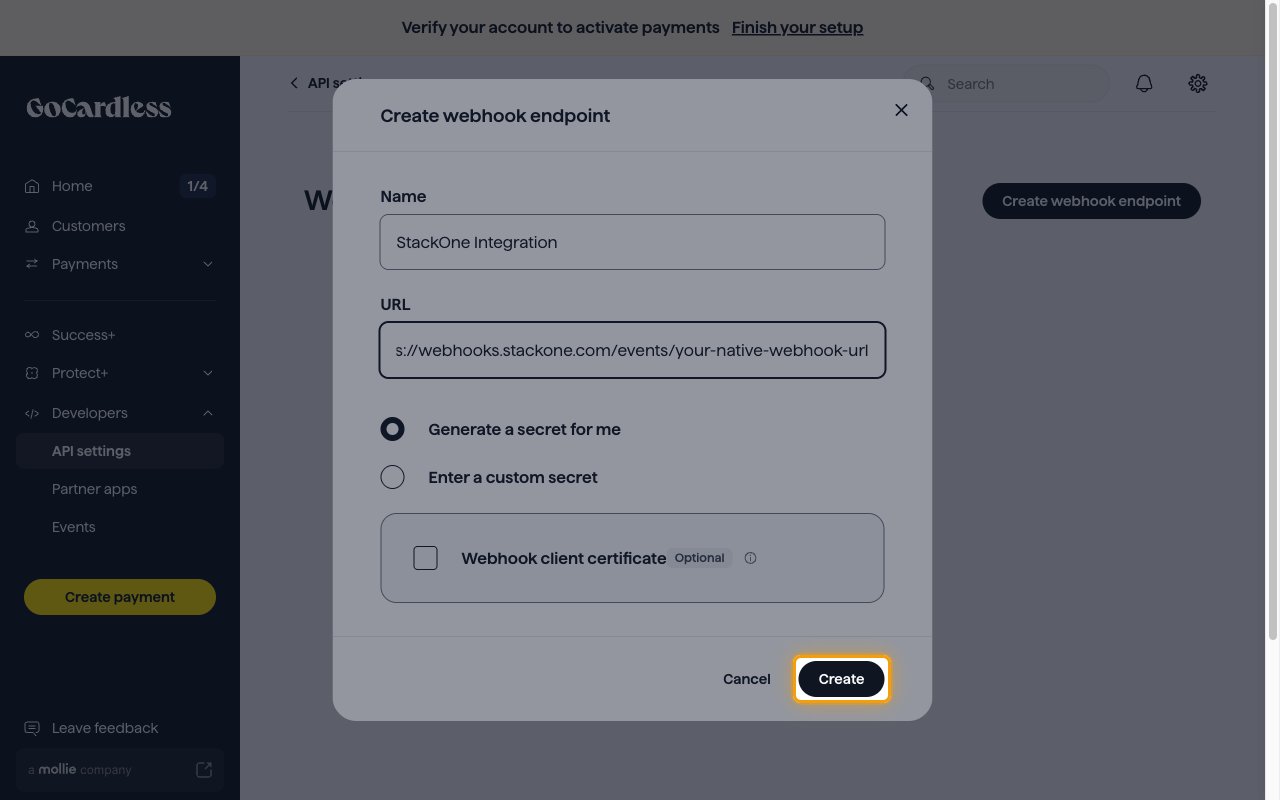
Click Create to save the webhook endpoint.
Save the webhook secret
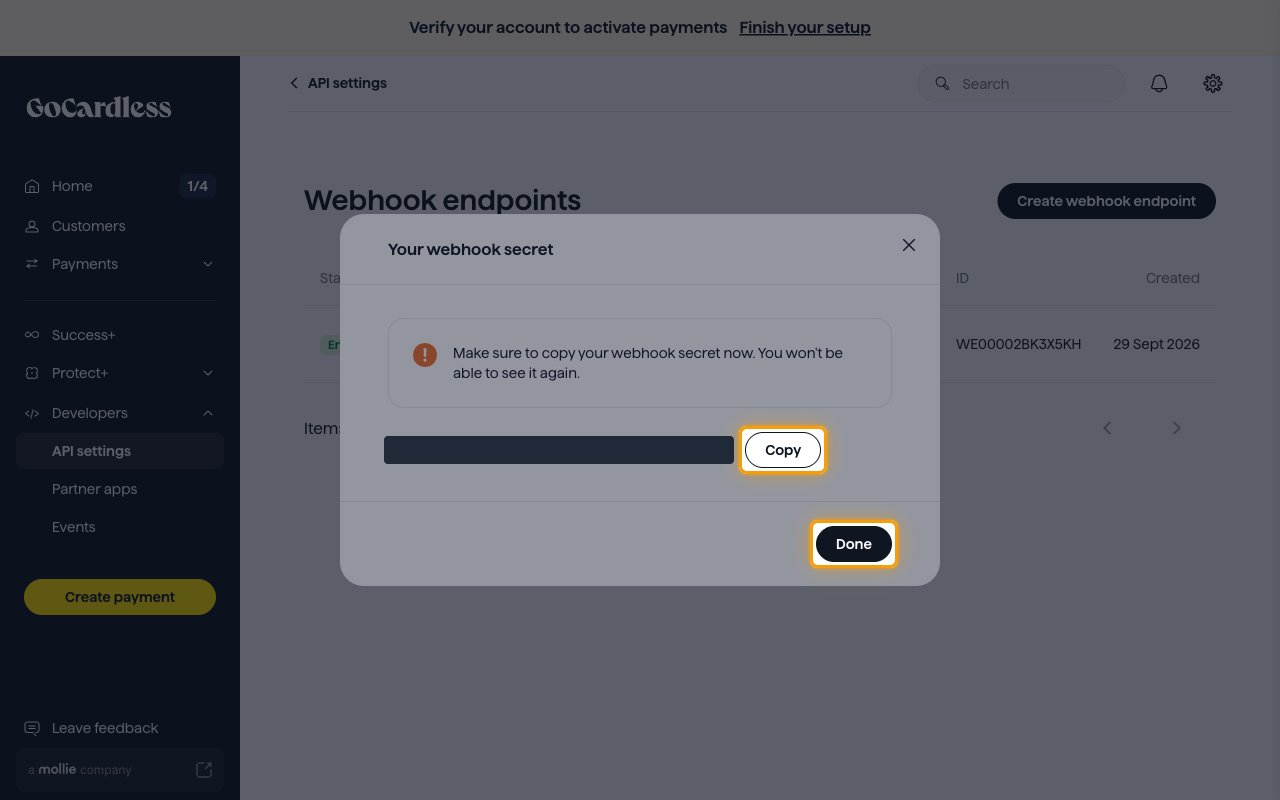
GoCardless shows Your webhook secret with the message Make sure to copy your webhook secret now. You won’t be able to see it again.
- Click Copy if you want to keep the secret for your own records, then click Done.
- The secret is only displayed once and cannot be retrieved later. You can generate a new one with Change secret on the endpoint’s page.
Confirm the endpoint is enabled
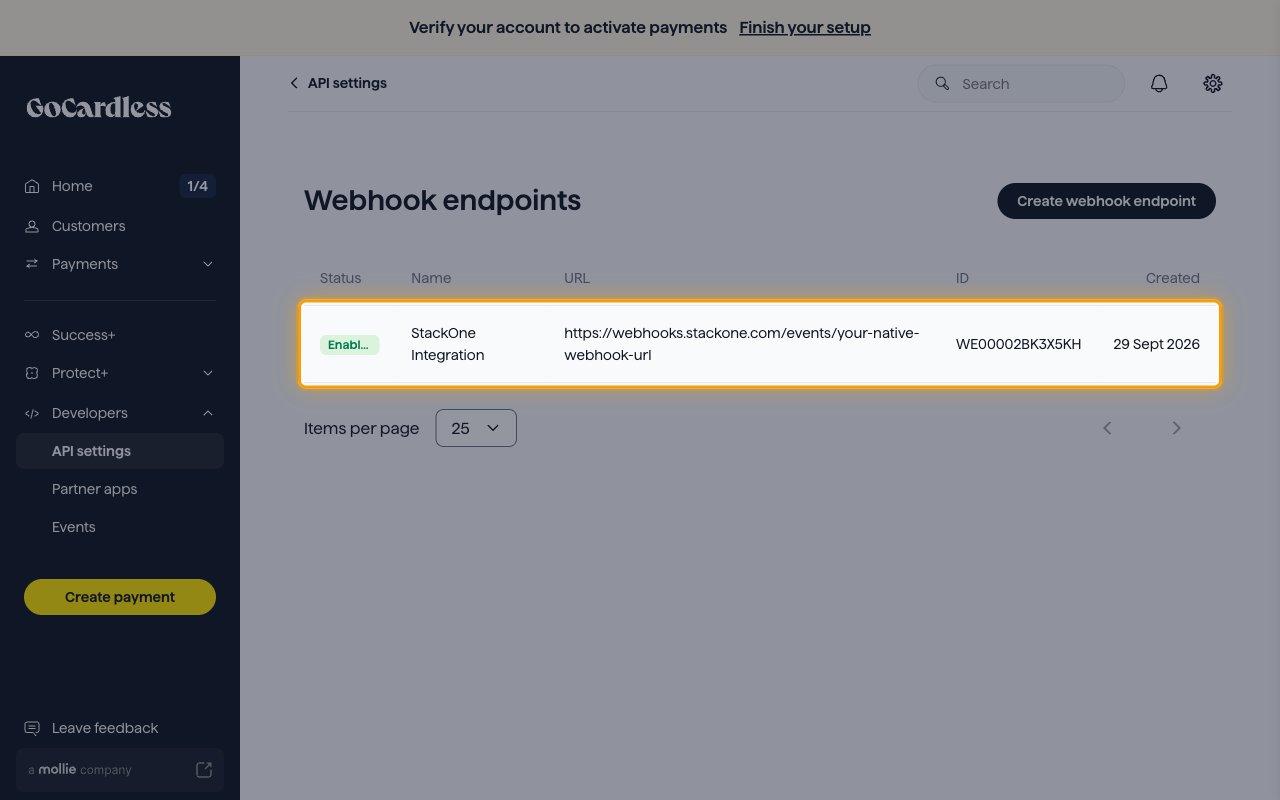
The new endpoint appears on the Webhook endpoints page with the status Enabled. GoCardless starts sending events to StackOne straight away.
- To stop deliveries later, open the endpoint and click Disable.
Available webhook events
The following GoCardless events can be enabled in StackOne. GoCardless sends every event on the account to the endpoint; StackOne delivers only the events listed here and enabled for this connector, and acknowledges all others without forwarding them.
Payment events
Events for one-off and recurring Direct Debit payments.
- Payment Created (
payments.created) — The payment has been created - Payment Submitted (
payments.submitted) — The payment has been submitted to the banks - Payment Confirmed (
payments.confirmed) — The payment has been collected from the customer’s bank account, and is now being held by GoCardless - Payment Paid Out (
payments.paid_out) — The payment has left GoCardless and has been sent to the creditor’s bank account - Payment Failed (
payments.failed) — The payment could not be collected, usually because the customer did not have sufficient funds available - Payment Cancelled (
payments.cancelled) — The payment was cancelled - Payment Resubmission Requested (
payments.resubmission_requested) — A request to resubmit the payment was made by the payment retry endpoint - Payment Charged Back (
payments.charged_back) — The customer asked their bank to refund the payment under the Direct Debit Guarantee, and it has been returned to the customer - Payment Chargeback Cancelled (
payments.chargeback_cancelled) — The customer’s bank has cancelled the chargeback request
Refund events
Events for refunds issued against payments.
- Refund Failed (
refunds.failed) — The refund did not reach your customer, the funds will be returned to you - Refund Paid (
refunds.paid) — The refund has been paid to your customer
Payout events
Events for payouts sent to your bank account.
- Payout Paid (
payouts.paid) — GoCardless has transferred the payout to the creditor’s bank account
Mandate events
Events for Direct Debit mandates.
- Mandate Created (
mandates.created) — The mandate has been created - Mandate Submitted (
mandates.submitted) — The mandate has been submitted to the banks, and should become active in a few days, unless the bank declines the request - Mandate Active (
mandates.active) — The mandate has been successfully set up by the customer’s bank - Mandate Failed (
mandates.failed) — The mandate could not be set up, generally because the specified bank account does not accept Direct Debit payments or is closed - Mandate Cancelled (
mandates.cancelled) — The mandate has been cancelled, either by the customer through their bank or this API, or automatically when their bank account is closed - Mandate Expired (
mandates.expired) — No collection attempts were made against the mandate within the dormancy period of your service user number - Mandate Reinstated (
mandates.reinstated) — The mandate has become active again, after it was cancelled or expired - Mandate Replaced (
mandates.replaced) — The mandate has been cancelled and replaced by a new mandate (for example, because the creditor has moved to a new Service User Number)
Billing request events
Events for the outcome of billing requests.
- Billing Request Fulfilled (
billing_requests.fulfilled) — This billing request has been fulfilled, and the resources have been created - Billing Request Cancelled (
billing_requests.cancelled) — This billing request has been cancelled, none of the resources have been created - Billing Request Failed (
billing_requests.failed) — This billing request has failed
Subscription events
Events for recurring subscriptions.
- Subscription Created (
subscriptions.created) — The subscription has been created - Subscription Amended (
subscriptions.amended) — The subscription amount has been changed - Subscription Cancelled (
subscriptions.cancelled) — This subscription has been cancelled - Subscription Finished (
subscriptions.finished) — This subscription has finished - Subscription Paused (
subscriptions.paused) — This subscription has been paused - Subscription Resumed (
subscriptions.resumed) — This subscription was resumed
Instalment schedule events
Events for instalment schedules.
- Instalment Schedule Created (
instalment_schedules.created) — The instalment schedule has been created - Instalment Schedule Cancelled (
instalment_schedules.cancelled) — The instalment schedule has been cancelled - Instalment Schedule Errored (
instalment_schedules.errored) — One or more instalments in this instalment schedule failed to collect successfully - Instalment Schedule Completed (
instalment_schedules.completed) — This instalment schedule has concluded
Delivery format
Details of how GoCardless delivers events to StackOne.
Batched payloads
Each request carries an events array and can contain several events at once. StackOne splits every request and routes each event on its own by its resource_type and action, so no event in a batch is lost. The event data is that single GoCardless event.
Retries and ordering
GoCardless retries a delivery that does not receive a 2xx response, up to 9 attempts in total, and may deliver the same event more than once or out of order. StackOne acknowledges event types it does not map so that GoCardless does not retry them.
Signatures
GoCardless signs each request with an HMAC SHA256 digest of the body in the Webhook-Signature header, using the endpoint’s secret. You can review every delivery attempt under Developers > API settings > Webhooks in the GoCardless dashboard.