

Creating a system user
A machine-to-machine system user connects to Funnel MCP without anyone signing in, and can only reach the workspaces you choose for it.
1
Start the system user
Sign in to Funnel, click your profile icon in the top right, then select Subscription overview.
- In the left navigation, select Users.
- Open the System users tab.
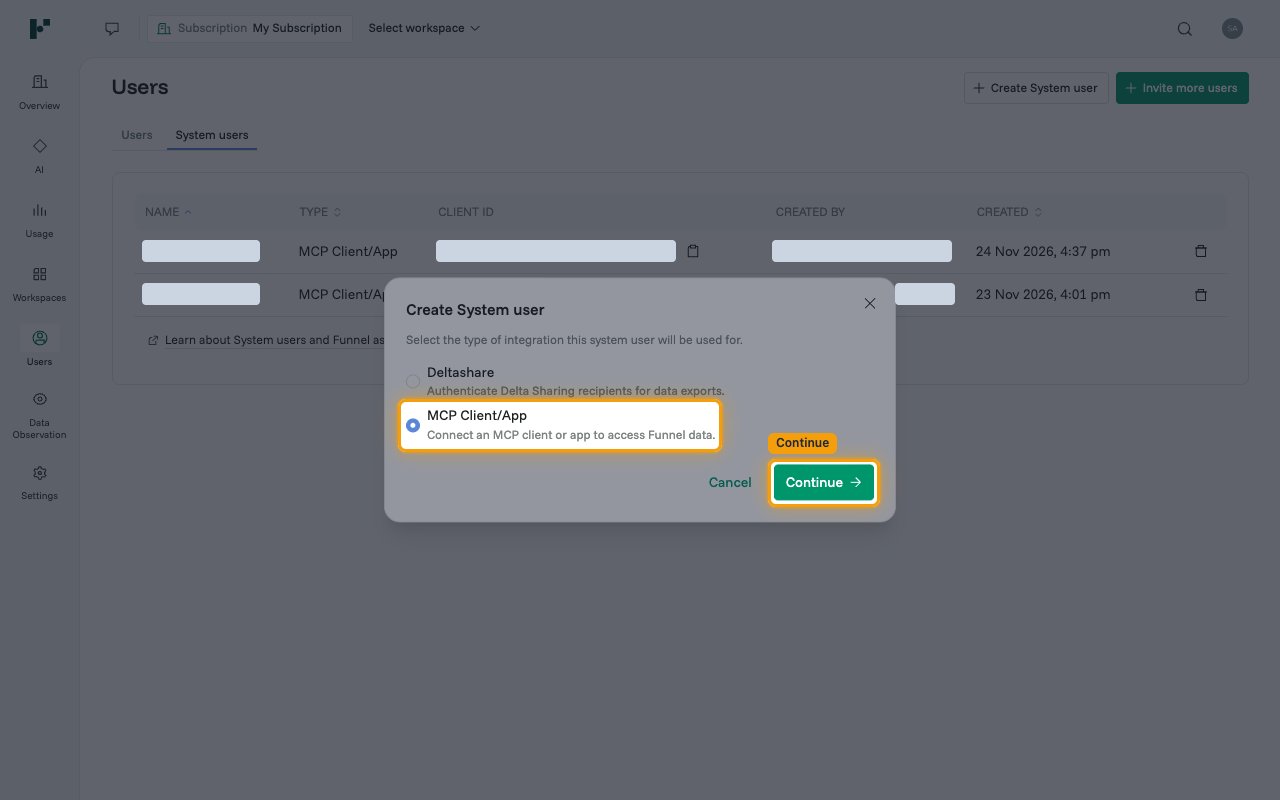
- Click Create System user.
- Select MCP Client/App.
- Click Continue.
2
Set the system user's access
The workspace roles you can choose depend on your Funnel plan.
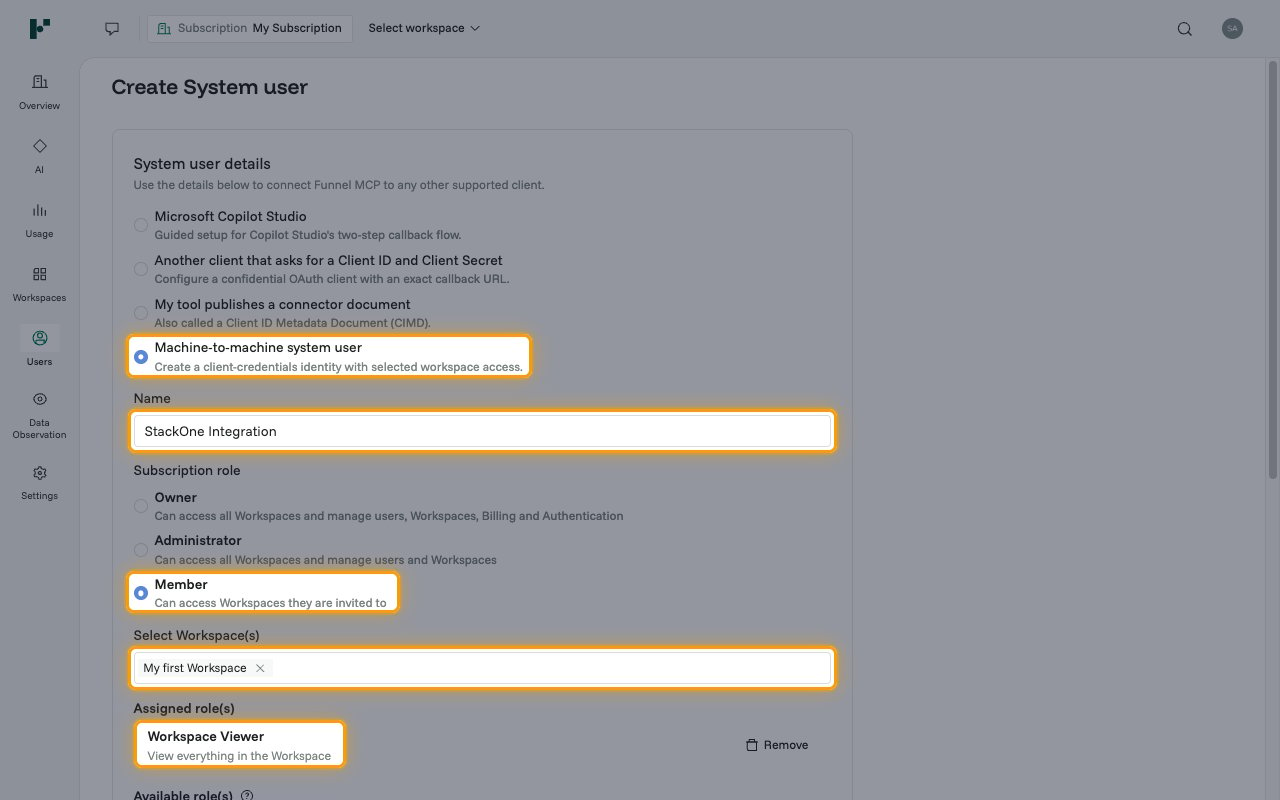
- Select Machine-to-machine system user.
- Name:
StackOne Integration - Subscription role: Member
- Select Workspace(s): The workspaces the connection should reach
- Assigned role(s): Workspace Viewer, for reading data
- Click Create System user.
3
Copy the client credentials
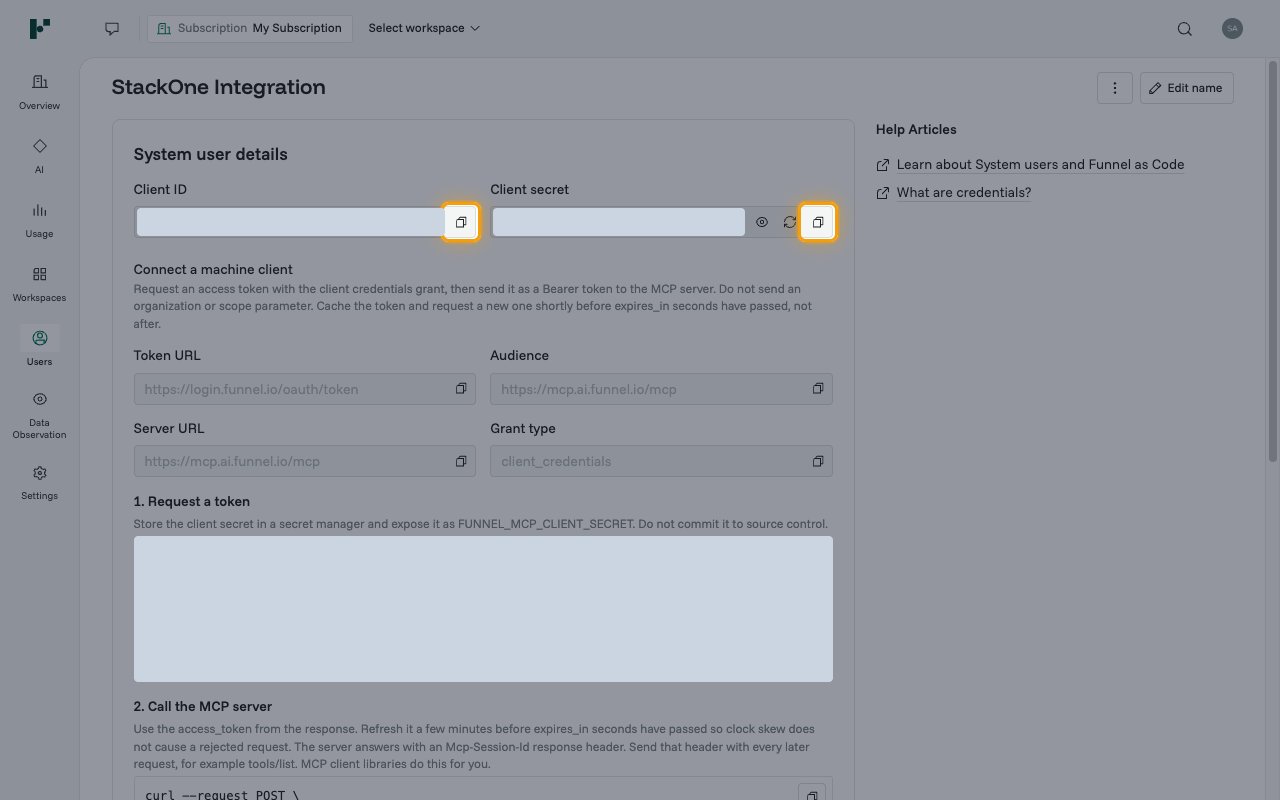
Funnel opens the new system user’s System user details page.
- Click the copy button beside Client ID, then copy the Client ID across.
- Click the copy button beside Client secret, then copy the Client secret across.
Link the Account
1
Connect
- Click Connect.
- If applicable, the provider will redirect you to a sign-in or authorization page. Complete the provider’s authorization flow.
- Once authorization is successful, you will see a confirmation popup.
2
Use Actions
Connect an AI platform to the linked account’s actions. See AI Platforms.Other ways to call actions are listed in Protocols & SDKs.