

Prerequisites
The connector should already be set up, with a Connector Profile and a Linked Account. See Getting Started on the Front connector page.Enable the Webhooks integration
Front delivers events through rule webhooks: you enable Front’s Webhooks integration, then create a rule that forwards events to your StackOne webhook URL. Start by copying the URL and enabling the integration.
Copy your Native Webhook URL from StackOne
In StackOne, open the connected account and copy the Native Webhook URL value. You will paste this into Front in a later step. Keep it private — the URL includes a delivery token.
- Find it on the connection’s Linked account in StackOne Hub, under the Native Webhook URL field.
Open the Webhooks app and enable it
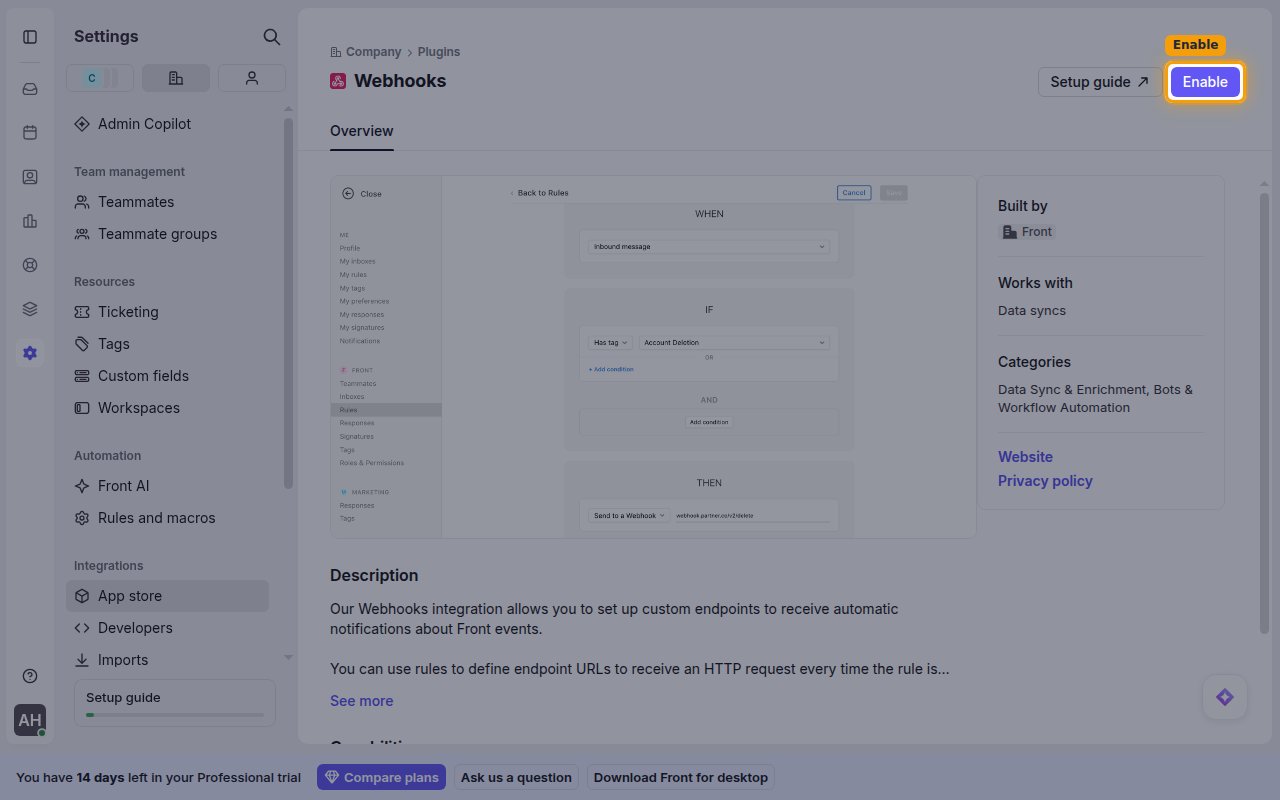
Sign in to your Front account, open Settings, switch to the Company tab, then under Integrations choose App store. Search for Webhooks, open the Webhooks app, and click Enable in the top-right corner.
Create a rule to forward events
With the integration enabled, create a rule that forwards events to StackOne. A Front rule has three parts that decide when a webhook is sent: When is the trigger — the event that fires the rule (for example, a tag is added or an inbound message arrives); If is the condition that must also be true for the rule to run (for example, the conversation is in a chosen inbox); and Then is the action Front takes — Send to webhook, which forwards the event to StackOne. In short, a webhook is sent whenever the When trigger fires and the If condition matches.
Select your workspace
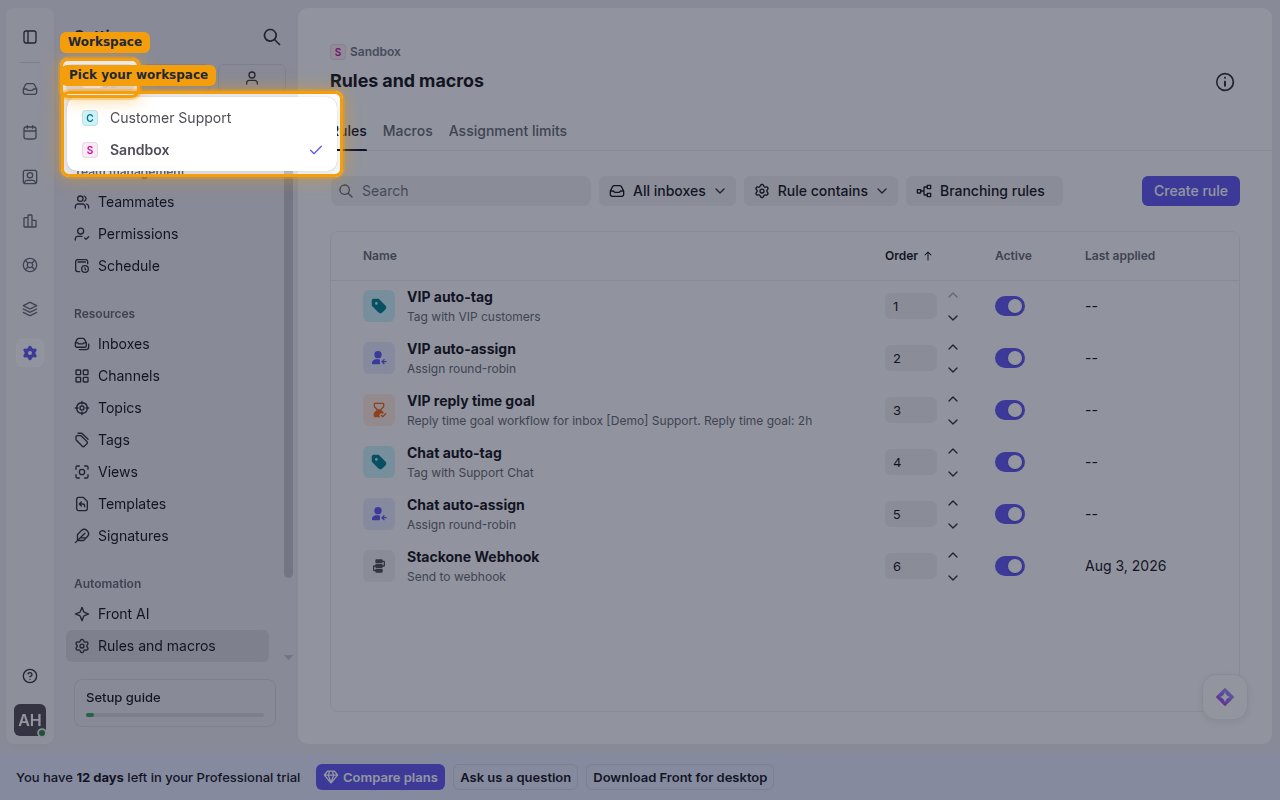
In Front, open Settings, then click the Workspace tab at the top of the settings sidebar and select the workspace whose inboxes the rule should cover (for example, Sandbox). Rules are created per workspace, so the rule applies to the inboxes in the workspace you pick here.
Create a new rule
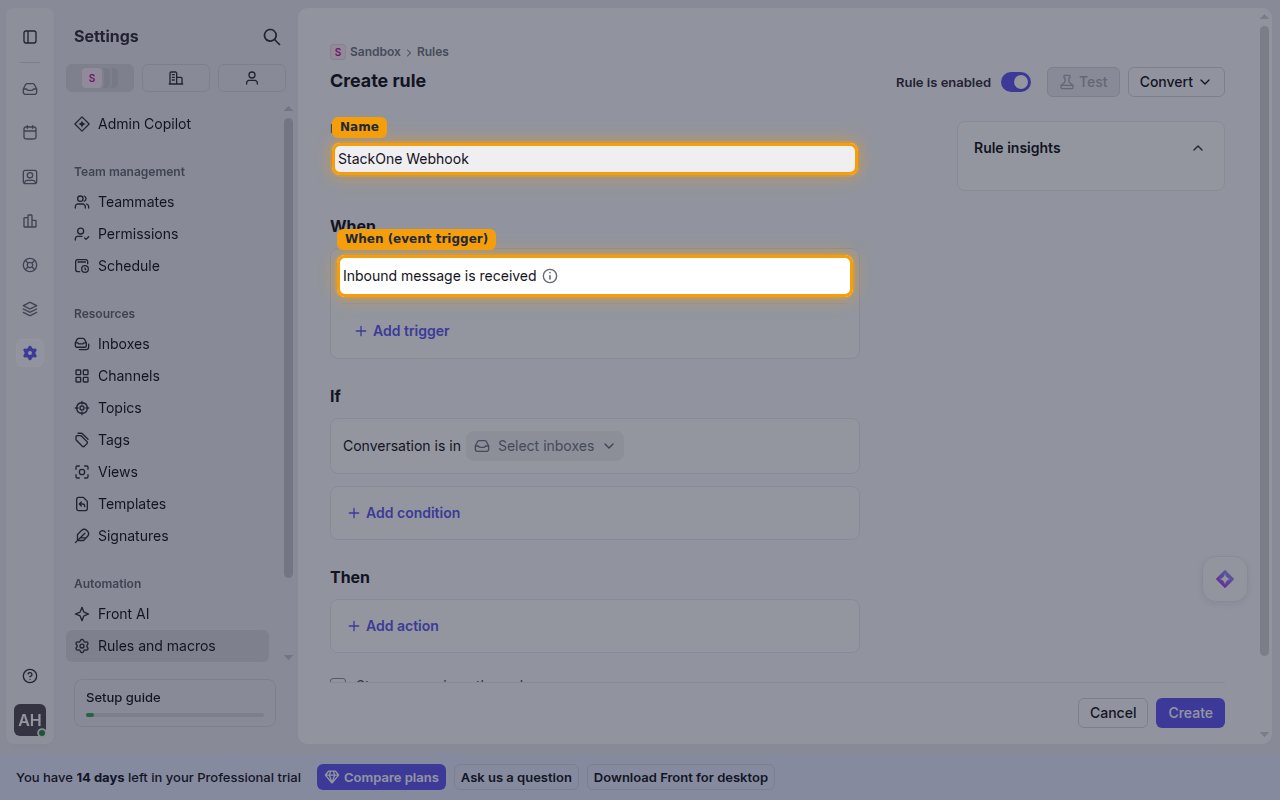
Choose Rules and macros and click Create rule, then choose Create from scratch → Create linear rule. Enter a name in the Name field, and under When choose the trigger for the event you want to forward (for example Inbound message is received). Use Add trigger to forward more than one event type with the same rule.
- The When trigger must match how the event is caused. A trigger such as Inbound message is received only fires on a real inbound message; to forward events driven by API calls, add the matching trigger (for example Tag is added, Assignee changes, or New comment is added).
Set the If condition (required)
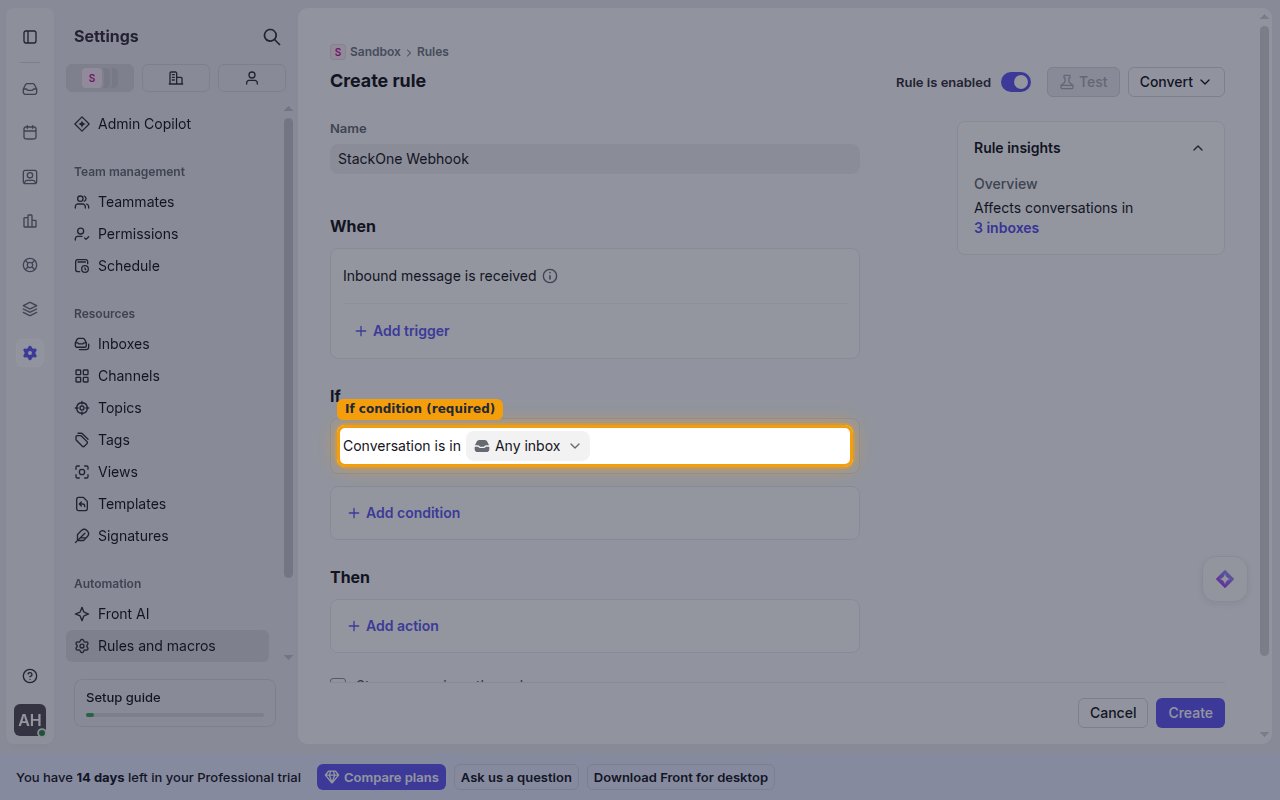
Under If, add at least one condition — Front requires one, and clicking Create shows an error if it is left empty. Choose Conversation is in and select Any inbox (or the specific inboxes you want the rule to cover).
Add the Send to webhook action
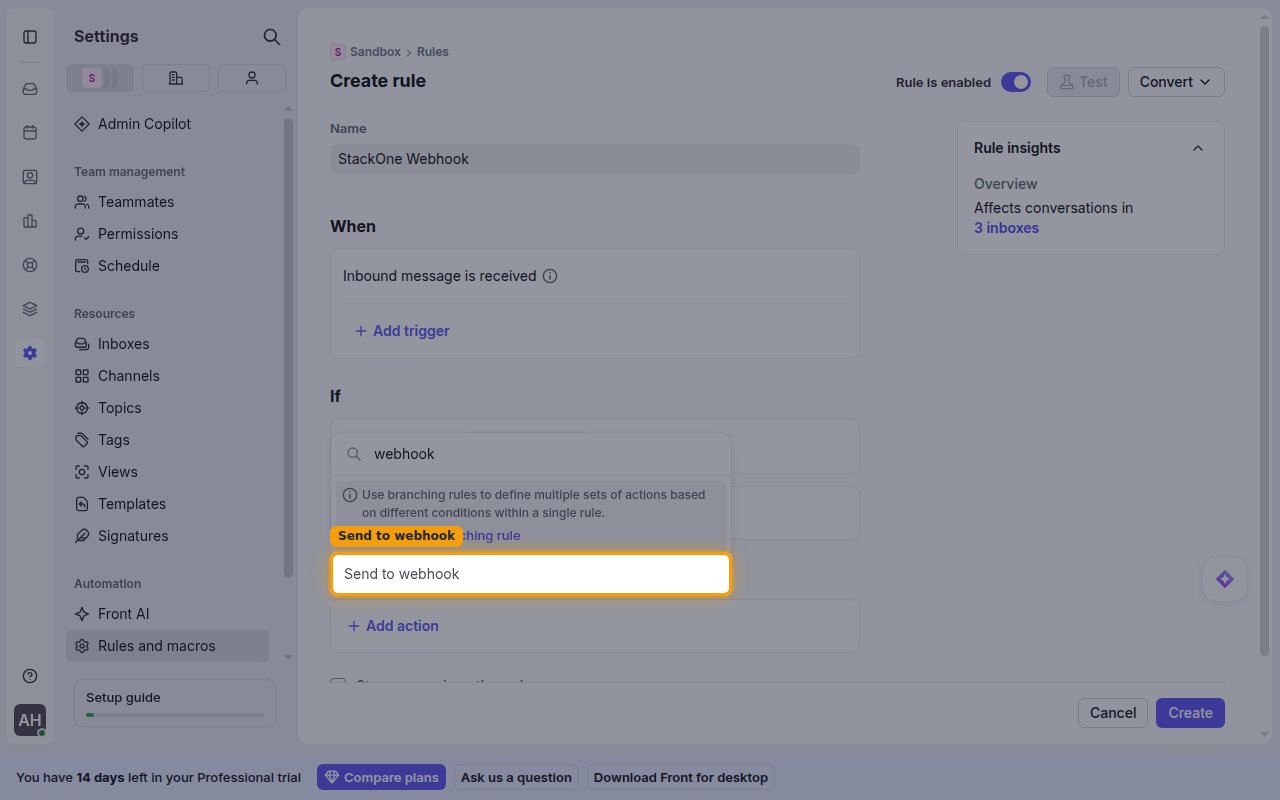
Under Then, click Add action, search for webhook, and choose Send to webhook.
Paste the Native Webhook URL
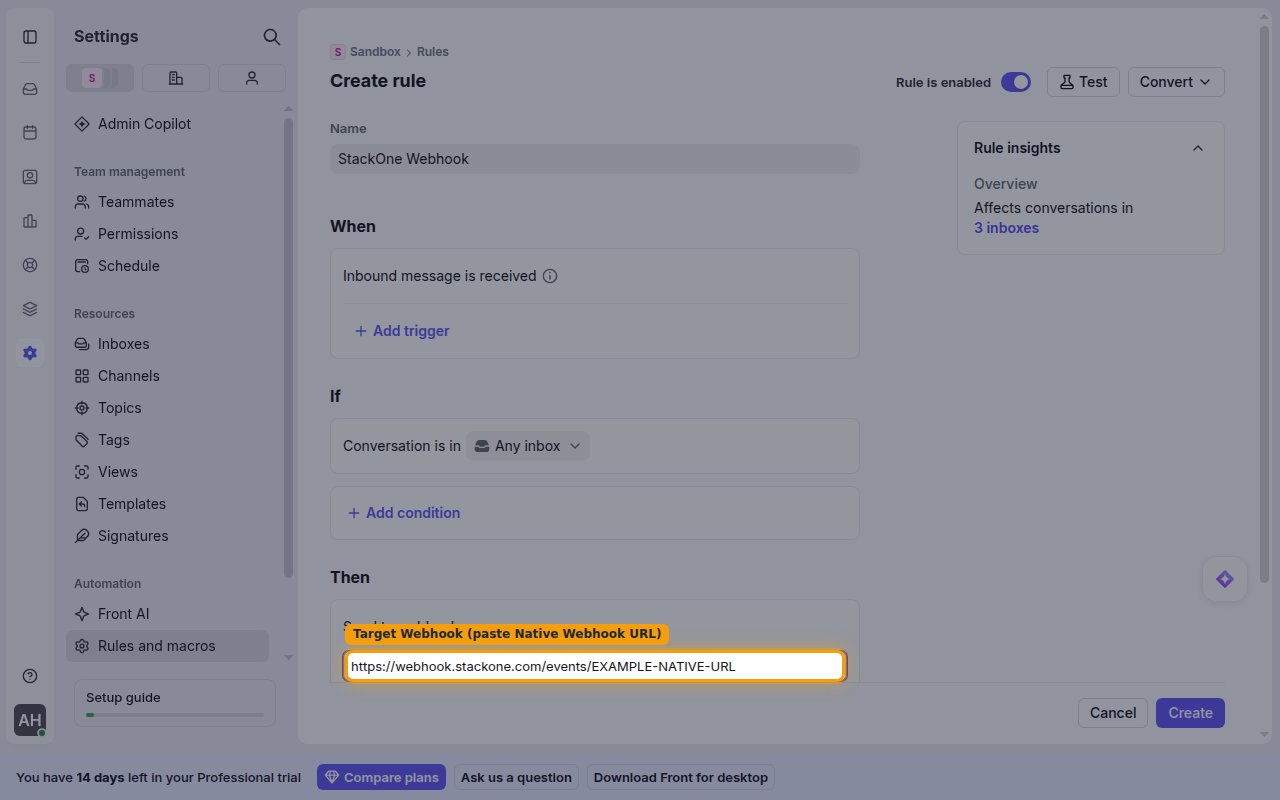
In the Send to webhook action, paste the Native Webhook URL you copied from StackOne into the Target Webhook field.
Save the rule
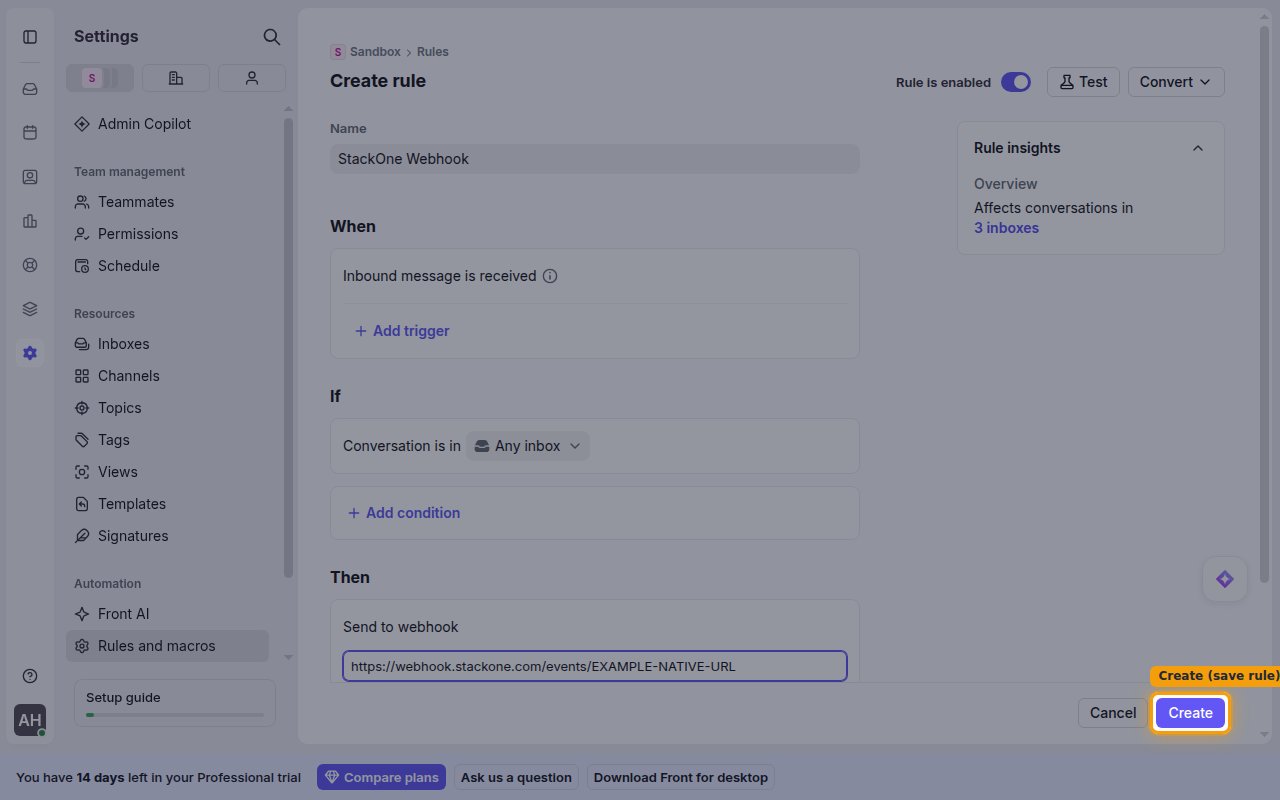
Click Create to save the rule. Front will now forward the selected events to StackOne. Repeat with additional rules or triggers to cover more event types.
Available webhook events
Front only delivers the events matched by your rules’ When triggers — add a trigger for each event you want. The connector handles the following event types.
Message events
Events about individual messages on a conversation.
- Inbound Message Received (
inbound) — Fired when an incoming message is received on a conversation - Outbound Message Sent (
outbound) — Fired when a teammate sends an outbound message - Outbound Reply Sent (
out_reply) — Fired when a reply is sent on a conversation - Message Forwarded (
forward) — Fired when a message is forwarded - Message Bounced (
message_bounce_error) — Fired when a message cannot be delivered to a recipient
Conversation events
Events about the lifecycle and status of a conversation.
- Conversation Assigned (
assign) — Fired when a conversation is assigned to a teammate - Conversation Unassigned (
unassign) — Fired when a conversation is unassigned - Conversation Archived (
archive) — Fired when a conversation is archived - Conversation Reopened (
reopen) — Fired when a conversation is reopened (unarchived) - Conversation Trashed (
trash) — Fired when a conversation is moved to trash - Conversation Restored (
restore) — Fired when a conversation is restored from trash - Conversation Moved (
move) — Fired when a conversation is moved to another inbox - Conversation Reminder (
reminder) — Fired when a conversation is reopened by a reminder - Sending Error (
sending_error) — Fired when an inbox cannot send a message
Tag and link events
Events about tags and links on a conversation.
- Conversation Tagged (
tag) — Fired when a tag is added to a conversation - Conversation Untagged (
untag) — Fired when a tag is removed from a conversation - Link Added (
link_added) — Fired when a link is added to a conversation - Link Removed (
link_removed) — Fired when a link is removed from a conversation
Comment events
Events about internal teammate comments.
- Comment Added (
comment) — Fired when a teammate comments on a conversation - Teammate Mentioned (
mention) — Fired when a teammate is mentioned in a comment
Delivery format
Details of how Front delivers events to StackOne.
One event per request
Each delivery is a single Front Event object (Front rule webhooks are not batched). StackOne routes each delivery to the matching event handler based on the event’s type.
Verify events are delivered
After the rule is active, trigger a matching event (for example, add a tag to a conversation) and confirm the delivery reaches your downstream endpoint. Each request carries the StackOne-normalized event — the provider event type, the resolved record_id, and the full Front payload under event_data — and is signed with the x-stackone-signature header.