

Prerequisites
The connector should already be set up, with a Connector Profile and a Linked Account. See Getting Started on the Freshsales connector page.Send Freshsales events to StackOne via a Workflow webhook
Copy the Native Webhook URL from this StackOne connection and use it as the Enter callback URL value of a Trigger webhook action in a Freshsales Workflow, so Freshsales posts data to StackOne when the workflow’s conditions are met.
Copy the Native Webhook URL from StackOne
On this connection in StackOne, copy the read-only Native Webhook URL. It contains a secure per-connection key, so treat it like a secret — you will paste it into Freshsales in a later step.
Open Workflows in Freshsales
Sign in to Freshsales as an Admin and open Admin Settings. Search settings for Workflows and open Set up automated actions based on trigger conditions.
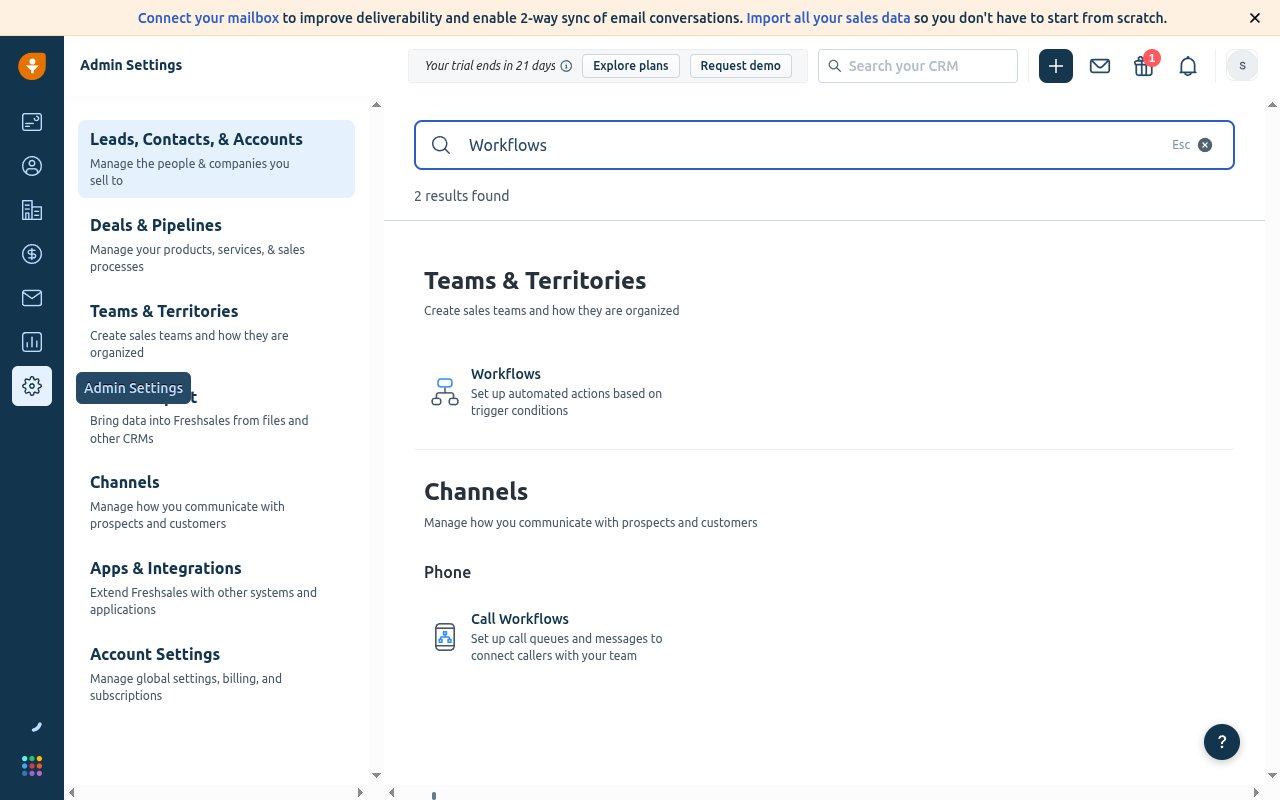
Create a workflow
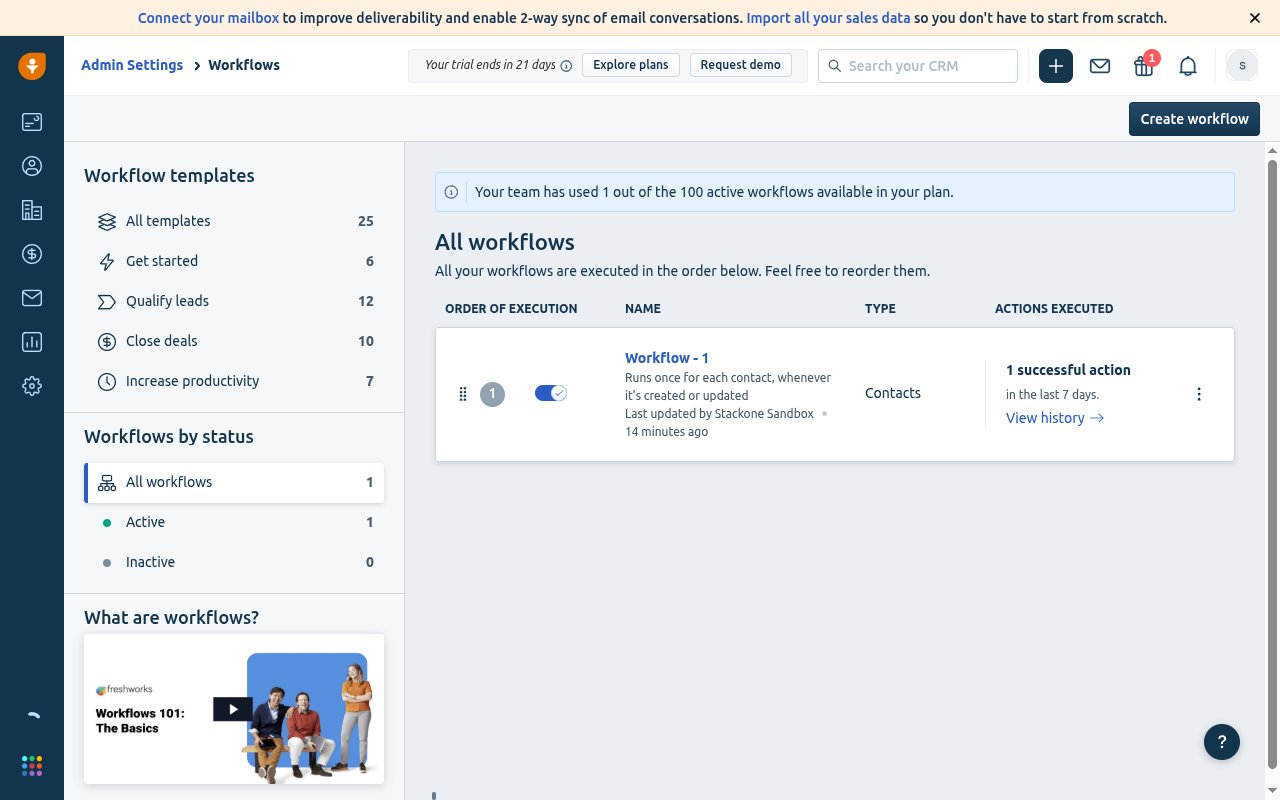
On the Workflows page, click Create workflow.
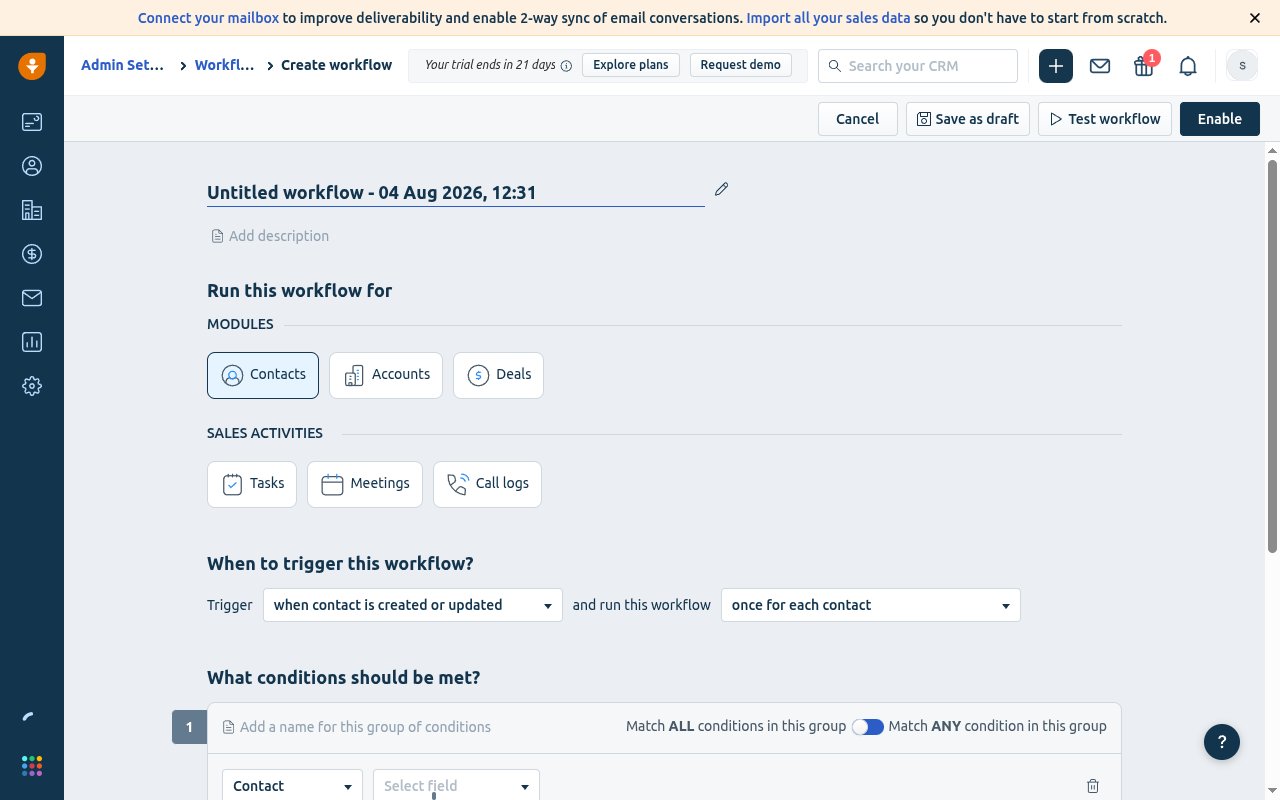
Choose the module, trigger, and conditions
Under Run this workflow for, pick the Module the events should come from — Contacts, Accounts, Deals, or a Sales activities type (Tasks, Meetings, Call logs). Under When to trigger this workflow? set the Trigger (for example, when contact is created or updated), and optionally add conditions under What conditions should be met?
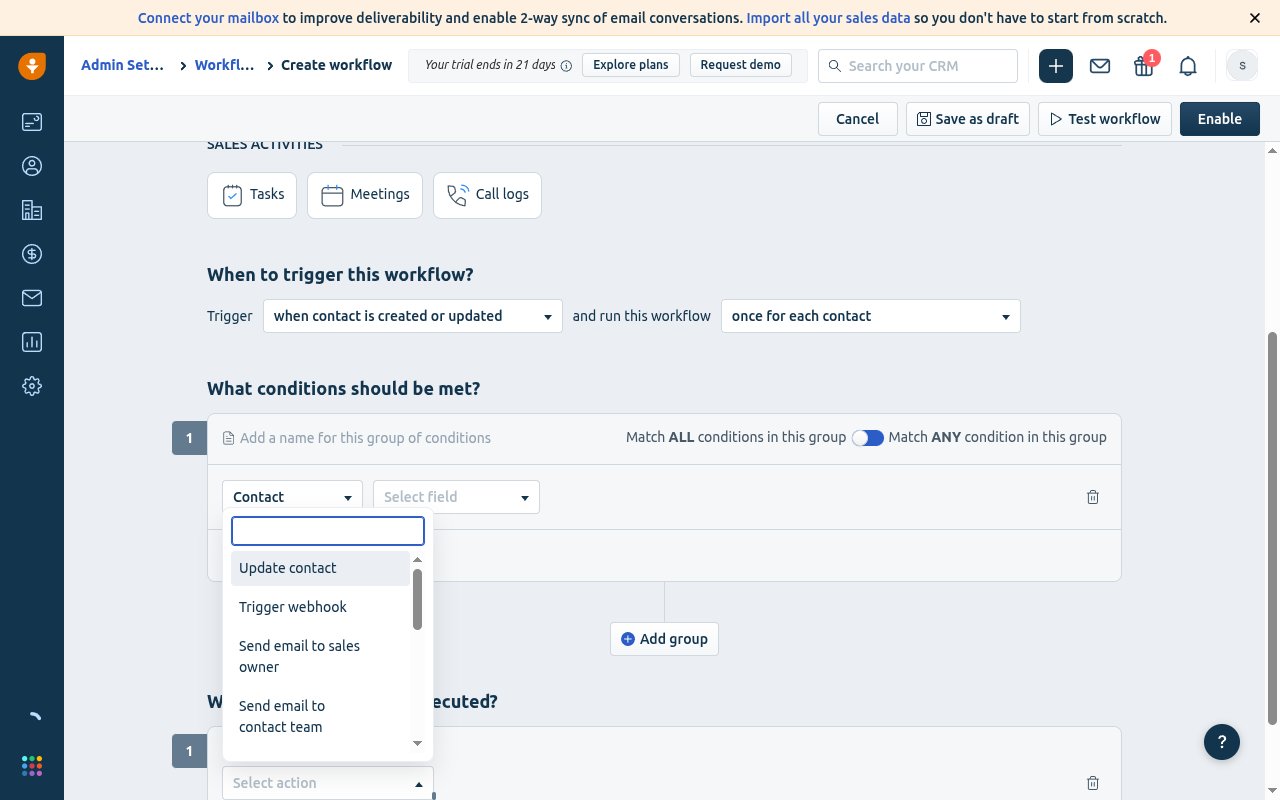
Add a Trigger webhook action
Under What actions should be executed?, click Add action, open Select action, and choose Trigger webhook. Then click Edit webhook settings.
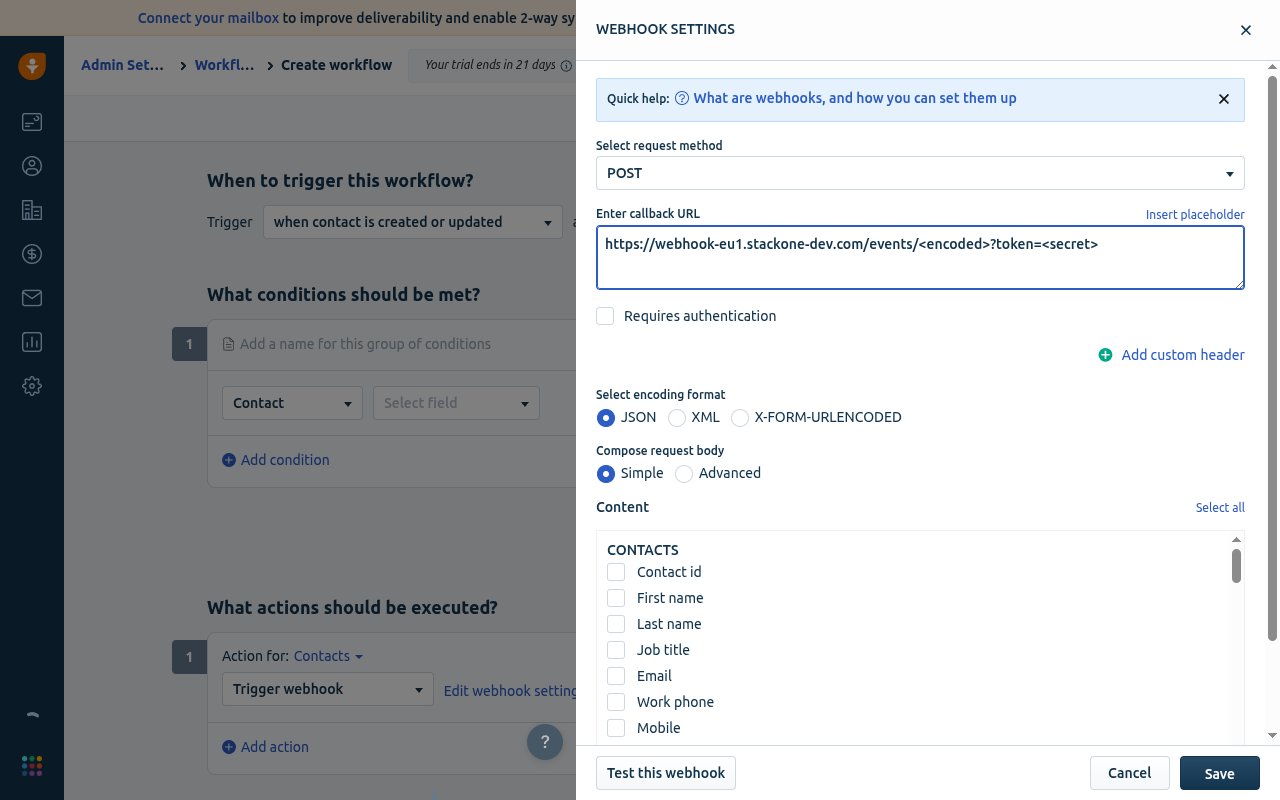
Configure the Webhook Settings
In the Webhook Settings panel, complete the fields below, then click Save.
- Select request method — choose POST.
- Enter callback URL — paste the Native Webhook URL you copied from this StackOne connection.
- Select encoding format — choose JSON.
- Compose request body — choose Simple, then under Content select the record’s Contact id (StackOne uses it as the record id) plus any other fields you want to send. You can use Select all.
- Leave Requires authentication off — the secure key in the Native Webhook URL is the security gate.
- Optionally click Test this webhook to confirm StackOne accepts it, then Save.
Save the webhook, then enable the workflow
Click Save in the Webhook Settings panel to return to the workflow builder. In the builder’s toolbar at the top of the page you’ll see Save as draft, Test workflow, and Enable. Click Test workflow first if you want to send a one-off test delivery, then click Enable to switch the workflow on. Once enabled, Freshsales POSTs the payload to the callback URL every time the trigger fires and the conditions are met.
Available webhook events
A Freshsales Workflow can send events from any of these modules — build one workflow per module and trigger you want to receive. Only the fields you select in the workflow’s Content are delivered.
- Contacts — a contact is created or updated (or field-specific triggers you choose).
- Accounts — an account is created or updated.
- Deals — a deal is created or updated (including stage changes).
- Tasks — a task is created, updated, or completed.
- Meetings — a meeting/appointment is created or updated.
- Call logs — a call log is created or updated.
Delivery format
Freshsales sends each event as a single HTTPS POST with the JSON body you composed in the workflow (the selected Content fields, flat and prefixed by record type — e.g. contact_id, contact_email). Because the body is admin-defined, StackOne passes the full payload through as the event data and derives the record id from the record’s id field (e.g. contact_id). There is no verification handshake, and the secure key in the callback URL authenticates the delivery.