

Prerequisites
The connector should already be set up, with a Connector Profile and a Linked Account. See Getting Started on the Freshchat connector page.Connect Freshchat webhooks
Freshchat sends conversation events to the single webhook URL saved under Conversation Webhooks.
Retrieve StackOne Native Webhook URL
The Native Webhook URL is generated once an account has been linked.
- Open the linked account in StackOne.
- Copy the value from Native Webhook URL.
Enable the events in StackOne
Turn on the Freshchat events you want to receive and route them to your StackOne webhook.
- Open the connector profile.
- Open the Events tab.
- Toggle on each event you want to handle and select the StackOne Webhook to deliver it to.
Open Admin Settings
Sign in to your Freshworks account with an admin user.
- In the left navigation, hover over the settings icon.
- Click Admin Settings.
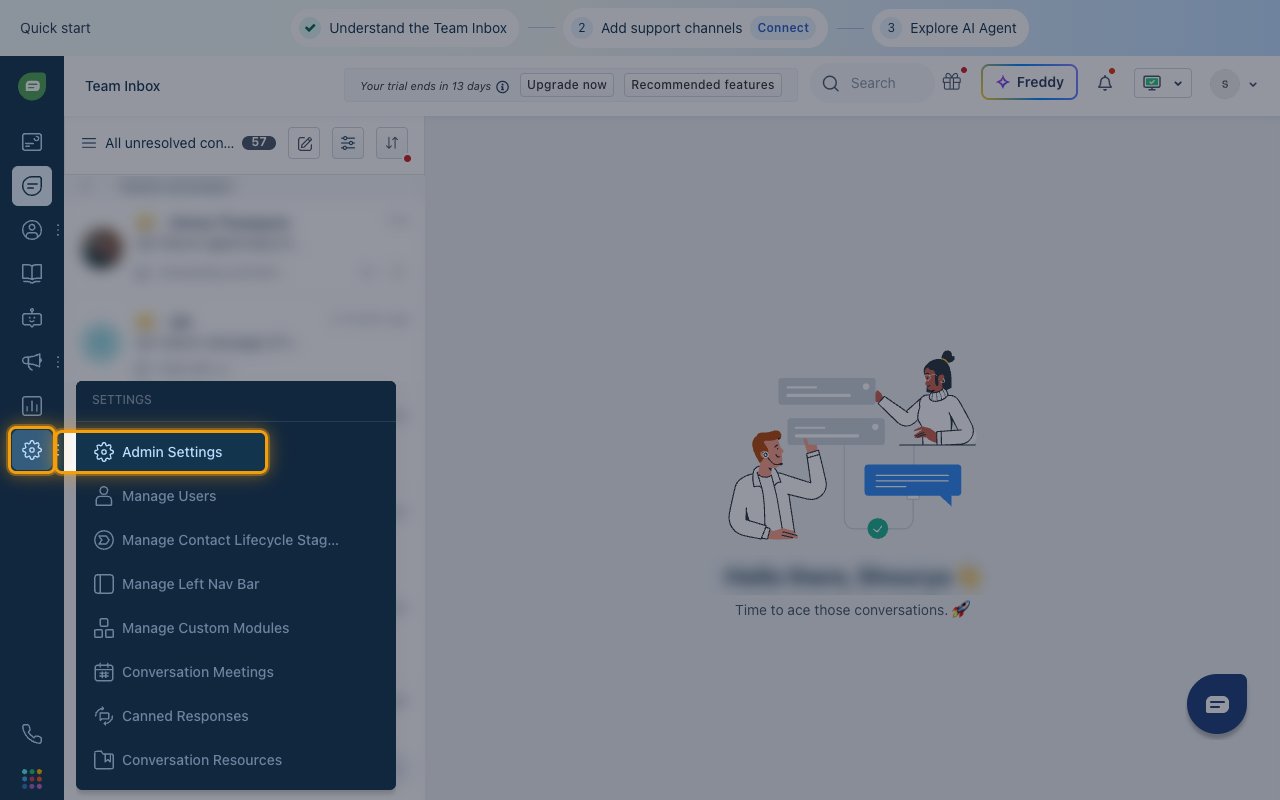
Open Conversation Webhooks
In Admin Settings, select Marketplace and Integrations.
- Under API, click Conversation Webhooks.
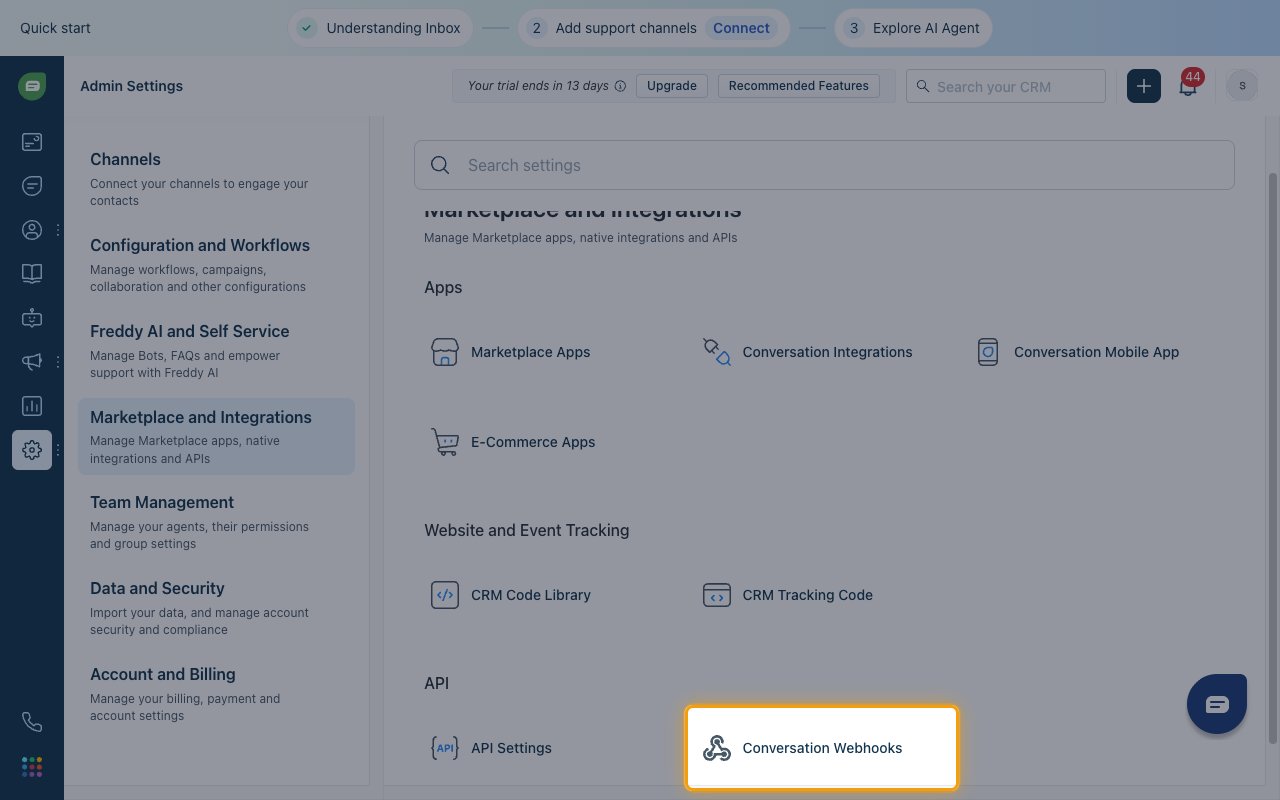
Enable the webhook
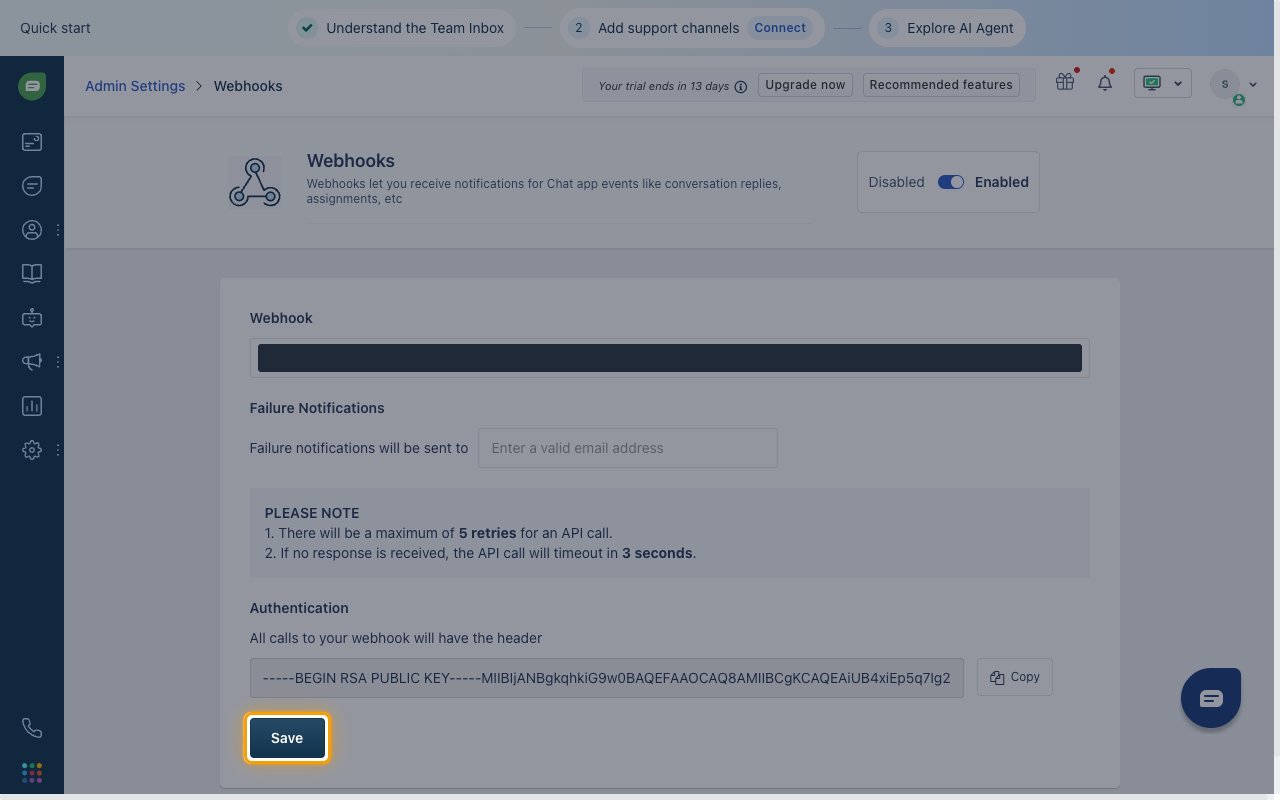
On the Webhooks page, switch the toggle from Disabled to Enabled.
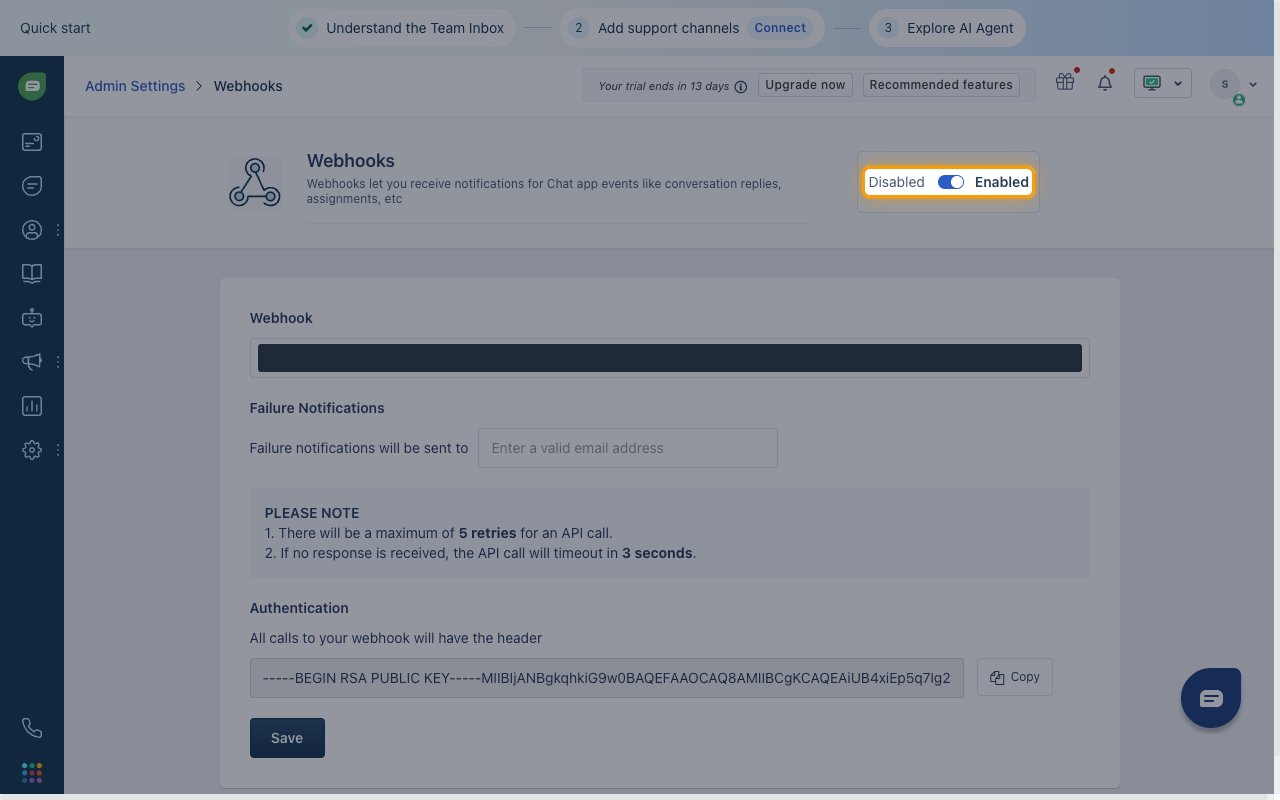
Paste the Native Webhook URL
Paste the StackOne Native Webhook URL into the Webhook field.
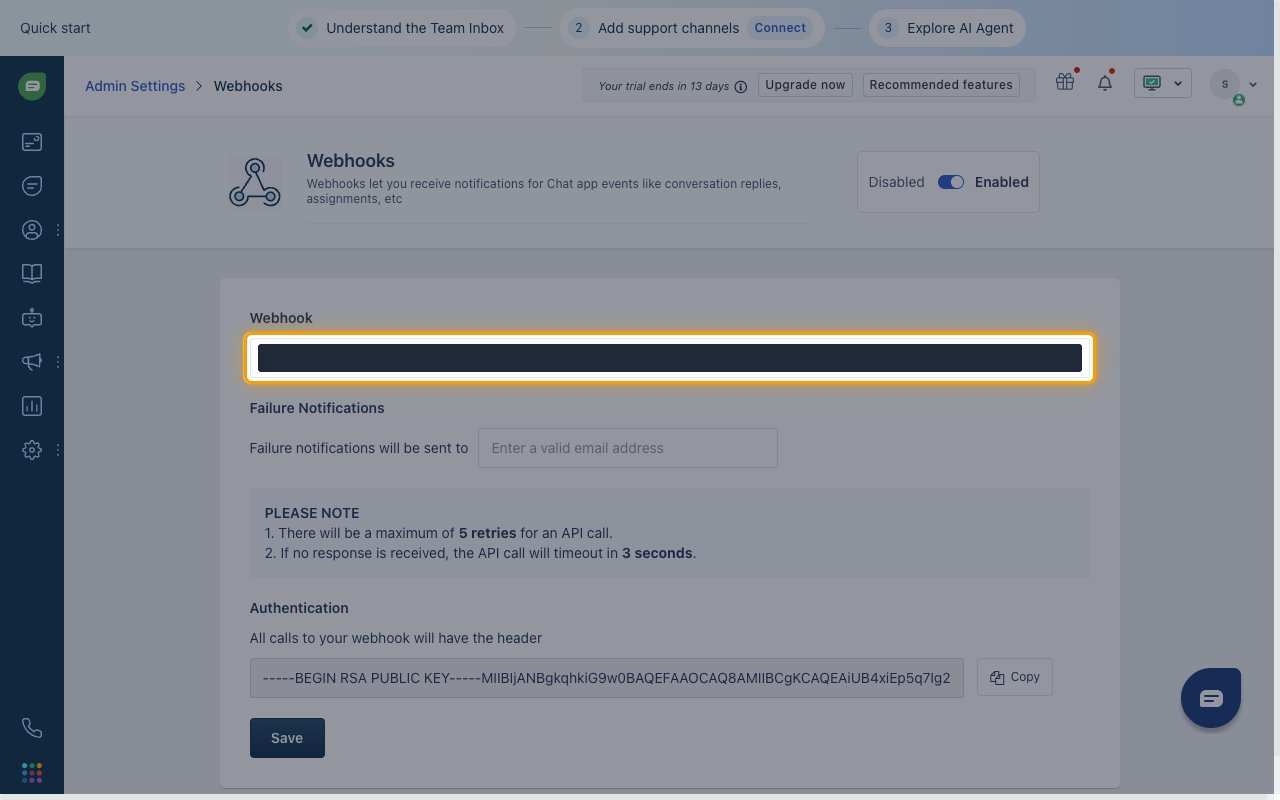
Save the webhook
Click Save. Freshchat starts sending conversation events to StackOne right away.
Available webhook events
The following Freshchat events can be enabled.
Message events
Events related to messages in a conversation.
- Message Created (
message_create) — Fired when a user, an agent or the system posts a message in a conversation, including agent private notes
Conversation events
Events related to the conversation lifecycle.
- Conversation Assigned (
conversation_assignment) — Fired when a conversation is assigned or reassigned to an agent or a group - Conversation Resolved (
conversation_resolution) — Fired when a conversation is resolved - Conversation Reopened (
conversation_reopen) — Fired when a resolved conversation is reopened by a user or an agent