

Get your API key and chat URL
Your Freshchat API key authorizes StackOne, and your chat URL identifies your Freshchat account.
1
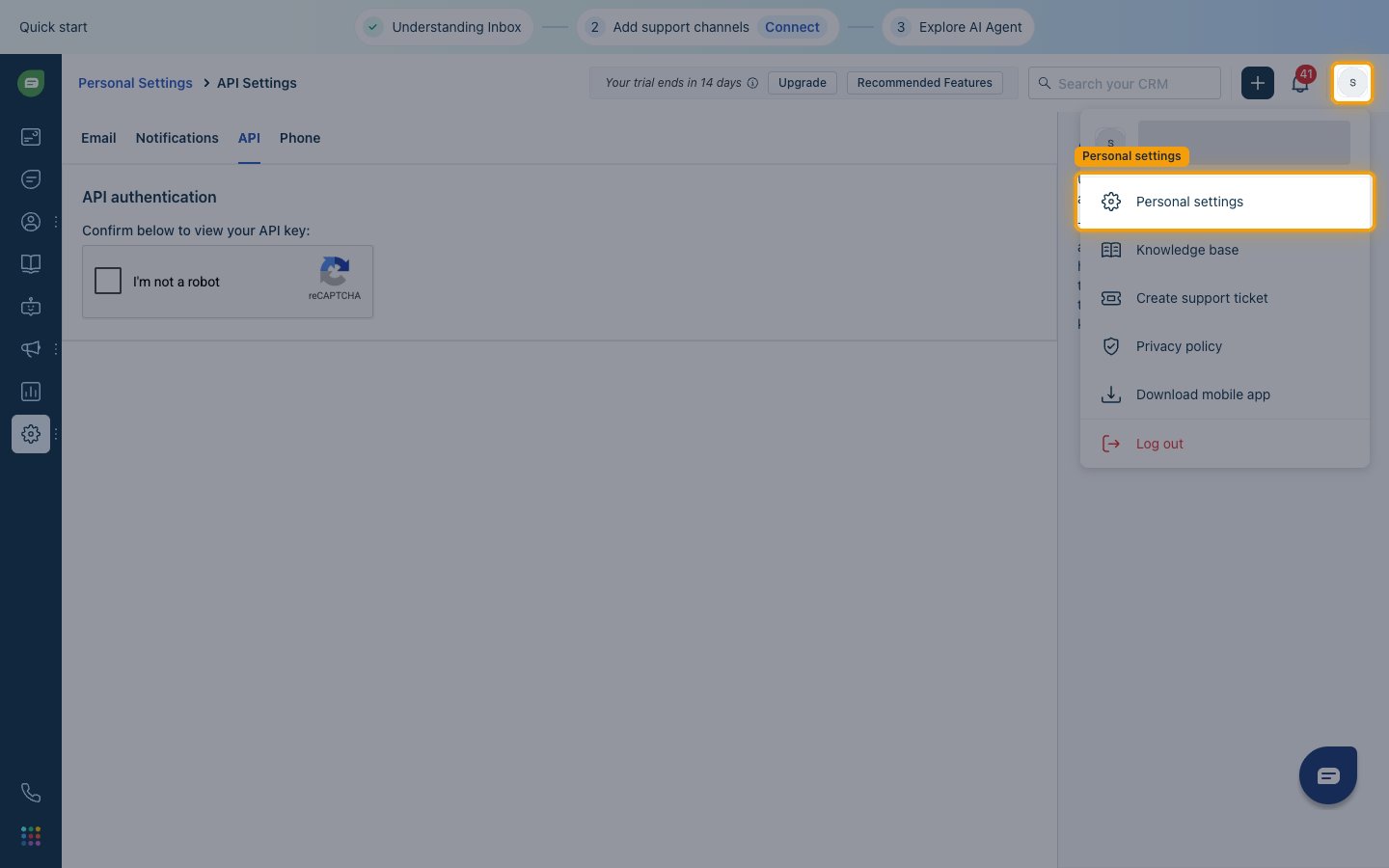
Open Personal settings
Sign in to Freshchat, then click your profile avatar in the top-right corner of the dashboard.
- Select Personal settings.
- Standalone Freshchat account: Go to Admin settings > APIs for chat instead. The API tab is on Freshworks suite accounts only.
2
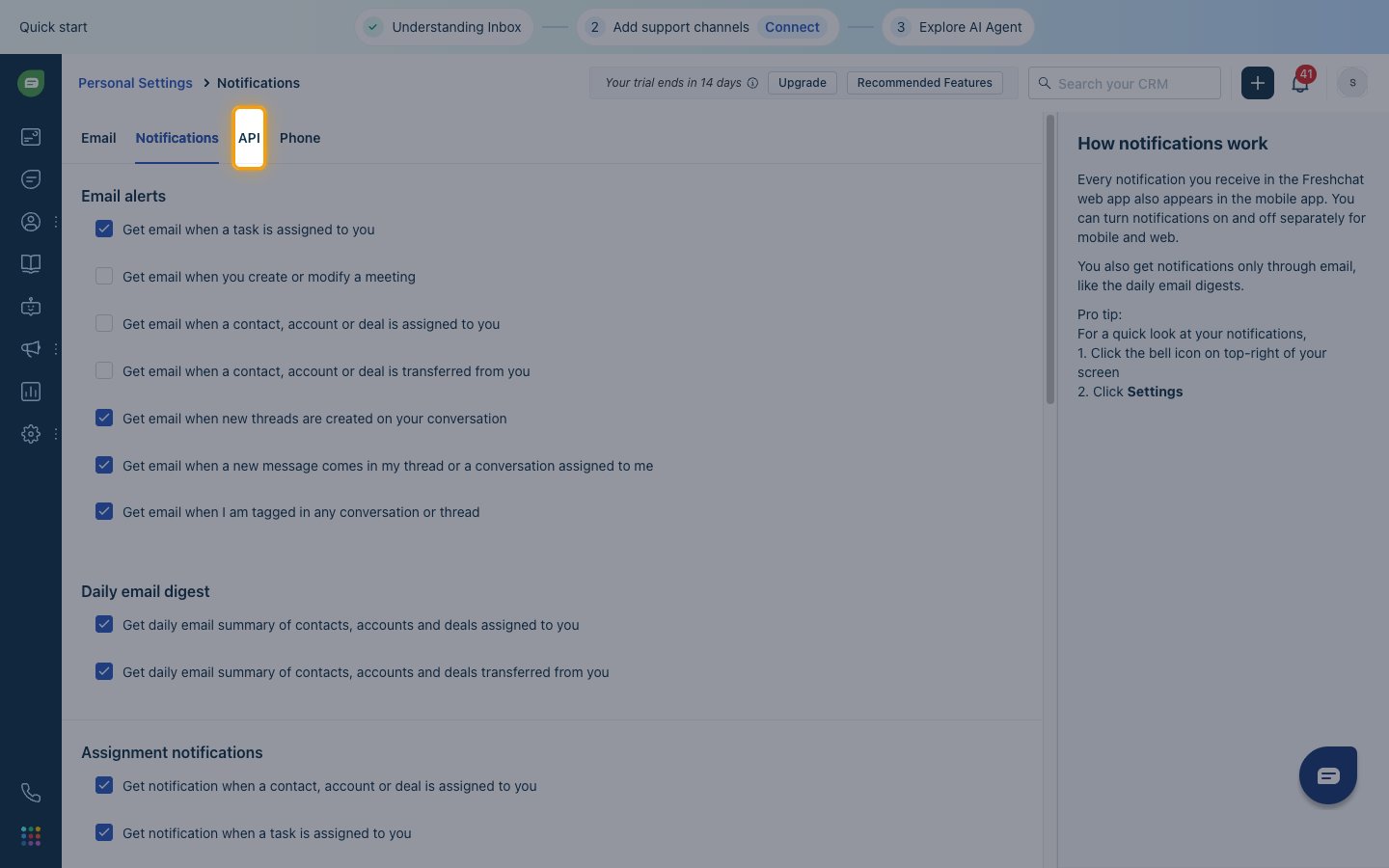
Open the API tab
In Personal Settings, click the API tab.
3
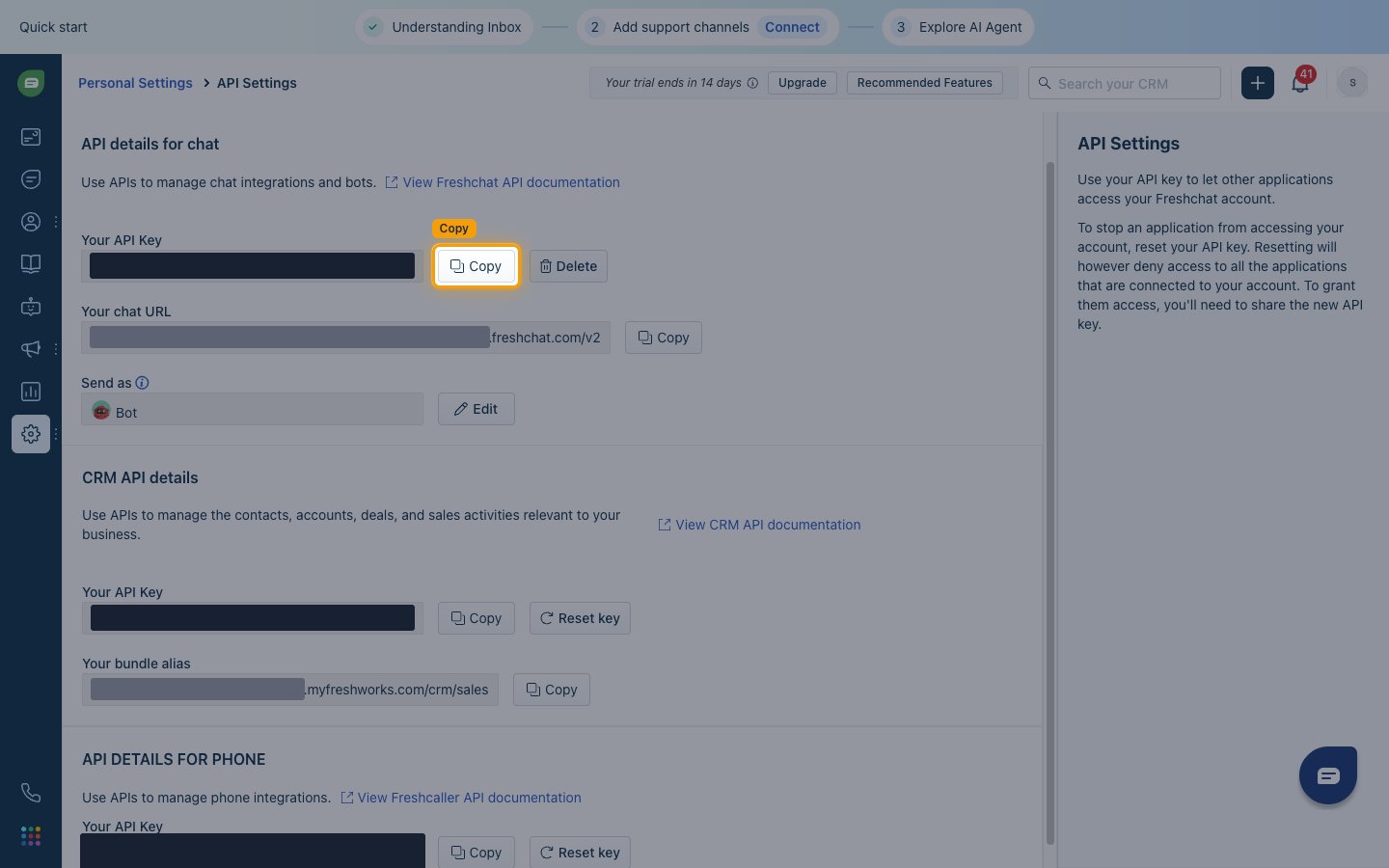
Copy the API key
Copy the Freshchat API key into API Key in StackOne Hub.
- Freshworks suite account: Under API details for chat, click Copy next to Your API Key. The keys under CRM API details and API DETAILS FOR PHONE are for other Freshworks products.
- Standalone Freshchat account: Click Generate Token if no key exists yet, then copy the key shown as API KEY.
4
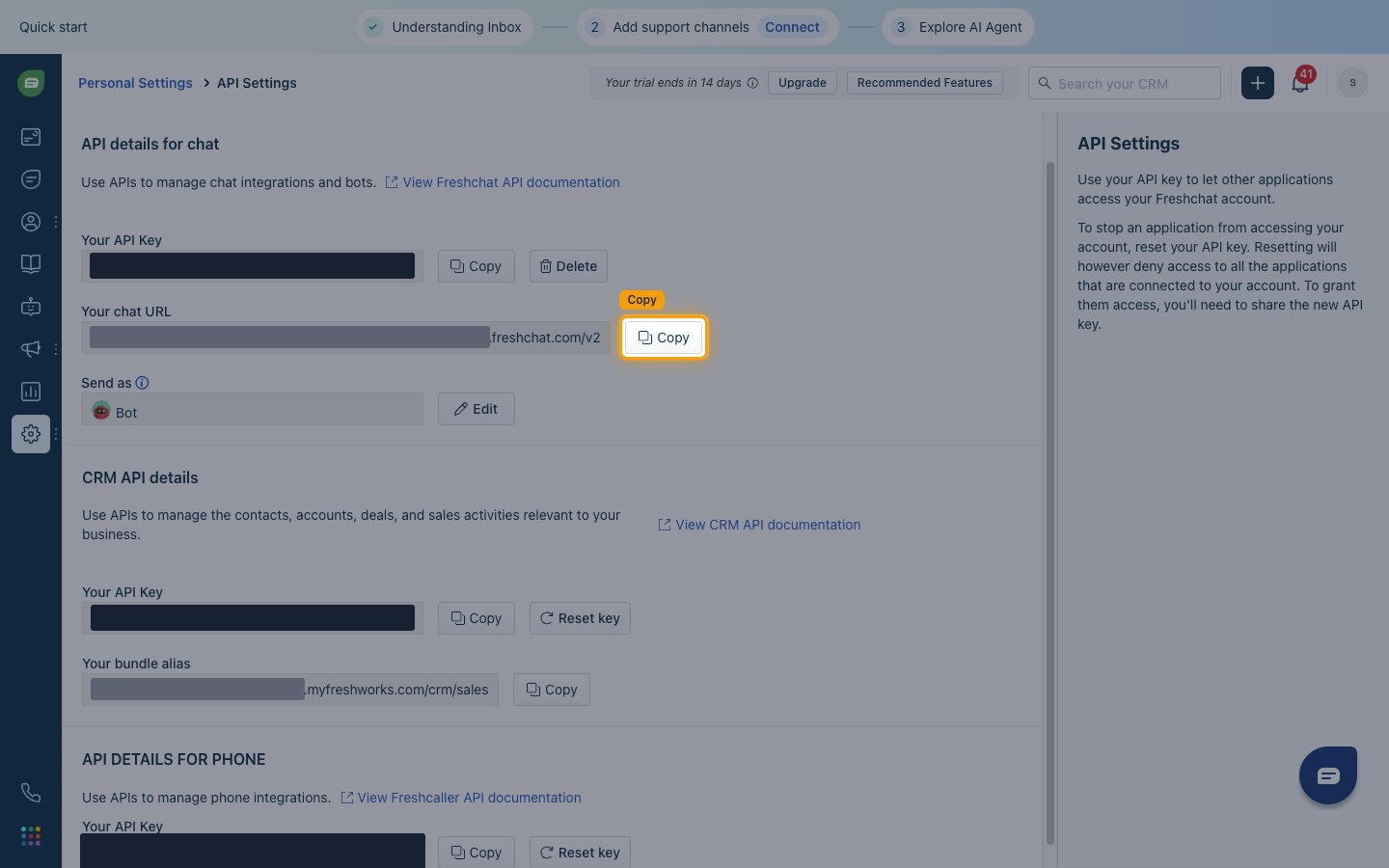
Copy the chat URL
Enter your chat URL, including /v2 and without the protocol, into Domain (Chat URL) in StackOne Hub.
- Freshworks suite account: Click Copy next to Your chat URL and paste the value as shown.
- Standalone Freshchat account: Enter your Freshchat account name followed by
.freshchat.com/v2. - Format:
{account}.freshchat.com/v2 - Example:
acme-123456.freshchat.com/v2
Link the Account
1
Connect
- Click Connect.
- If applicable, the provider will redirect you to a sign-in or authorization page. Complete the provider’s authorization flow.
- Once authorization is successful, you will see a confirmation popup.
2
Use Actions
Connect an AI platform to the linked account’s actions. See AI Platforms.Other ways to call actions are listed in Protocols & SDKs.
Next Steps
Webhooks setup
Configure receiving Events for Freshchat into StackOne.