

Creating a service account key
Work in the Google Cloud project behind the Firebase project you are connecting. Every Firebase project is also a Google Cloud project and shares its IAM. The roles you grant the service account decide which actions work.
Enable the required APIs
Sign in to the Google Cloud Console and select the project. Turn on the Firebase Management API, Identity Toolkit API, Cloud Firestore API and Firebase Cloud Messaging API.
- For each API, search for it in Search (/) for resources, docs, products, and more and open it.
- Click Enable.
- If the page shows Manage and API Enabled, the API is already on.
Create the service account
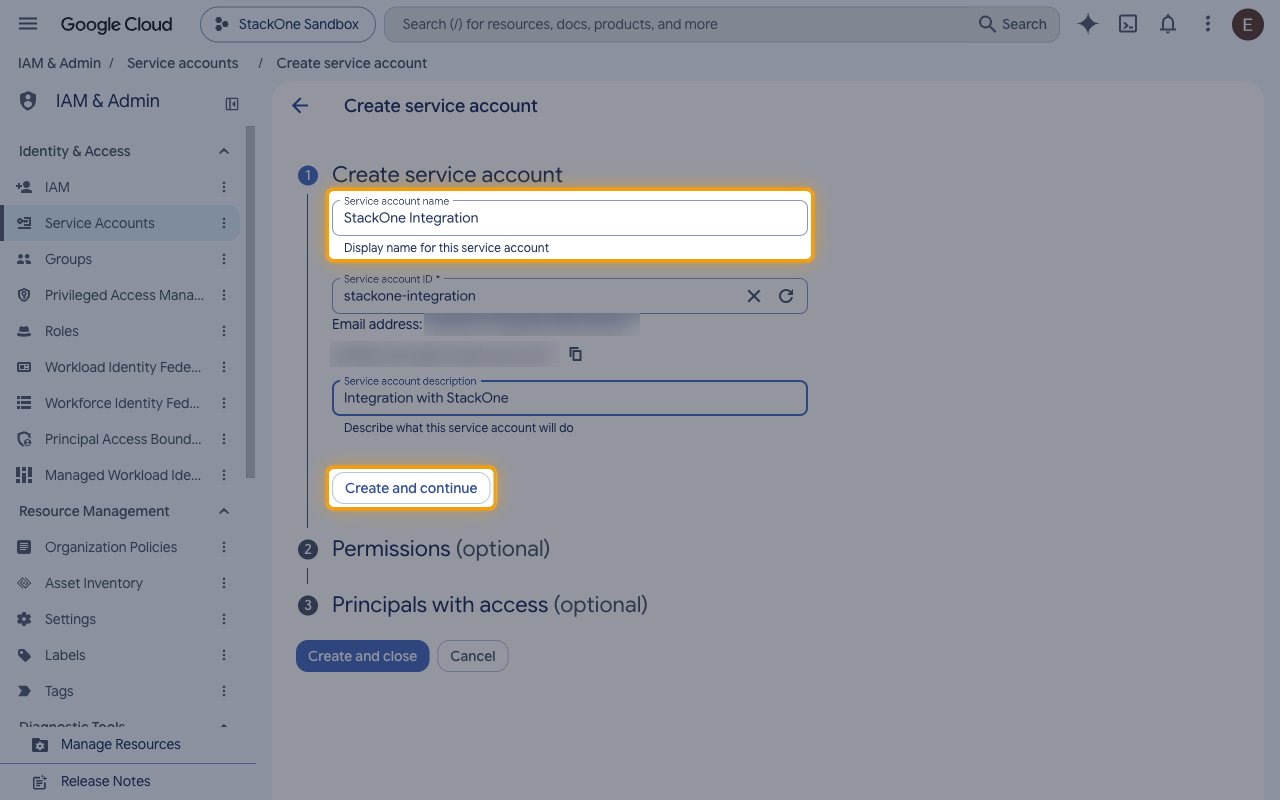
Open IAM & Admin > Service Accounts.
- Click Create service account.
- Service account name:
StackOne Integration - Click Create and continue.
Grant the roles
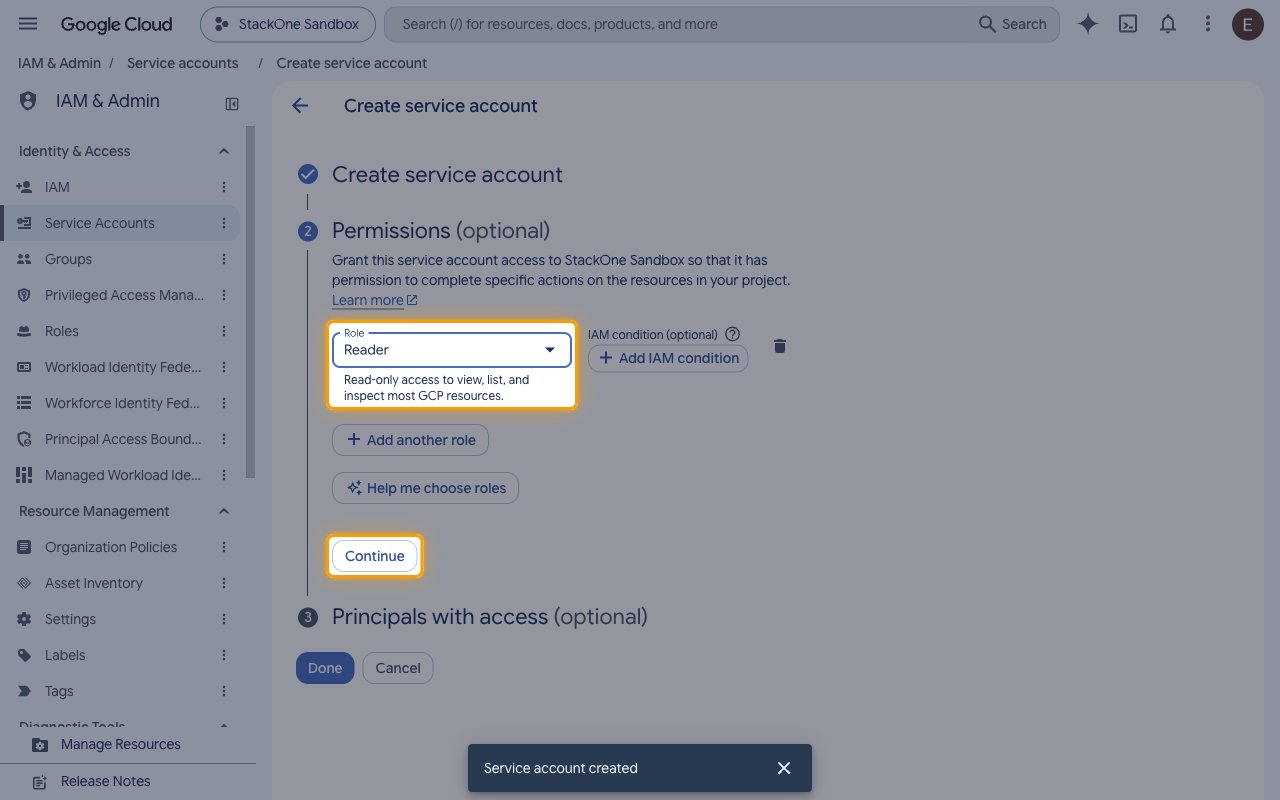
Under Permissions (optional), add the role that matches what this connection will do. One role is enough for each level of access.
- Click Select a role.
- Firebase Viewer covers every read in this connector, including projects, apps and their configuration, Authentication users and Firestore documents. It grants no writes.
- Firebase Admin covers all of that plus creating, changing, deleting and undeleting projects, apps and SHA certificates, managing Authentication users and Firestore documents, and sending Cloud Messaging messages. Nothing else needs to be added alongside it.
- To stay narrower than Firebase Admin, add Firebase Authentication Admin for Authentication users, Cloud Datastore User for Firestore documents and Firebase Cloud Messaging API Admin for sending messages, choosing only the ones you need.
- Click Continue.
- Click Done.
- New roles can take a few minutes to become active.
Grant the roles on every Firebase project you will reach
Each action takes its Firebase project as an input, so one connection can reach several projects. A service account has no access to a Firebase project just because it was created in another one, and a project it has not been granted on is invisible to it rather than merely restricted, so calls fail with a permission error.
- For each Firebase project this connection should reach, open IAM & Admin > IAM on that project.
- Click Grant access.
- New principals: the service account’s email address, which ends in
iam.gserviceaccount.com. - Assign the same role you chose above, then click Save.
- Skip this if the connection only reaches the project the service account was created in, where the roles above already apply.
Create the JSON key
In Service Accounts, click the email of the new service account and open the Keys tab.
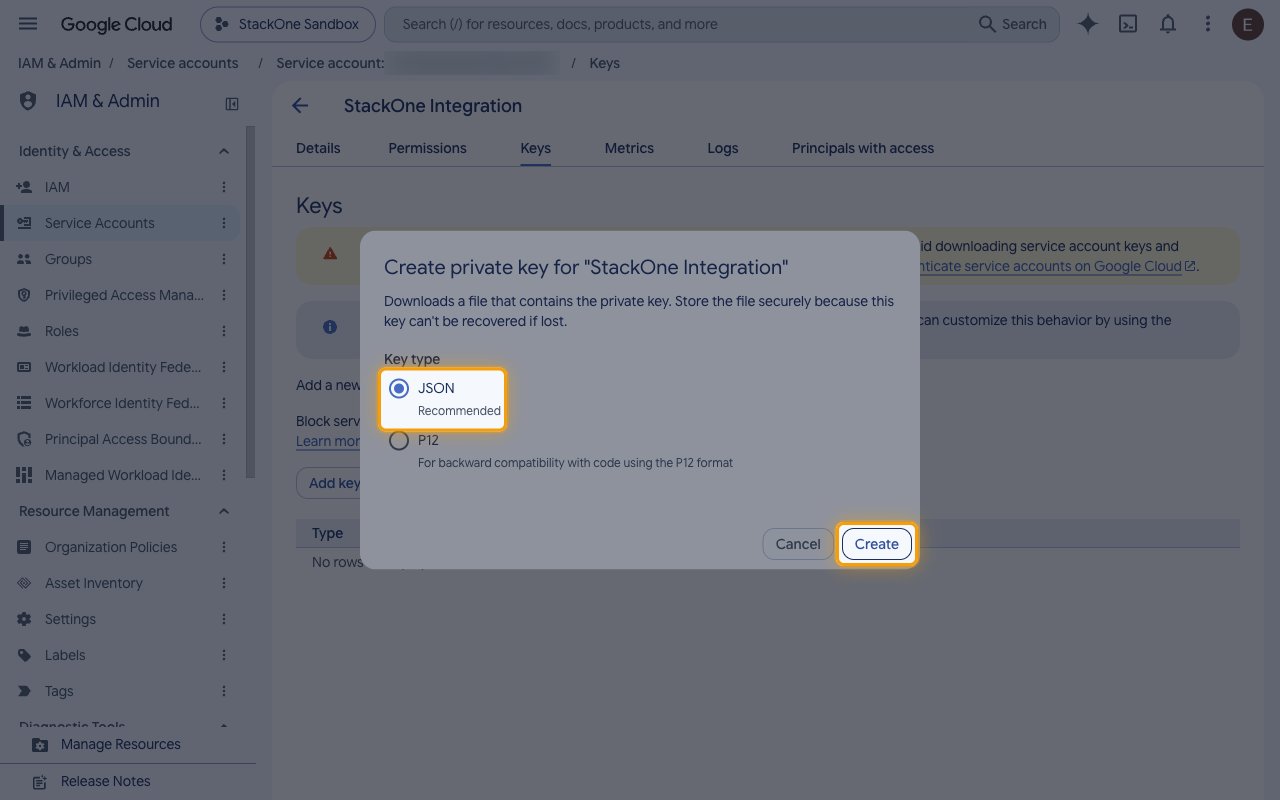
- Click Add key.
- Select Create new key.
- Key type: JSON
- Click Create. The key file downloads once, and Google can’t recover it if it is lost.
- If your organization blocks key creation with an organization policy, ask an organization policy administrator to allow it for this project.
Entering the key
Open the downloaded .json key file in a text editor. The whole file, including the outer braces, is the key.
- Copy the Service Account Key (JSON) across.
- Actions take the Firebase project as an input rather than a connection setting. Use the
project_idvalue from the key file, or the ID of another Firebase project the service account has roles on.
Link the Account
Connect
- Click Connect.
- If applicable, the provider will redirect you to a sign-in or authorization page. Complete the provider’s authorization flow.
- Once authorization is successful, you will see a confirmation popup.
Use Actions