

Prerequisites
The connector should already be set up, with a Connector Profile and a Linked Account. See Getting Started on the FastSpring connector page.Retrieve the StackOne Native Webhook URL
The Native Webhook URL is generated once a FastSpring account has been linked in StackOne. Each linked account has its own URL.
- Open the linked account in StackOne.
- Copy the value from Native Webhook URL.
Create a FastSpring webhook
Add a webhook for StackOne in the FastSpring app and point a URL endpoint at the Native Webhook URL so FastSpring posts events to StackOne.
Open the Webhooks page
Sign in to your FastSpring account.
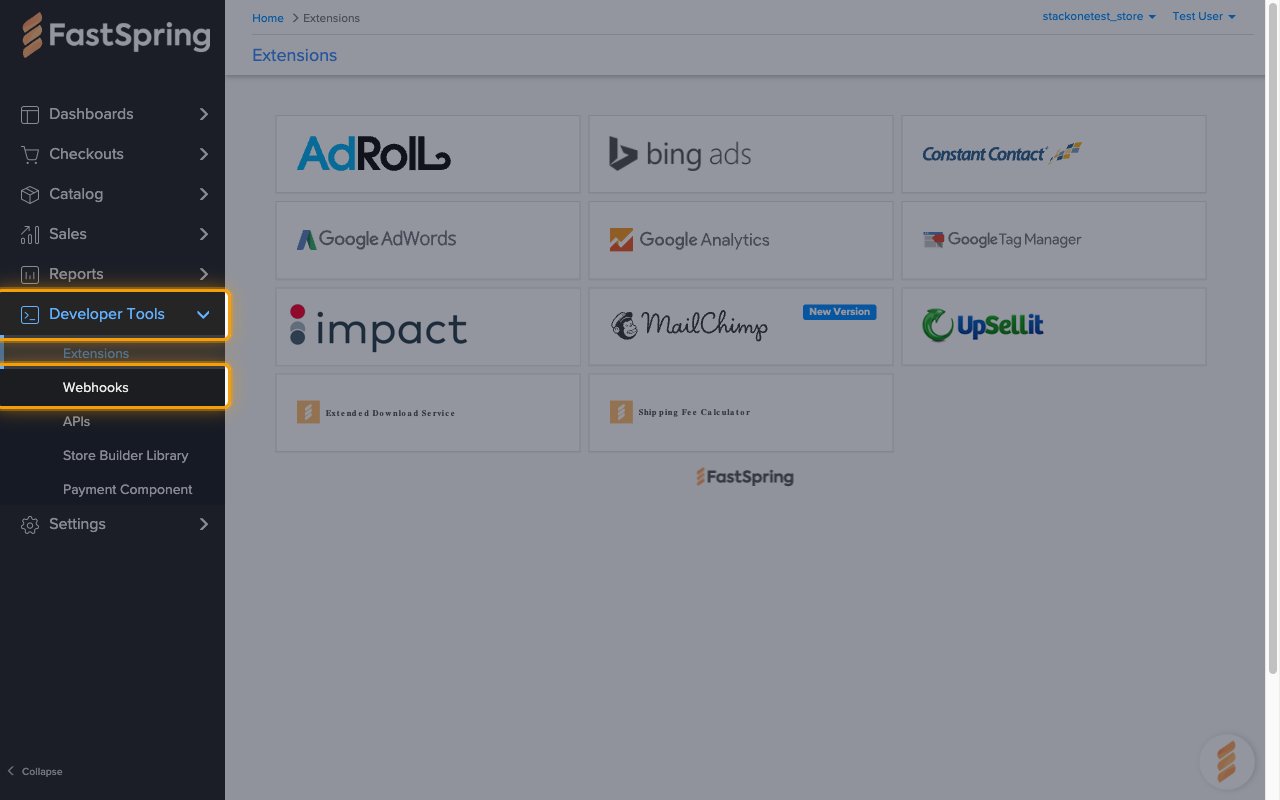
- In the left sidebar, click Developer Tools, then select Webhooks.
Open the Configuration tab
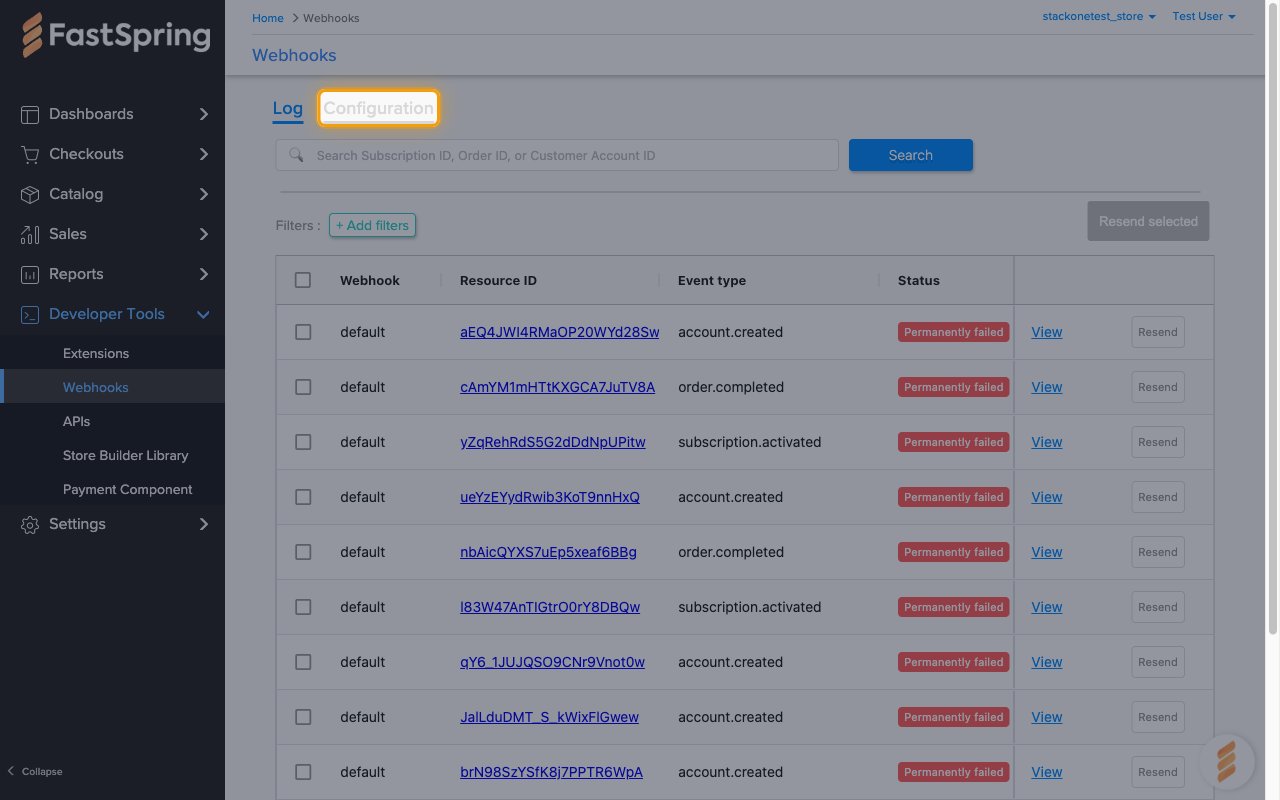
The Webhooks page opens on the Log tab. Click Configuration to manage webhooks.
Add a webhook
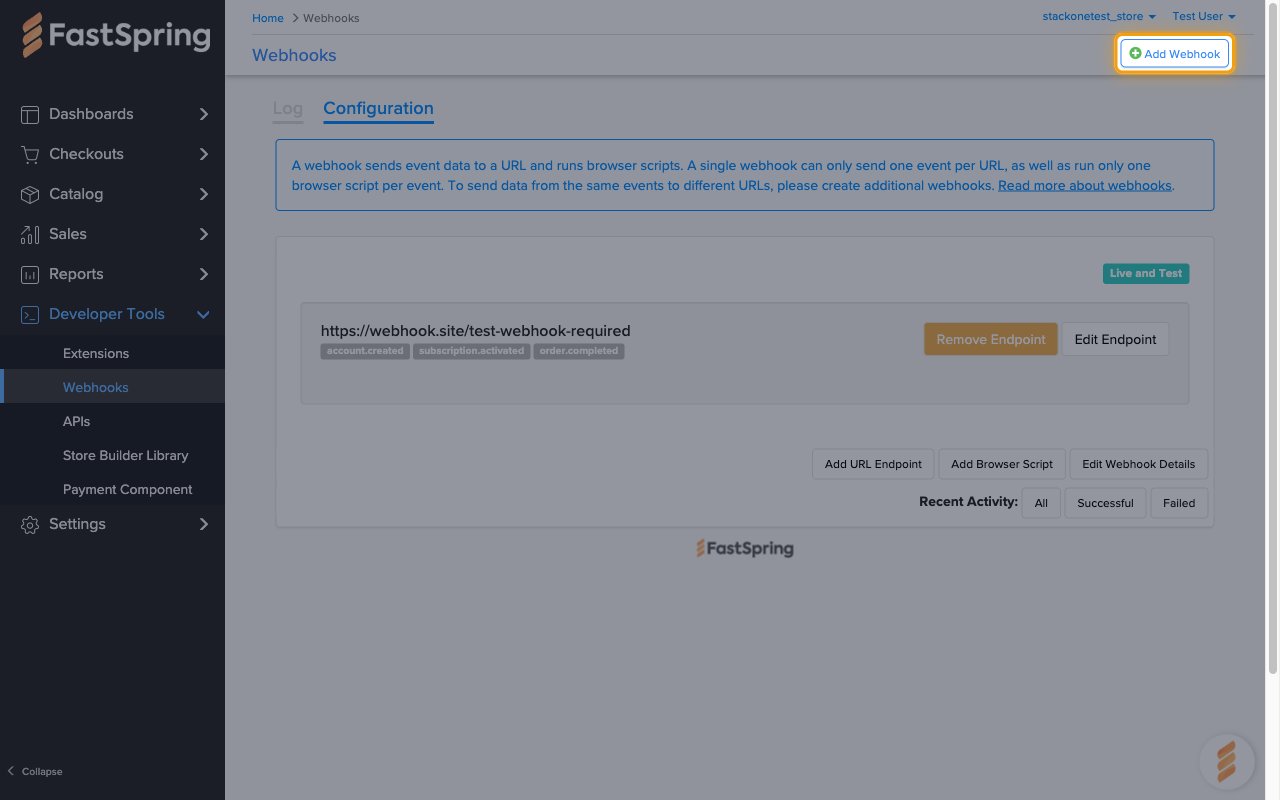
Click Add Webhook in the top right corner.
- Any webhooks that already exist in the store are listed on this tab. Leave them unchanged.
Fill in the webhook details
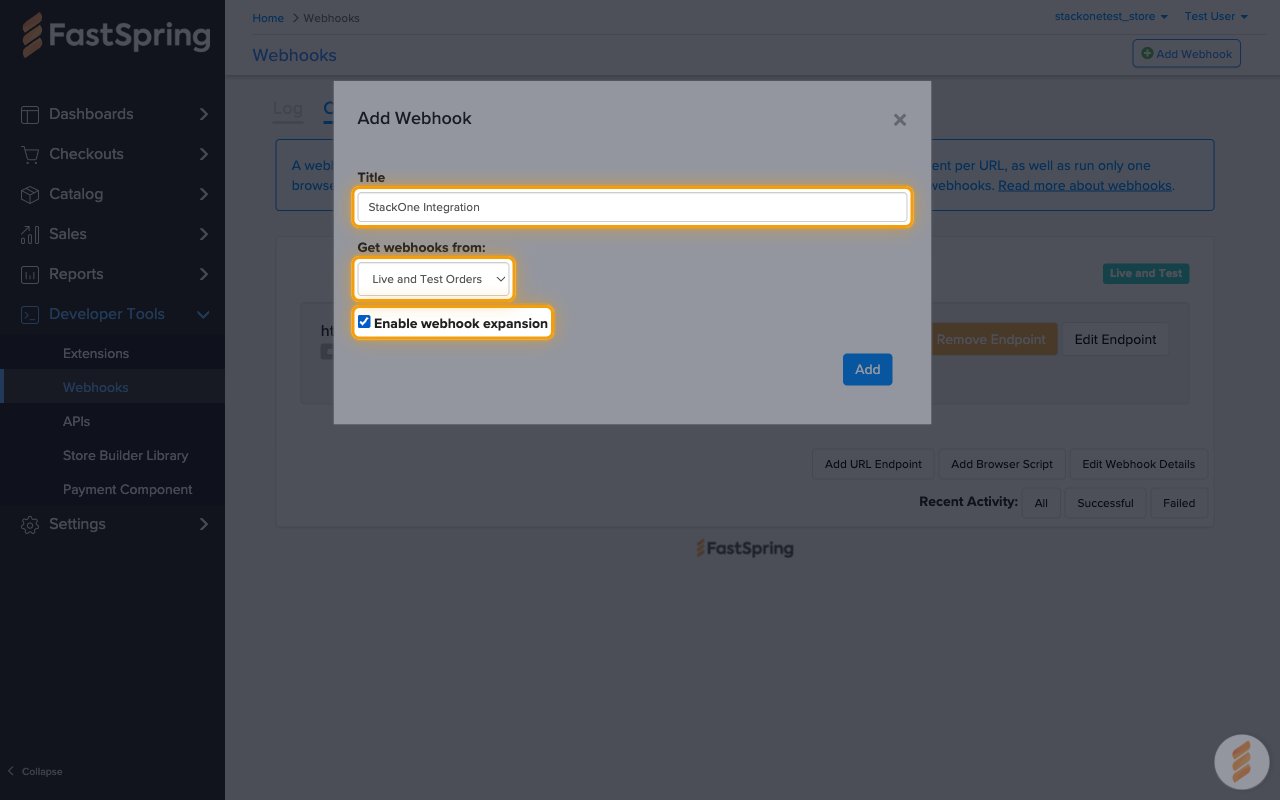
In the Add Webhook dialog, complete the form and click Add:
- Title — enter a name for the webhook (for example,
StackOne Integration). - Get webhooks from: — choose Live and Test Orders, Live Orders or Test Orders, depending on which orders StackOne should receive events for.
- Select Enable webhook expansion so events carry full nested objects (account, product, subscription) instead of bare IDs.
Add a URL endpoint
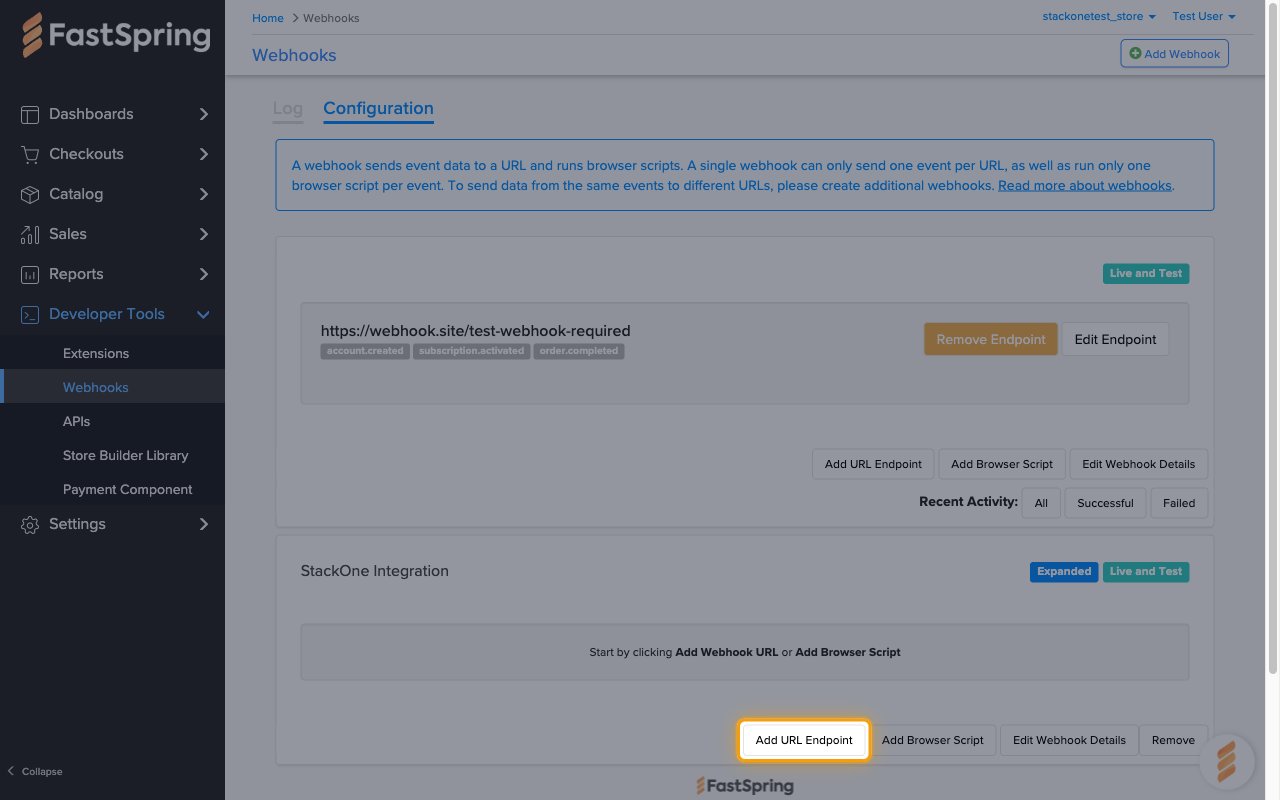
The new webhook appears on the Configuration tab. On that webhook, click Add URL Endpoint.
Paste the Native Webhook URL
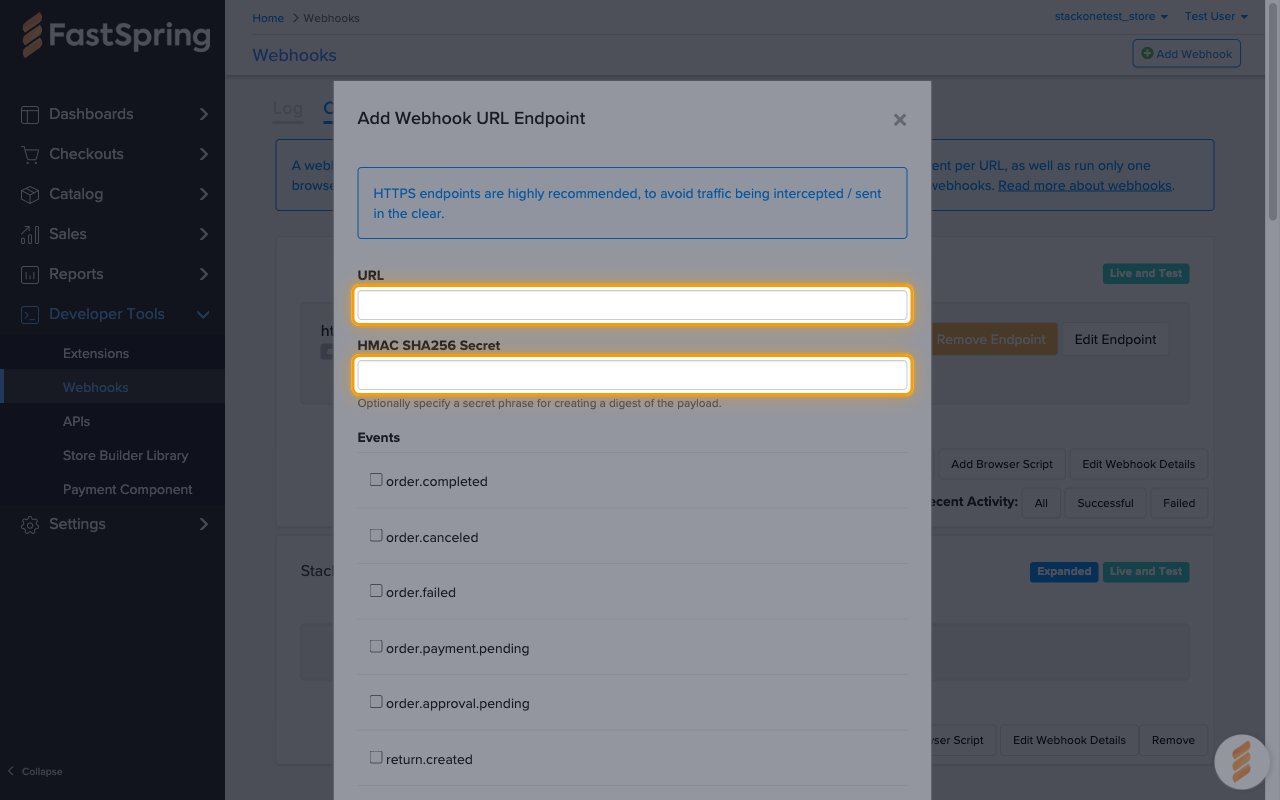
In the Add Webhook URL Endpoint dialog:
- URL — paste the Native Webhook URL you copied from StackOne.
- HMAC SHA256 Secret is optional. StackOne does not need it, so it can be left empty.
Select the events
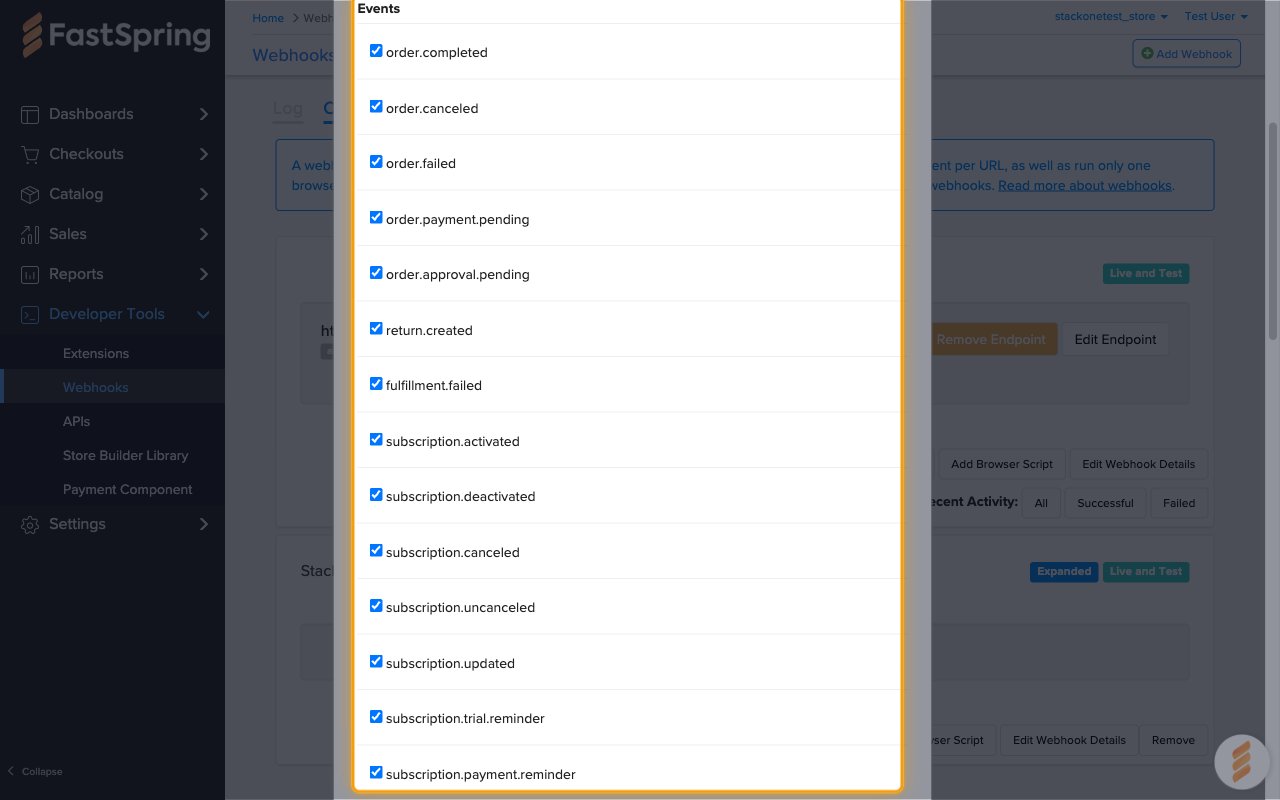
Under Events, tick every event you want StackOne to receive. The events StackOne supports are listed in Available webhook events below.
Save the endpoint
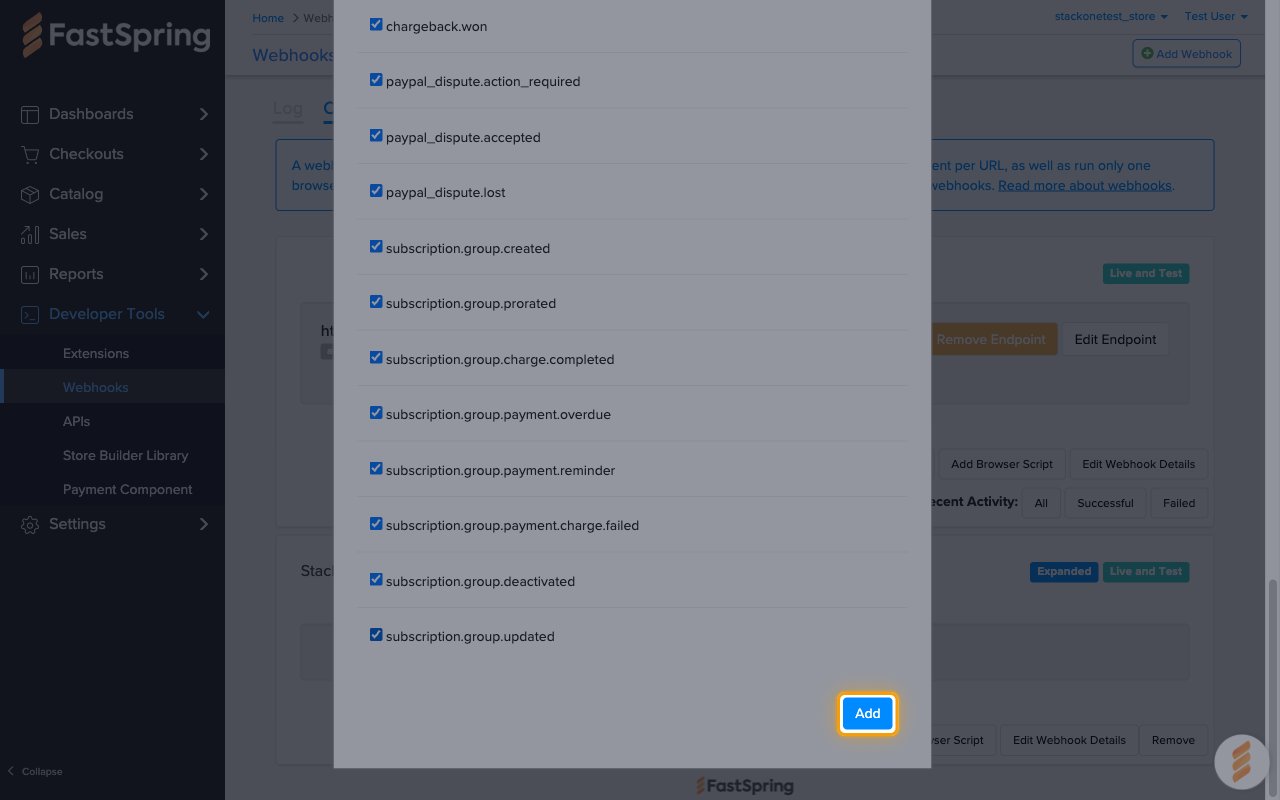
Scroll to the bottom of the dialog and click Add.
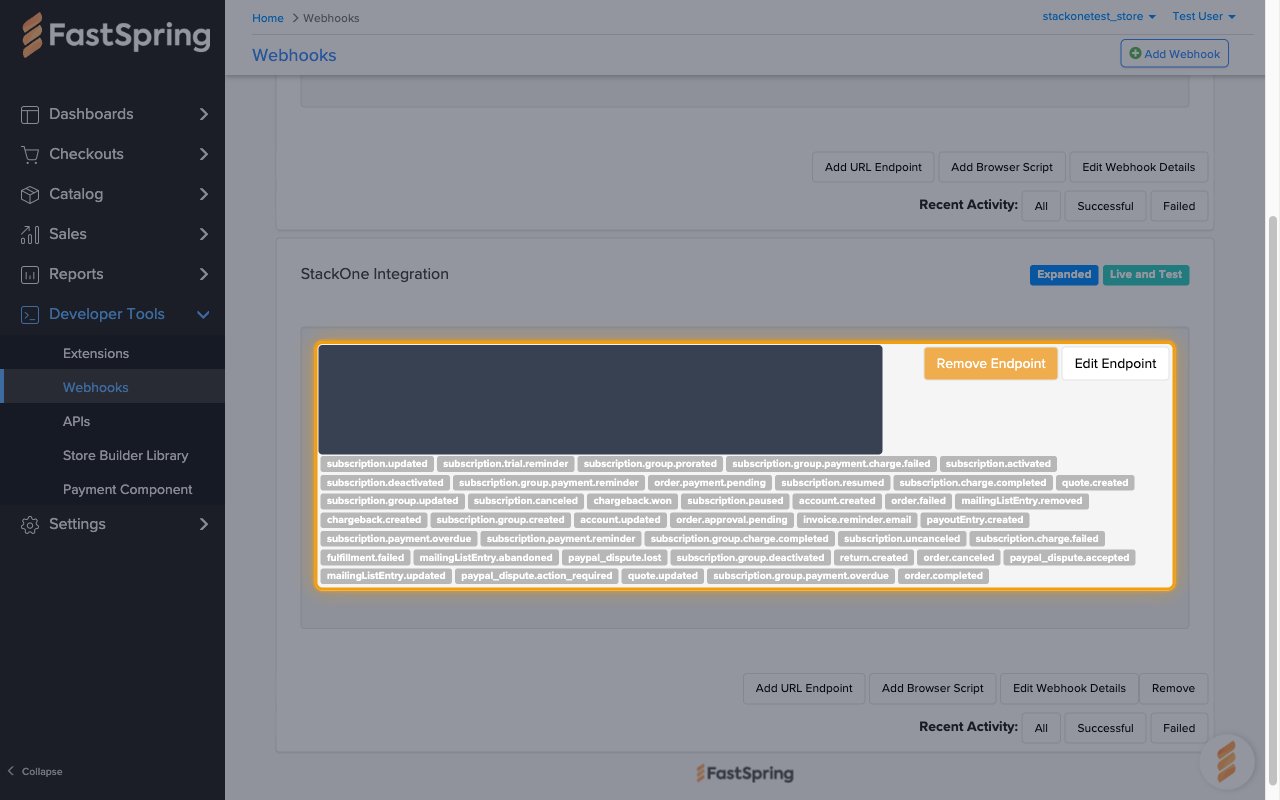
Confirm the endpoint
The endpoint is listed on the StackOne Integration webhook with a tag for every selected event. FastSpring starts sending those events to StackOne straight away.
- Use Edit Endpoint to change the selected events later.
- Deliveries are listed on the Log tab of the Webhooks page.
Available webhook events
The following FastSpring events can be enabled. FastSpring only delivers the events ticked on the URL endpoint, and StackOne only forwards the events enabled for this connector.
Order and payment events
Events related to orders, payments, fulfillment, chargebacks and PayPal disputes.
- Order Completed (
order.completed) — Fired when an order is paid and all of its fulfillments have completed (not fired for failed payments, pending approvals or subscription rebills) - Order Failed (
order.failed) — Fired when a payment attempt at checkout is declined - Order Canceled (
order.canceled) — Fired when an order is canceled by the merchant or the customer - Order Approval Pending (
order.approval.pending) — Fired when an order needs manual or purchase-order approval before it can complete - Order Payment Pending (
order.payment.pending) — Fired when an order is placed with a delayed payment method such as wire transfer or purchase order - Chargeback Created (
chargeback.created) — Fired when the buyer’s bank or card issuer opens a chargeback against an order - Chargeback Won (
chargeback.won) — Fired when a chargeback is resolved in the merchant’s favor - PayPal Dispute Action Required (
paypal_dispute.action_required) — Fired when a PayPal dispute opened by the buyer needs a response - PayPal Dispute Accepted (
paypal_dispute.accepted) — Fired when a PayPal dispute is accepted and the buyer is refunded - PayPal Dispute Lost (
paypal_dispute.lost) — Fired when a PayPal dispute is decided in the buyer’s favor - Fulfillment Failed (
fulfillment.failed) — Fired when one or more fulfillment steps fail after a successful payment
Return and payout events
Events related to returns, refunds and payouts.
- Payout Entry Created (
payoutEntry.created) — Fired when a payout entry is generated for a completed order or for a return - Return Created (
return.created) — Fired when a return or refund is issued on an order, manually or automatically
Subscription events
Events related to individual subscriptions.
- Subscription Activated (
subscription.activated) — Fired when a new subscription is created and activated - Subscription Charge Completed (
subscription.charge.completed) — Fired when a subscription rebill or proration charge succeeds - Subscription Charge Failed (
subscription.charge.failed) — Fired when a subscription rebill charge fails, for example because the card expired - Subscription Updated (
subscription.updated) — Fired when a subscription, its account or its payment method is edited - Subscription Canceled (
subscription.canceled) — Fired when a subscription is canceled and set to deactivate at the end of the current period - Subscription Uncanceled (
subscription.uncanceled) — Fired when a scheduled subscription cancellation is removed before the next rebill date - Subscription Deactivated (
subscription.deactivated) — Fired when a subscription deactivates, either immediately or at the end of the billing period after a cancellation - Subscription Payment Overdue (
subscription.payment.overdue) — Fired when a subscription payment becomes overdue according to the configured grace-period schedule - Subscription Payment Reminder (
subscription.payment.reminder) — Fired when a rebill payment reminder is due according to the configured reminder schedule - Subscription Trial Reminder (
subscription.trial.reminder) — Fired when a trial-ending reminder is due according to the configured schedule (never fires if no trial reminder is configured) - Subscription Paused (
subscription.paused) — Fired when a subscription enters the paused state on its next scheduled rebill date - Subscription Resumed (
subscription.resumed) — Fired when a paused subscription is resumed manually or reactivates on its configured resume date
Co-term subscription group events
Events related to co-term subscription groups, which bill several subscriptions together.
- Subscription Group Created (
subscription.group.created) — Fired when a co-term subscription group is created - Subscription Group Prorated (
subscription.group.prorated) — Fired when a co-term group’s billing is adjusted through proration, for example after a plan change or a new member - Subscription Group Updated (
subscription.group.updated) — Fired when a co-term subscription group is modified - Subscription Group Payment Charge Completed (
subscription.group.charge.completed) — Fired when a payment charge for a co-term group succeeds - Subscription Group Payment Charge Failed (
subscription.group.payment.charge.failed) — Fired when a payment charge for a co-term group fails - Subscription Group Payment Overdue (
subscription.group.payment.overdue) — Fired when a co-term group’s payment becomes overdue - Subscription Group Payment Reminder (
subscription.group.payment.reminder) — Fired when a renewal payment reminder is due for a co-term group - Subscription Group Deactivated (
subscription.group.deactivated) — Fired when a co-term subscription group is deactivated
Account events
Events related to buyer accounts.
- Account Created (
account.created) — Fired when a new buyer account is created, typically when an order is placed with an email address FastSpring has not seen before - Account Updated (
account.updated) — Fired when a buyer account’s contact, address or preference details change, from a manual edit or a new order
Quote events
Events related to quotes.
- Quote Created (
quote.created) — Fired when a new quote is created - Quote Updated (
quote.updated) — Fired when a quote’s status or content changes in the app or through the API
Mailing list events
Events related to mailing list entries captured at checkout.
- Mailing List Entry Updated (
mailingListEntry.updated) — Fired when an email address is added to the mailing list or an entry changes status (subscribed, unsubscribed, abandoned) - Mailing List Entry Removed (
mailingListEntry.removed) — Fired when an email address is removed from the mailing list, for example when the customer unsubscribes - Mailing List Entry Abandoned (
mailingListEntry.abandoned) — Fired when a customer entered an email address at checkout but did not complete the purchase within 30 minutes
Invoice events
Events related to invoice-based purchases.
- Invoice Reminder Email (
invoice.reminder.email) — Fired when a reminder email is sent ahead of the payment due date of an invoice-based purchase
Delivery format
Details of how FastSpring delivers events to StackOne.
Batched payloads
Each request body is {"events": [...]} — a list of events. FastSpring may batch several events into one request. StackOne splits the batch and routes each event to its own handler.
Retries
FastSpring retries a delivery that does not receive a 2xx response. Automatic retries keep the same event ID, while events resent manually from the Log tab get a new ID.
Webhook expansion
With Enable webhook expansion selected, nested objects such as the account, product or subscription are included in full. Without it they arrive as IDs. StackOne handles both.