

Create a system user
A system user belongs to your business portfolio rather than to a person, so the token it issues keeps working when staff leave.
Sign in to Meta Business Suite
Sign in to your Meta Business Suite account and open the business portfolio that owns the Meta app.
- Under Users in the left menu, select System users.
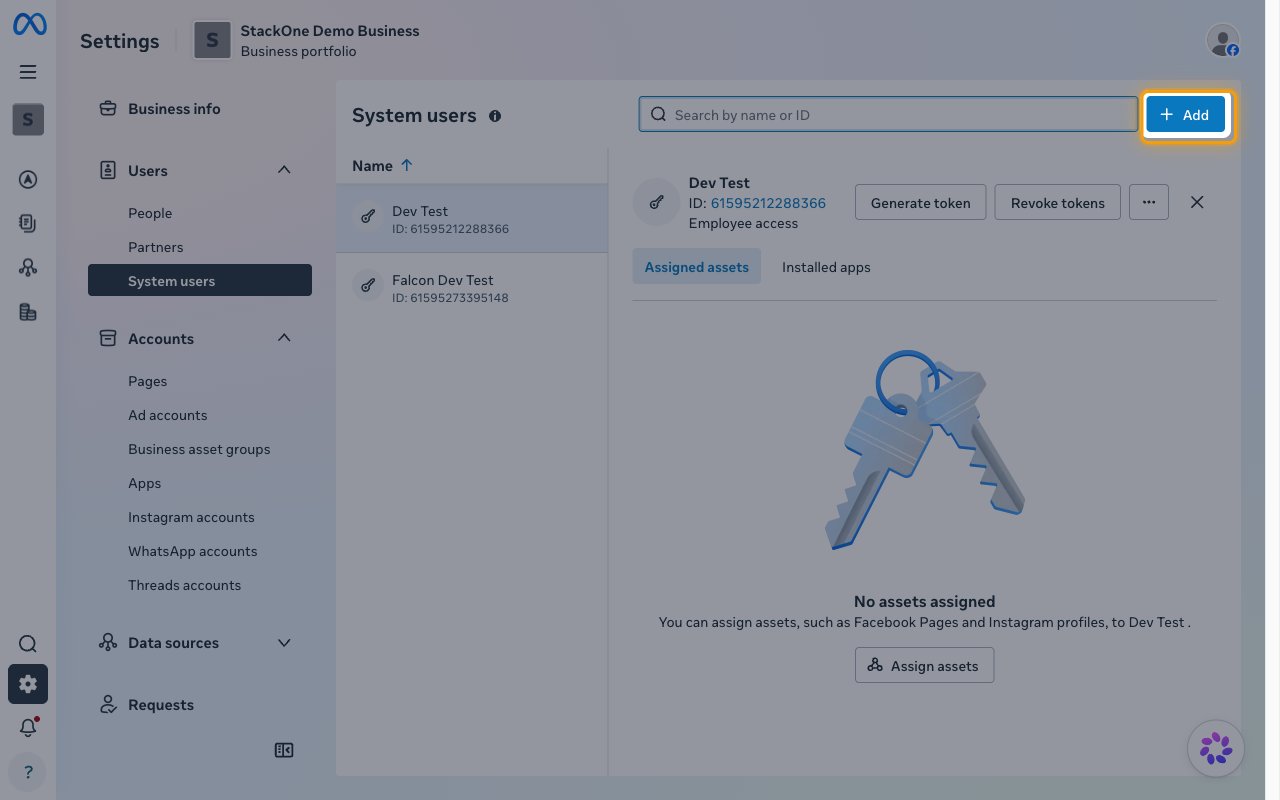
Add the system user
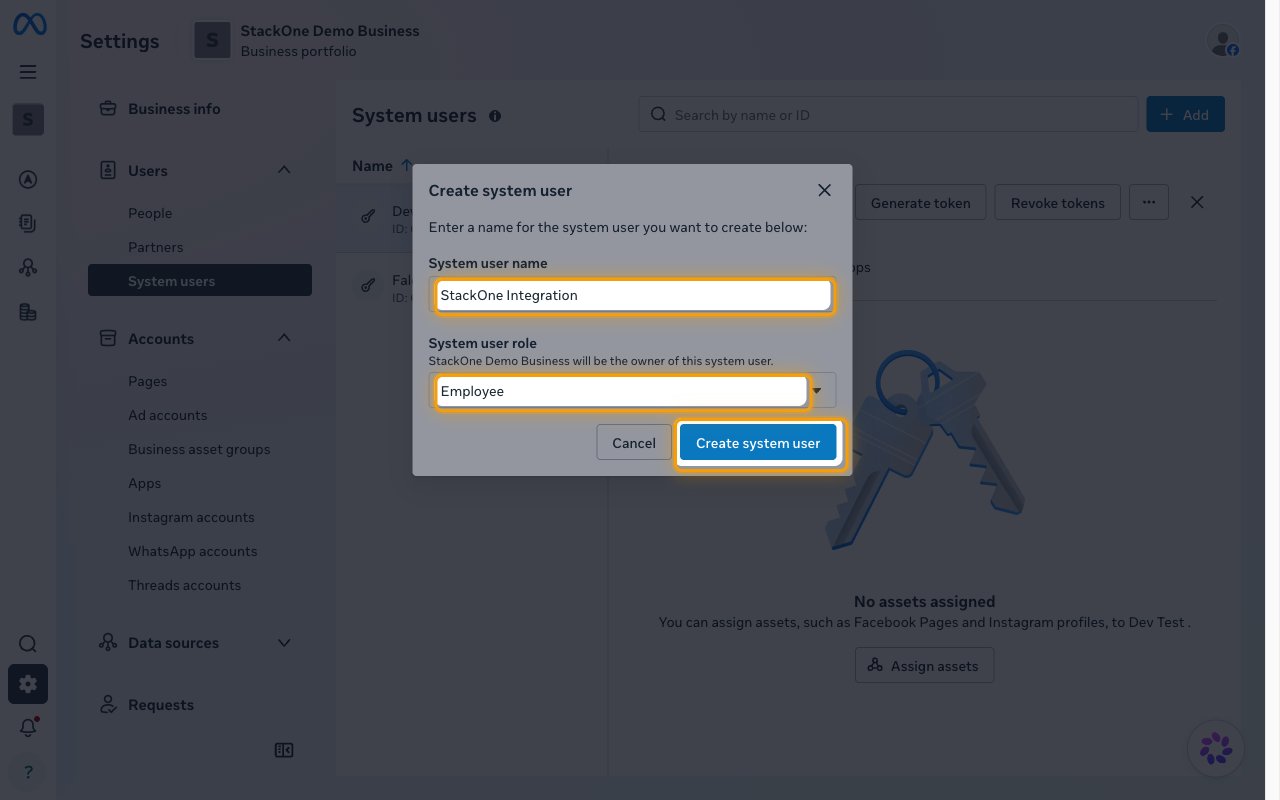
Click Add, then complete the Create system user dialog.
- System user name — a name that identifies the integration, for example
StackOne Integration. - System user role — the access this system user has in the business portfolio. The dialog opens on Employee.
- The dialog states that your business portfolio will be the owner of this system user.
- Click Create system user.
Give the system user access to the app
The token is issued for a specific Meta app, and Meta will not offer any permissions until the system user holds a role on that app.
Assign an app role
Select the system user in the list, then use the Assigned assets tab to give it a role on the Meta app the integration uses.
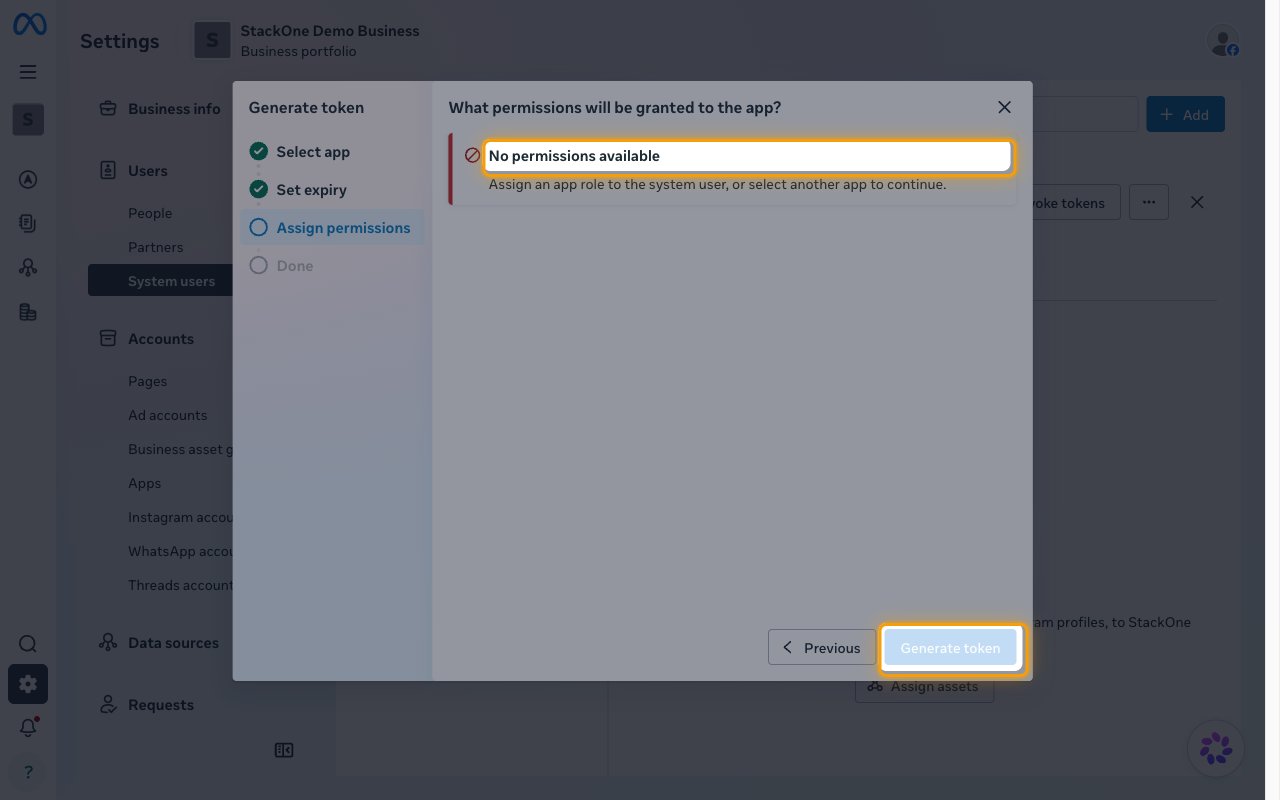
- Without an app role, the Assign permissions step reports No permissions available and the token cannot be generated.
- Assign the ad accounts and Pages the integration needs at the same time. A token only reaches assets the system user has been given.
Generate the access token
The token is generated from the system user and pasted straight into StackOne Hub.
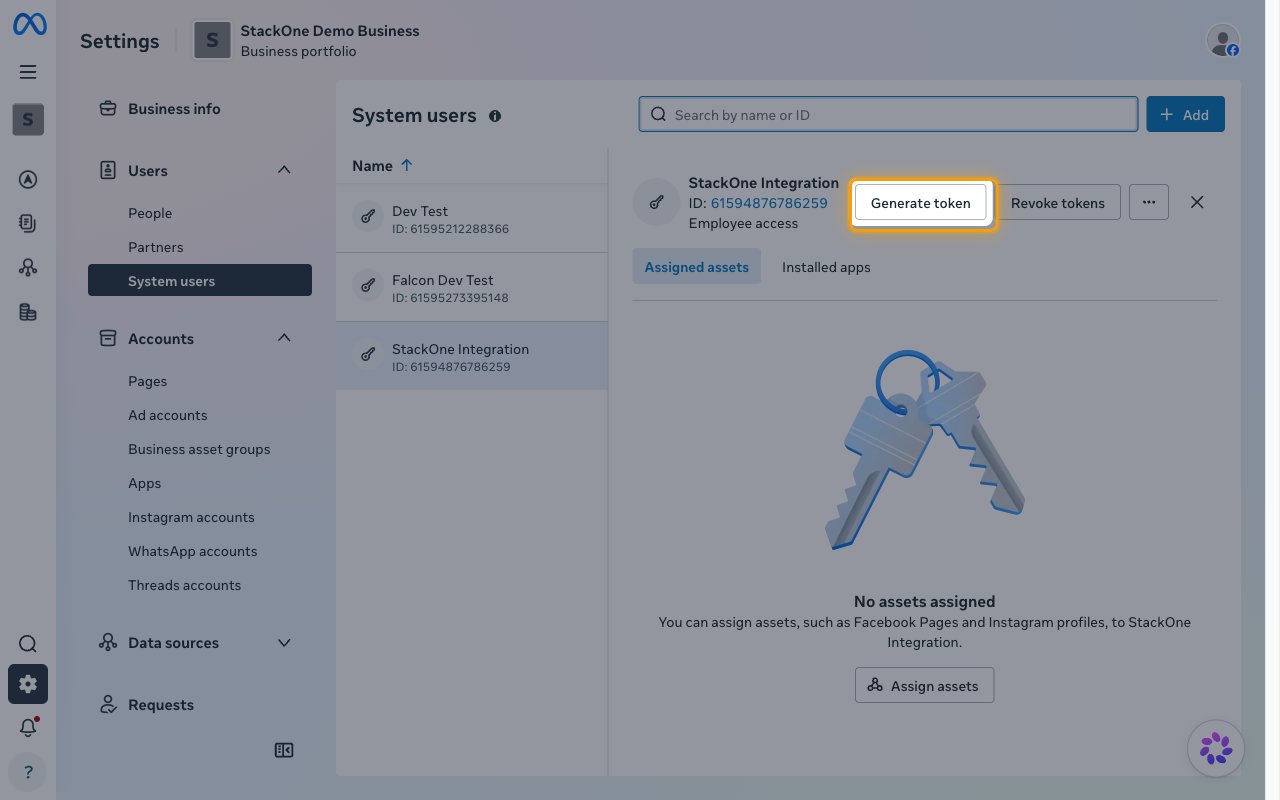
Start the token wizard
With the system user selected, click Generate token.
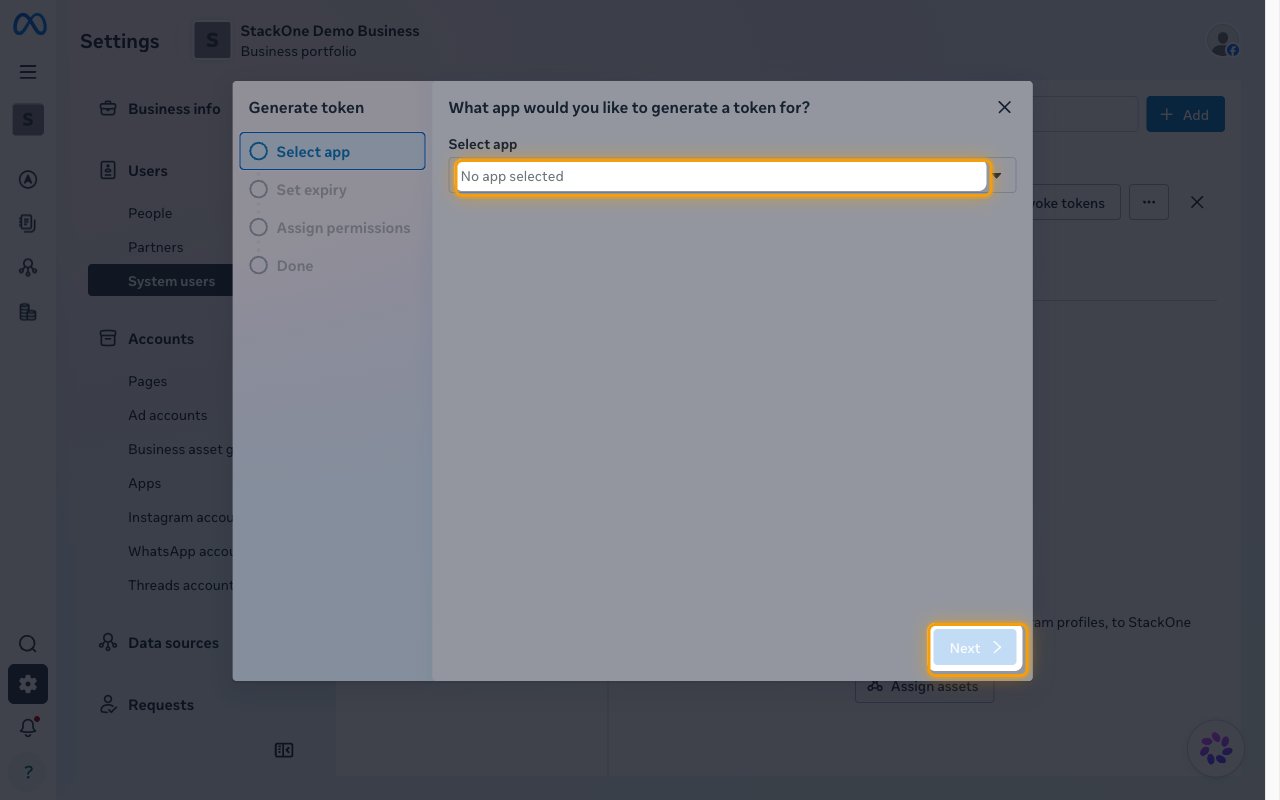
Select the app
On the Select app step, answer What app would you like to generate a token for? by choosing your Meta app, then click Next.
Choose when the token expires
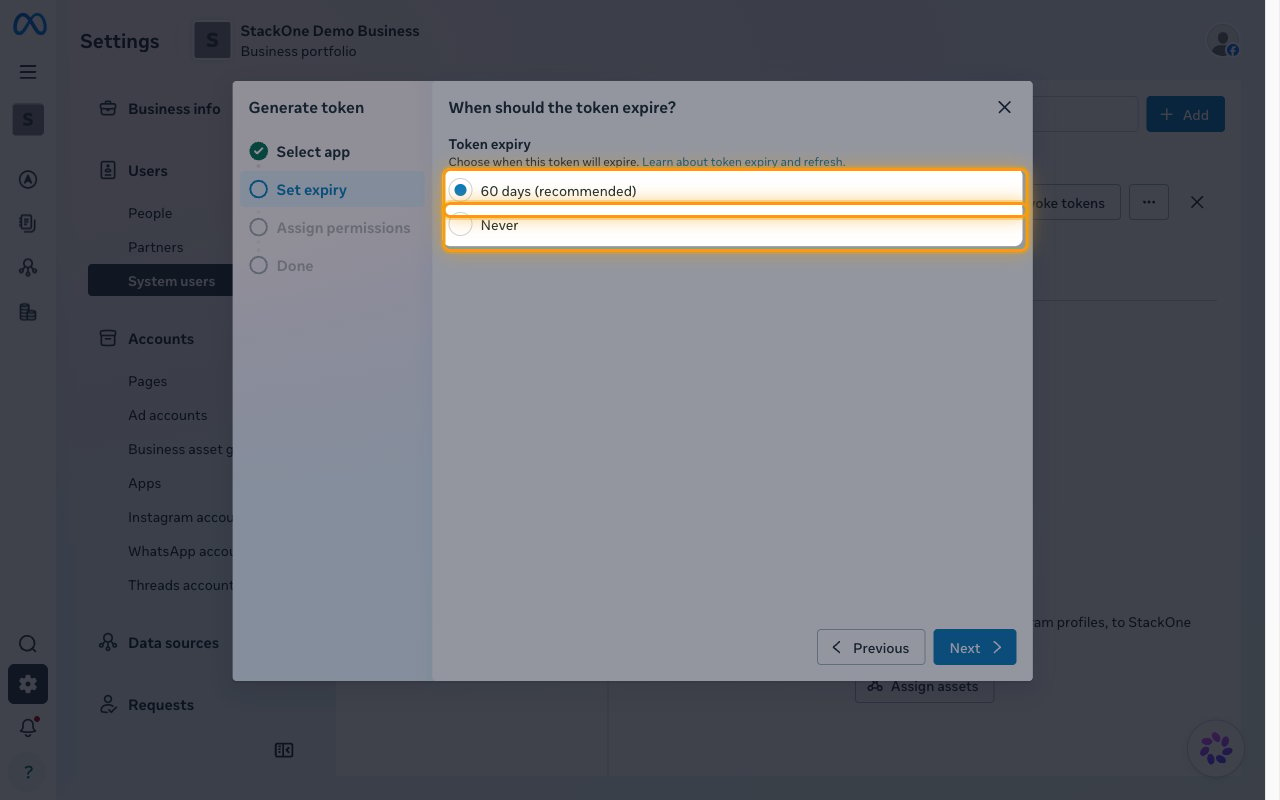
On the Set expiry step, answer When should the token expire?.
- 60 days (recommended) — the token stops working after 60 days and has to be regenerated and re-entered in StackOne Hub.
- Never — the token keeps working until it is revoked, which suits an unattended integration.
- Click Next.
Assign the permissions and generate
On the Assign permissions step, answer What permissions will be granted to the app? by selecting the permissions this integration needs, then click Generate token.
Copy the token
Copy the generated token and paste it into the System User Access Token field in StackOne Hub.
- System User Access Token — the token generated for the system user. It begins with
EAA. - Meta shows the token once, so store it securely before closing the dialog.
- Revoke tokens on the system user invalidates every token issued to it, including the one in StackOne Hub.
Linking the Account from the Hub
Navigate to the Hub
Fill out the fields
- System User Access Token
Connect
- Click Connect
- If applicable, the provider will redirect you to a sign-in or authorization page. Complete the provider’s authorization flow.
- Once authorization is successful, you will see a confirmation popup
If the account linking is successful, you will see the newly linked account on your Accounts page.