

Enter your Envoy account credentials
The OAuth2 password grant signs in with an Envoy user’s own email and password, so the connection has exactly that user’s permissions. Enter the credentials of the Envoy account you want StackOne to act as into StackOne Hub.
1
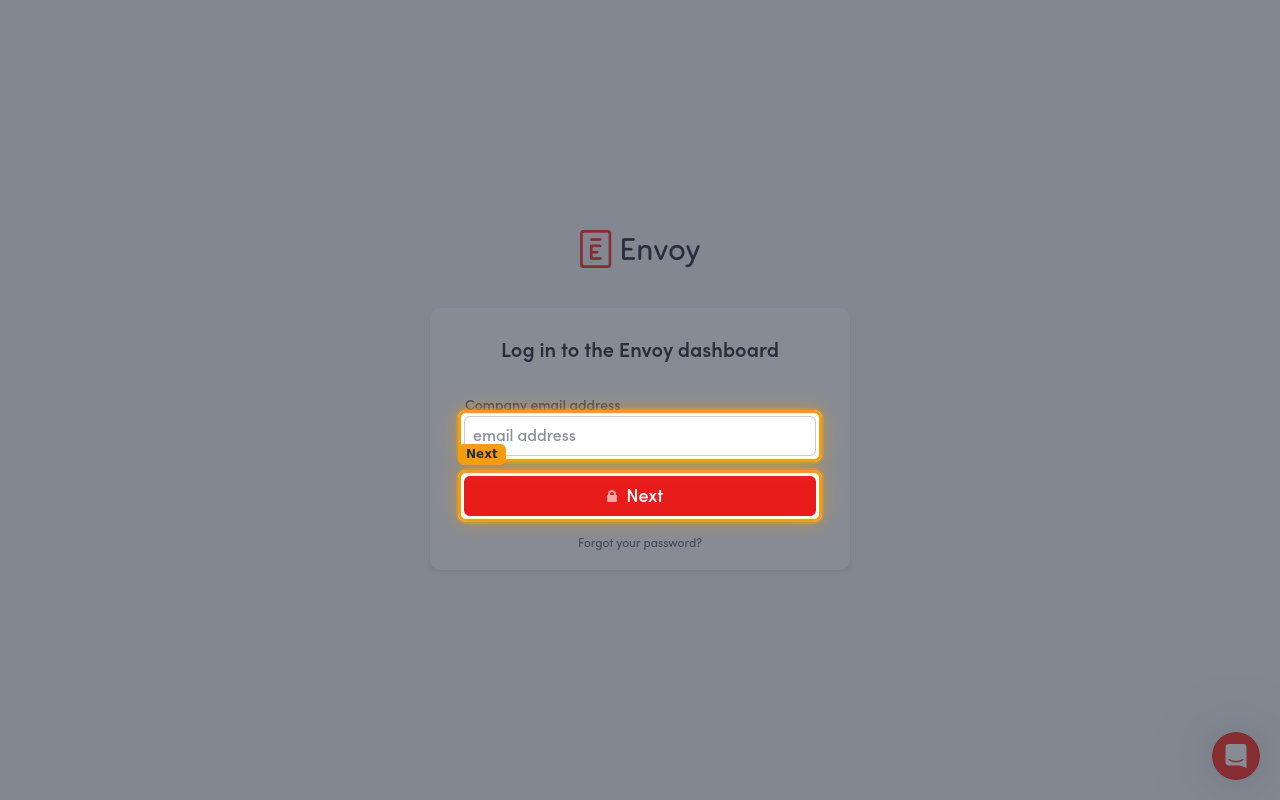
Enter your Envoy email and password
These are the same credentials you use at the Envoy dashboard sign-in page. Enter them into StackOne Hub.
- Username (Email) — the email address of the Envoy user account, entered under Company email address when signing in to Envoy.
- Password — the password for that same Envoy user account.
2
Configure the scopes (optional)
The Scopes field is optional. Leave it blank to request all the permissions the StackOne actions need — the same scopes you granted to the integration in the Connector profile setup. Only set it if you want to narrow the access to a subset of those scopes, entered as a comma-separated list of Envoy scopes.
- Format:
scope1,scope2,scope3(comma-separated, no spaces) - Example:
locations.read,entries.read,invites.read
Link the Account
1
Connect
- Click Connect.
- If applicable, the provider will redirect you to a sign-in or authorization page. Complete the provider’s authorization flow.
- Once authorization is successful, you will see a confirmation popup.
2
Use Actions
Connect an AI platform to the linked account’s actions. See AI Platforms.Other ways to call actions are listed in Protocols & SDKs.