

Signing in with Eka
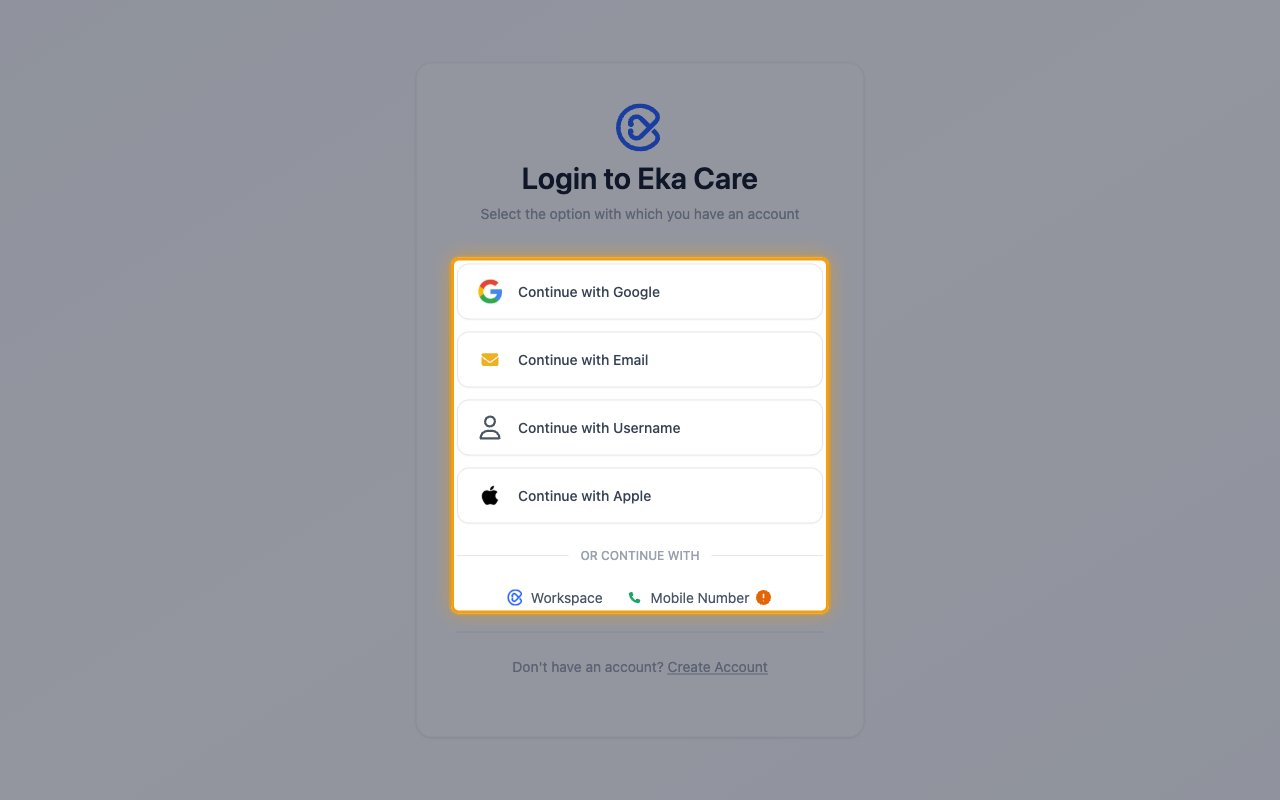
When you connect, StackOne opens the Login to Eka Care page. Sign in with the method you use for your Eka account and approve access.
Find your MedAssist agent ID (optional)
The MedAssist Agent ID identifies your MedAssist agent. Only the MedAssist actions use it; leave it empty otherwise.
1
Open your agent
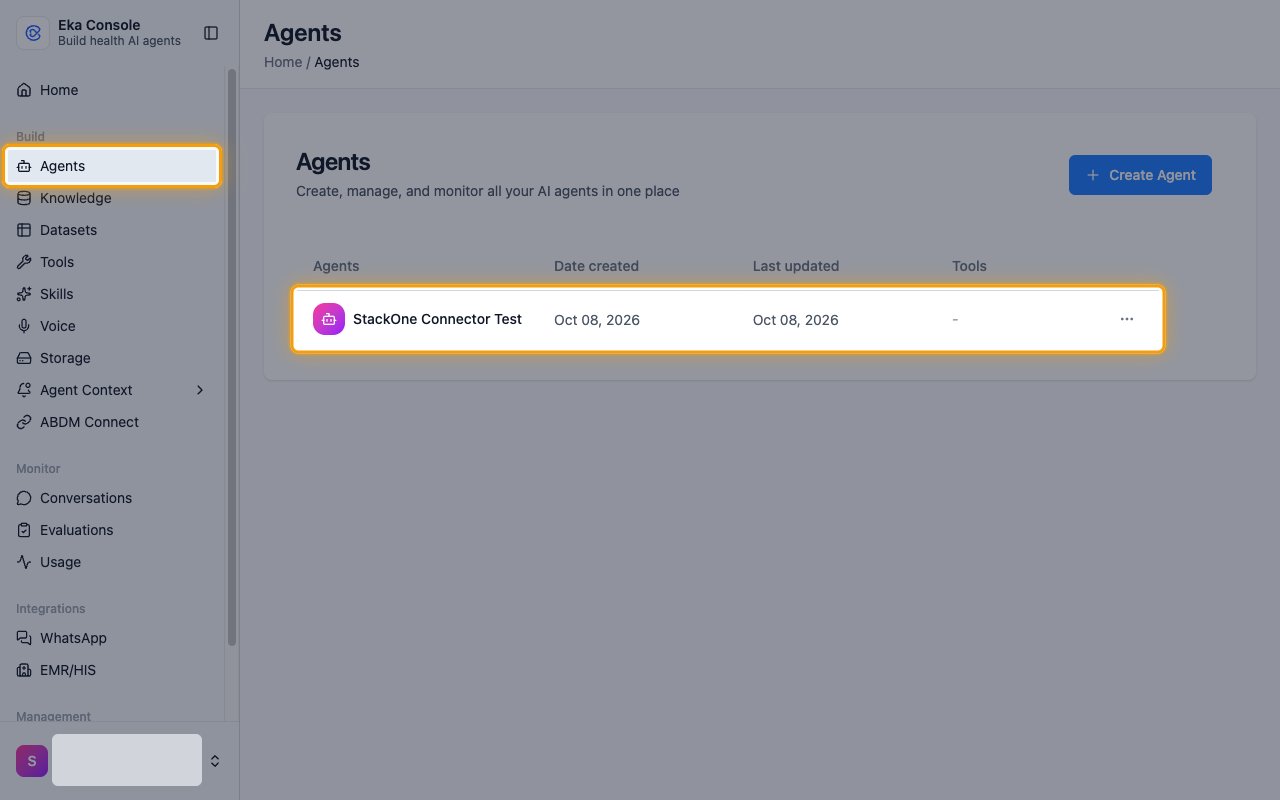
In the Eka Console sidebar, click Agents, then click your agent in the list.
2
Copy the agent ID
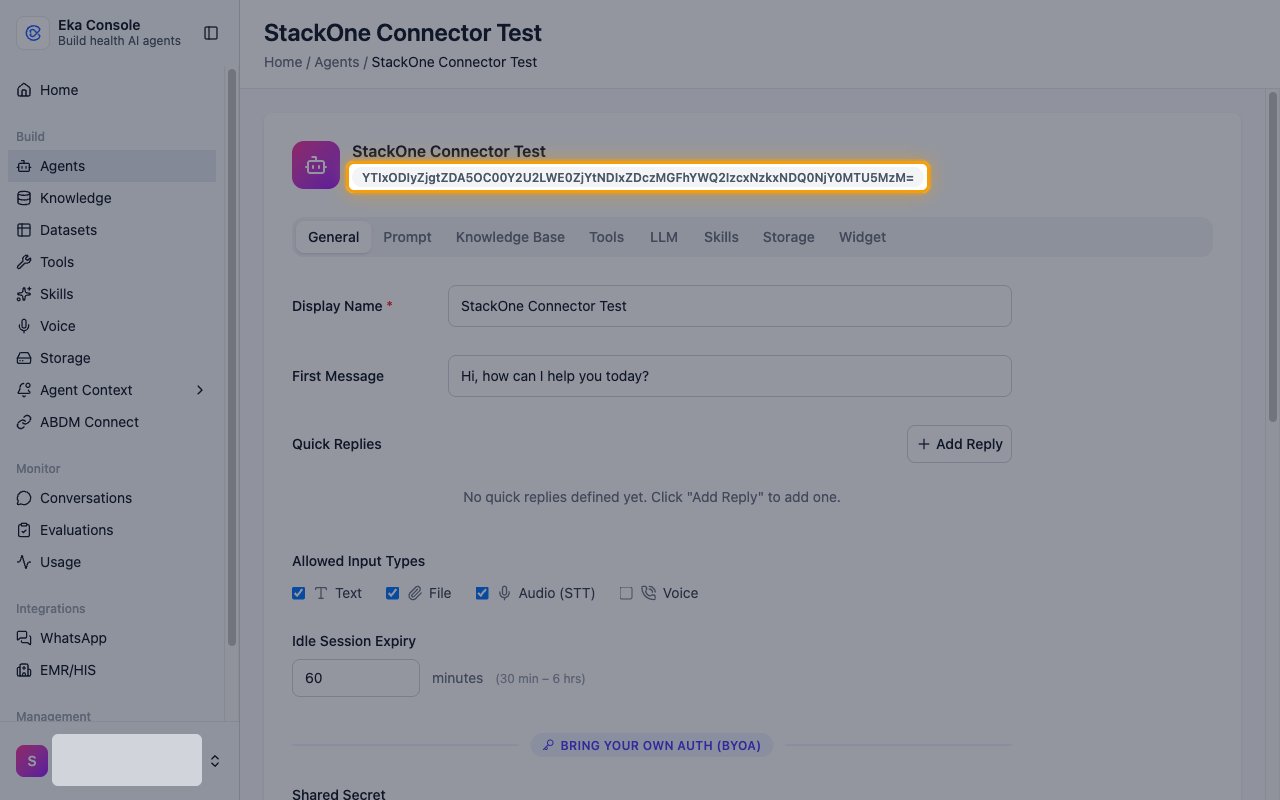
Copy the ID shown under the agent name and paste it into the MedAssist Agent ID field in StackOne Hub.
- Format: a Base64 string that ends in
=
Linking the Account from the Hub
1
Navigate to the Hub
Use one of the three Linking Account Methods to access the Hub.
2
Fill out the fields
Fill out the following fields using details from your provider:
- MedAssist Agent ID (Optional)
3
Connect
- Click Connect
- If applicable, the provider will redirect you to a sign-in or authorization page. Complete the provider’s authorization flow.
- Once authorization is successful, you will see a confirmation popup
If the account linking is successful, you will see the newly linked account on your Accounts page.
Next Steps
Webhooks setup
Configure receiving Events for Eka Care into StackOne.