

Creating API credentials
An API credential (a Client ID and Client Secret) lets StackOne request short-lived access tokens for your Eka workspace.
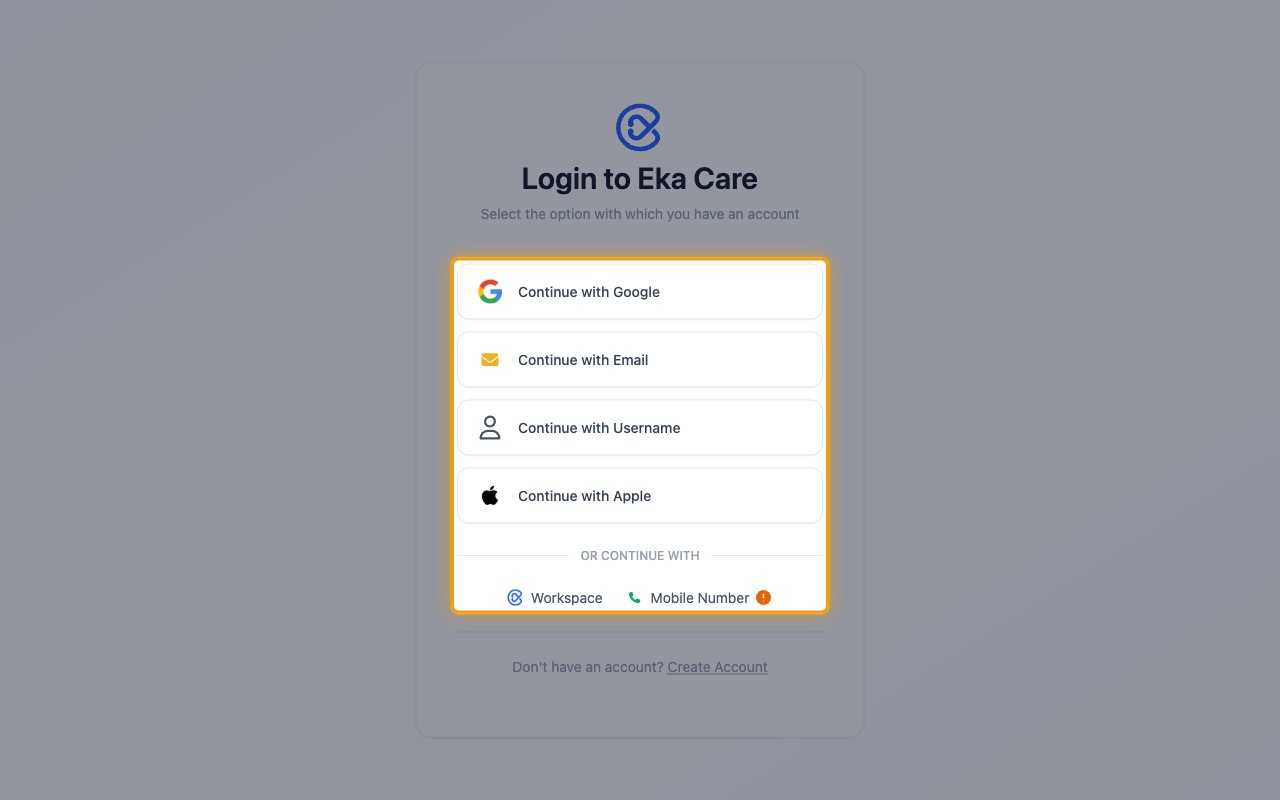
Sign in to Eka Console
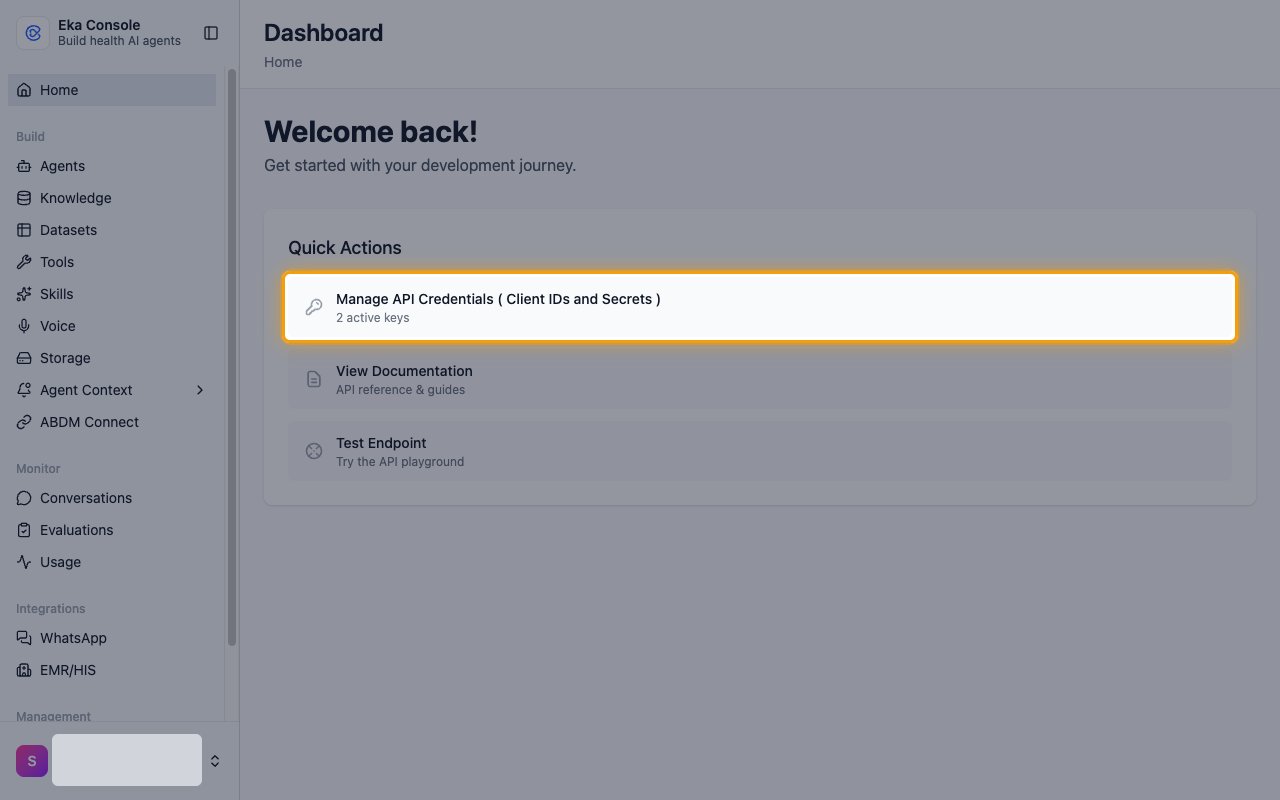
Open API credentials
On the Dashboard, under Quick Actions, click Manage API Credentials ( Client IDs and Secrets ).
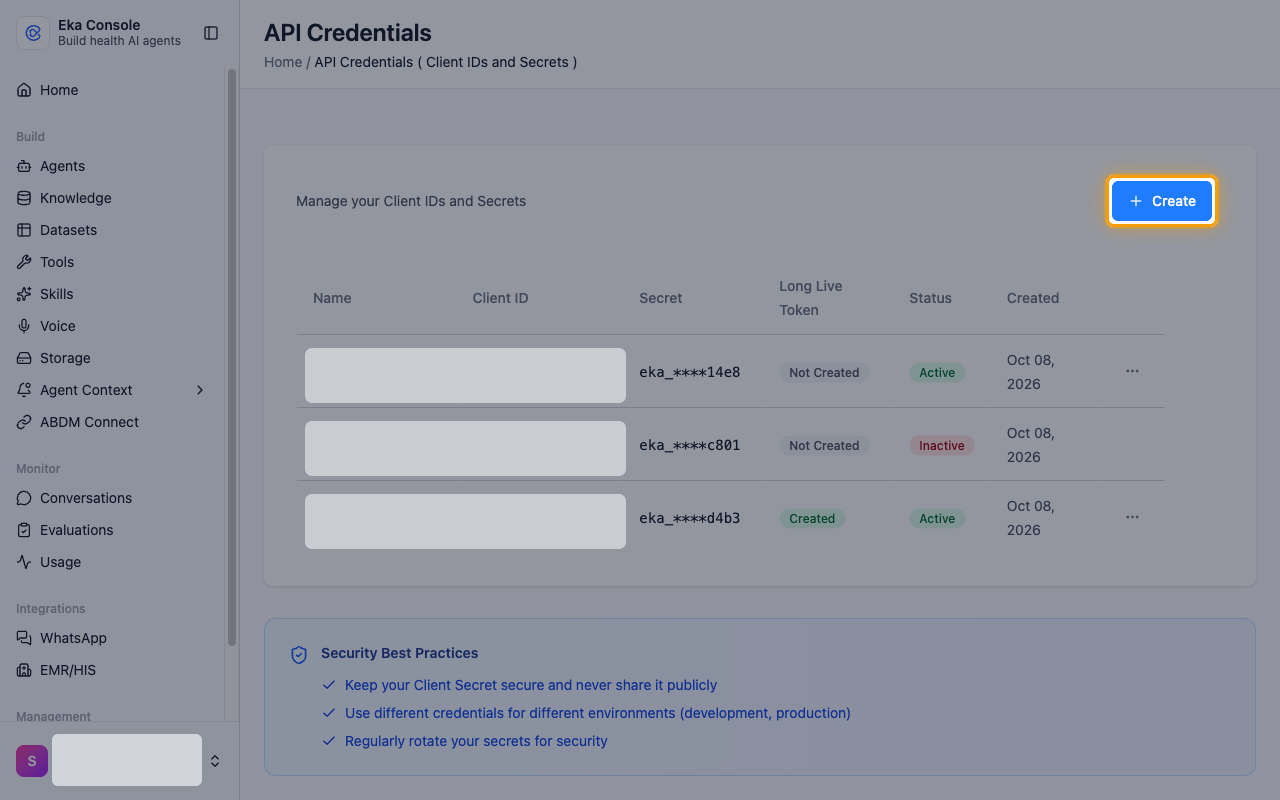
Start a new credential
On the API Credentials page, click Create.
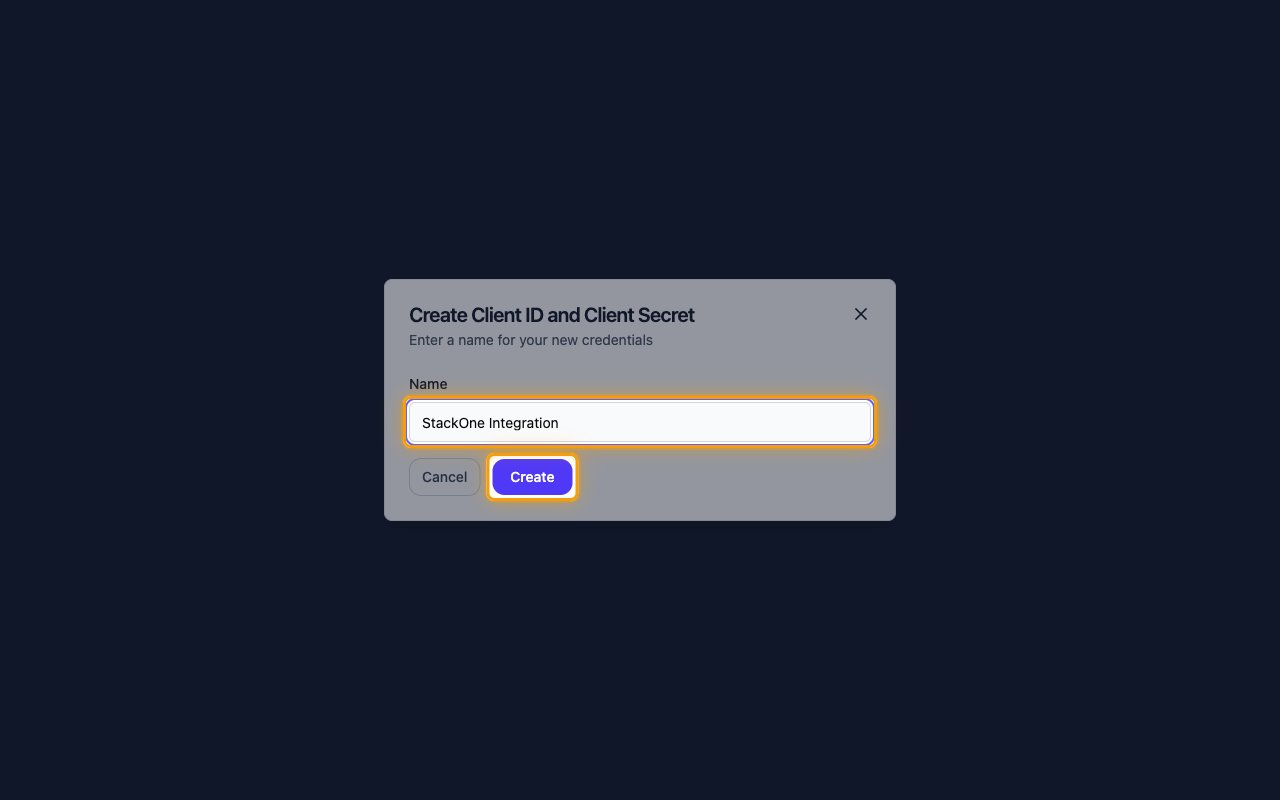
Name the credential
In Create Client ID and Client Secret, enter a Name and click Create.
- Name: any name you prefer, for example
StackOne Integration
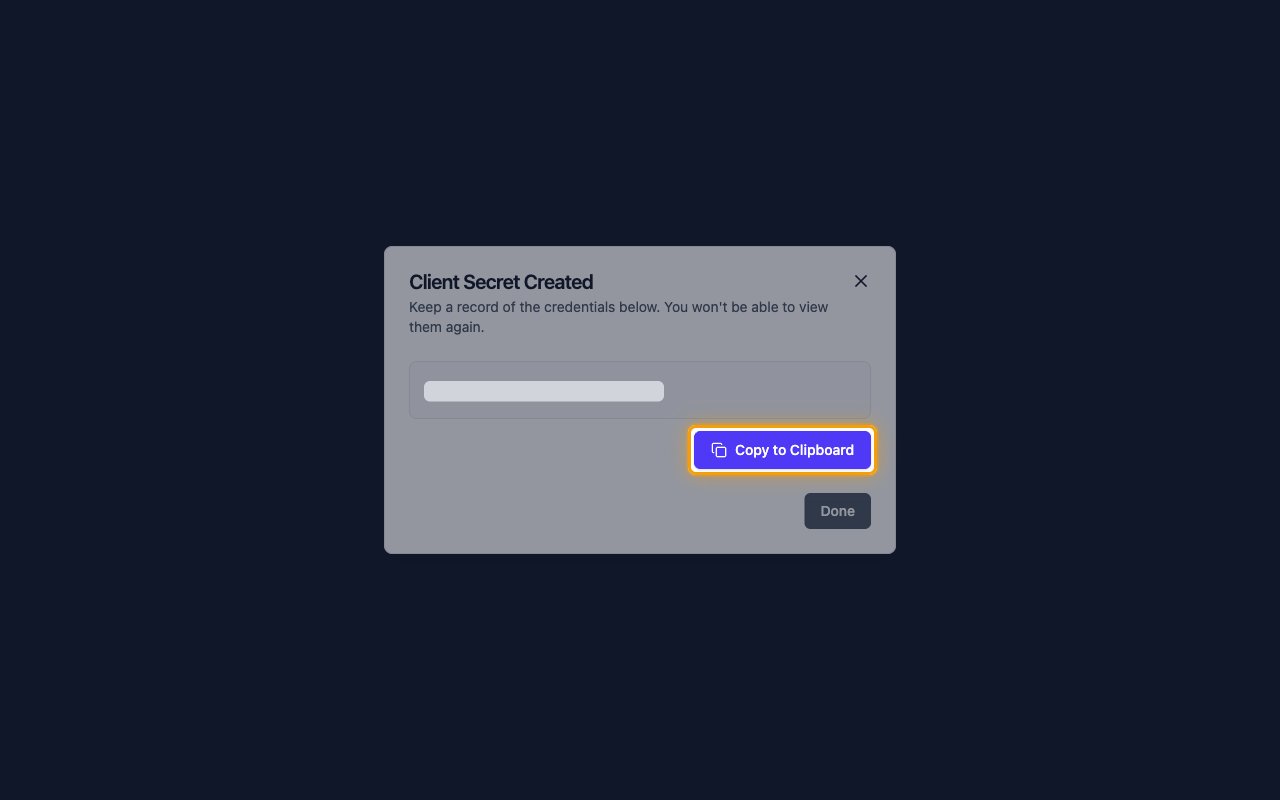
Copy the Client Secret
In Client Secret Created, click Copy to Clipboard and paste the value into the Client Secret field in StackOne Hub.
- The Client Secret is only displayed once and cannot be retrieved later. Store it securely for use later.
- Click Done.
Copy the Client ID
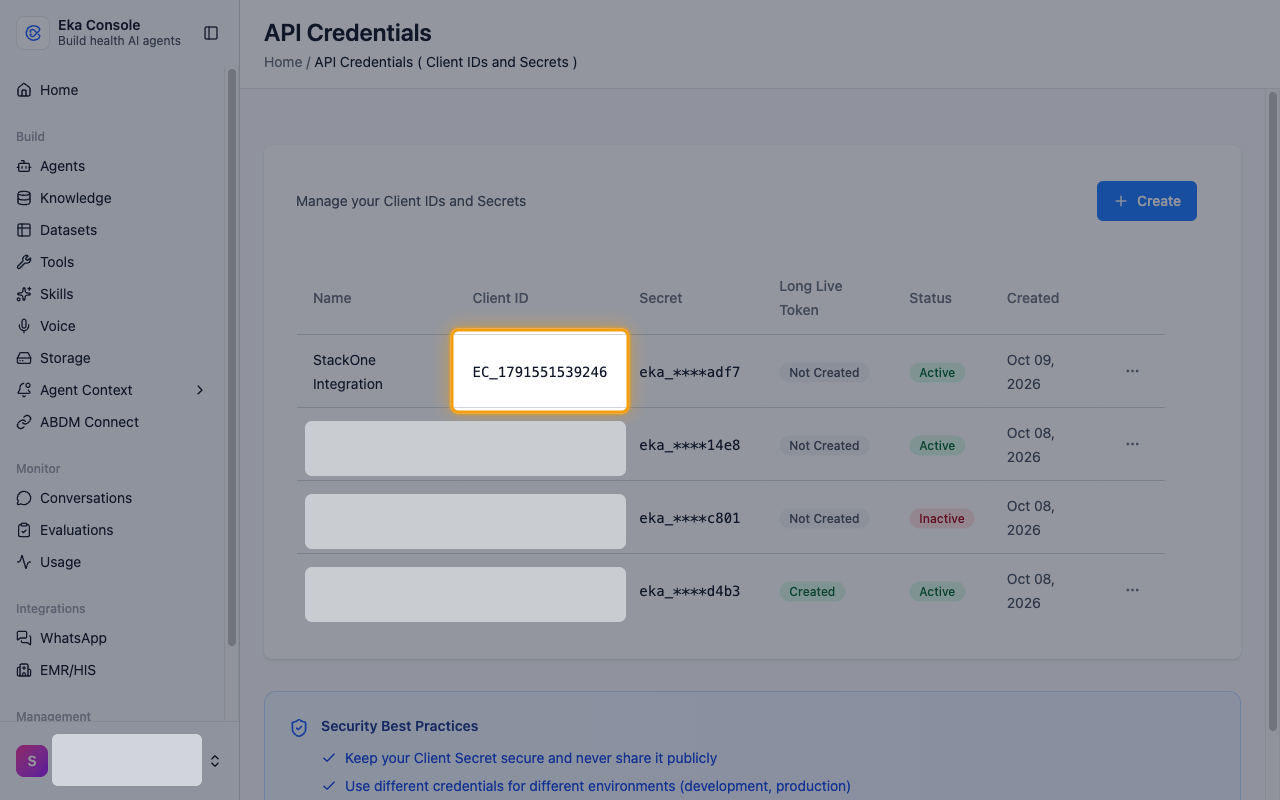
Back on API Credentials, copy the Client ID of your new credential and paste it into the Client ID field in StackOne Hub.
- Format:
EC_followed by digits - Example:
EC_178843954824934
Generating a Sharing Key (optional)
A Sharing Key lets the connection act on another clinic’s Eka workspace. Only add one when that workspace’s owner has generated it for you; leave the field empty to use your own workspace.
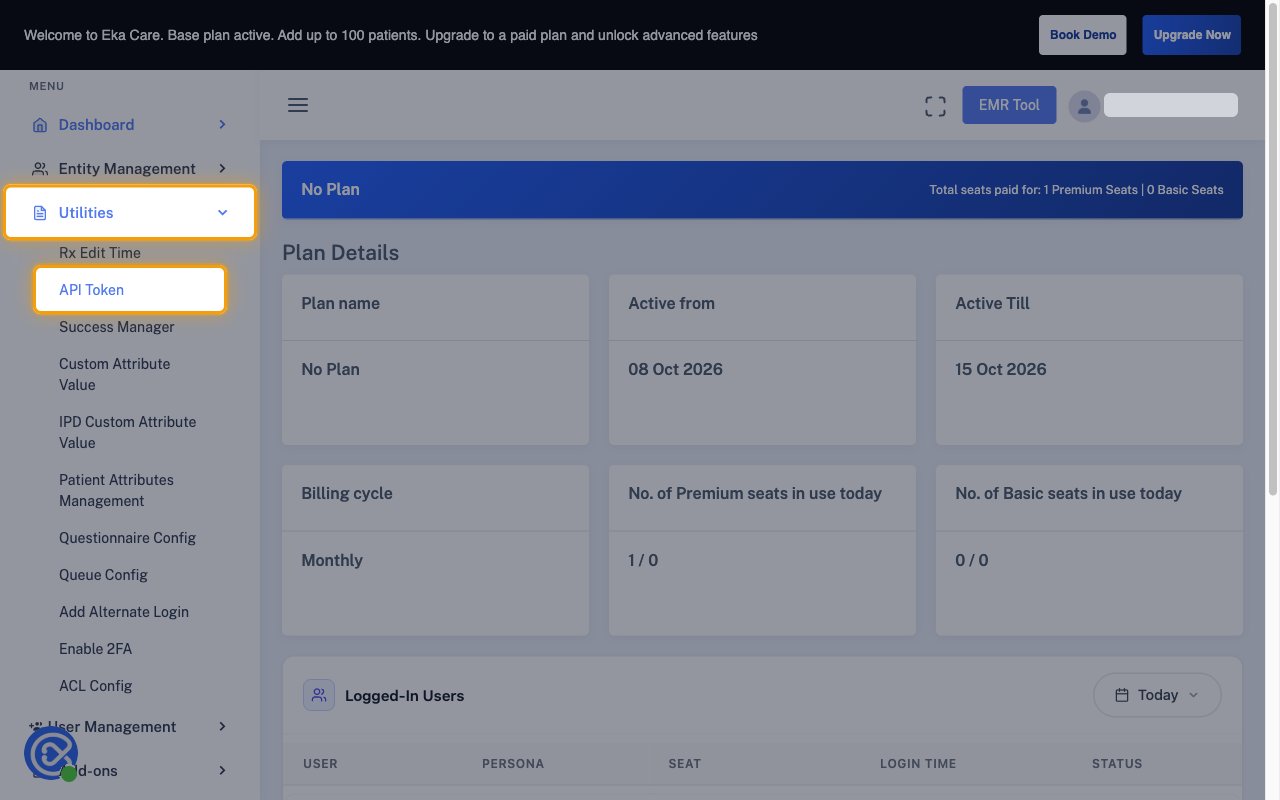
Sign in to Eka Hub
The workspace owner signs in to their Eka Hub account.
- In the sidebar, open Utilities and click API Token.
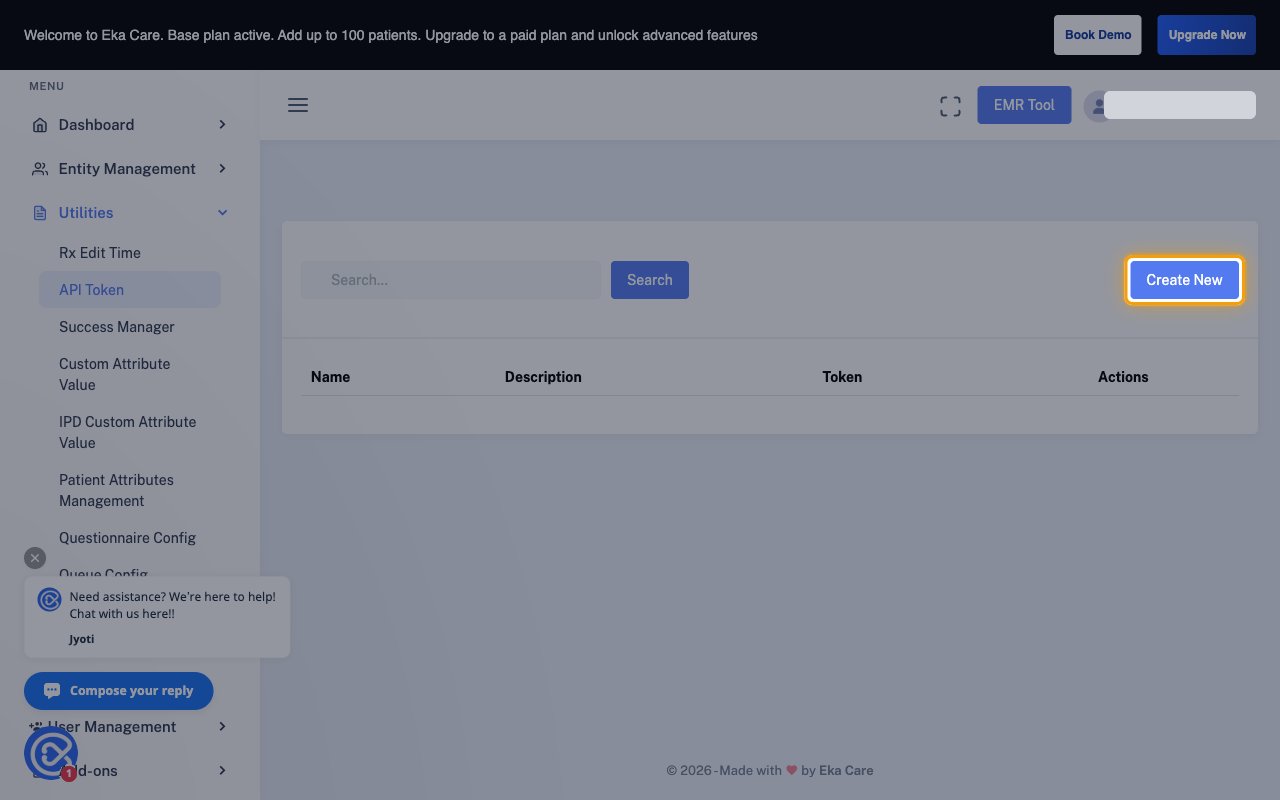
Create a new token
On the API Token page, click Create New.
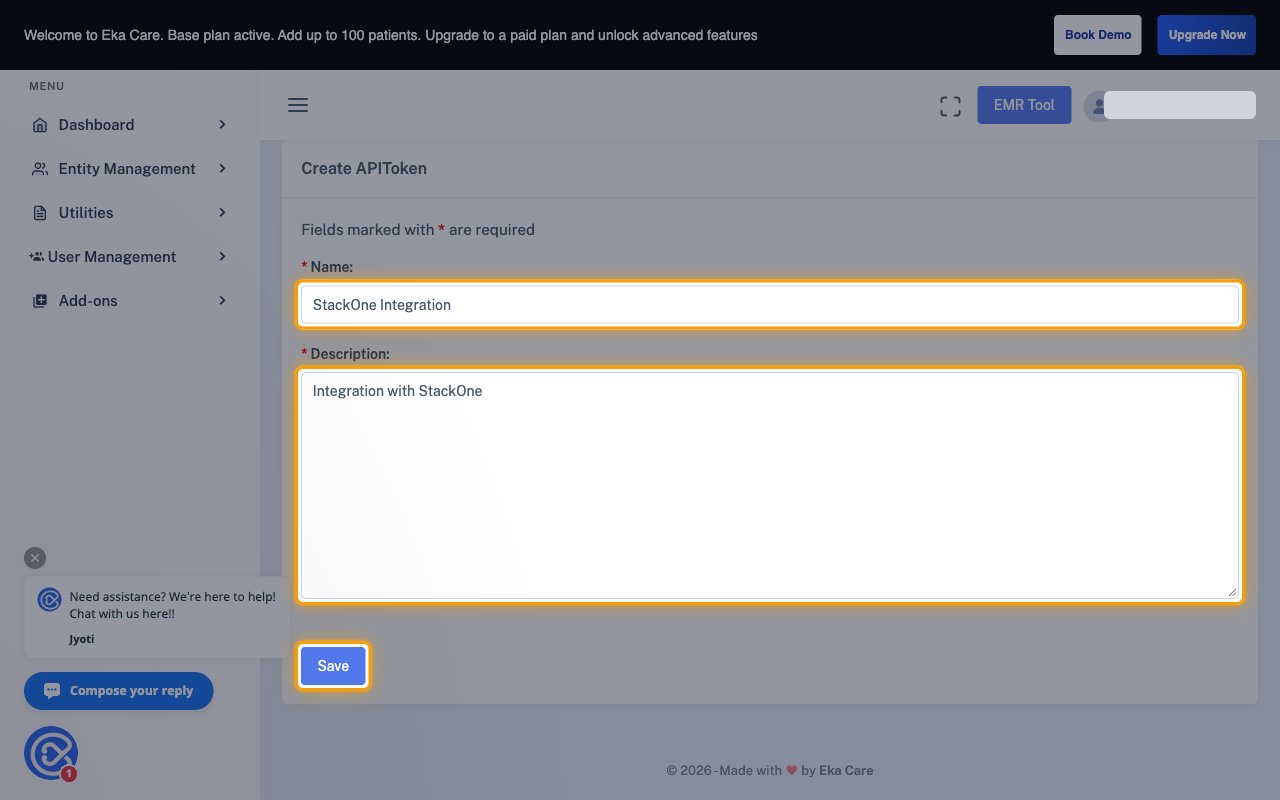
Name the token
In Create APIToken, fill in Name: and Description:, then click Save.
- Name: any name you prefer, for example
StackOne Integration - Description: any short description, for example
Integration with StackOne
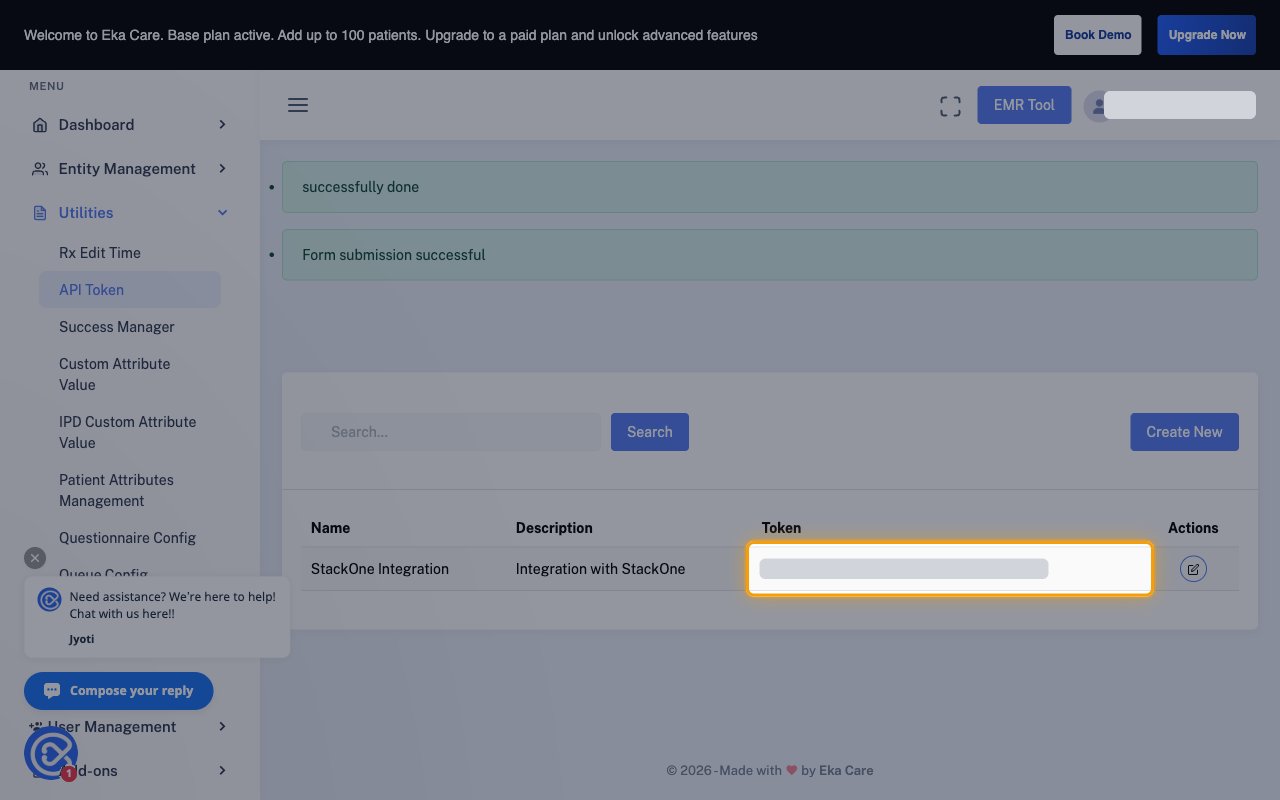
Copy the token
Copy the value in the Token column of the new row and paste it into the Sharing Key field in StackOne Hub.
- Treat the token as a secret and store it securely for use later.
Find your MedAssist agent ID (optional)
The MedAssist Agent ID identifies your MedAssist agent. Only the MedAssist actions use it; leave it empty otherwise.
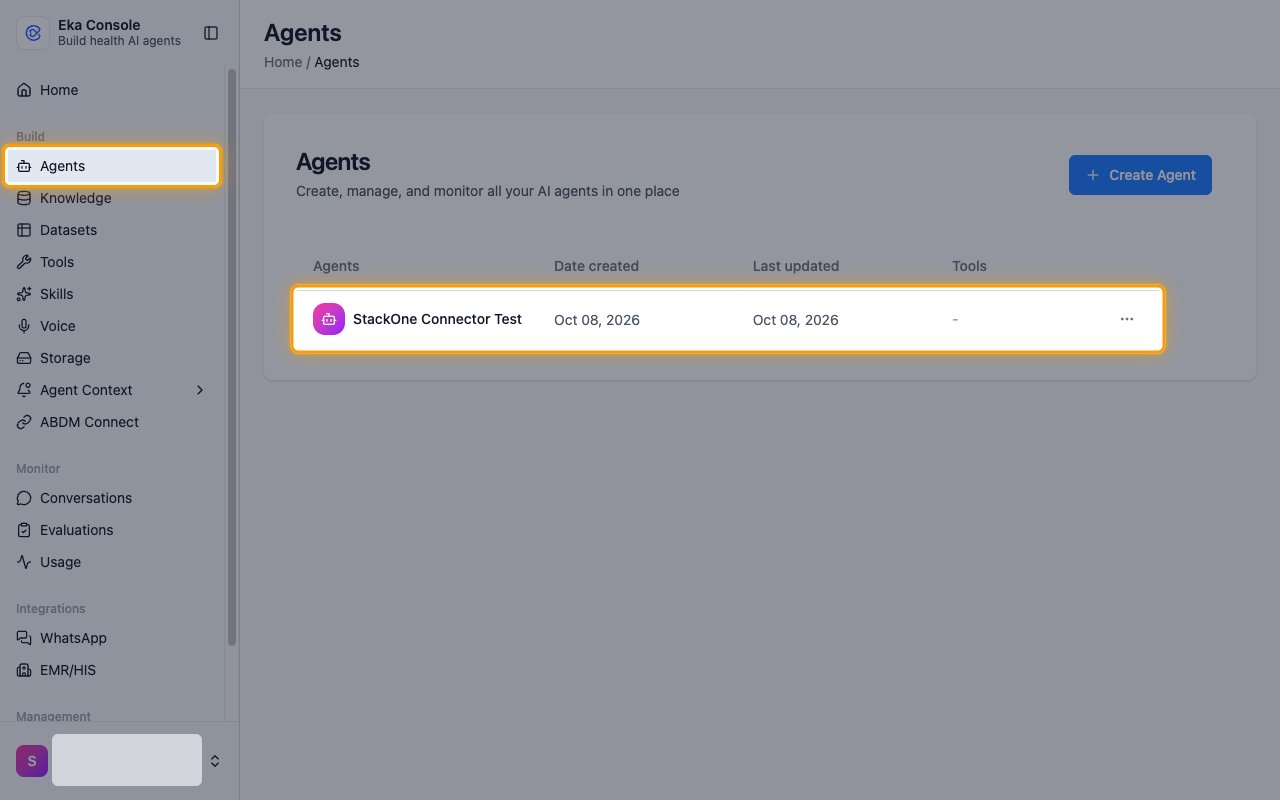
Open your agent
In the Eka Console sidebar, click Agents, then click your agent in the list.
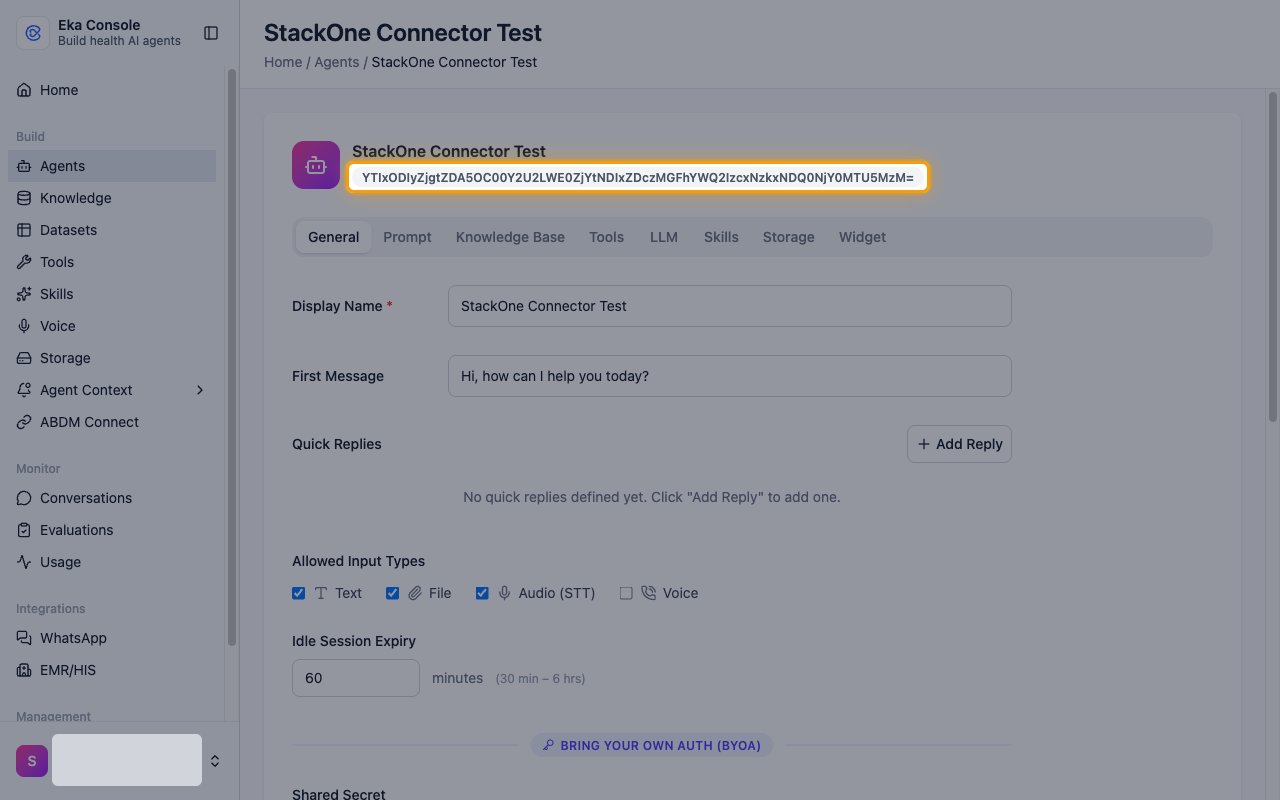
Copy the agent ID
Copy the ID shown under the agent name and paste it into the MedAssist Agent ID field in StackOne Hub.
- Format: a Base64 string that ends in
=
Linking the Account from the Hub
Navigate to the Hub
Fill out the fields
- Client ID
- Client Secret
- Sharing Key (Optional)
- MedAssist Agent ID (Optional)
Connect
- Click Connect
- If applicable, the provider will redirect you to a sign-in or authorization page. Complete the provider’s authorization flow.
- Once authorization is successful, you will see a confirmation popup
If the account linking is successful, you will see the newly linked account on your Accounts page.
Next Steps
Webhooks setup
Configure receiving Events for Eka Care into StackOne.