

Find your API key
EasyPost authenticates every request with an API key that you generate from your account. Use a Test key for development or a Production key for live shipments.
1
Open your API keys
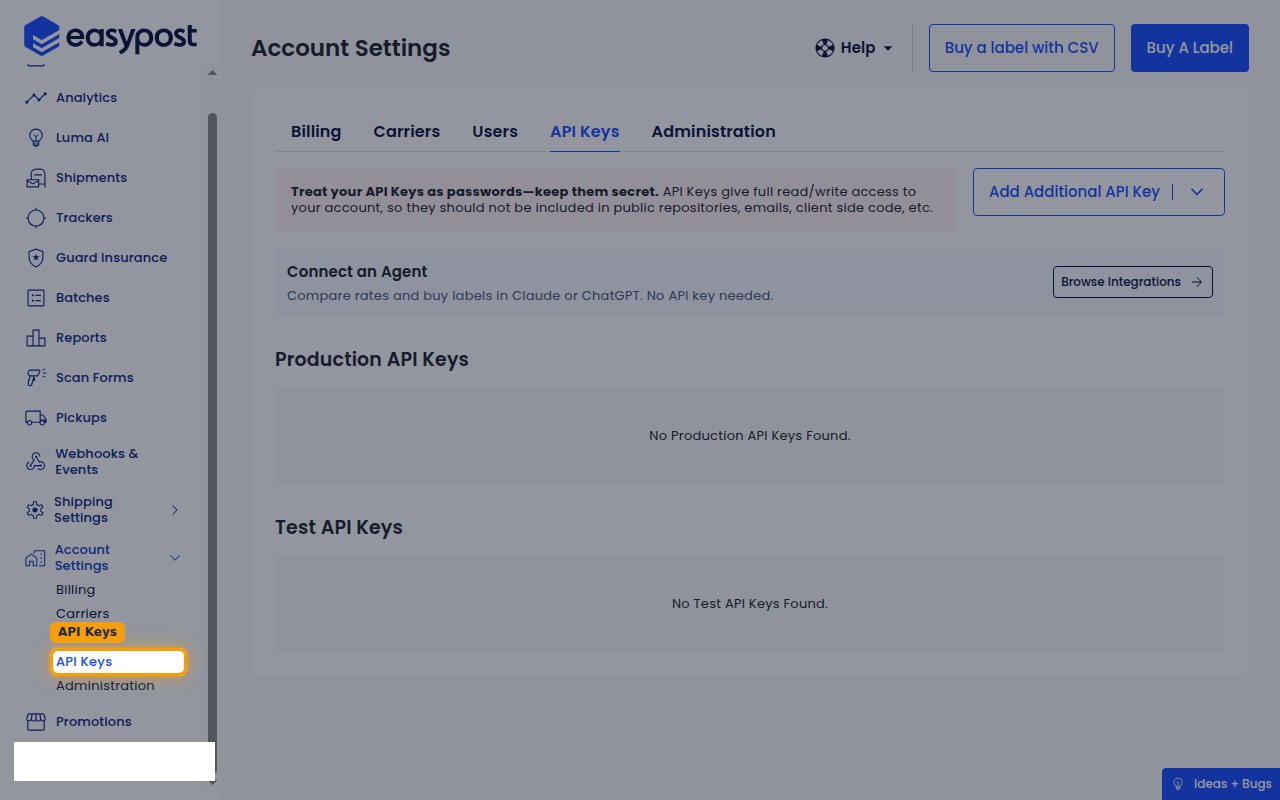
Sign in to your EasyPost account, then in the sidebar open Account Settings and select API Keys.
2
Create an API key
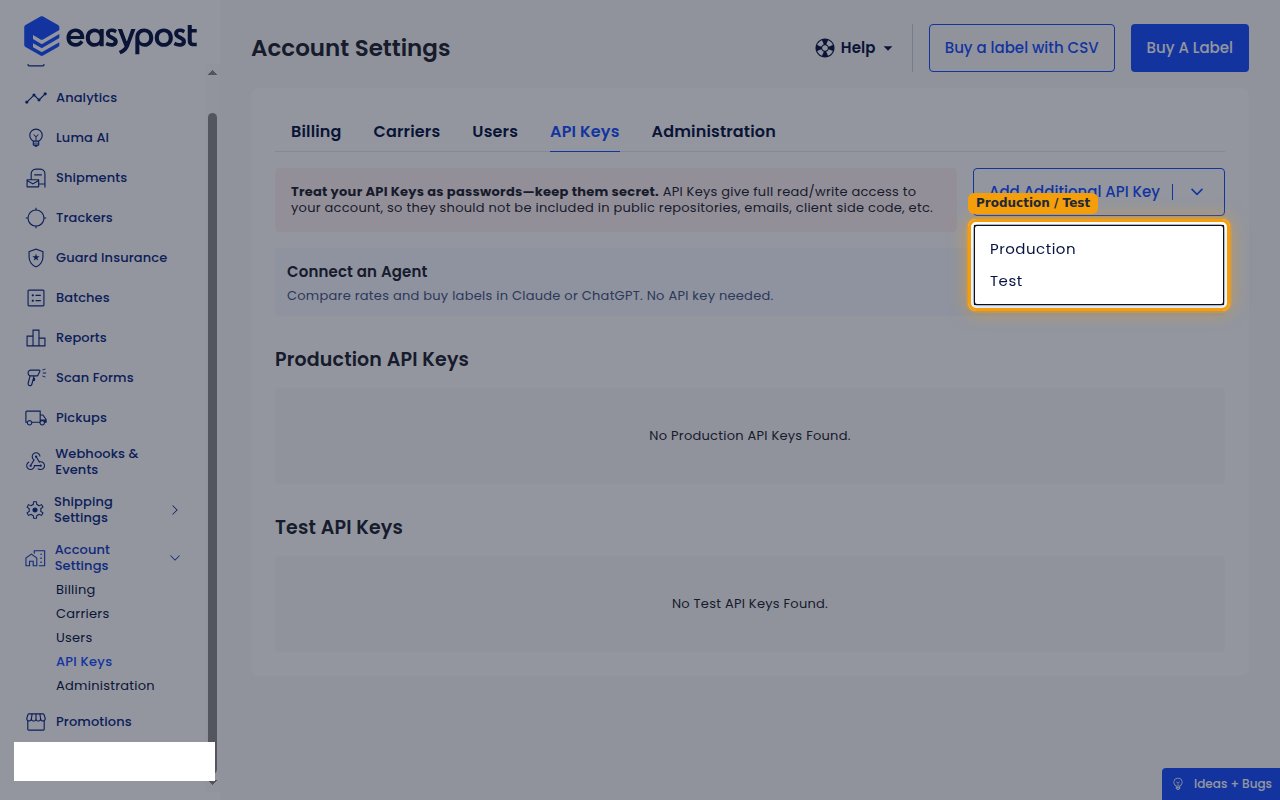
Click Add Additional API Key, then choose the key type:
- Production — a live key for real shipments and label purchases.
- Test — a free key for development that cannot buy live postage.
3
Copy your API key
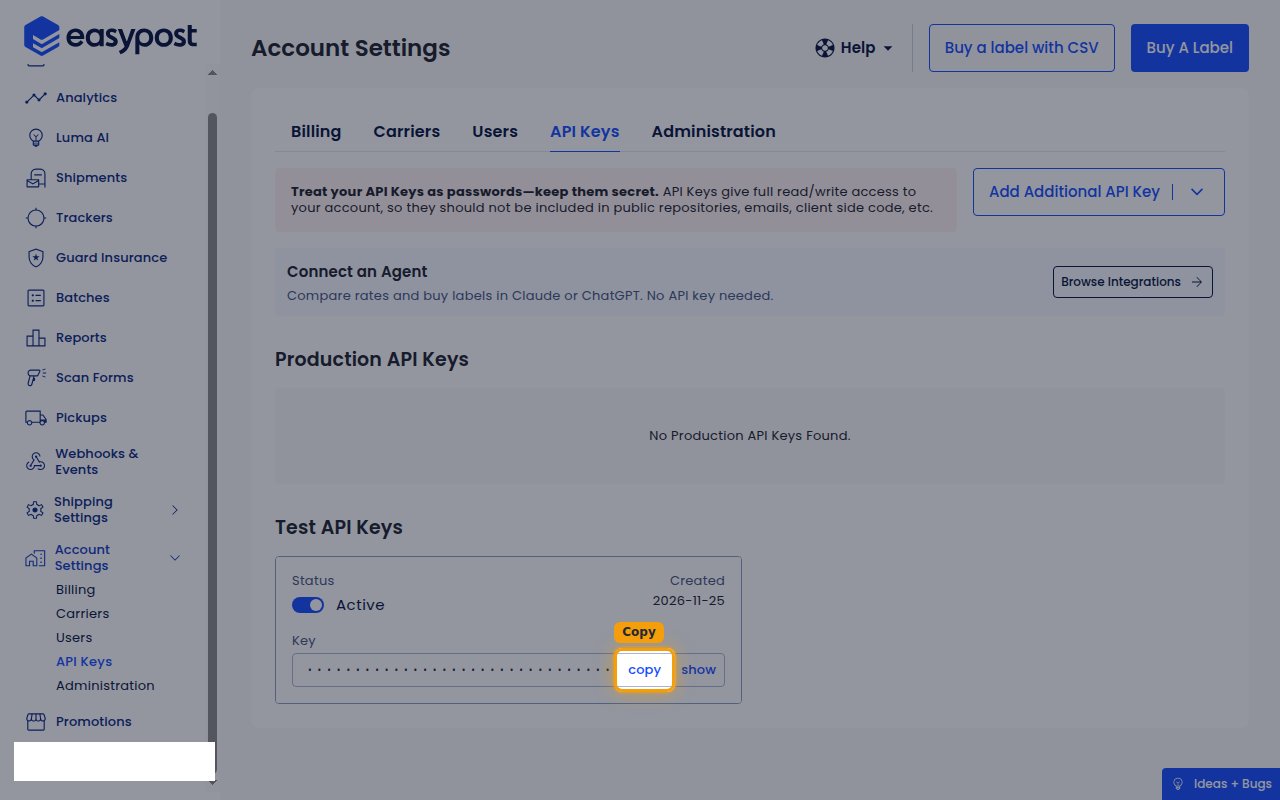
Your new key appears under Production API Keys or Test API Keys. Click copy to copy its value.
- Click show to reveal the full key before copying.
- Copy the API Key across.
Link the Account
1
Connect
- Click Connect.
- If applicable, the provider will redirect you to a sign-in or authorization page. Complete the provider’s authorization flow.
- Once authorization is successful, you will see a confirmation popup.
2
Use Actions
Connect an AI platform to the linked account’s actions. See AI Platforms.Other ways to call actions are listed in Protocols & SDKs.