

Find your Environment ID
Your Environment ID identifies your Dynatrace environment and is the first part of its URL.
1
Copy the Environment ID
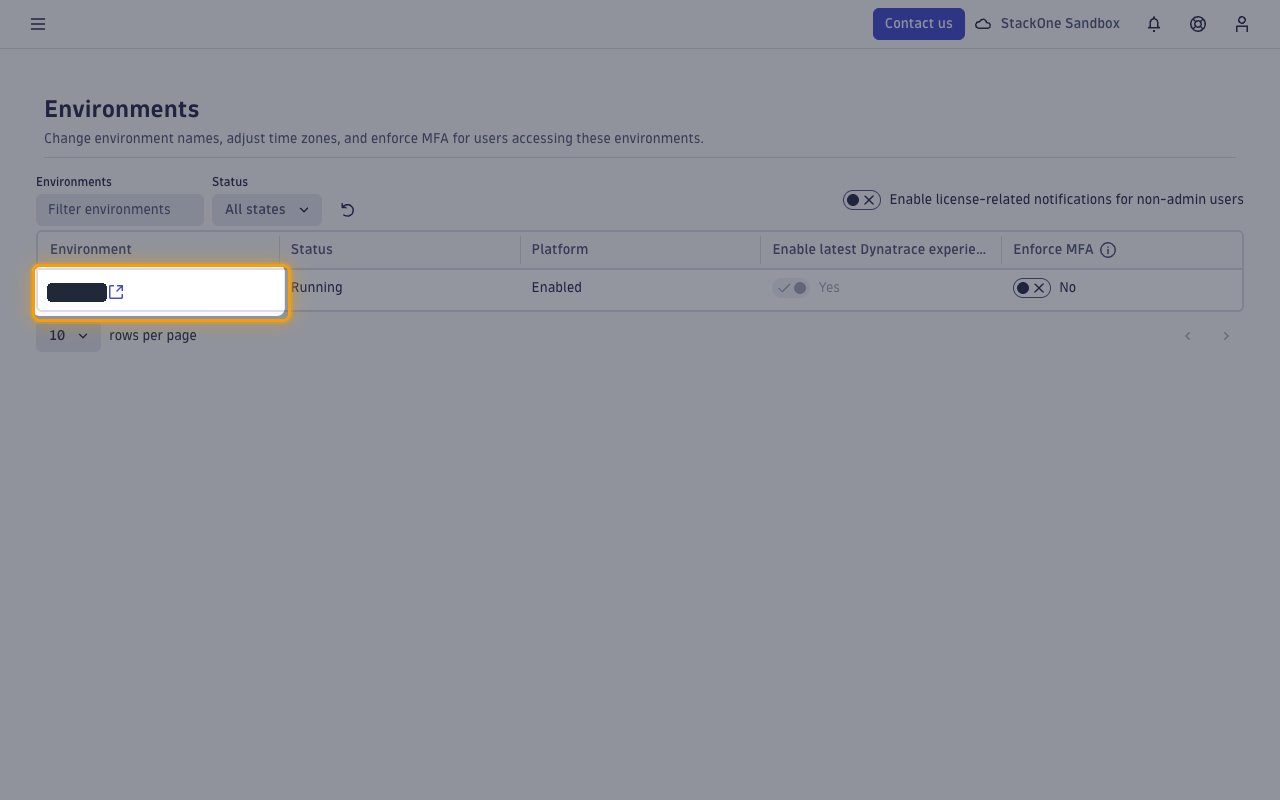
Sign in to Dynatrace Account Management, then open Settings > Environments.
- Copy the value in the Environment column across to Environment ID.
- Format:
https://{Environment ID}.apps.dynatrace.com - Example: if your environment URL is
https://abc12345.apps.dynatrace.com, your Environment ID isabc12345
Creating a platform token
The platform token works within the permissions of the Dynatrace user it is assigned to.
1
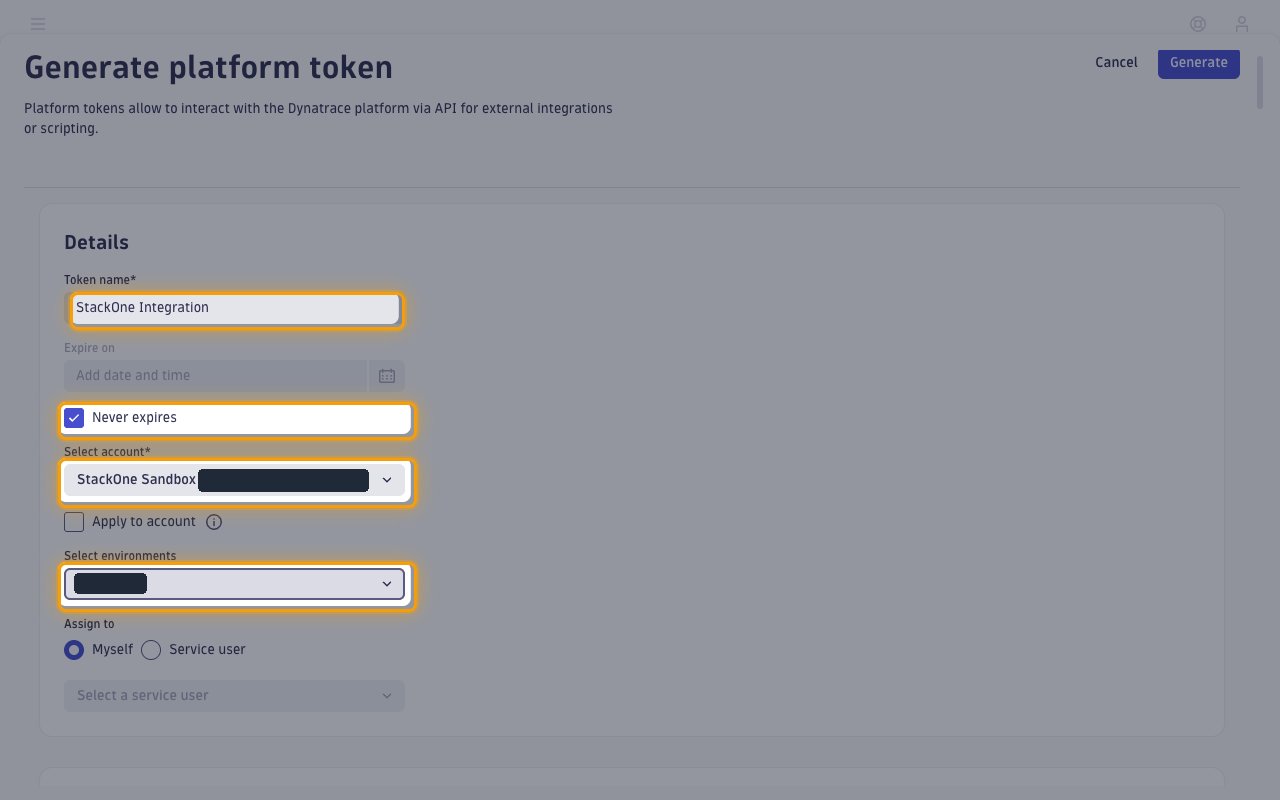
Enter the token details
In Account Management, open the Account menu at the top right and select Platform tokens.
- Click Create token.
- Token name:
StackOne Integration - Never expires: select it, or set an Expire on date
- Select account: your Dynatrace account
- Select environments: the environment you are connecting
- Assign to: Myself
2
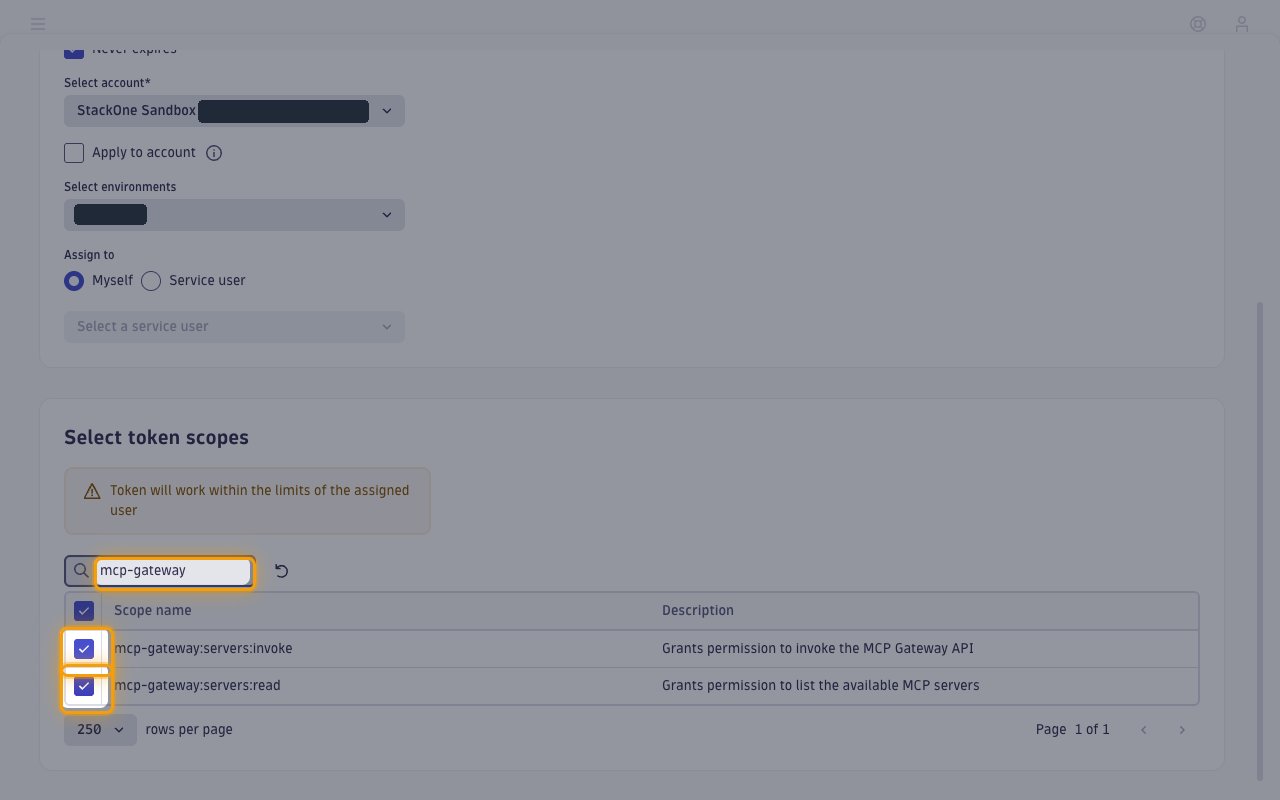
Select the token scopes
Under Select token scopes, use Search by scope to find each of these scopes and select its checkbox:
- Click Generate.
3
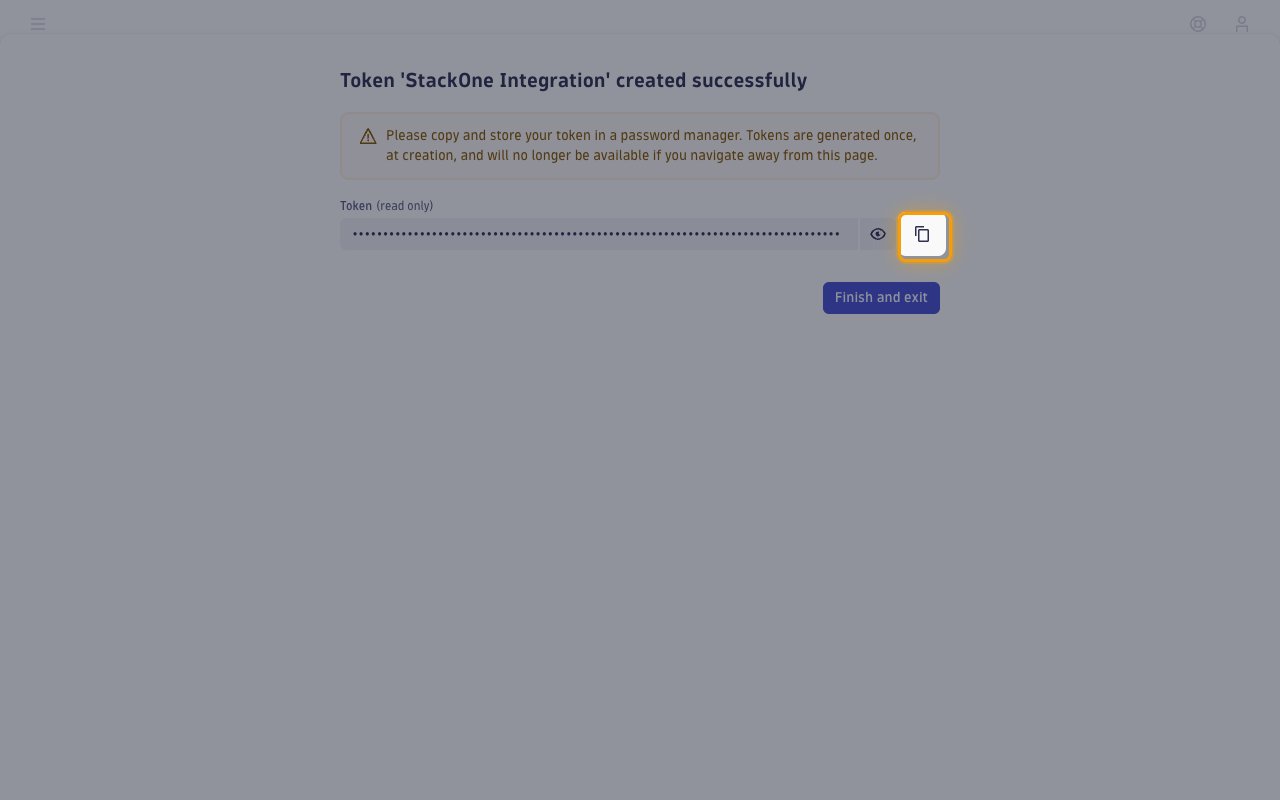
Copy the token
Copy the Token across to Platform Token. Dynatrace shows the token only once.
- Click Finish and exit.
Link the Account
1
Connect
- Click Connect.
- If applicable, the provider will redirect you to a sign-in or authorization page. Complete the provider’s authorization flow.
- Once authorization is successful, you will see a confirmation popup.
2
Use Actions
Connect an AI platform to the linked account’s actions. See AI Platforms.Other ways to call actions are listed in Protocols & SDKs.