

Create a Discord application
A Discord bot lives inside an application you register in the Discord Developer Portal.
Sign in to Discord
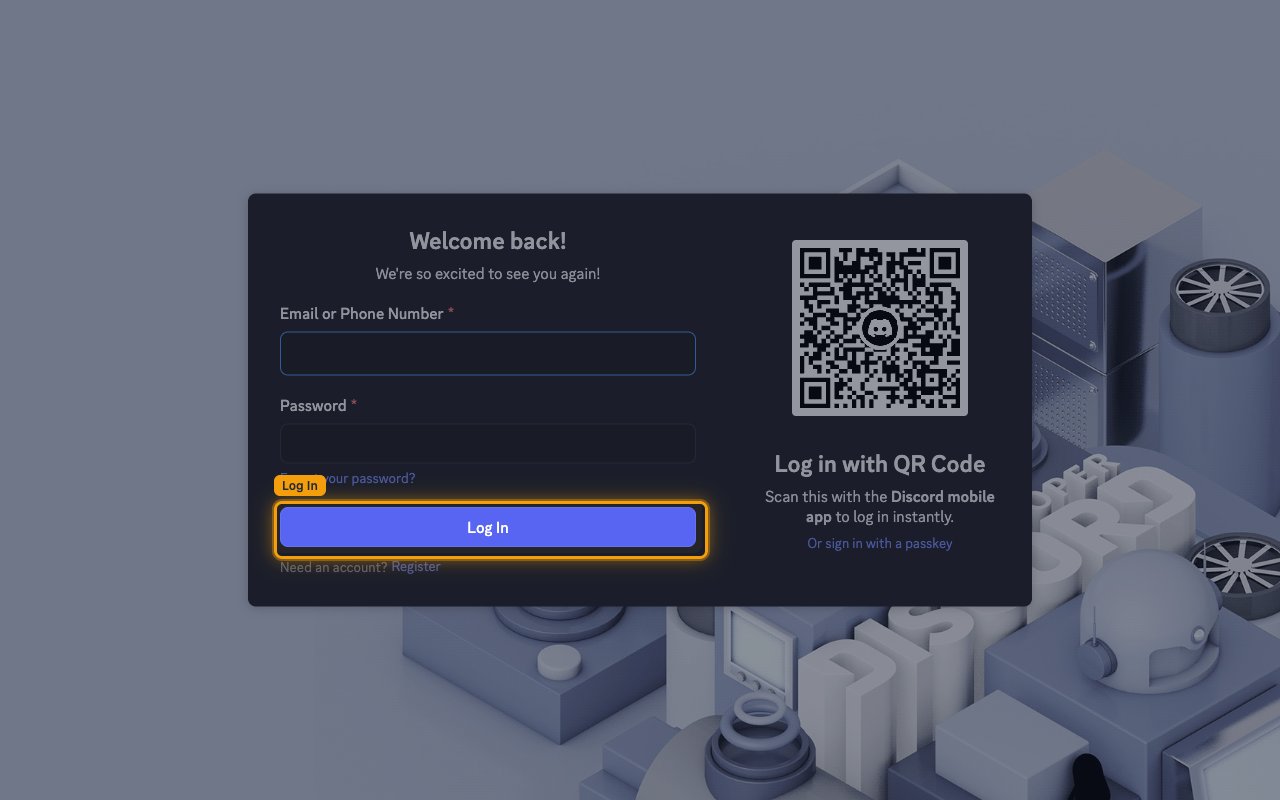
Sign in to your Discord Developer Portal account.
Create a new app
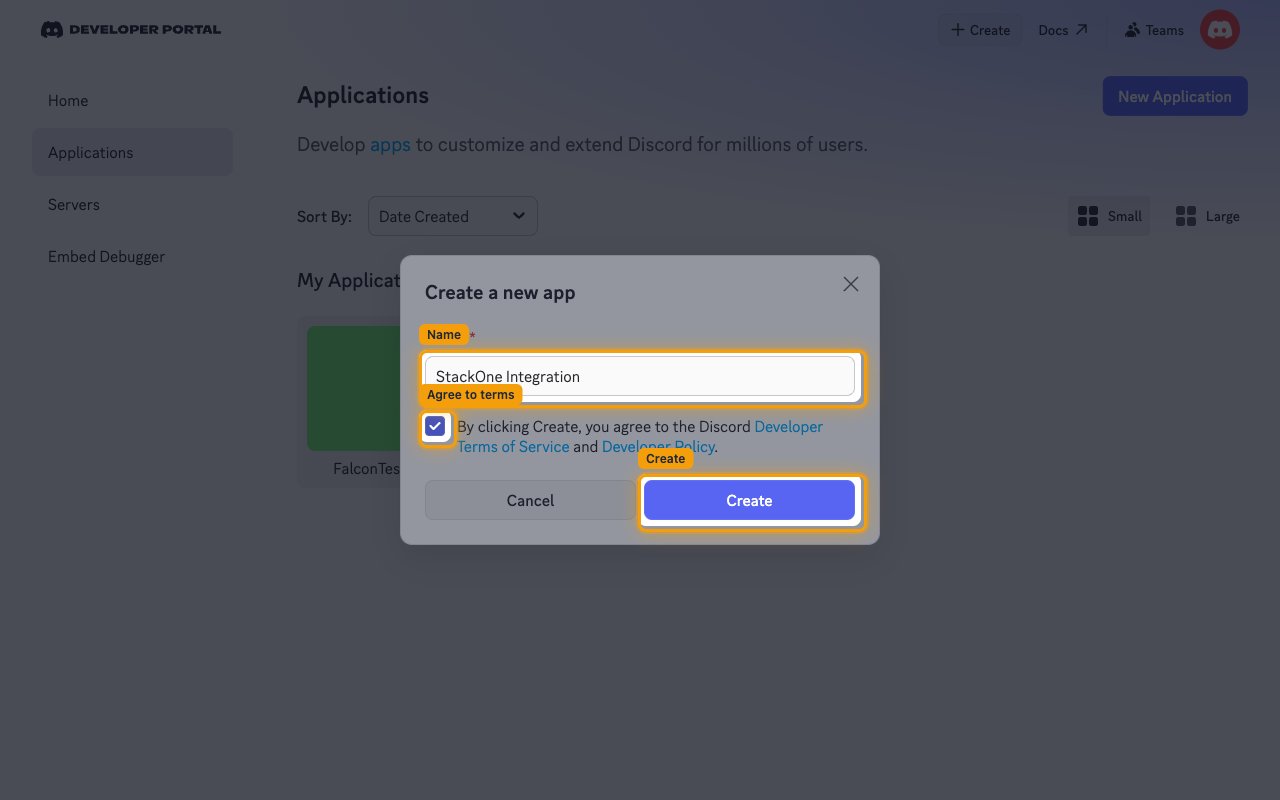
On the Applications page, click New Application.
- Name: e.g.
StackOne Integration- any name works, it is only a label for your app - Select the checkbox agreeing to the Discord Developer Terms of Service and Developer Policy.
- Click Create.
Generate the bot token
The bot token is the credential StackOne uses to call the Discord API as the bot user.
Open the Bot page
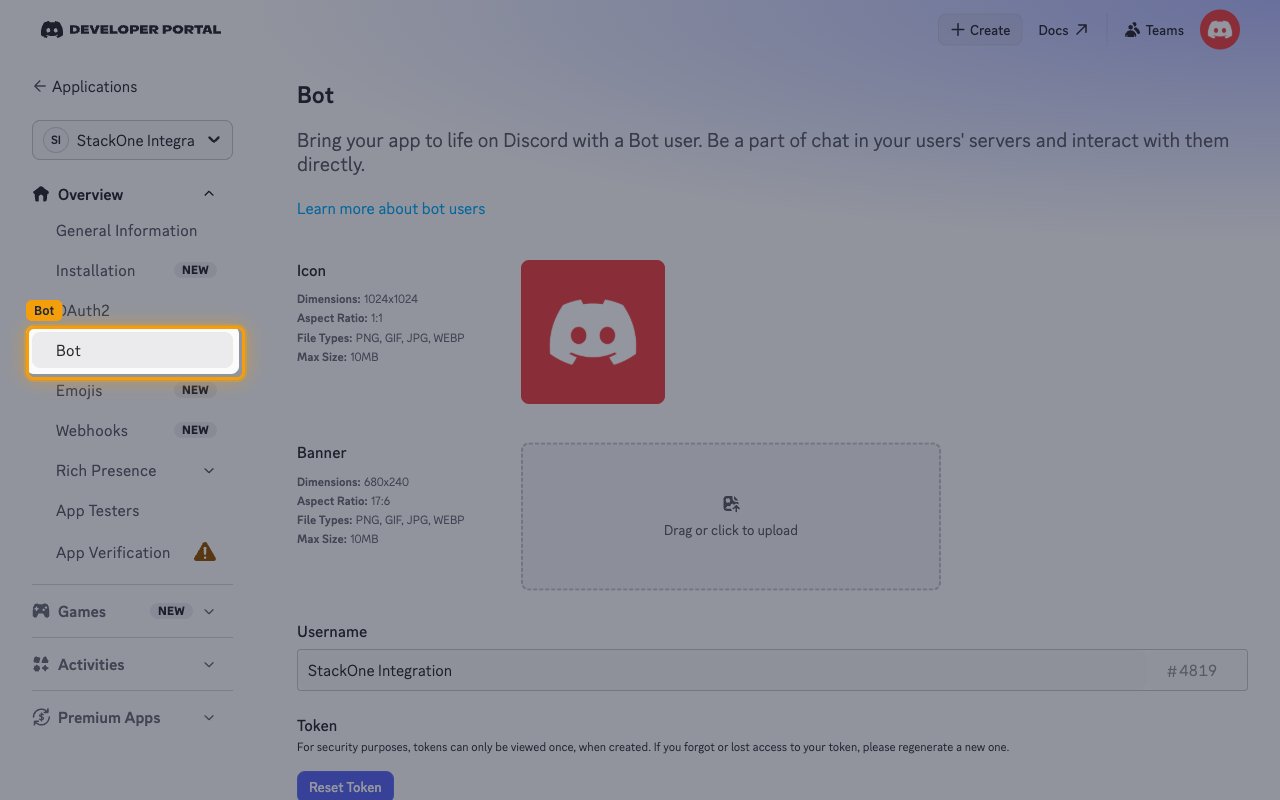
In the sidebar, under Overview, click Bot.
Generate a new token
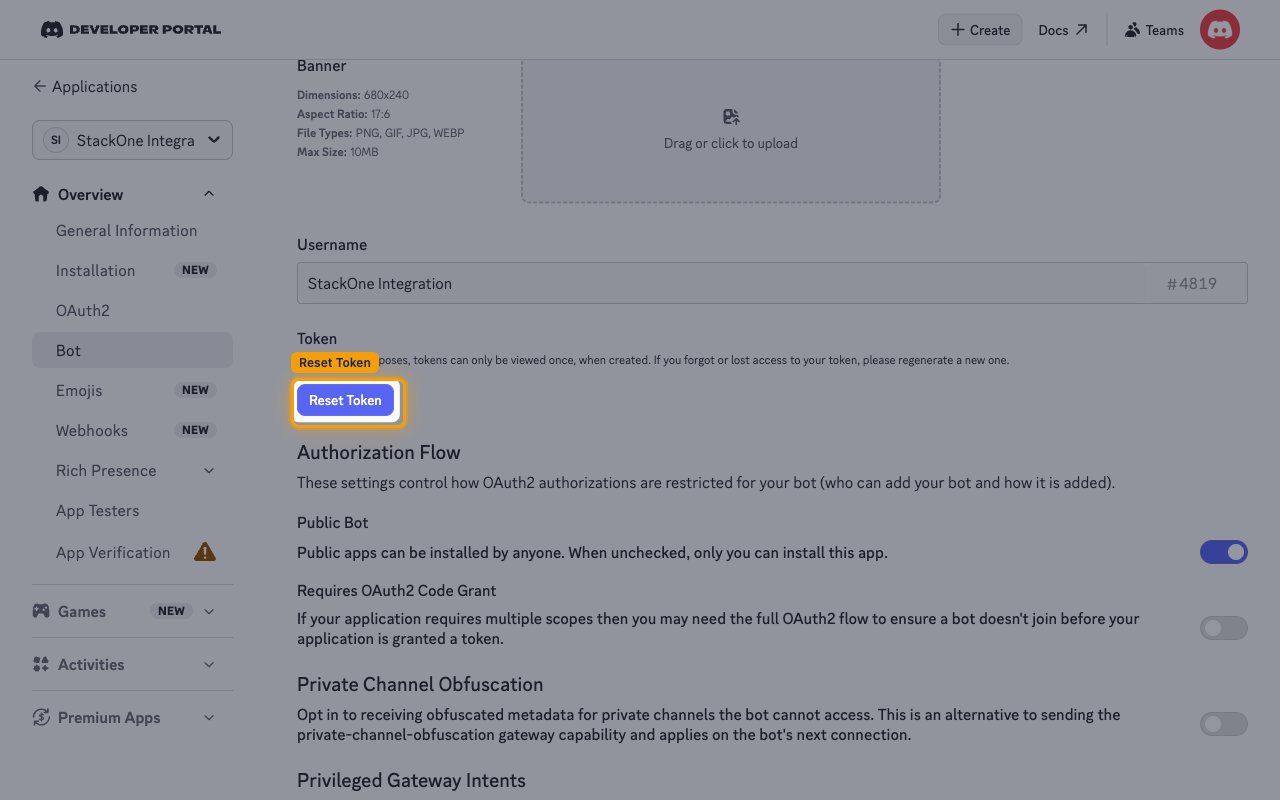
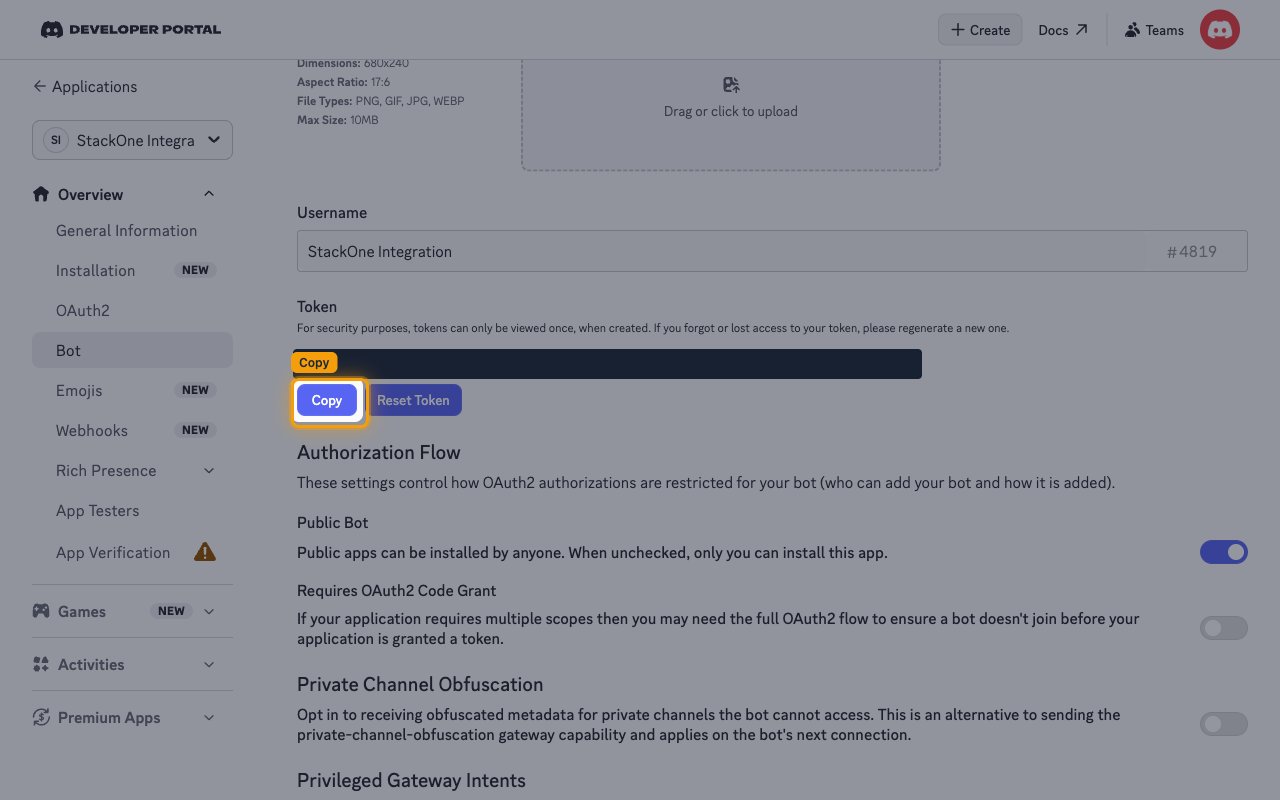
In the Token section, click Reset Token.
- Confirm with Yes, do it! in the Reset Bot’s Token? dialog.
- Enter your Discord password when the Multi-Factor Authentication dialog appears.
Copy the bot token
Click Copy under the generated token, then paste the value into the Bot Token field in StackOne Hub.
- The token is only displayed once and cannot be retrieved later, so store it securely for use later.
- Resetting the token again invalidates the previous one and breaks any existing connection that uses it.
Enable the privileged gateway intents
Discord restricts member and message content data behind privileged intents, so the bot needs them enabled to read that data through the API.
Turn on the required intents
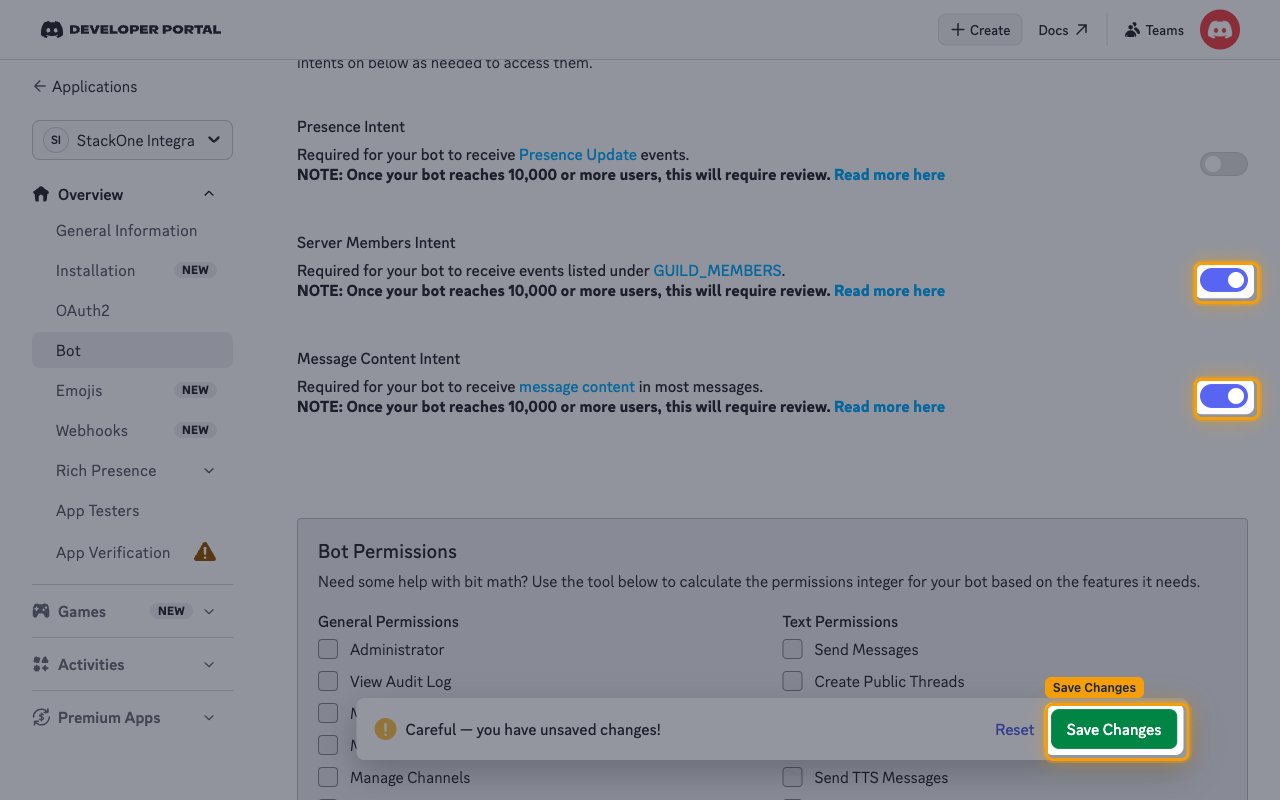
In the Privileged Gateway Intents section of the Bot page, enable the intents the integration needs.
- Enable Server Members Intent to read the members of a server.
- Enable Message Content Intent to read the content of messages.
- Note: Once your bot reaches 10,000 or more users, these intents require review by Discord.
- Click Save Changes.
Add the bot to your server
A bot can only read or act on servers it has been added to, so install it on every Discord server you want StackOne to cover.
Add the bot scope
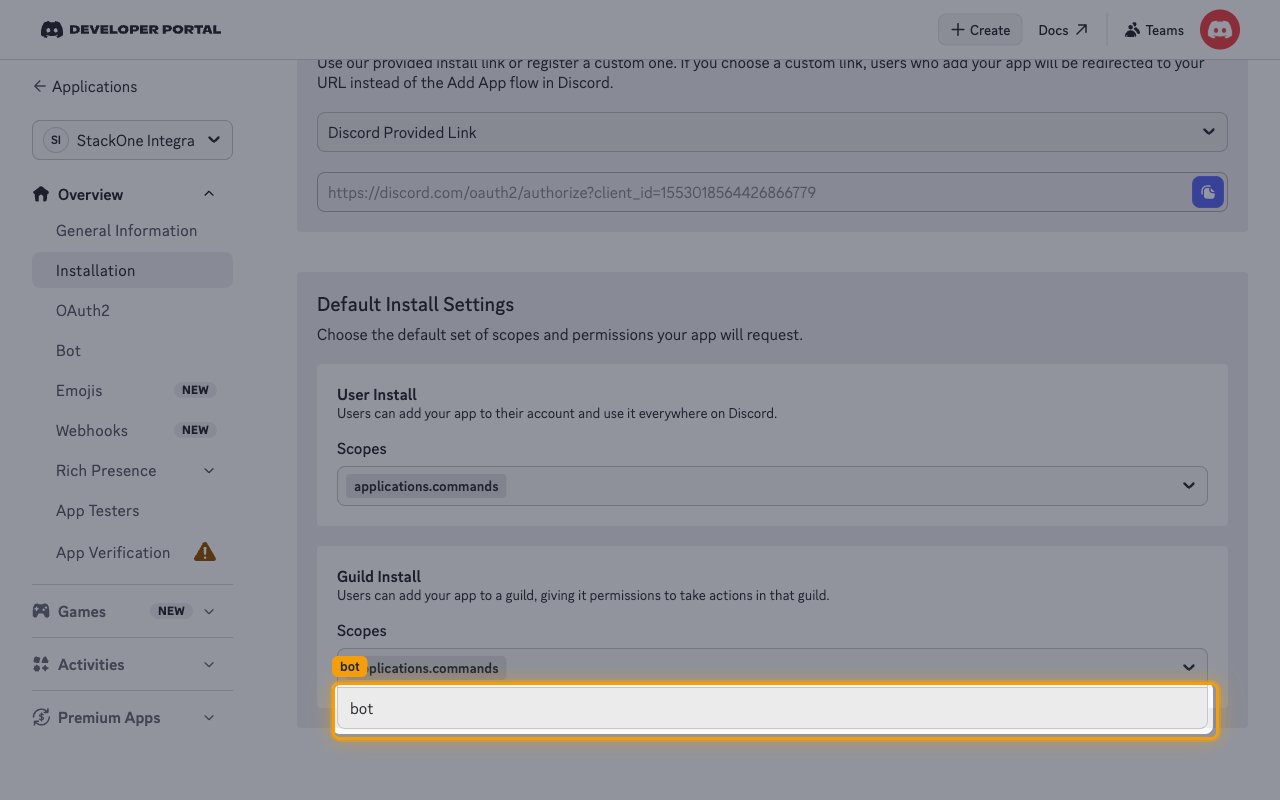
Open Installation in the sidebar, and in Default Install Settings under Guild Install, add bot to Scopes.
- Click Save Changes.
Open the install link
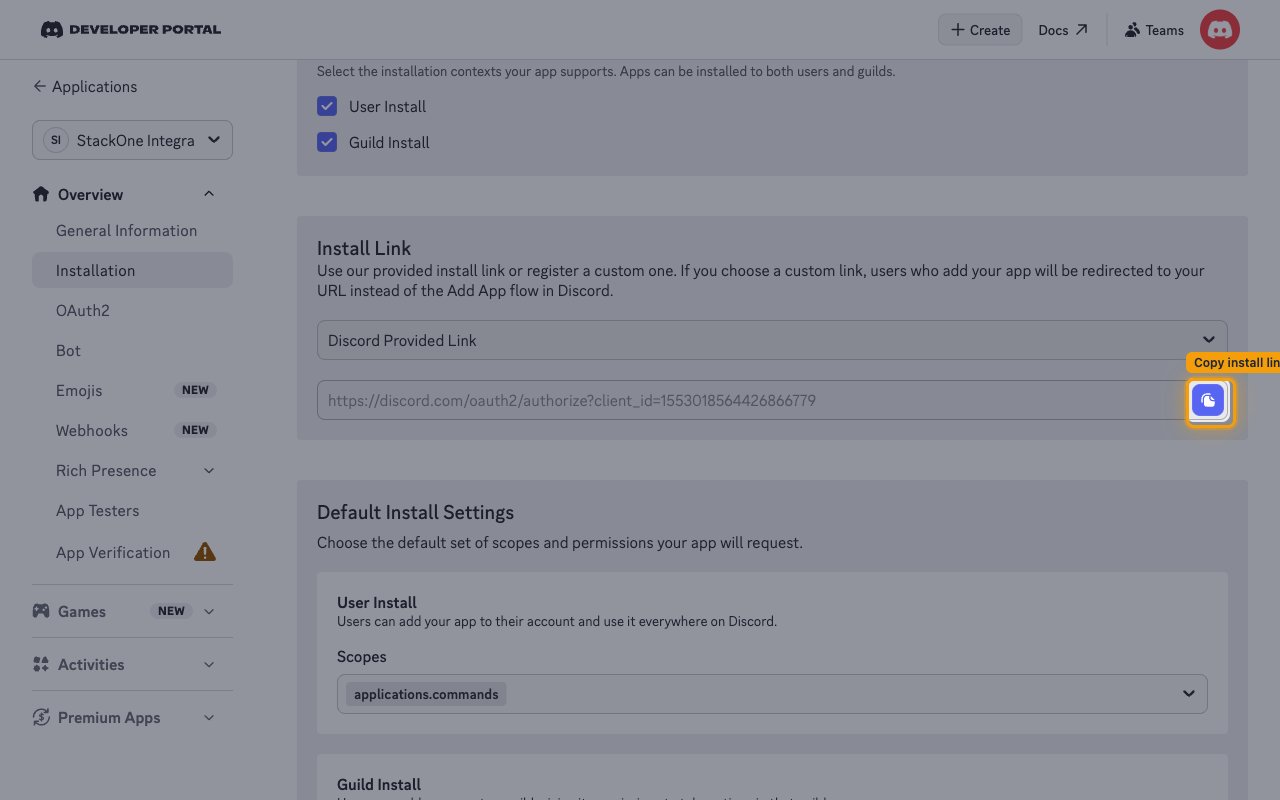
In the Install Link section, keep Discord Provided Link selected and click the copy icon to copy the link.
- Open the copied link in a browser, choose the server to add the bot to, and complete the authorization.
- You need the Manage Server permission on a Discord server to add a bot to it.
Link the Account
Connect
- Click Connect.
- If applicable, the provider will redirect you to a sign-in or authorization page. Complete the provider’s authorization flow.
- Once authorization is successful, you will see a confirmation popup.
Use Actions