

Find your Access URL
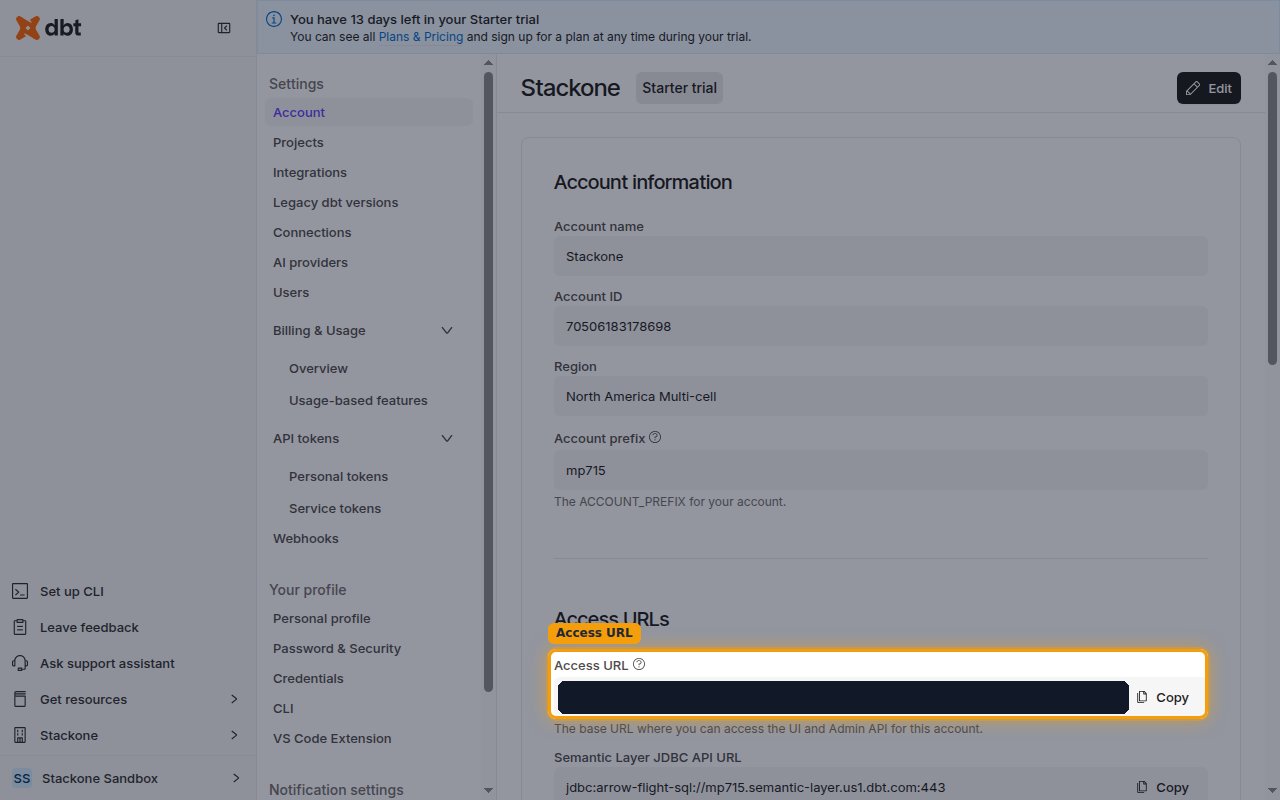
Your dbt Cloud access host is the base URL where you reach the dbt platform and Admin API for your account. You can find it in your account settings.
Copy your Access URL
Sign in to your dbt Cloud account, then open Account settings. Under Account information and Access URLs, find the Access URL.
- Copy the Access URL across to Access URL Host — use only the host, without the
https://prefix or the trailing slash. - Format:
{account_prefix}.{region}.dbt.com - Example: if your Access URL is
https://mp715.us1.dbt.com/, your Access URL Host ismp715.us1.dbt.com.
Create a service token
StackOne authenticates to the dbt Cloud Admin API with a service token. Create one in your account settings, then copy its value across.
Open the Service tokens page
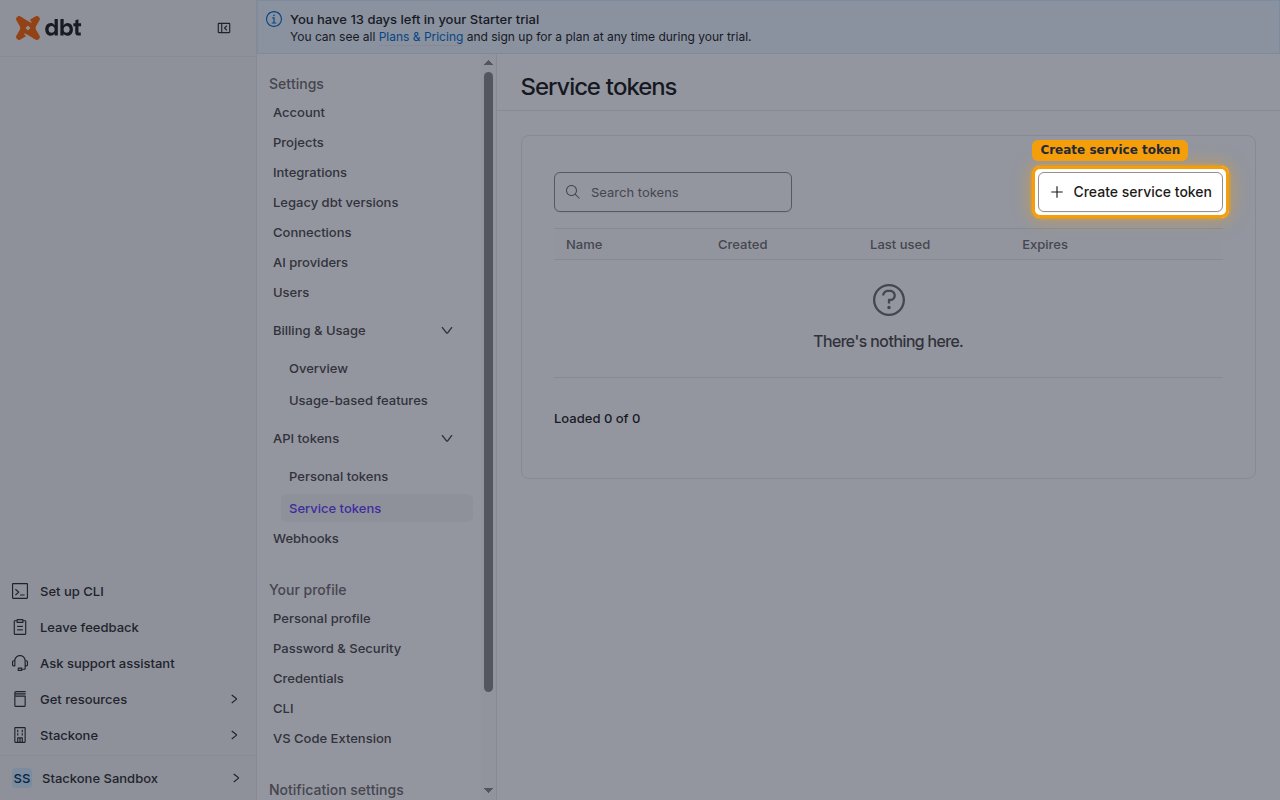
In Account settings, open API tokens → Service tokens, then click + Create service token.
Name the token and set its permissions
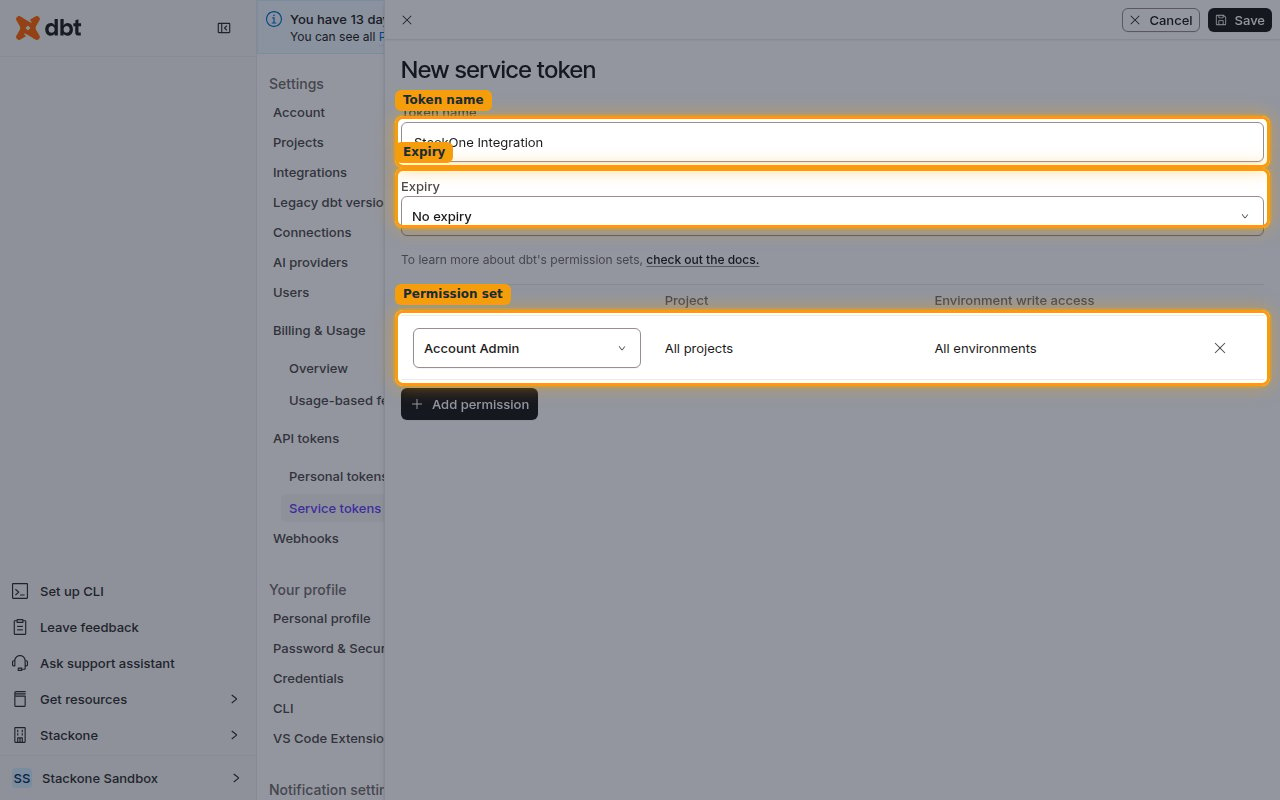
In the New service token drawer, configure the token:
- Token name: a name you will recognize, for example
StackOne Integration. - Expiry: keep No expiry, or pick an expiry date that fits your security policy.
- Click Add permission.
- Permission set: choose Account Admin for full access to projects, environments, jobs, and runs, or a narrower set such as Job Admin for job and run access only.
Copy the token
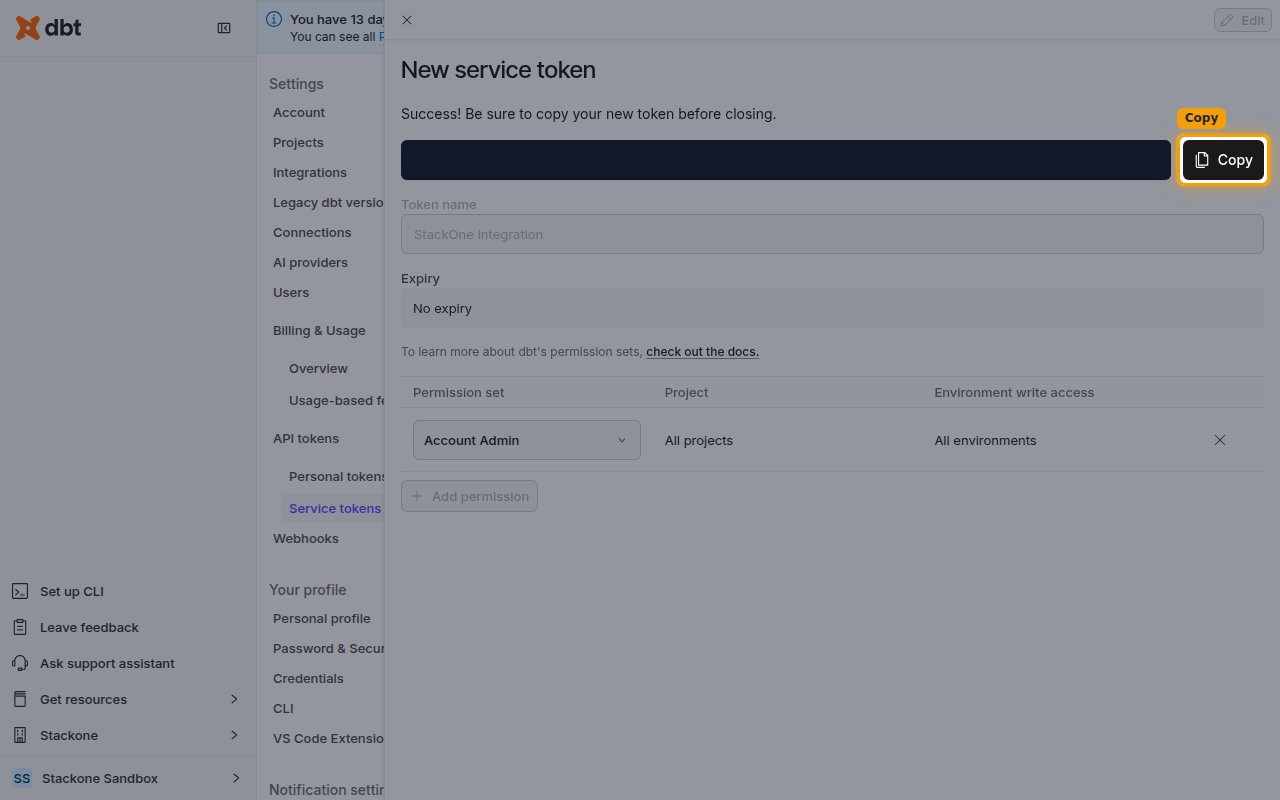
Click Save. dbt Cloud shows Success! Be sure to copy your new token before closing. Click Copy, then copy the API Token across.
- The service token is only displayed once and cannot be retrieved later, so copy it before closing the drawer.
Link the Account
Connect
- Click Connect.
- If applicable, the provider will redirect you to a sign-in or authorization page. Complete the provider’s authorization flow.
- Once authorization is successful, you will see a confirmation popup.
Use Actions