

Prerequisites
The connector should already be set up, with a Connector Profile and a Linked Account. See Getting Started on the Datadog connector page.How Datadog webhooks work
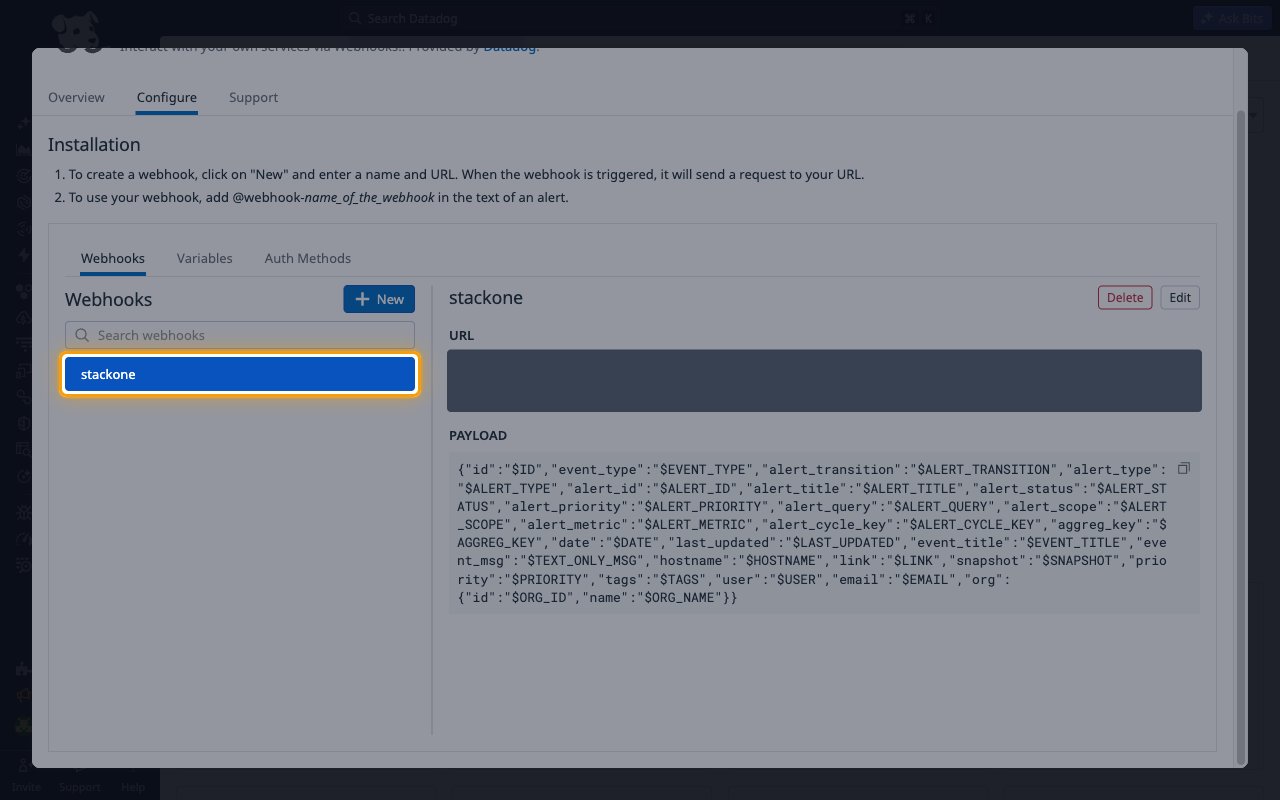
StackOne creates and manages the webhook automatically when the account is connected — it creates an organization-wide webhook in the Datadog Webhooks integration — named stackone unless you set Webhook Name on the connection — and deletes it when events are disabled or the account is disconnected.
Grant the webhook scopes
Creating and deleting the webhook needs two scopes on the Application Key or Personal Access Token, and the key owner must hold the matching Datadog permissions.
- create_webhooks — lets StackOne create the webhook.
- manage_integrations — lets StackOne delete the webhook.
- An unscoped Application Key inherits these from its owner.
Check the webhook in Datadog
After you enable events, open Integrations, select the Webhooks tile, and open the Configure tab. The stackone webhook (or the Webhook Name you set) appears in the Webhooks list with its URL and PAYLOAD; do not edit or delete it, because StackOne manages it.
Mention the webhook in your monitors
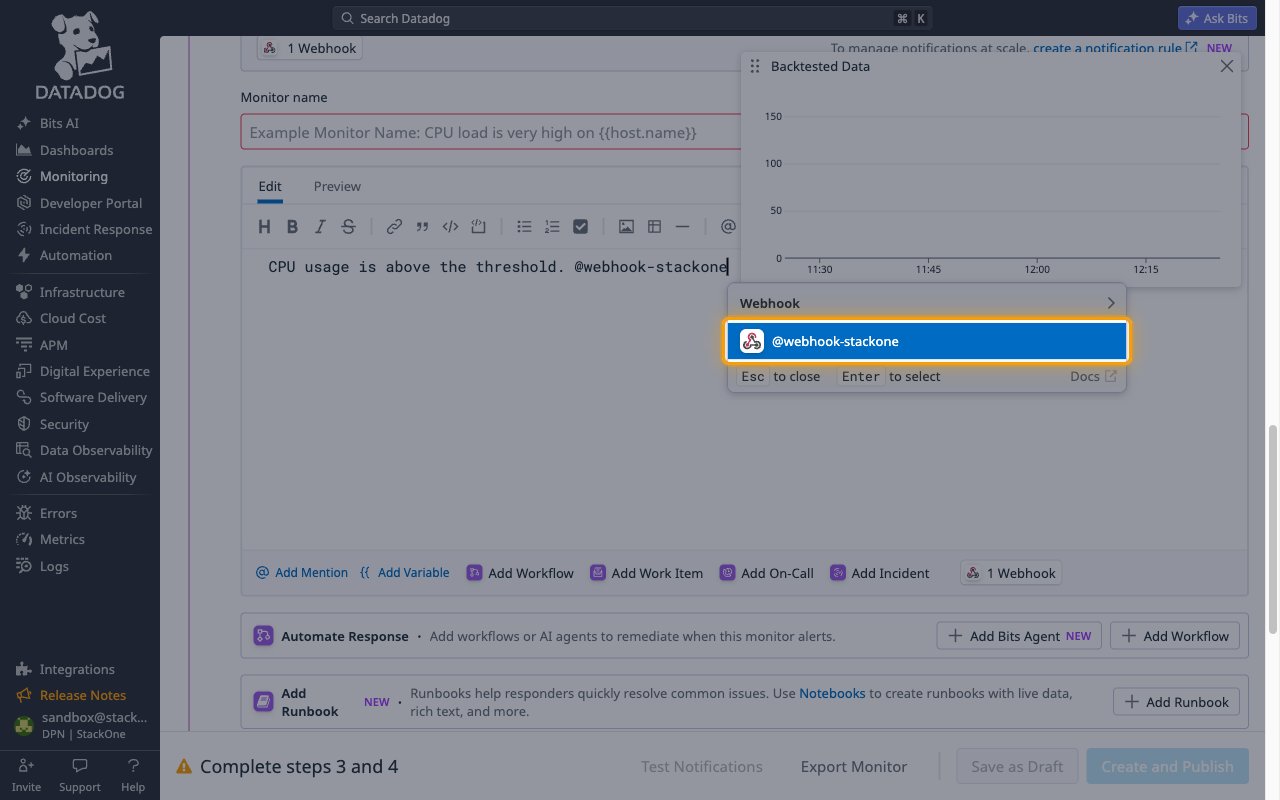
A Datadog webhook has no event subscription list — Datadog sends a notification to it only when the notification message mentions it. In each monitor whose alerts StackOne should receive, open Configure notifications & automations, type @webhook-stackone in the message, and select @webhook-stackone under Webhook in the suggestions, then save the monitor. If you set a Webhook Name on the connection, mention @webhook-<Webhook Name> instead.
- The same mention works in an incident, security rule, or case notification, which is delivered as an Other Notification event.
- See Datadog monitor notifications for the full message syntax.
Set a webhook name for multiple accounts
Datadog webhook names are unique within an organization. To connect more than one StackOne account to the same Datadog organization, give each connection a different Webhook Name (letters, numbers, hyphens, or underscores) and mention the matching @webhook-<name> in each monitor. Without it, the second connection fails to create its webhook because stackone already exists.
Available webhook events
The following Datadog events can be enabled. Only events selected in StackOne are delivered, and only for notifications that mention the StackOne webhook (@webhook-stackone by default).
Monitor events
Events fired when a monitor changes state, plus the reminders Datadog re-sends while a state persists. The exact Datadog transition (for example Re-Triggered) is kept in the event data.
- Monitor Triggered (
monitor.triggered) — Fired when a monitor enters the ALERT state (Triggered). - Monitor Recovered (
monitor.recovered) — Fired when a monitor returns to the OK state (Recovered). - Monitor Warning (
monitor.warning) — Fired when a monitor enters the WARN state (Warn). - Monitor No Data (
monitor.no_data) — Fired when a monitor with no-data notifications enabled stops receiving data (No data). - Monitor Renotify (
monitor.renotify) — Fired when a monitor with a renotify interval is still in ALERT, WARN, or NO DATA and Datadog re-sends the notification (Re-Triggered,Re-Warn,Re-No data).
Other notifications
A catch-all so no delivery is lost.
- Other Notification (
notification.other) — Fired for any other notification sent to the StackOne webhook, such as incident, security signal, or case notifications.
Delivery format
Details of how Datadog delivers events to StackOne.
JSON payloads
Each delivery is an HTTP POST with one notification, rendered from a fixed StackOne payload template of Datadog webhook variables. The notification id ($ID) is used as the event ID and $DATE (epoch milliseconds) as the event date; alert_id in the data is the monitor id, and alert_cycle_key links reminders and recoveries to the notification that started the alert.
No signature
Datadog does not sign webhook deliveries. The account-specific callback URL StackOne registers identifies the connected account.