

Open the Public API keys page
Dashlane manages public API keys in the Admin Console, under Developer Access.
Sign in to Dashlane
Sign in to the Dashlane Admin Console as a team administrator.
- The Admin Console opens through the Dashlane browser extension, so install the extension before signing in.
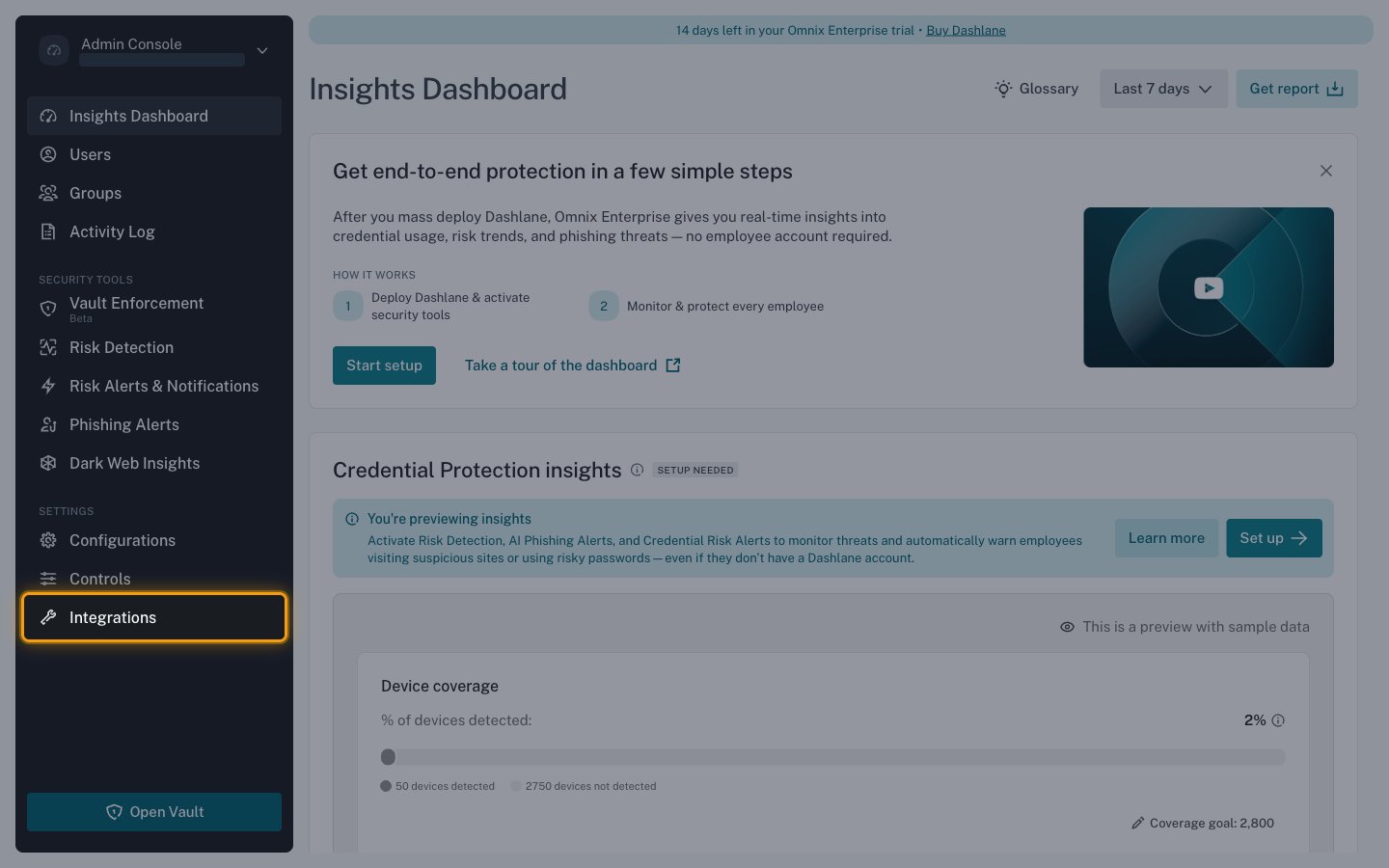
Open Integrations
In the left navigation, under SETTINGS, select Integrations.
- Newer versions of the Admin Console nest Developer Access directly under Integrations in the left navigation. If you see it there, select it to jump straight to the next step.
Open Public API keys
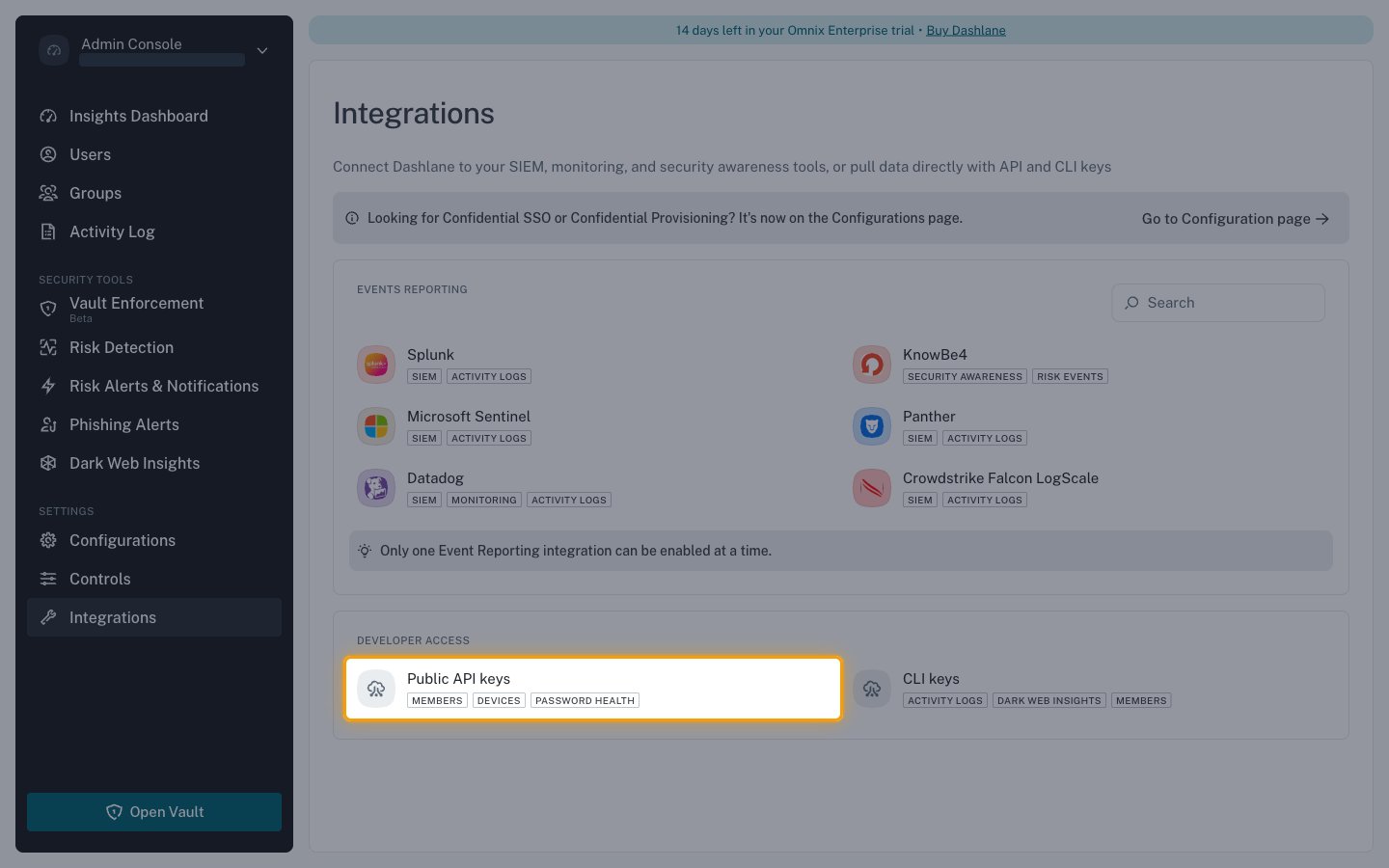
Scroll to Developer Access and select Public API keys.
- The Public API keys card lists the data these keys read — Members, Devices, and Password Health.
- CLI keys on the same page are a separate credential type and are not used by this connection.
- If public API access is already switched on, Developer Access instead shows Connect Dashlane to your tools with a Public API and CLI row marked ENABLED. Select Edit on that row to reach the existing keys and to create a new one.
Generate an API key
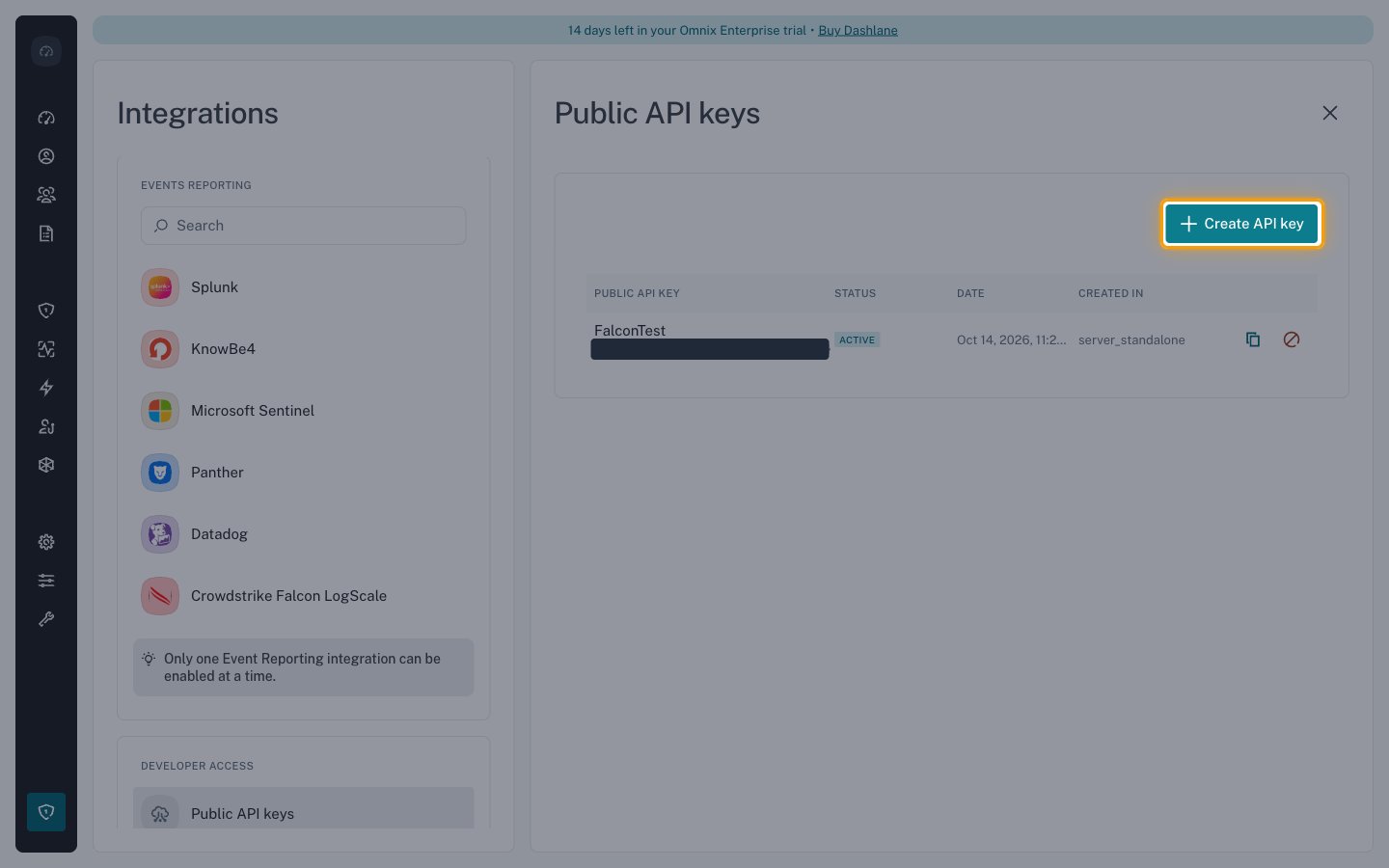
Keys are generated from the Public API keys panel, which also lists the keys that already
exist.
Create a key
Select Create API key.
Name and generate the key
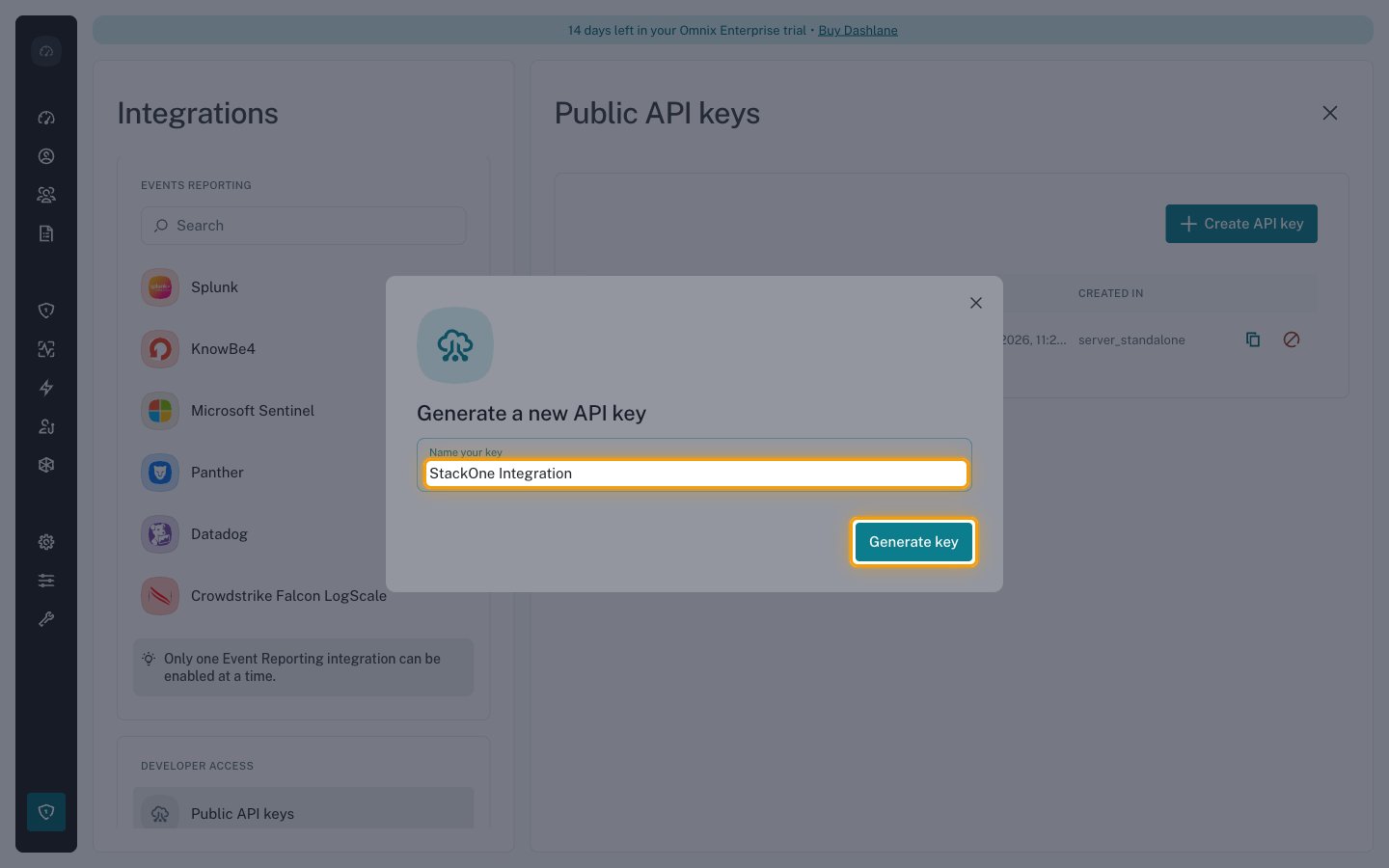
In the Generate a new API key dialog, fill in Name your key, then select Generate key.
- Name your key is free text and is only a label for your own reference, so choose something that identifies this integration in your environment, for example
StackOne Integration.
Copy the bearer token
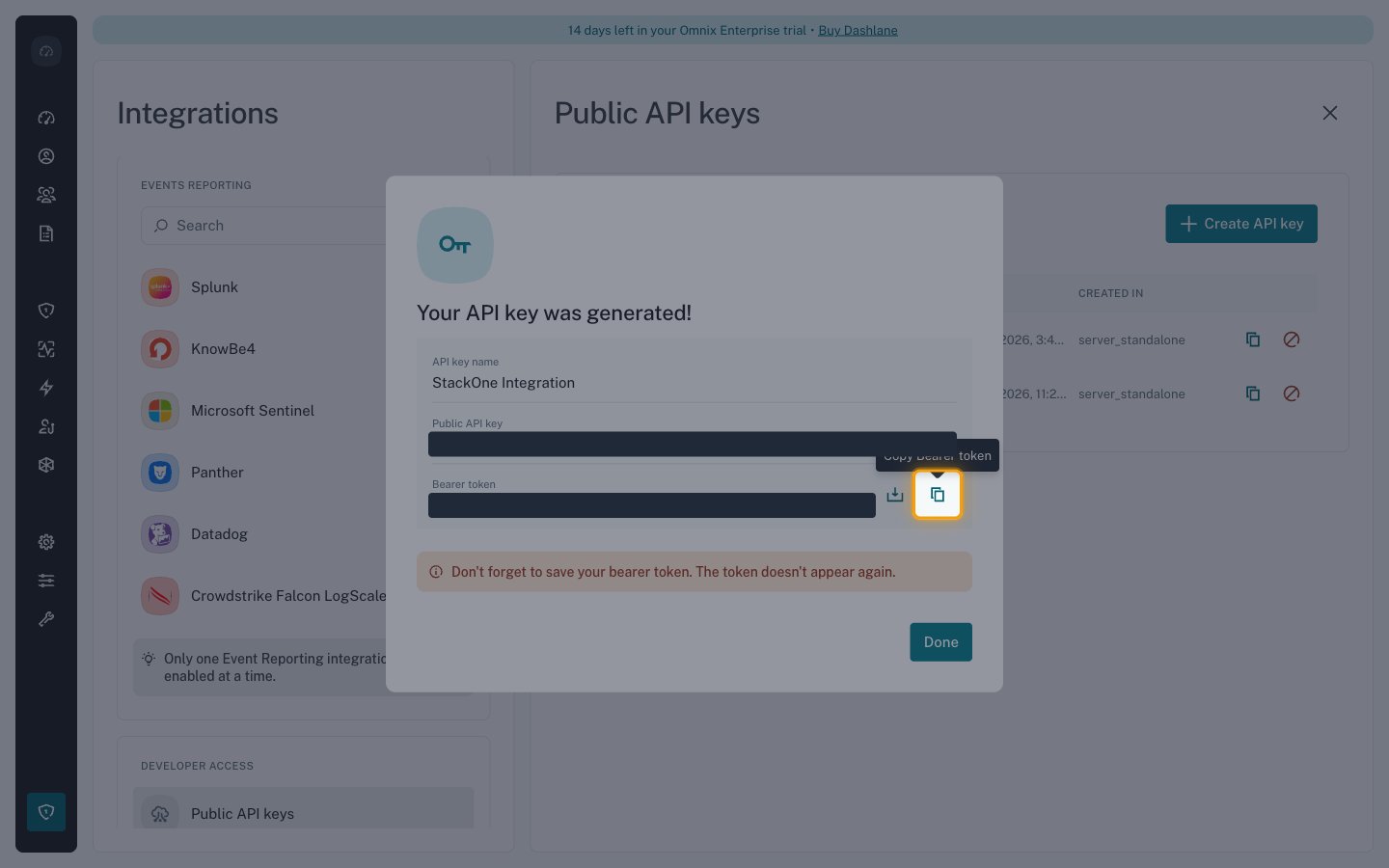
Your API key was generated! shows the key. Select Copy Bearer token next to the
Bearer token field and paste the value into the Bearer Token field in StackOne
Hub, then select Done.
- The bearer token is shown only once and cannot be retrieved later, so store it in a secret manager before closing the dialog.
- Format:
DLP_{teamUuid}_{accessKey}_{secretKey} - Paste the token exactly as copied, with no leading or trailing spaces.
- Use Download Bearer token instead if you prefer to save the token to a file.
Link the Account
Connect
- Click Connect.
- If applicable, the provider will redirect you to a sign-in or authorization page. Complete the provider’s authorization flow.
- Once authorization is successful, you will see a confirmation popup.
Use Actions