

Getting Your Coursera API Credentials
To connect Coursera with StackOne, you’ll need to register an app and obtain your API credentials from the Coursera Developer Portal.
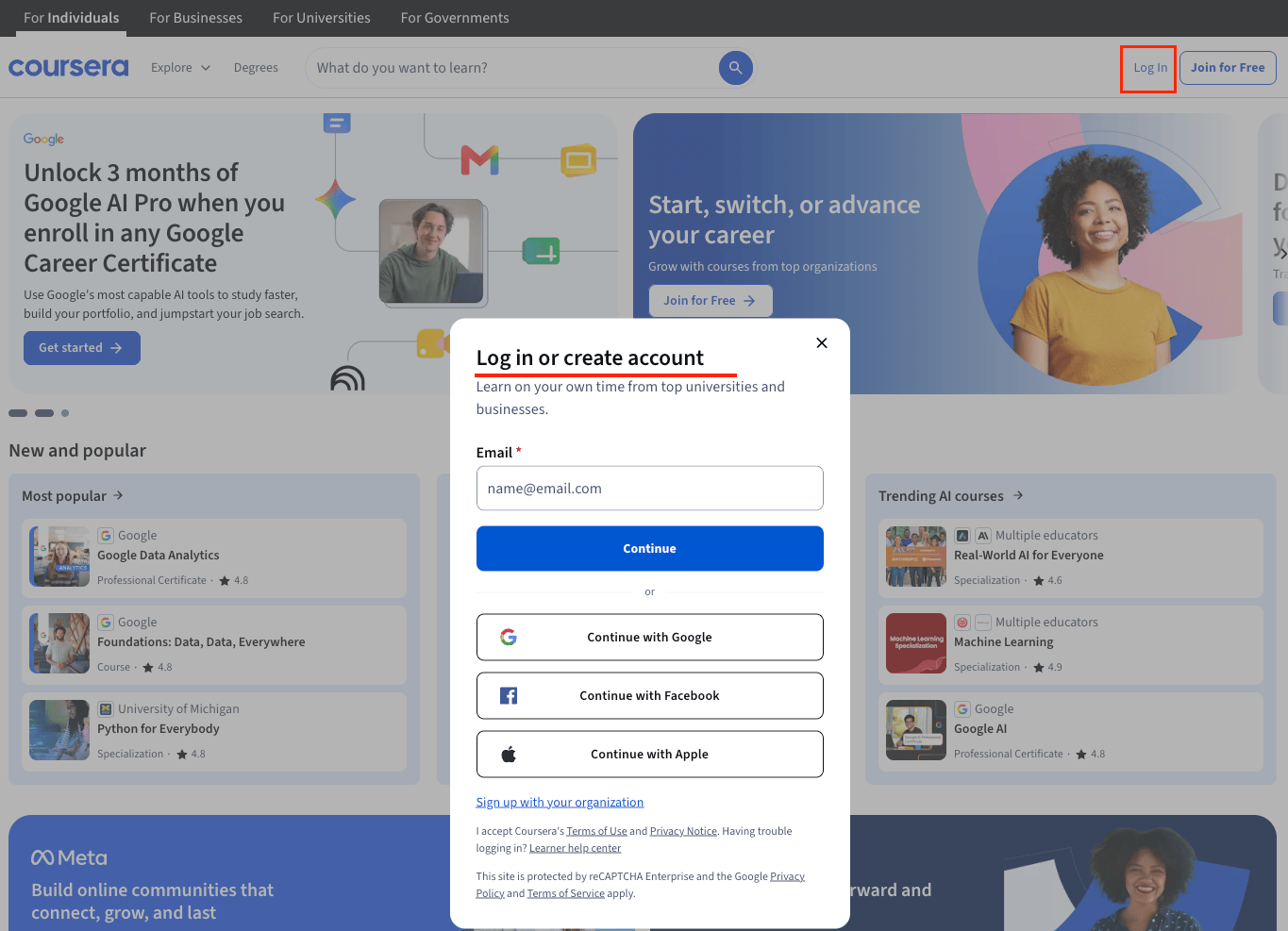
Sign in to the Coursera Developer Portal
Navigate to the Coursera Developer Portal and sign in using your Coursera account.
- Click the Sign In button in the upper-right corner of the Developer Portal
- You will be redirected to www.coursera.org for authentication — click Login With SAML to sign in
- Accept the terms and conditions if prompted
- Once authenticated, you will be returned to the Developer Portal. If the top-right still shows ‘Sign In’, click it again to complete the login
Navigate to the Apps Section
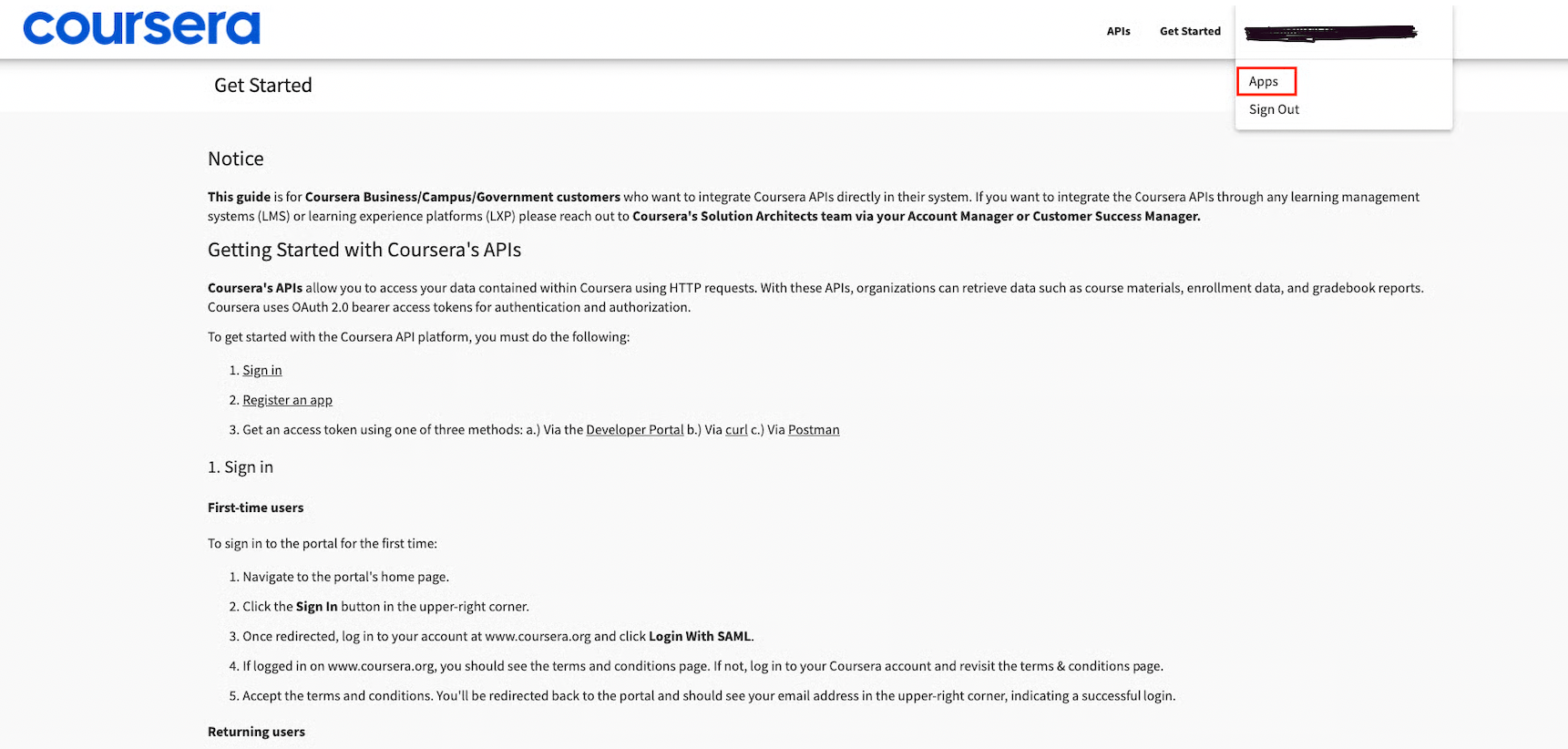
Access the Apps section in the Coursera Developer Portal to create a new app.
- Click your email address in the upper-right corner and choose Apps from the dropdown
- This will take you to the Apps page, where you can manage your registered apps
Register an App
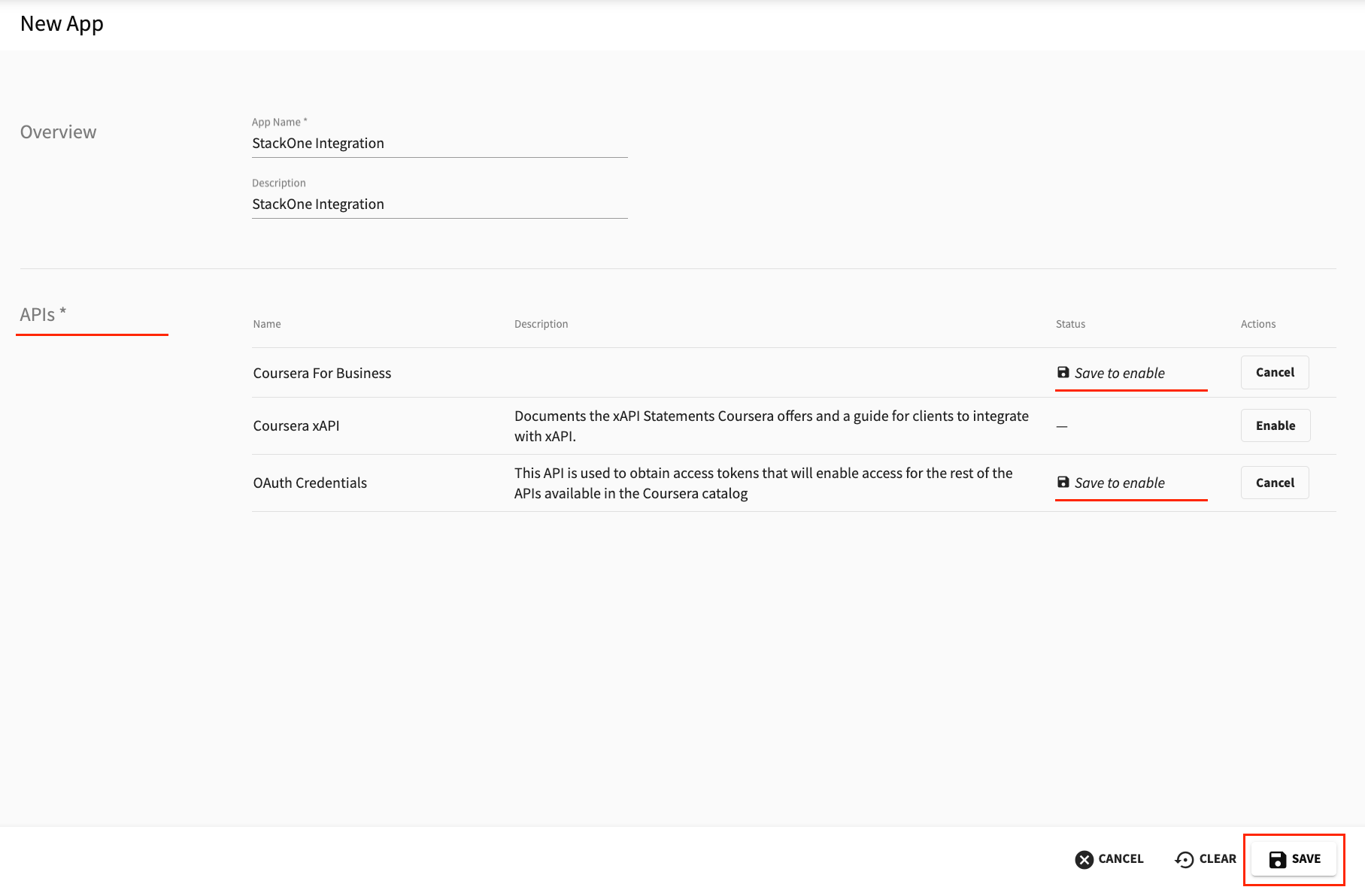
Create a new app to obtain your API credentials.
- Click + NEW APP in the top-right corner of the Apps page
- Add a name and description for the new app, for example ‘StackOne Integration’
- In the APIs section, enable OAuth Credentials and Coursera For Business by clicking Enable next to each
- Click the SAVE button to create the app
- Note: Use your organization’s admin account to register apps to avoid access issues
Copy Your API Credentials
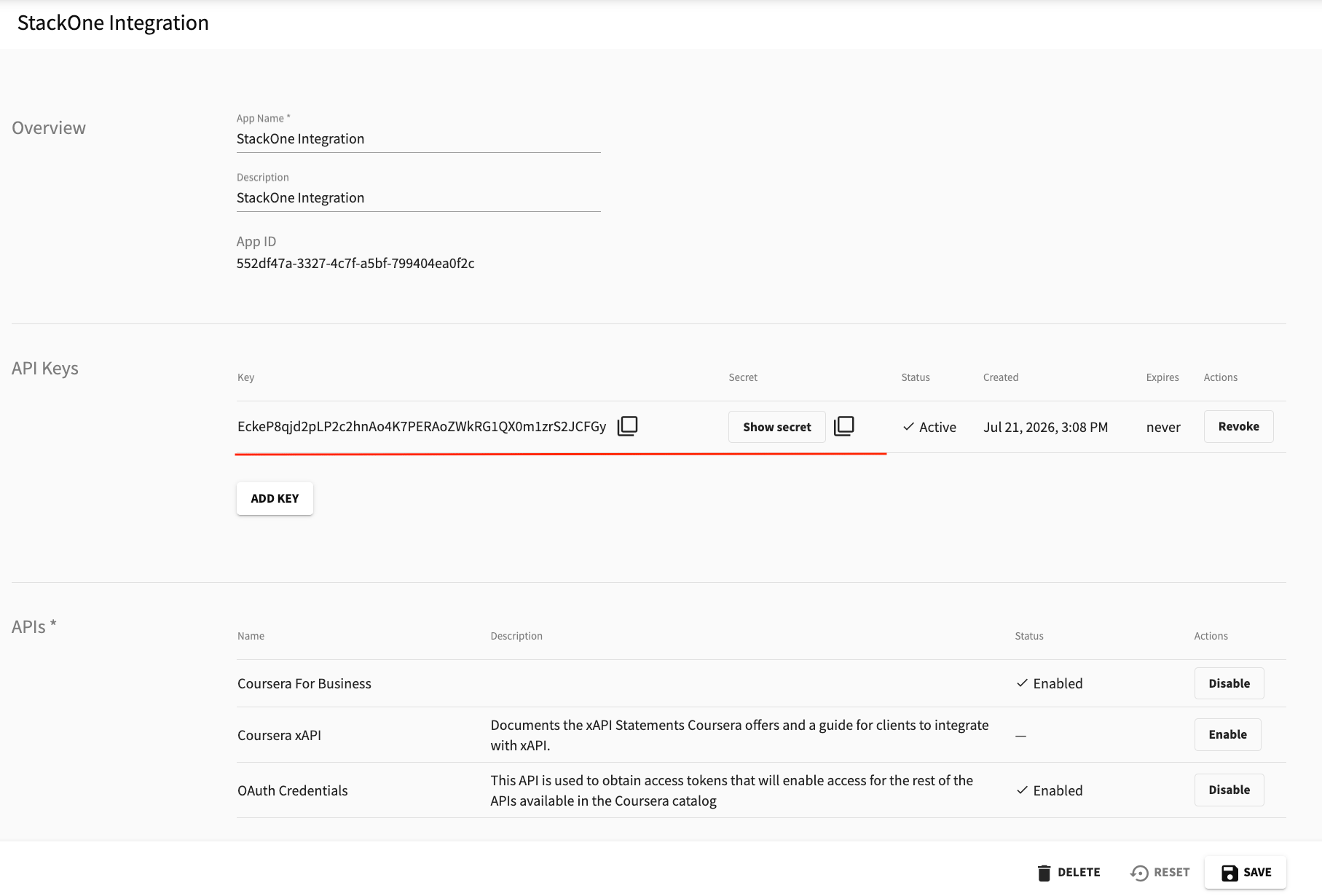
Retrieve your API Key and Client Secret from the app you created.
- In the API Keys section, click Show secret to reveal your credentials
- Copy the API Key (this is your Client ID)
- Copy the Client Secret
- Store both values securely for later use
Finding Your Organization ID
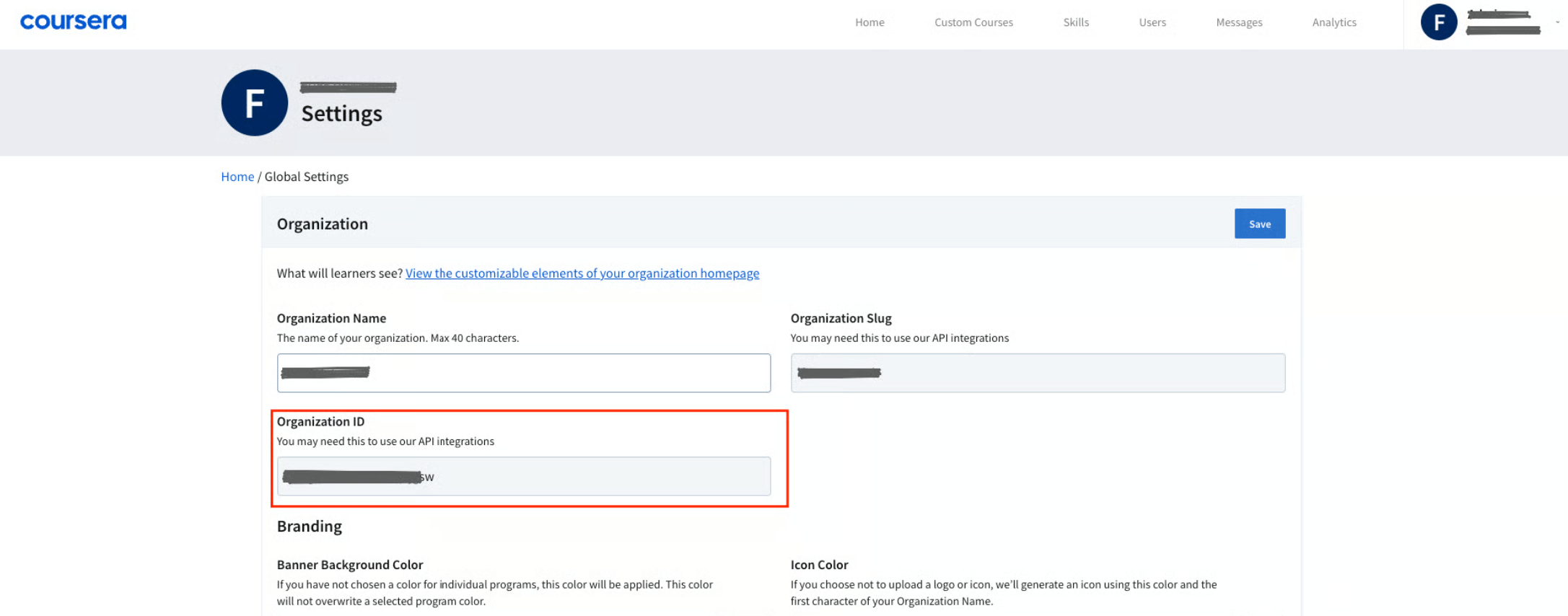
Locate your Organization ID in the Coursera Admin settings.
Navigate to Admin Settings
Access your organization settings in the Coursera admin console.
- Click your email address in the upper-right corner and choose Admin from the dropdown
- You will be taken to the Coursera admin console. In the left sidebar, click Settings
- Copy the Organization ID value
- Store it securely for later use
Linking the Account from the Hub
Navigate to the Hub
Fill out the fields
- API Key
- Client Secret
- Organization ID
Connect
- Click Connect
- If applicable, the provider will redirect you to a sign-in or authorization page. Complete the provider’s authorization flow.
- Once authorization is successful, you will see a confirmation popup
If the account linking is successful, you will see the newly linked account on your Accounts page.