

Create and install a custom app
A custom app gives StackOne its own identity in one space environment, separate from any user account.
1
Create the app
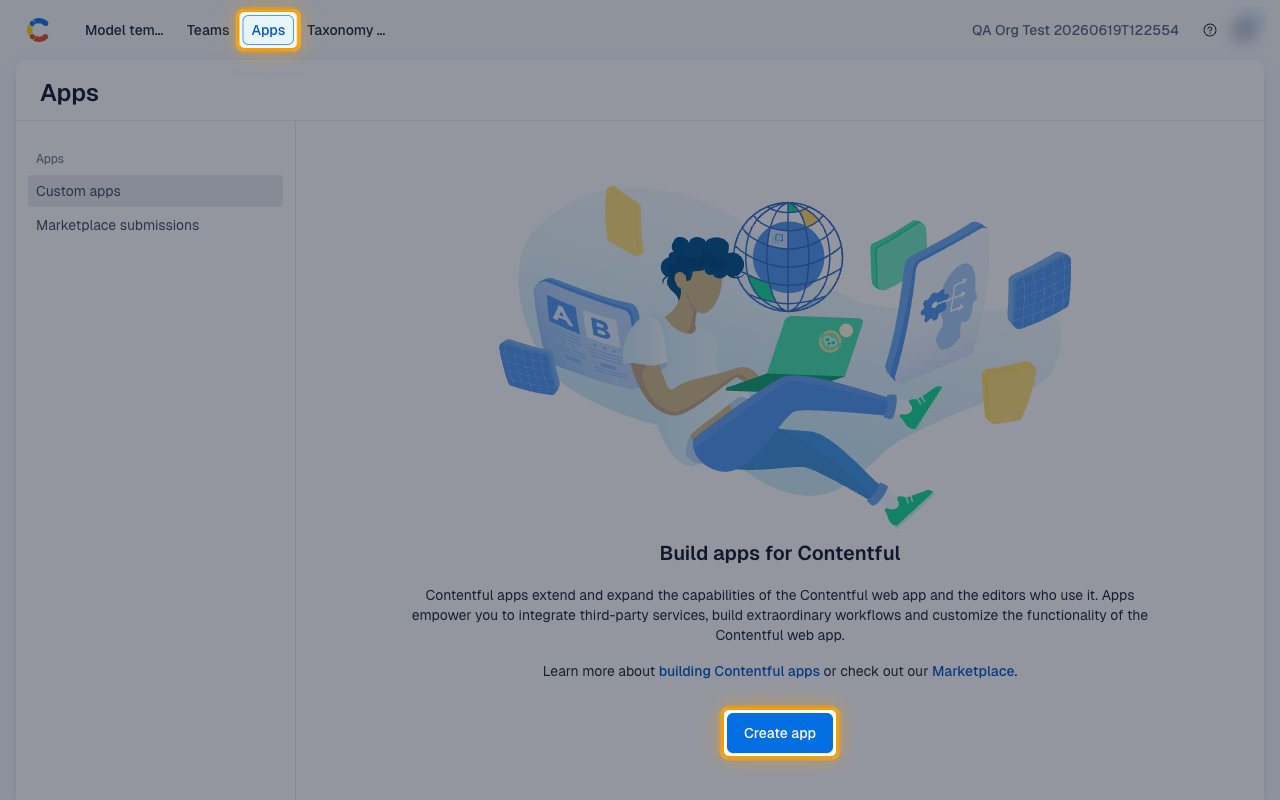
2
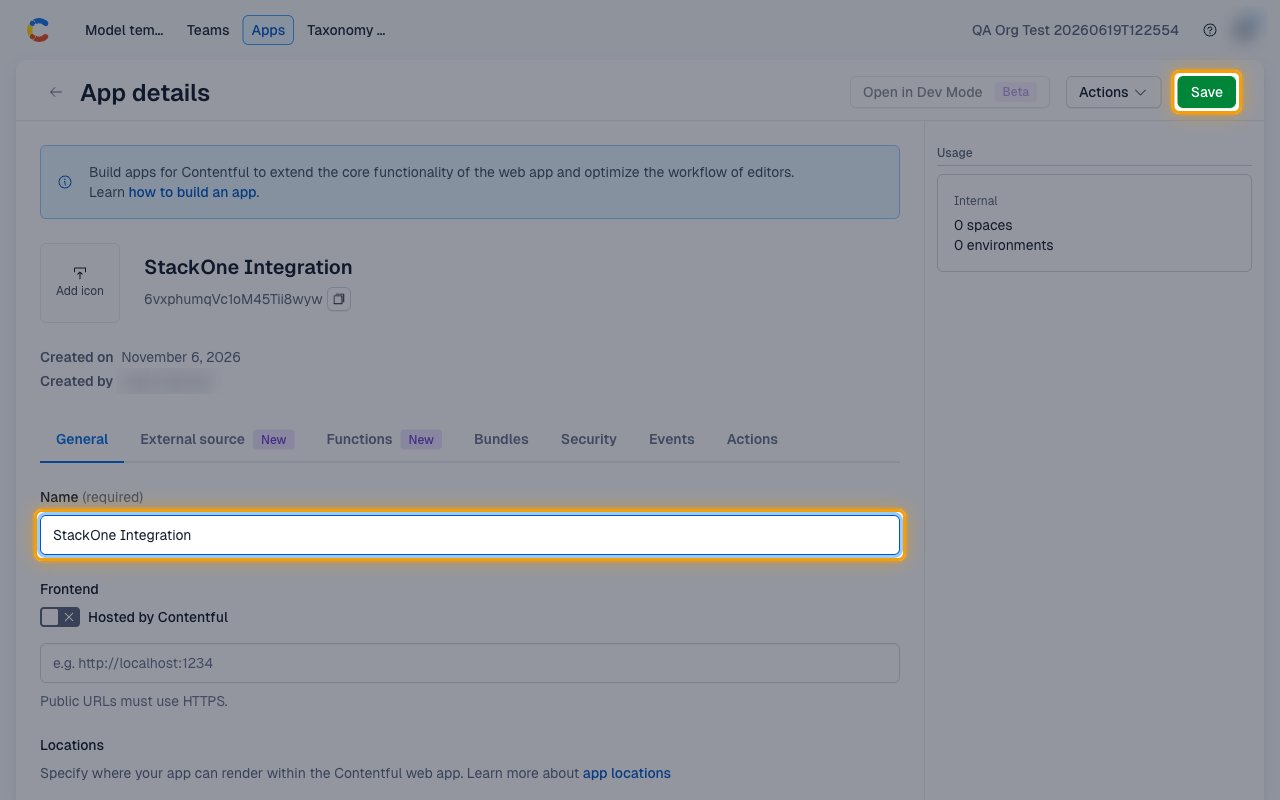
Name the app
On the App details page, the General tab holds the app name.
- Name:
StackOne Integration - Click Save, then click Save again in the Save app confirmation.
- The ID shown under the app name is the App Definition ID. Copy the App Definition ID across.
3
Generate a key pair
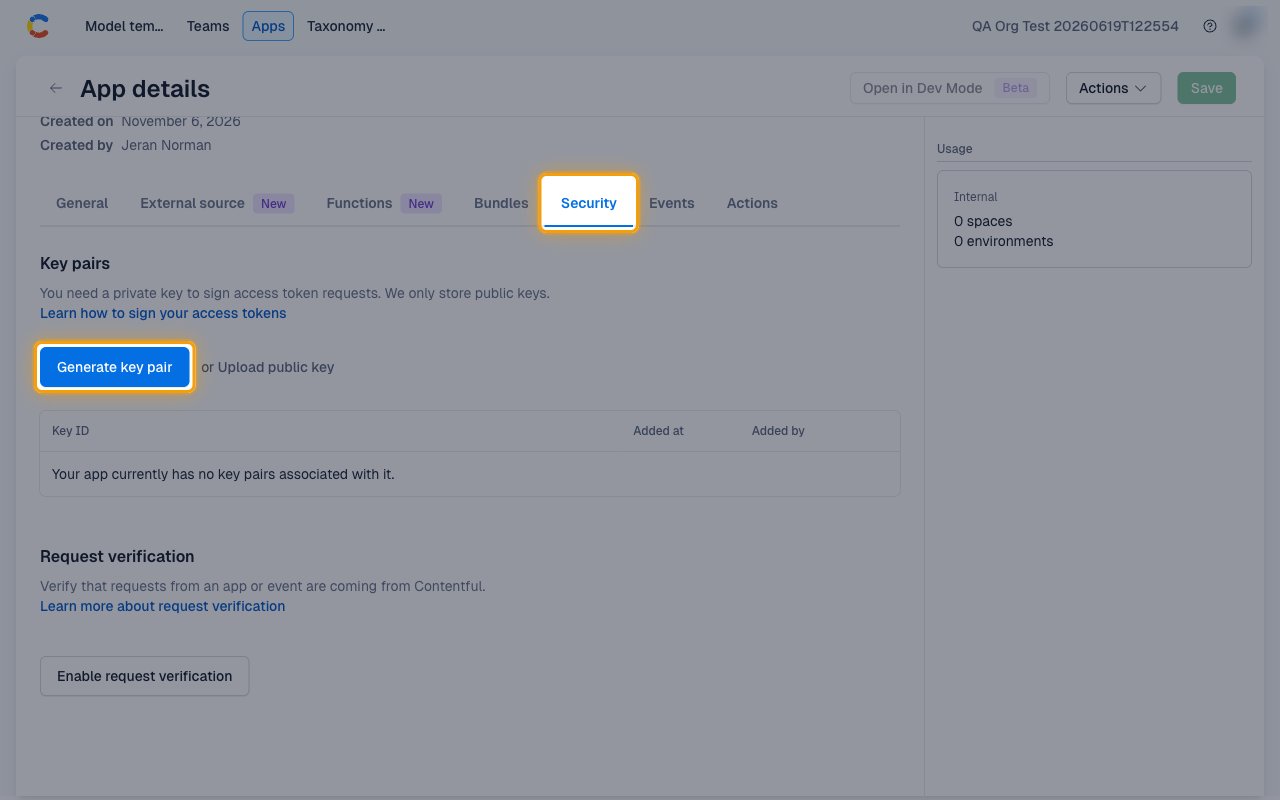
Open the Security tab of the app.
- Under Key pairs, click Generate key pair.
- Your browser downloads the private key as a
.pemfile. Contentful only stores the public key, so the private key cannot be downloaded again. - Open the file. Its entire contents, including the
BEGINandENDlines, are the App Private Key (PEM). Copy the App Private Key (PEM) across.
4
Install the app in a space environment
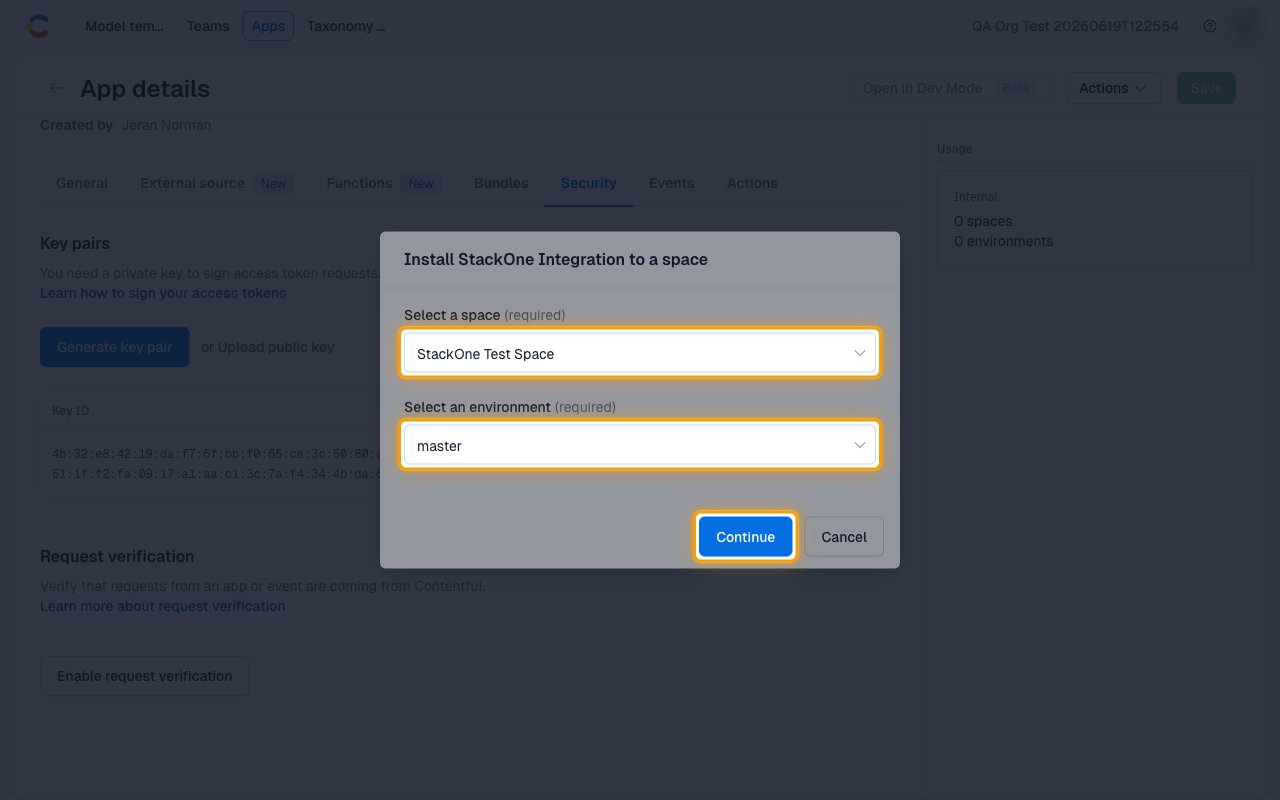
On the App details page, open the Actions menu and click Install to space.
- Select a space: the space StackOne will work in
- Select an environment: the environment StackOne will work in, such as
master - Click Continue.
- In Manage app access, click Authorize access.
- The app can only read and change content in the space environment you select here.
Find your space and environment IDs
The Space ID and Environment ID identify the space environment where you installed the app.
1
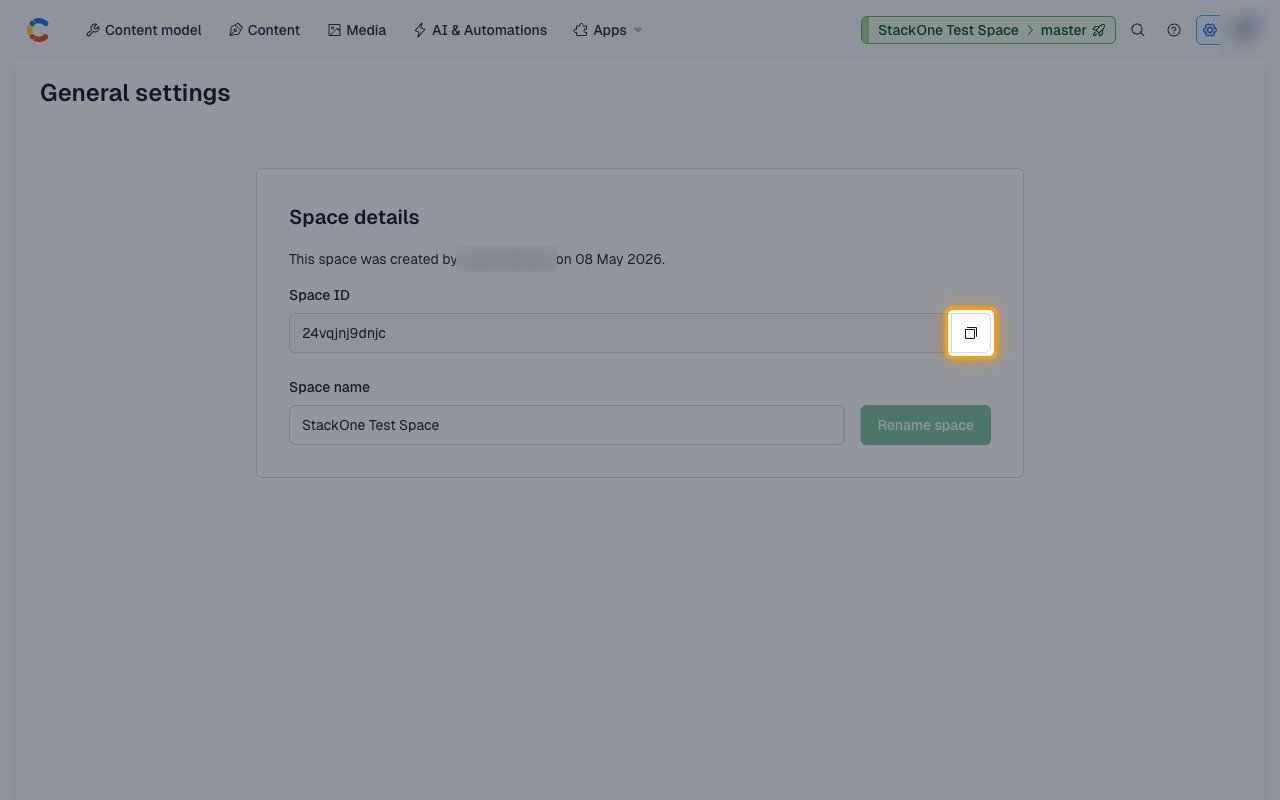
Copy the Space ID
In the space where you installed the app, click the settings icon and select General settings.
- Under Space details, copy the Space ID across.
- Example:
abc123xyz789
2
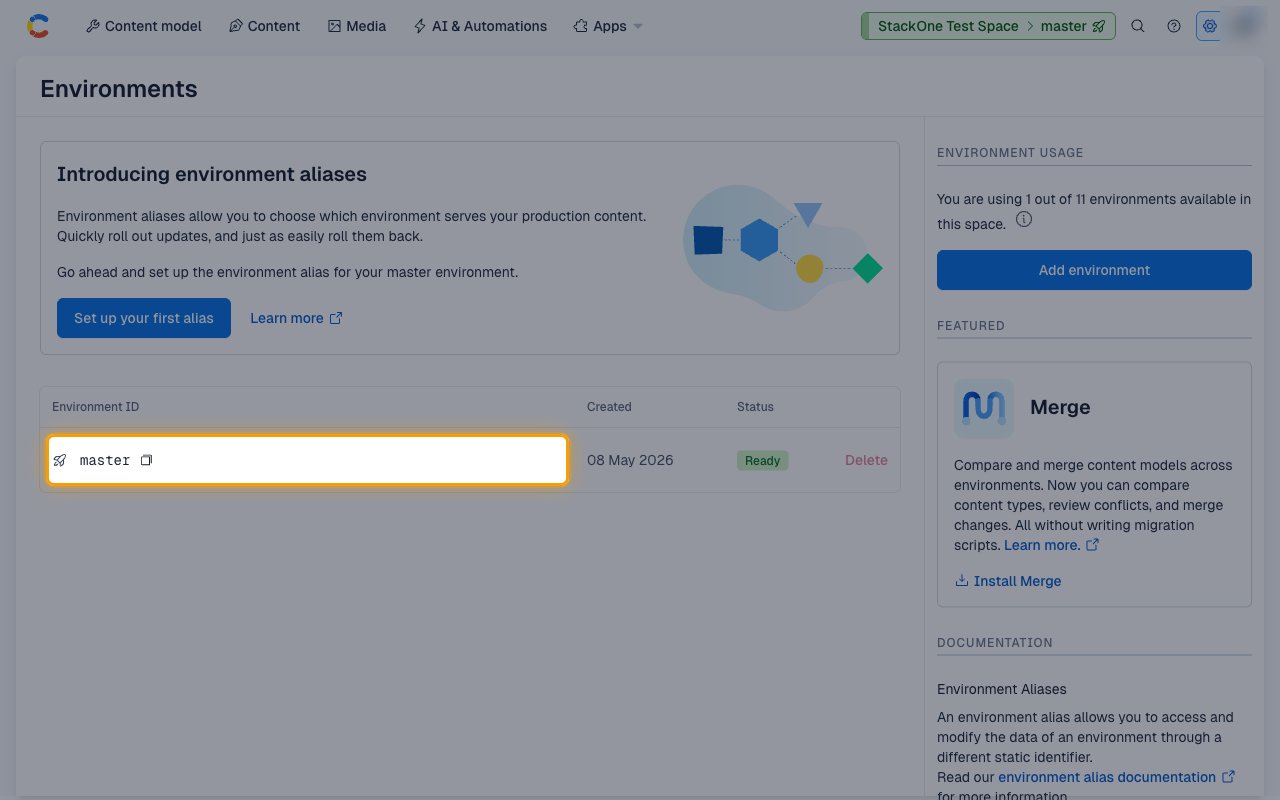
Copy the Environment ID
In the same space, click the settings icon and select Environments.
- Copy the Environment ID of the environment you installed the app in across.
- Example:
master
Link the Account
1
Connect
- Click Connect.
- If applicable, the provider will redirect you to a sign-in or authorization page. Complete the provider’s authorization flow.
- Once authorization is successful, you will see a confirmation popup.
2
Use Actions
Connect an AI platform to the linked account’s actions. See AI Platforms.Other ways to call actions are listed in Protocols & SDKs.
Next Steps
Webhooks setup
Configure receiving Events for Contentful into StackOne.