

Enabling MCP on your services
The MCP tools only reach services that have MCP turned on, and it is off by default for each service.
1
Turn on MCP for each service
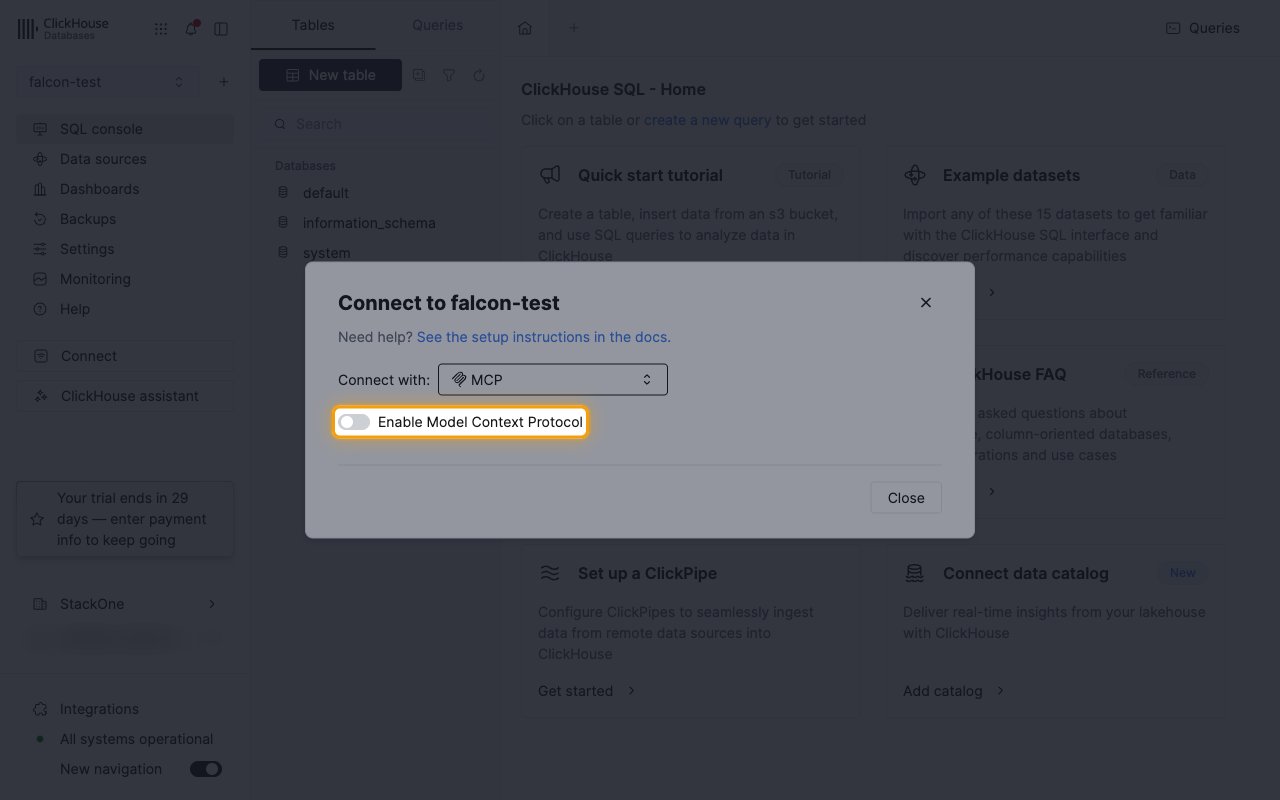
Sign in to the ClickHouse Cloud console, open the service, then click Connect in the left sidebar.
- Connect with: MCP
- Switch on Enable Model Context Protocol.
- Repeat for every service the integration should query.
- When you link the account, sign in with a ClickHouse Cloud user that can access these services.
Link the Account
1
Connect
- Click Connect.
- If applicable, the provider will redirect you to a sign-in or authorization page. Complete the provider’s authorization flow.
- Once authorization is successful, you will see a confirmation popup.
2
Use Actions
Connect an AI platform to the linked account’s actions. See AI Platforms.Other ways to call actions are listed in Protocols & SDKs.