

Find your secret key
Clerk authenticates Backend API requests with your application’s secret key, which you copy from the Clerk Dashboard.
1
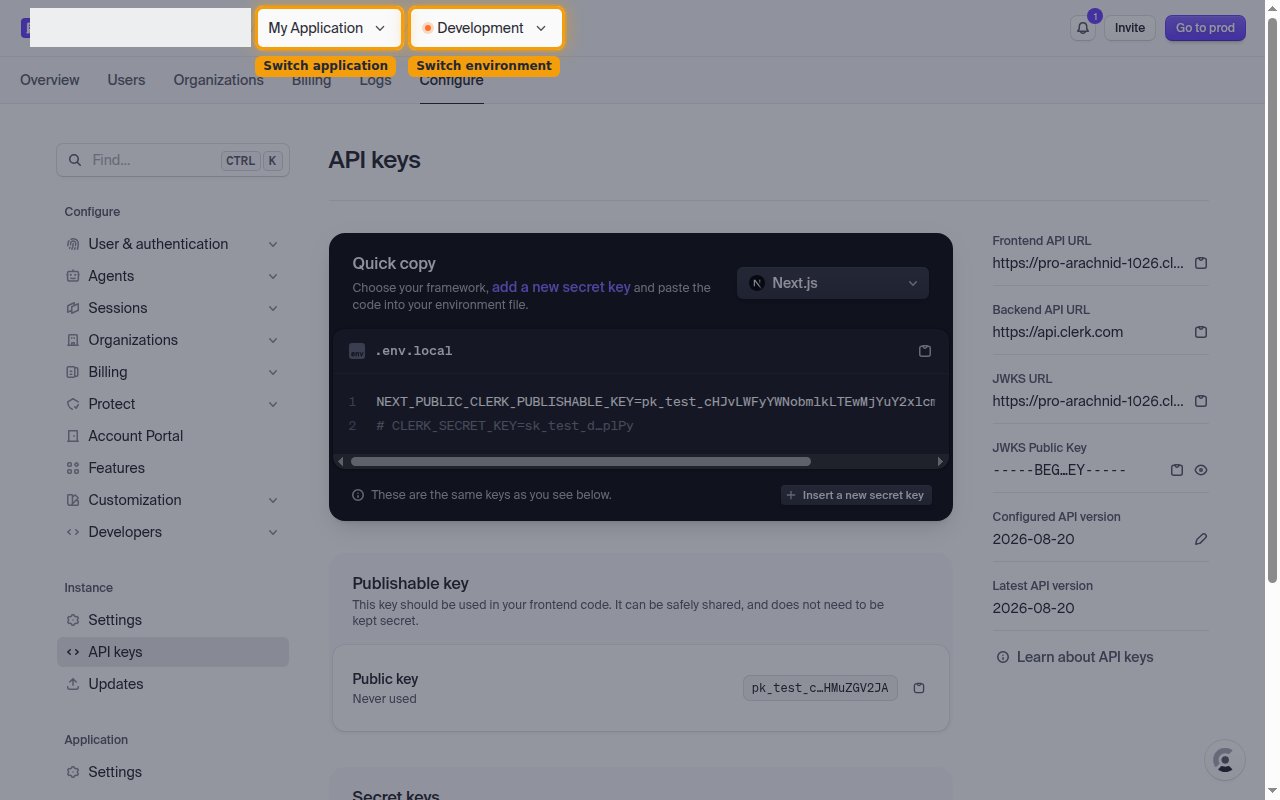
Select your application and environment
Sign in to your Clerk Dashboard, then choose the application and environment you want to connect.
- Use Switch application at the top to select your application.
- Use Switch environment to choose the environment you are connecting (for example Development) — the secret key differs per environment.
2
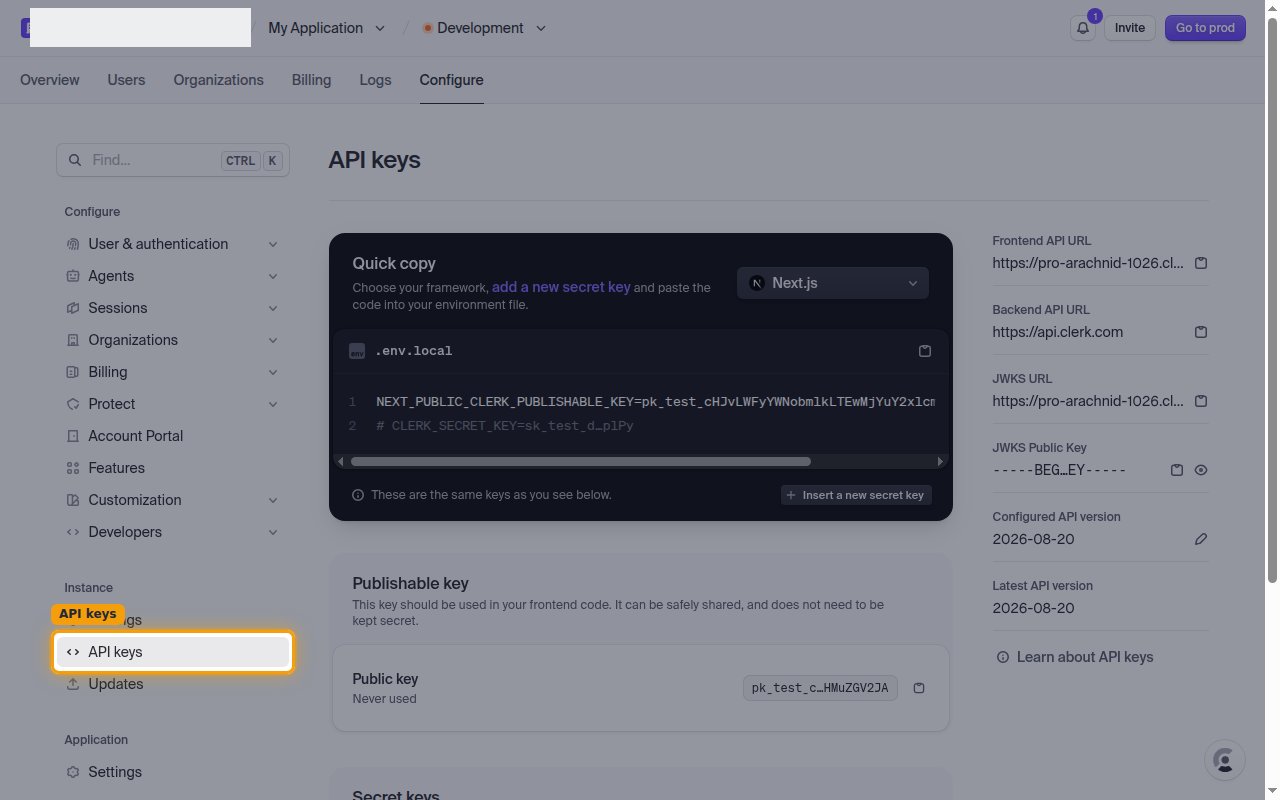
Open the API keys page
In the top navigation, open Configure. Under Instance in the sidebar, select API keys.
3
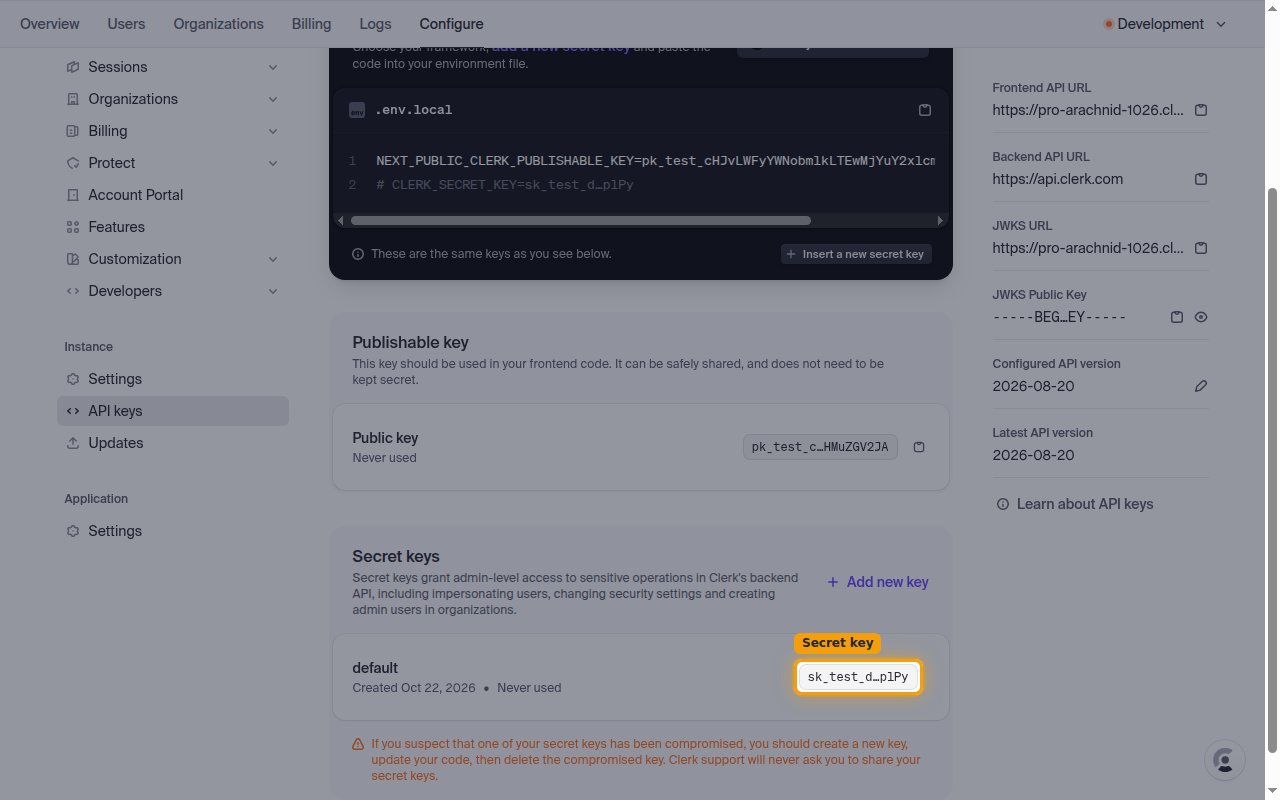
Copy your secret key
Scroll to the Secret keys section and copy the default key. This secret key is the only value StackOne needs.
- Click the key value to copy it. Clerk displays it masked (for example
sk_test_3…), but clicking copies the full key to your clipboard. - The secret key starts with
sk_test_for development orsk_live_for production. - Do not copy the Publishable key (
pk_test_orpk_live_) — that key is for frontend code and is not used here. - Secret keys grant admin-level access — keep them private and never expose them in client-side code.
- Paste it into the Secret Key field in StackOne Hub.
Linking the Account from the Hub
1
Navigate to the Hub
Use one of the three Linking Account Methods to access the Hub.
2
Fill out the fields
Fill out the following fields using details from your provider:
- Secret Key
3
Connect
- Click Connect
- If applicable, the provider will redirect you to a sign-in or authorization page. Complete the provider’s authorization flow.
- Once authorization is successful, you will see a confirmation popup
If the account linking is successful, you will see the newly linked account on your Accounts page.
Next Steps
Webhooks setup
Configure receiving Events for Clerk into StackOne.