

Prerequisites
The connector should already be set up, with a Connector Profile and a Linked Account. See Getting Started on the Checkmk connector page.Install the StackOne notification script
Checkmk has no generic outbound webhook. Events are delivered by a small notification script that you install once on your Checkmk server. Checkmk runs it for every matching notification, and the script forwards the notification to StackOne as JSON. See the Checkmk notifications documentation for background.
Retrieve StackOne Native Webhook URL
The Native Webhook URL is generated once an account has been linked. You pass it to the script as its only parameter in a later step.
- Open the linked account in StackOne.
- Copy the value from Native Webhook URL.
- The URL contains a secret token that authenticates deliveries, so store it securely and do not share it.
Install the script on your Checkmk server
Save the script below on the Checkmk server as /omd/sites/<site-id>/local/share/check_mk/notifications/stackone_webhook, where <site-id> is your Checkmk site name (for example mysite). Run the commands as the site user, for example after omd su <site-id>. The script uses only the Python 3 standard library that ships with Checkmk and needs no extra packages.
- Make the script executable with
chmod +x /omd/sites/<site-id>/local/share/check_mk/notifications/stackone_webhook. - The script appears as StackOne Webhook in the notification method list.
Create the notification rule
Wire the installed script into a notification rule so Checkmk invokes it for the events you want delivered to StackOne. Notification rules take effect immediately without “Activate changes”.
Open the Notifications page
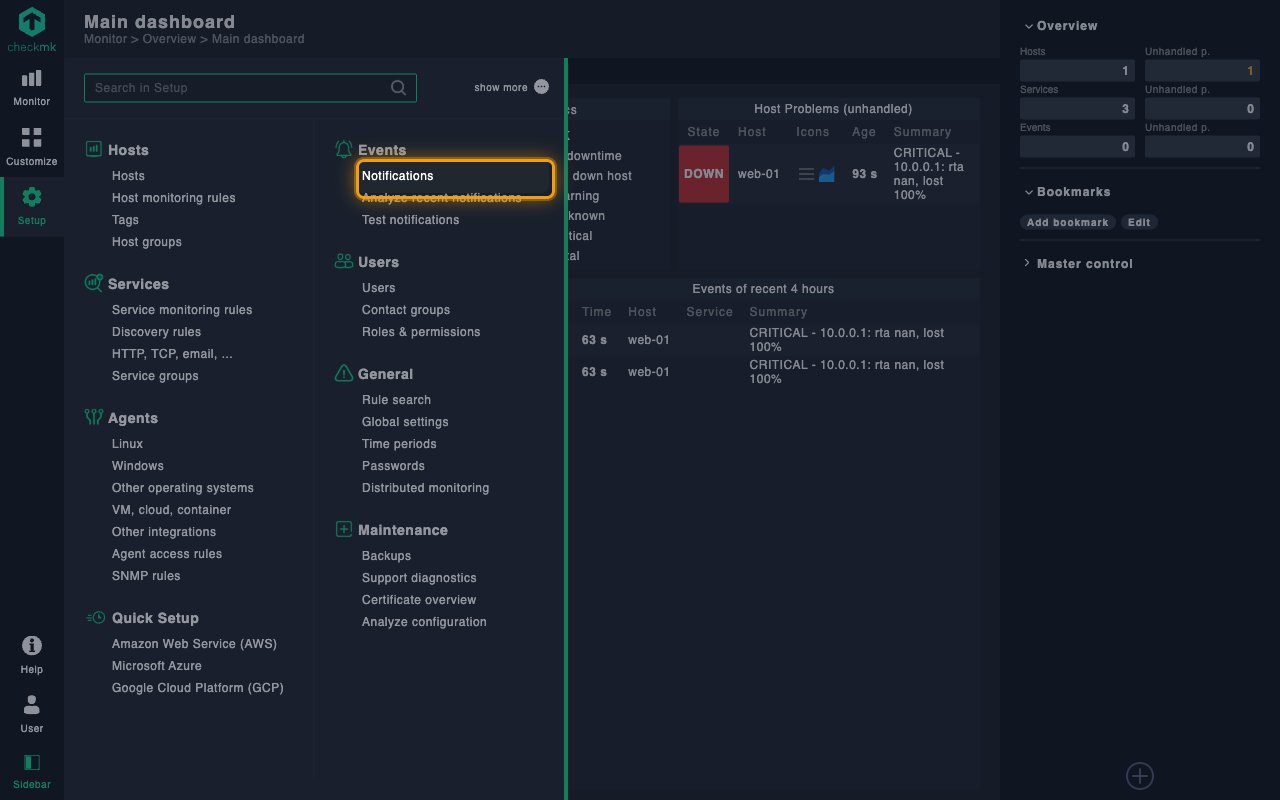
In the Checkmk navigation bar, open Setup and click Notifications in the Events section.
Add a notification rule
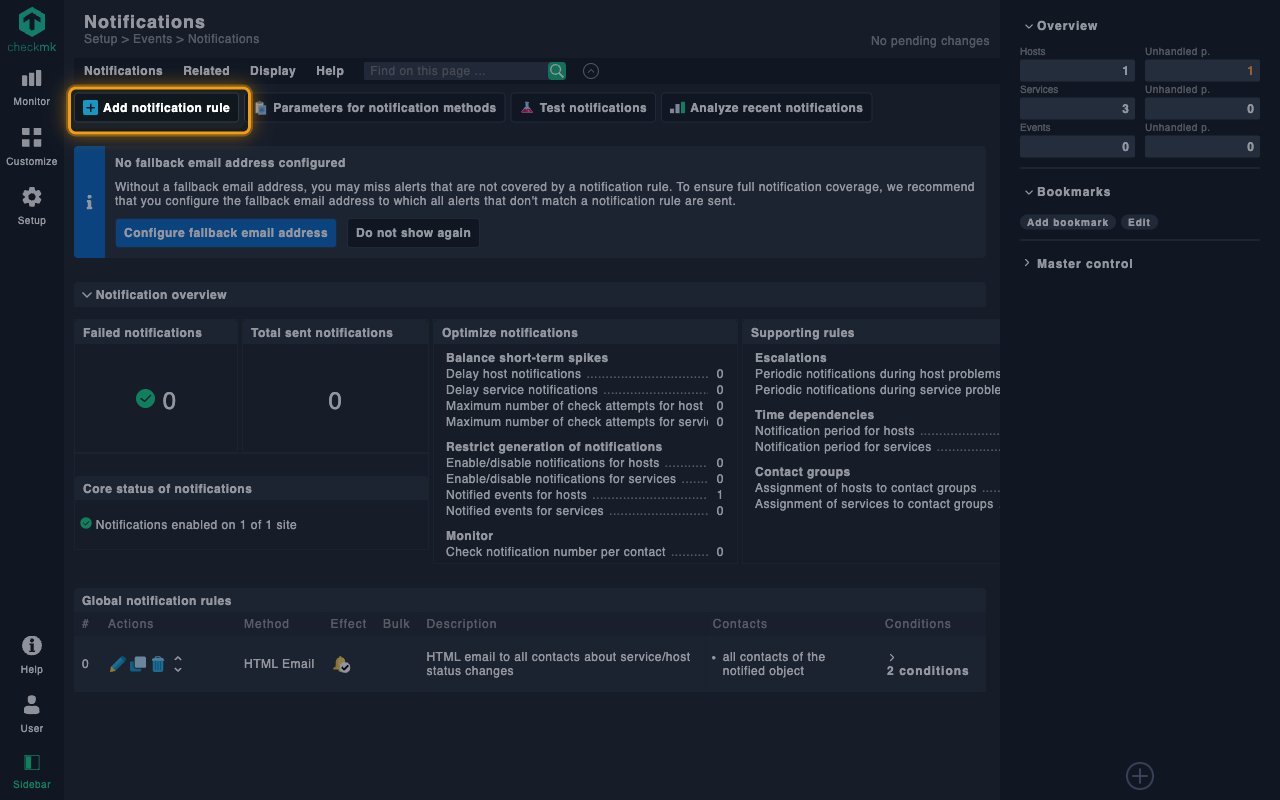
On the Notifications page, click Add notification rule.
Choose the triggering events
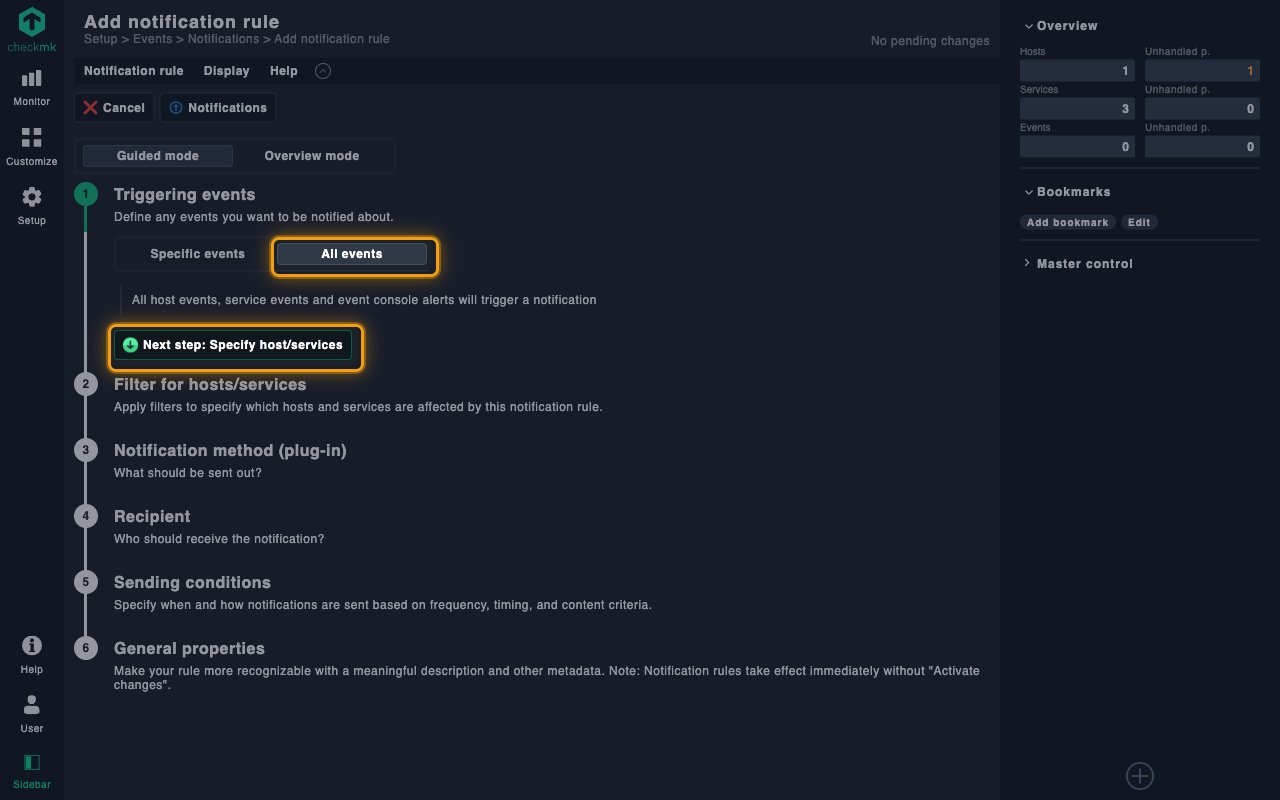
In Triggering events, select All events so every host and service notification is forwarded, or keep Specific events and pick only the host and service state changes you need. Click Next step: Specify host/services, optionally narrow the rule in Filter for hosts/services, then continue to Notification method (plug-in).
- Checkmk’s factory Notified events for hosts rule excludes the unreachable state, so Host Unreachable (
host_unreachable) events never fire out of the box. To receive them, edit that rule under Supporting rules on the Notifications page and include unreachable events.
Select the StackOne notification method
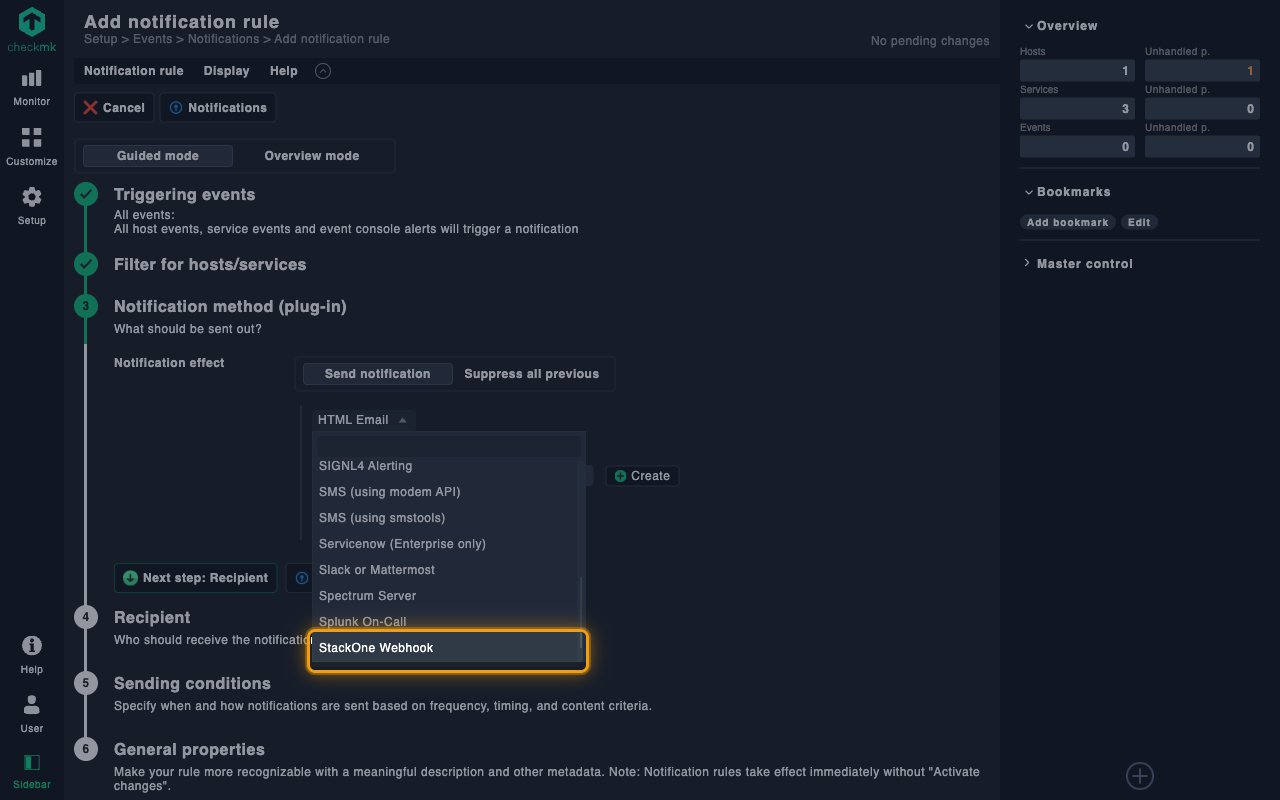
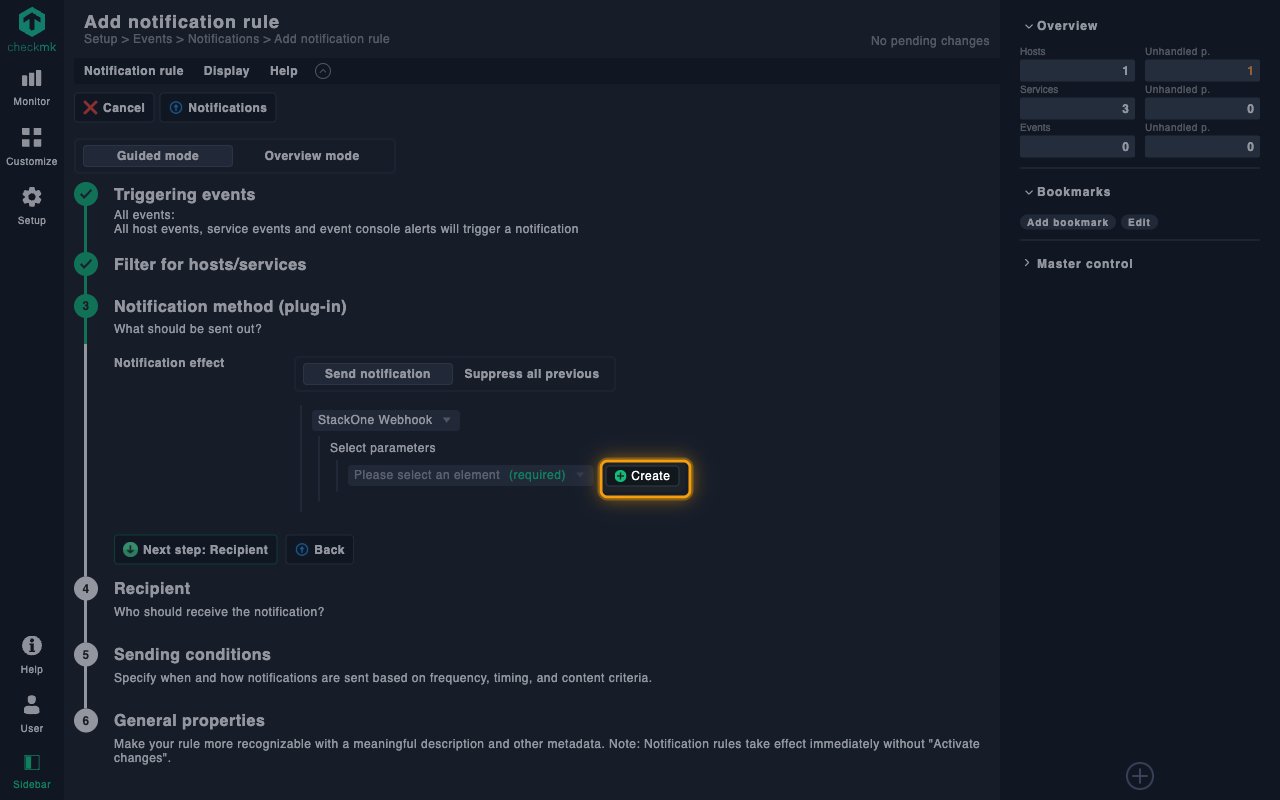
In Notification method (plug-in), keep Send notification, open the method dropdown and select StackOne Webhook.
Create the parameter set
Next to Select parameters, click Create to add a parameter set for the method.
Enter the Native Webhook URL
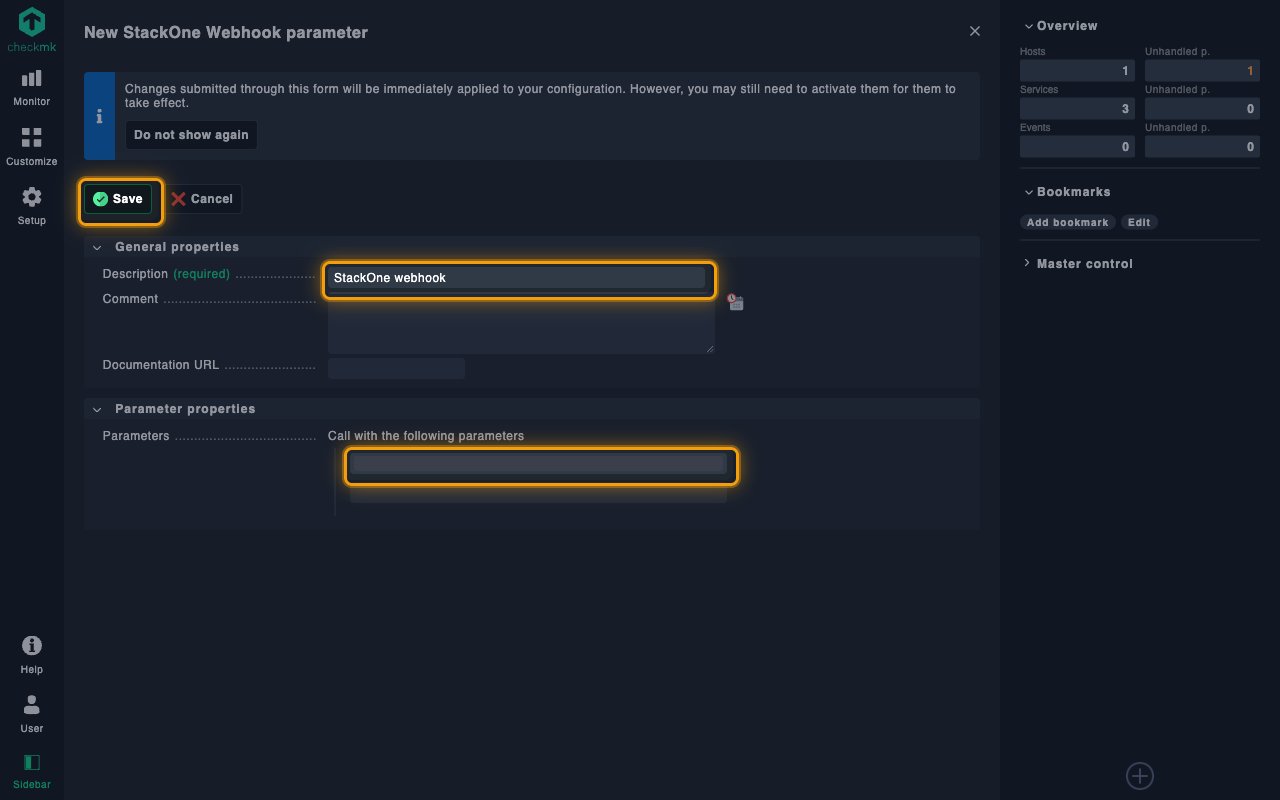
In New StackOne Webhook parameter, enter a Description such as StackOne webhook. Under Parameters, paste the Native Webhook URL from the linked account into the first field of Call with the following parameters, then click Save. The new parameter set is selected automatically.
- Parameter sets can be edited later from the Notifications page via Parameters for notification methods.
Set a single recipient
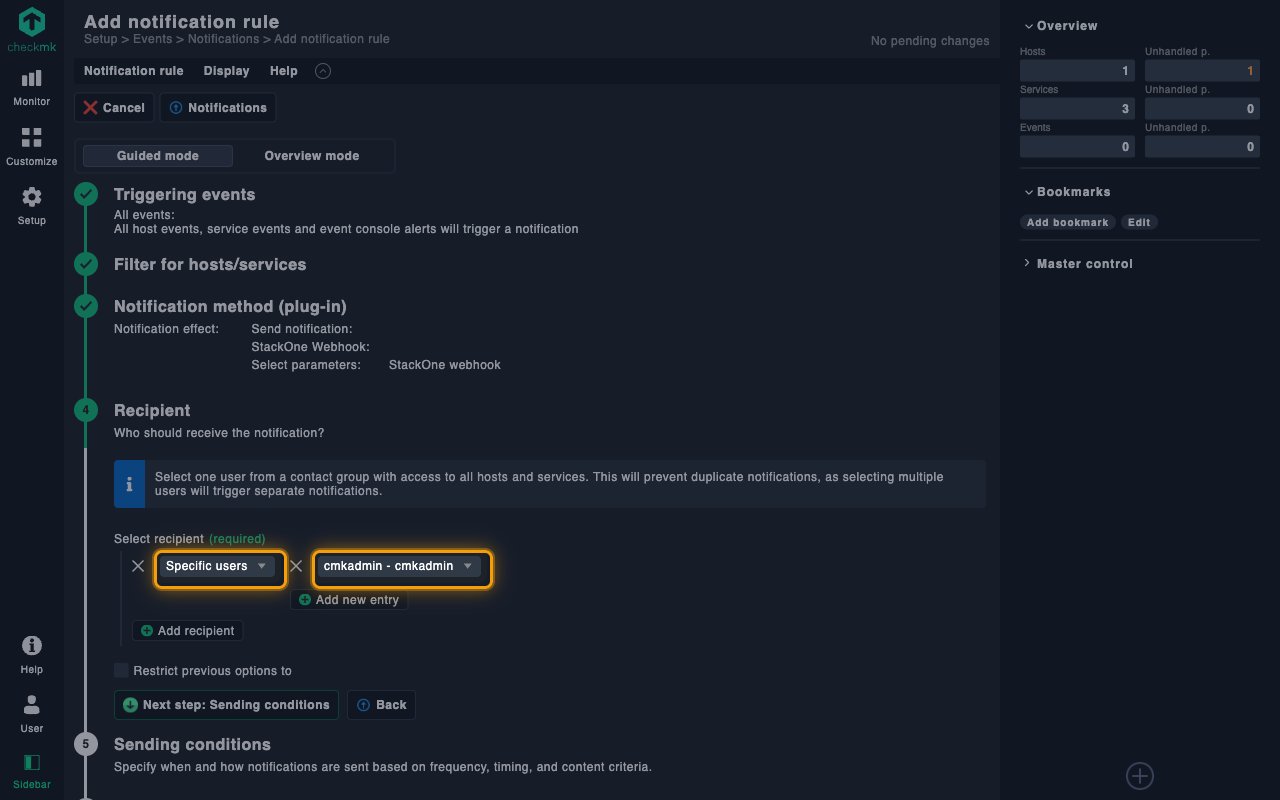
In Recipient, change Select recipient to Specific users and pick one user who can see all hosts and services. Checkmk runs the script once per recipient, so a single user sends each event to StackOne exactly once. The recipient does not change where events are delivered.
Name the rule
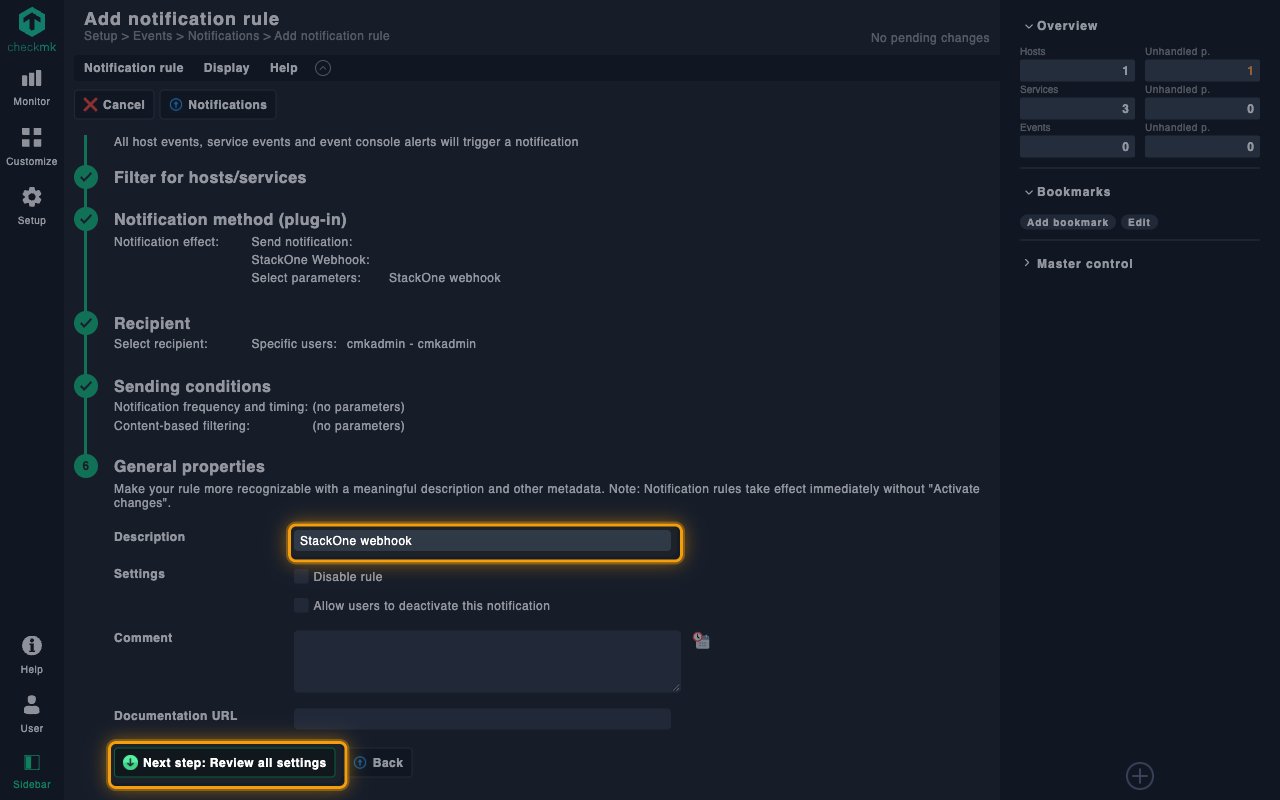
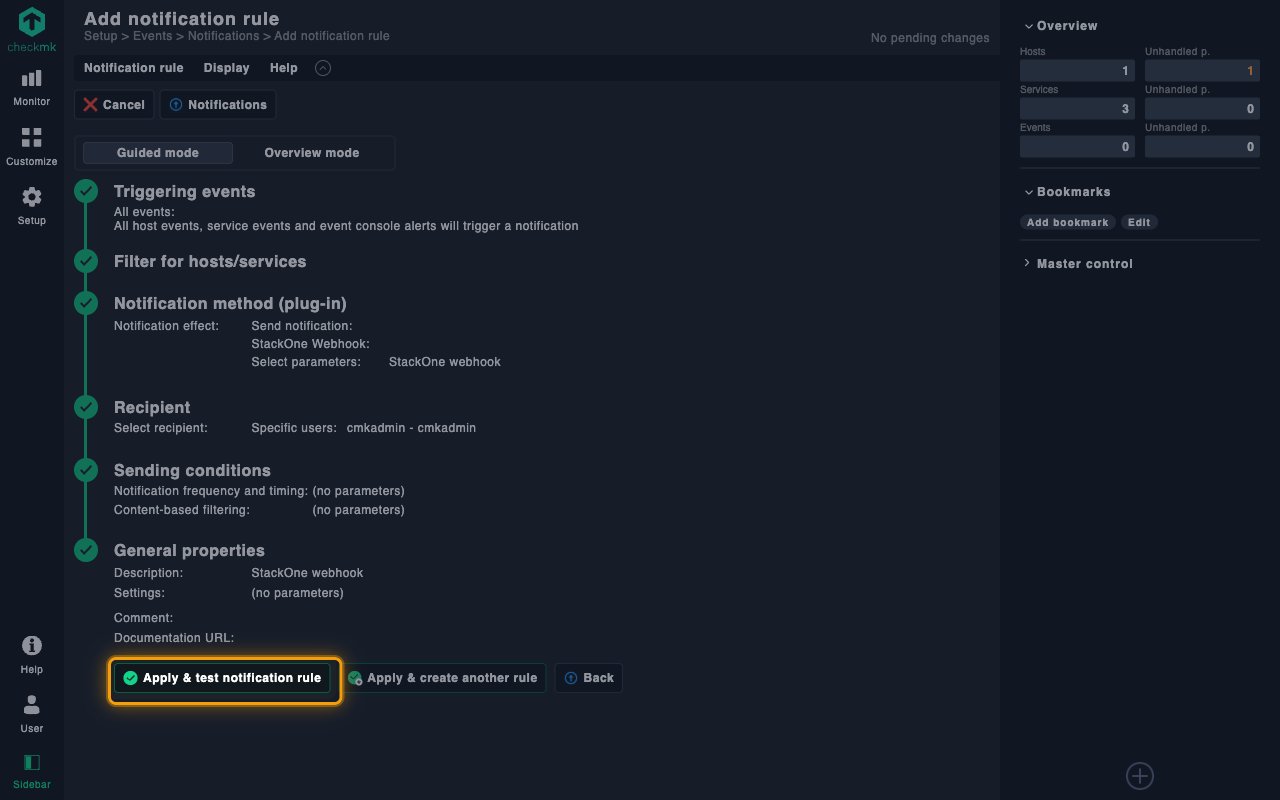
Skip Sending conditions. In General properties, enter a Description such as StackOne webhook and click Next step: Review all settings.
Save the rule
Review the summary and click Apply & test notification rule. Checkmk saves the rule and opens Test notifications.
Verify the connection
Confirm that the script and rule deliver events to StackOne. Either check below works; the custom notification is the only one that produces the Webhook Verification event.
Send a test notification
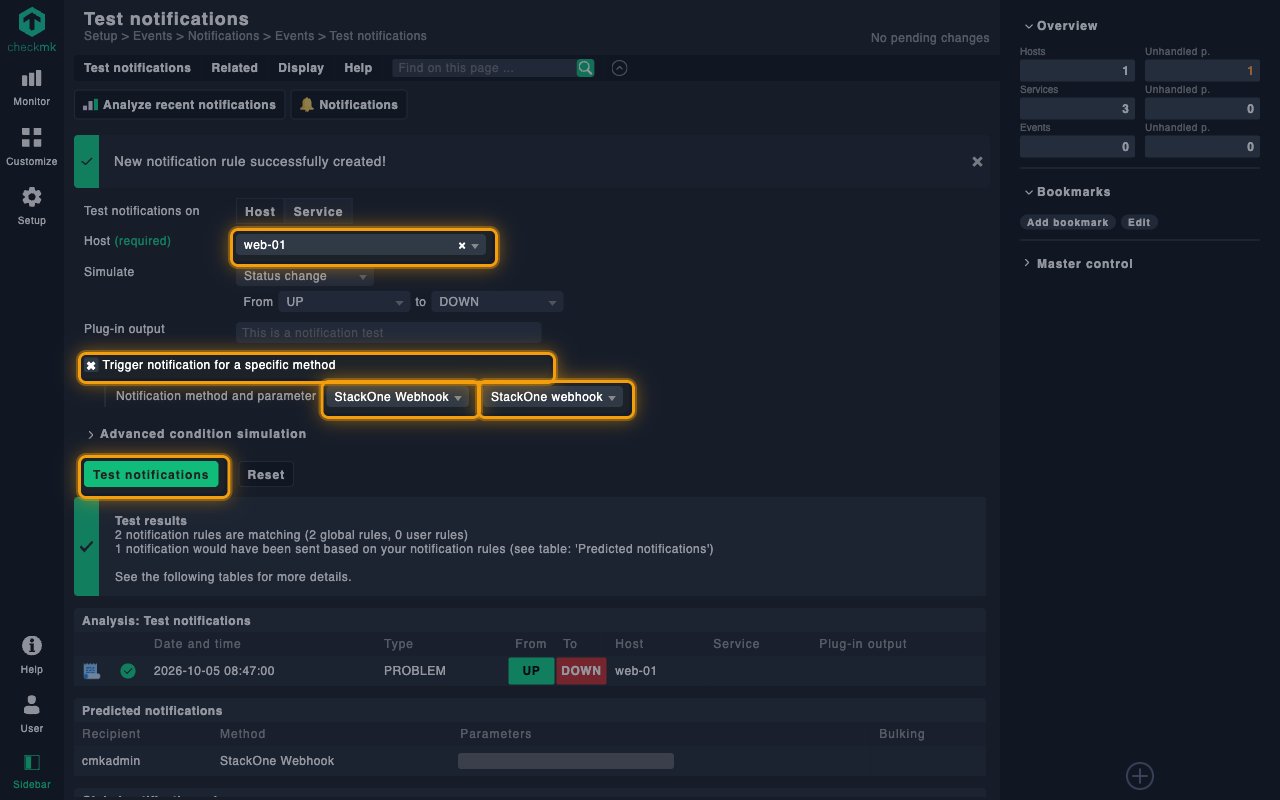
On Test notifications, choose a Host, tick Trigger notification for a specific method, select StackOne Webhook and your parameter set under Notification method and parameter, then click Test notifications.
- Without Trigger notification for a specific method, Checkmk only analyzes which rules would match and sends nothing.
- The test simulates a real state change (by default UP to DOWN), so StackOne receives it as a Host Down (
host_down) event.
Send a custom notification
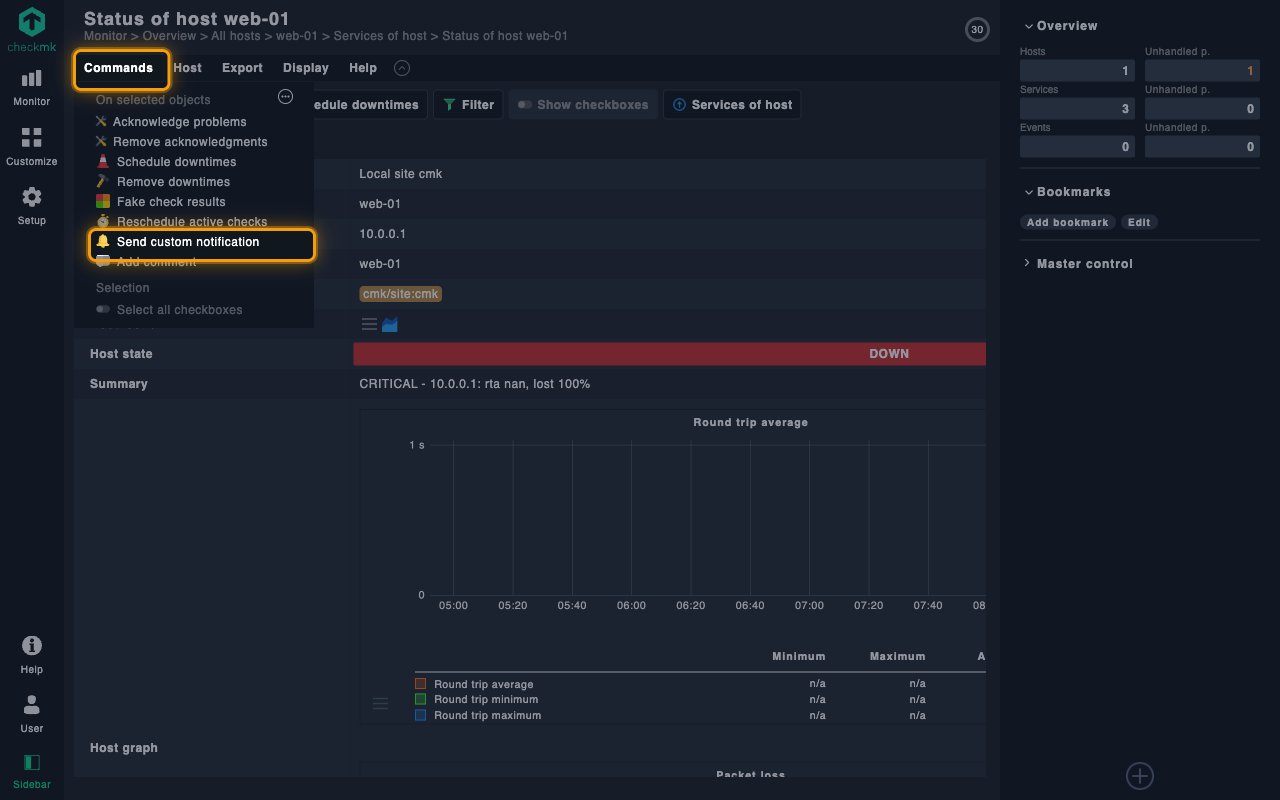
Open a monitored host in Monitor, open the Commands menu and choose Send custom notification (click the show-more icon in the menu if it is not listed).
Send the verification event
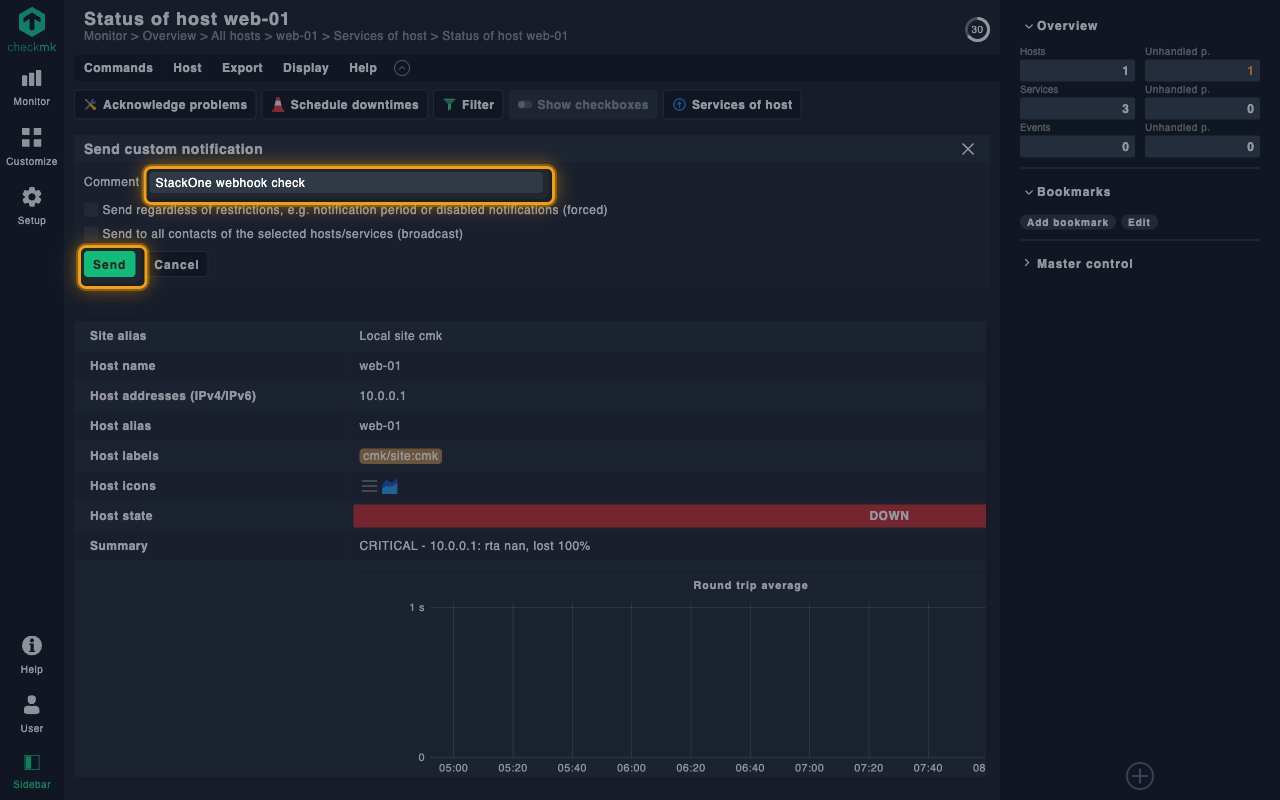
Enter a Comment and click Send, then confirm with Send. StackOne receives the notification as a Webhook Verification (verification) event.
Available webhook events
The StackOne notification script maps Checkmk notifications to the events below. Which notifications are sent is controlled by the rule’s Triggering events, and only events selected in StackOne are delivered to you.
Verification event
Fired by a Checkmk custom notification rather than a real state change.
- Webhook Verification (
verification) — Fired when an admin sends a Checkmk custom notification; used to confirm the webhook is wired correctly
Host events
Events related to the state of monitored hosts.
- Host Down (
host_down) — Fired when a monitored host changes to the DOWN state - Host Unreachable (
host_unreachable) — Fired when a host becomes UNREACHABLE, typically because its parent host is down - Host Up (
host_up) — Fired when a monitored host recovers to the UP state - Host Problem Acknowledged (
host_acknowledged) — Fired when a contact acknowledges a host problem - Host Flapping Started (
host_flapping_started) — Fired when a host starts flapping between states - Host Flapping Stopped (
host_flapping_stopped) — Fired when a host stops flapping between states - Host Downtime Started (
host_downtime_started) — Fired when a scheduled downtime begins for a host - Host Downtime Ended (
host_downtime_ended) — Fired when a scheduled host downtime ends at its planned end time - Host Downtime Canceled (
host_downtime_cancelled) — Fired when a scheduled host downtime is removed before its planned end time
Service events
Events related to the state of monitored services.
- Service Warning (
service_warning) — Fired when a service enters the WARNING state - Service Critical (
service_critical) — Fired when a service enters the CRITICAL state - Service Unknown (
service_unknown) — Fired when a service enters the UNKNOWN state - Service Recovered (
service_ok) — Fired when a service recovers to the OK state - Service Problem Acknowledged (
service_acknowledged) — Fired when a contact acknowledges a service problem - Service Flapping Started (
service_flapping_started) — Fired when a service starts flapping between states - Service Flapping Stopped (
service_flapping_stopped) — Fired when a service stops flapping between states - Service Downtime Started (
service_downtime_started) — Fired when a scheduled downtime begins for a service - Service Downtime Ended (
service_downtime_ended) — Fired when a scheduled service downtime ends at its planned end time - Service Downtime Canceled (
service_downtime_cancelled) — Fired when a scheduled service downtime is removed before its planned end time
Delivery format
Details of how the StackOne notification script delivers events.
One JSON request per notification
Each Checkmk notification produces a single HTTPS POST with a flat JSON body; there is no batching. The event field identifies the event, event_id and event_date are generated by the script, and host or service fields that do not apply to an event are null. Notification types without a matching event (such as alert handler notifications) are sent with event set to unmapped and are not processed by StackOne. Requests are not signed; delivery security relies on the secret embedded in the Native Webhook URL.