

Find your server URL
The Server URL is the address of your Checkmk site, made of the host name followed by the site name. Leave off /check_mk/api/1.0 at the end.
- Format:
https://{hostname}/{site_name} - Example:
https://monitoring.example.com/mysite
Creating an automation user
An automation user is a Checkmk account for scripts and integrations. It signs in with a secret instead of a password and can’t use the Checkmk web interface.
1
Start a new user
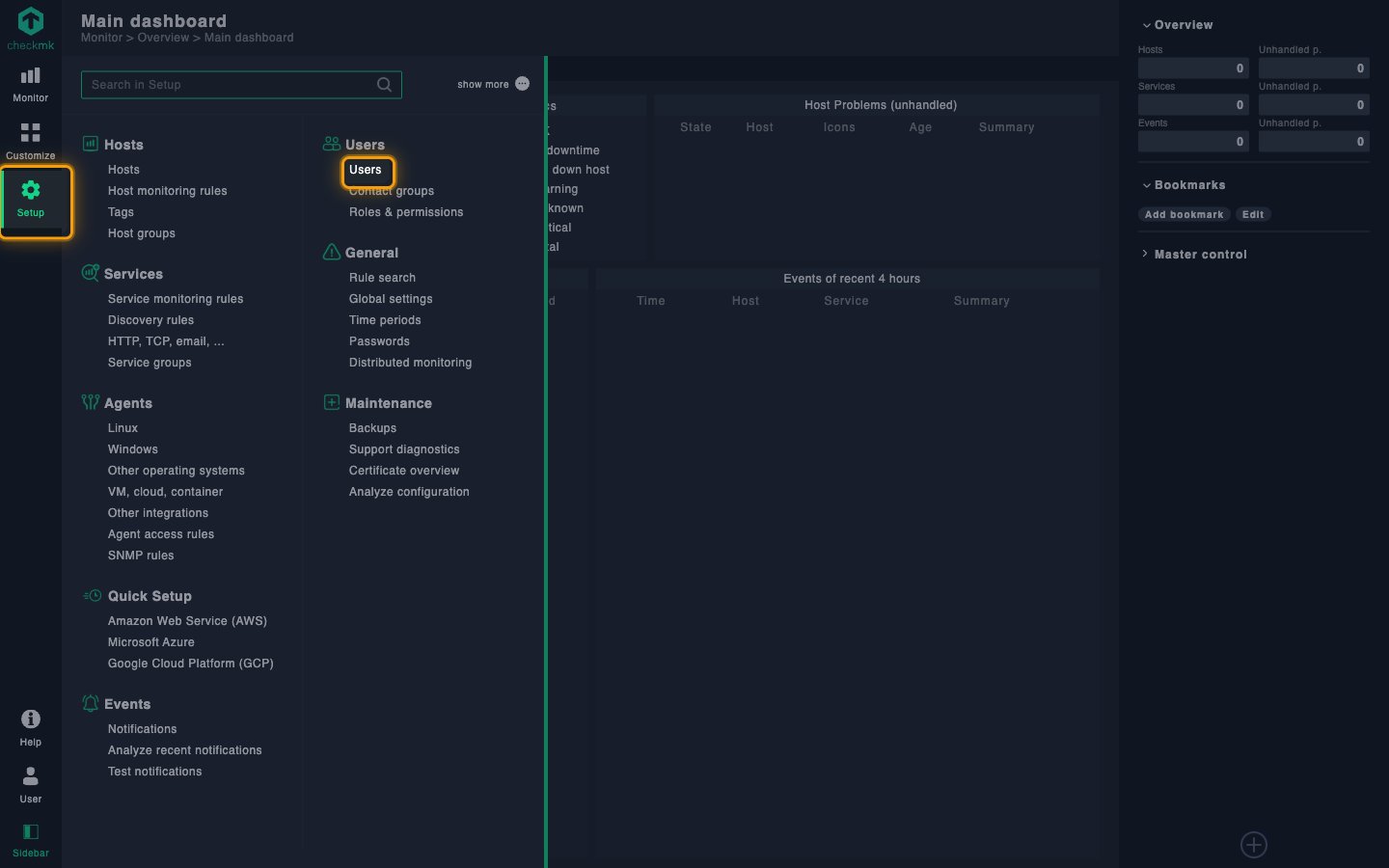
Sign in to your Checkmk site, then open Setup > Users.
- Click Add user.
2
Fill in the identity
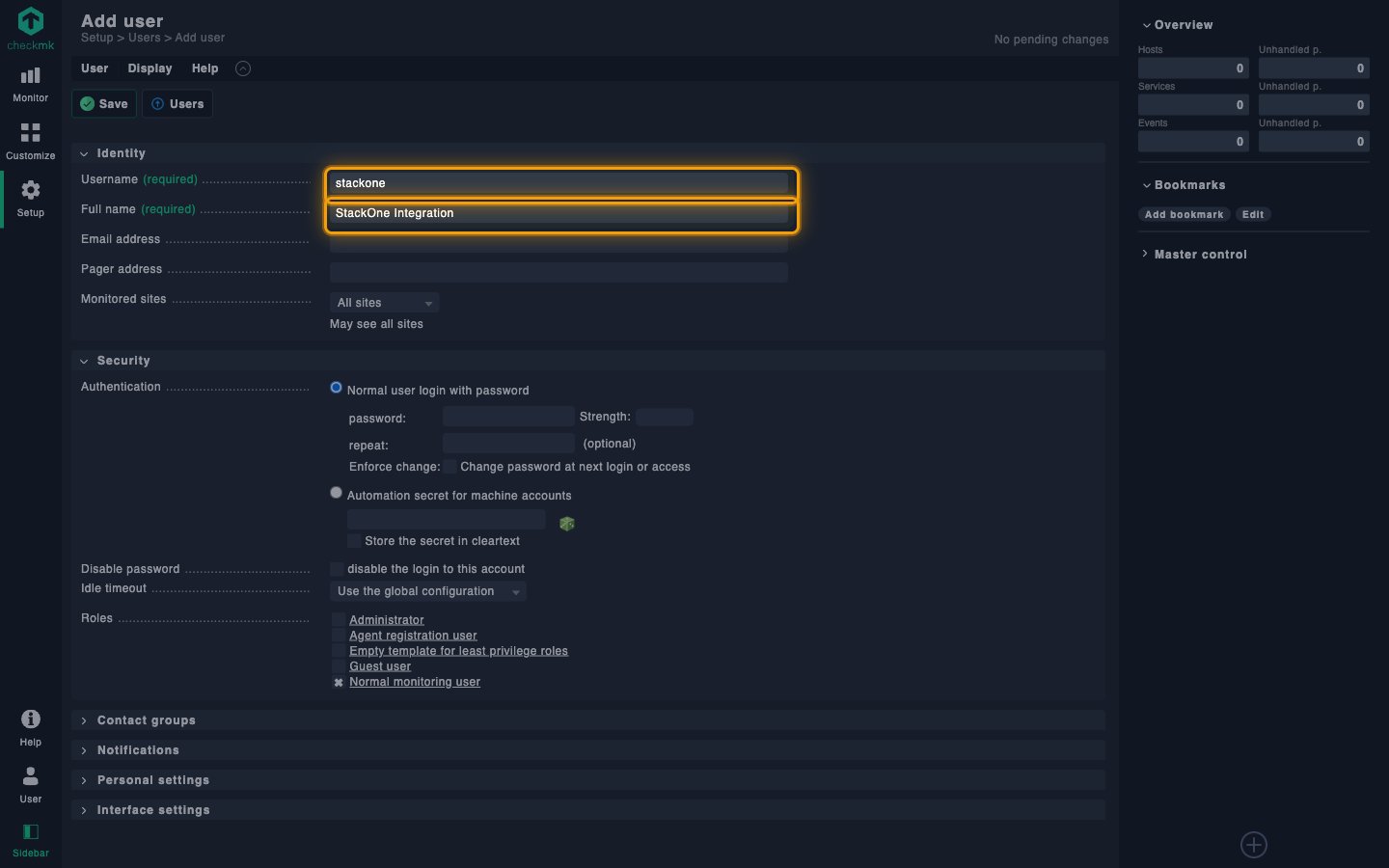
In the Identity section, name the user.
- Username:
stackone - Full name:
StackOne Integration
3
Set the automation secret
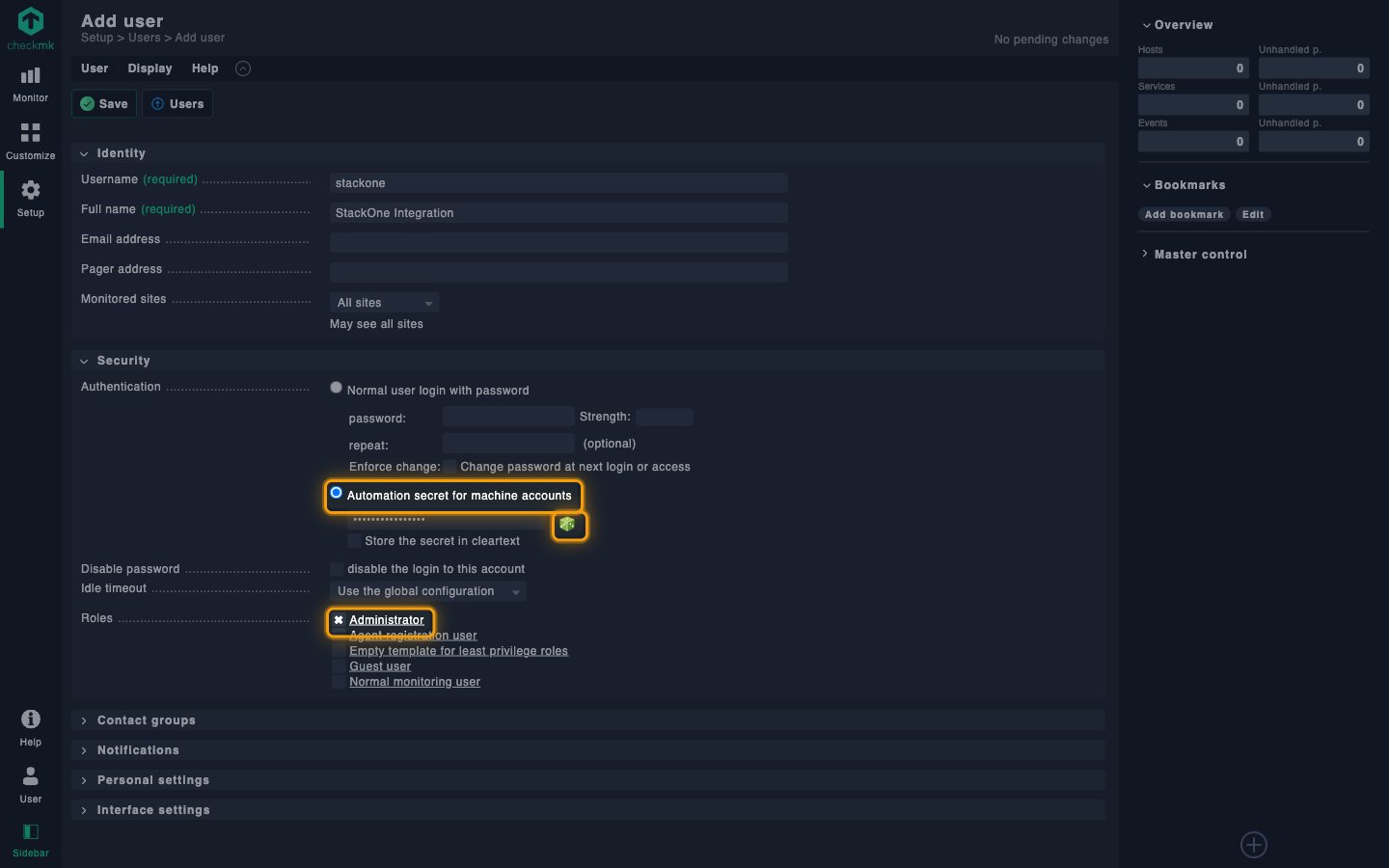
In the Security section, give the user an automation secret.
- Authentication: Automation secret for machine accounts
- Click the dice icon (Create random secret and copy secret to clipboard) to generate the secret.
- Paste the secret somewhere safe for now, because Checkmk masks it once you save.
4
Assign the role
Under Roles, tick Administrator.
5
Save the user
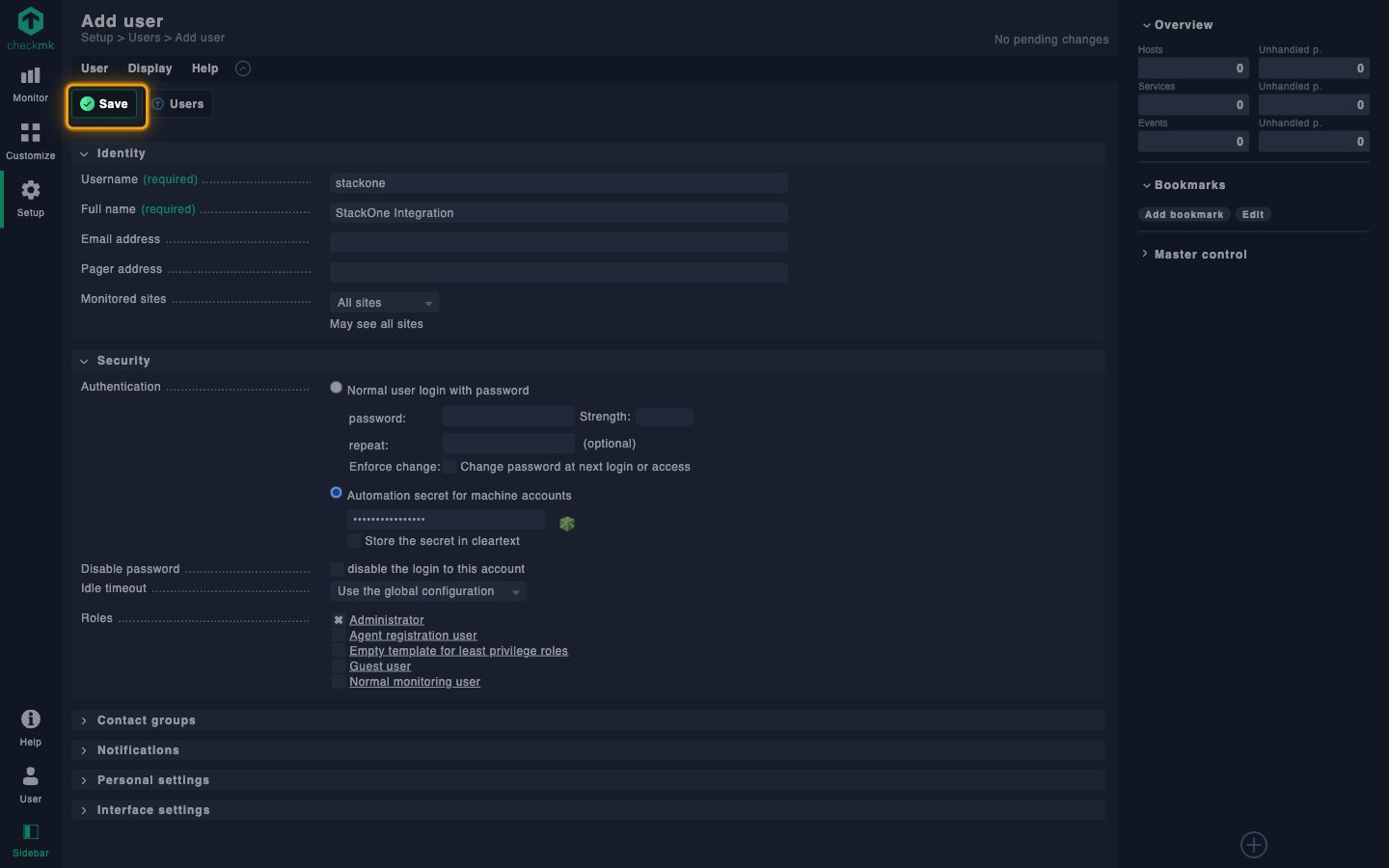
Click Save.
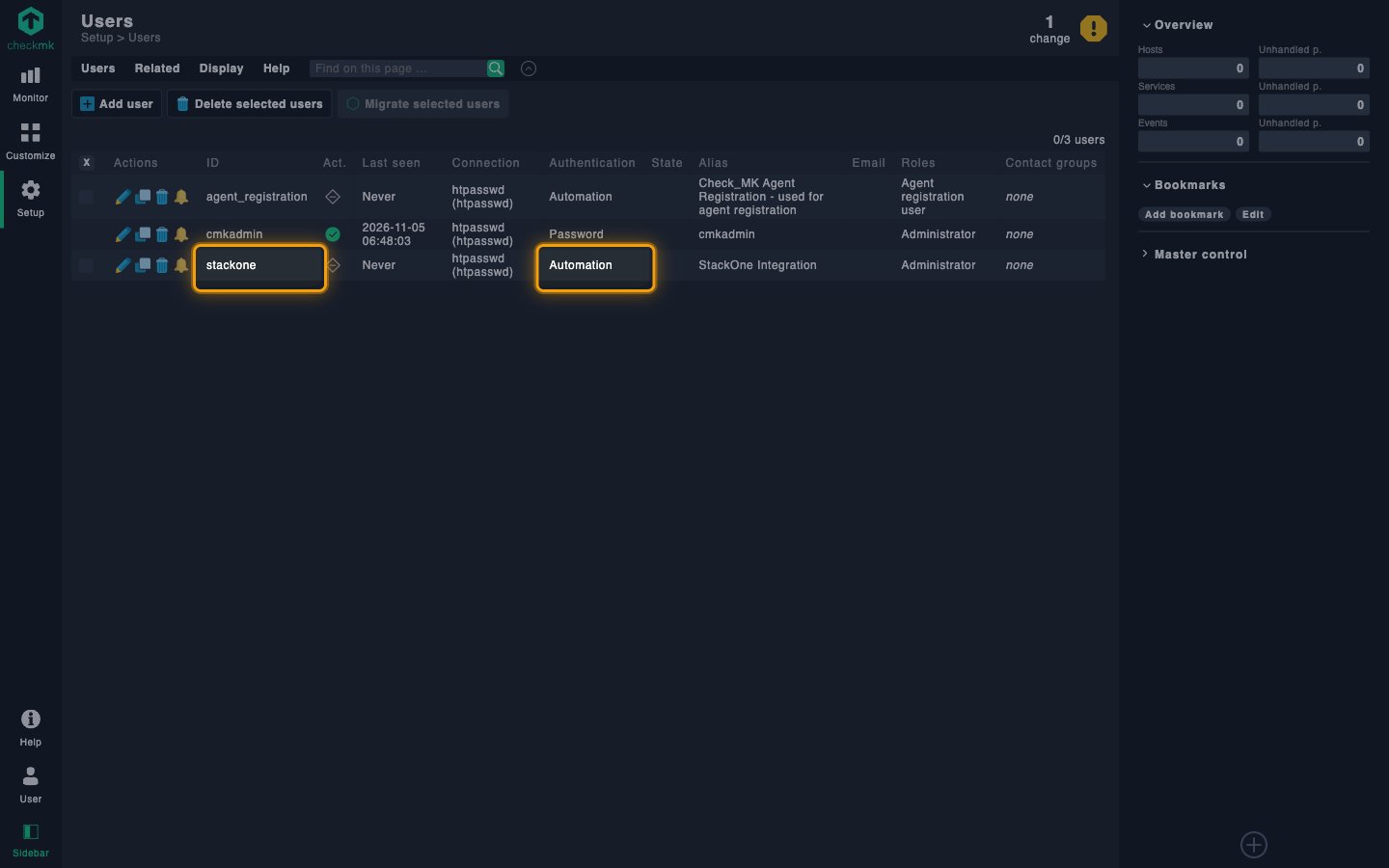
- The user appears in the users list with Automation in the Authentication column.
6
Copy the credentials
Copy the Automation Username and Automation Secret across.
- The Automation Username is the value in the ID column, such as
stackone. - The Automation Secret is the secret you generated and saved earlier.
Link the Account
1
Connect
- Click Connect.
- If applicable, the provider will redirect you to a sign-in or authorization page. Complete the provider’s authorization flow.
- Once authorization is successful, you will see a confirmation popup.
2
Use Actions
Connect an AI platform to the linked account’s actions. See AI Platforms.Other ways to call actions are listed in Protocols & SDKs.
Next Steps
Webhooks setup
Configure receiving Events for Checkmk into StackOne.