

Create a ChartMogul API key
Your ChartMogul API key lets StackOne read and update the data in your ChartMogul account.
1
Sign in to ChartMogul
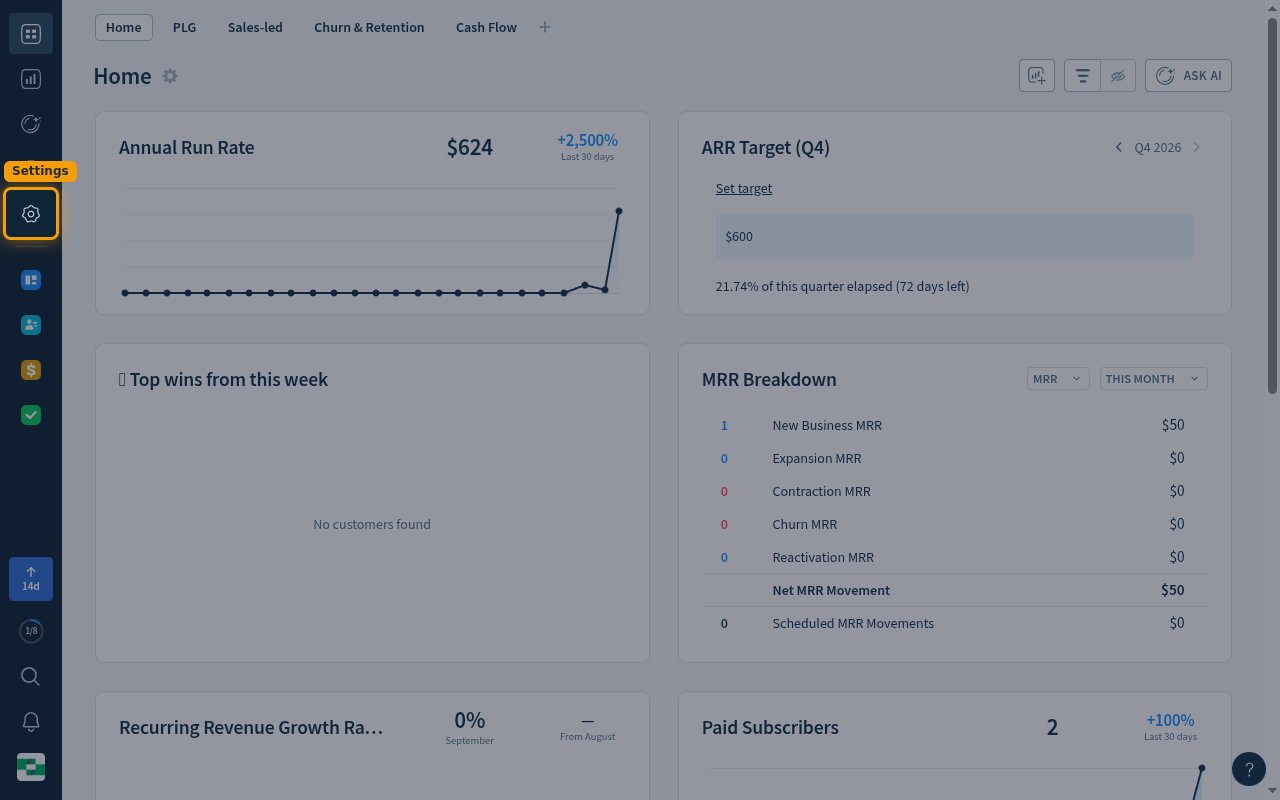
2
Open API Access Manager
In the Settings menu, expand Security & Access and click API Access Manager.
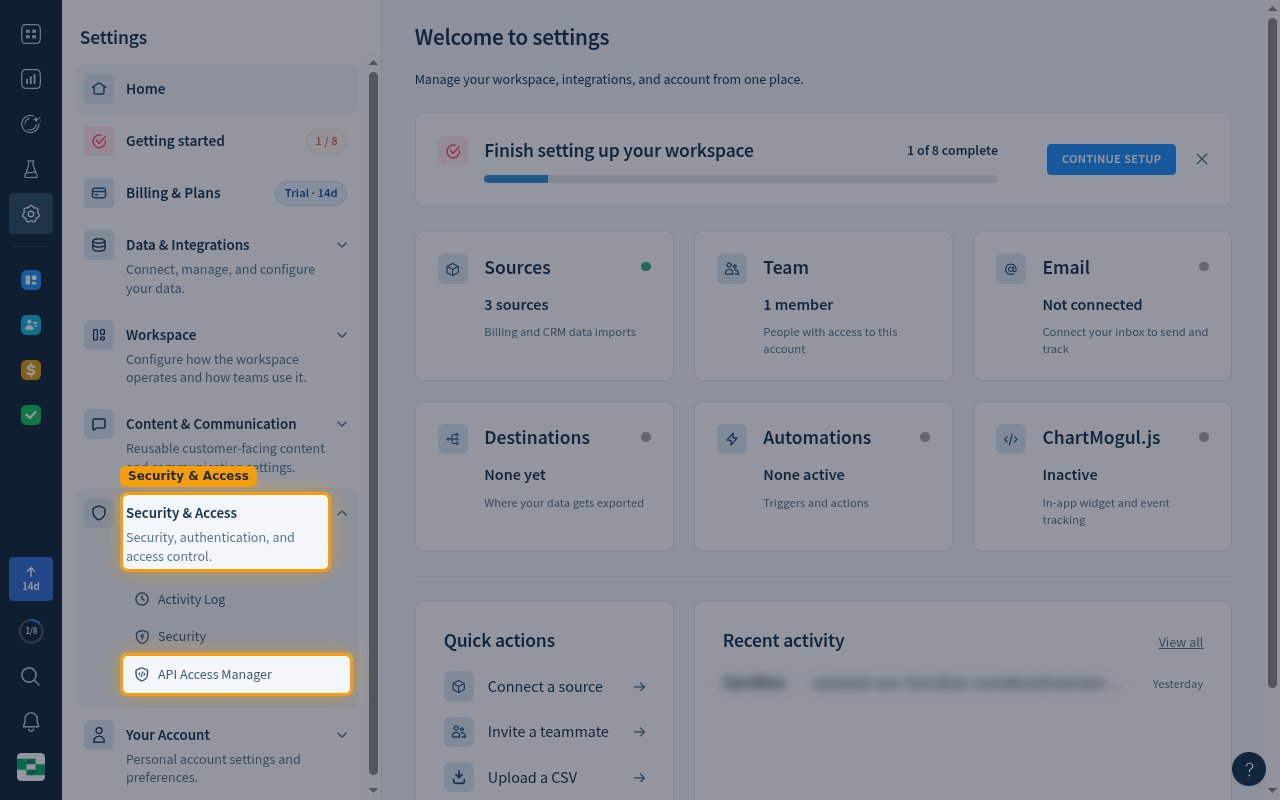
3
Open your API keys
Click Your Profile > API Keys above the key table.
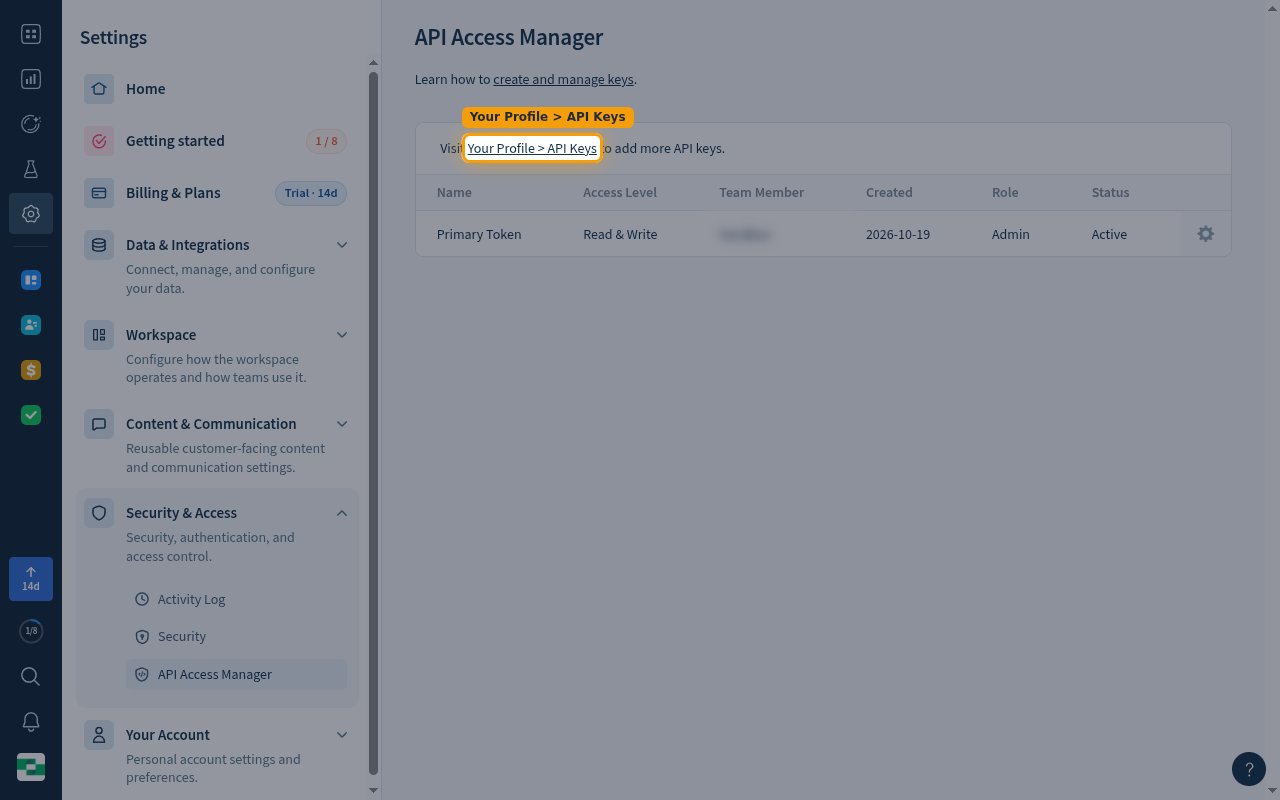
4
Add a new API key
On the API Keys page, click Add API Key.
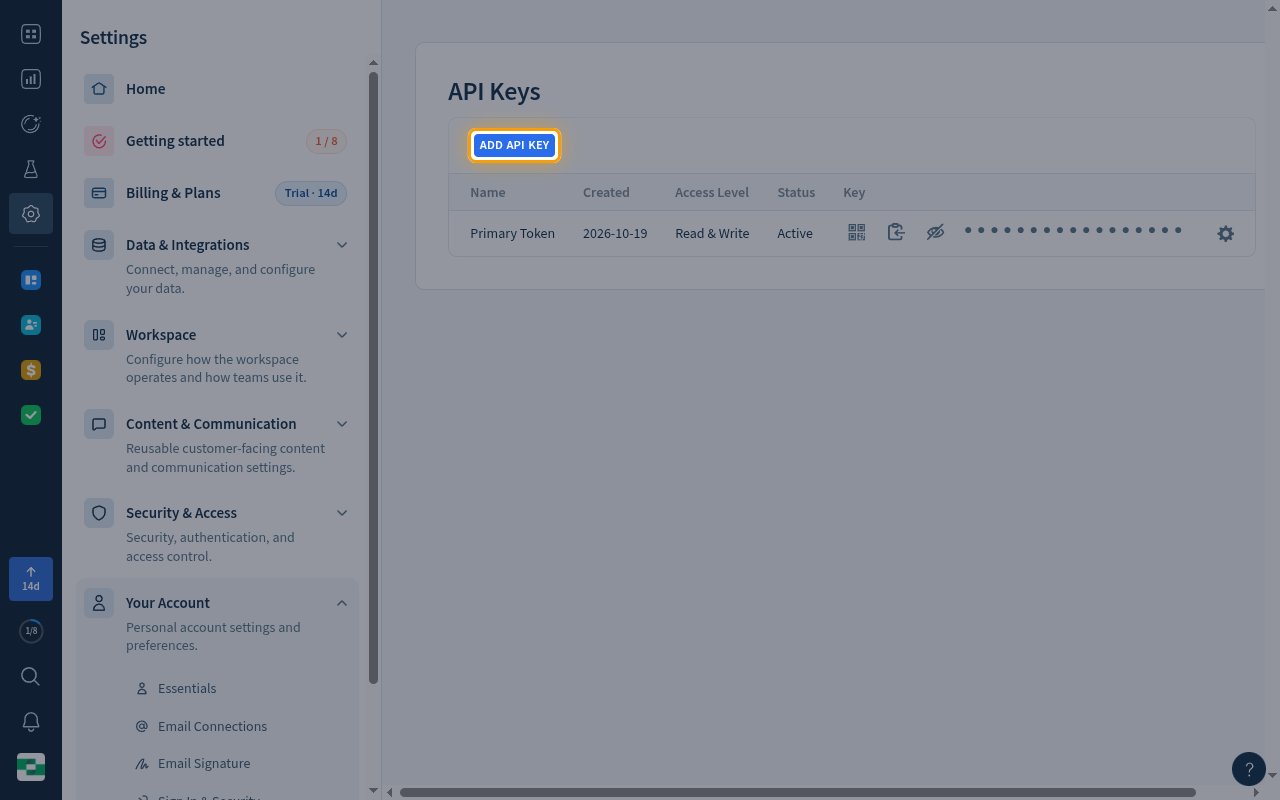
5
Fill in the key details
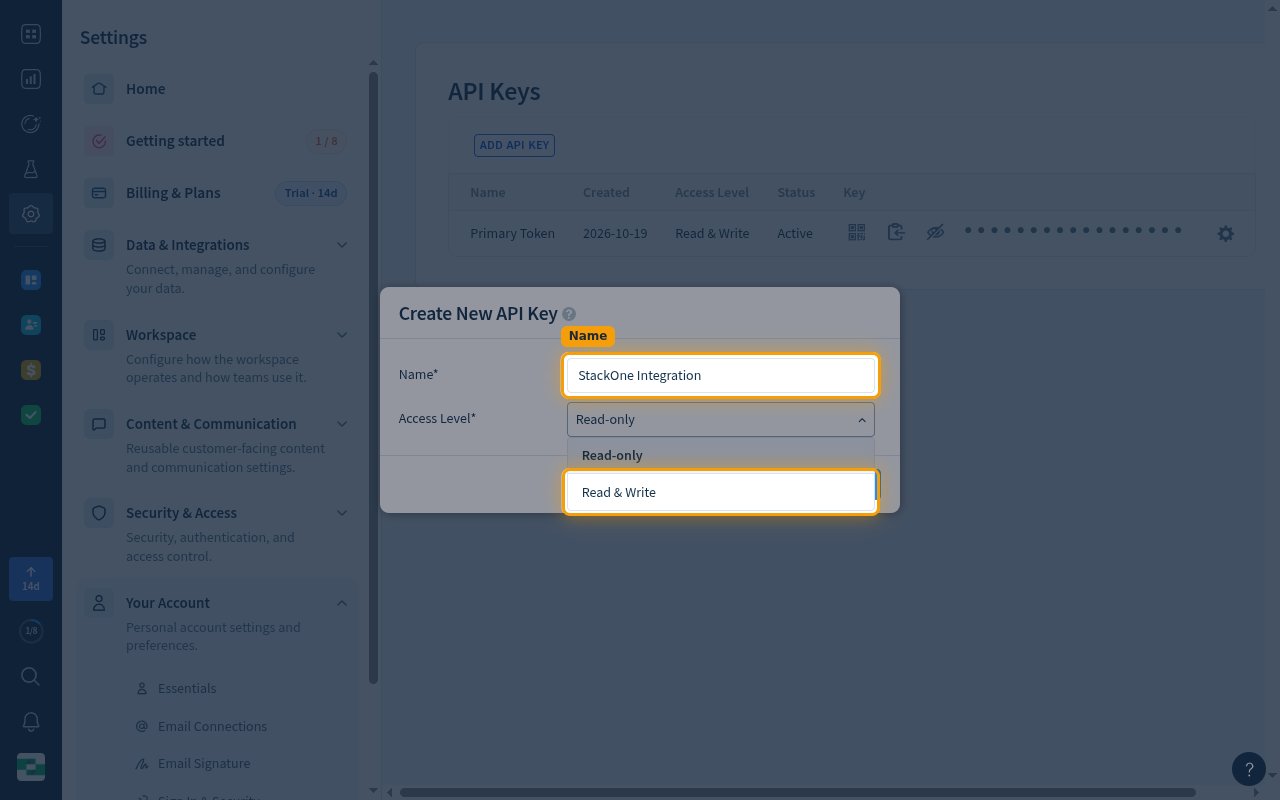
In the Create New API Key window, fill in both fields.
- Name:
StackOne Integration - Set Access Level to Read & Write, or to Read-only if the connection only reads data and metrics.
- Click Add.
6
Copy the API key
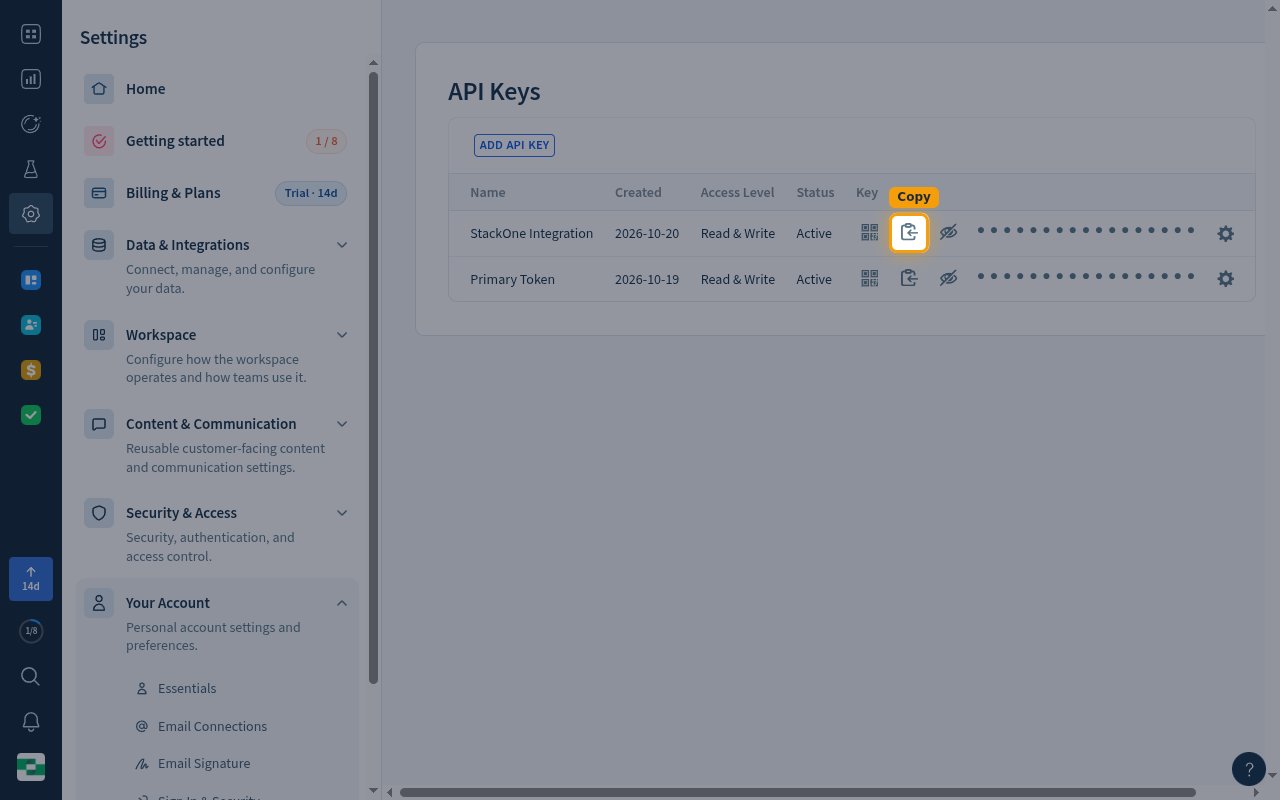
In the StackOne Integration row, click the Copy icon to copy the key.
- Paste it into the API Key field in StackOne Hub.
- Store the key securely for use later.
Linking the Account from the Hub
1
Navigate to the Hub
Use one of the three Linking Account Methods to access the Hub.
2
Fill out the fields
Fill out the following fields using details from your provider:
- API Key
3
Connect
- Click Connect
- If applicable, the provider will redirect you to a sign-in or authorization page. Complete the provider’s authorization flow.
- Once authorization is successful, you will see a confirmation popup
If the account linking is successful, you will see the newly linked account in your Accounts page.