

Before You Start
If you already have your Client ID and Client Secret stored securely from a previous setup, you can use those existing credentials instead of generating new ones.
Resetting your API keys will disconnect all integrations that currently use them. Only generate new keys if you do not have your existing credentials or need to revoke access for security reasons.
Generating API Keys
To connect CharlieHR with StackOne, you’ll need a Client ID and Client Secret from your CharlieHR account.
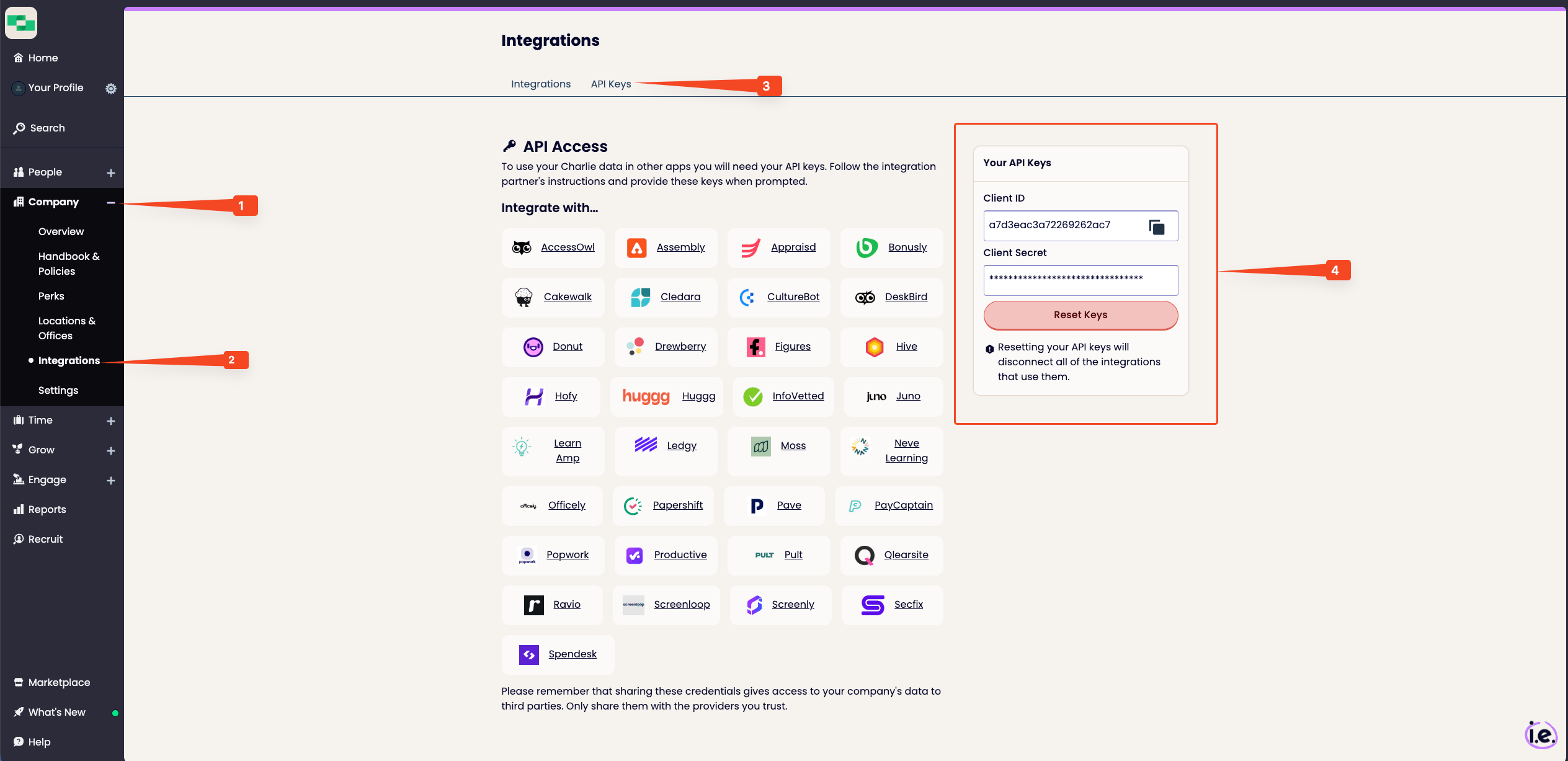
Sign in and navigate to Integrations
Sign in to your CharlieHR account.
- Expand Company from the side navigation.
- Click on Integrations.
Open API Keys settings
Click on the API Keys tab at the top of the page.
Generate or Reset API Keys
Navigate to the API Keys box on the right side of the page.
- Click Generate Keys to create a new set if you have not generated keys before.
- If keys already exist but you need new ones, click Reset Keys (this will invalidate existing keys).
- You will be provided with a Client ID and Client Secret.
Copy and store the keys
Copy your Client ID and Client Secret and store them securely for use later. The Client Secret is only displayed once and cannot be retrieved again.
Linking the Account from the Hub
Navigate to the Hub
Fill out the fields
- Client ID
- Client Secret
Connect
- Click Connect
- If applicable, the provider will redirect you to a sign-in or authorization page. Complete the provider’s authorization flow.
- Once authorization is successful, you will see a confirmation popup
If the account linking is successful, you will see the newly linked account in your Accounts page.