

Generate an API Key
An API key authenticates requests to the Chargebee API. Create a Full-Access key in your Chargebee site settings, then paste it into StackOne Hub. API keys are environment-specific — use your test site’s key for the Test environment and your live site’s key for Production.
Open API Keys and Events
Sign in to your Chargebee site, then in the left sidebar click Settings and choose Configure Chargebee.
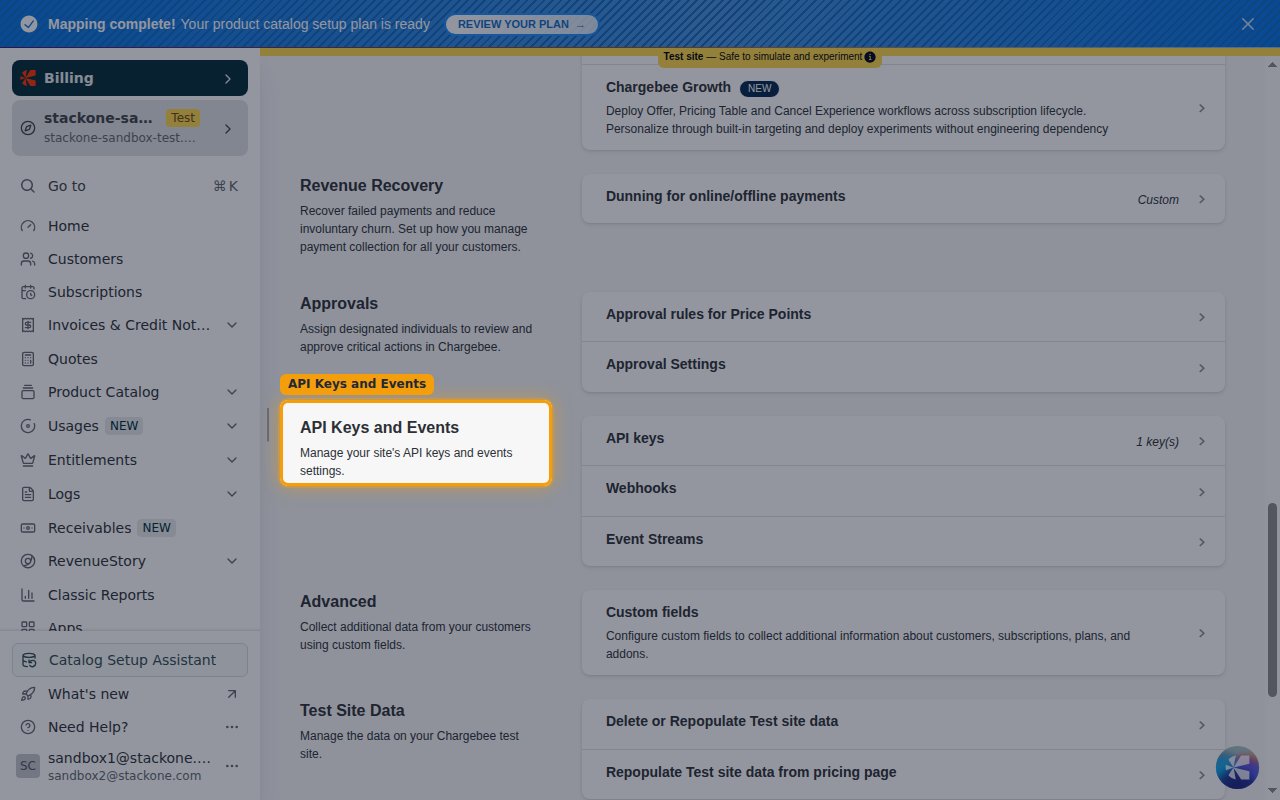
- On the Configure Chargebee page, scroll down to the API Keys and Events section — it sits below Revenue Recovery and Approvals, so it is not visible at the top of the page.
- Click API Keys and Events.
Open the API keys list
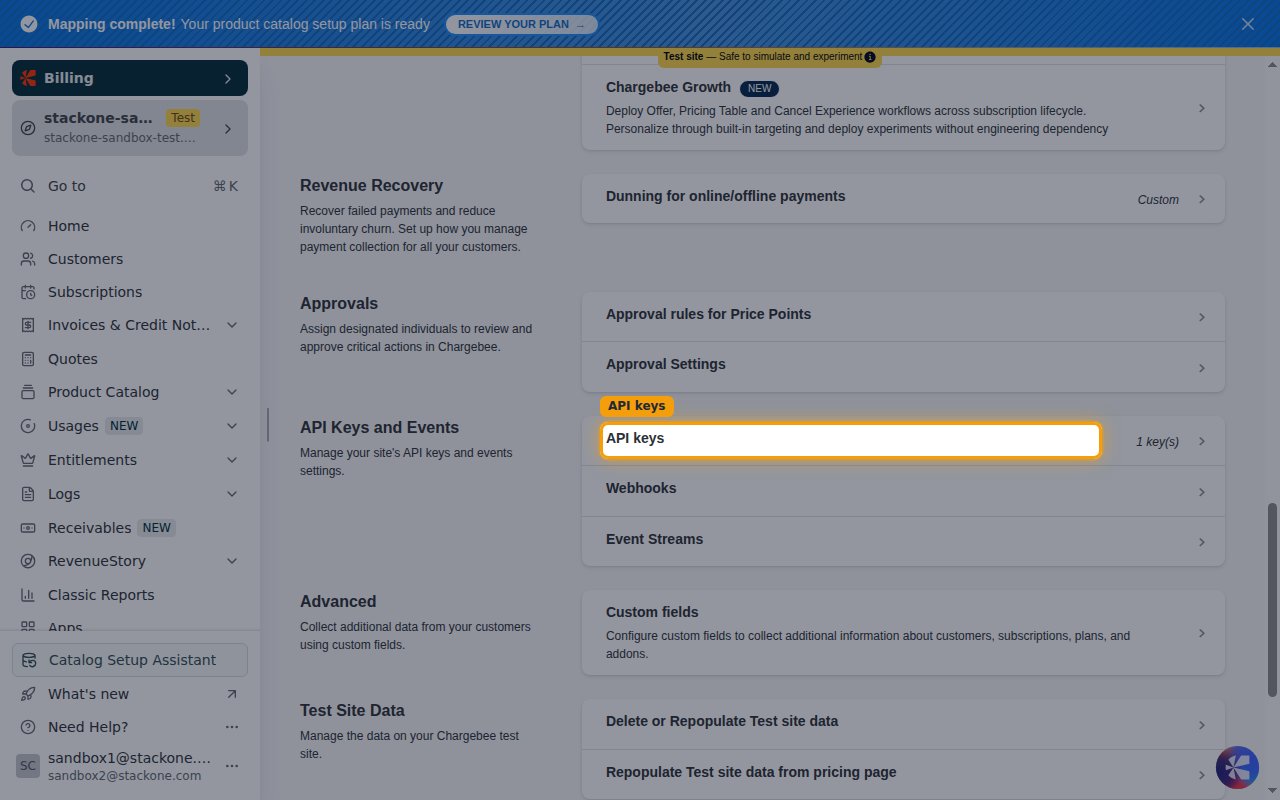
In the API Keys and Events panel, click API keys (this row also shows how many keys already exist, e.g. 1 key(s)).
Add a new API key
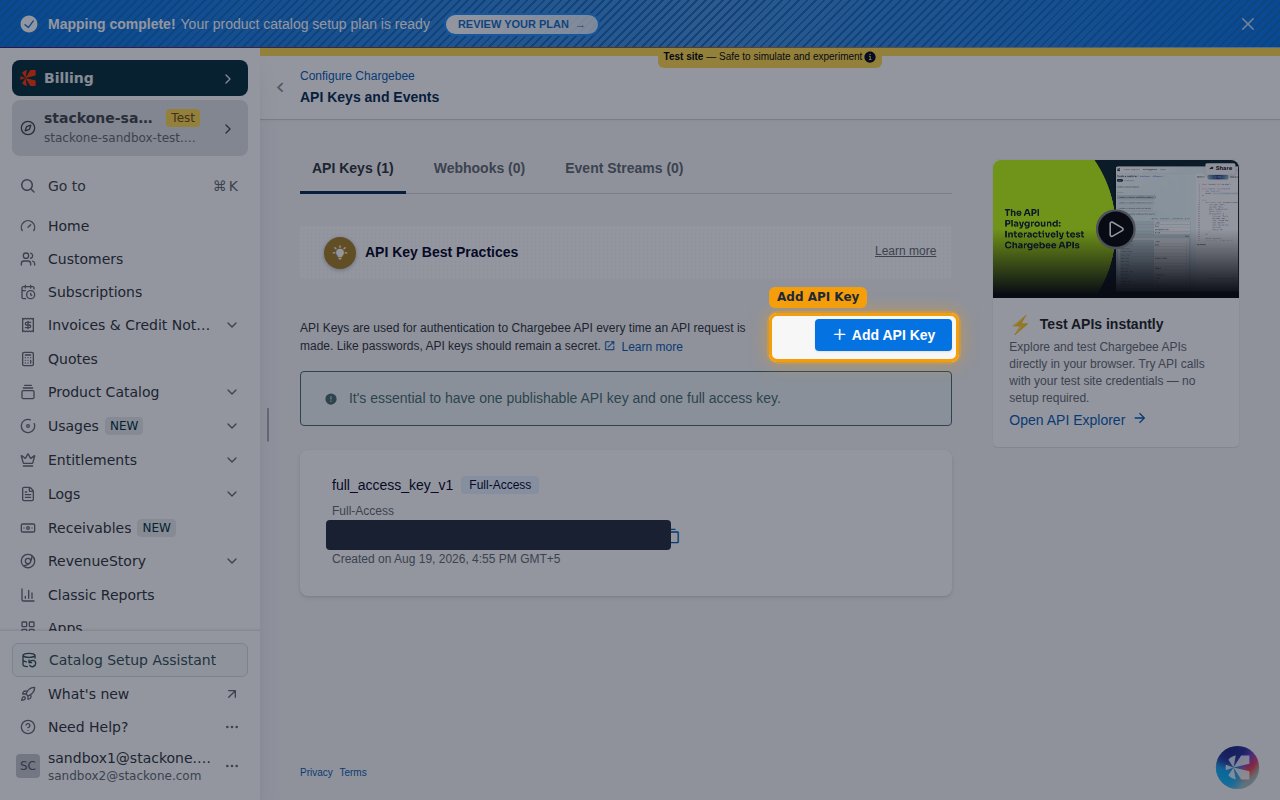
On the API Keys tab, click + Add API Key to open the Create an API Key panel.
Configure the key
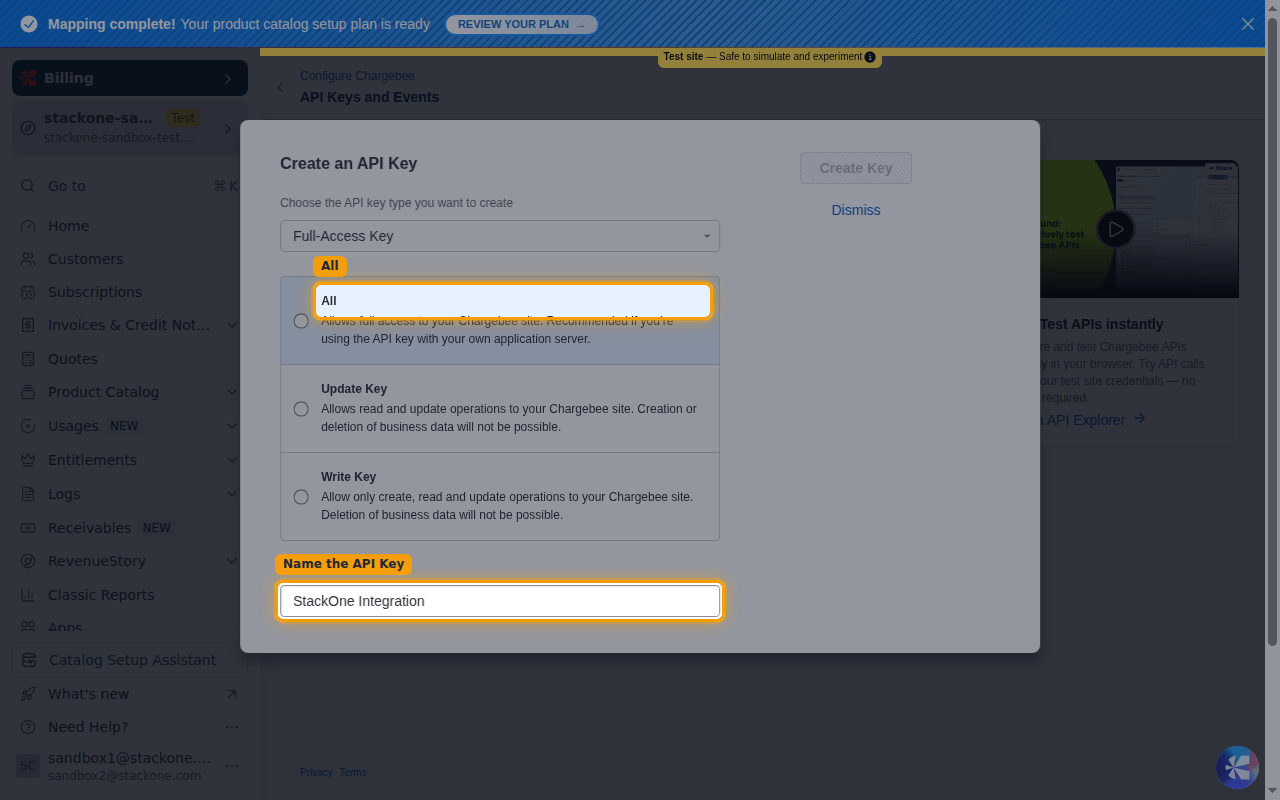
In Create an API Key, under Choose the API key type you want to create select Full-Access Key, then choose the All access level.
- All — Allows full access to your Chargebee site. Recommended if you’re using the API key with your own application server.
- Enter a name in the Name the API Key field (e.g.,
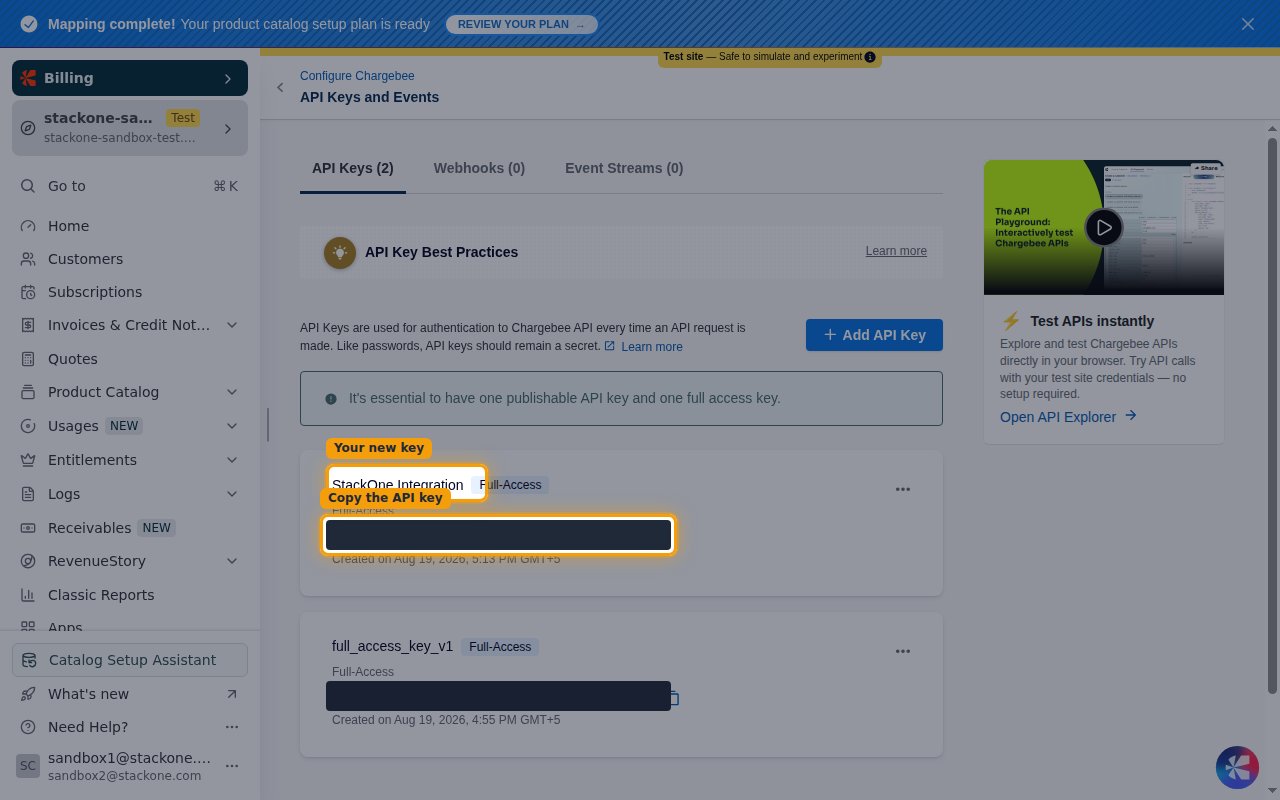
StackOne Integration). - Click Create Key to generate the key.
Copy the key
Your new key appears in the API Keys list. Click its value to copy it, then paste it into the API Key field in StackOne Hub.
- Keys start with
live_on a production site ortest_on a test site. - Like a password, keep the key secret — anyone with it can call the Chargebee API on your behalf.
Find Your Site Name
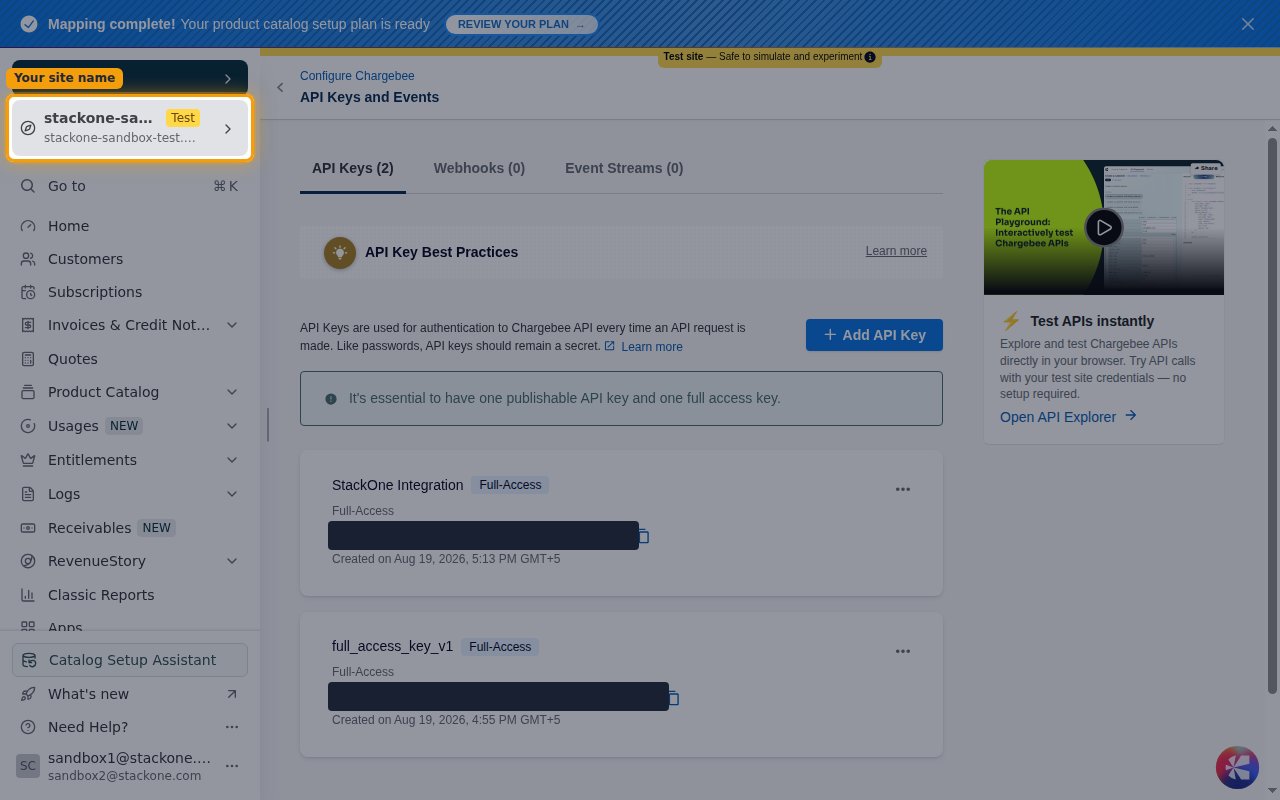
Your site name is the subdomain of your Chargebee URL. StackOne uses it to build the API address, so it must match the site whose API key you copied above. Enter it in the Site Name field in StackOne Hub.
Locate your site name
When signed in to Chargebee, the site indicator in the top-left corner (and your browser’s address bar) shows your site’s URL. The subdomain is your site name.
- Format:
https://{site-name}.chargebee.com - Example: for
https://acme-test.chargebee.com, the Site Name isacme-test. - Test sites usually end in
-test(e.g.acme-test); live sites use your chosen name (e.g.acme).
Linking the Account from the Hub
Navigate to the Hub
Fill out the fields
- API Key
- Site Name
Connect
- Click Connect
- If applicable, the provider will redirect you to a sign-in or authorization page. Complete the provider’s authorization flow.
- Once authorization is successful, you will see a confirmation popup
If the account linking is successful, you will see the newly linked account in your Accounts page.
Next Steps
Webhooks setup
Configure receiving Events for Chargebee into StackOne.