

Find your subdomain
Your subdomain is the first part of the web address you use to sign in to CezanneHR.
- Format:
https://{subdomain}.cezanneondemand.com - Example: if your address is
https://w3.cezanneondemand.com, your Subdomain isw3
Create an authorized application
Register StackOne as an authorized application in your own CezanneHR instance. An Authorised Application only works for the instance it is created in, so each CezanneHR instance that connects needs its own.
Create the app
Sign in to CezanneHR at https://{subdomain}.cezanneondemand.com, then open Administration > Security Settings > Authorised Applications.
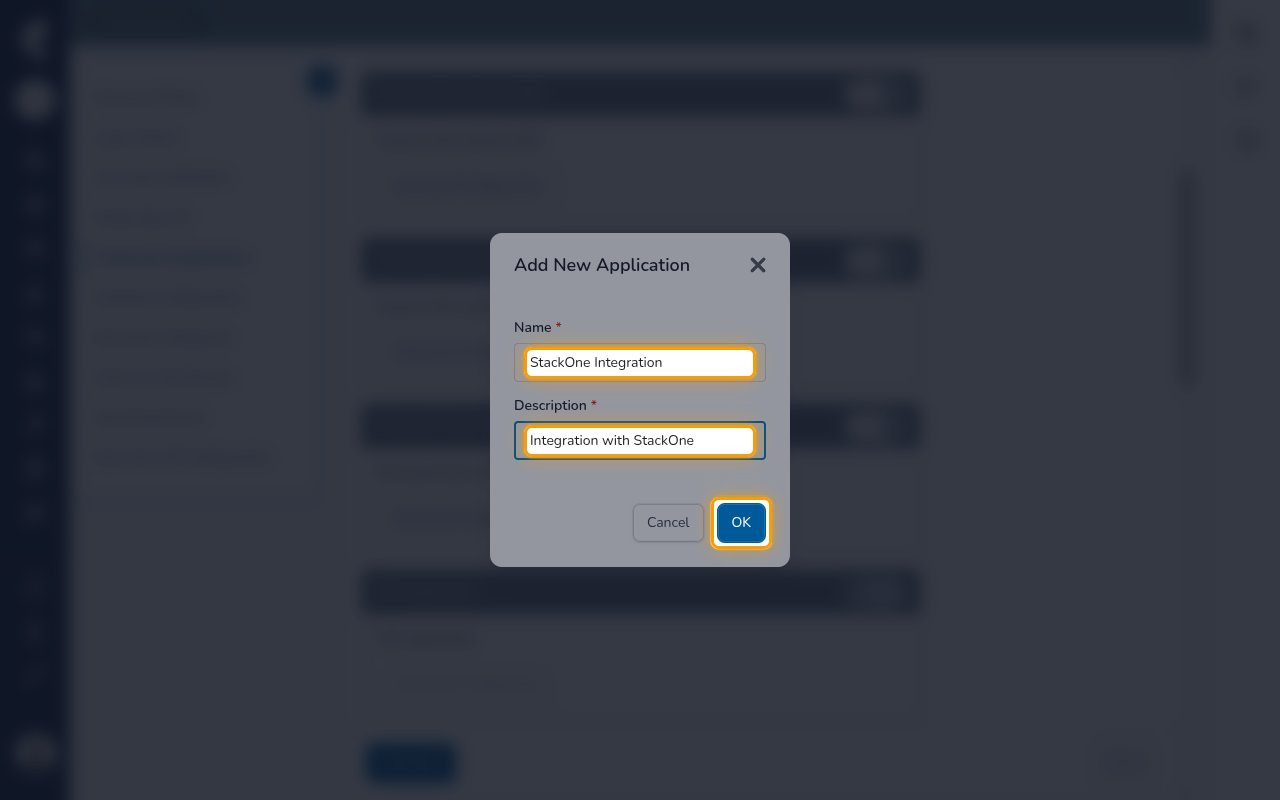
- Click Add New.
- Name:
StackOne Integration - Description:
Integration with StackOne - Click OK.
Configure sign-in
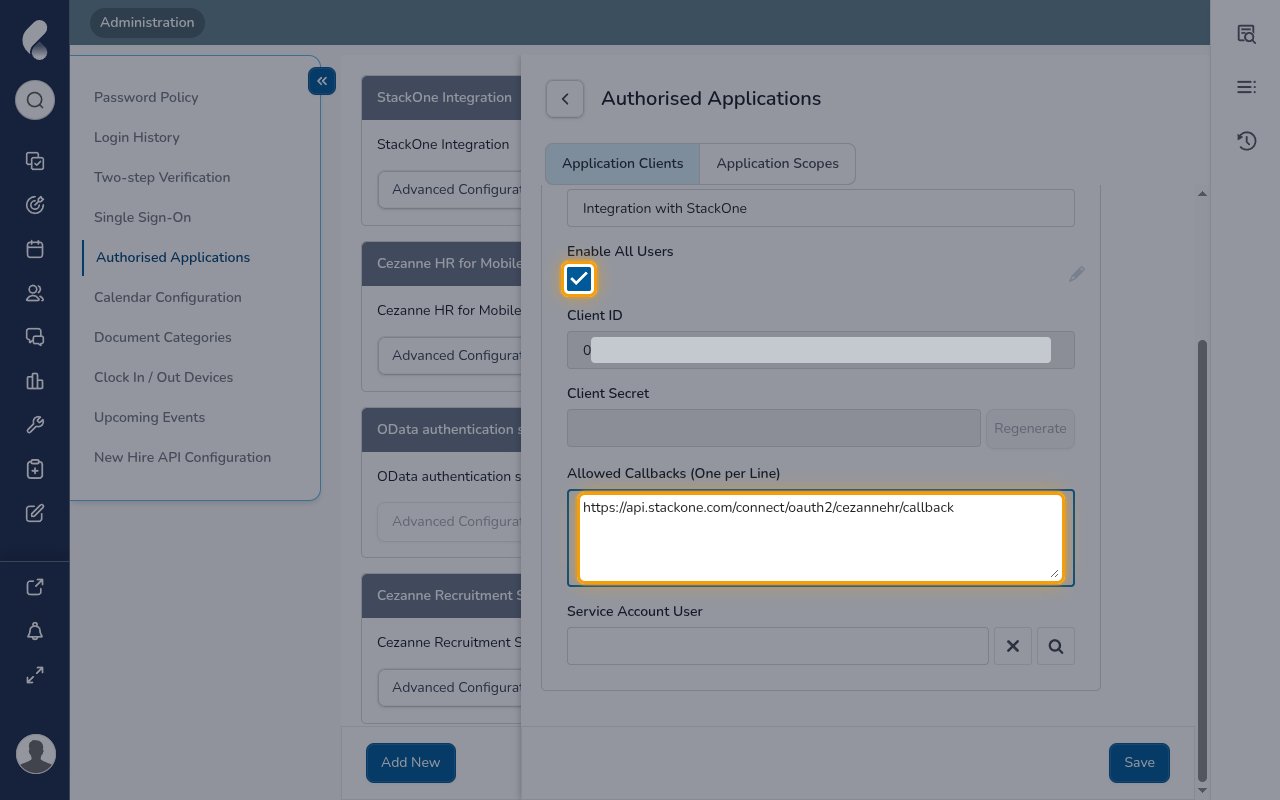
On the Application Clients tab of the new application, set who can sign in and where CezanneHR sends them back.
- Check Enable All Users.
- Allowed Callbacks (One per Line): the Callback URL StackOne shows you
Turn on the scopes
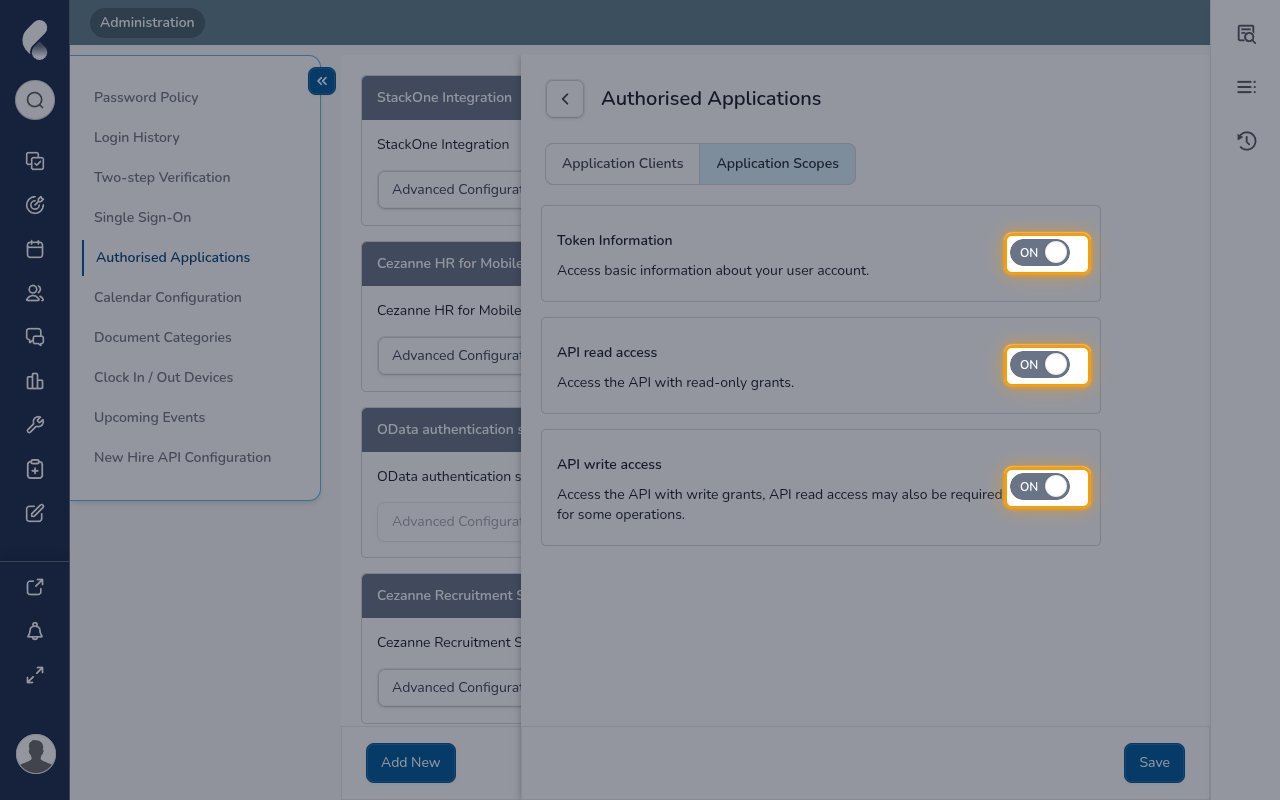
Open the Application Scopes tab.
- Turn on Token Information.
- Turn on API read access.
- Turn on API write access.
Save and copy the credentials
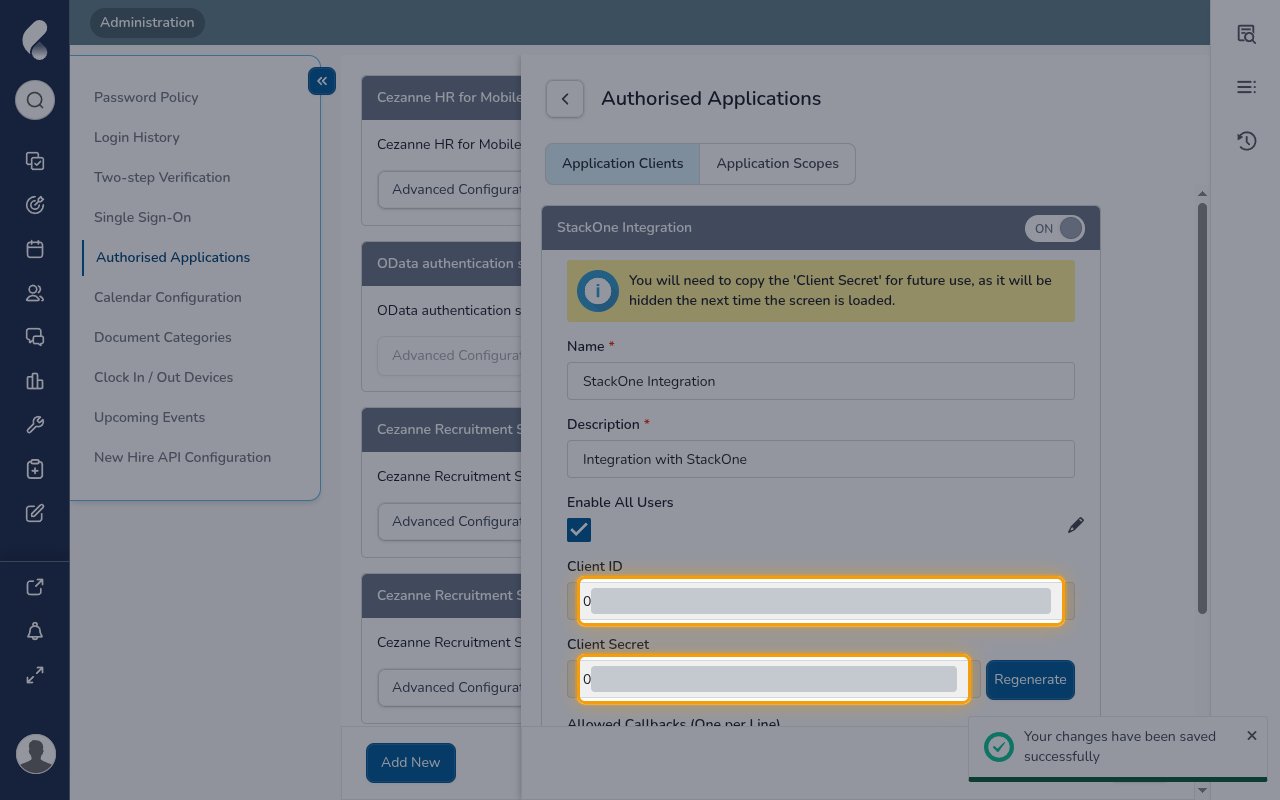
Click Save, then copy the Client ID and Client Secret.
- The Client Secret is only displayed once. CezanneHR hides it the next time the screen is loaded.
Authorize the connection
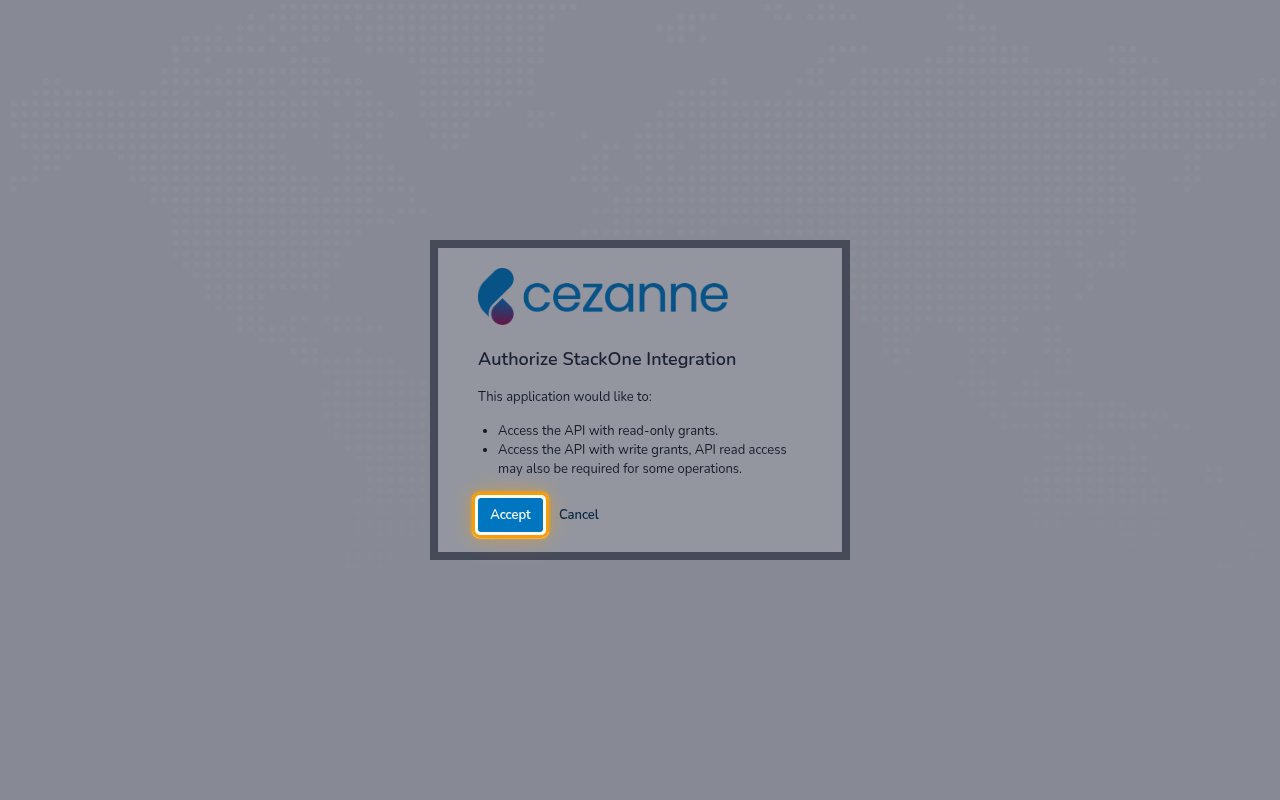
When you connect, CezanneHR opens its sign-in page. StackOne can only do what the account you sign in with is allowed to do in CezanneHR.
Accept the request
Sign in with the CezanneHR account the connection should act as.
- On the authorization screen, click Accept.
Link the Account
Connect
- Click Connect.
- If applicable, the provider will redirect you to a sign-in or authorization page. Complete the provider’s authorization flow.
- Once authorization is successful, you will see a confirmation popup.
Use Actions
Next Steps
Webhooks setup
Configure receiving Events for CezanneHR into StackOne.