

Find your subdomain
Your subdomain is the first part of the web address you use to sign in to CezanneHR. Enter it into StackOne Hub.
- Format:
https://{subdomain}.cezanneondemand.com - Example: if your address is
https://w3.cezanneondemand.com, your Subdomain isw3
Create an authorized application
Register StackOne as an authorized application in CezanneHR. The connection acts as the service account user you choose.
1
Create the app
Sign in to CezanneHR at https://{subdomain}.cezanneondemand.com, then open Administration > Security Settings > Authorised Applications.
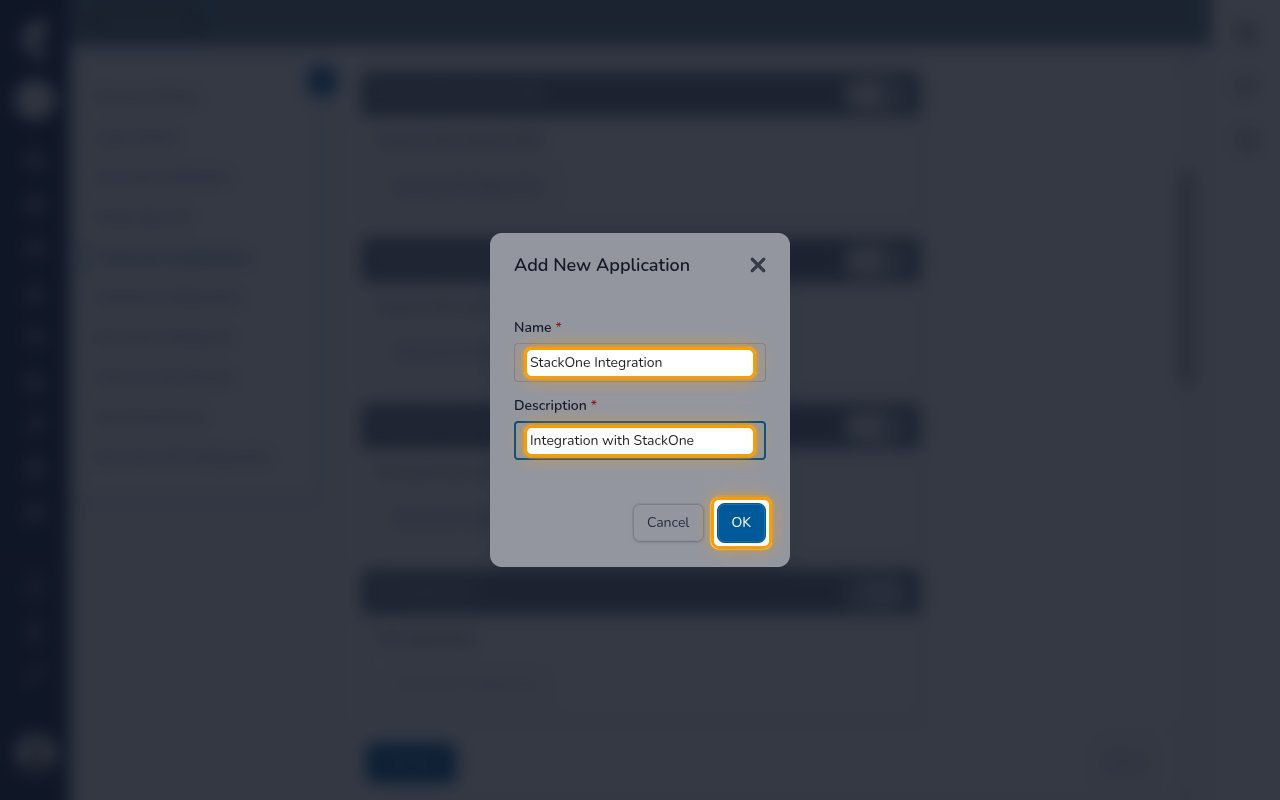
- Click Add New.
- Name:
StackOne Integration - Description:
Integration with StackOne - Click OK.
2
Choose the service account
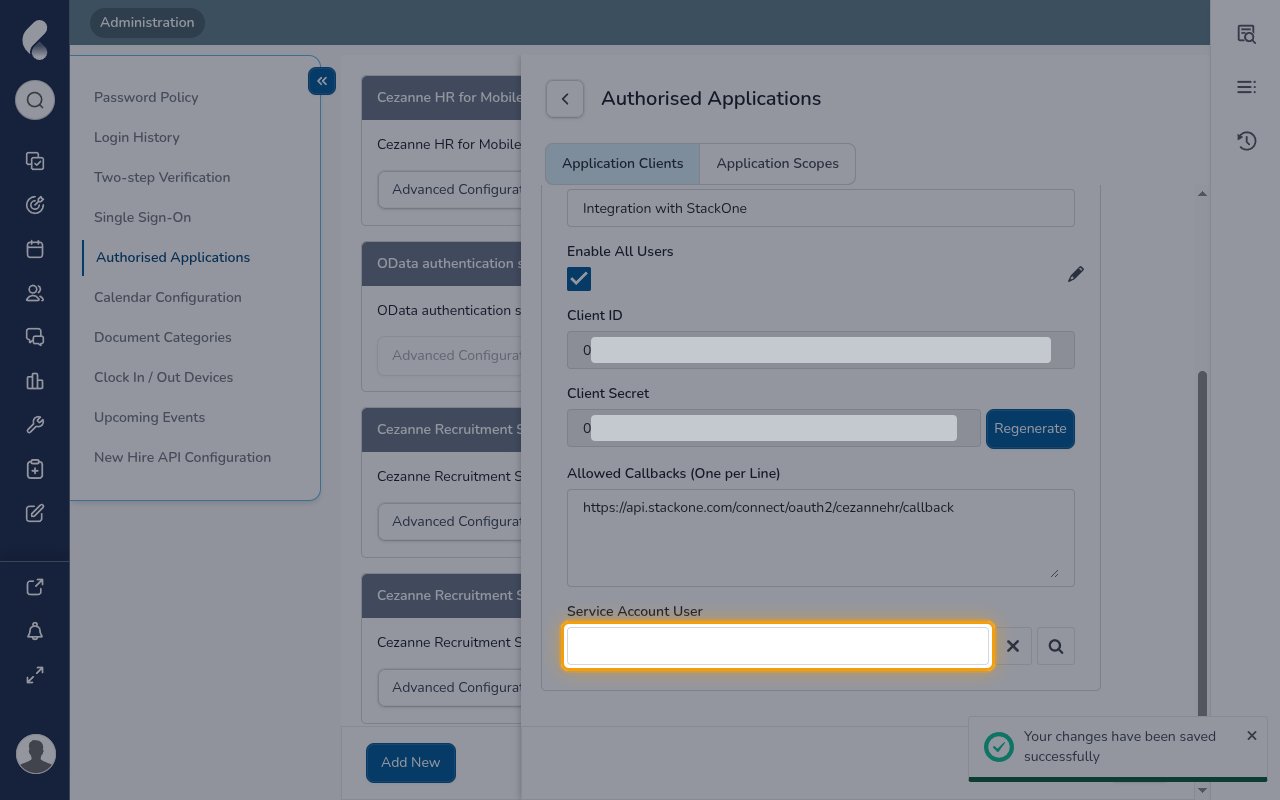
On the Application Clients tab of the new application, choose the user the connection acts as.
- Service Account User: the CezanneHR user whose permissions the connection uses
3
Turn on the scopes
Enables actions: Create Absence Event, Create Benefits Record, Create Company, Create Compensation Record, Create Employee, Create Employment, Create Job, Create Organizational Unit, Delete Absence Event, Delete Benefits Record, Delete Company, Delete Compensation Record, Delete Employee, Delete Employment, Delete Job, Delete Organizational Unit, List Absence Event Details, List Absence Events, List Absence Plans, List Addresses, List Bank Details, List Benefits, List Companies, List Company Locations, List Compensation Records, List Cost Centres, List Employee Photos, List Employee Timesheet Details, List Employee Timesheets, List Employees, List Employment Contracts, List Employments, List Jobs, List Organizational Units, List Reports To Records, List Timesheet Activities, List Timesheet Plans, List Timesheet Projects, Search Compensation History, Update Absence Event, Update Benefits Record, Update Company, Update Compensation Record, Update Employee, Update Employment, Update Job, Update Organizational Unit
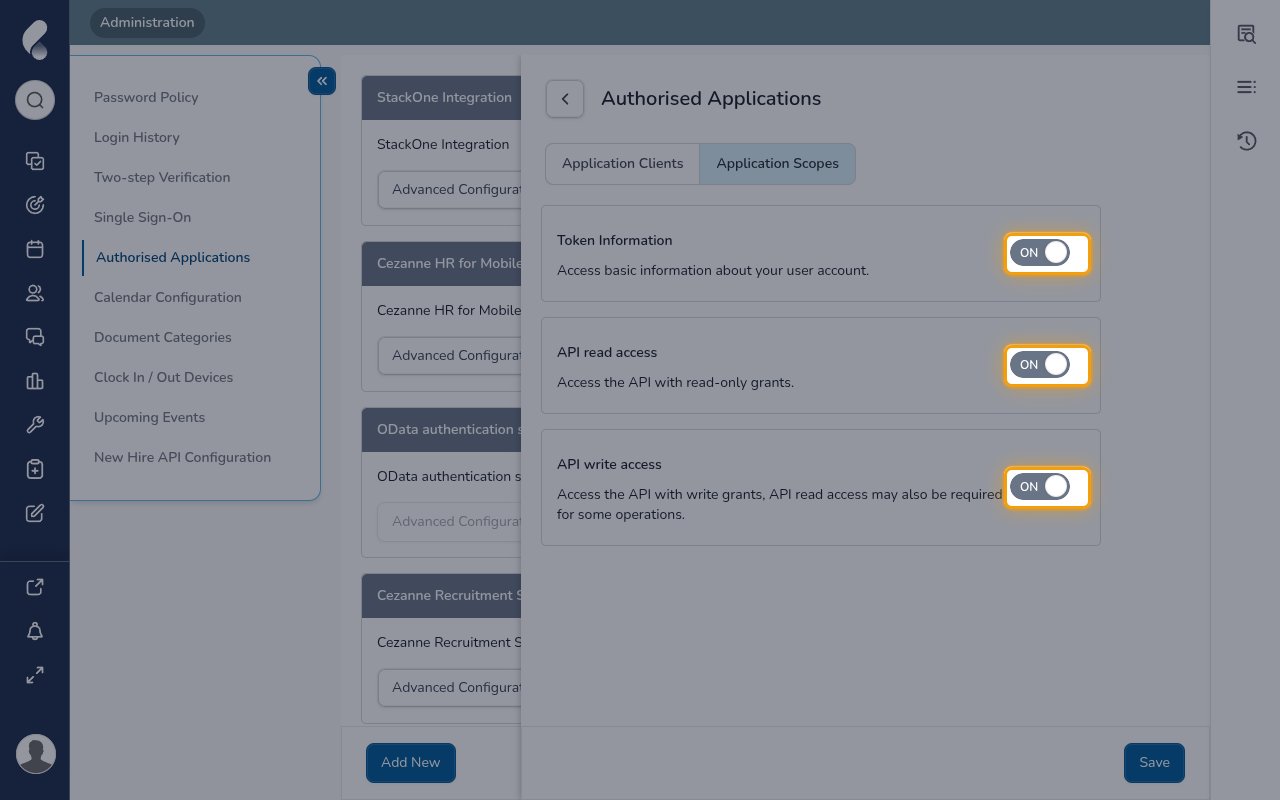
Open the Application Scopes tab.
- Turn on Token Information.
- Turn on API read access.
- Turn on API write access.
4
Save and copy the credentials
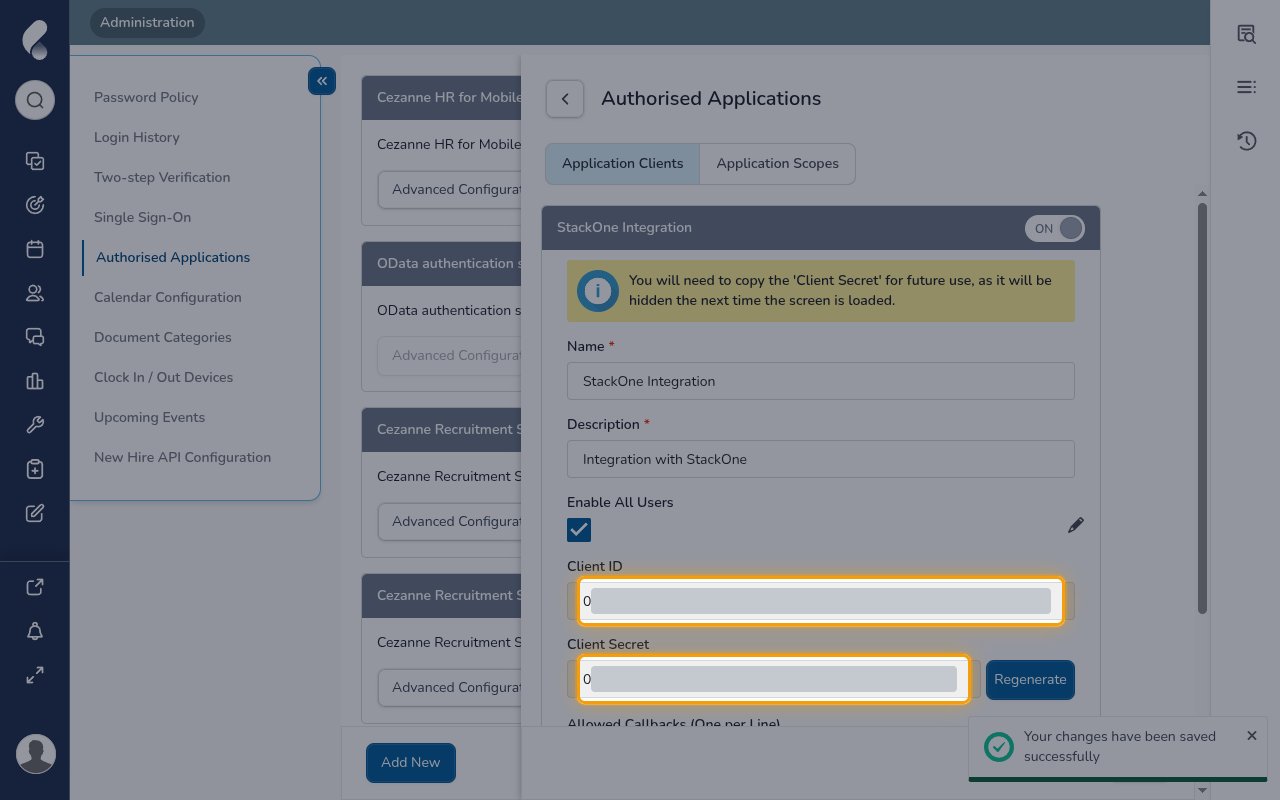
Click Save, then copy the Client ID and Client Secret into StackOne Hub.
- The Client Secret is only displayed once. CezanneHR hides it the next time the screen is loaded.
Link the Account
1
Connect
- Click Connect.
- If applicable, the provider will redirect you to a sign-in or authorization page. Complete the provider’s authorization flow.
- Once authorization is successful, you will see a confirmation popup.
2
Use Actions
Connect an AI platform to the linked account’s actions. See AI Platforms.Other ways to call actions are listed in Protocols & SDKs.
Next Steps
Webhooks setup
Configure receiving Events for CezanneHR into StackOne.