Prerequisites
The connector should already be set up, with a Connector Profile and a Linked Account. See Getting Started on the BrowserStack connector page.Get the Native Webhook URL
The Native Webhook URL is shown in StackOne Hub when you link the account. Both Percy and BrowserStack platform webhooks send events to this URL.
- Open the account linking form in StackOne Hub.
- Copy the value from Native Webhook URL.
Percy project webhooks
Percy webhooks are set per project and send a fixed payload, so no body needs to be written. Repeat these steps for each Percy project you want events from.
Add the webhook
Sign in to Percy and open the project.
- Click Integrations.
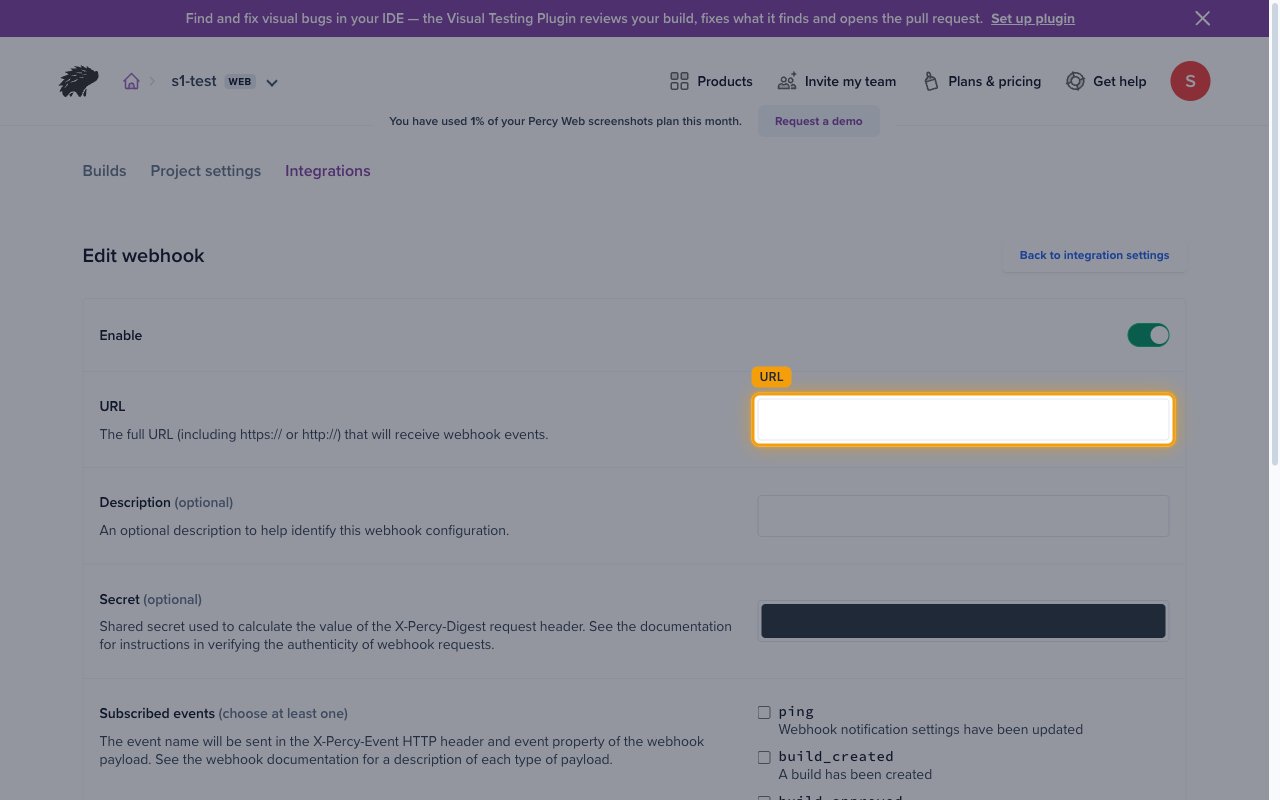
- Under Web Hooks, click Add Webhook.
- URL: the Native Webhook URL from StackOne
Subscribe to events
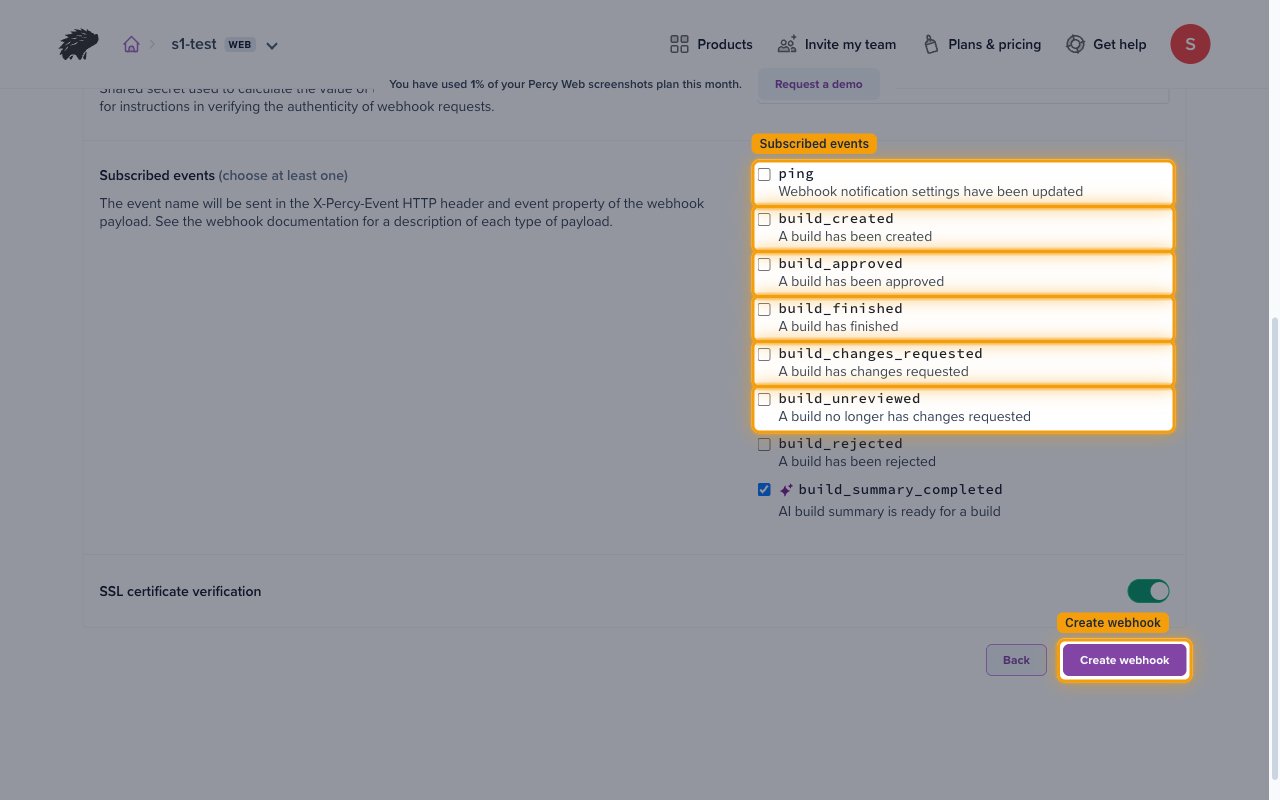
Under Subscribed events (choose at least one), select the events to send to StackOne.
- Select ping.
- Select build_created.
- Select build_approved.
- Select build_finished.
- Select build_changes_requested.
- Select build_unreviewed.
- Click Create webhook.
- Percy sends a ping event when the webhook is created or updated.
BrowserStack platform webhooks
Test Management and Test Reporting & Analytics webhooks send a body you write yourself, so each webhook covers one event and its body tells StackOne which event it is. Create one webhook for each event you want.
Choose the event
Sign in to BrowserStack Test Management and open Settings.
- Under TM Global Settings, click Webhooks.
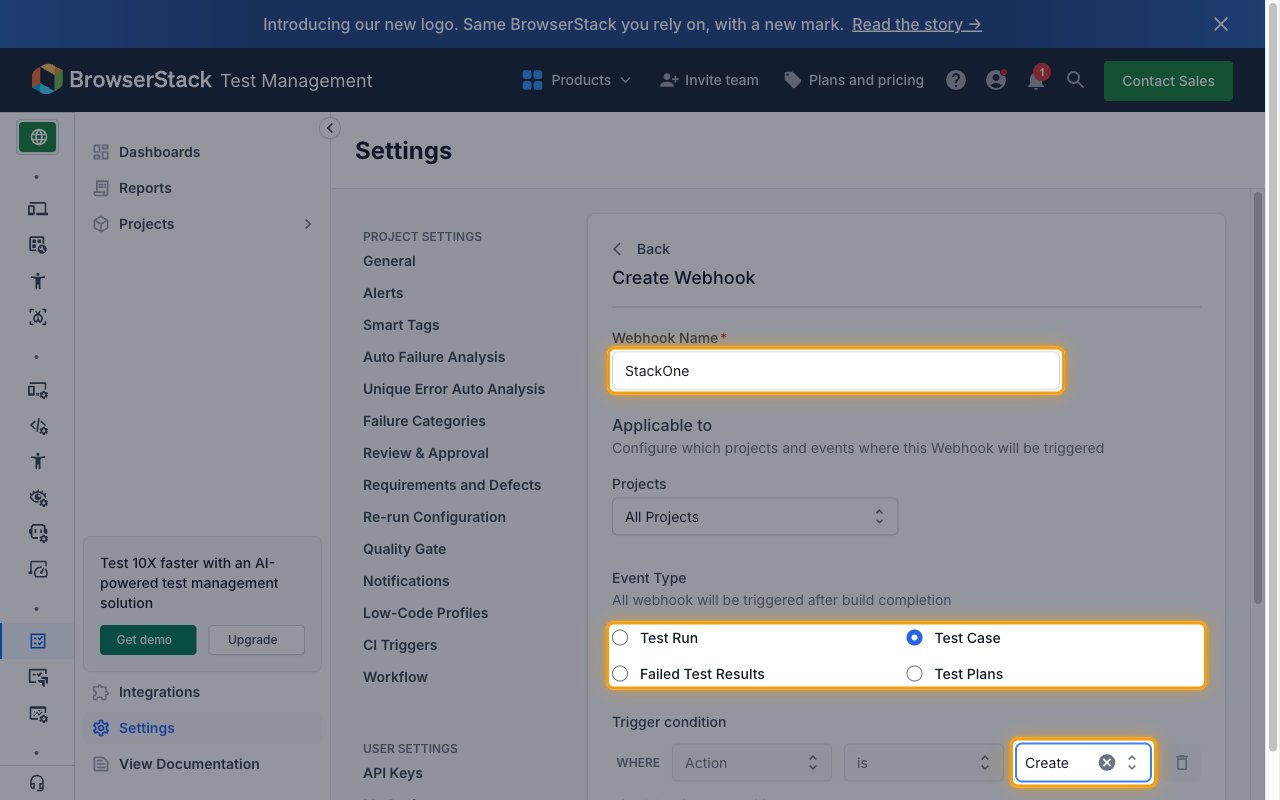
- Click Create webhook.
- Webhook Name: a name that identifies the event, for example
StackOne test case created - Projects: the projects to send events for
- Event Type: the event, for example Test Case
- Trigger condition: the action, for example Create
- Test Reporting & Analytics: Sign in to Test Reporting & Analytics, open Settings > Webhooks and click Create webhook. Its Event Type options are Build Finish, Test Failure, Quality Gate Result and Alert Trigger.
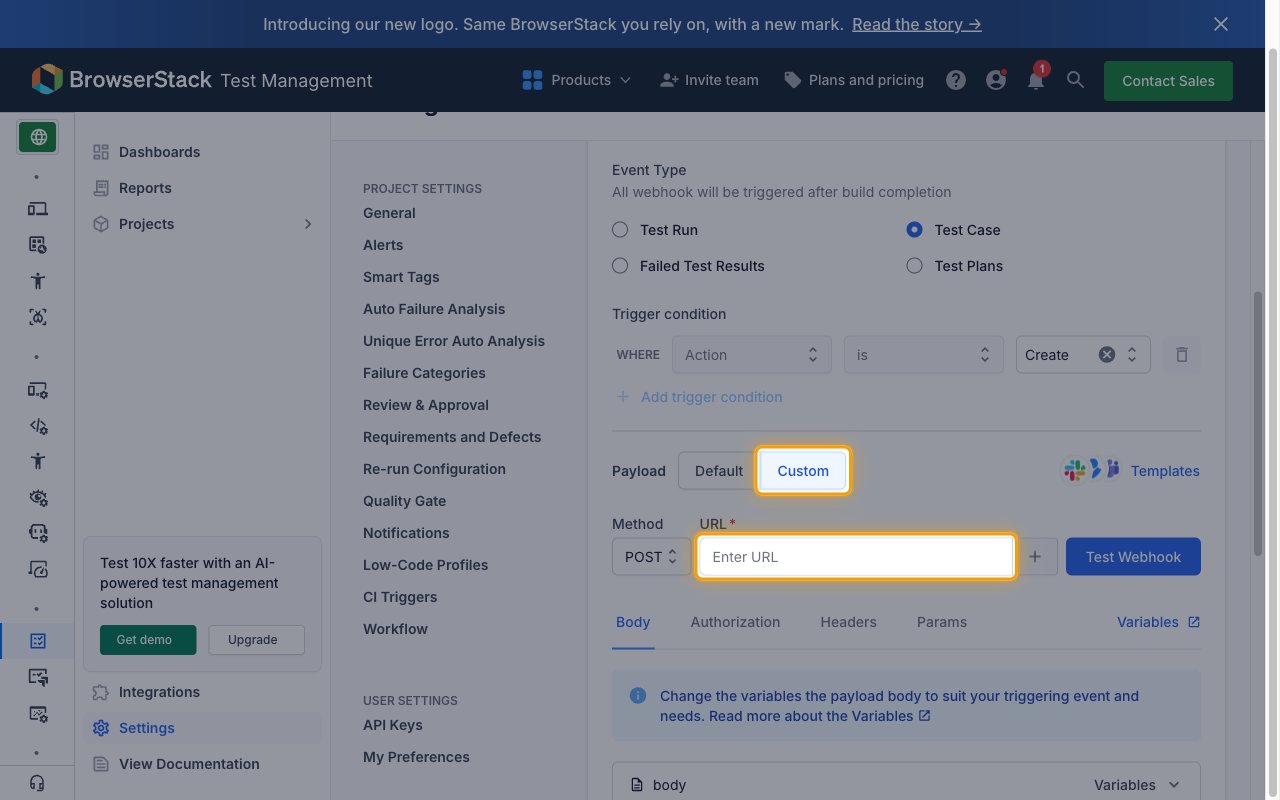
Set the payload URL
Scroll to Payload in the same form.
- Click Custom.
- Method: POST
- URL: the Native Webhook URL from StackOne
Add the body
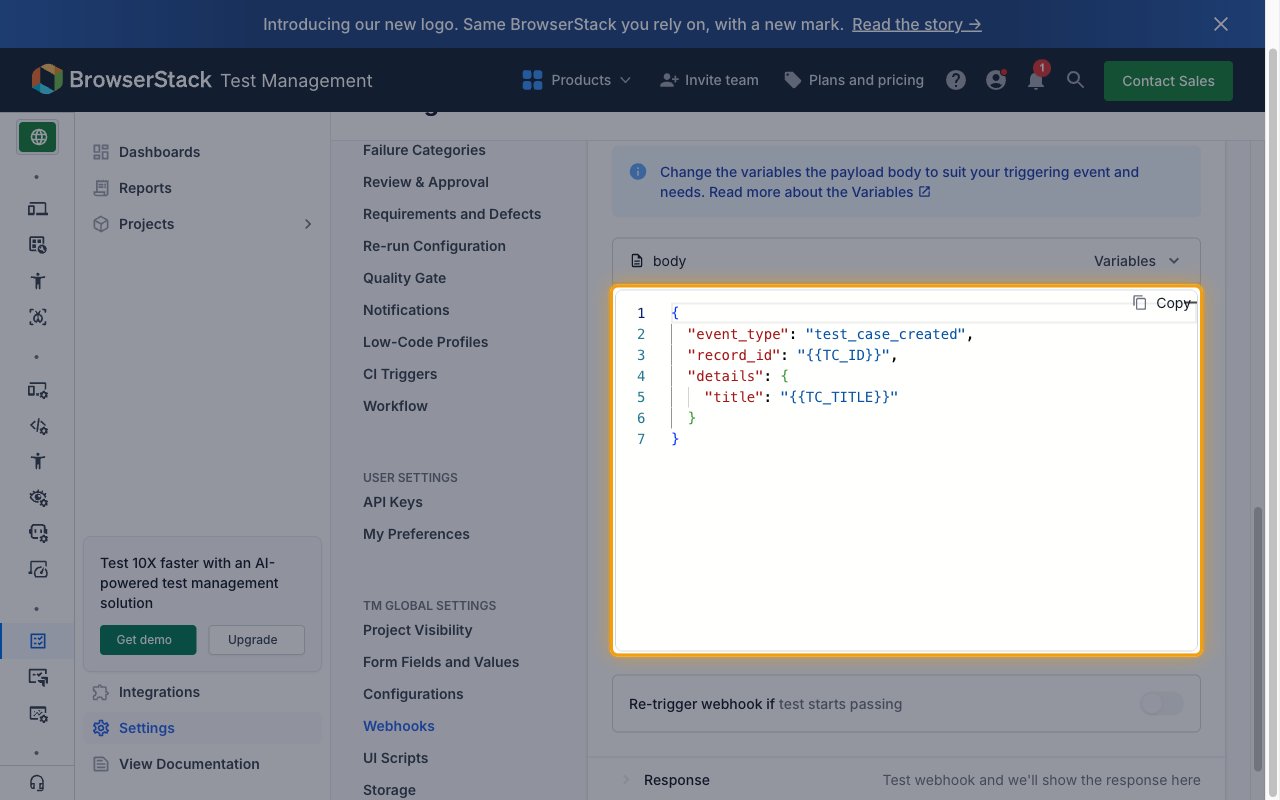
In the Body tab, write a JSON body. Two fields are required, and you can add any other fields you want after them.
event_type(required): the event key for this webhook, such asbuild_finish,test_failure,quality_gate_result,alert_triggered,test_case_created,test_case_updated,test_case_deleted,test_case_archived,test_plan_created,test_plan_updated,test_plan_completed,test_plan_deletedortest_result_addedrecord_id(required):{{BUILD_ID}}for Test Reporting & Analytics events,{{TC_ID}}for test cases,{{TP_ID}}for test plans and{{TEST_NAME}}for test resultsoccurred_at(optional): a timestamp variable when the event has one, such as{{BUILD_FINISHED_AT}}- Any other fields (optional): add BrowserStack variables from Variables, for example under
details - Click Create.