

Find your access key
The access key belongs to one BrowserStack member. StackOne uses it to list and stop that member’s Local Testing connections.
1
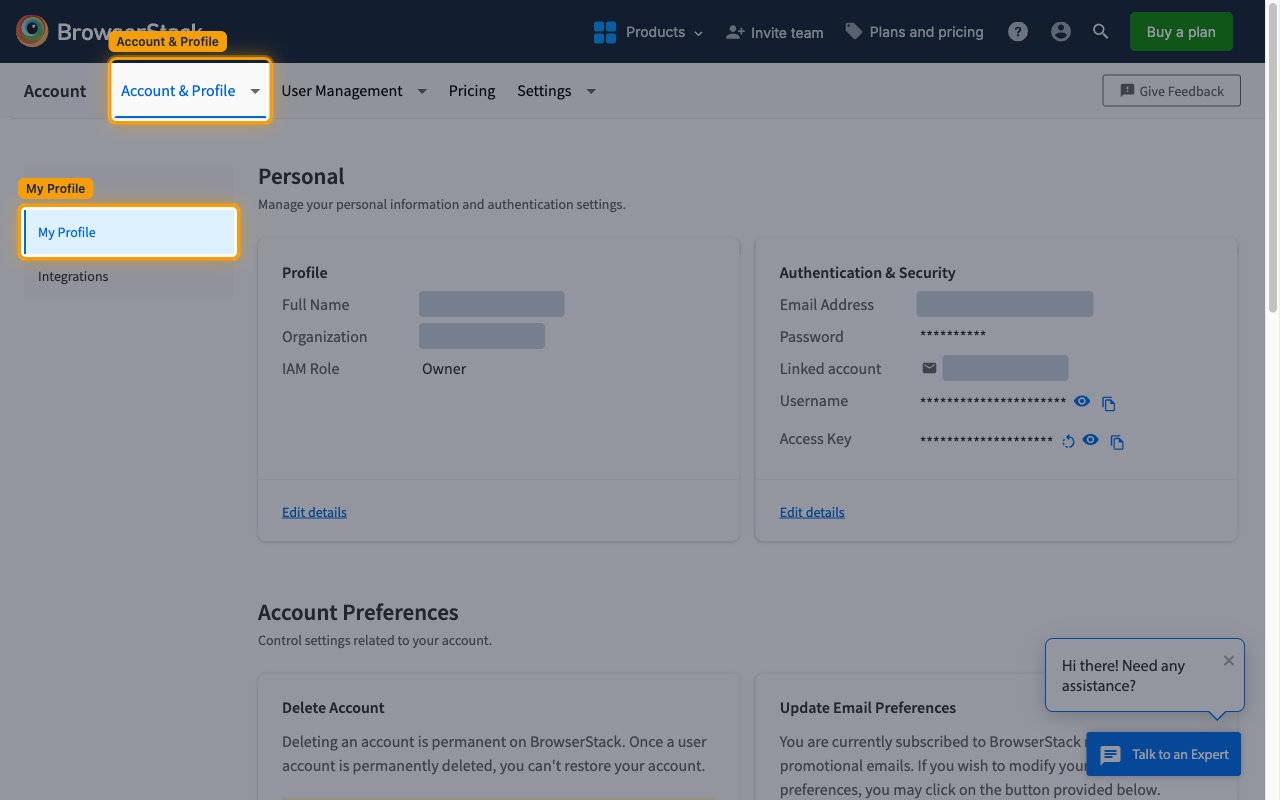
Open your profile
Sign in to your BrowserStack account as the member whose Local Testing connections StackOne should manage.
- Click Account & Profile.
- Click My Profile.
2
Copy the access key
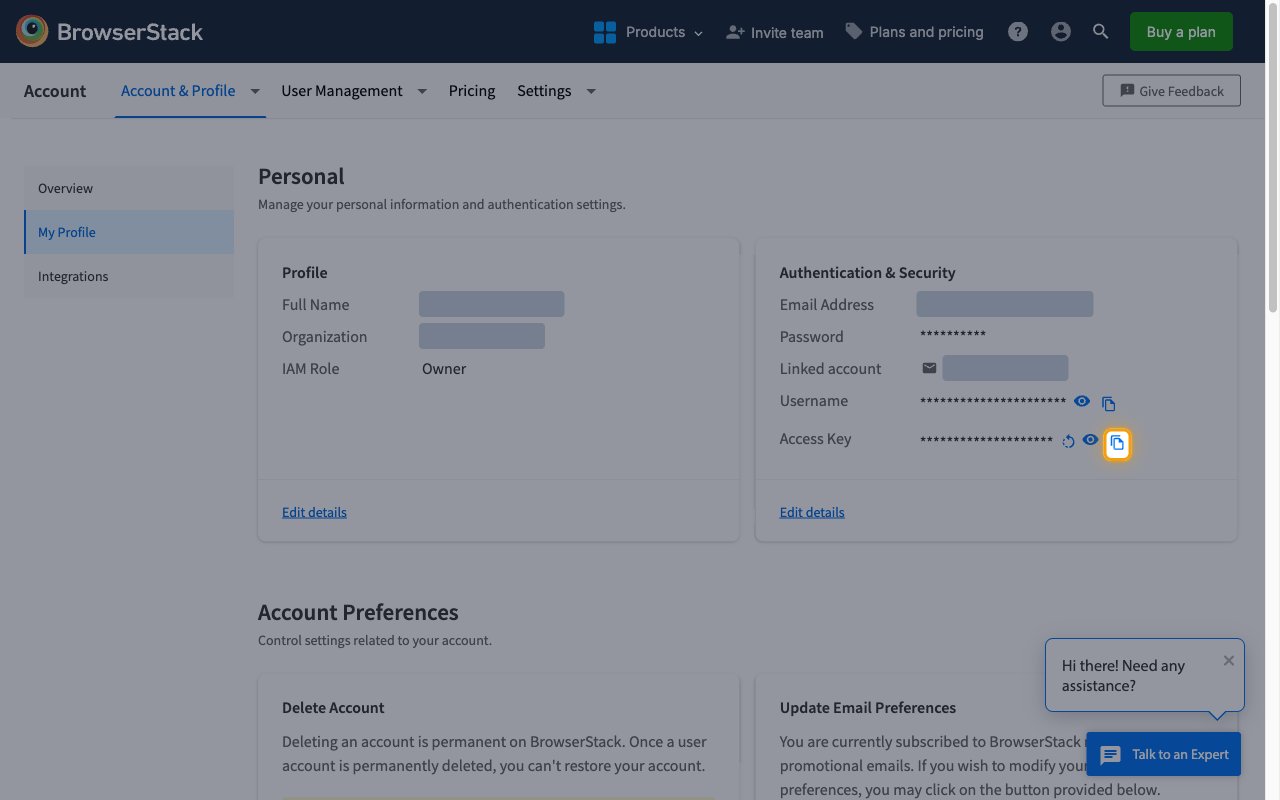
BrowserStack shows the access key masked under Authentication & Security.
- Click the copy icon next to Access Key and paste the value into StackOne Hub.
- If you rotate the key with the rotate icon next to Access Key, the old key stops working. Paste the new key into StackOne Hub.
Link the Account
1
Connect
- Click Connect.
- If applicable, the provider will redirect you to a sign-in or authorization page. Complete the provider’s authorization flow.
- Once authorization is successful, you will see a confirmation popup.
2
Use Actions
Connect an AI platform to the linked account’s actions. See AI Platforms.Other ways to call actions are listed in Protocols & SDKs.
Next Steps
Webhooks setup
Configure receiving Events for BrowserStack into StackOne.