

Retrieve your Browserbase credentials
Browserbase authenticates each request with an API key. StackOne also accepts an optional Project ID, which becomes the default project for the actions that need one. Both values live on the same screen — Settings → General — and both are scoped to a single project, so copy them from the project you want StackOne to work in.
Sign in and open your project settings
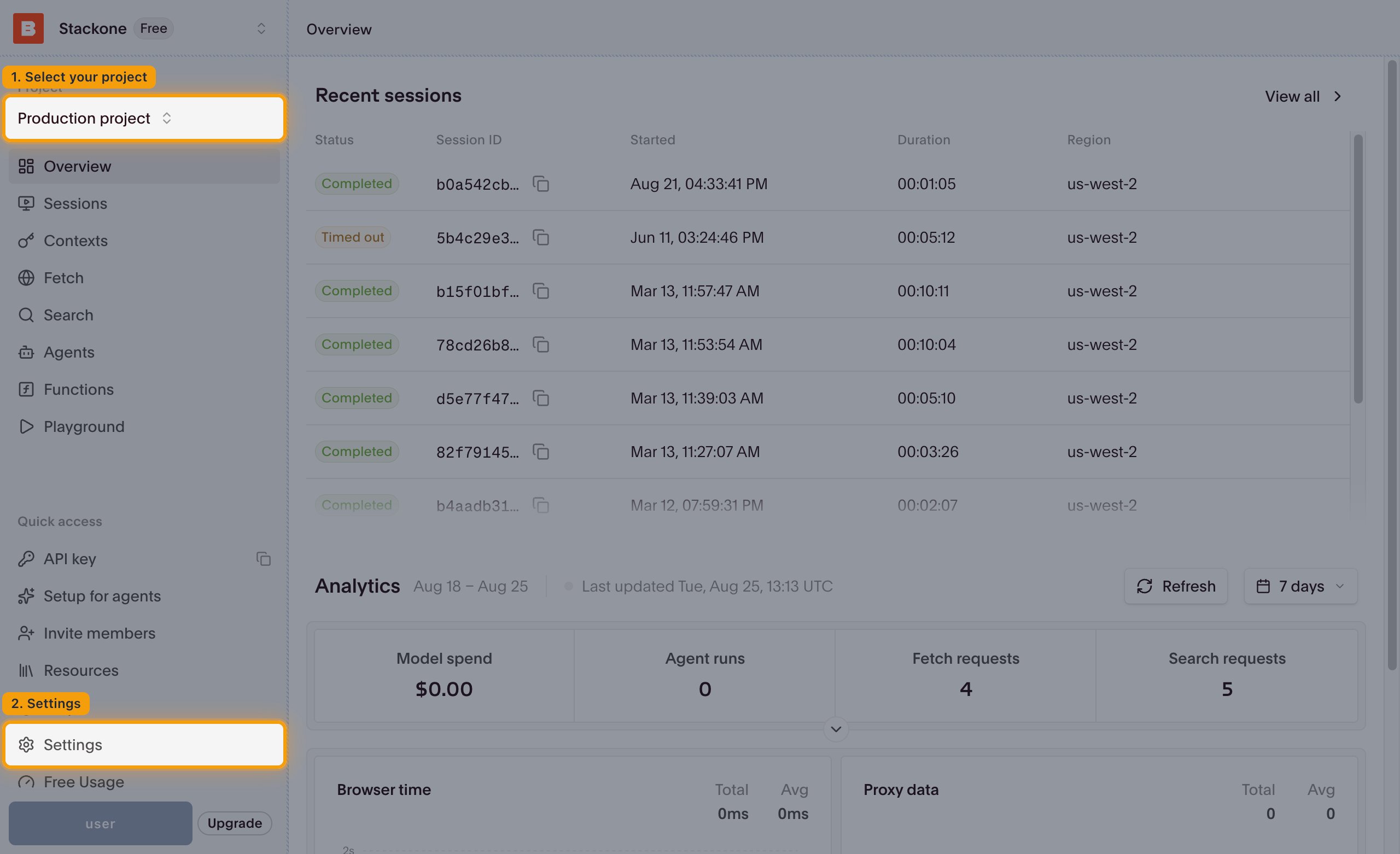
Sign in to the Browserbase dashboard. In the sidebar, use the project switcher under Project at the top to select the project you want to connect, then click Settings near the bottom of the sidebar. On the Settings page, open General under Project.
- Each project has its own Project ID and API key, so make sure the correct project is selected before you copy either value.
Copy your Project ID
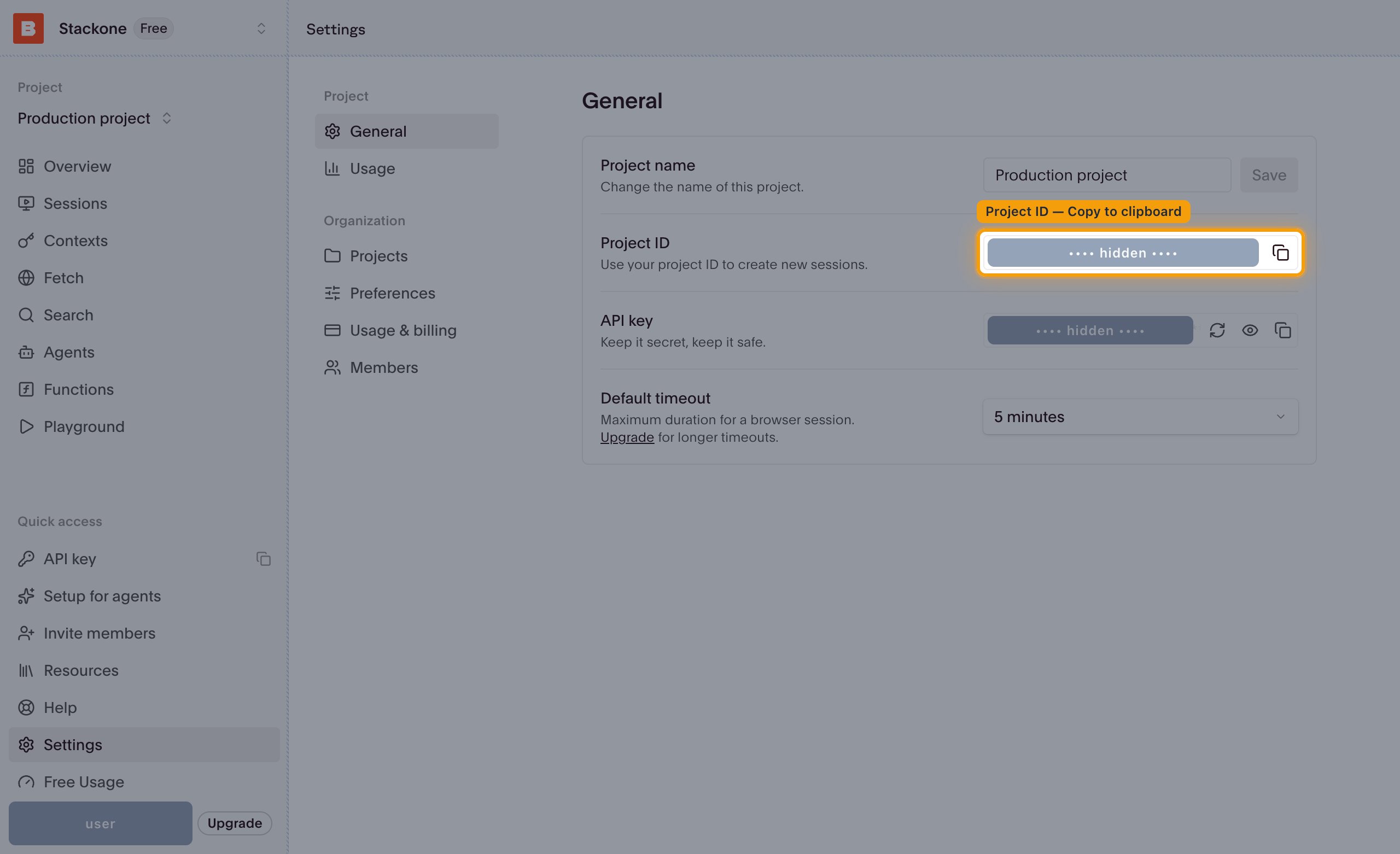
On the General page, find the Project ID row, described as Use your project ID to create new sessions. Click Copy to clipboard at the right of the field to copy the value.
- This is the value for the Project ID field — the identifier that scopes every session, context, and extension the connector creates.
- Format:
xxxxxxxx-xxxx-xxxx-xxxx-xxxxxxxxxxxx - Example:
24008086-34e2-4c52-a57f-3b7df0763e57
Copy your API key
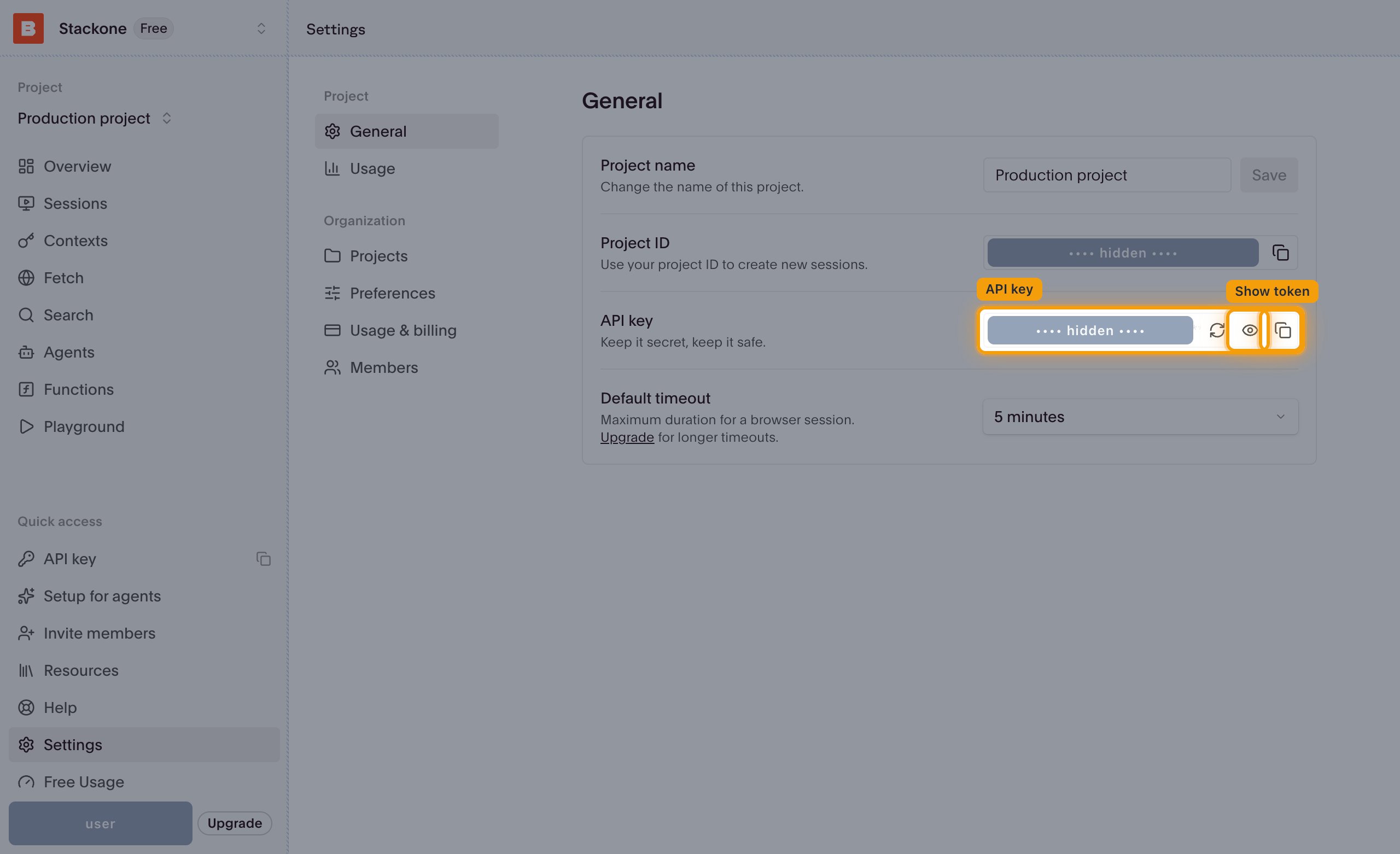
In the API key row, described as Keep it secret, keep it safe., click Show token to reveal the key, then click Copy to clipboard to copy it.
- This is the value for the API Key field — the credential that authenticates every request the connector makes.
- Format:
bb_live_followed by a random string. - The key stays retrievable, so you can return to Settings → General and copy it again whenever you need it.
- Regenerate token issues a new key and immediately invalidates the current one — any connection still using the old key will stop working.
- Shortcut — API key under Quick access in the sidebar copies the key straight to your clipboard without opening Settings.
Enter your credentials in StackOne
In StackOne Hub, paste each value into its matching field:
- API Key — the key you copied from the API key row on the Browserbase General settings page.
- Project ID (optional) — the value you copied from the Project ID row on the same page. Leave it blank to pass a project explicitly on each action instead.
Link the Account
Connect
- Click Connect.
- If applicable, the provider will redirect you to a sign-in or authorization page. Complete the provider’s authorization flow.
- Once authorization is successful, you will see a confirmation popup.
Use Actions