

Create an API key in BreezyHR
BreezyHR calls these keys personal access tokens. A key belongs to the user who creates it and carries that user’s permissions, so sign in to BreezyHR as a Company Administrator before you start.
Open your personal settings
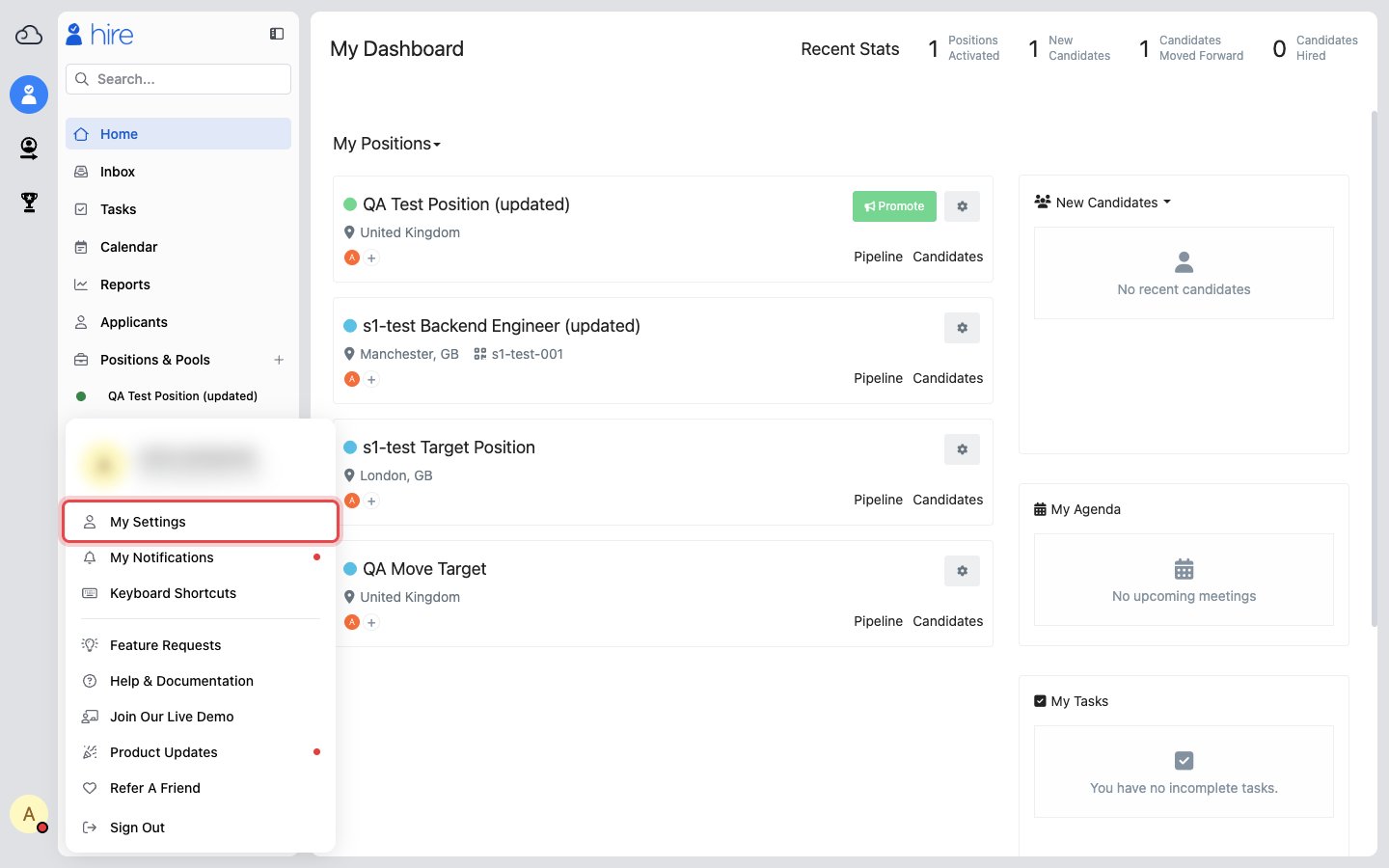
Click your user icon in the lower-left corner of BreezyHR, then select My Settings.
Open the API Keys tab
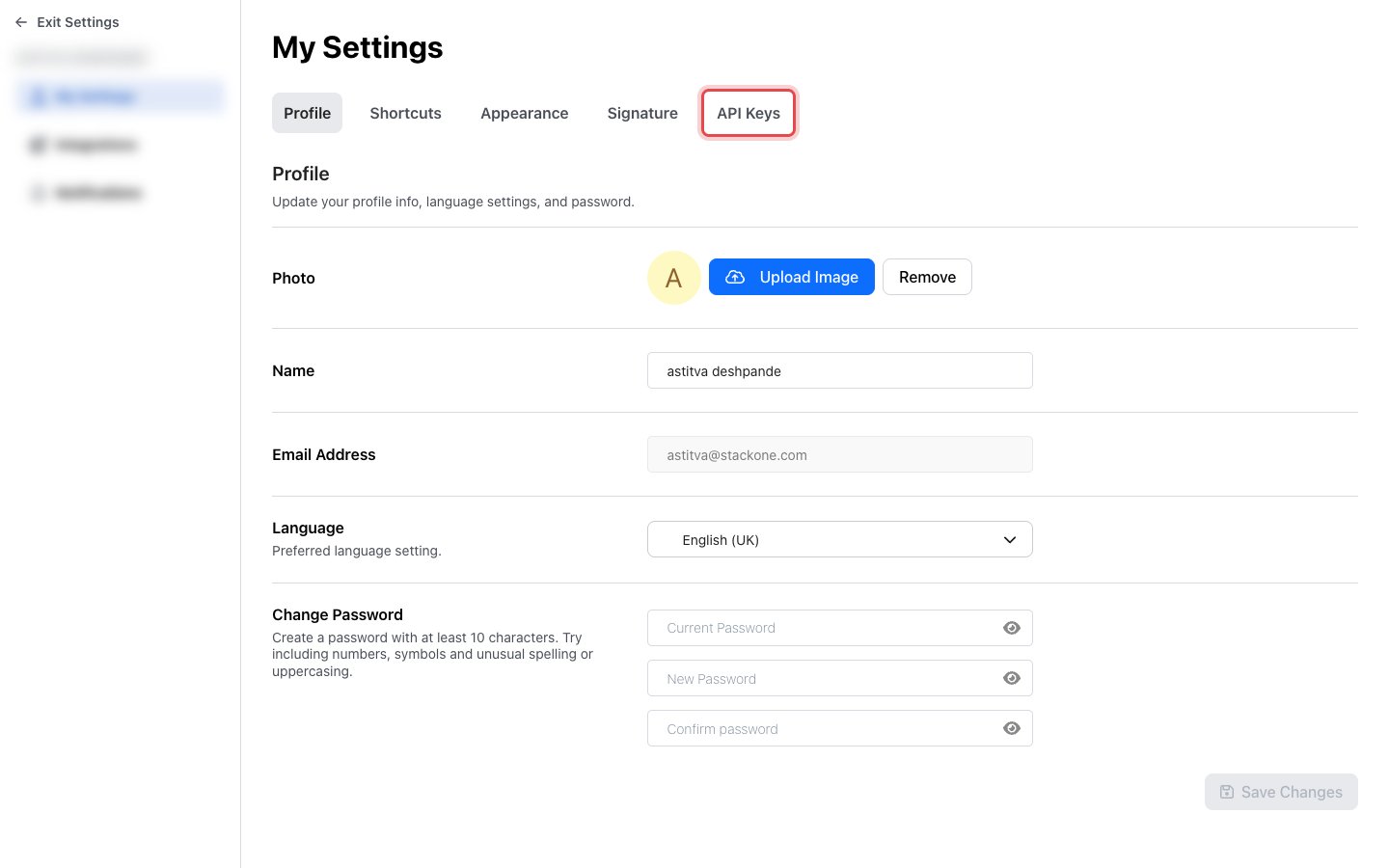
On the My Settings page, select the API Keys tab.
Create a new key
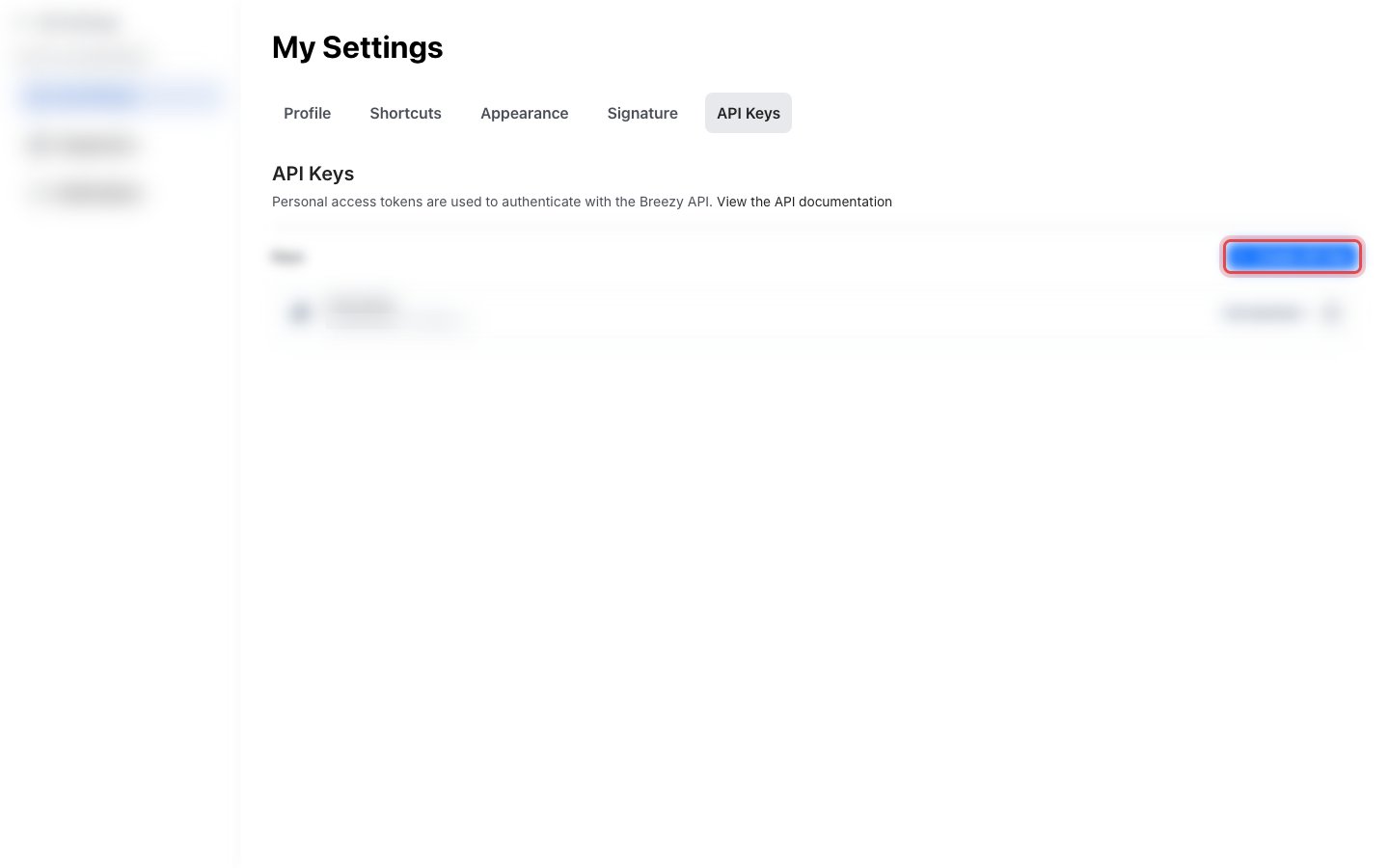
Click Create API Key to open the key dialog.
Name the key and set its expiration
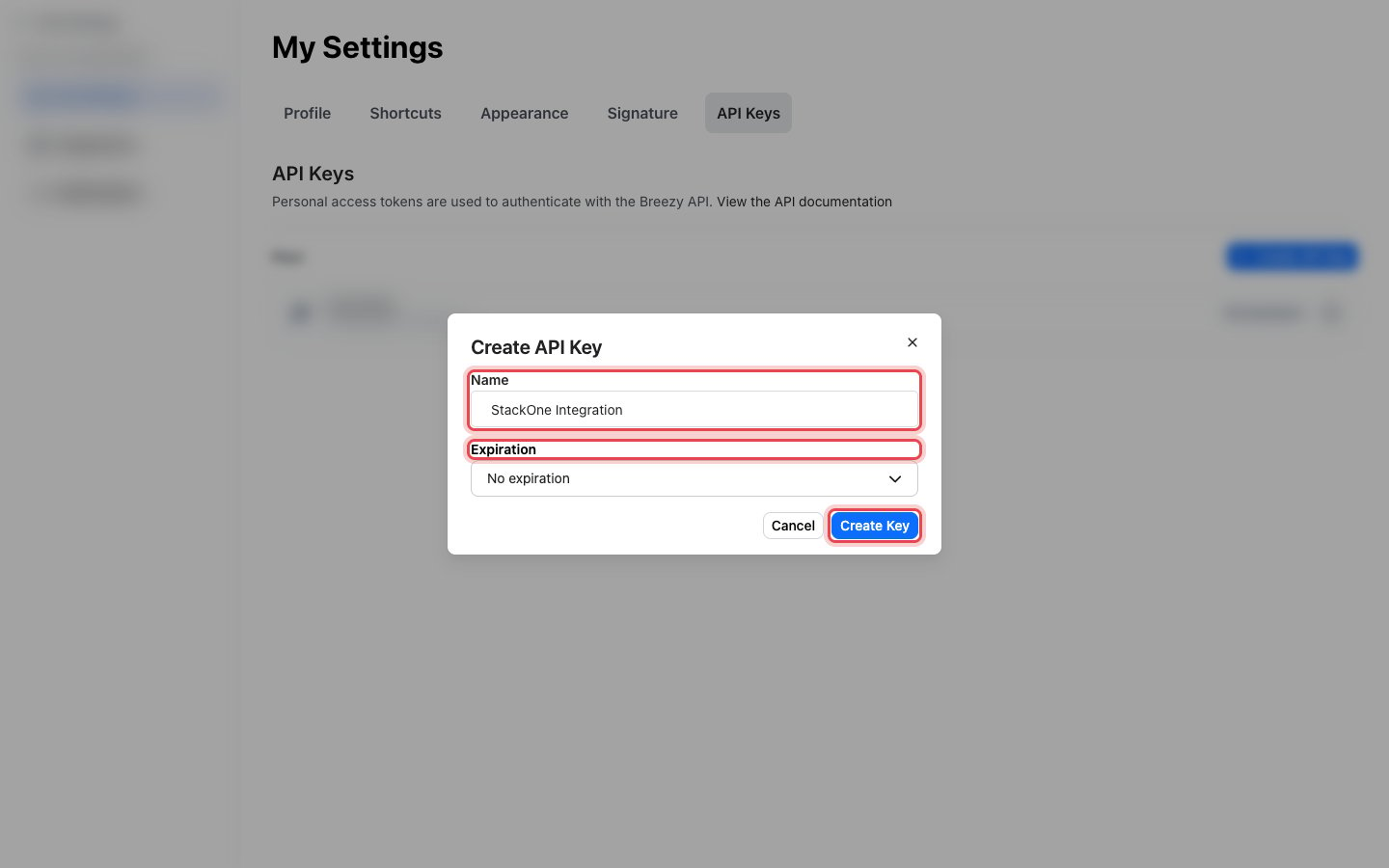
Fill in the dialog, then click Create Key.
- Enter a Name that identifies this integration, for example
StackOne Integration. - Choose an Expiration. Leave it on No expiration so the connection keeps working.
Copy the key into StackOne
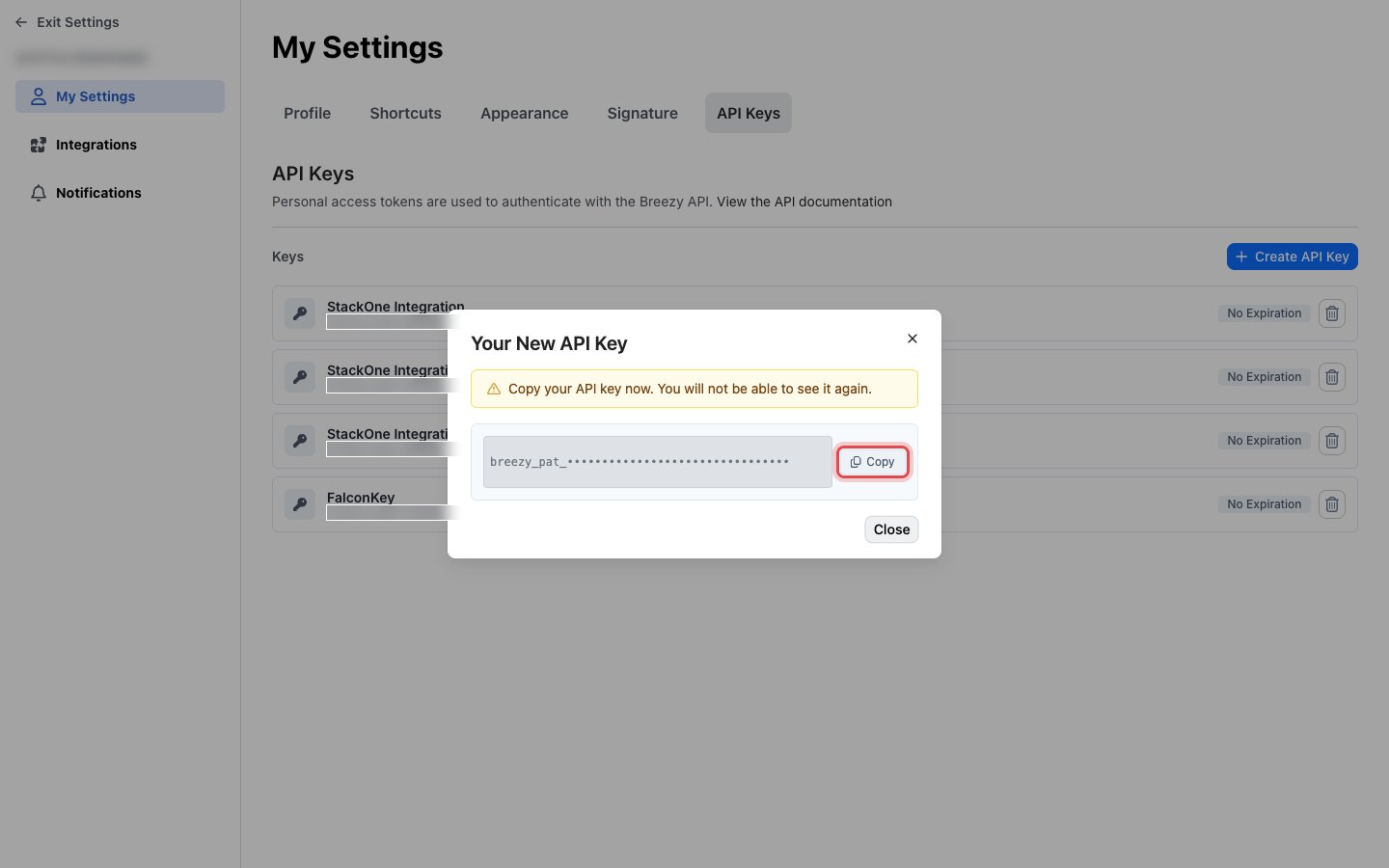
BreezyHR shows the new key once, in the Your New API Key dialog. Click Copy, then paste the value into the API Key field in StackOne Hub. The key begins with breezy_pat_.
Add your Company ID
The Company ID is optional and is used for webhook registration and company-scoped calls. Leave it empty unless you plan to use BreezyHR webhook events.
Copy the Company ID into StackOne
Once the account is connected, run the list_companies action and copy the _id value of the company you want into the Company ID field in StackOne Hub.
Link the Account
Connect
- Click Connect.
- If applicable, the provider will redirect you to a sign-in or authorization page. Complete the provider’s authorization flow.
- Once authorization is successful, you will see a confirmation popup.
Use Actions