

Creating a client ID
Brandfetch issues client IDs from the developer portal. A client ID is a
client side credential that reaches the Brand Search API.
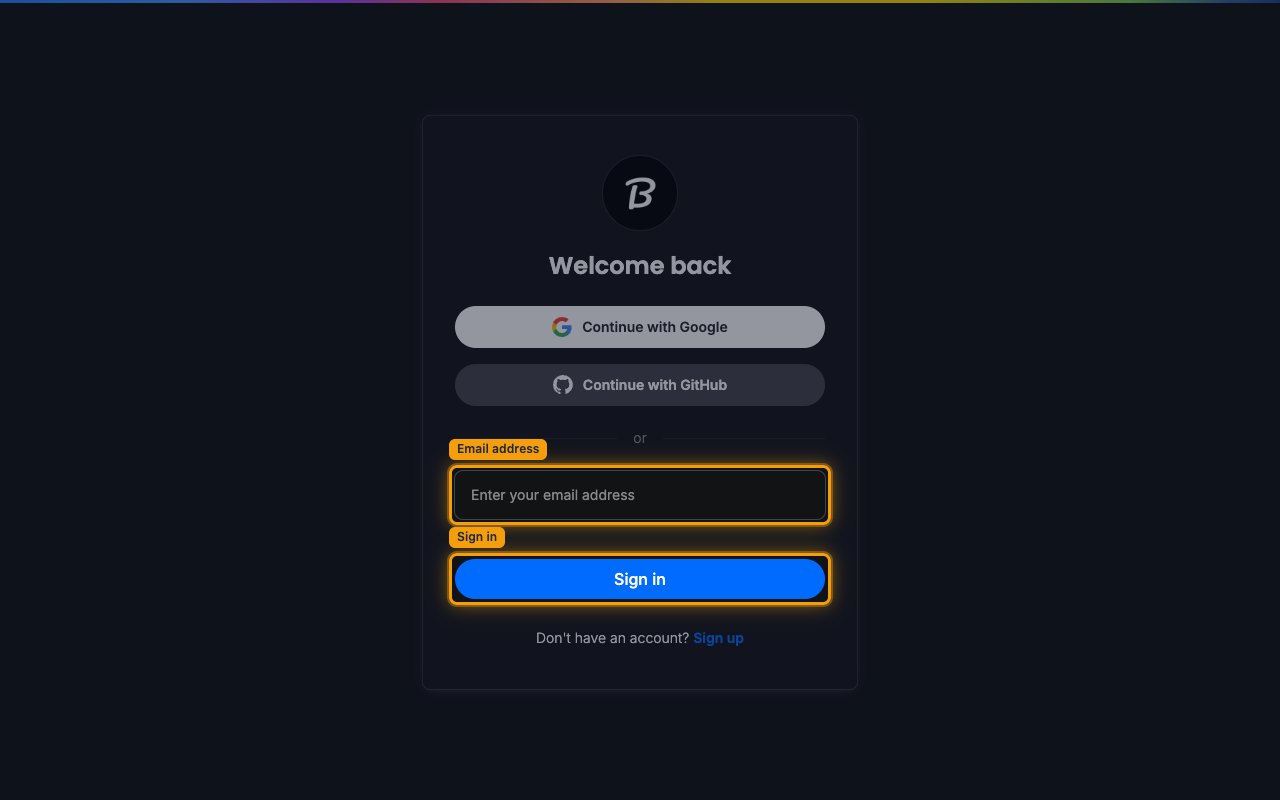
Sign in to Brandfetch
Sign in to your Brandfetch developer account.
- Choose Continue with Google or Continue with GitHub, or enter your address in Enter your email address and click Sign in.
- Select Sign up instead if you do not have an account yet.
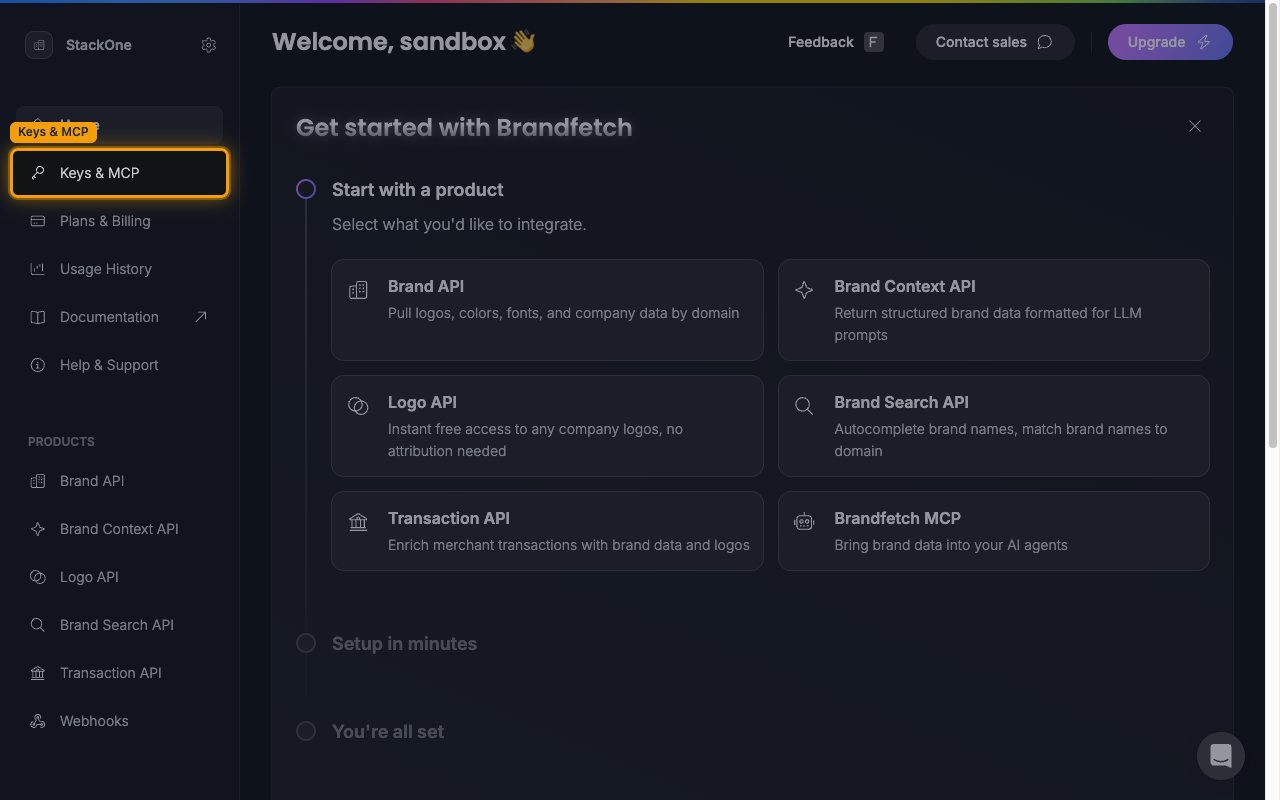
Open Keys and MCP
In the sidebar, click Keys & MCP.
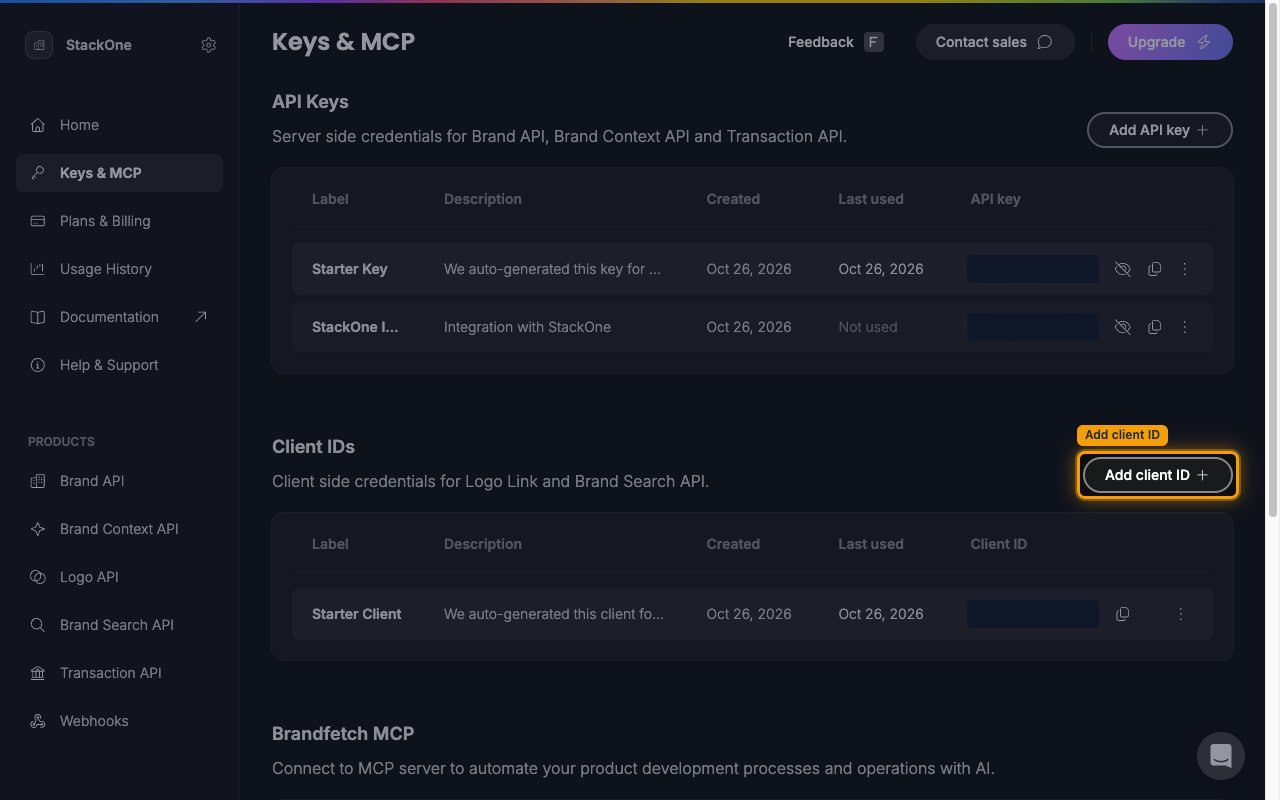
Open the Client IDs section
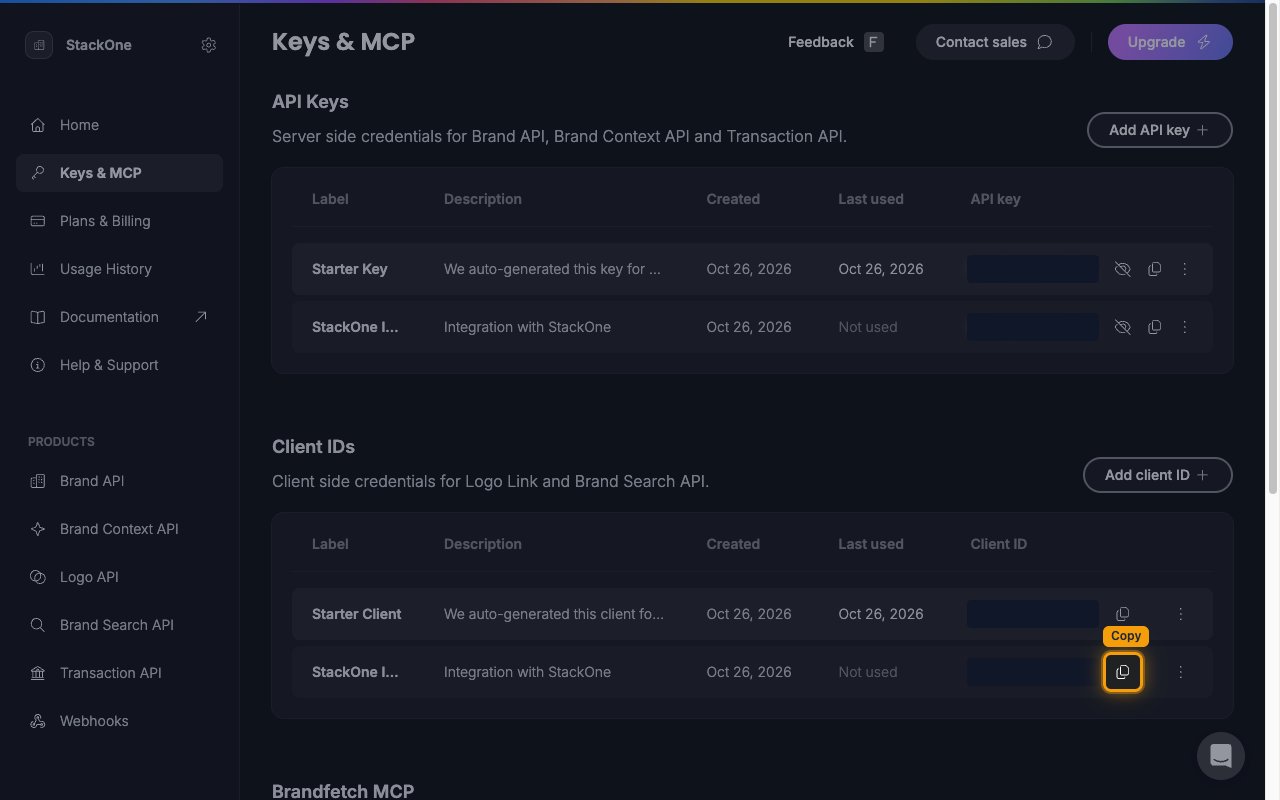
Scroll to the Client IDs section, below API Keys, and click Add client ID.
- The section is labeled Client side credentials for Logo Link and Brand Search API.
- A new account already has one client ID named Starter Client, described as We auto-generated this client for you when you signed up. You can use that client ID instead of creating a new one.
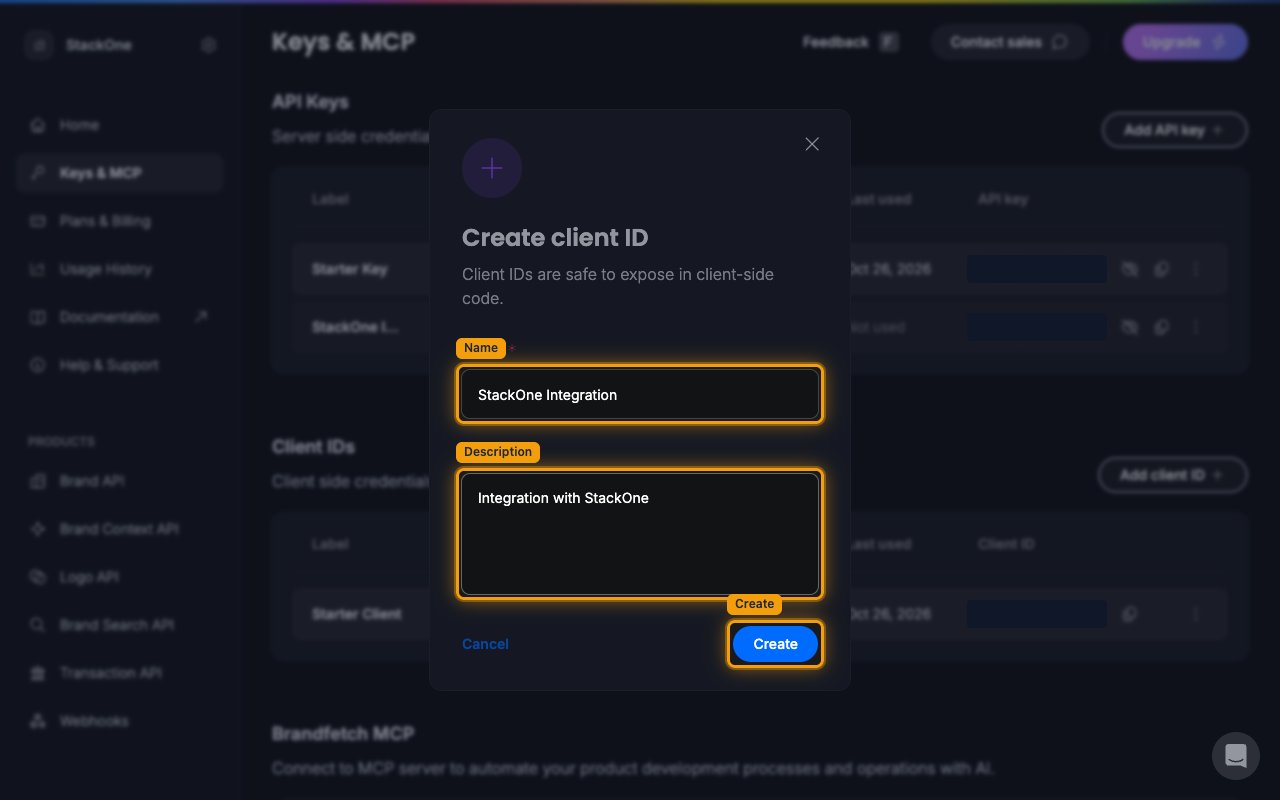
Name and create the client ID
Complete the Create client ID dialog, then click Create.
- Name:
StackOne Integration - Description:
Integration with StackOne - The dialog notes Client IDs are safe to expose in client-side code.
Copying your client ID
The new client ID appears in the Client IDs table under the Client ID column, shortened
to its first and last characters.
Copy the client ID
On the row for your client ID, click the copy icon to copy the full value to your clipboard.
- Paste it into the Client ID field in StackOne Hub.
- The value stays available in Keys & MCP, so you can copy it again later.
Linking the Account from the Hub
Navigate to the Hub
Fill out the fields
- Client ID
Connect
- Click Connect
- If applicable, the provider will redirect you to a sign-in or authorization page. Complete the provider’s authorization flow.
- Once authorization is successful, you will see a confirmation popup
If the account linking is successful, you will see the newly linked account on your Accounts page.