

Retrieve your Developer Token
The developer token is sent as the DeveloperToken header on every Microsoft Advertising API request.
Open Developer settings
Sign in to Microsoft Advertising, open Settings in the left rail, and select Developer settings.
- You must be signed in as a Super Admin of the Microsoft Advertising account to request or view the developer token.
Request a developer token (first time)
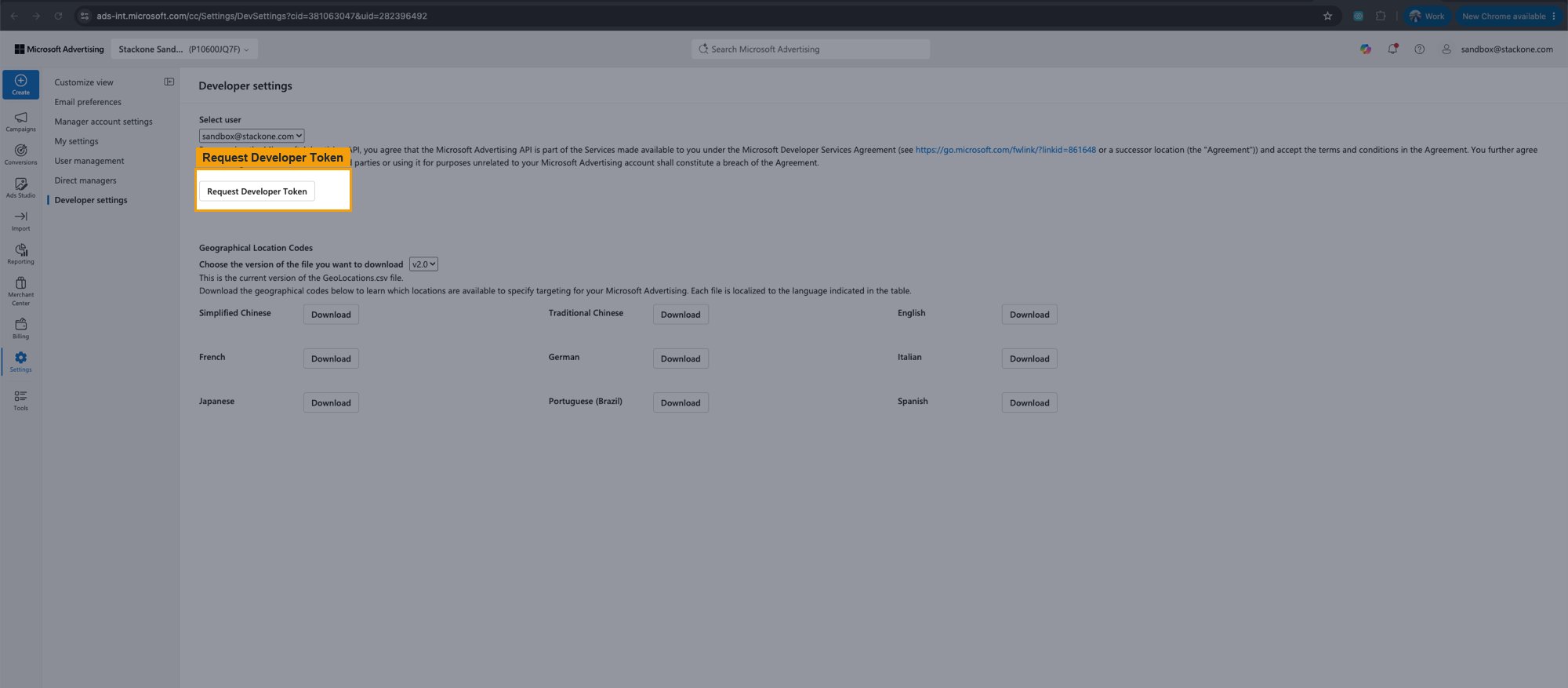
On the Developer settings page, choose the account under Select user. If you do not have a token yet, review the Microsoft Developer Services Agreement and click Request Developer Token.
Copy your developer token
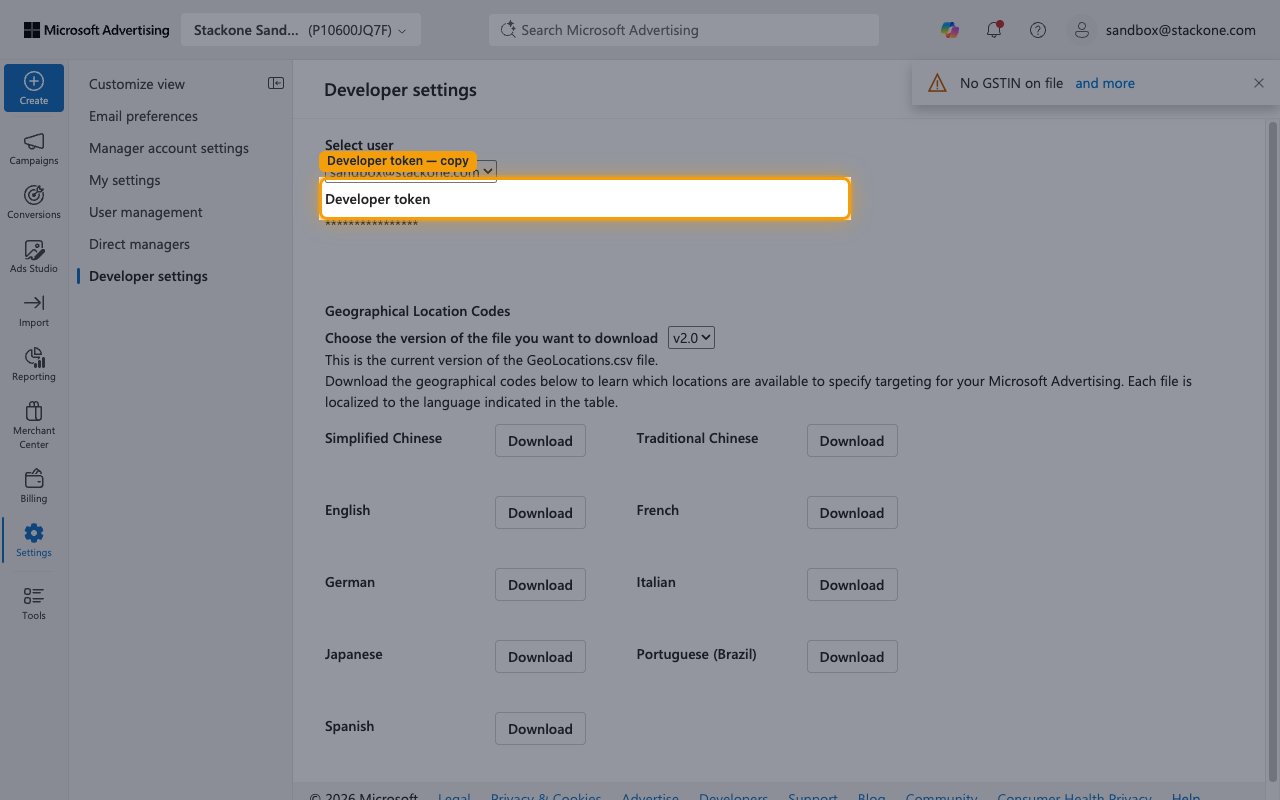
Once a token has been issued, it is shown under Developer token on the same Developer settings page. Copy it and paste it into the Developer Token field in StackOne Hub.
Find your Customer ID and Account ID
The Customer ID identifies the manager (customer) account and is sent as the CustomerId header. The Account ID identifies the ad account being managed and is sent as the CustomerAccountId header. Both appear in the Microsoft Advertising web UI URL.
Copy the IDs from the URL query string
Sign in to the Microsoft Advertising web UI, open the account you want to manage, and look at the browser address bar. The URL query string contains both IDs.
cid=is your Customer ID — enter it in the Customer ID field in StackOne Hub.aid=is your Account ID — enter it in the Account ID field in StackOne Hub.- Format:
https://ui.ads.microsoft.com/campaign/vnext/...?cid={customerId}&aid={accountId} - Example:
https://ui.ads.microsoft.com/campaign/vnext/overview?cid=251243063&aid=141534522
Linking the Account from the Hub
Navigate to the Hub
Fill out the fields
- Developer Token
- Customer ID
- Account ID
Connect
- Click Connect
- If applicable, the provider will redirect you to a sign-in or authorization page. Complete the provider’s authorization flow.
- Once authorization is successful, you will see a confirmation popup
If the account linking is successful, you will see the newly linked account on your Accounts page.