

Create a Telemetry API token
A Telemetry API token works with sources, dashboards, logs and metrics for a single team. It can’t receive webhook events; use a Global or Incidents API token for those.
1
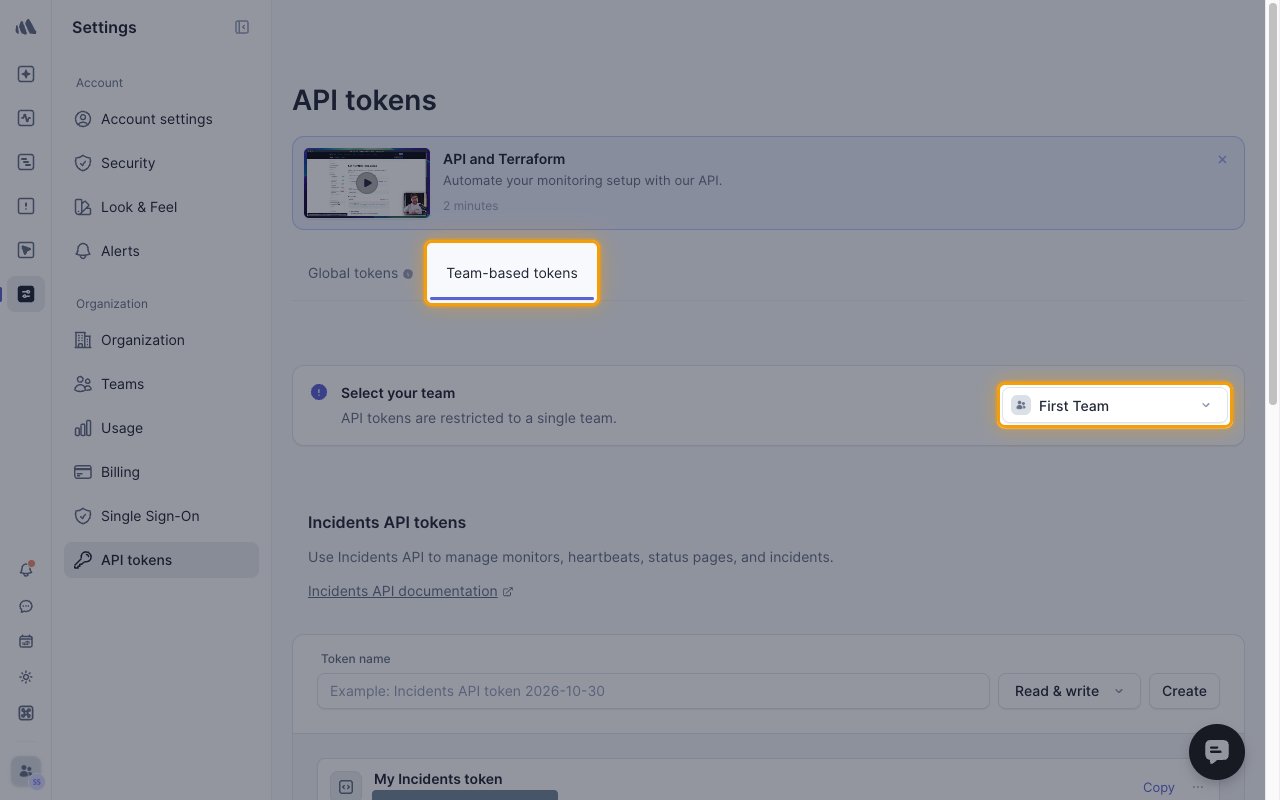
Choose the team
Sign in to your Better Stack account, then go to Settings > API tokens > Team-based tokens.
- Under Select your team, pick the team to connect.
2
Create the token
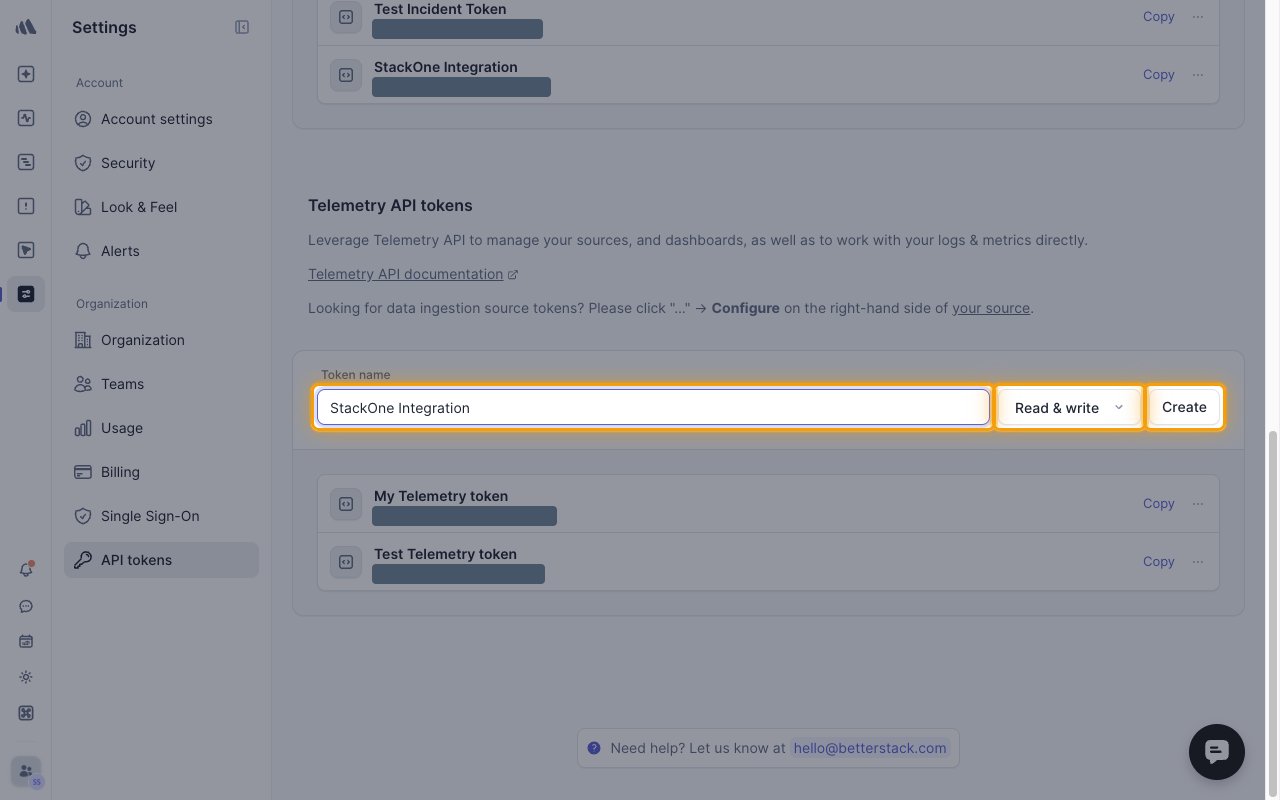
In the Telemetry API tokens section, fill in the token form.
- Token name:
StackOne Integration - Select Read & write, or Read only for a read-only connection.
- Click Create.
- Use a token from Telemetry API tokens, not a source ingestion token.
3
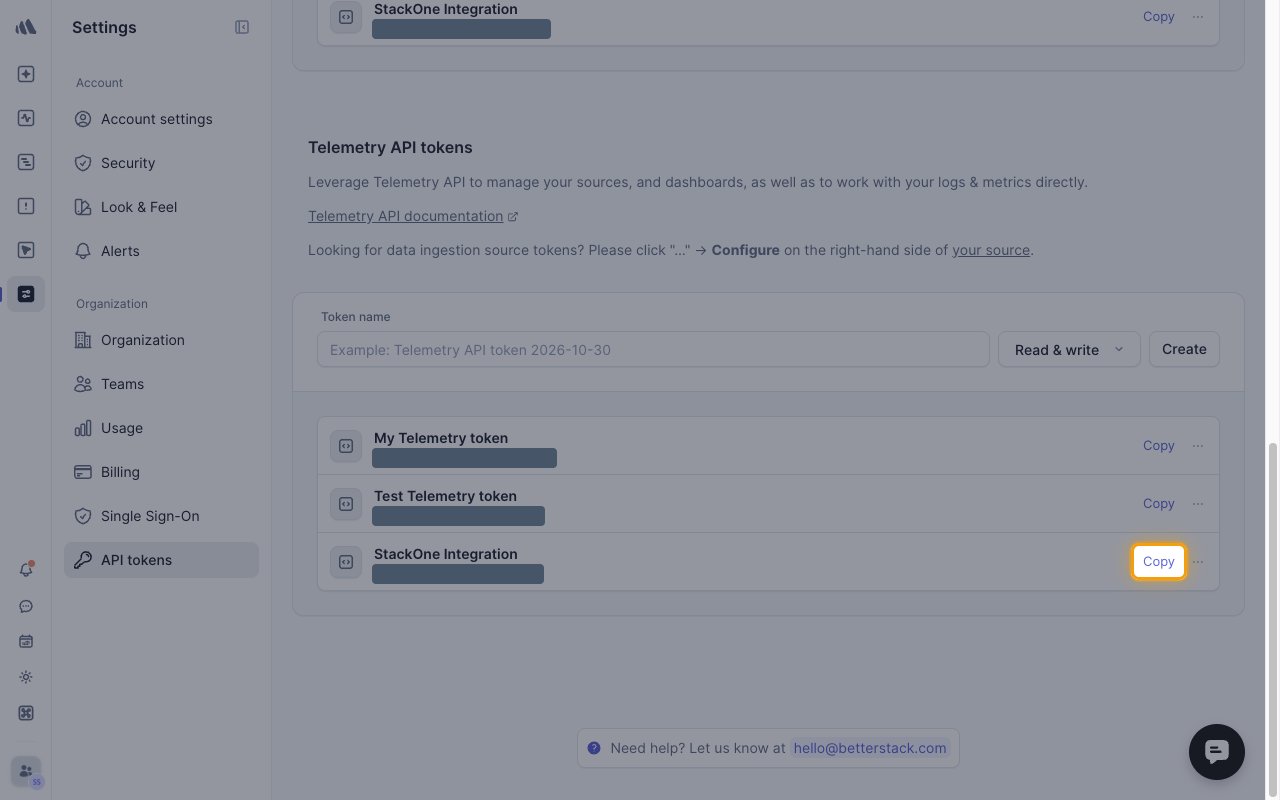
Copy the token
In the StackOne Integration row under Telemetry API tokens, click Copy, then paste the API Token into StackOne Hub.
Linking the Account from the Hub
1
Navigate to the Hub
Use one of the three Linking Account Methods to access the Hub.
2
Fill out the fields
Fill out the following fields using details from your provider:
- API Token
3
Connect
- Click Connect
- If applicable, the provider will redirect you to a sign-in or authorization page. Complete the provider’s authorization flow.
- Once authorization is successful, you will see a confirmation popup
If the account linking is successful, you will see the newly linked account on your Accounts page.
Next Steps
Webhooks setup
Configure receiving Events for Better Stack into StackOne.