

Prerequisites
The connector should already be set up, with a Connector Profile and a Linked Account. See Getting Started on the Basecamp connector page.Configure Basecamp Webhooks
Basecamp delivers real-time webhook notifications for events within a project. Follow the steps below to configure webhooks for your Basecamp project.
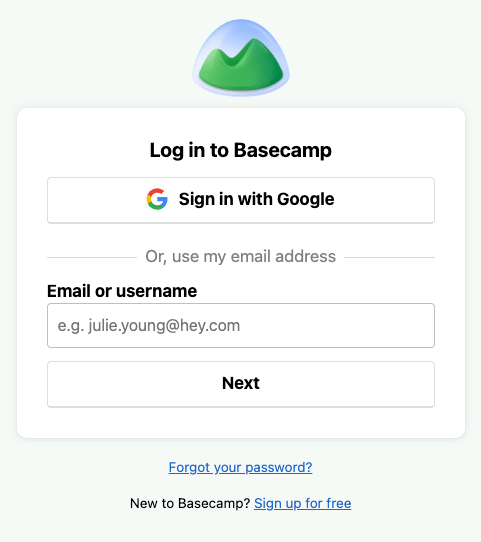
Sign in to Basecamp
Sign in to your Basecamp account with administrator credentials.
Identify Your Project
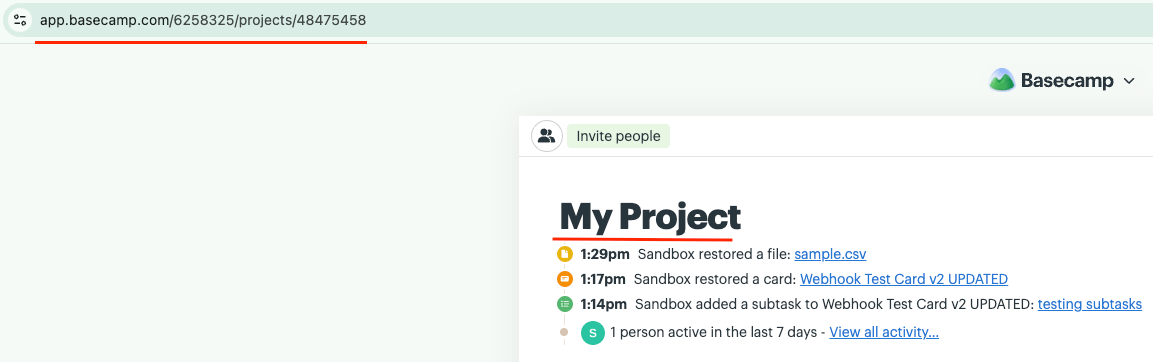
Navigate to the project you wish to receive events from. Your Account ID and Project ID can be found in the browser URL bar.
- Open your project in Basecamp.
- The URL follows this format:
https://app.basecamp.com/{account_id}/projects/{project_id} - Note both the Account ID and Project ID — these are required in later steps.
Open Webhook Settings
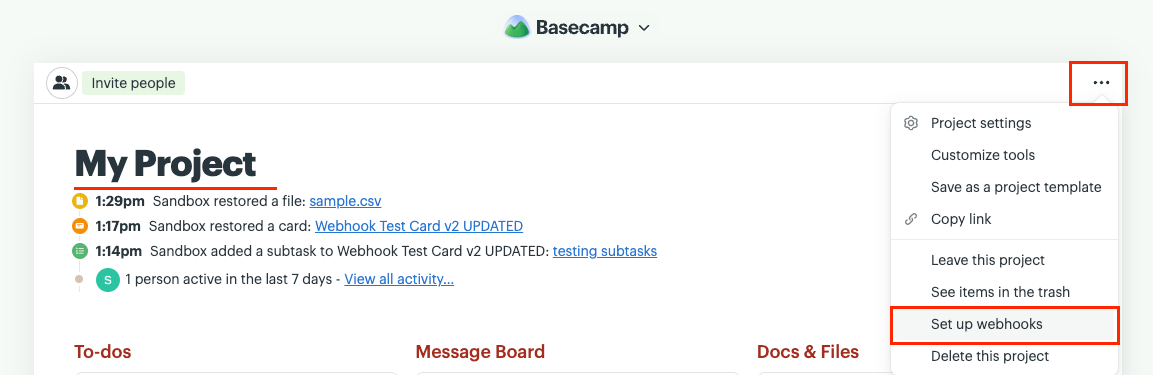
Navigate to Set up webhooks from the three-dot menu in the top-right corner of your project.
Register the Webhook
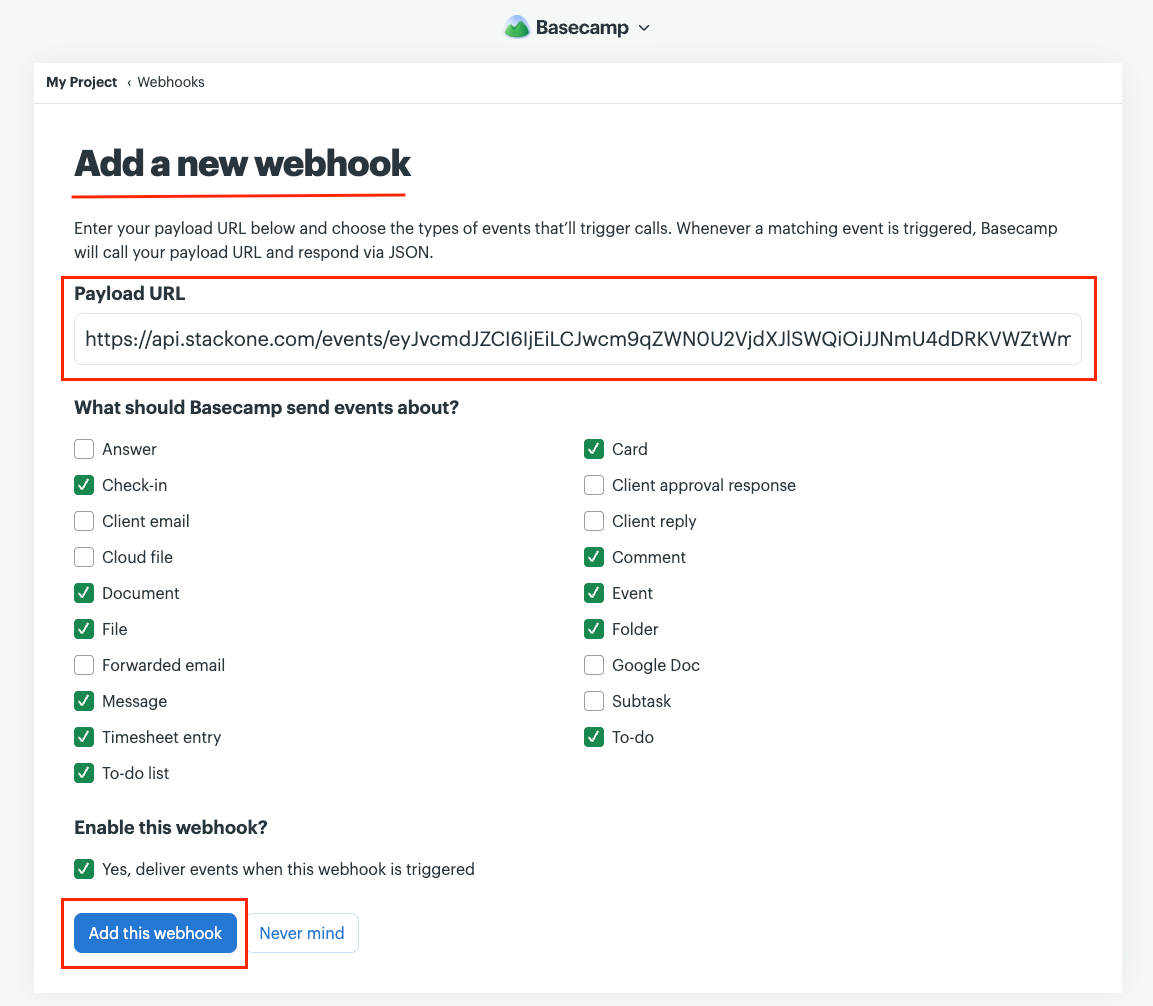
Add a new webhook by providing the Payload URL and selecting the event types you wish to receive notifications for.
- Click the Add a new webhook button.
- In the Payload URL field, paste the Native Webhook URL copied from the StackOne Hub connection form.
- Select the event types you wish to subscribe to. Refer to the Select Event Types step below for supported events.
- Tick the Enable this webhook checkbox to activate the webhook.
- Click the Add this webhook button to save.
Select Event Types
The following event types are currently supported by the StackOne Basecamp integration. Select the relevant types when configuring your webhook.
- To-do — To-do item events (created, completed, updated, deleted)
- To-do list — To-do list events
- Message — Message board events
- Comment — Comment events on any recording
- Document — Document events
- File — File upload events
- Timesheet entry & Event — Calendar and schedule events
- Card — Card table (Kanban) events
- Folder — Folder (Docs & Files) events
- Check-in — Automatic check-in events