

Get your Avanquest API key
Avanquest authenticates every request with a license key sent in the X-API-KEY header. Copy the key from the Avanquest Developer Portal, then paste it into StackOne Hub. Your Avanquest license key is the value you enter as the API Key in StackOne Hub — they are the same credential.
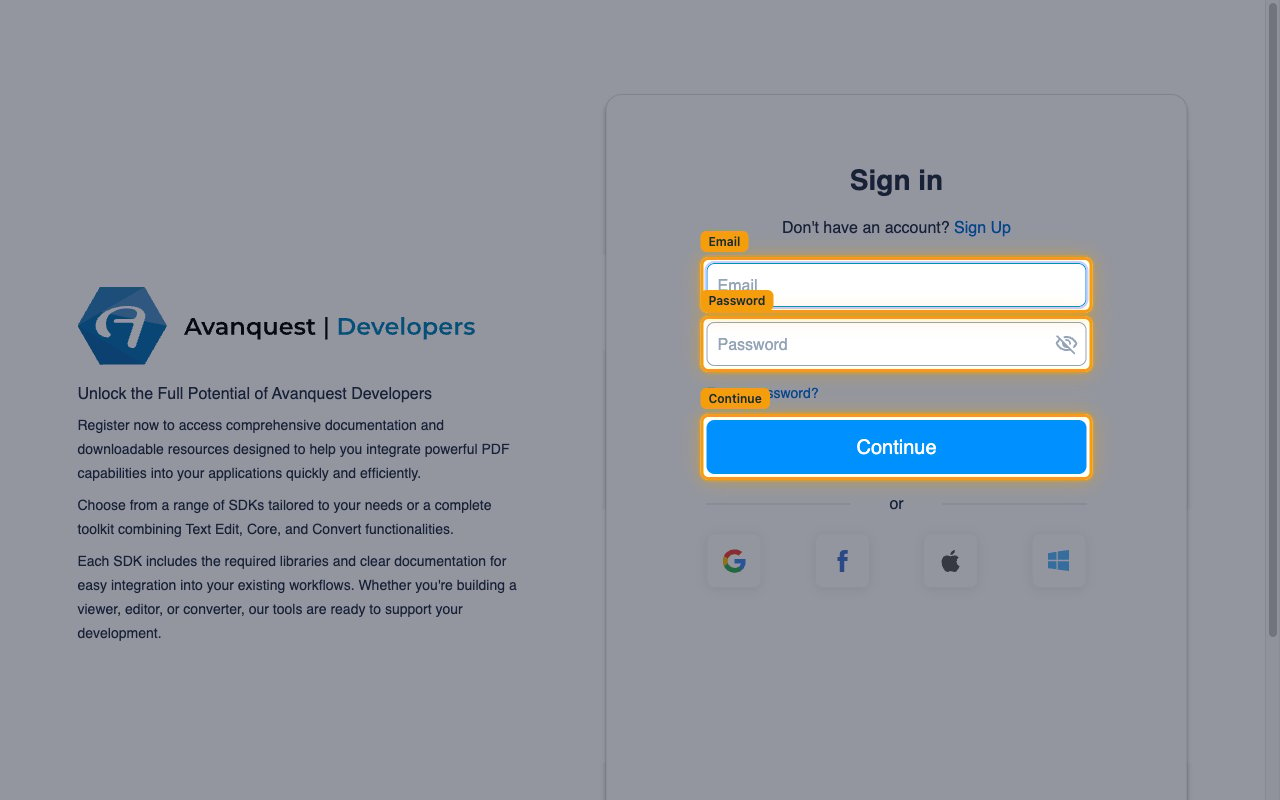
Sign in to the Avanquest Developer Portal
Sign in to the Avanquest Developer Portal with your Avanquest account. No app registration is required, and a free 30-day trial account works.
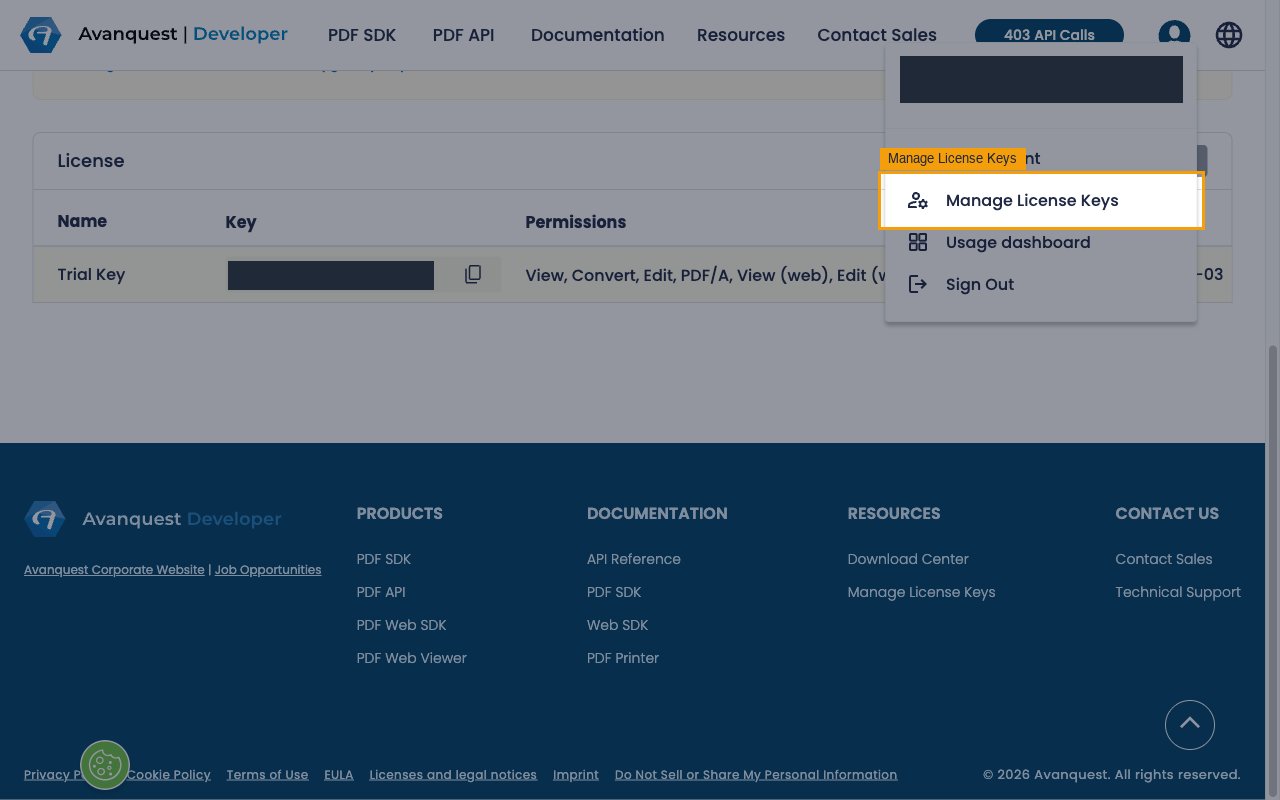
Open Manage License Keys
Open the account menu from the account avatar in the top-right, then select Manage License Keys. The Manage License Keys page lists your keys in the License table with the columns Name, Key, Permissions, Status, and Created.
- New accounts already have a Trial Key created automatically. Its Status shows the remaining trial days (for example Trial · 29d); this number counts down daily and will differ from any screenshot. This Trial Key is all you need to connect StackOne — copy it in the next step.
- To create an additional key, click Create a license key in the License section, enter a Name to identify the key, select the Permissions (services) it should cover — enable every service you plan to use through StackOne — and confirm to generate the key.
- On a trial plan, Create a license key is disabled and shows “You already have a Trial Key. Contact our team to get a custom plan.” — creating additional keys requires a paid or custom plan, so use the existing Trial Key to connect.
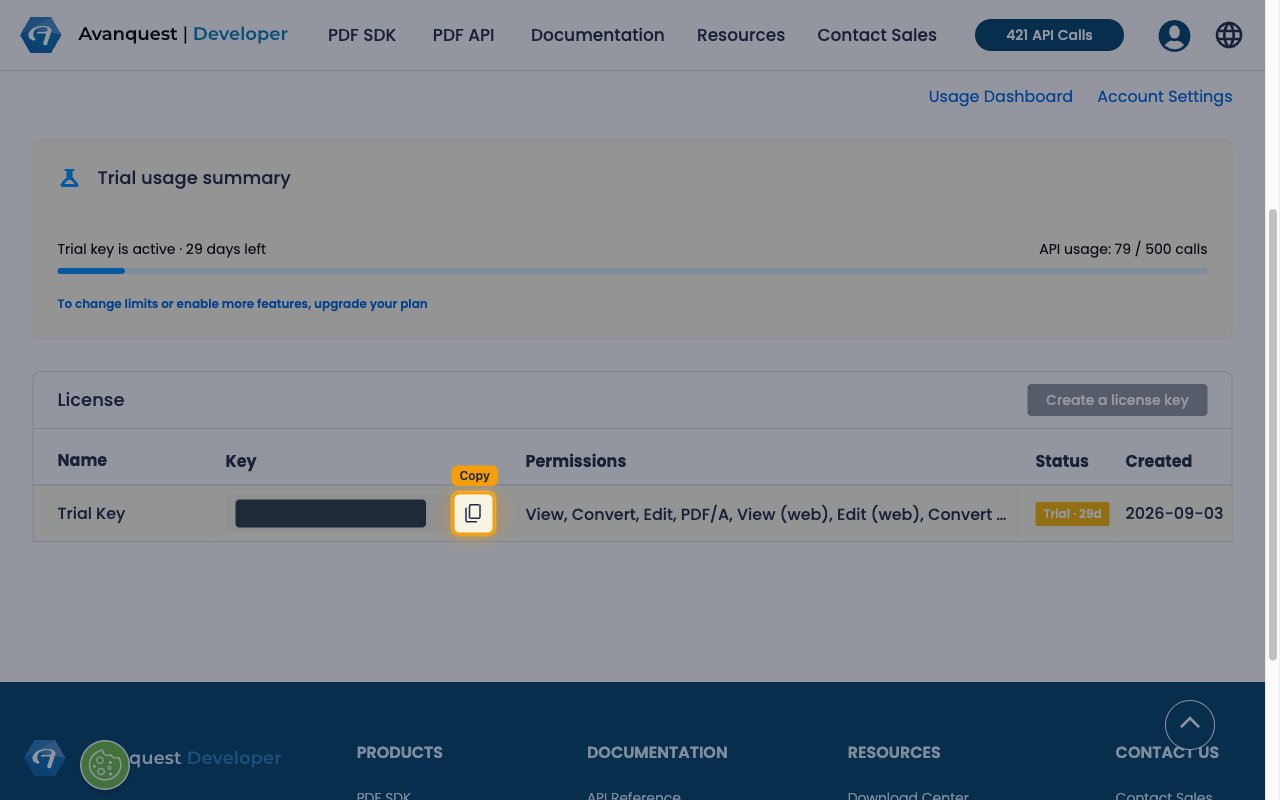
Copy your license key
In the License table, find the key you want to use and click the copy icon in its Key column to copy the full license key value.
- The Key column shows only a shortened preview (for example
lk-v1.…); use the copy icon to copy the complete value. - The key is scoped to the services listed in its Permissions column.
Paste the key into StackOne Hub
In StackOne Hub, paste the copied value into the API Key field to finish connecting your Avanquest account.
Link the Account
Connect
- Click Connect.
- If applicable, the provider will redirect you to a sign-in or authorization page. Complete the provider’s authorization flow.
- Once authorization is successful, you will see a confirmation popup.
Use Actions