

Find your Username
Sign in to Auvik and collect your sign-in address. You are not asked for the Region / Cluster. Your administrator has already set it on the connector profile.
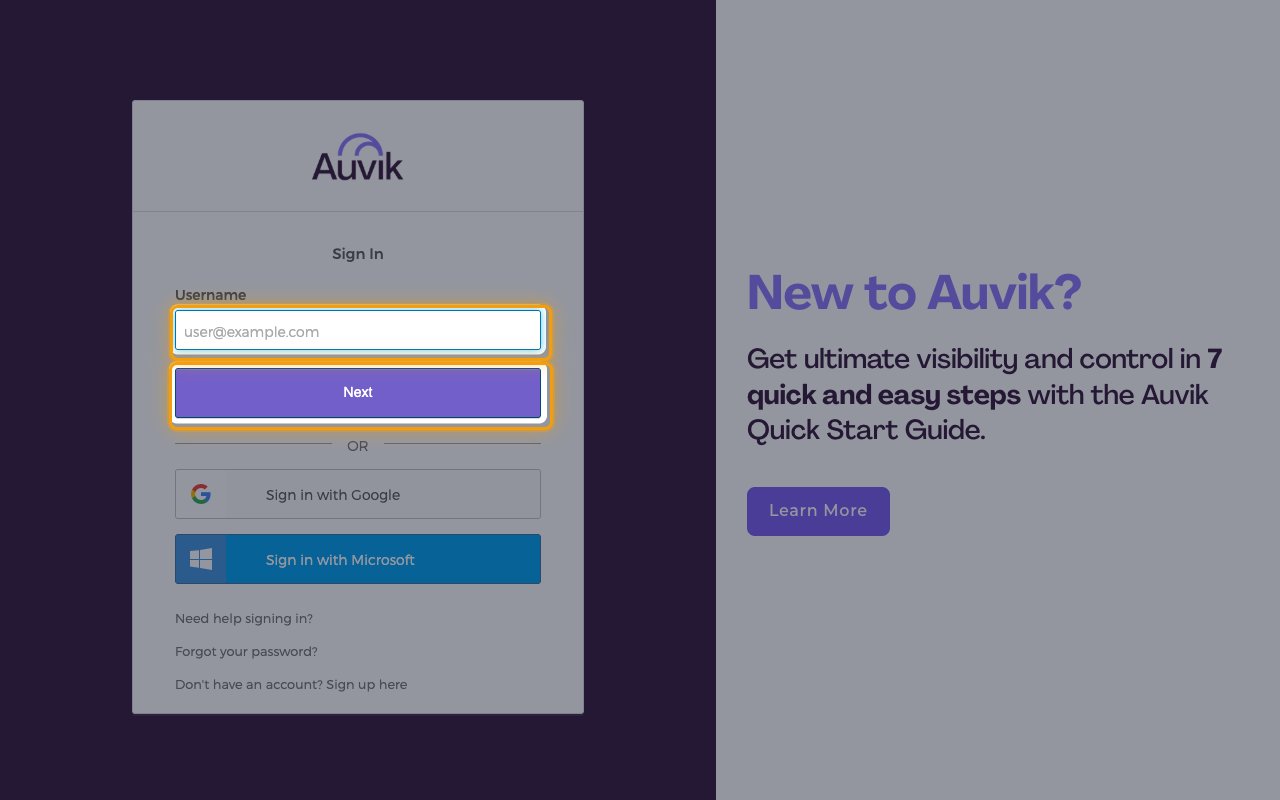
Sign in to Auvik
Open the Auvik sign-in page and sign in with your own Auvik user. Sign-in is two steps: type the address in Username, click Next, then enter the password on the screen that follows.
- Sign in with Google and Sign in with Microsoft are available if your Auvik account uses one of those identity providers.
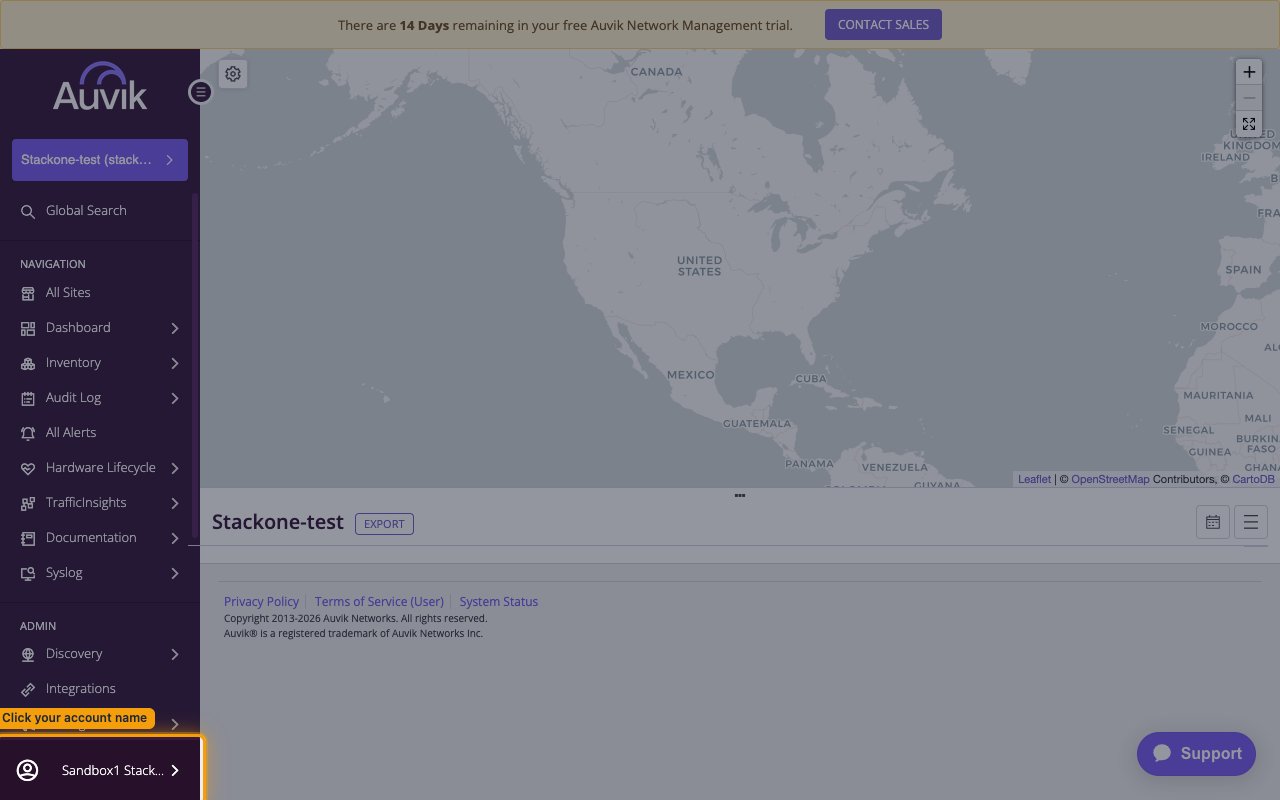
Copy your Username
In the left navigation, click your account name at the bottom, then click Edit Profile to open the Profile page. The address in the Email field is your Username.
- Copy the Email value across as your Username.
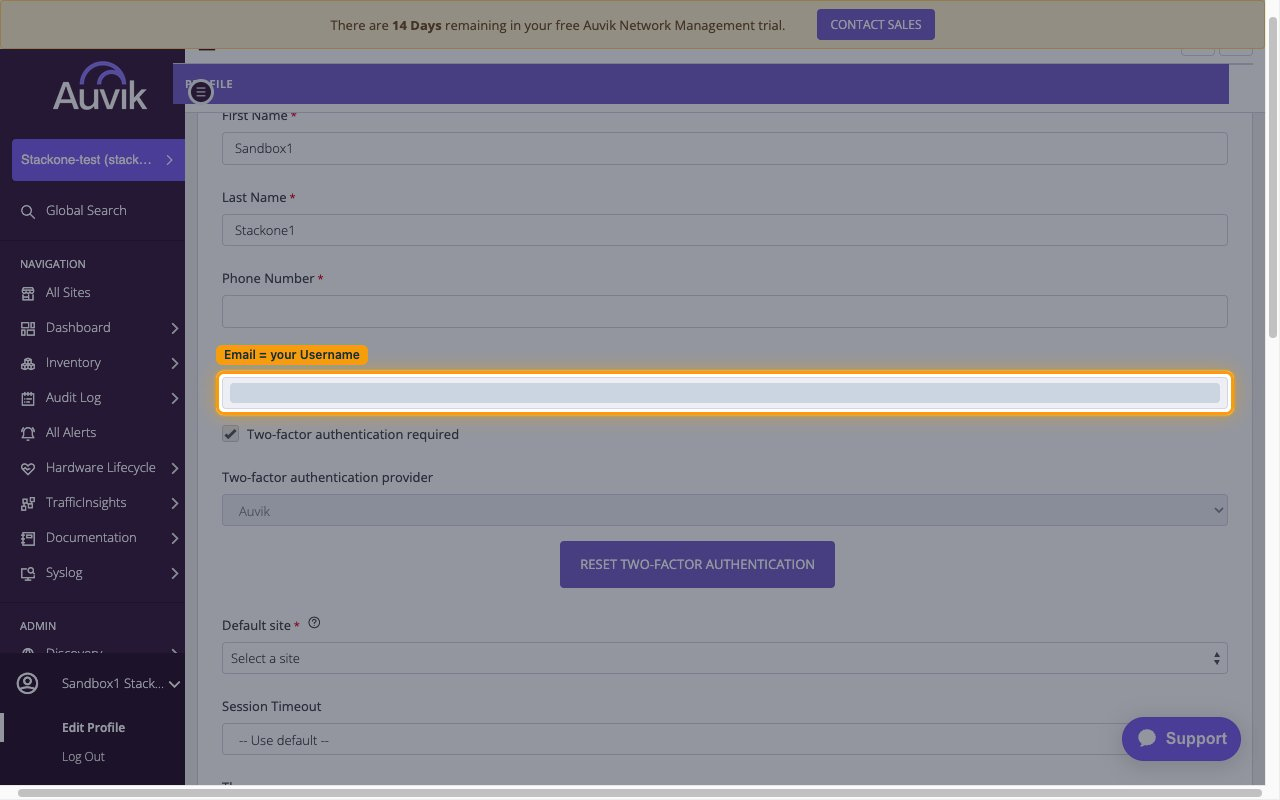
Locate the Email field
On the Profile page, the Email field near the top holds the sign-in address you need.
Generate your API Key
Generate an API Key on the same Profile page. This is the value StackOne uses as the password.
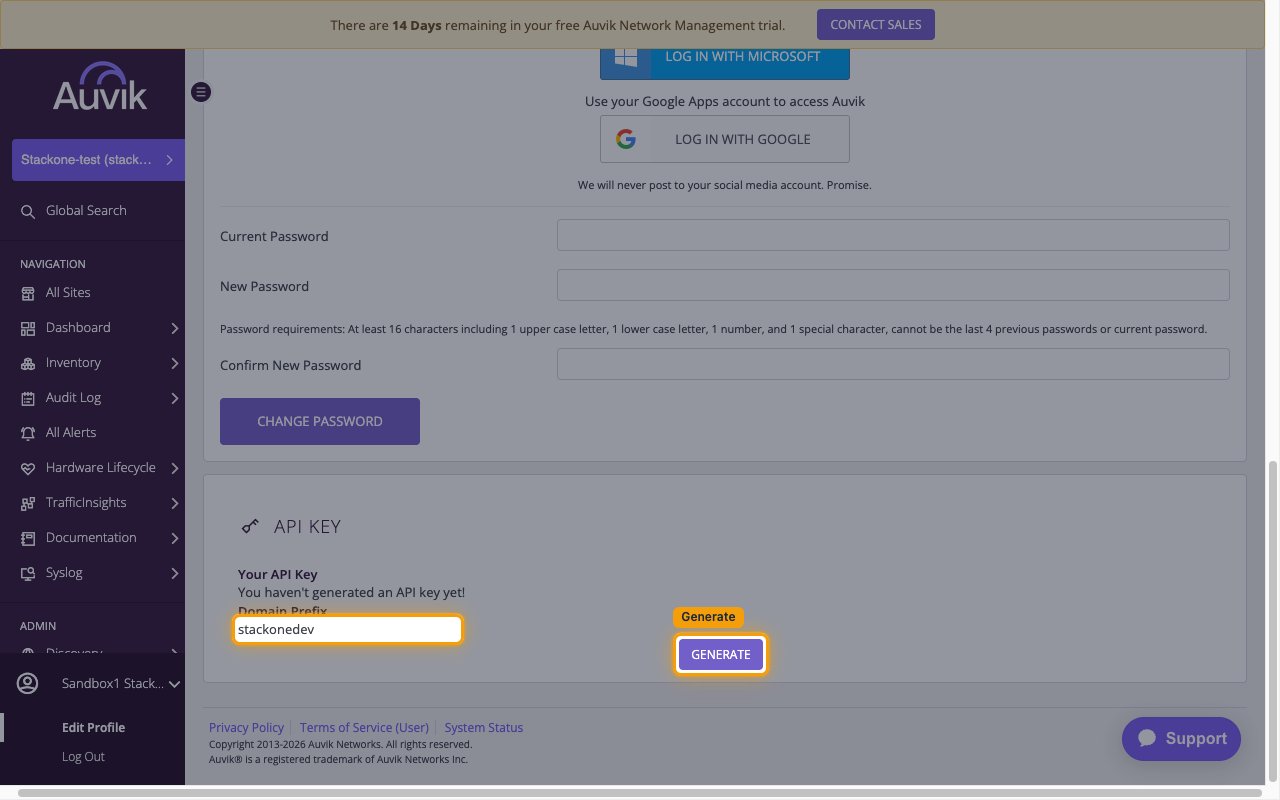
Open the API Key section
Scroll to the bottom of the Profile page to the API Key section. If you have never created one, Your API Key reads You haven't generated an API key yet! and a Generate button is shown. If a key already exists, the buttons read Regenerate and Revoke instead.
- The Domain Prefix shown here (for example
stackonedev) is your site name — it is not the Region / Cluster. - Regenerate immediately invalidates the previous key, so only use it if you are ready to update everywhere the old key is in use.
Copy the key and finish
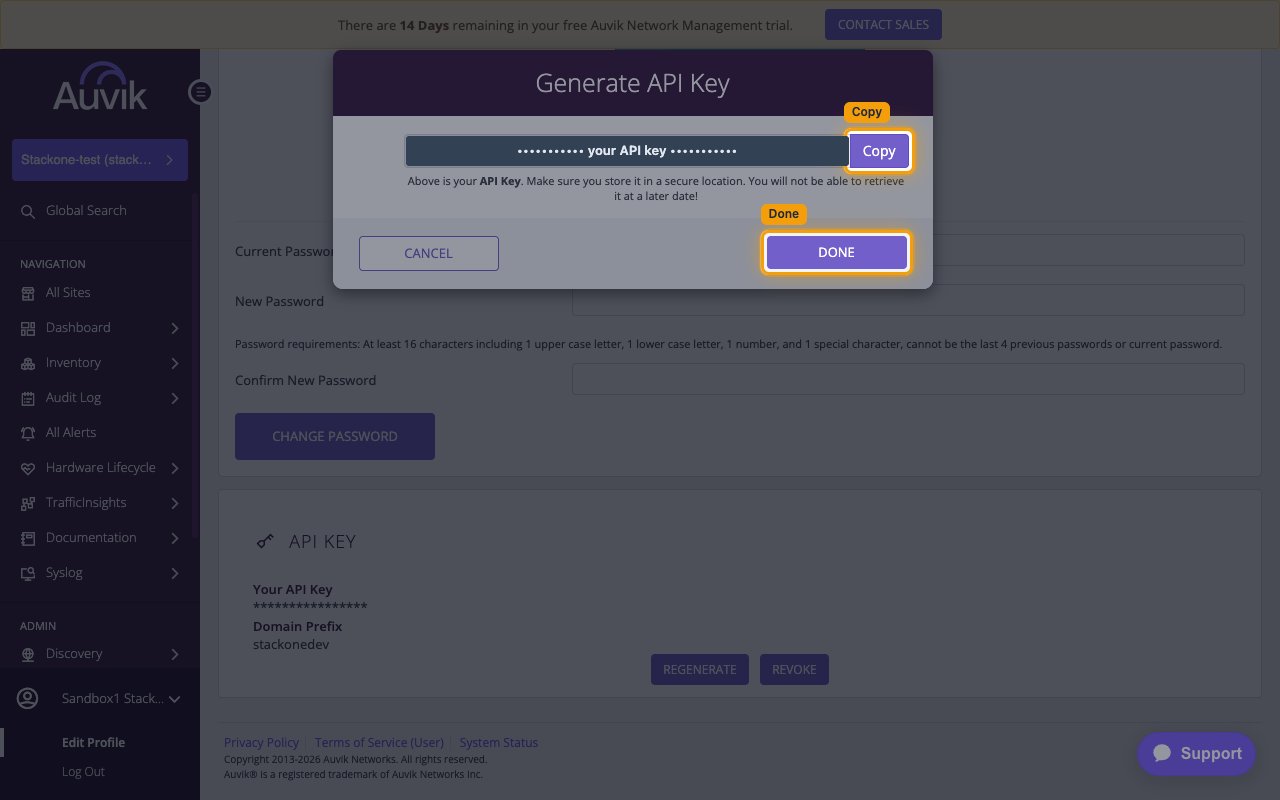
Click Generate. In the Generate API Key dialog, click Copy to copy the key, then click Done.
- The API Key is only displayed once, at generation time, and cannot be retrieved later. Auvik states: Above is your API Key. Make sure you store it in a secure location. You will not be able to retrieve it at a later date!
- Copy the API Key across before closing the dialog — once you click Done the full value is replaced by asterisks and cannot be read again.
- Clicking Cancel discards the dialog, but the key has already been created at this point.
Link the Account
Connect
- Click Connect.
- If applicable, the provider will redirect you to a sign-in or authorization page. Complete the provider’s authorization flow.
- Once authorization is successful, you will see a confirmation popup.
Use Actions
Next Steps
Webhooks setup
Configure receiving Events for Auvik into StackOne.