

Create an Autumn secret key
Autumn authenticates with a server-side secret key (it begins with am_sk_). Generate one from the Developer area of the Autumn dashboard, then paste it into StackOne Hub. Create the key in the environment you want to connect — a Sandbox key begins with am_sk_test_; a Production key uses the standard am_sk_ prefix.
Sign in to Autumn
Sign in to your Autumn dashboard.
Open API Keys
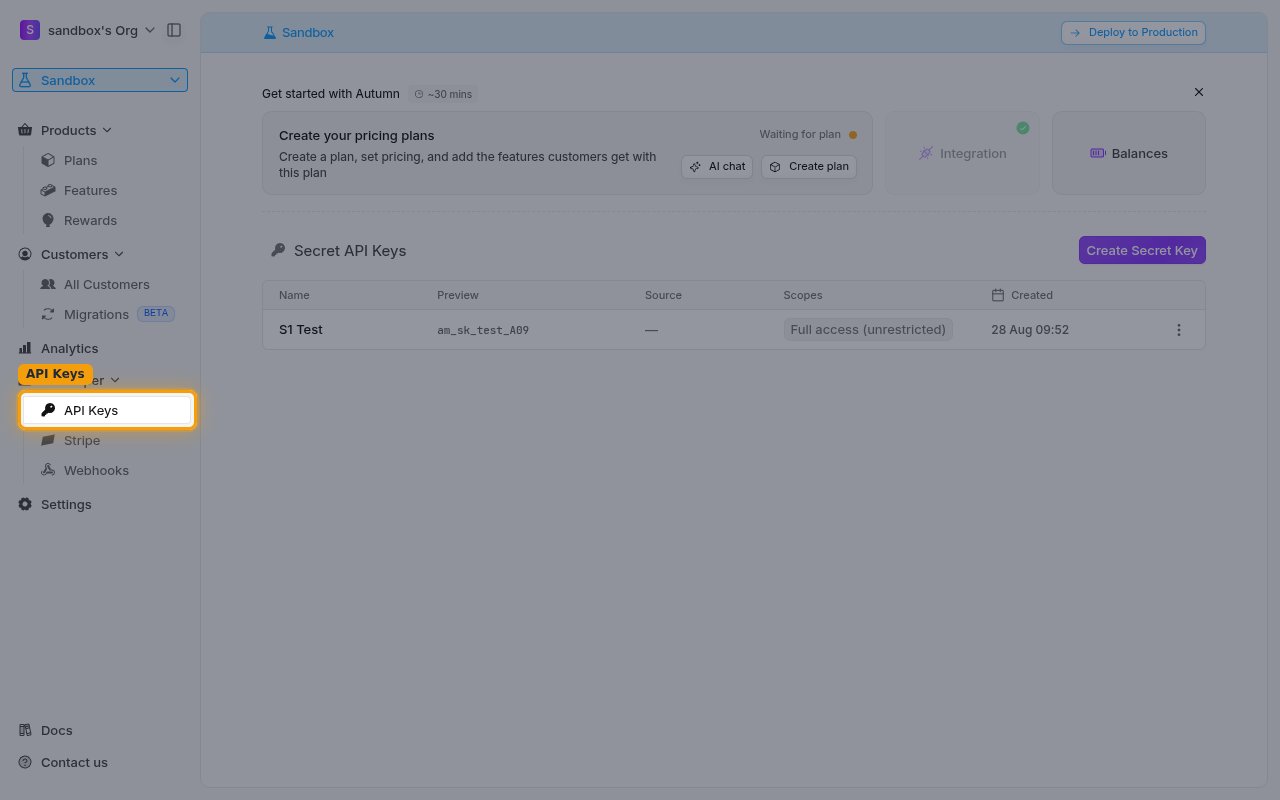
In the Autumn dashboard sidebar, open Developer and select API Keys. The Secret API Keys panel lists your existing keys.
- Use the environment switcher at the top of the sidebar (Sandbox / Deploy to Production) to pick the environment you are connecting before creating the key.
Create a secret key
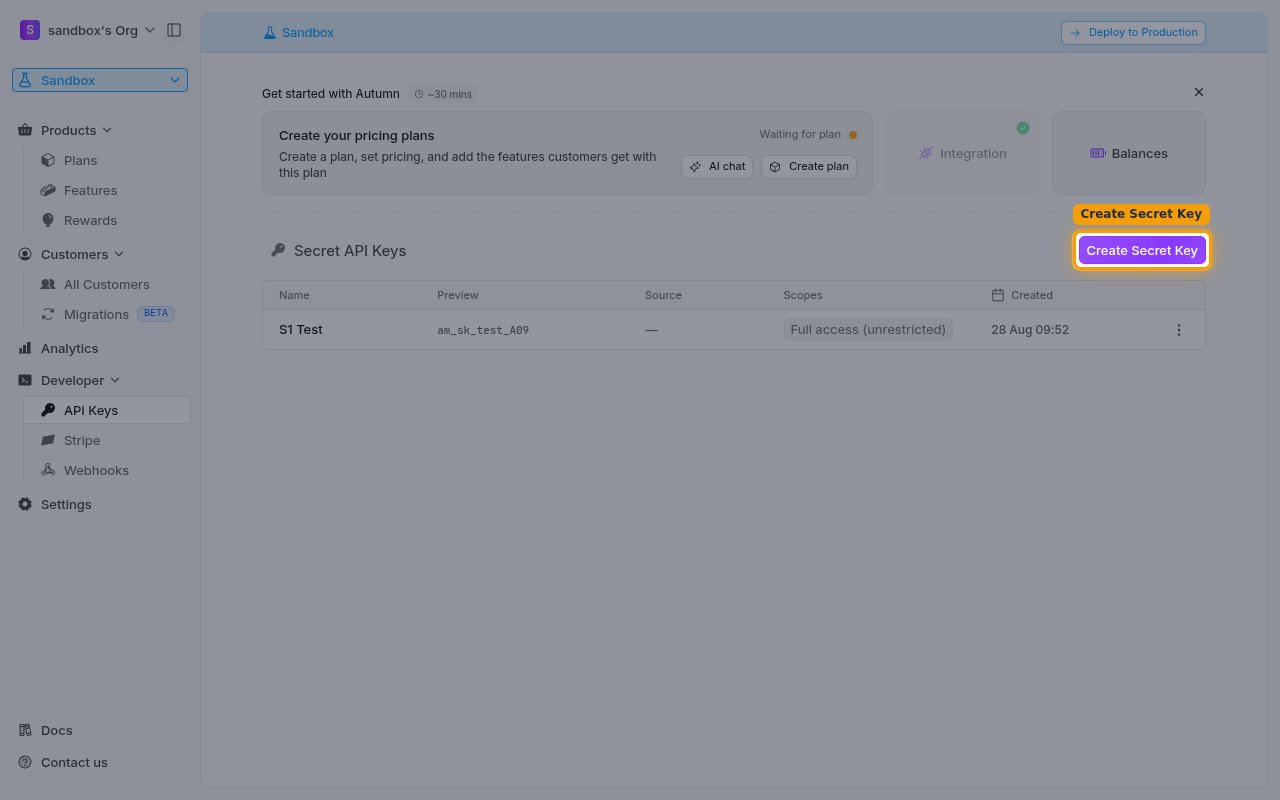
In the Secret API Keys panel, click Create Secret Key.
Enter a name and create the key
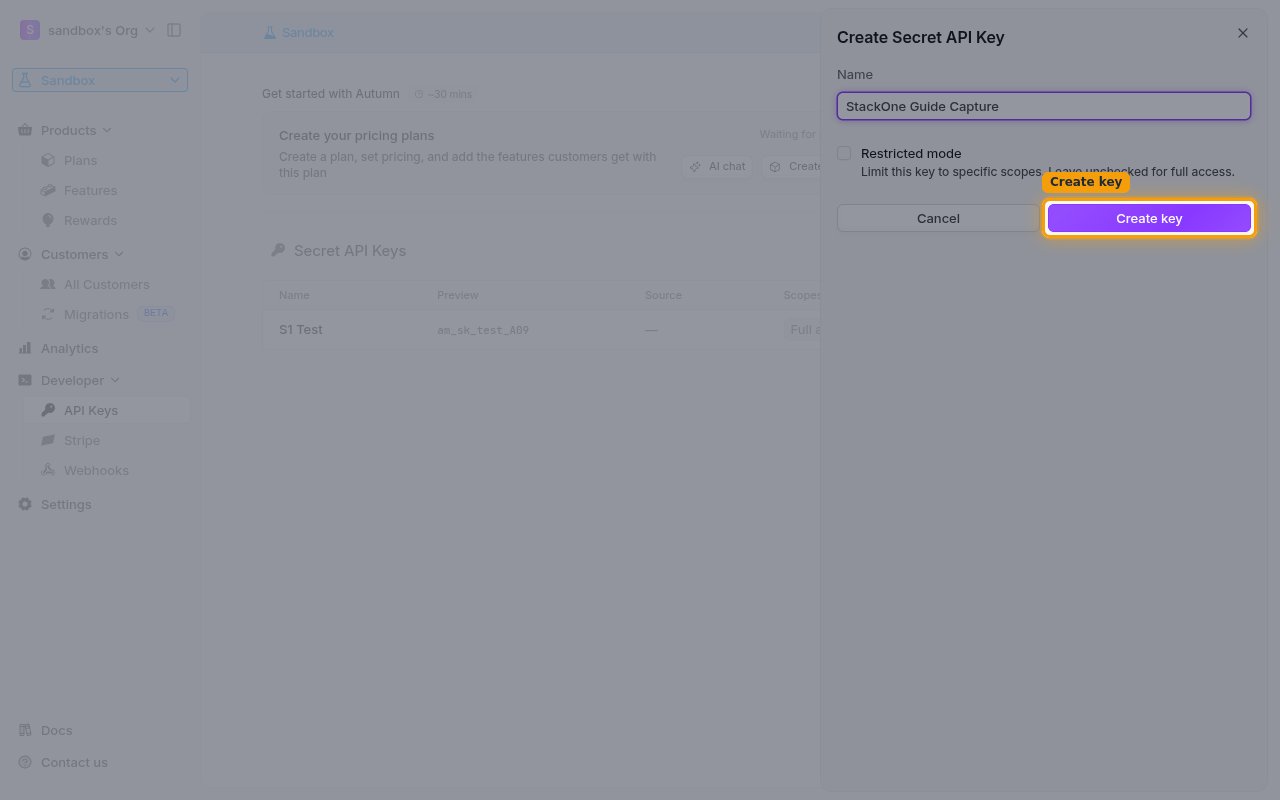
In the Create Secret API Key dialog, enter a Name that identifies this integration (for example, StackOne). Leave Restricted mode unchecked — its help text reads Limit this key to specific scopes. Leave unchecked for full access. Then click Create key.
Copy the secret key
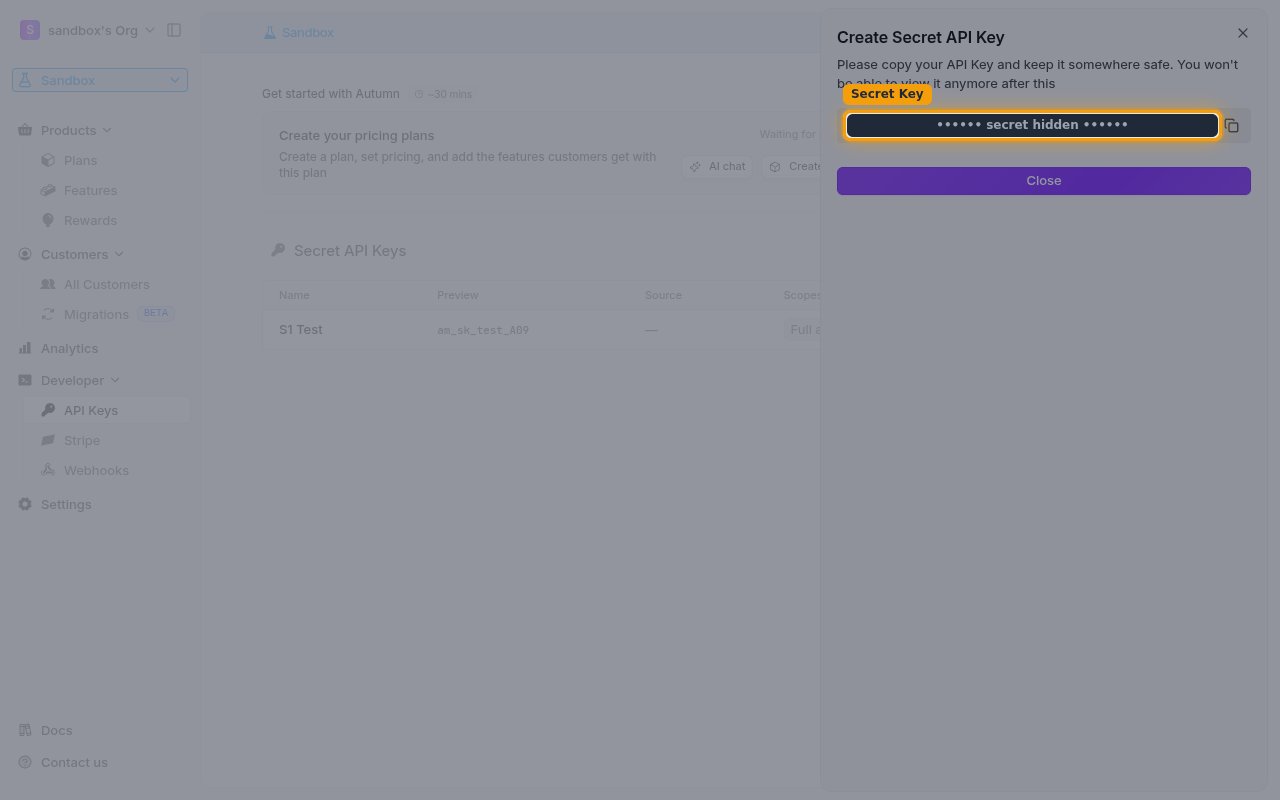
Copy the generated key using the copy button next to the value. Autumn shows the warning Please copy your API Key and keep it somewhere safe. You won’t be able to view it anymore after this — store it securely before closing the dialog.
- The full secret key is shown only once and cannot be retrieved later — it cannot be viewed again after you close this dialog. If you lose it, create a new key.
- Paste the value into the Secret Key field in StackOne Hub.
Linking the Account from the Hub
Navigate to the Hub
Fill out the fields
- Secret Key
Connect
- Click Connect
- If applicable, the provider will redirect you to a sign-in or authorization page. Complete the provider’s authorization flow.
- Once authorization is successful, you will see a confirmation popup
If the account linking is successful, you will see the newly linked account on your Accounts page.
Next Steps
Webhooks setup
Configure receiving Events for Autumn into StackOne.