

Prerequisites
The connector should already be set up, with a Connector Profile and a Linked Account. See Getting Started on the Attentive connector page.Copy your Native Webhook URL
Attentive webhooks are added manually in Attentive. StackOne does not create them for you. Start by copying the URL Attentive will send events to.
- Open the linked account in StackOne.
- Copy the value from Native Webhook URL. It is available once the account is connected and is unique to that account.
Adding the webhook in Attentive
Register the Native Webhook URL as a Universal webhook on your Attentive custom app and choose which events it sends.
Sign in to Attentive
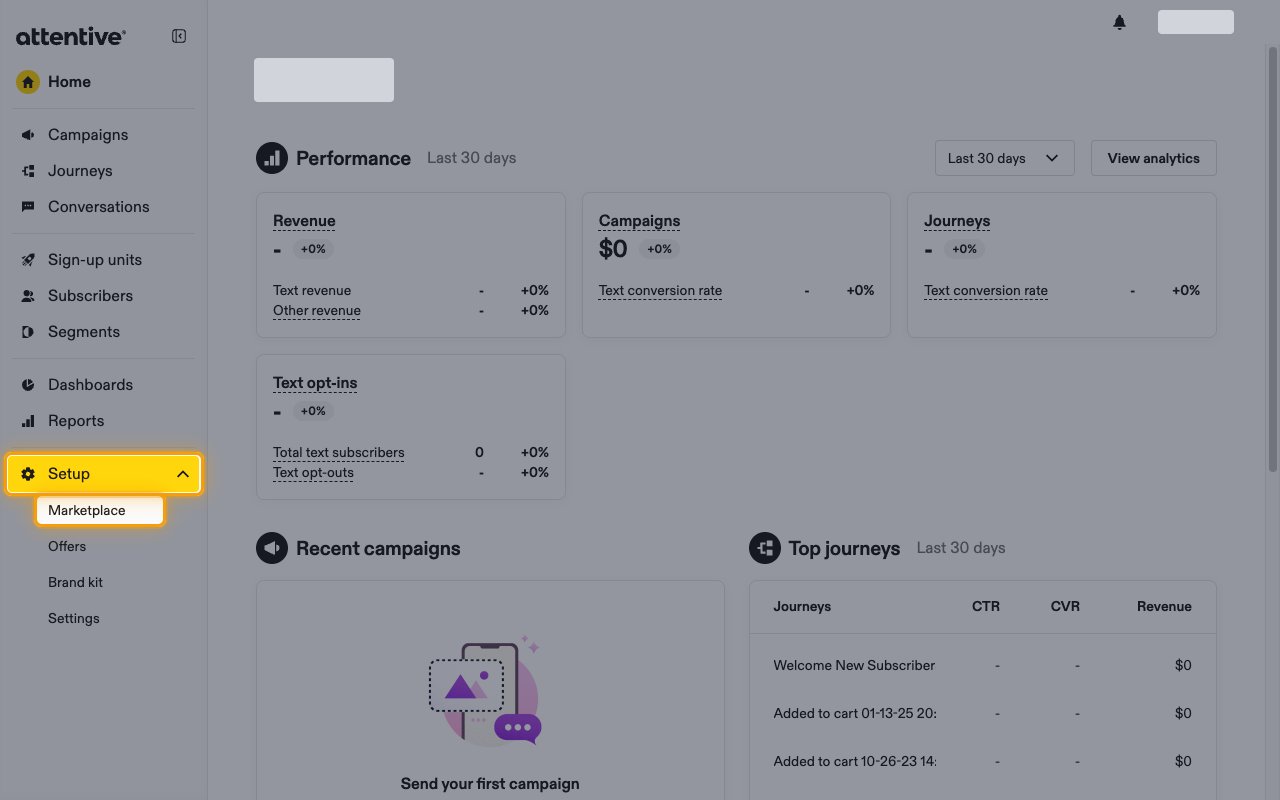
Open your custom apps
On the App marketplace page, click the Built by you tab.
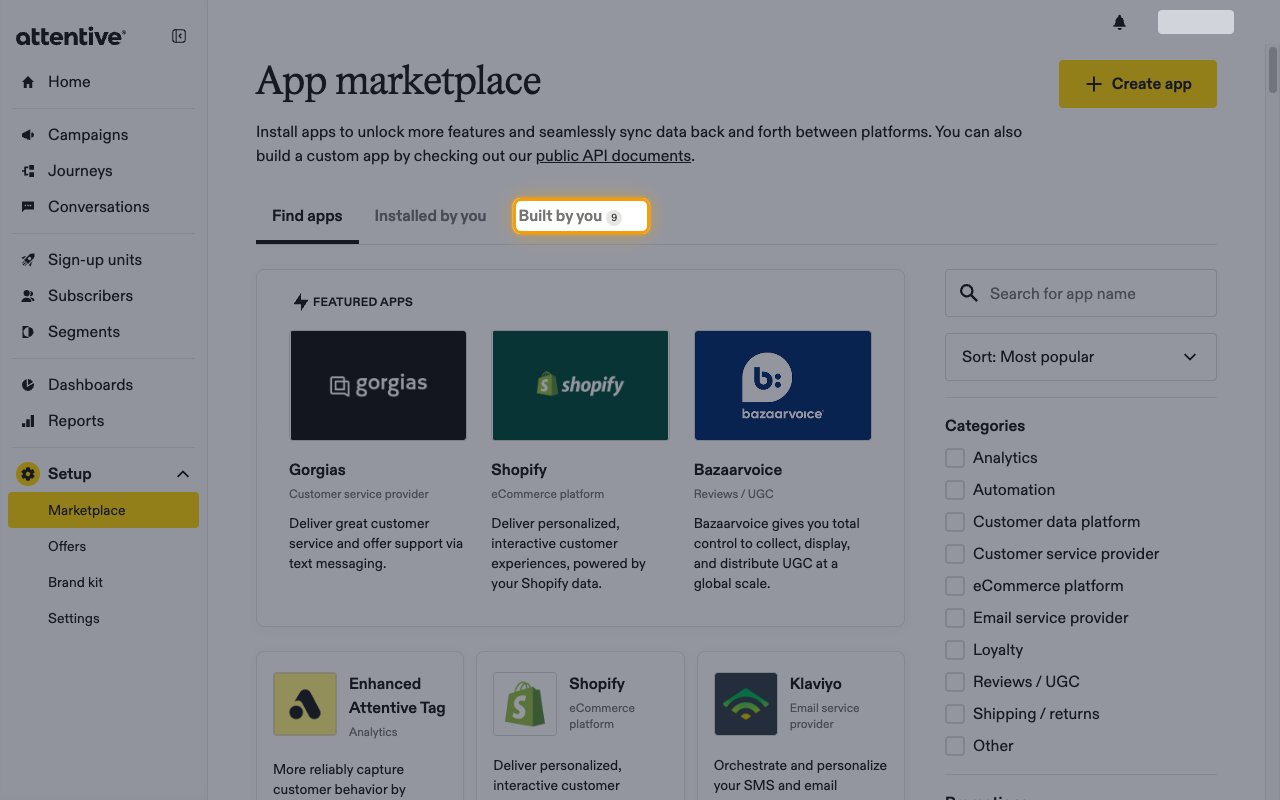
Select the custom app
Click the custom app that holds the API key used by this StackOne account.
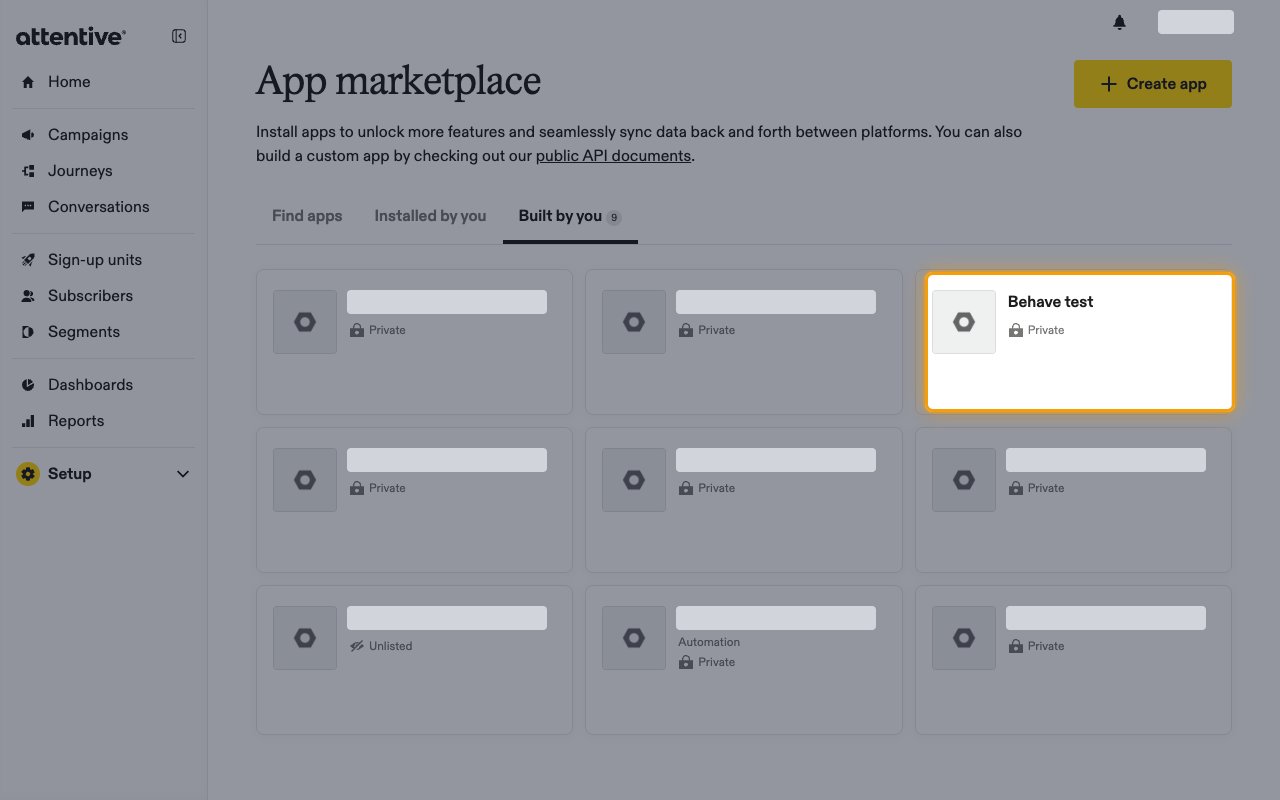
Open the Webhooks tab
On the app page, click the Webhooks tab.
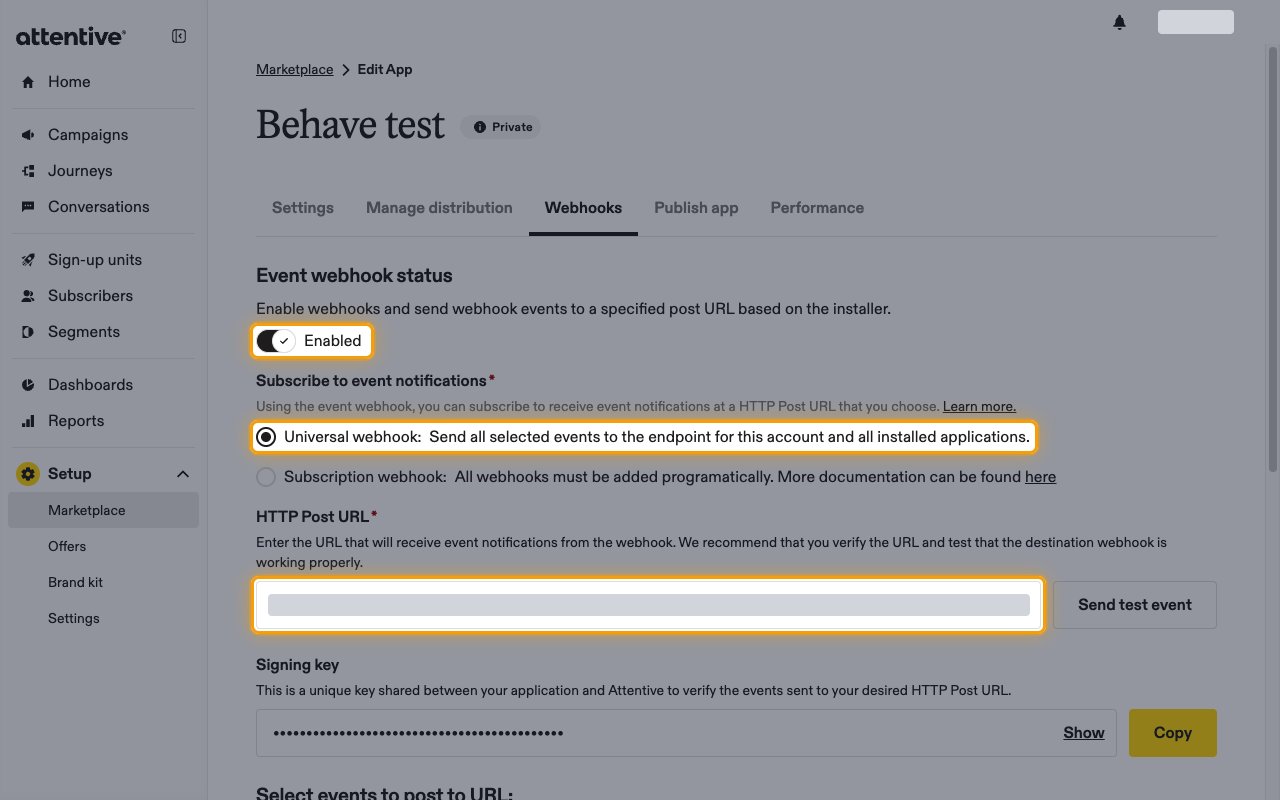
Enable the Universal webhook
Turn on Event webhook status so the toggle shows Enabled.
- Under Subscribe to event notifications, select Universal webhook.
- Paste the Native Webhook URL into HTTP Post URL.
Select the events
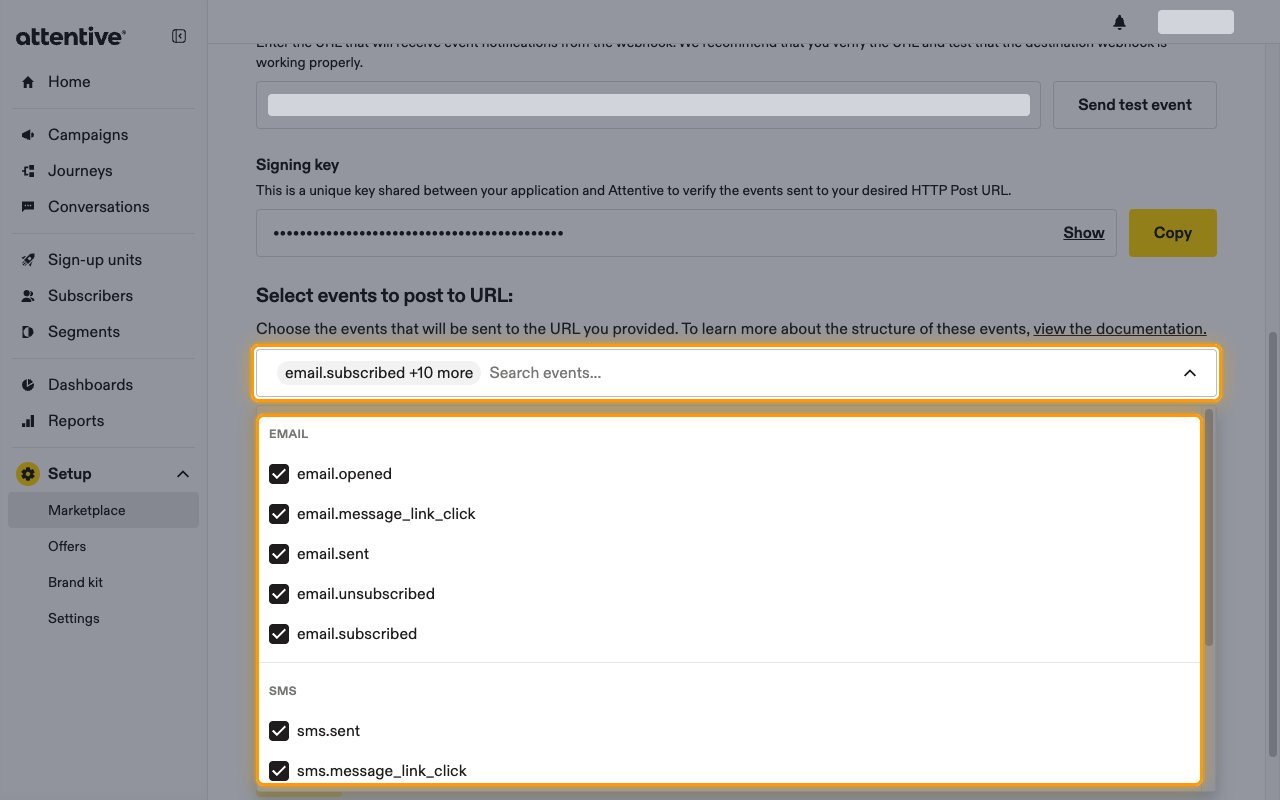
Open Select events to post to URL and tick each event you enabled in StackOne.
- Events are grouped by channel, such as EMAIL and SMS.
- Attentive recommends that each event type is selected in only one app per company, to avoid duplicate deliveries.
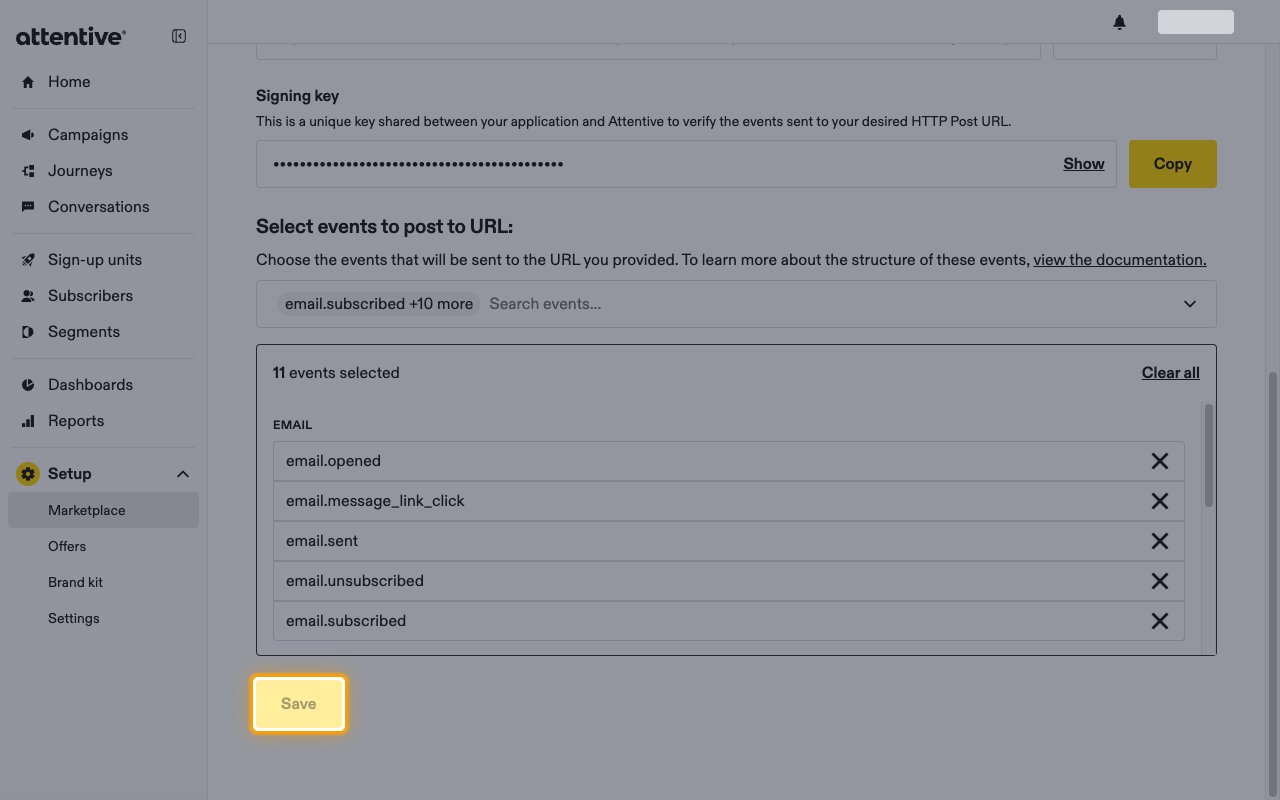
Save the webhook
Click Save. Attentive starts sending the selected events to StackOne.
Available webhook events
The following Attentive events can be enabled. Only events that are enabled in StackOne and selected in the Attentive webhook are delivered.
Subscription events
Events related to SMS and email opt-ins and opt-outs.
- SMS Subscribed (
sms.subscribed) — Fired when a user opts in to SMS marketing or transactional messages - SMS Unsubscribed (
sms.unsubscribed) — Fired when a user opts out of SMS - Email Subscribed (
email.subscribed) — Fired when a user opts in to email - Email Unsubscribed (
email.unsubscribed) — Fired when a user opts out of email
Message events
Events related to messages Attentive sends and how subscribers respond.
- SMS Sent (
sms.sent) — Fired when Attentive sends an SMS to a subscriber - SMS Link Clicked (
sms.message_link_click) — Fired when a subscriber clicks a link in an SMS - SMS Inbound Message (
sms.inbound_message) — Fired when a subscriber replies to an SMS - Email Sent (
email.sent) — Fired when Attentive sends an email to a subscriber - Email Opened (
email.opened) — Fired when a subscriber opens an email - Email Link Clicked (
email.message_link_click) — Fired when a subscriber clicks a link in an email
Custom attribute events
Events related to subscriber custom attributes.
- Custom Attribute Set (
custom_attribute.set) — Fired when a custom attribute is added or updated for a subscriber
Active check
Acknowledges any Attentive delivery without a recognized event type, so Attentive does not retry it.
- Active Check (
active_check) — Returns a 200 response for unrecognized deliveries
Delivery format
Details of how Attentive delivers events to StackOne.
One event per request
Each request carries a single JSON event with its type, a timestamp in epoch milliseconds, the company, the subscriber and an event-specific object. Email events are only sent when the Attentive email product is enabled for your company.