

Prerequisites
The connector should already be set up, with a Connector Profile and a Linked Account. See Getting Started on the Anthropic connector page.Create the webhook endpoint
Anthropic delivers events to a webhook endpoint you register in the Claude Console. There is no API for creating one, so this is done by hand. Endpoints belong to a workspace and receive events from that workspace only.
Retrieve your StackOne Native Webhook URL
The Native Webhook URL is generated once an account has been linked. You will paste it into the Console in a later step.
- Open the linked account in StackOne.
- Copy the value from Native Webhook URL.
Open the Webhooks page
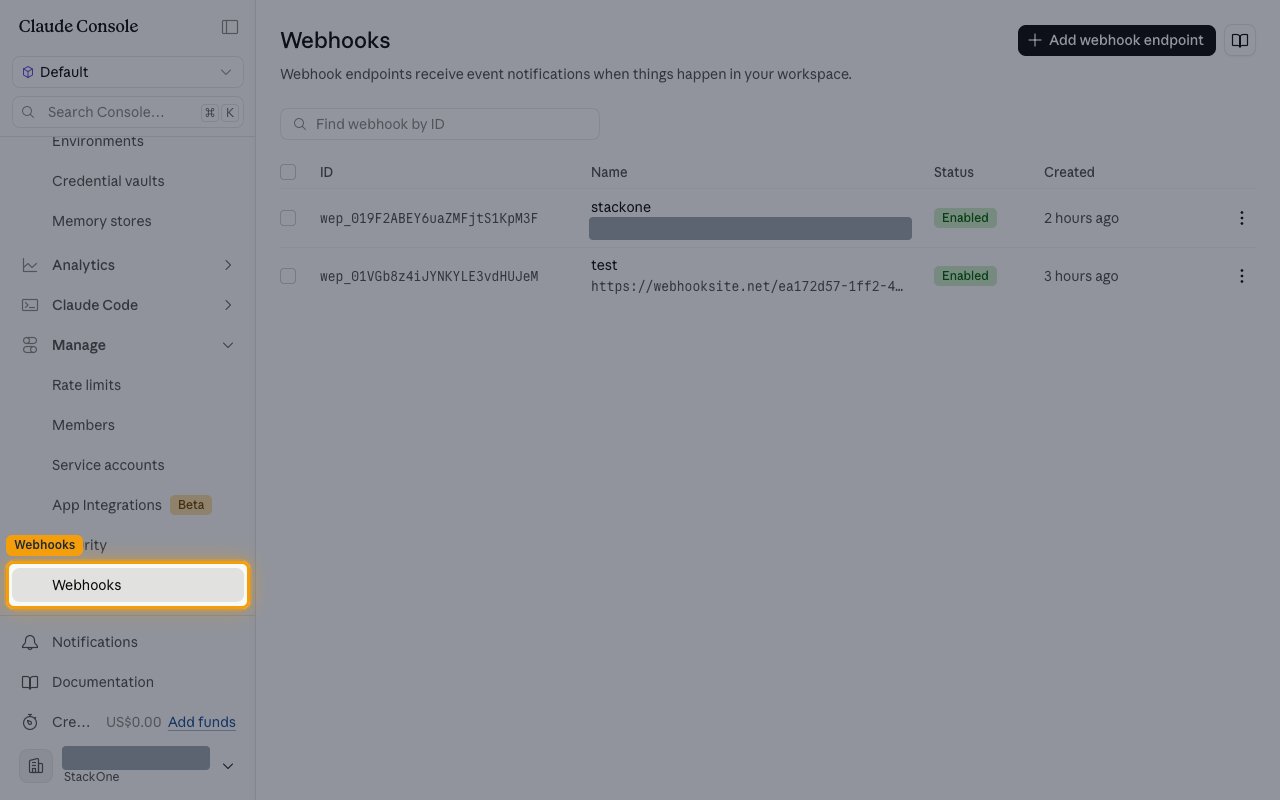
Sign in to the Claude Console, select the workspace whose events you want, then click Webhooks under Manage in the sidebar. The page lists existing endpoints by ID, Name, Status and Created.
- Pick the workspace deliberately — an endpoint receives events from its own workspace only, so it must be the workspace your agents, sessions and deployments run in.
Add an endpoint
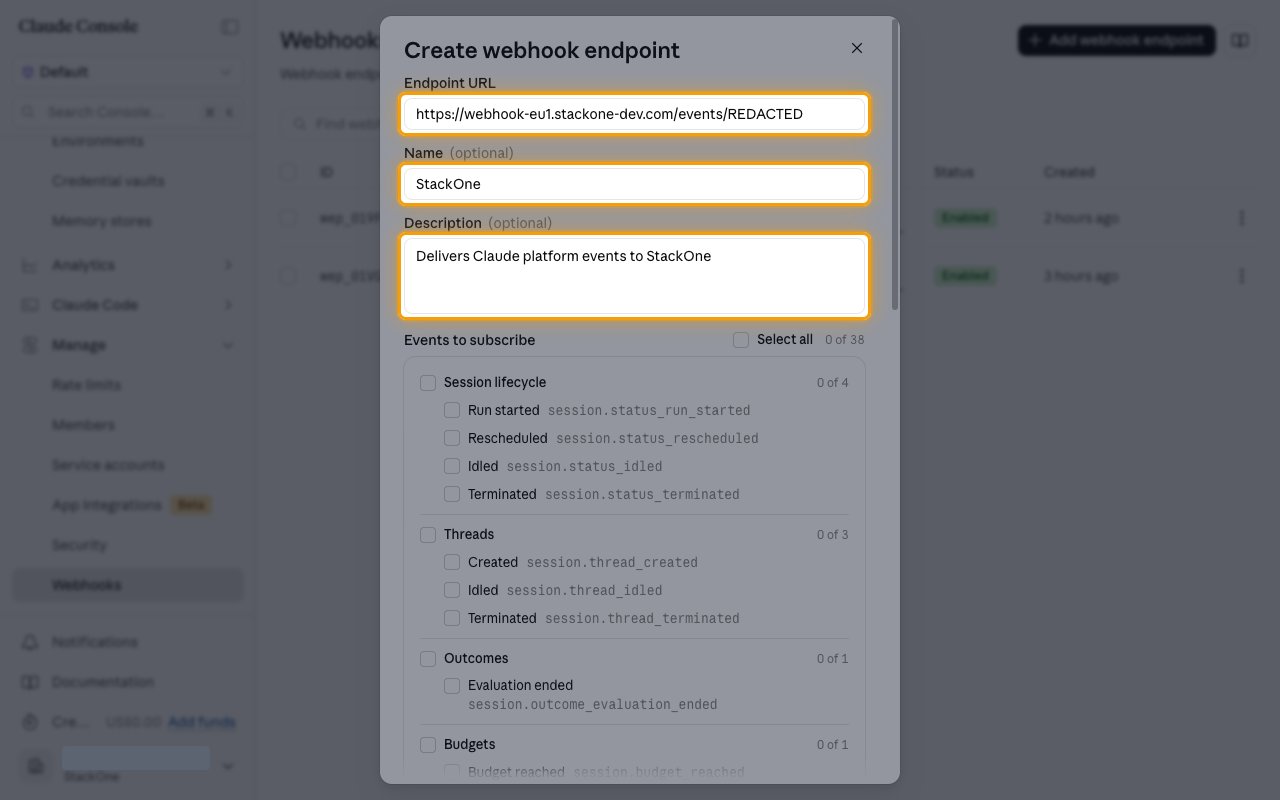
Click Add webhook endpoint. In the Create webhook endpoint dialog, paste your Native Webhook URL into Endpoint URL. Name and Description are optional — a name such as StackOne makes the endpoint easy to recognise later.
- The URL must be HTTPS on port 443 with a publicly resolvable hostname.
Subscribe to the events
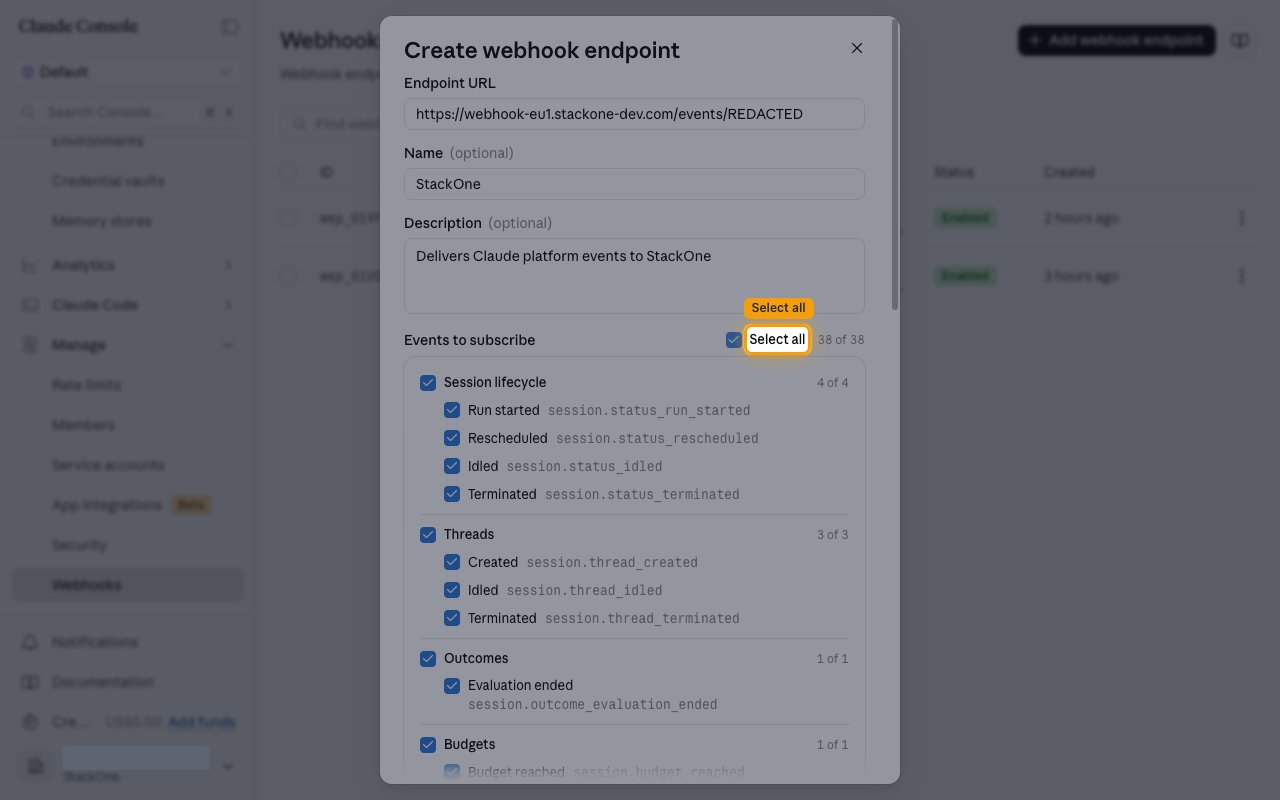
Under Events to subscribe, tick the events you want delivered. Click Select all to subscribe to all 38 at once, or tick a group header to take that group.
- The counter beside Select all shows how many of the 38 are selected, and each group shows its own count.
- Events are grouped as Session lifecycle, Threads, Outcomes, Budgets, Session record, Vault lifecycle, Credential lifecycle, Agent lifecycle, Deployment lifecycle, Deployment runs, Environment lifecycle and Memory store lifecycle.
Save the signing secret
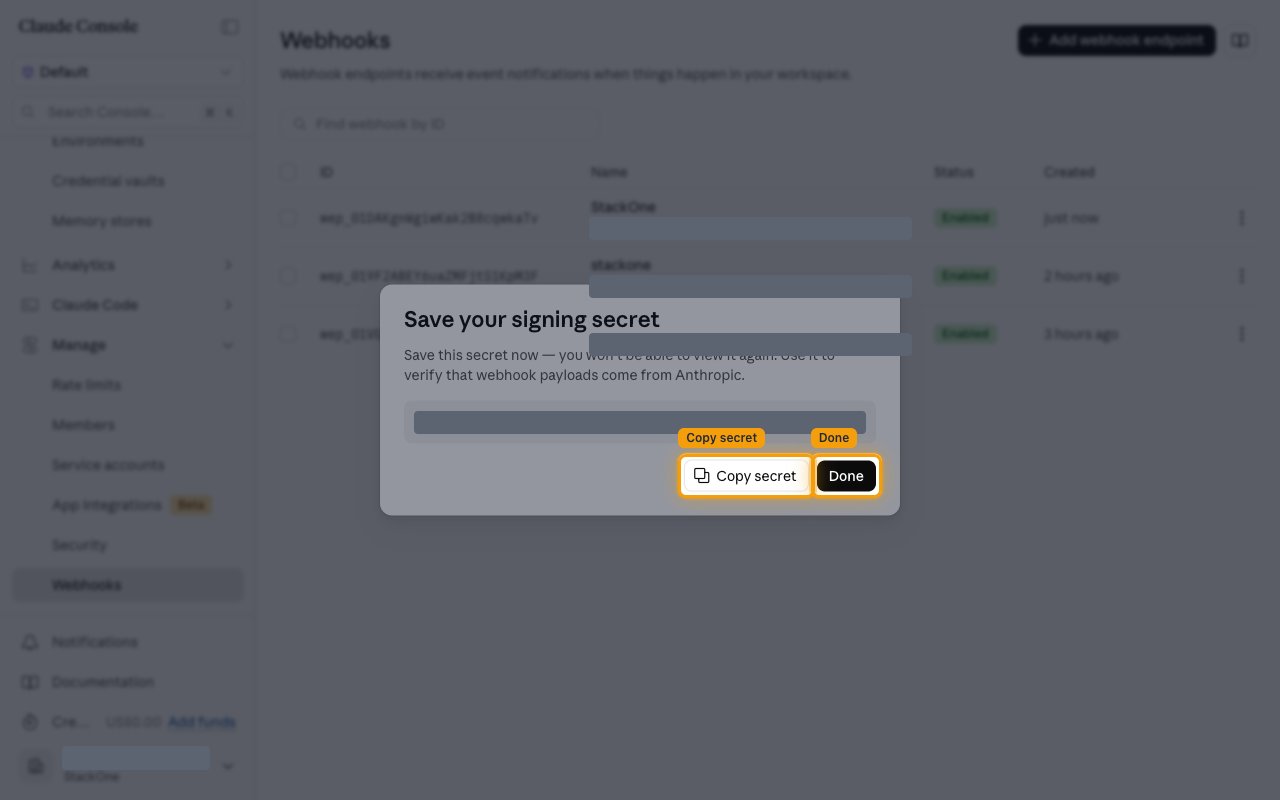
Click Create webhook endpoint. The Save your signing secret dialog shows a whsec_-prefixed secret. Click Copy secret, store it somewhere safe, then click Done.
- The secret is shown once and cannot be viewed again. If you lose it, use Regenerate signing secret on the endpoint to issue a new one.
- StackOne does not need this secret. It authenticates each delivery using the token already in the Native Webhook URL.
Confirm the endpoint is receiving events
Check the endpoint is enabled and subscribed to what you expect before relying on live events.
Check the endpoint is enabled
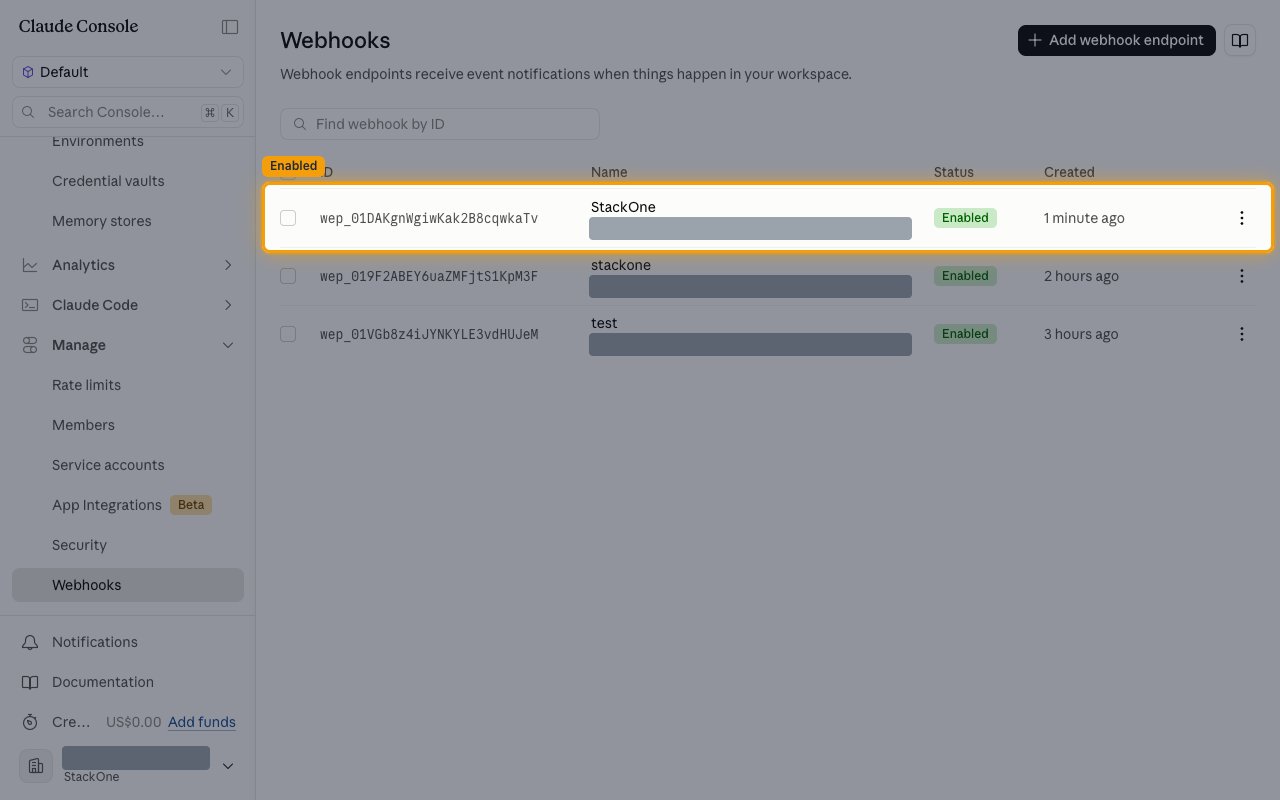
The endpoint now appears in the list with an Enabled status. Click it to open its details.
Review the subscribed events
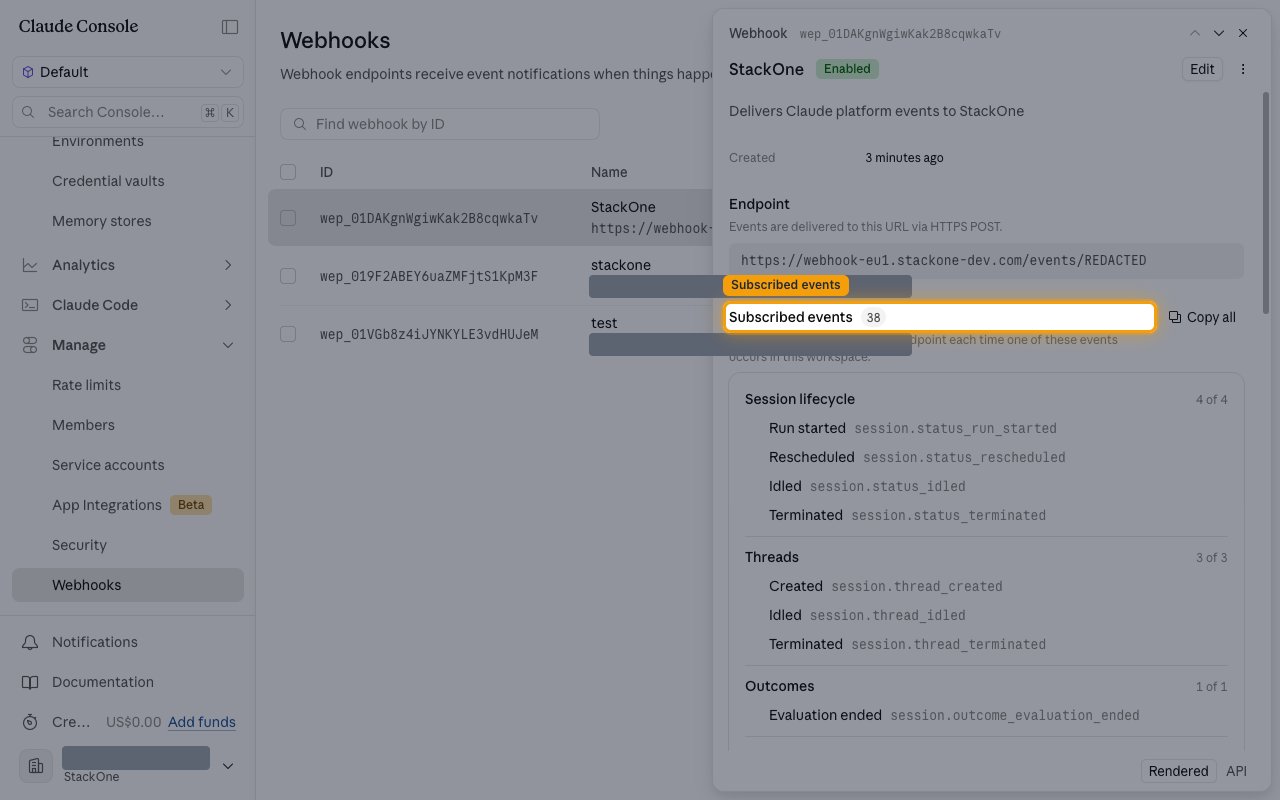
The detail panel shows the Endpoint URL, when it was Created, and Subscribed events with the count and the full list by group. More actions holds Disable, Regenerate signing secret and Delete.
- Edit changes the URL or the subscription. If your endpoint moves, update the URL here rather than redirecting to the new one.
Available webhook events
The Console groups the 38 event types as below. Only events subscribed on the endpoint are delivered, and a subscription added later does not backfill events already emitted.
Subscribe to session lifecycle events
Events covering a session’s run state.
- Run started (
session.status_run_started) — Fired when a session starts running and begins work. - Rescheduled (
session.status_rescheduled) — Fired when a session is rescheduled to run at a different time. - Idled (
session.status_idled) — Fired when a session stops working and becomes idle. - Terminated (
session.status_terminated) — Fired when a session is terminated and will do no further work.
Subscribe to thread, outcome and budget events
Events covering threads within a session, its outcome evaluation and its budget.
- Created (
session.thread_created) — Fired when a new thread is created within a session. - Idled (
session.thread_idled) — Fired when a thread within a session becomes idle. - Terminated (
session.thread_terminated) — Fired when a thread within a session is terminated. - Evaluation ended (
session.outcome_evaluation_ended) — Fired when the outcome evaluation for a session completes. - Budget reached (
session.budget_reached) — Fired when a session reaches the budget allocated to it.
Subscribe to session record events
Events covering changes to the session record itself.
- Updated (
session.updated) — Fired when a session’s configuration or metadata changes. - Deleted (
session.deleted) — Fired when a session is deleted.
Subscribe to vault and credential events
Events covering credential vaults and the credentials inside them.
- Created (
vault.created) — Fired when a vault is created. - Archived (
vault.archived) — Fired when a vault is archived. - Deleted (
vault.deleted) — Fired when a vault is deleted. - Created (
vault_credential.created) — Fired when a credential is created in a vault. - Archived (
vault_credential.archived) — Fired when a vault credential is archived. - Deleted (
vault_credential.deleted) — Fired when a vault credential is deleted. - Refresh failed (
vault_credential.refresh_failed) — Fired when refreshing a vault credential fails, so the credential may no longer be usable.
Subscribe to agent events
Events covering managed agents.
- Created (
agent.created) — Fired when an agent is created. - Updated (
agent.updated) — Fired when an agent’s configuration changes. - Archived (
agent.archived) — Fired when an agent is archived. - Deleted (
agent.deleted) — Fired when an agent is deleted.
Subscribe to deployment events
Events covering deployments and the runs they produce.
- Created (
deployment.created) — Fired when a deployment is created. - Updated (
deployment.updated) — Fired when a deployment’s configuration changes. - Paused (
deployment.paused) — Fired when a deployment is paused and stops starting new runs. - Unpaused (
deployment.unpaused) — Fired when a paused deployment is resumed. - Archived (
deployment.archived) — Fired when a deployment is archived. - Deleted (
deployment.deleted) — Fired when a deployment is deleted. - Started (
deployment_run.started) — Fired when a deployment run starts. - Succeeded (
deployment_run.succeeded) — Fired when a deployment run completes successfully. - Failed (
deployment_run.failed) — Fired when a deployment run fails.
Subscribe to environment and memory store events
Events covering environments and memory stores.
- Created (
environment.created) — Fired when an environment is created. - Updated (
environment.updated) — Fired when an environment’s configuration changes. - Archived (
environment.archived) — Fired when an environment is archived. - Deleted (
environment.deleted) — Fired when an environment is deleted. - Created (
memory_store.created) — Fired when a memory store is created. - Archived (
memory_store.archived) — Fired when a memory store is archived. - Deleted (
memory_store.deleted) — Fired when a memory store is deleted.