

Prerequisites
The connector should already be set up, with a Connector Profile and a Linked Account. See Getting Started on the Amplitude connector page.Register the StackOne webhook in Amplitude
This connector uses Manual Webhooks. You add StackOne’s Native Webhook URL as a Webhook destination in Amplitude Data. Amplitude sends no verification ping, so the destination is ready as soon as it is saved.
Retrieve StackOne Native Webhook URL
The Native Webhook URL is generated once an account has been linked. It identifies your linked account, so no other routing field is needed.
- Open the linked account in StackOne.
- Copy the value from Native Webhook URL.
Sign in to Amplitude
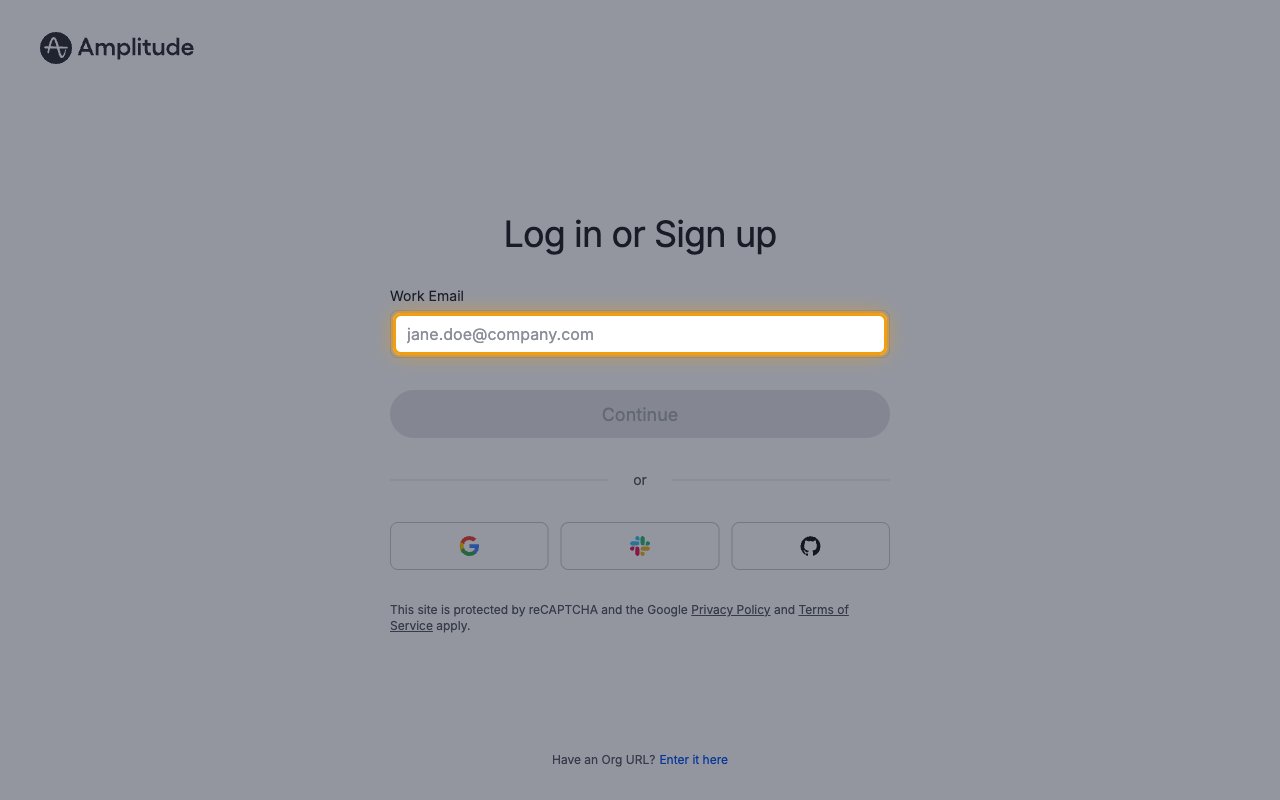
Sign in to your Amplitude account in the region your project lives in.
- Standard Server — Amplitude account
- EU Residency Server — Amplitude EU account
- Enter your Work Email and click Continue.
Open Destinations
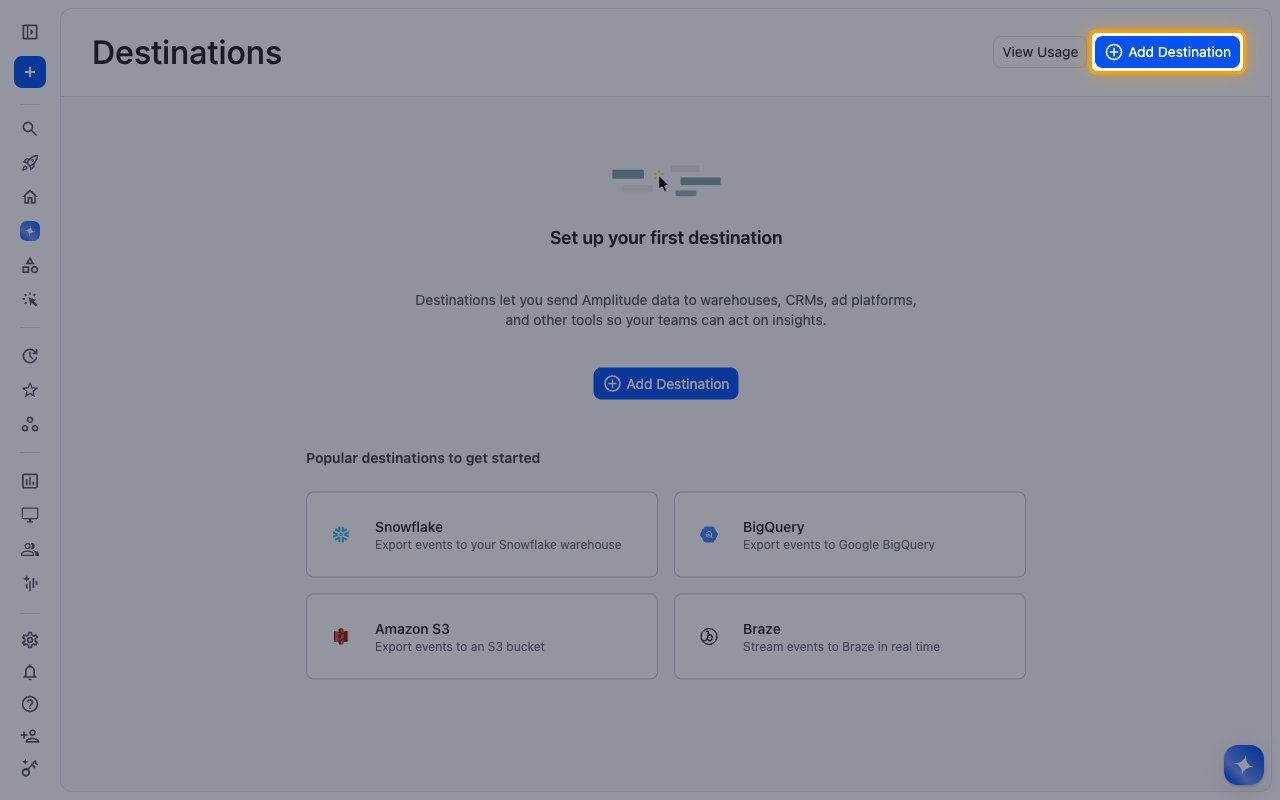
In the left navigation, open Data and click Connect Destinations. On Destinations, click Add Destination.
Select the Webhook destination
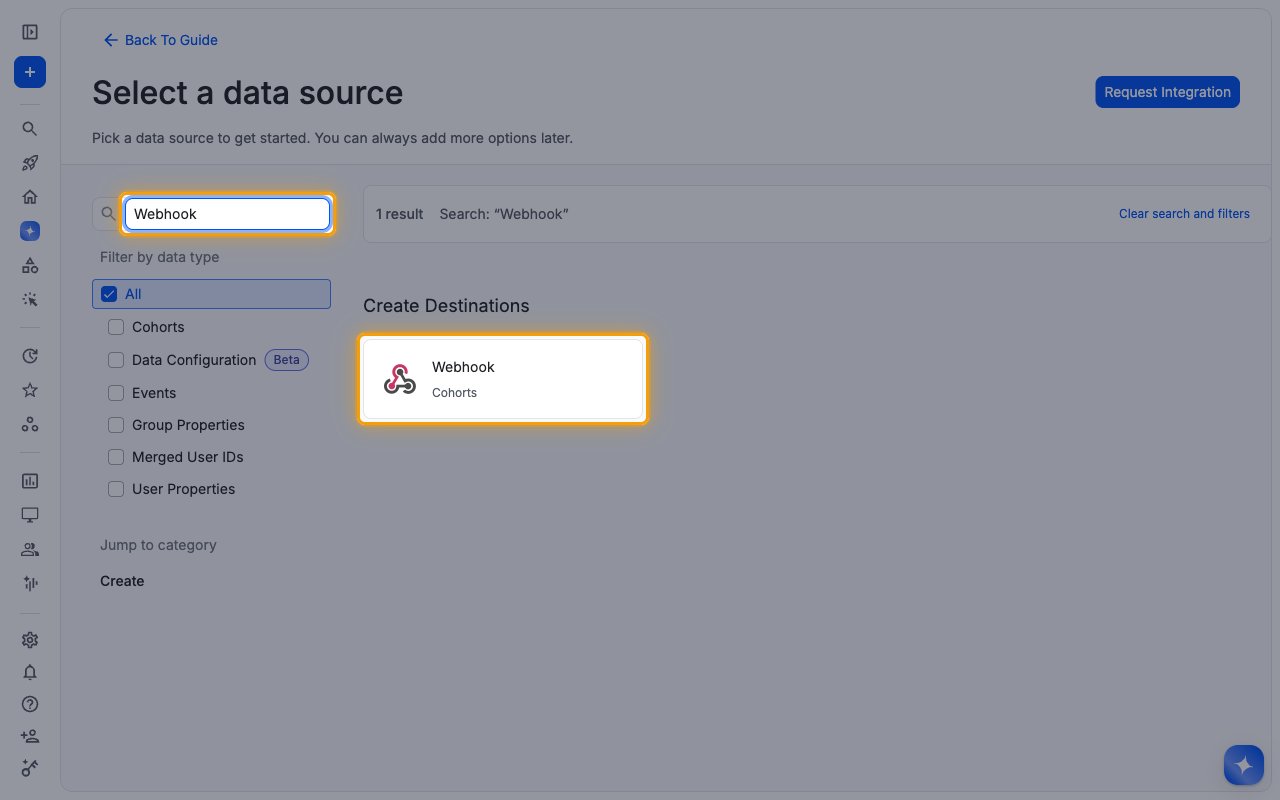
Type Webhook into Search and click the Webhook card under Create Destinations.
Configure the destination
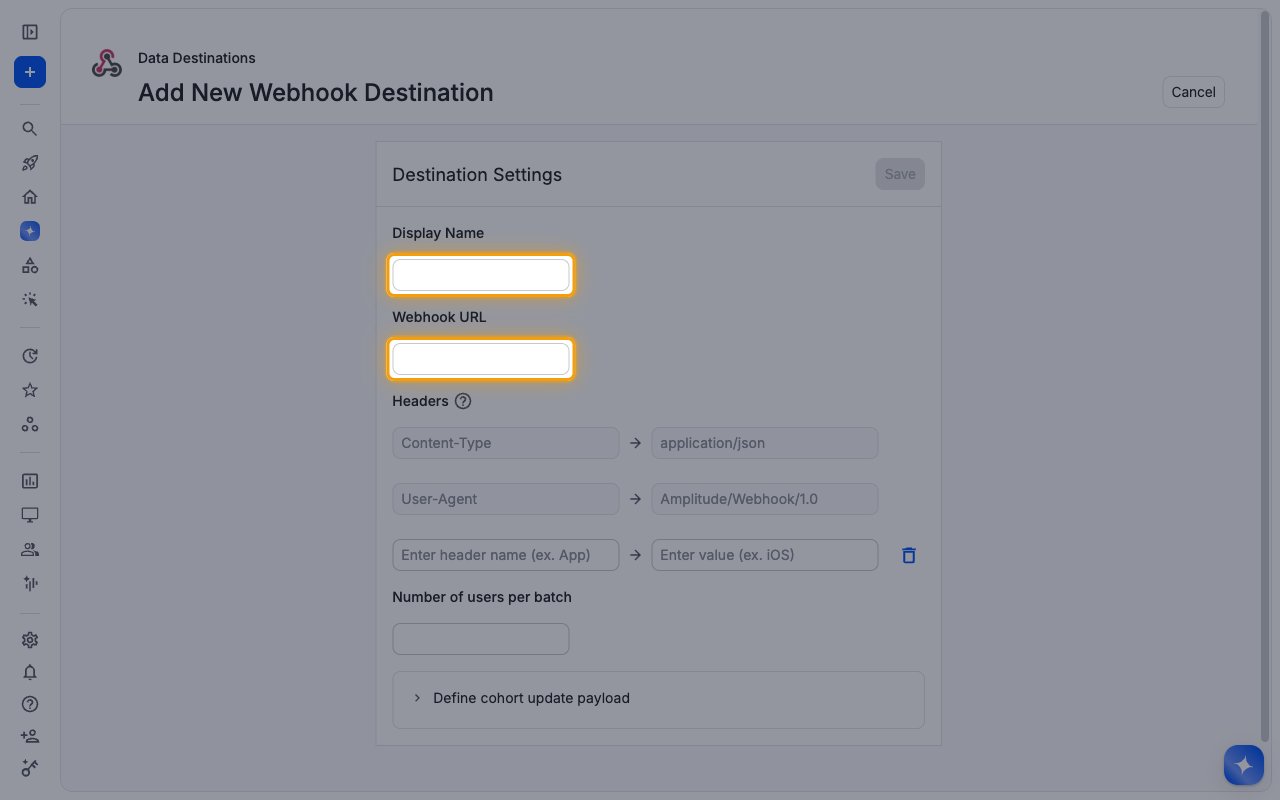
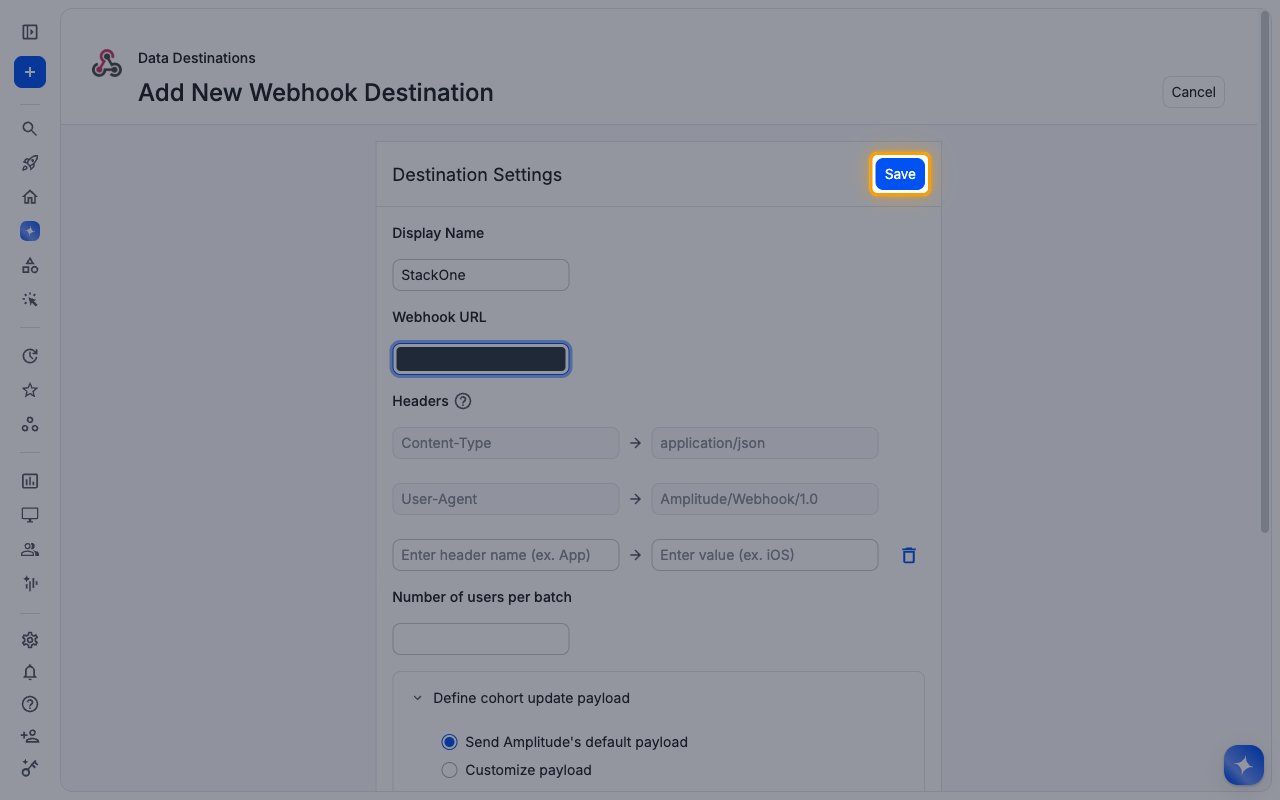
On Add New Webhook Destination, fill in the Destination Settings.
- Display Name:
StackOne - Webhook URL: paste the Native Webhook URL you copied from StackOne.
- Leave Headers as they are. The preset Content-Type and User-Agent headers are all StackOne needs.
- Optionally set Number of users per batch to limit how many users each delivery carries.
Keep the default payload
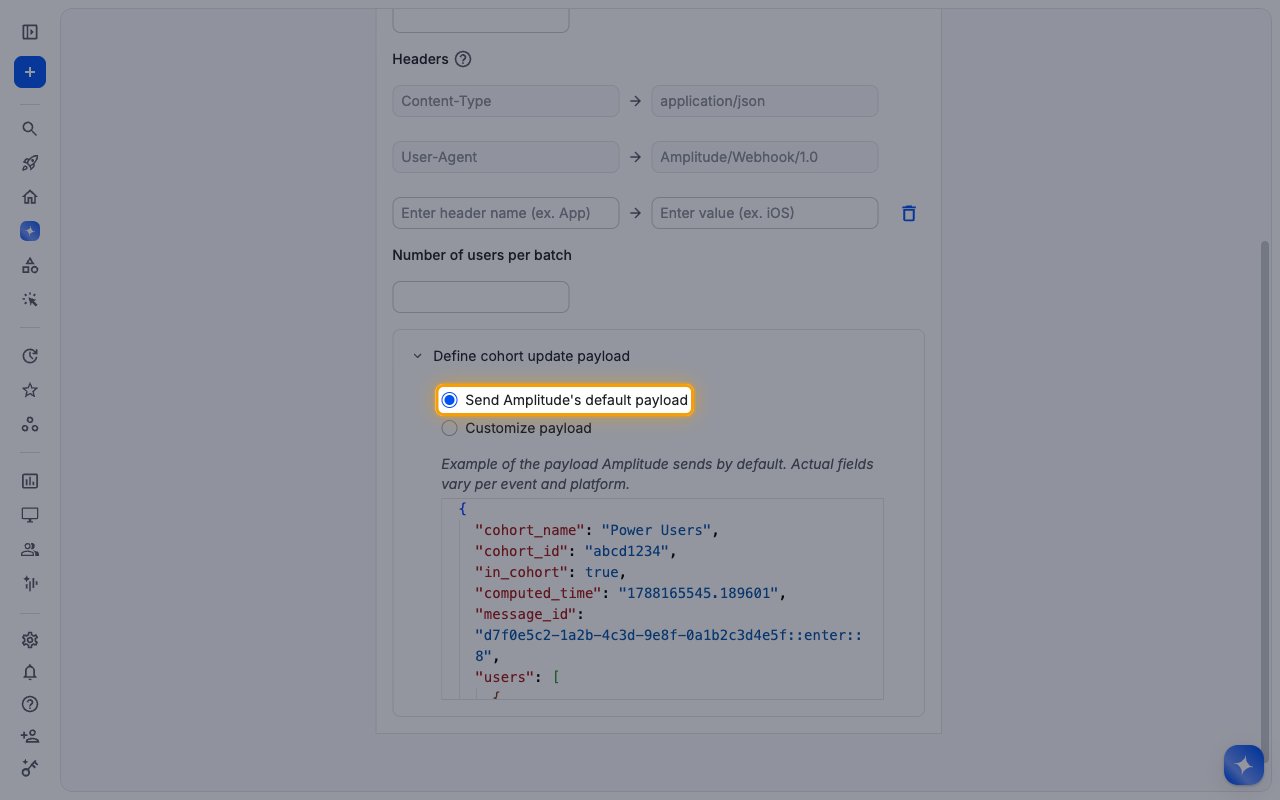
Expand Define cohort update payload and keep Send Amplitude’s default payload selected. StackOne routes events by the default payload fields, so a customized payload is not delivered to any event.
Save the destination
Click Save.
Confirm the destination is connected
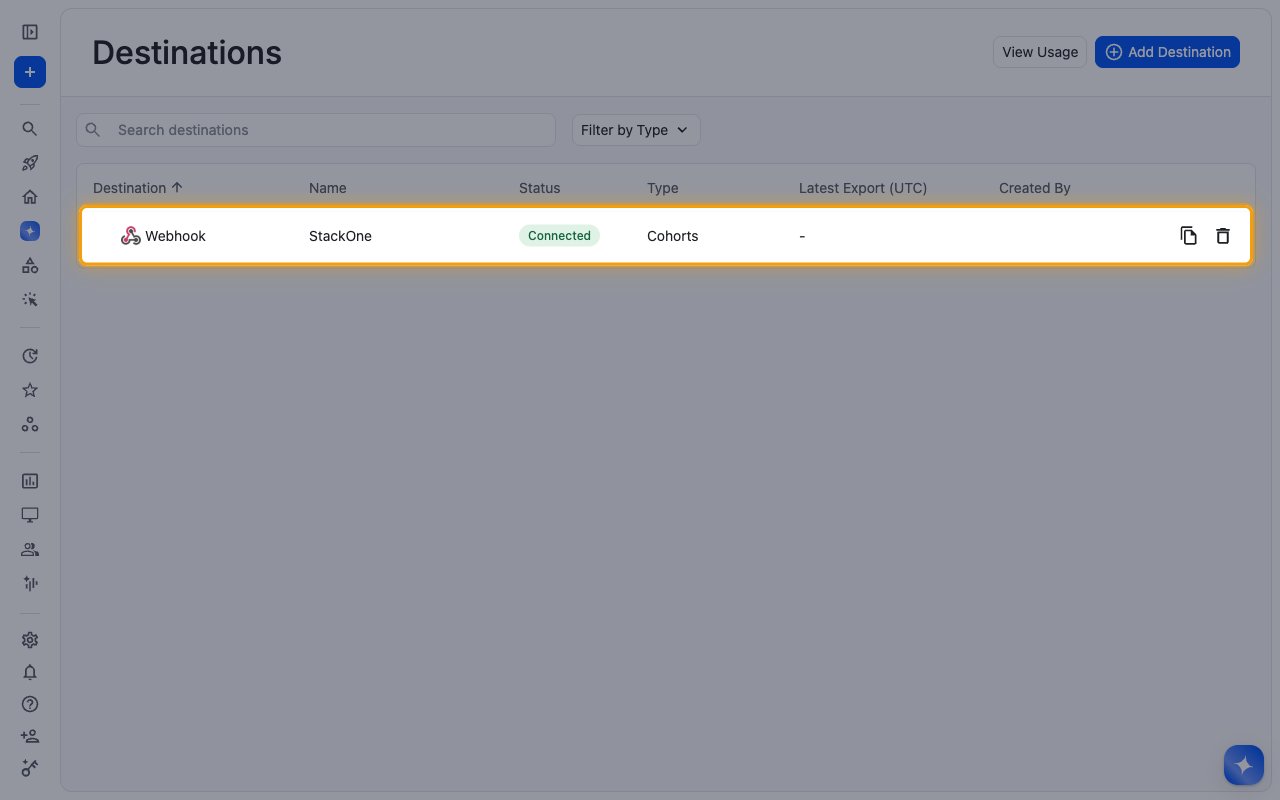
The new Webhook destination named StackOne appears on Destinations with the status Connected.
Sync a cohort to StackOne
Cohort events are sent when a cohort is synced to the StackOne destination. Repeat these steps for every cohort you want to receive events for.
Open the cohort
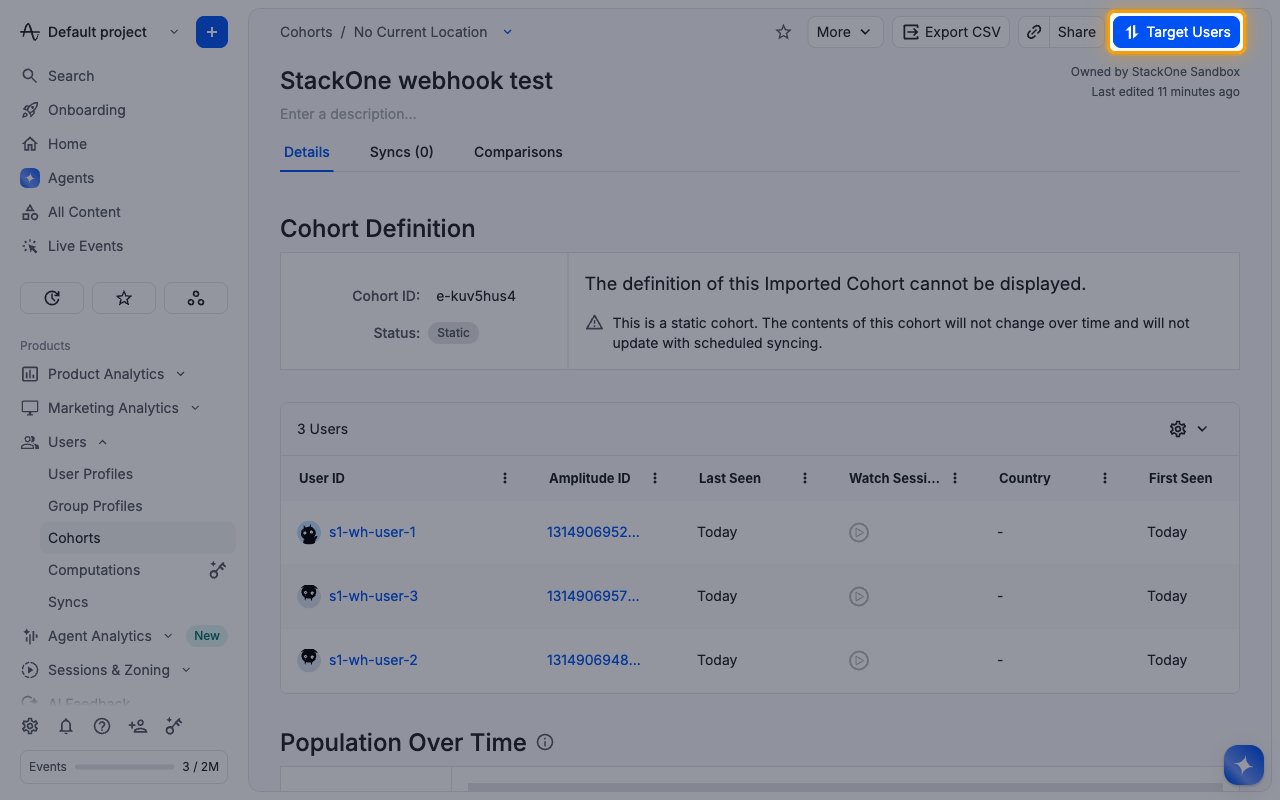
In the left navigation, open Users > Cohorts, open the cohort, and click Target Users.
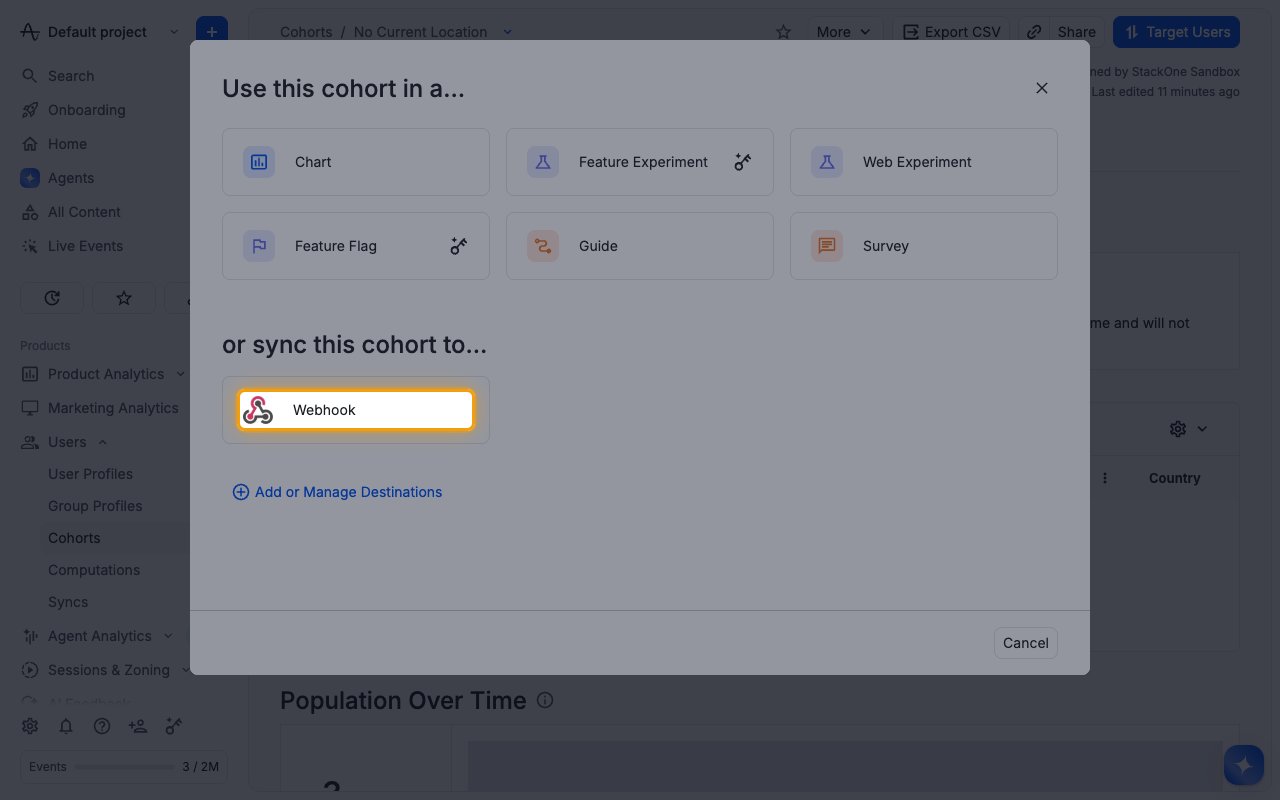
Choose the Webhook destination
Under or sync this cohort to…, click Webhook.
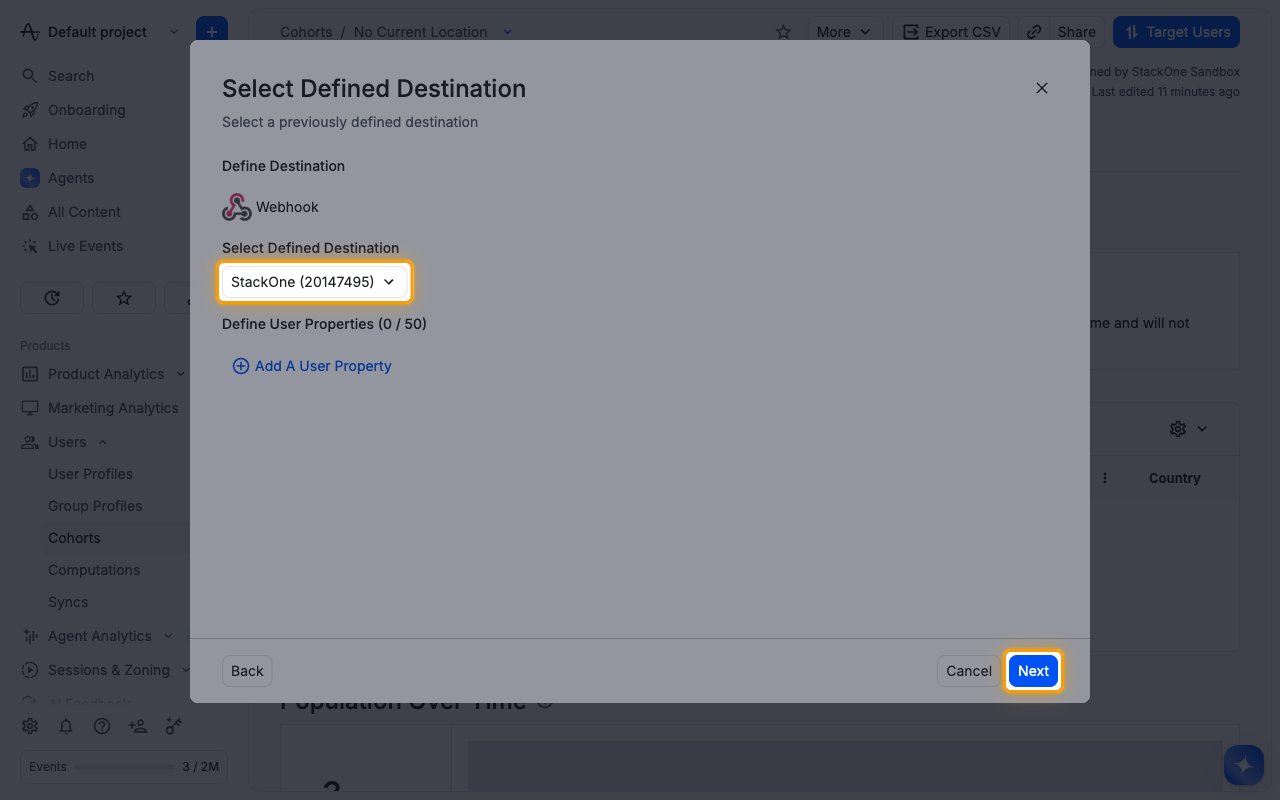
Select the StackOne destination
In Select Defined Destination, pick the StackOne destination you created and click Next.
- Optionally use Add A User Property to include user properties with each user in the payload.
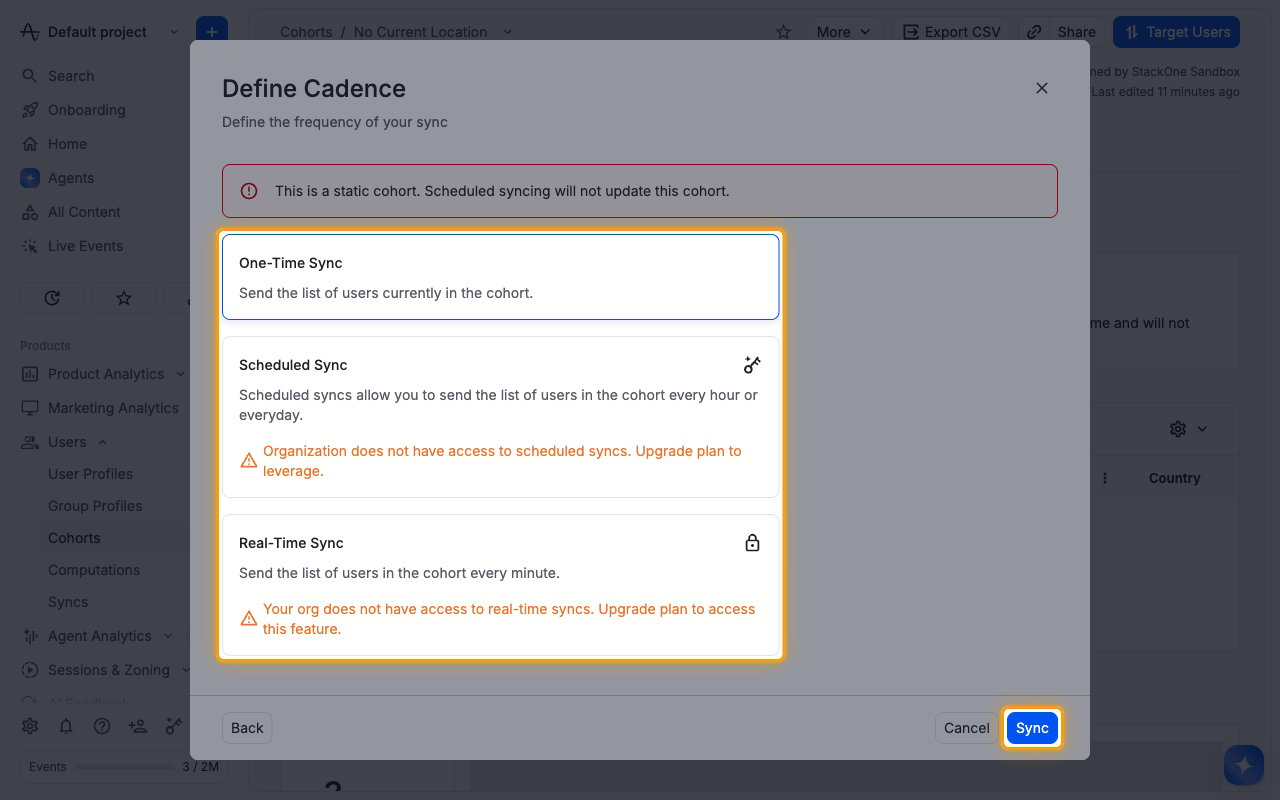
Choose a cadence and start the sync
On Define Cadence, pick how often Amplitude sends the cohort, then click Sync.
- One-Time Sync sends the users currently in the cohort. Running it again later sends only the changes since the last sync.
- Scheduled Sync sends changes every hour or every day, and Real-Time Sync every minute. Both require a plan that includes them.
- Static (uploaded) cohorts do not change on their own, so scheduled syncs will not update them.
Stream events and user properties
To receive analytics events and user-property updates as they are ingested, add a second destination of type Webhook: Events · User Properties from Data > Connect Destinations > Add Destination, paste the same Native Webhook URL, keep the default payload, and enable the event and user streams you need. This destination is only listed on plans that include Event Streaming. See Amplitude Webhook Streaming for plan details.
Available webhook events
The following Amplitude events can be enabled. Only events selected in StackOne are delivered, and Amplitude only sends events for the destinations and cohort syncs you configure.
Cohort events
Sent by the Cohort Webhook destination for every synced cohort.
- Cohort Users Entered (
cohort.users_entered) — Fired when a cohort sync delivers a batch of users who joined the cohort - Cohort Users Exited (
cohort.users_exited) — Fired when a cohort sync delivers a batch of users who left the cohort
Event streaming events
Sent by the Webhook Events · User Properties streaming destination.
- Event Streamed (
event.streamed) — Fired for each analytics event Amplitude ingests and forwards - User Streamed (
user.streamed) — Fired for each user-property update Amplitude ingests and forwards
Delivery format
Details of how Amplitude delivers events to StackOne.
Batched cohort payloads
Each cohort delivery carries a list of users for one cohort, marked as entering or leaving it. Large cohorts are split into several deliveries, sized by Number of users per batch. Every delivery has its own message_id, which StackOne uses as the event ID, so retried deliveries can be deduplicated.
Retries
Amplitude retries failed deliveries, so the same event can arrive more than once. Deduplicate on the event ID.